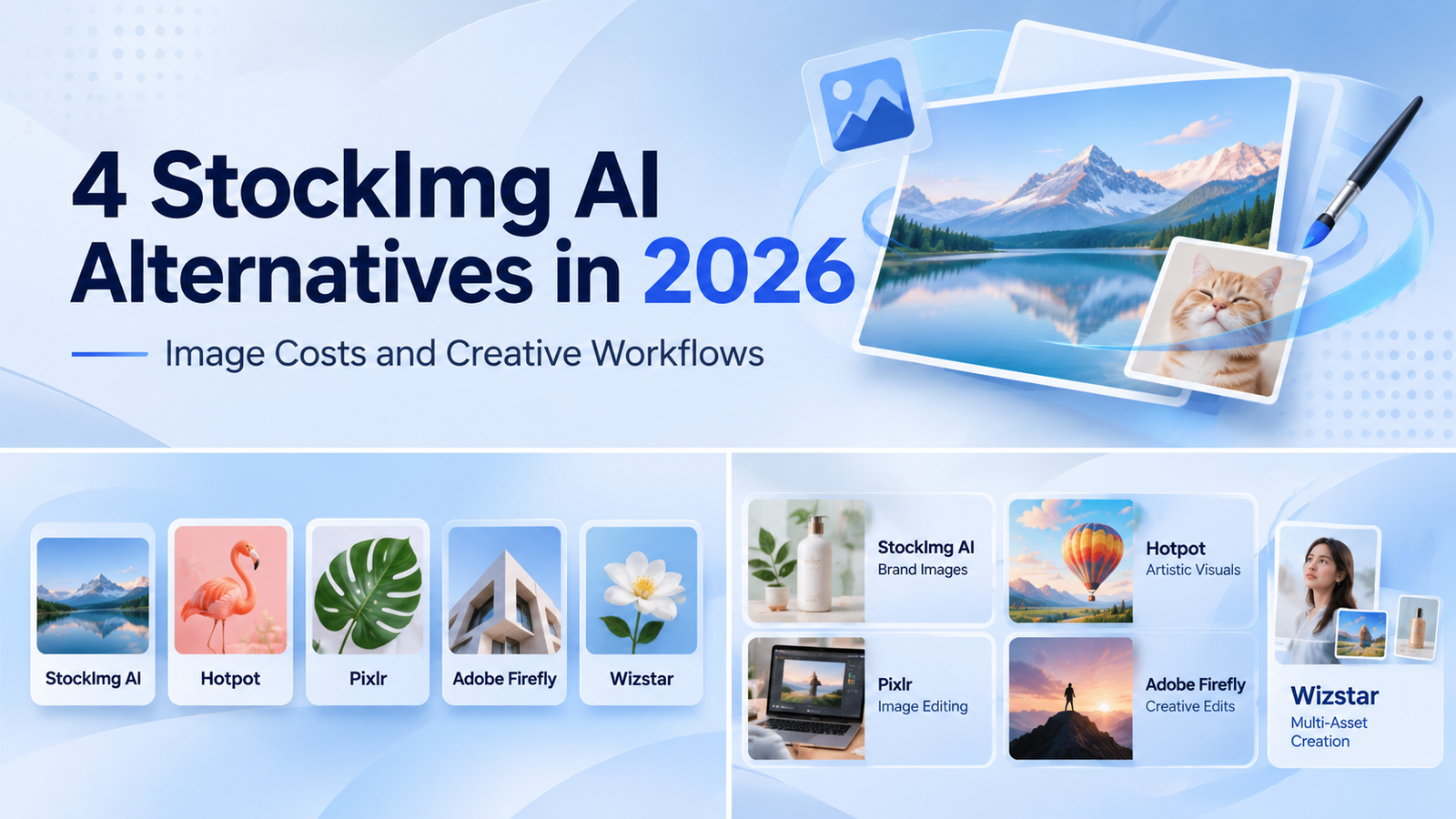
Choose StockImg AI alternatives based on the creative task you need to finish. Wizstar connects brand images directly with video, Hotpot develops artwork concepts, and Pixlr moves generated images straight into an editor. Adobe Firefly excels at targeted changes to existing visuals. I judge these tools by what happens after the first promising generation. A cover illustration still needs lettering, and a social post often requires a wider composition.
Match the tool to your creative task
Stockimg’s FAQ lists logos, posters, stock photos, social posts, and other content. An alternative needs to cover the specific part of that range you actually produce. Compare the inputs, creative controls, and post-generation editing steps for each task.
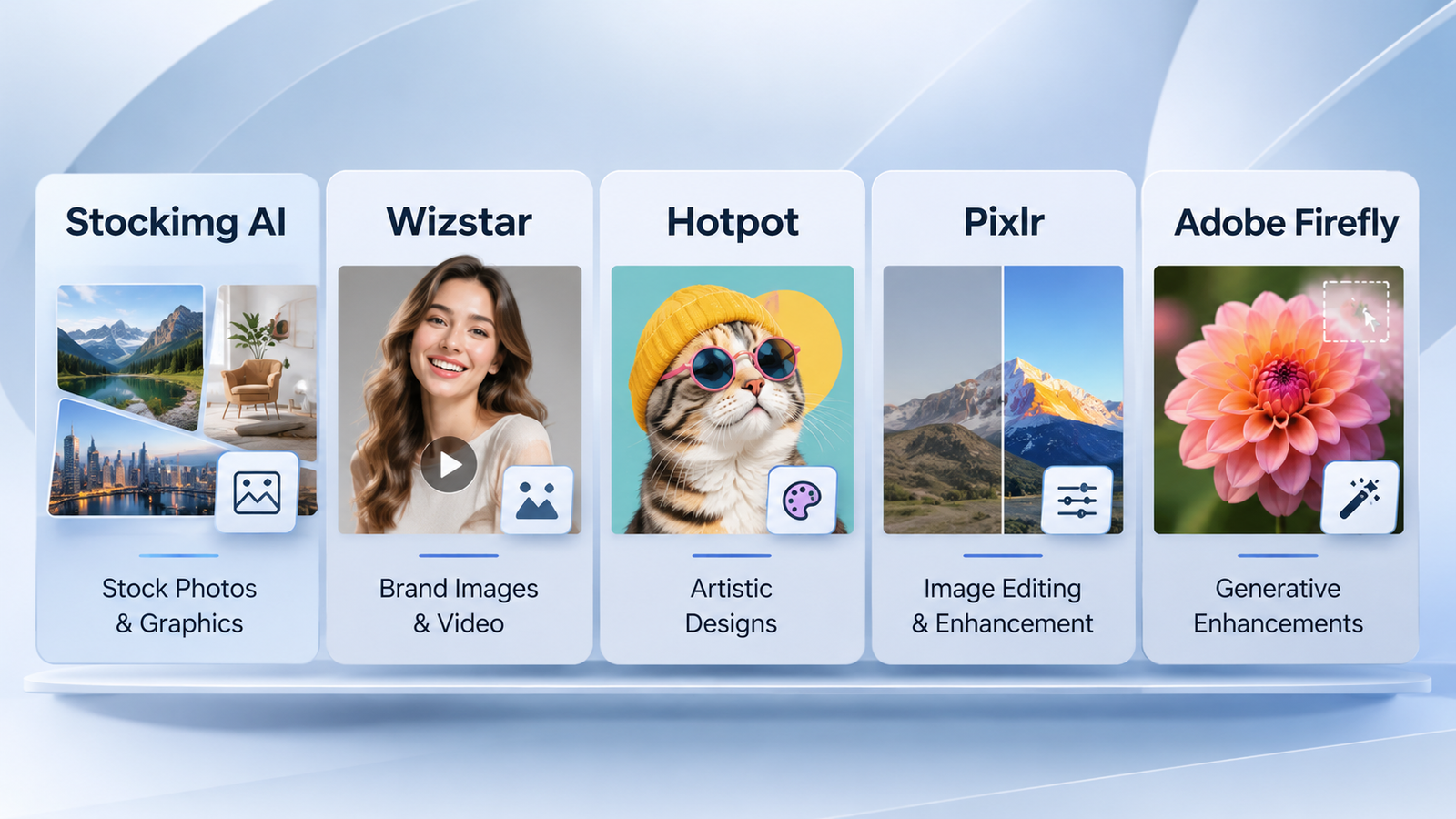
The breakdown below connects each option to a concrete job:
| Creative task | Alternative | Relevant functions |
| Create brand images and extend a campaign into video | Wizstar | Prompt or image inputs; Logo Maker; Magic Eraser; image-to-video handoff |
| Explore artwork for posters, covers, or stock-style visuals | Hotpot | Photo and illustration presets; style references; editing and prompt refinement |
| Generate an image and adapt its composition | Pixlr | Reference photos; lighting and composition controls; Express editing with Fill and Expand |
| Revise an existing photo or campaign visual | Adobe Firefly | Prompt to Edit; object and background changes; expansion; color adjustments |
Use these core functions to narrow your shortlist around the asset you need to deliver.
What do the plans cost in US dollars?
| Tool / monthly plan | Price and payment terms | Monthly credits | Image output and calculated cost |
| Stockimg Starter, for reference | US$12/month | 300 | Pricing page does not publish a fixed per-image credit rate or image count |
| Wizstar Starter | US$10.99 first month; US$18.05/month at renewal | 1,310 | Calculated: 327 Nano Banana 2 Lite 1080P attempts at 4 credits/image; about US$0.055 each at renewal |
| Hotpot monthly | US$10/month; two-payment minimum, US$20 total | 1,000 | Calculated: 100 Standard, 1:1 attempts at 10 credits/image; US$0.10 each |
| Pixlr Plus | US$2.49/month | 80 | About 80 fast or 16 pro images; calculated US$0.031 or US$0.156 each |
| Adobe Firefly Standard | US$9.99/month | 2,000 for premium activity | Unlimited covered standard image operations, including Generative Fill |
Wizstar: Create brand images and carry them into video
Wizstar combines image generation with dedicated tools for logo concepts, cleanup, and upscaling. Its Image Creation and Logo Maker accept images or prompts, so a campaign can begin with existing assets or a text prompt. Magic Eraser removes unwanted elements, and Image Upscaler helps improve overall visual clarity.
For a small brand launch, that combination supports exploring a visual direction and refining selected assets in one place. Ready-to-use templates can populate the creation form before you customize it. Note that the separate Product Image module requires both product images and a model image, so prepare those files before launching that workflow.
Wizstar’s generation history controls let you revise an asset or transition it directly into video. Edit allows you to adjust the original prompt or inputs and regenerate; Regenerate repeats the generation using identical parameters. Generate Video sends the selected image directly to the AI Video Generator as its source input. I shortlist Wizstar for campaigns that need logo concepts, promotional images, and a video built from a finalized visual, as the image tools support the early design phases effectively.
For guided product video creation, E-commerce mode accepts a product URL or at least three product photos. Premium Mode allows storyboard, script, and scene reviews before rendering, whereas Fast Mode accepts image uploads and bypasses those review stages. That distinction matters when you need to fine-tune your core selling points before generating the video.
Plan ongoing campaigns around the Starter subscription’s US$18.05 renewal rate, with 1,310 monthly credits shared across image and video tasks. Be sure to reserve a dedicated portion of that credit pool for video when planning multimedia deliverables.
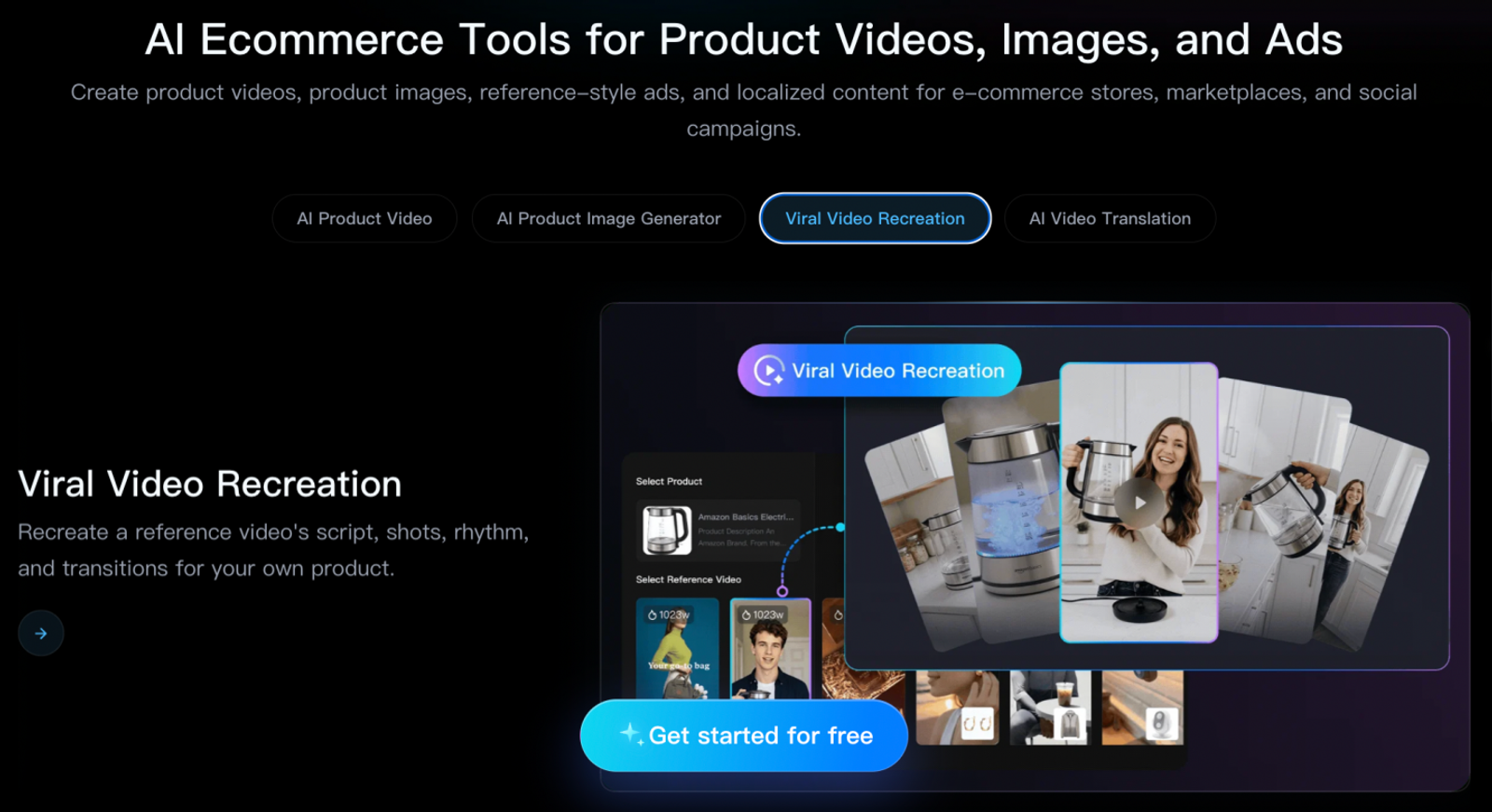
Hotpot: Explore illustration styles for posters and covers
Hotpot provides presets like Photo General, Watercolor, Anime, and 3D to explore distinct artistic styles, along with the option to add a style reference through its Library. Describe the subject and setting, then add specific details such as colors, lighting, and mood to guide the output.
For a book cover concept, a watercolor style and a photographic style can point a project in completely different directions. Test those styles early before building the final layout. Once an image is generated, you can select it for editing or modify the prompt to create another variation. Keep your core subject description consistent while tweaking style keywords so your options remain easy to compare.
I recommend Hotpot for bounded illustration projects with a defined visual theme, keeping in mind that faces and lettering often require extra polish. Hotpot notes that these areas may need manual touch-ups or follow-up attempts. Treat the generated graphic as one component of the cover or poster, with typography handled separately in your workflow.
The US$10 monthly subscription fits ongoing illustration needs, though a two-payment minimum makes the initial commitment US$20. It makes the most sense to subscribe when you already have the next month's artwork planned.
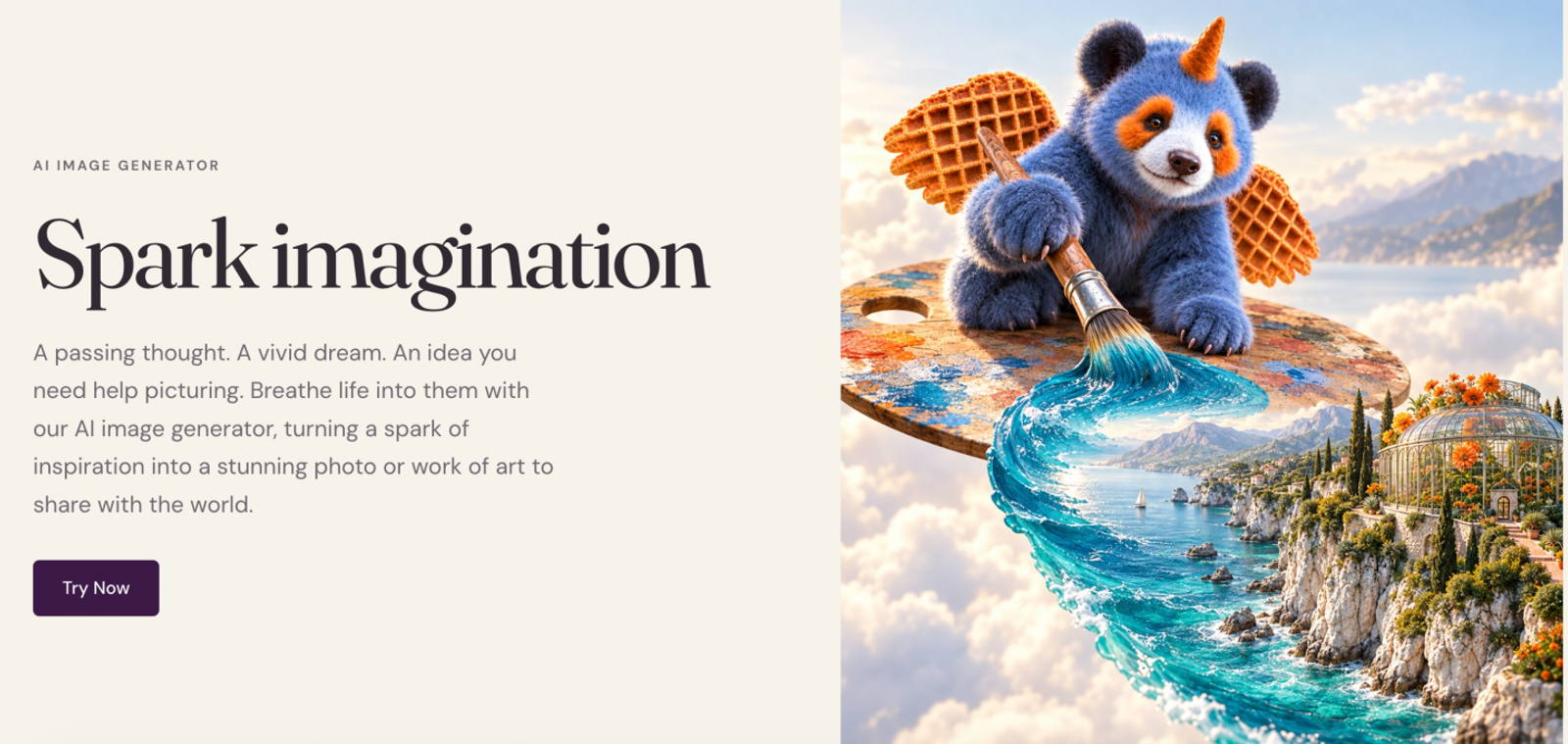
Pixlr: Shape an image from prompt to finished composition
Pixlr connects generation controls with a direct handoff to full editing. A reference photo can guide generation, while integrated controls for style, lighting, color tone, and composition help shape the final visual. These settings let you dial in a cinematic feel, warm tones, or a wider framing directly during the prompt stage.
Consider a social campaign requiring a product visual with negative space for a headline. Start by defining the subject, lighting, and layout, then generate variations and pick a direction. A reference image can help steer those variations. Always determine where your text will sit before generating; an otherwise great close-up might leave no room for copy.
The selected image opens directly in Pixlr Express, where Generative Fill can extend or replace visual elements. Generative Expand changes the aspect ratio, while filters and effects provide additional adjustments, allowing the visual to transition smoothly into graphic composition. That seamless bridge from generation to layout editing is the primary reason to choose Pixlr.
At US$2.49/month, the Plus tier is a practical option for modest recurring image needs. Match its 80-credit allowance to your expected volume of fast or pro generations, making sure to leave room for the specific editing tools your project requires.
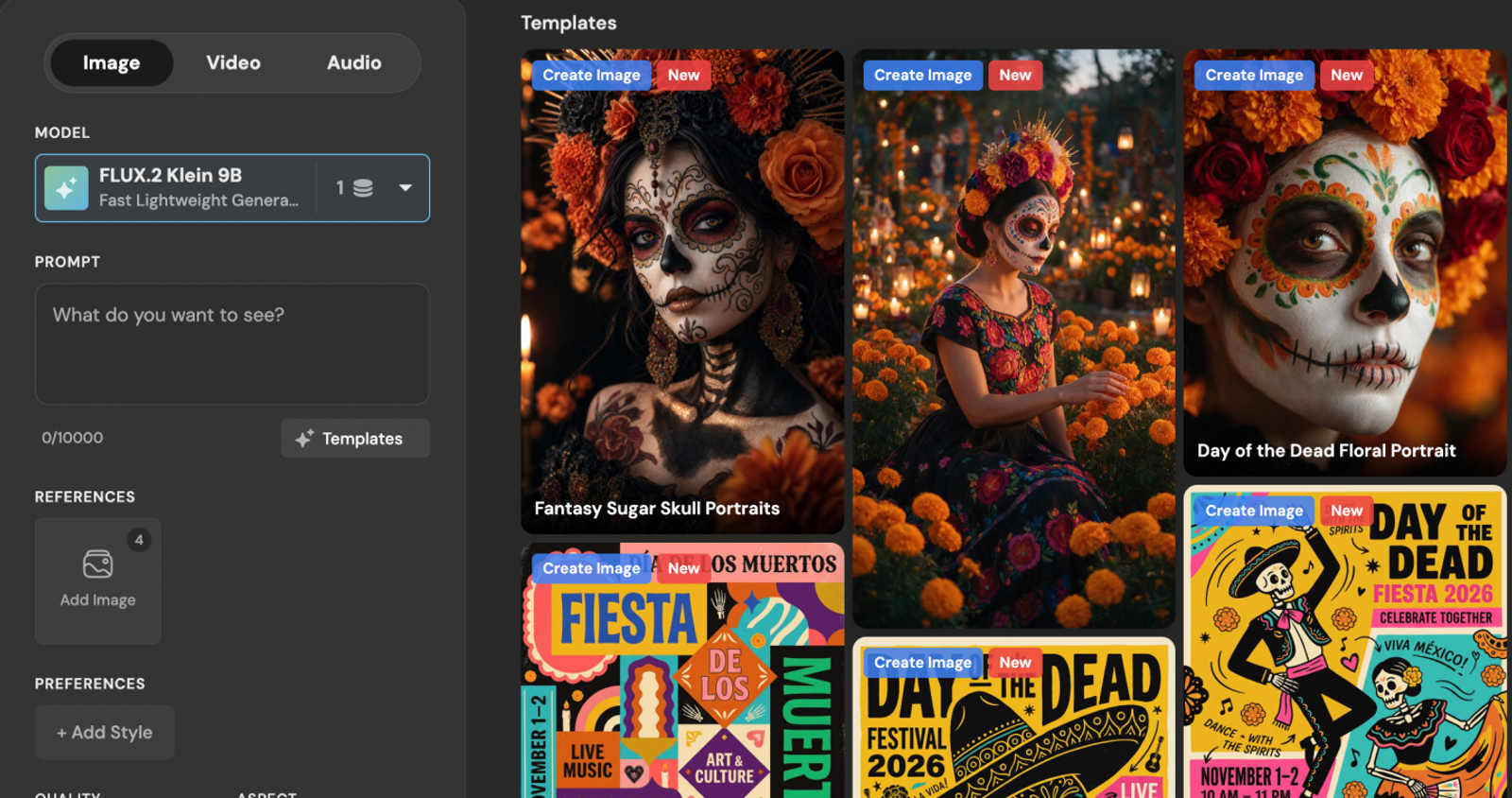
Adobe Firefly: Revise existing visuals with targeted edits
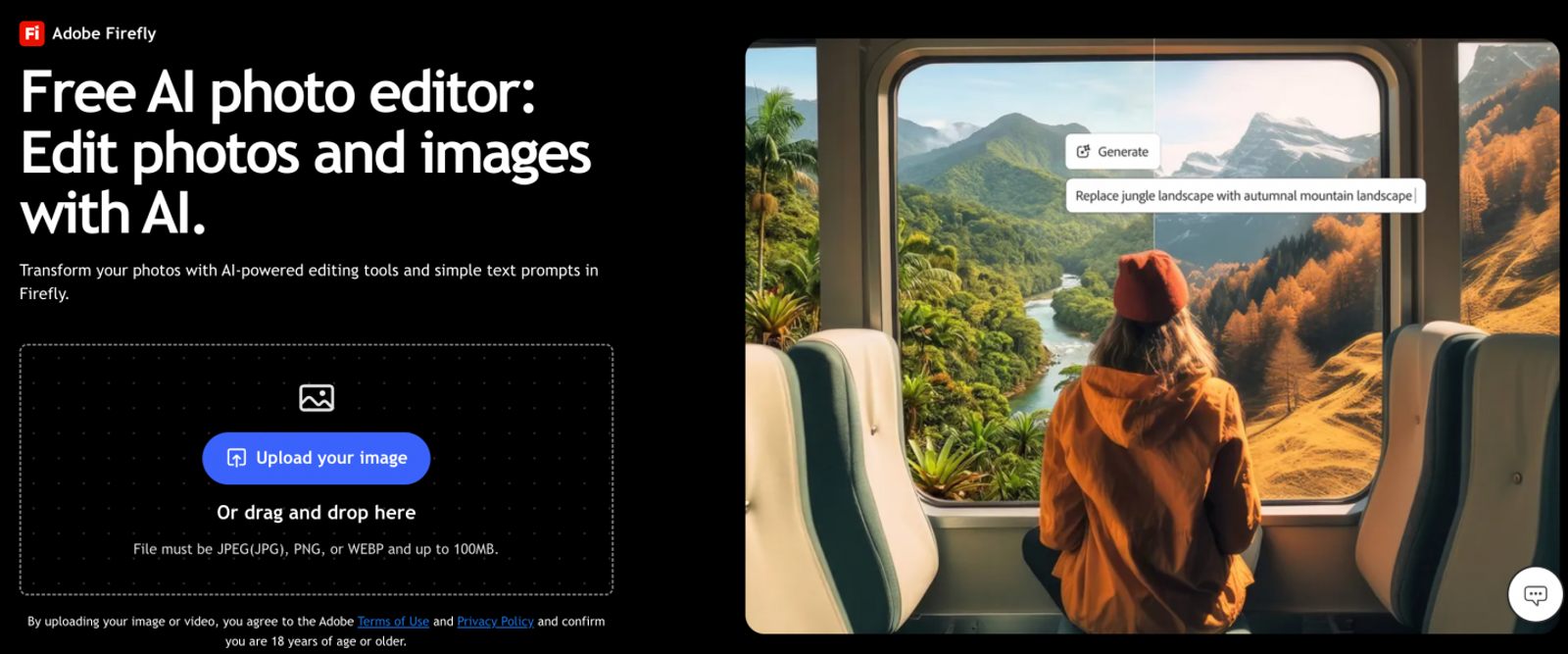
Adobe Firefly’s Prompt to Edit works on uploaded photos. Its toolset covers object removal, element replacement, background changes, generative expansion, upscaling, and color adjustments. You simply start with the image you want to modify.
Imagine a campaign photo where the main subject is great, but the background clashes with the branding. Upload the photo, choose a model, and describe the desired change. Review the result, refine your instructions, and regenerate if necessary. A precise request to swap out a background gives the tool a clearer objective than a vague prompt to enhance the image.
Firefly is the best choice when targeted modifications to an approved visual are the core priority. Generative Fill handles localized fixes, while Generative Expand helps adapt images to different aspect ratios. Define your exact revision before choosing an editing tool so your effort stays focused on the element that needs fixing.
The Standard plan costs US$9.99/month and includes unlimited access to standard image tools like Generative Fill. Premium capabilities and partner models draw from its 2,000 monthly credit pool. This setup is ideal for workflows that require frequent revisions using covered standard features, though unlimited use does not apply to every single tool or model.
Start with one image you need to finish
I suggest starting with a single image brief: define the subject, describe the composition, and specify where the final asset will be published. Set one clear acceptance criterion, such as ensuring a product remains easily recognizable at its intended display size. Then run that brief through Wizstar’s image workspace. Evaluate the generated asset against your criterion before expanding the scope of your project, and use that result to decide whether to run your full campaign there.
FAQ
- Can I try Stockimg AI or Wizstar for free before subscribing?
- Yes, both platforms offer free access, though their exact terms differ. Stockimg’s terms outline free and paid tiers but do not specify an exact free image allowance. Each user must register a unique account. Wizstar’s pricing page advertises a free plan with 20 credits, without specifying whether those credits renew periodically. Review the current credit balance and access rules in your account before selecting a test brief.
- Can I use Stockimg AI and Wizstar images commercially?
- Commercial use is available to Stockimg subscribers and Wizstar individual paid plan holders, subject to their respective terms. Stockimg’s FAQ grants subscribers commercial rights, though its terms caution that generated assets may unintentionally resemble copyrighted works or trademarks. Wizstar’s pricing page includes commercial rights for its paid tiers. These rights do not guarantee exclusive ownership or complete copyright protection. Before delivering client assets, confirm your usage rights for any source materials and inspect outputs for recognizable protected marks.
- Are my uploaded images and prompts kept private?
- Do not assume your uploads remain confidential or exempt from service training. Stockimg’s terms grant the company broad usage rights over prompts, uploaded images, and outputs, including public display and product improvement, though this does not mean every upload is automatically made public. Wizstar’s privacy policy permits data usage for model training and notes that uploaded assets are sent to third-party model providers for processing, without indicating whether any specific file is retained for training. Always stick to non-confidential assets unless you have formal approval under these terms.
- Do unused Wizstar credits carry over or expire?
- Credit rollover and expiration depend on your specific plan and billing terms. Wizstar's pricing FAQ directs users to their account dashboard for subscription rules and checkout screens for current terms. Top-up credits come with their own distinct expiration and refund conditions, and the platform does not list a single universal expiration window. Before saving credits for future campaigns, check the specific rules tied to your account balance.
- Can I cancel a Stockimg AI or Wizstar subscription and get a refund?
- You can cancel either subscription at any time, but cancellation does not automatically qualify you for a refund. Stockimg’s terms allow cancellation via the website or by emailing support@stockimg.ai, stating that billed or paid amounts are non-refundable. Wizstar’s pricing FAQ directs cancellations to account settings, with ongoing access determined by your plan’s terms. Its refund handling follows the policies presented at checkout. If you need clarification on a Wizstar charge, reach out to customer support with your order details.
- Which image file formats can I upload to Wizstar?
- Wizstar’s image tools support JPG, JPEG, PNG, BMP, WEBP, and GIF uploads, up to 20 MB per file. The official guide advises hovering over the upload zone to view specific file requirements. Always verify the specifications for your specific tool, as input requirements vary across different modules. Note that these upload specifications do not determine available export or download formats.