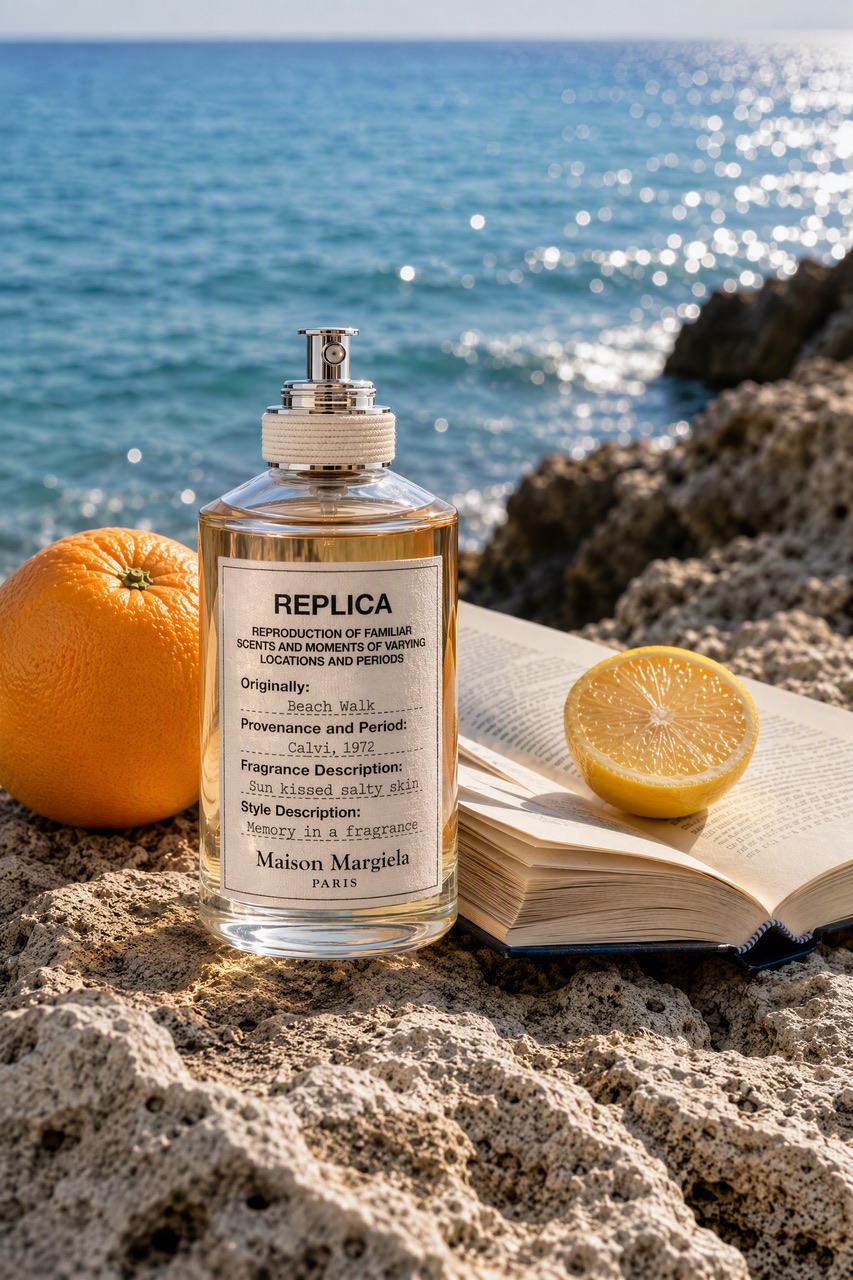
GPT IMAGE 2.5 · Image
Cinematic portrait
GPT Image 2.5 example · Prompt to image
Create GPT Image 2.5 visuals from text prompts or reference images with sharper details, precise editing, and fast Flare or high-control Sunburst workflows on Wizstar.
See how GPT Image 2.5 supports real creative briefs and output formats.
GPT Image 2.5 example · Prompt to image
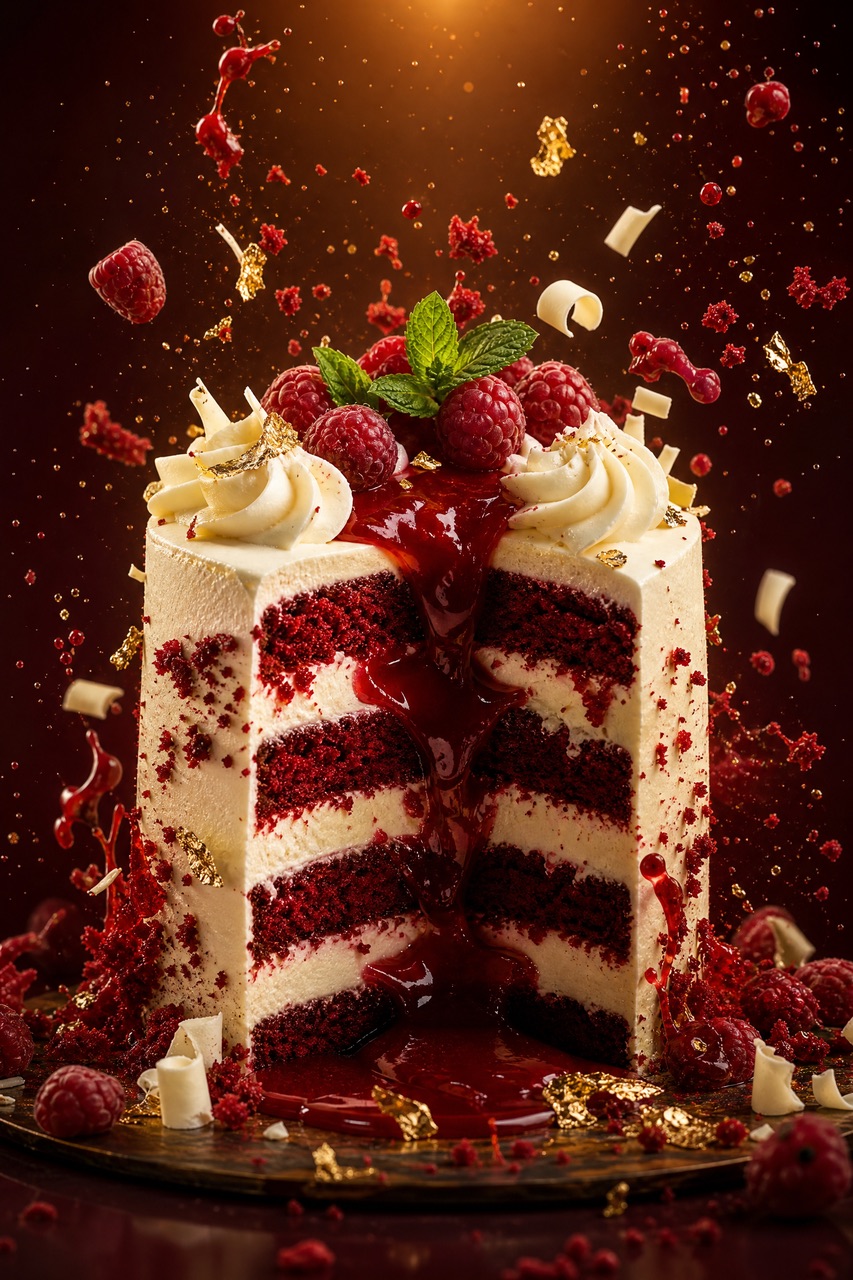
GPT Image 2.5 example · Product creative
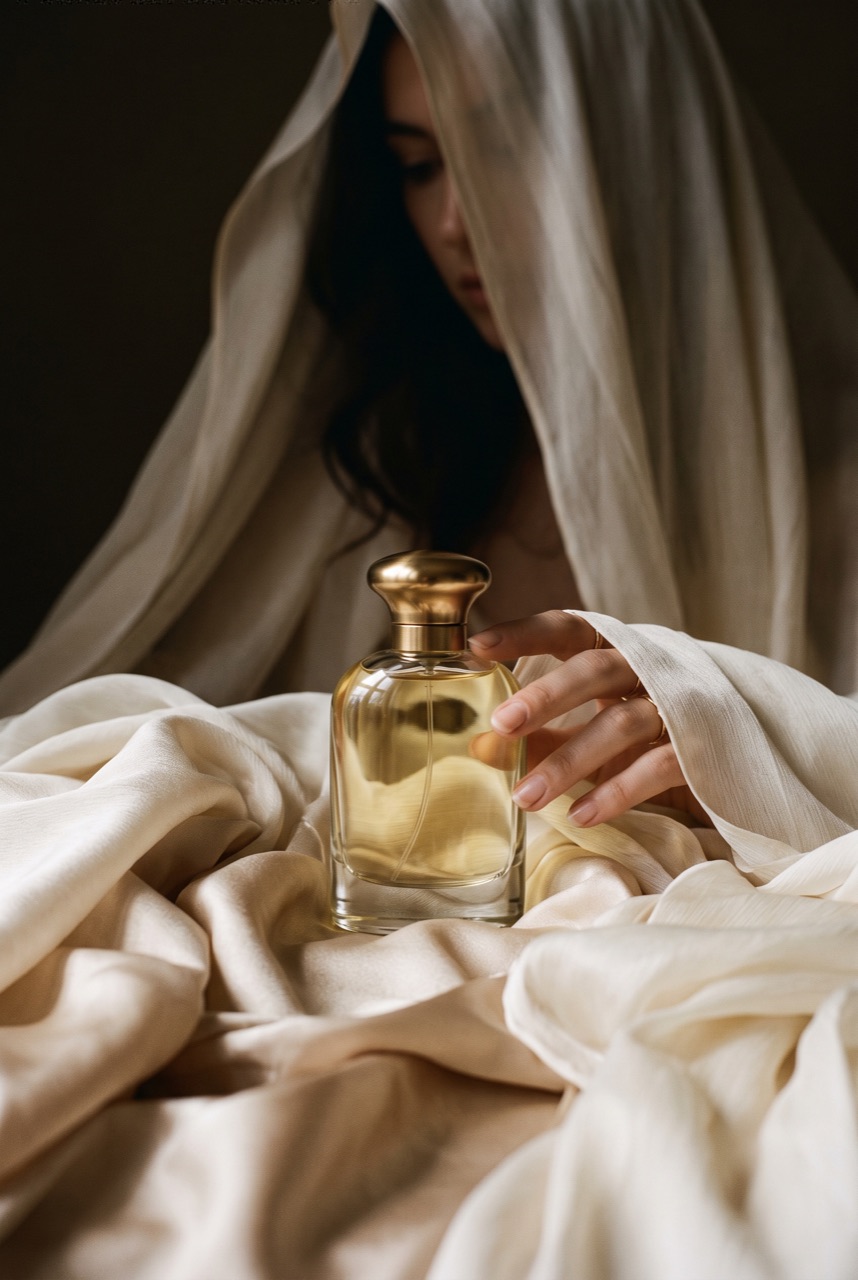
GPT Image 2.5 example · Precise composition
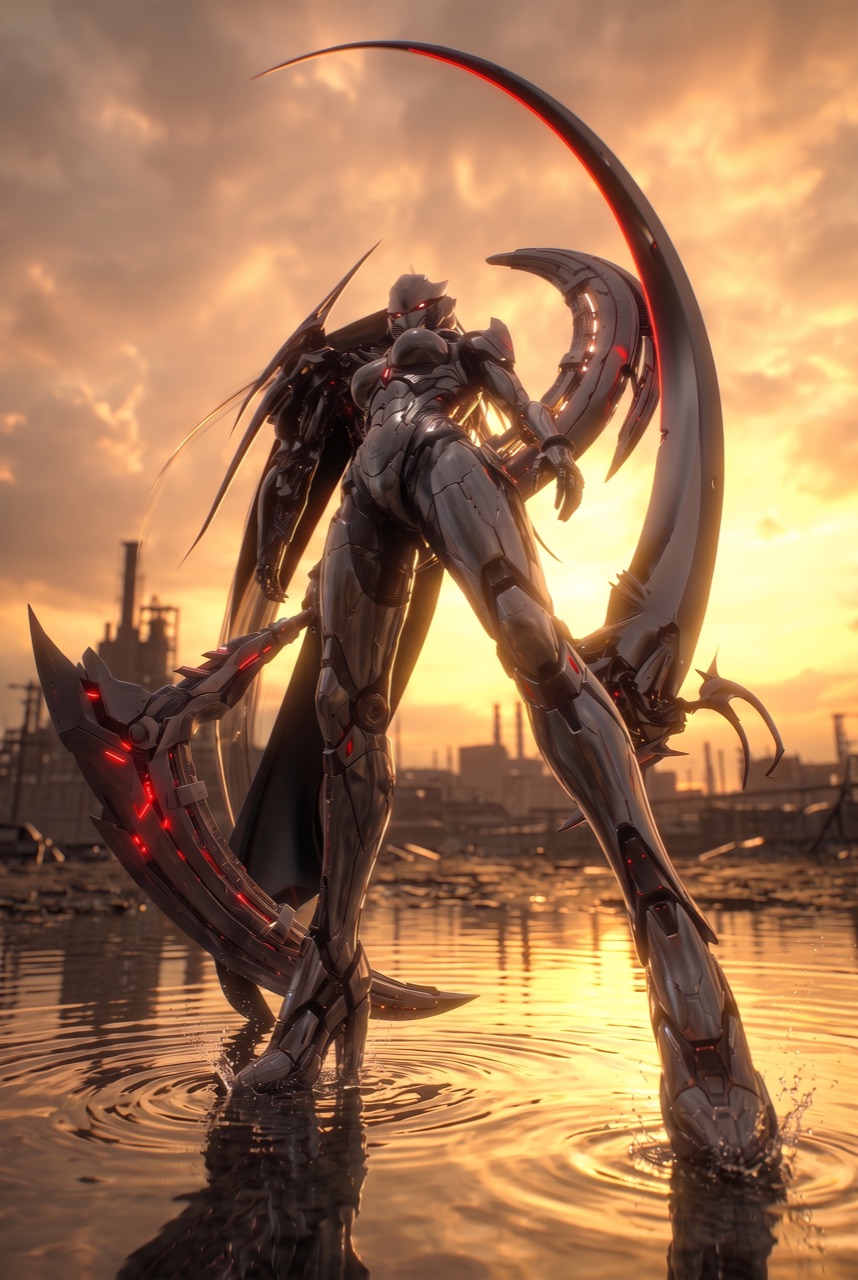
GPT Image 2.5 example · Creative direction
Create GPT Image 2.5 visuals from text prompts or reference images with sharper details, precise editing, and fast Flare or high-control Sunburst workflows on Wizstar.
GPT Image 2.5 is OpenAI’s latest image generation and editing model family. On Wizstar, creators can turn text prompts and reference images into polished visuals, refine specific elements across multiple edits, and use the faster Flare workflow or the higher-control Sunburst workflow when available.
GPT Image 2.5 is developed by OpenAI. Wizstar provides the creation workflow described on this page.
Explore the core GPT Image 2.5 capabilities available in the current Wizstar workflow.
Use GPT Image 2.5 Flare for high-volume image generation, social content, product experiences, and rapid creative testing.
Use GPT Image 2.5 Sunburst when an edit must preserve the subject, composition, brand treatment, and surrounding details.
Guide the result with reference photos while preserving recognizable subjects, distinctive features, lighting, and textures.
Iterate on an image across multiple edits while keeping earlier changes and important visual details more stable.
Choose the quality level and output dimensions that match the destination, from rapid drafts to polished campaign assets.
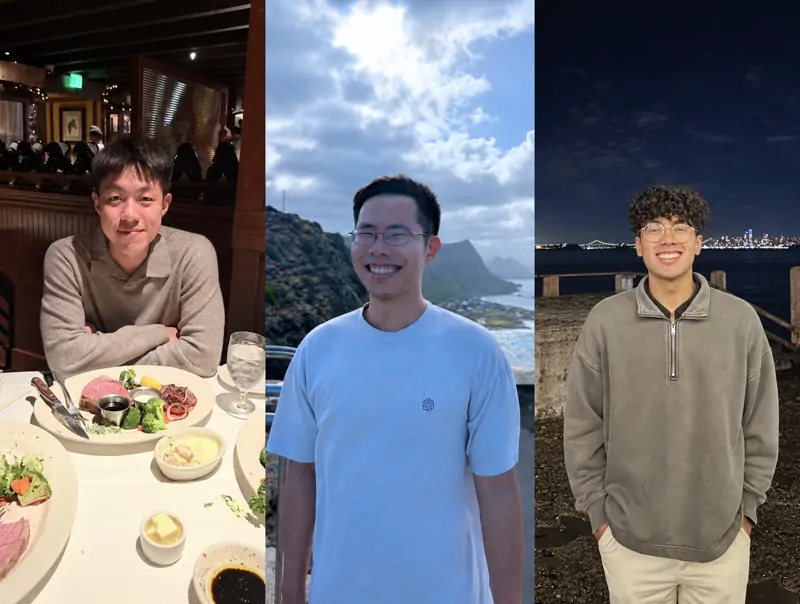
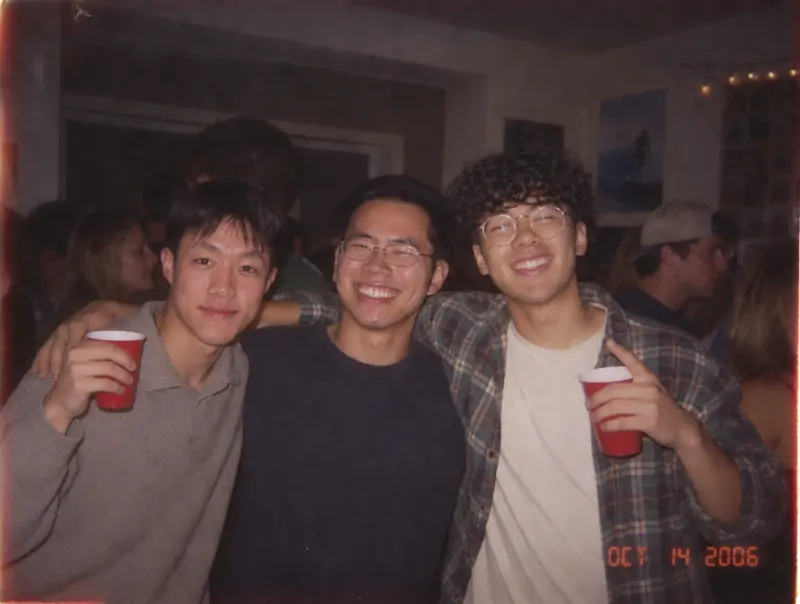
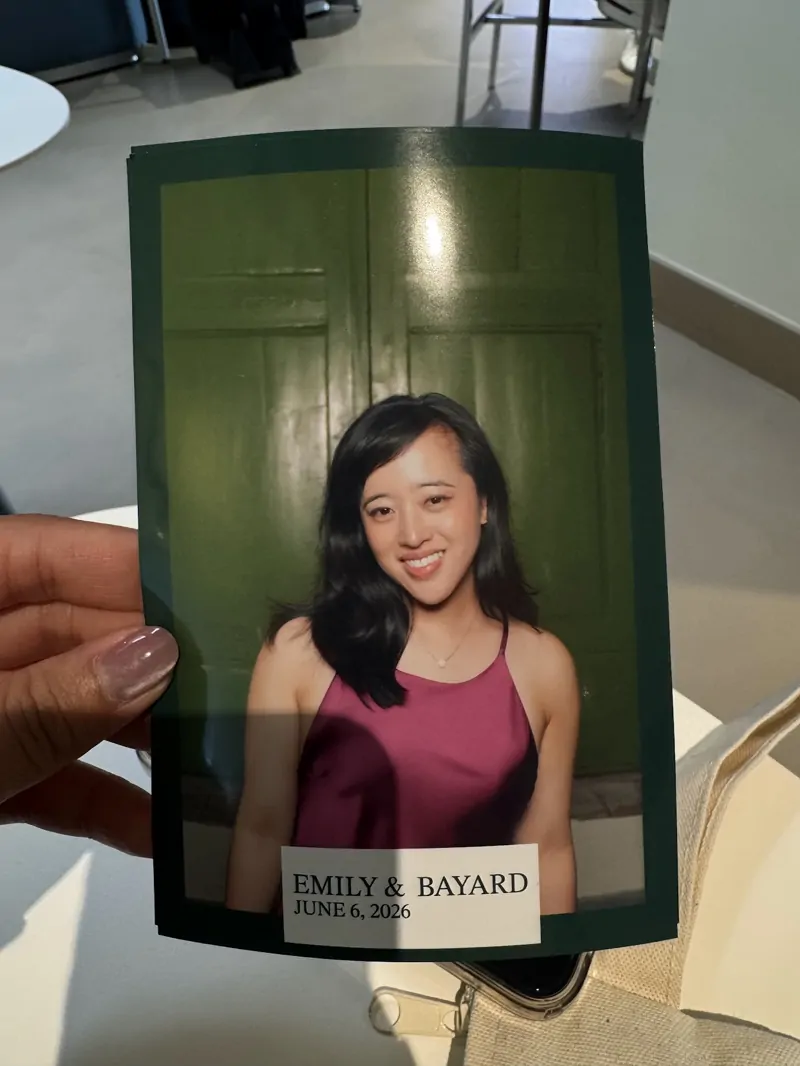
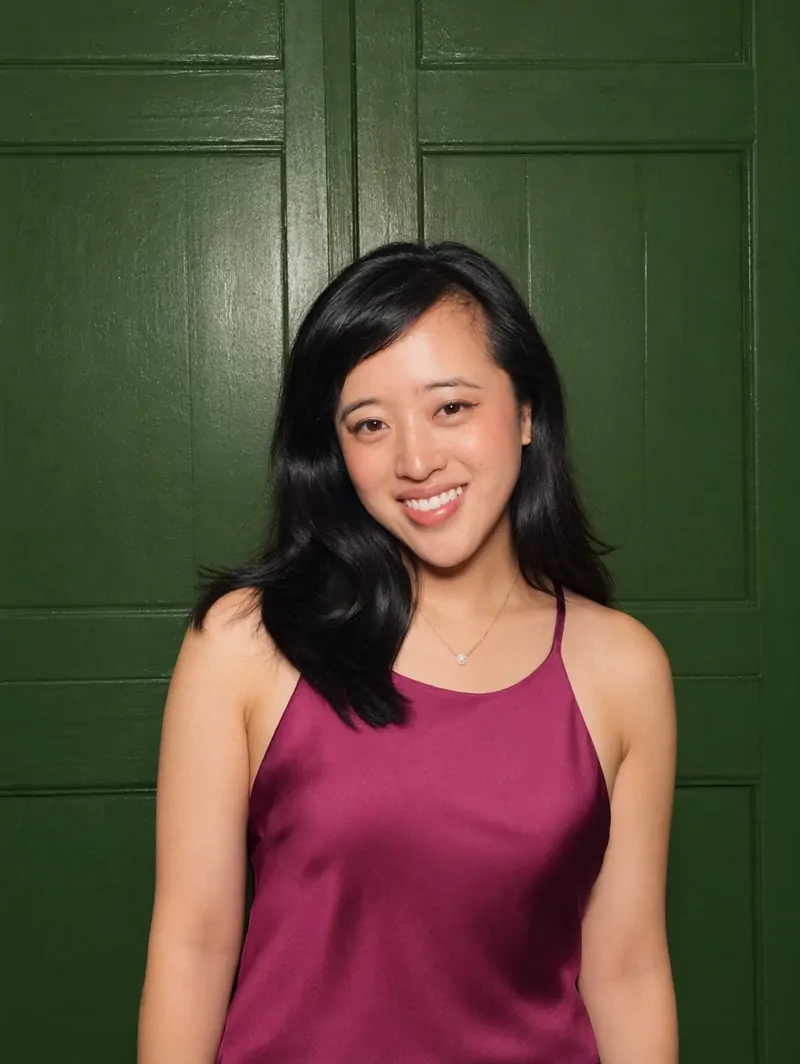
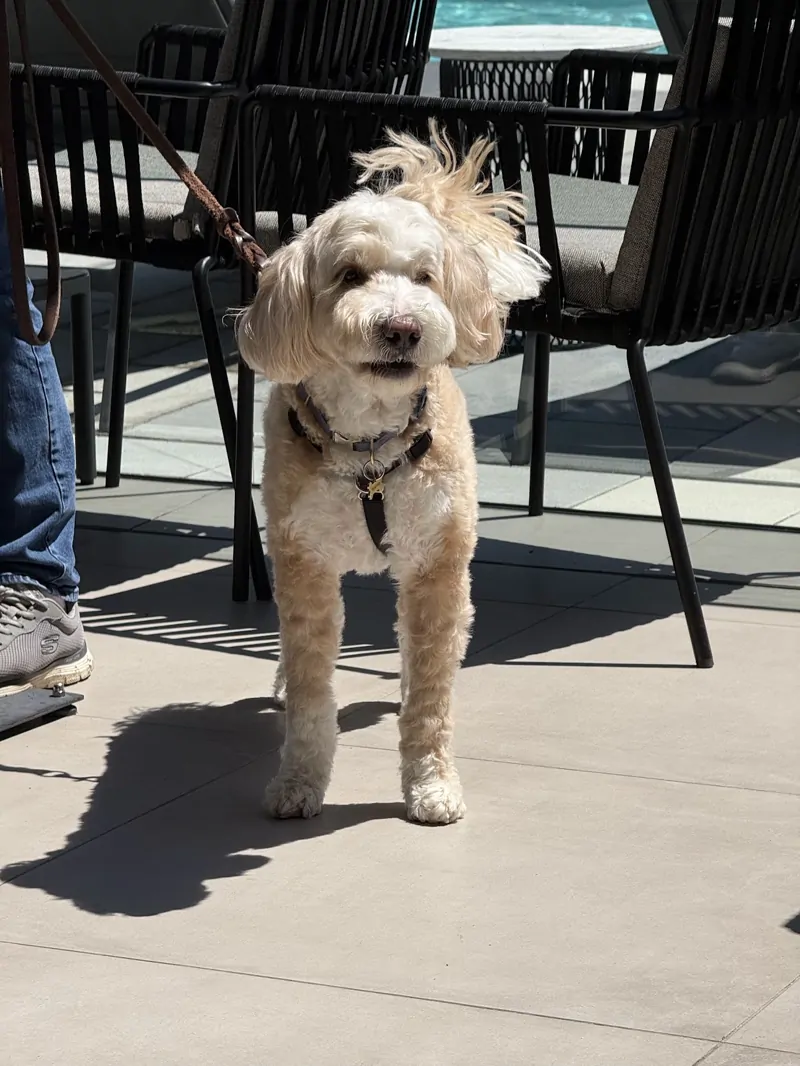
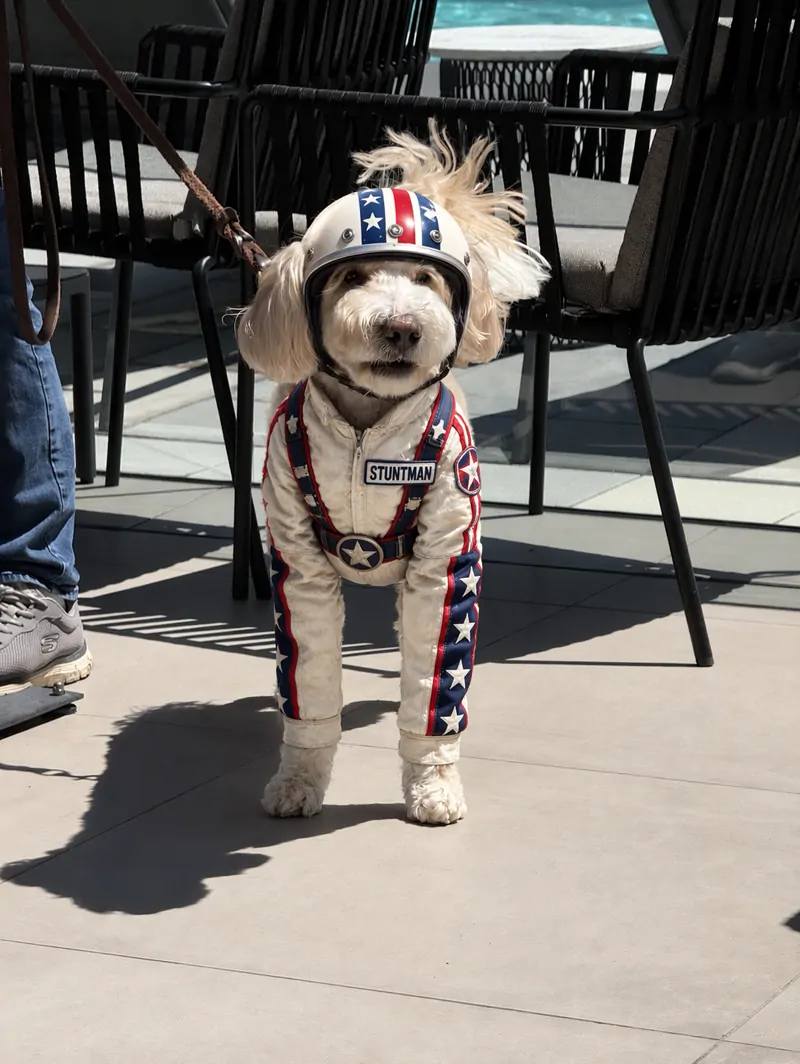
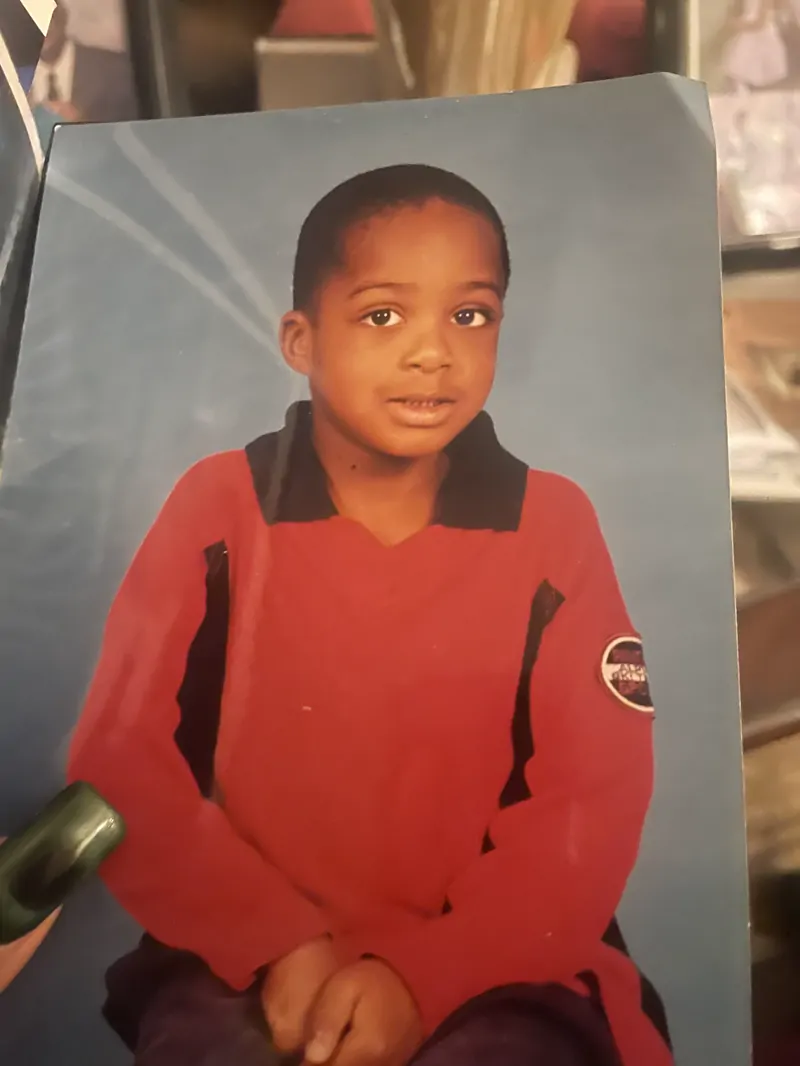
Create with GPT Image 2.5 in three steps inside Wizstar.
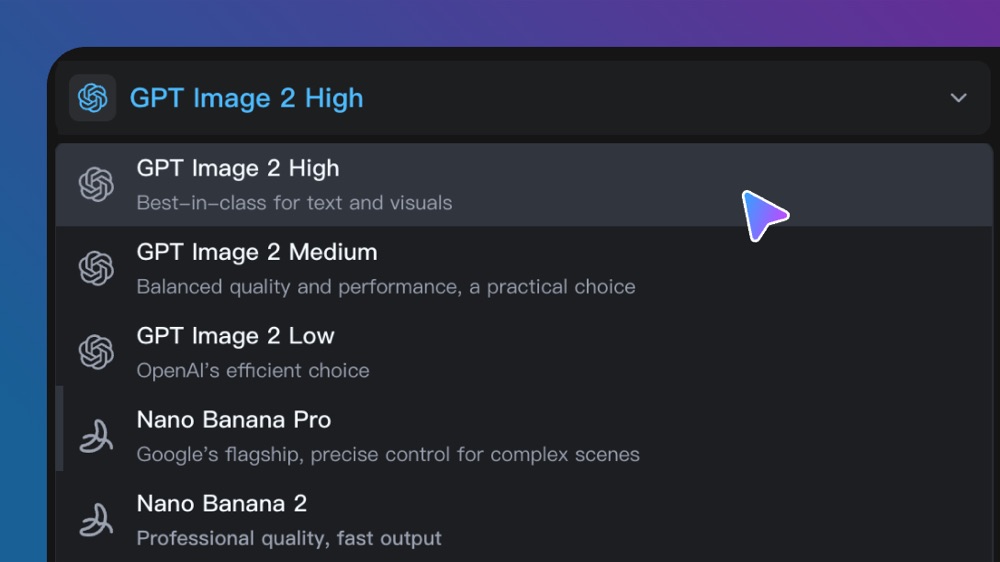
Open the image generation workspace and select GPT Image 2.5.
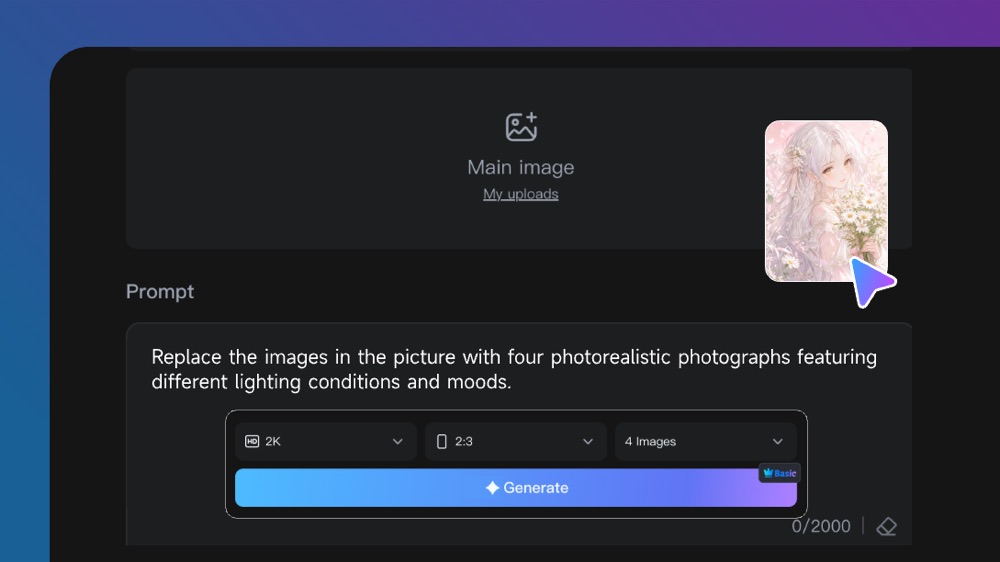
Upload a reference image when needed, then describe the subject, requested changes, composition, style, and output format.
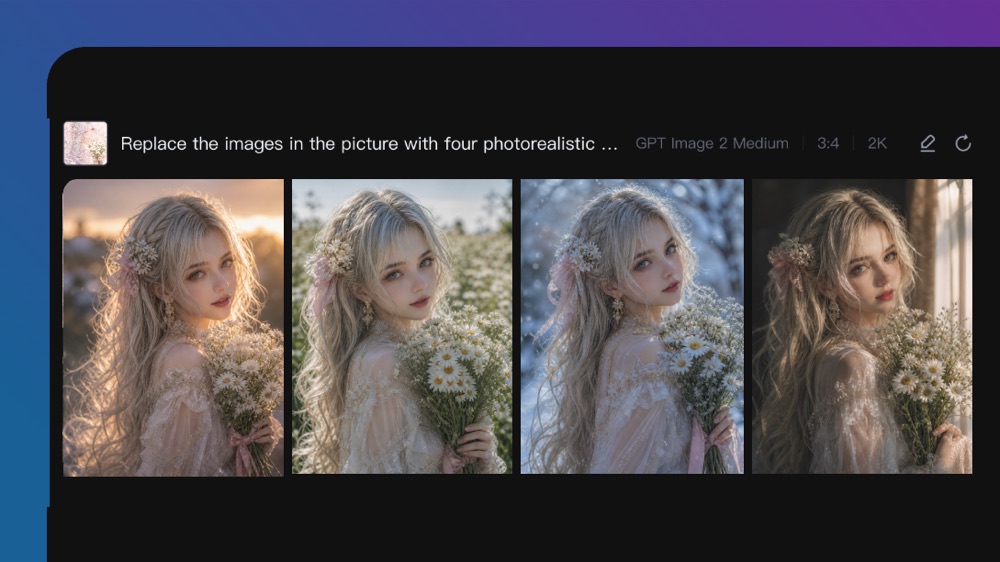
Choose the available quality setting, generate the image, review the result, and make focused follow-up edits.
Connect GPT Image 2.5 capabilities to the creative jobs teams need to complete.
Create polished visuals for posts, campaigns, launches, and fast creative testing.
Create with GPT Image 2.5Place a product into new scenes, lighting conditions, and compositions while keeping its form and packaging recognizable.
Create with GPT Image 2.5Develop production-ready advertising concepts with controlled composition, typography, and brand direction.
Create with GPT Image 2.5Turn rough ideas, sketches, references, and layout descriptions into usable visual directions.
Create with GPT Image 2.5Make focused changes to a background, object, person, or piece of copy without redesigning the entire image.
Create with GPT Image 2.5Compare the available model workflows before choosing a starting point.
| Model | Type | Best for | Primary input | |
|---|---|---|---|---|
| Seedance 2.5 | Video | 30-second video generation with audio | Text or reference media | View |
| MiniMax H3 | Video | Multimodal video generation with synchronized sound | Text or reference media | View |
| Kling 3.0 | Video | Cinematic motion control | Text or reference media | View |
| Seedance 2.0 | Video | Multi-shot visual storytelling | Text or reference media | View |
| Sora 2 | Video | Prompt-driven visual storytelling | Text or reference media | View |
| GPT Image 2 | Image | Prompt-led image generation and editing | Text or reference image | View |
| GPT Image 2.5 Current | Image | Sharper image generation with faster, more precise editing | Text or reference image | |
| Nano Banana 2 | Image | Fast text-to-image generation and reference editing | Text or reference image | View |
Review the GPT Image 2.5 inputs and output controls presented in the source workflow.
Confirm the controls displayed in the generator before beginning production work.
Use these GPT Image 2.5 prompt patterns to make the creative direction explicit.
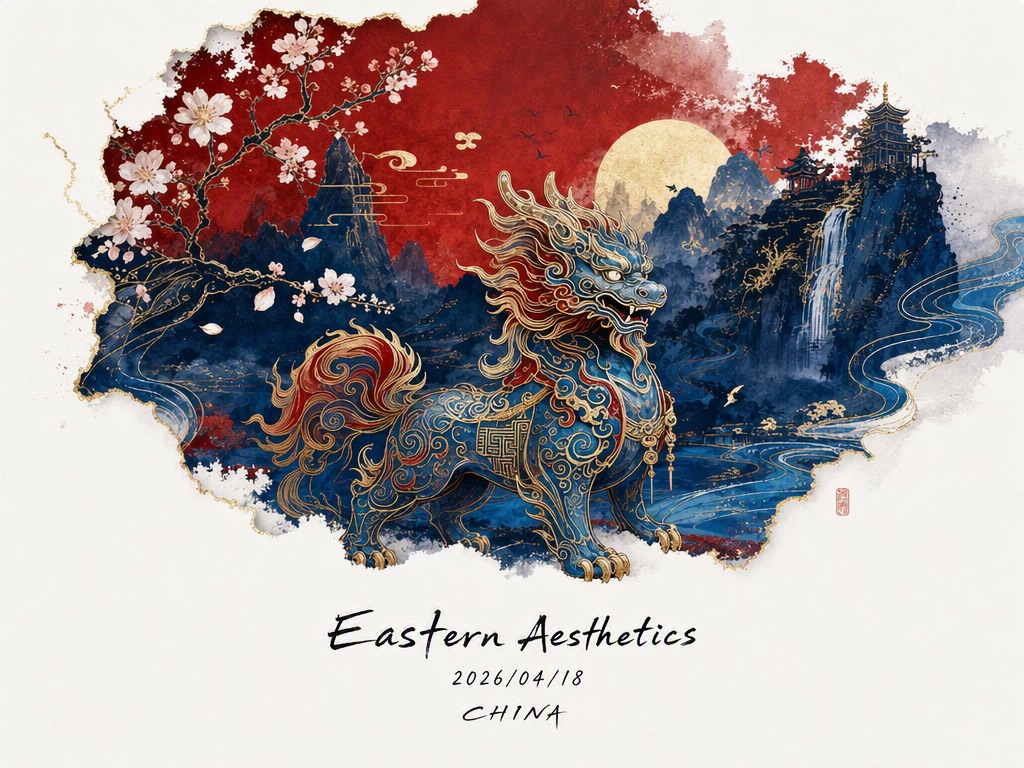 Preserve the reference
Use the uploaded product photo as the primary reference. Keep the product shape, packaging, logo placement, and label text unchanged. Replace only the background with a softly lit studio scene.
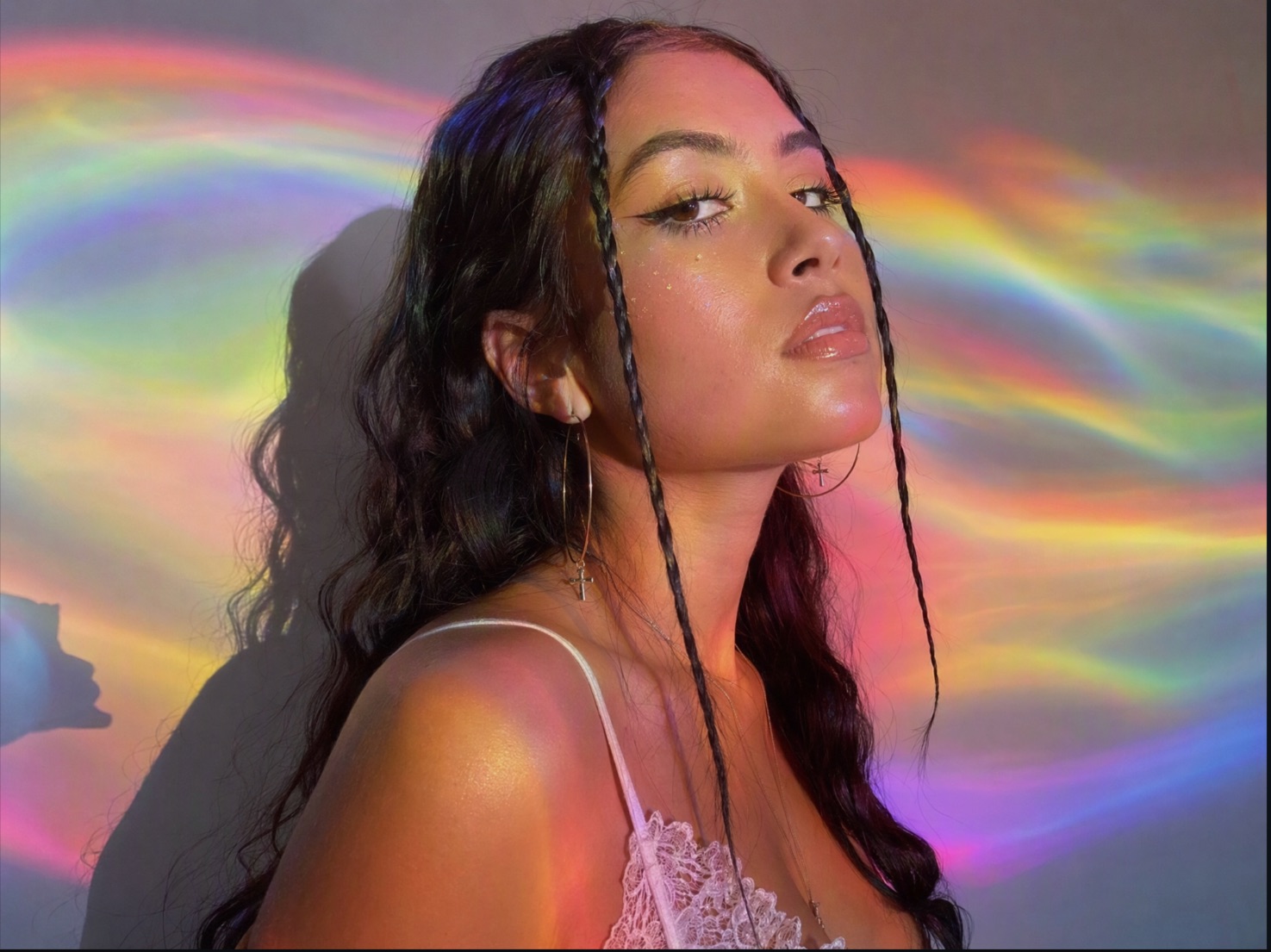 Make a focused edit
Remove the object on the left side of the image. Keep the subject, camera angle, lighting, shadows, colors, and composition unchanged.
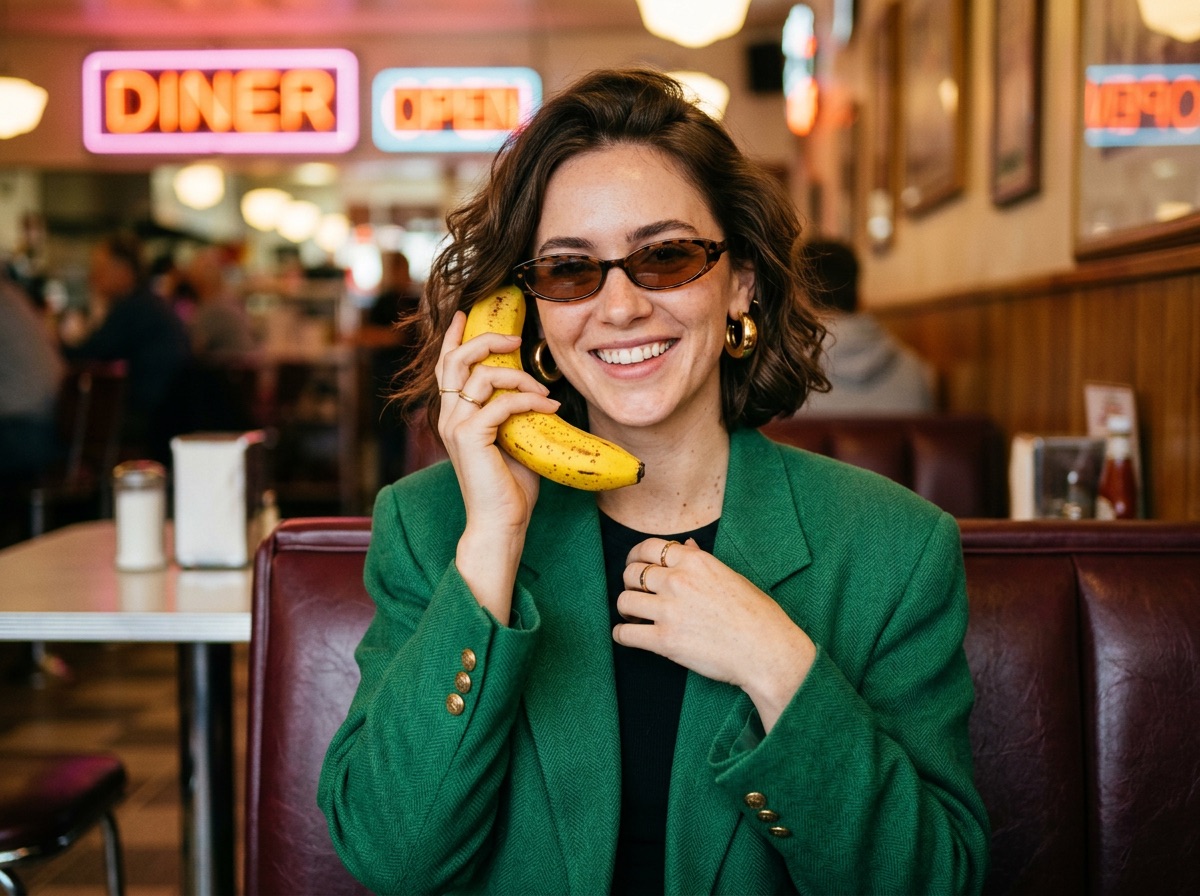 Keep the subject consistent
Use the person in the reference image as the identity reference. Create three editorial portraits in different locations while preserving facial features, proportions, hairstyle, and clothing details.
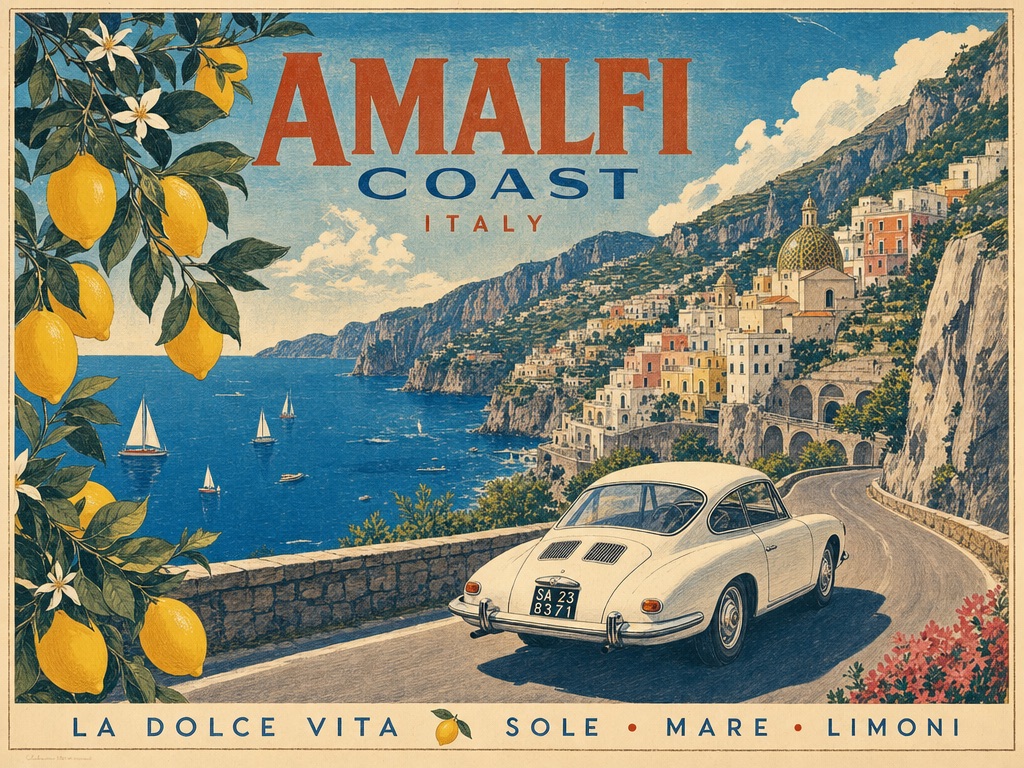 Design for the destination
Create a vertical 9:16 campaign visual for a mobile social post. Place the product in the lower two-thirds and leave clean space at the top for a short headline.
Practical ways GPT Image 2.5 fits into creative planning and review.
Create sharper visuals while keeping reference subjects and important details recognizable.
Choose the faster Flare workflow or the higher-control Sunburst workflow for the brief.
Make focused edits across multiple turns without rebuilding the entire image.
Answers to common questions about using GPT Image 2.5 on Wizstar.
GPT Image 2.5 is OpenAI’s latest image generation and editing model family. On Wizstar, it can create visuals from text prompts, edit reference images, preserve important subjects, and refine specific parts of an image across multiple iterations.
GPT Image 2.5 Flare is optimized for speed and high-volume everyday generation, while GPT Image 2.5 Sunburst is designed for higher-quality results and more precise editing. Flare is the better starting point when latency matters; Sunburst is better when visual control matters most.
Yes. Upload a reference image and describe the exact change you want. You can add, remove, replace, or restyle a specific element while asking GPT Image 2.5 to preserve the subject, composition, lighting, and other approved details.
GPT Image 2.5 is designed to preserve recognizable subjects and distinctive details from reference images more reliably. For best results, identify which features must remain unchanged and give the reference a clear role in the prompt.
The official API documentation lists Auto, Low, Medium, High, XHigh, and Max quality settings for GPT Image 2.5. The options exposed on Wizstar depend on the current image generation workflow and available model configuration.
The official API supports Auto and custom resolutions, including square, landscape, portrait, and 4K-sized formats. Available resolution controls on Wizstar may differ according to the current tool configuration.
GPT Image 2.5 is not guaranteed to be an unlimited free image generator. Available credits and generation costs can change according to the current Wizstar model, quality, resolution, and output settings, so check the image generator before submitting.
Start from a text prompt or reference image, then set the composition and output format.