GPT IMAGE 2 · Image
Cinematic portrait
GPT Image 2 example · Prompt to image
Create GPT Image 2 visuals from text prompts or reference images with image editing, precise composition controls, and output up to 4K on Wizstar.

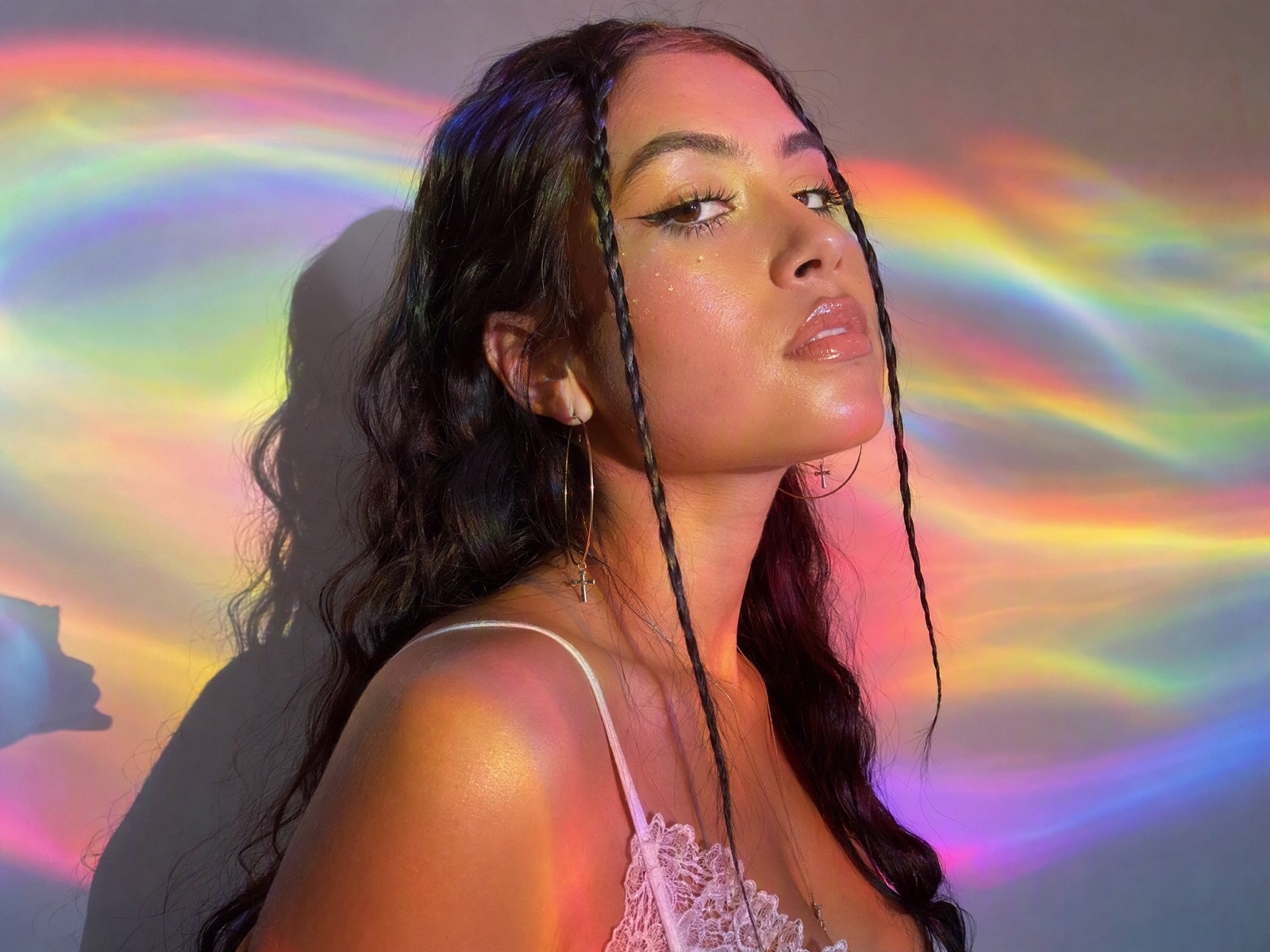
See how GPT Image 2 supports real creative briefs and output formats.
GPT Image 2 example · Prompt to image
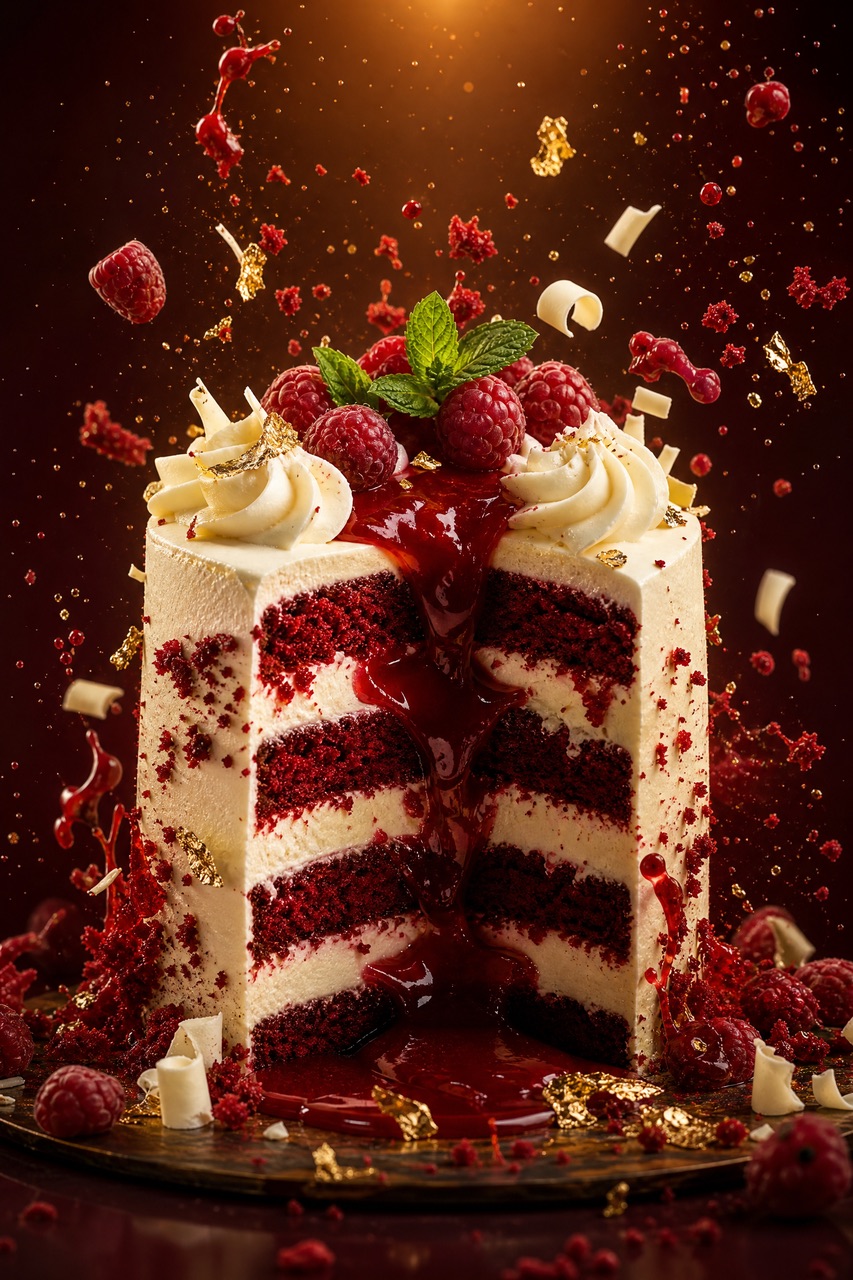
GPT Image 2 example · Prompt to image
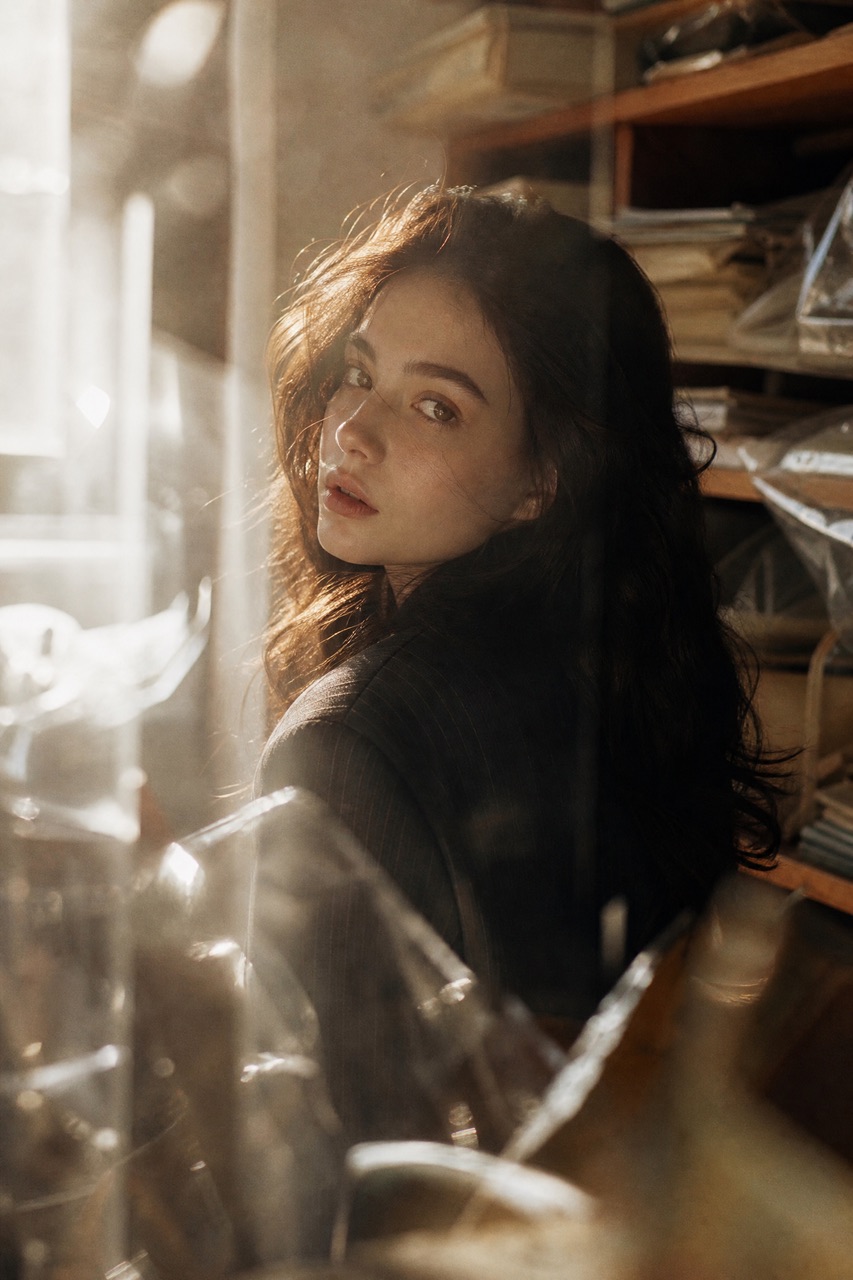
GPT Image 2 example · Prompt to image
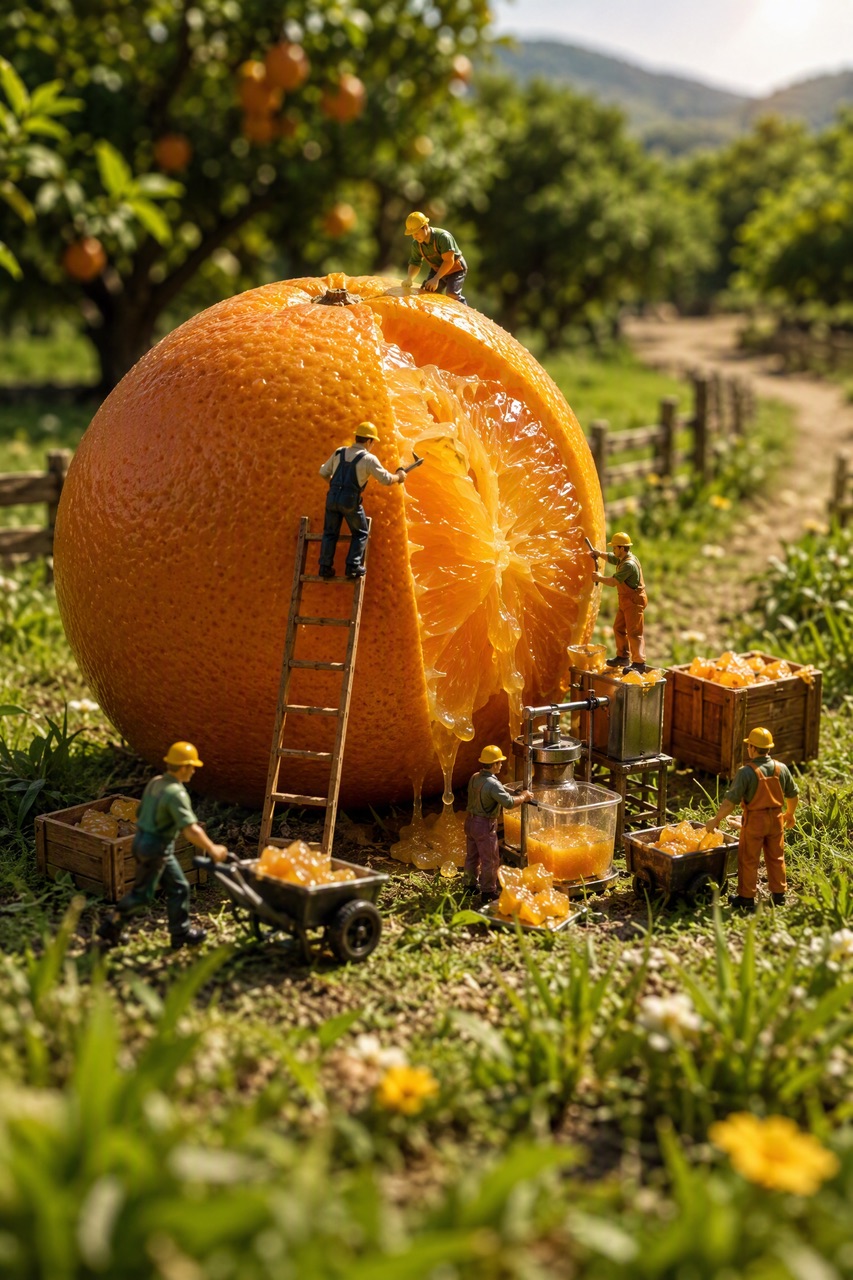
GPT Image 2 example · Prompt to image
Create GPT Image 2 visuals from text prompts or reference images with image editing, precise composition controls, and output up to 4K on Wizstar.
GPT Image 2 is an OpenAI image model available in Wizstar for generating visuals from text prompts or editing a supplied reference image. The workflow keeps subject, composition, style, resolution, and aspect ratio in one place.
GPT Image 2 is developed by OpenAI. Wizstar provides the creation workflow described on this page.
Explore the core GPT Image 2 capabilities available in the current Wizstar workflow.
Turn a written visual brief into a generated image with subject, setting, composition, and style.
Upload an image and describe the elements, background, lighting, or style you want to change.
Make wording, hierarchy, placement, and composition explicit in the prompt.
Choose 1K, 2K, or 4K and common square, landscape, portrait, and vertical ratios.
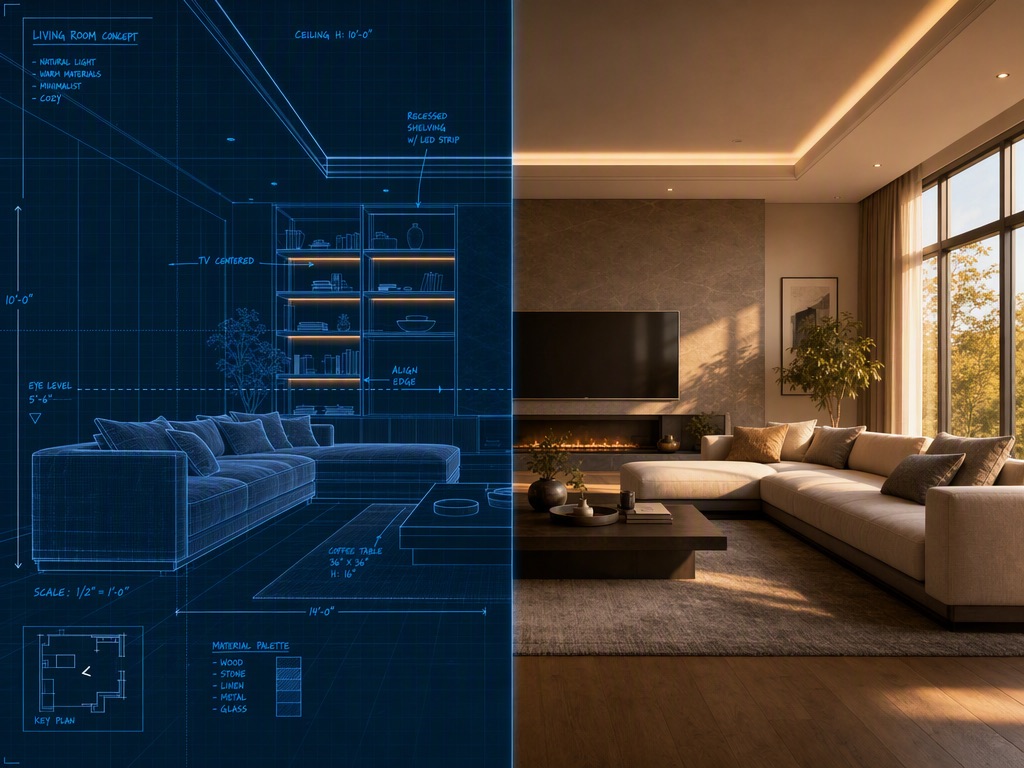
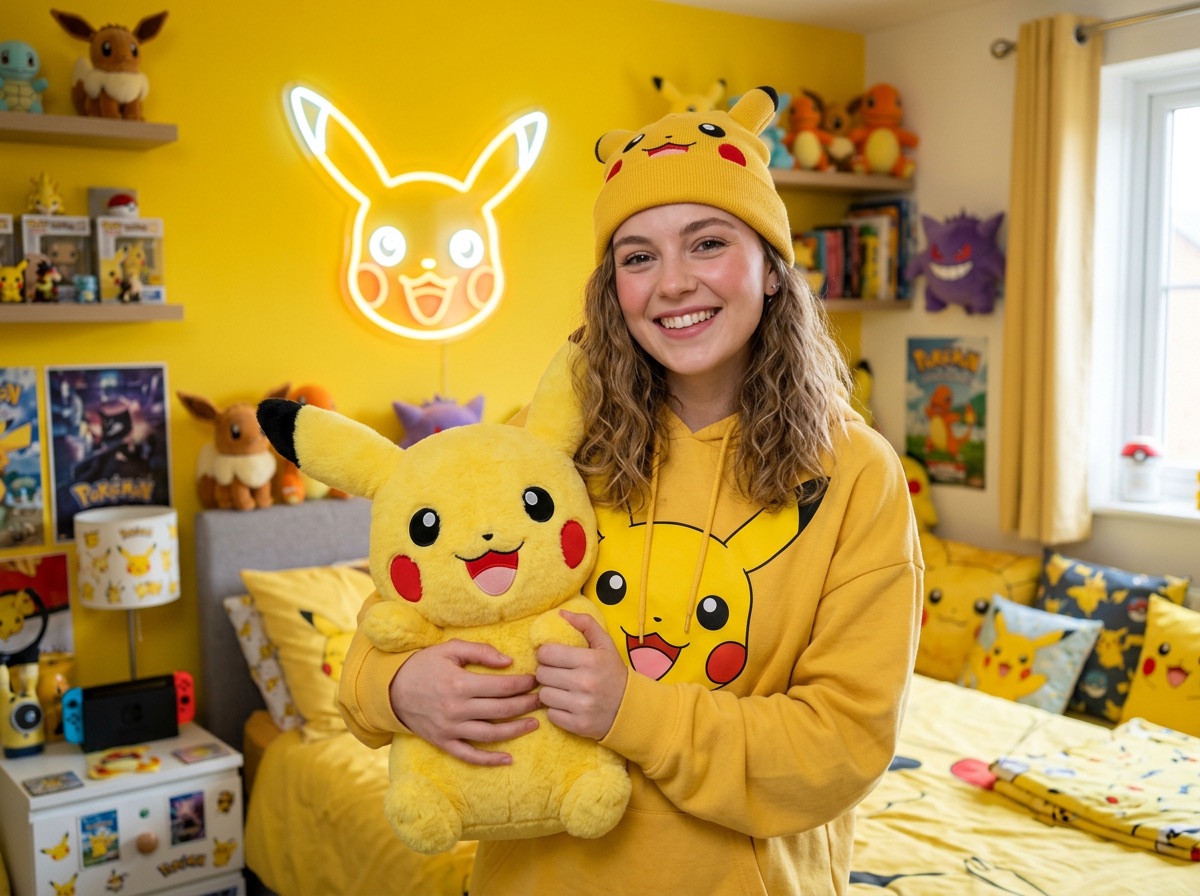
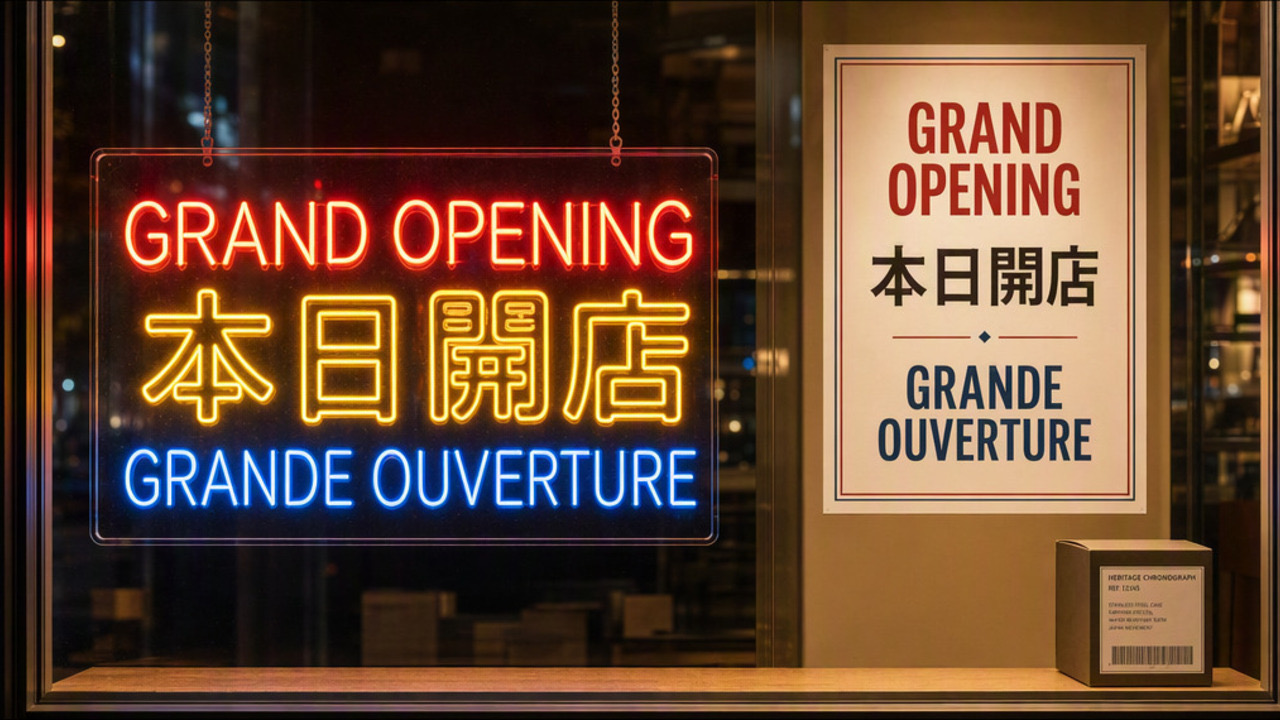
Create with GPT Image 2 in three steps inside Wizstar.
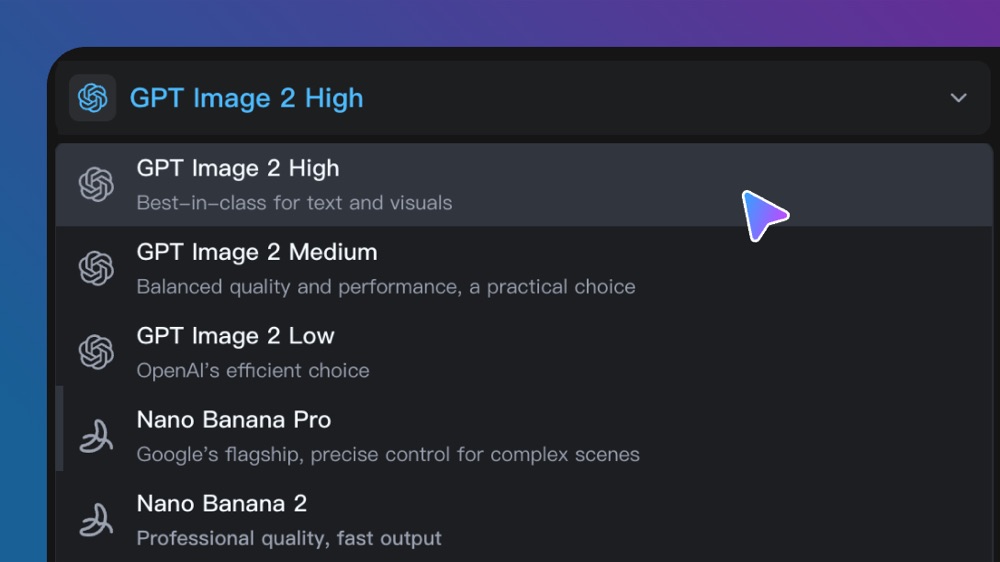
Open the image model selector and choose GPT Image 2.
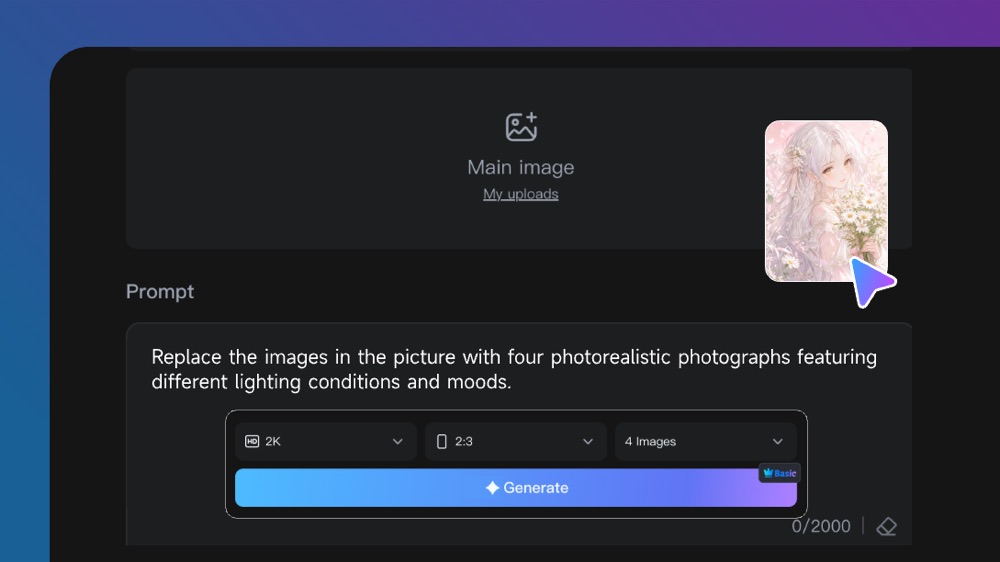
Upload an image when needed, then describe the subject, composition, style, resolution, and ratio.
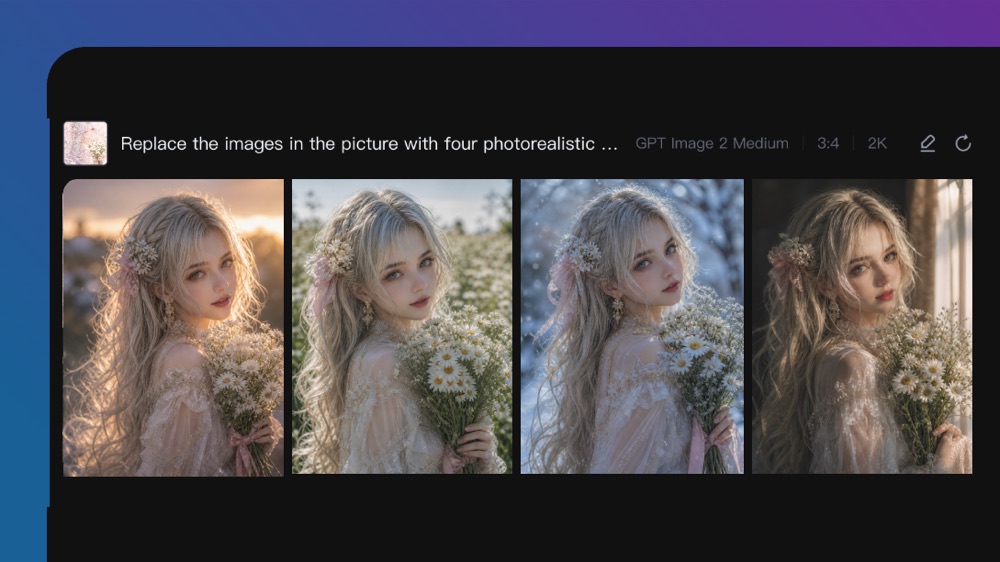
Generate the images, review the results, then adjust the prompt or output settings.
Connect GPT Image 2 capabilities to the creative jobs teams need to complete.
Create visual directions for social posts, launches, and campaign tests.
Create with GPT Image 2Turn a brief into product scenes, ad concepts, and campaign imagery.
Create with GPT Image 2Explore new backgrounds, lighting, and compositions from a product reference.
Create with GPT Image 2Build a sequence of consistent visual frames before video or production work begins.
Create with GPT Image 2Compare the available model workflows before choosing a starting point.
| Model | Type | Best for | Primary input | |
|---|---|---|---|---|
| Seedance 2.5 | Video | 30-second video generation with audio | Text or reference media | View |
| MiniMax H3 | Video | Multimodal video generation with synchronized sound | Text or reference media | View |
| Kling 3.0 | Video | Cinematic motion control | Text or reference media | View |
| Seedance 2.0 | Video | Multi-shot visual storytelling | Text or reference media | View |
| Seedance 1.5 | Video | Superb audio-visual synchronization | Text or reference media | View |
| Veo 3.1 | Video | Cinematic 4K video with rich audiovisual detail | Text or reference media | View |
| Gemini Omni 1.1 Flash | Video | Greater control with improved visual consistency | Text or reference media | View |
| Gemini Omni Flash | Video | Strong visual consistency across multimodal inputs | Text or reference media | View |
| Sora 2 | Video | Prompt-driven visual storytelling | Text or reference media | View |
| GPT Image 2 Current | Image | Prompt-led image generation and editing | Text or reference image | |
| GPT Image 2.5 | Image | Sharper image generation with faster, more precise editing | Text or reference image | View |
| Nano Banana 2 | Image | Fast text-to-image generation and reference editing | Text or reference image | View |
| Seedream 5.0 | Image | ByteDance flagship for high-fidelity generation | Text or reference image | View |
Review the GPT Image 2 inputs and output controls presented in the source workflow.
Confirm the controls displayed in the generator before beginning production work.
Use these GPT Image 2 prompt patterns to make the creative direction explicit.
Describe the compositionCreate a premium product image with the subject centered, clear foreground and background separation, soft side lighting, and generous space for a headline.
Specify readable textDesign a storefront poster. Render the exact headline “OPEN TODAY” in large readable type and keep all smaller labels minimal.
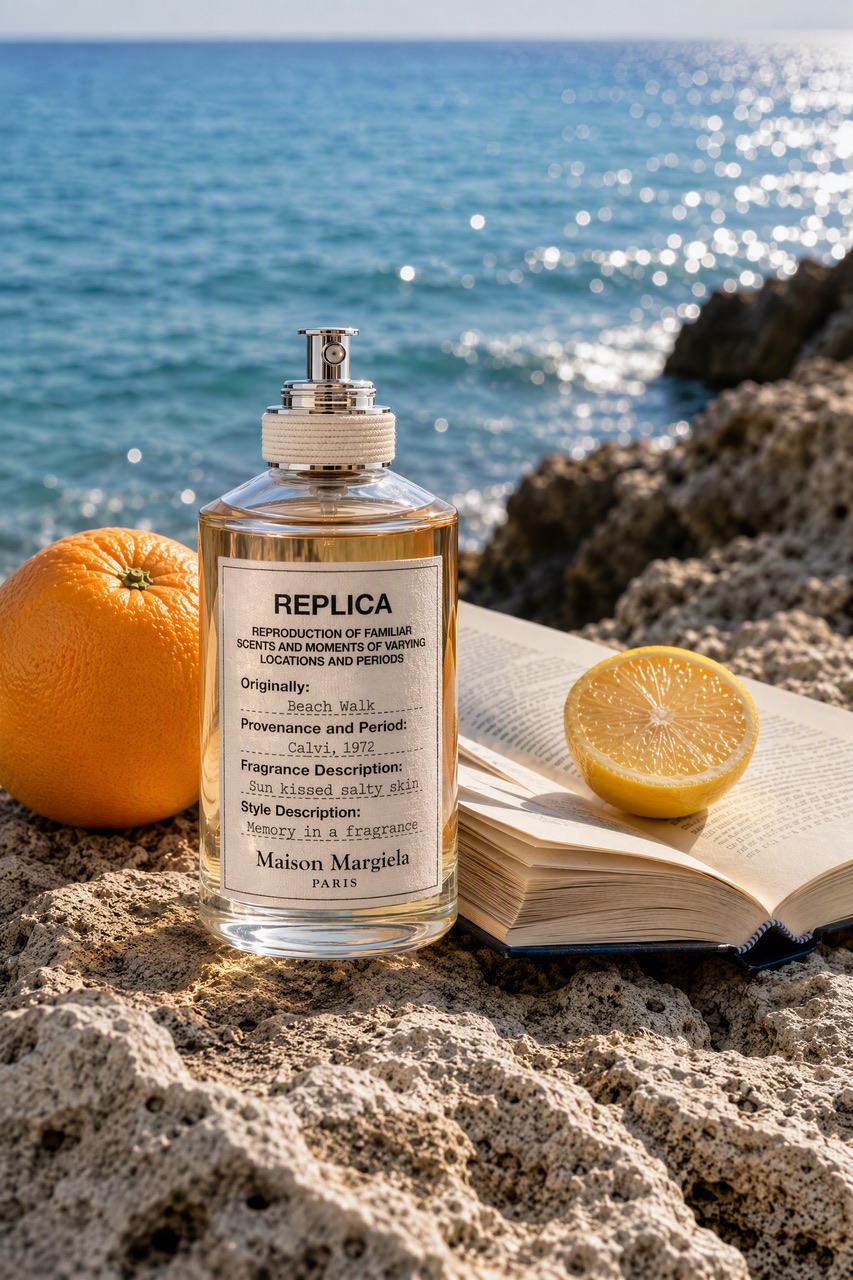
Direct a reference editKeep the original product shape and packaging unchanged. Replace the background with sunlit coastal rocks and add realistic glass reflections.
Choose the destination formatCreate a vertical 9:16 campaign image with the subject in the lower two-thirds and clean space at the top for social copy.
Practical ways GPT Image 2 fits into creative planning and review.
Keep generation and reference editing in the same image workflow.
Set resolution, ratio, and output count before generating so the result matches its intended channel.
Use exact wording and explicit layout direction when an image needs labels, signage, or campaign copy.
Answers to common questions about using GPT Image 2 on Wizstar.
GPT Image 2 is an OpenAI image model available in Wizstar for text-to-image generation and reference-image editing. The GPT Image 2 AI image generator can help turn a detailed prompt into portraits, product visuals, editorial scenes, campaign concepts, and other images while preserving the visual direction you provide.
Yes. GPT Image 2 image editing starts with an uploaded reference image and a precise description of the change you want. State what should be added, removed, replaced, or restyled, and identify the people, objects, layout, text, and visual details that must remain unchanged.
A useful GPT Image 2 prompt describes the subject, composition, camera or illustration style, lighting, color palette, typography, and intended output format. Include exact wording when the image needs readable text, then specify placement, hierarchy, alignment, and any reference image that should guide the result.
The source Wizstar workflow presents GPT Image 2 output at 1K, 2K, and 4K, with 1:1, 4:3, 3:4, 16:9, and 9:16 aspect ratios. Choose the resolution and ratio before generating so the GPT Image 2 result fits its intended destination, such as a square post, presentation, banner, or vertical mobile creative.
The inspected Wizstar controls present one, two, or four GPT Image 2 images per generation. Generating multiple variations is useful when comparing composition, lighting, product placement, or art direction, while a single output can be more suitable when you already have a tightly specified brief.
GPT Image 2 is not guaranteed to be an unlimited free AI image generator. Available starter credits and generation costs can change according to resolution, output count, and other settings, so check the current credit amount in the Wizstar image generator before submitting.
You can request text in a GPT Image 2 image. Include the exact wording, hierarchy, placement, alignment, font mood, contrast, and style in the prompt, then review the generated result carefully before publishing because text-heavy designs may need another prompt iteration or manual finishing.
Start from a text prompt or reference image, then set the composition and output format.