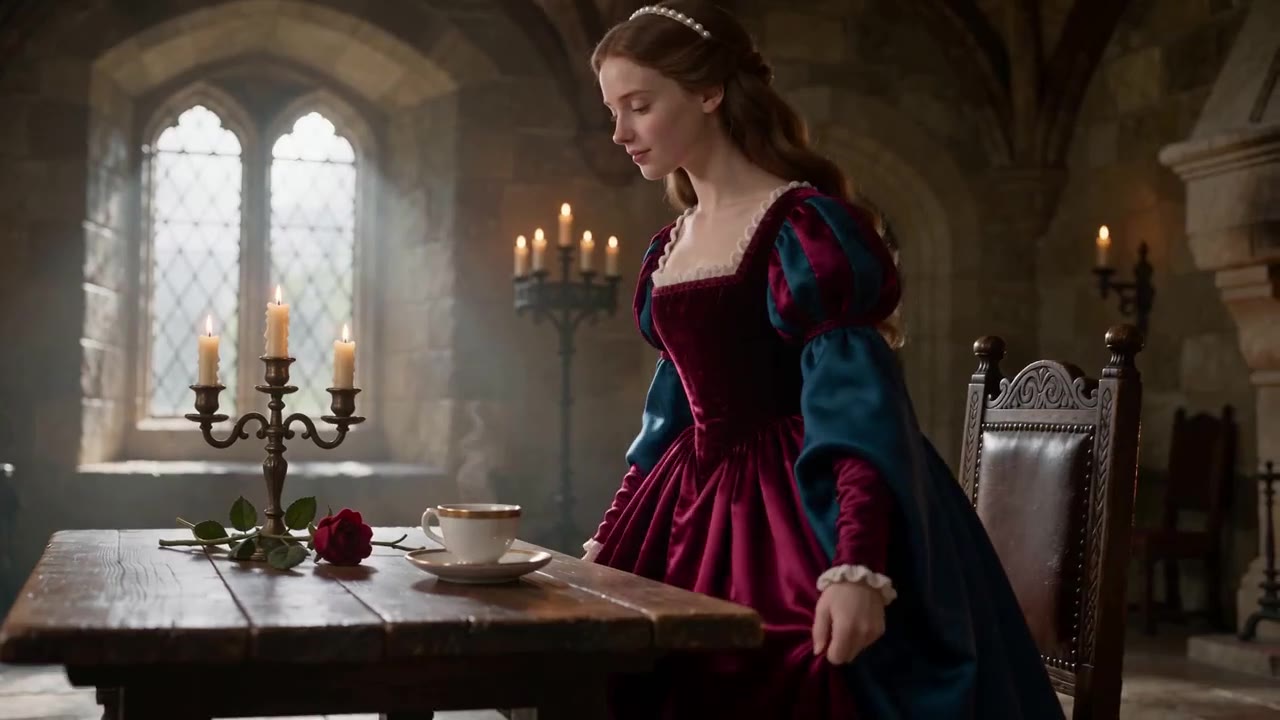
GEMINI OMNI 1.1 FLASH · Video
Candlelit castle dinner
AI video example · Portrait
Create Gemini Omni 1.1 Flash videos on Wizstar from image and video references. Generate native 4K clips of 3–10 seconds with audio and consistent visuals.

 9:16|720P
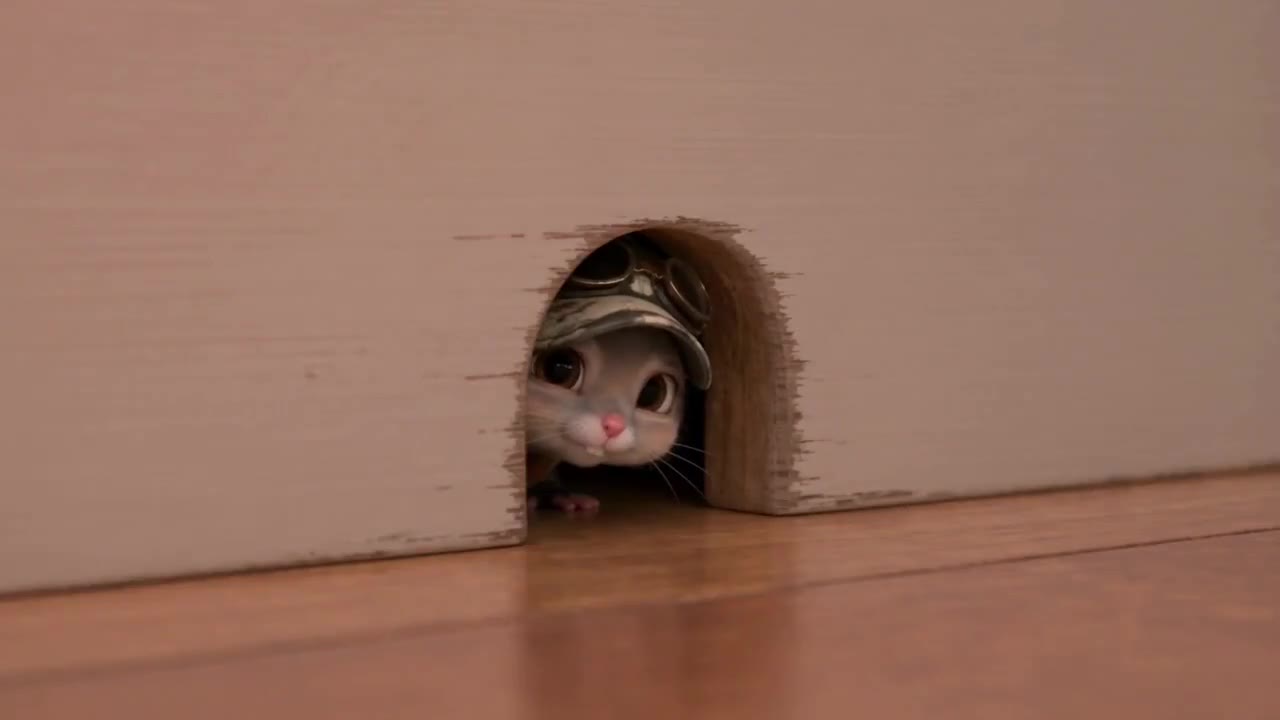
See how Gemini Omni 1.1 Flash supports real creative briefs and output formats.
AI video example · Portrait
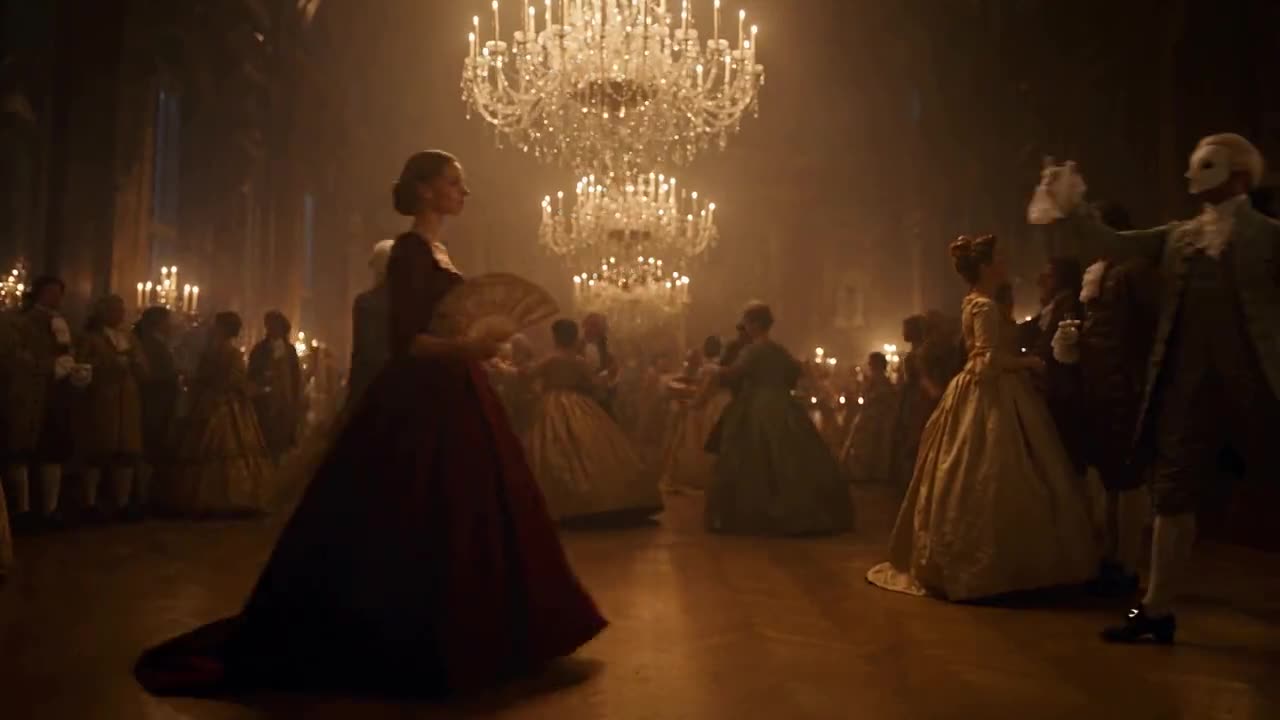
AI video example · Character consistency
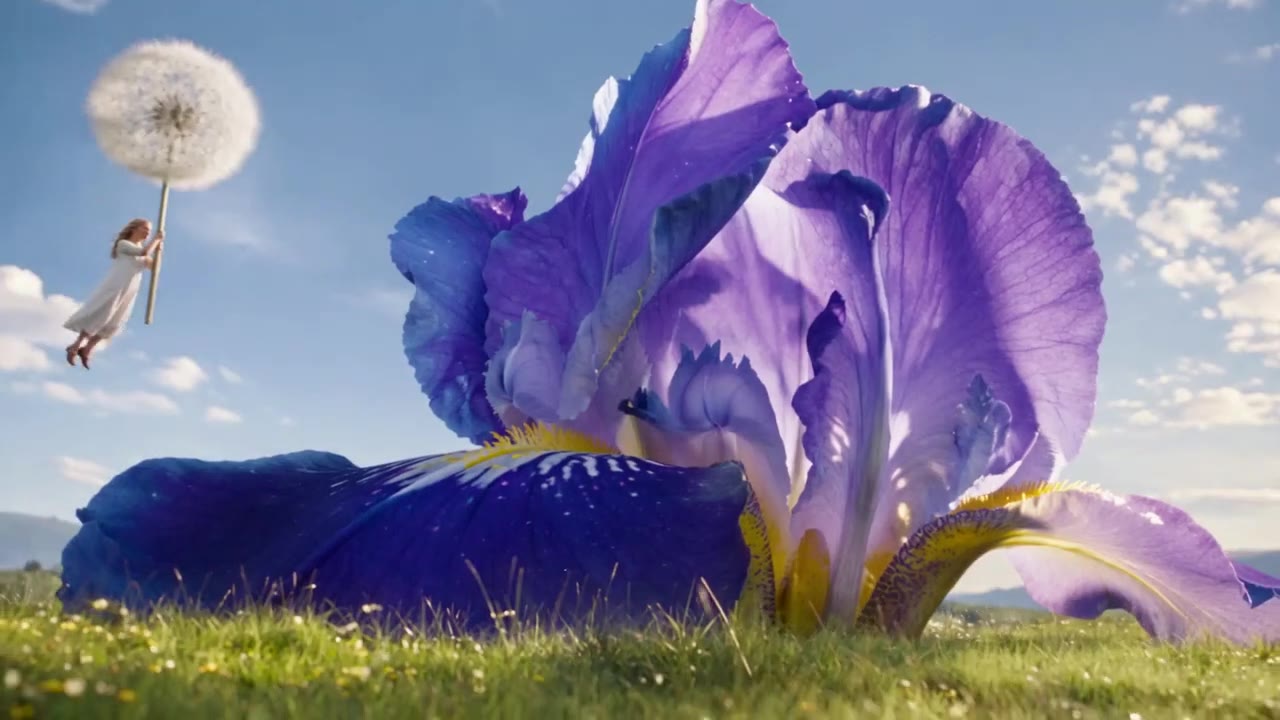
AI video example · Fantasy character
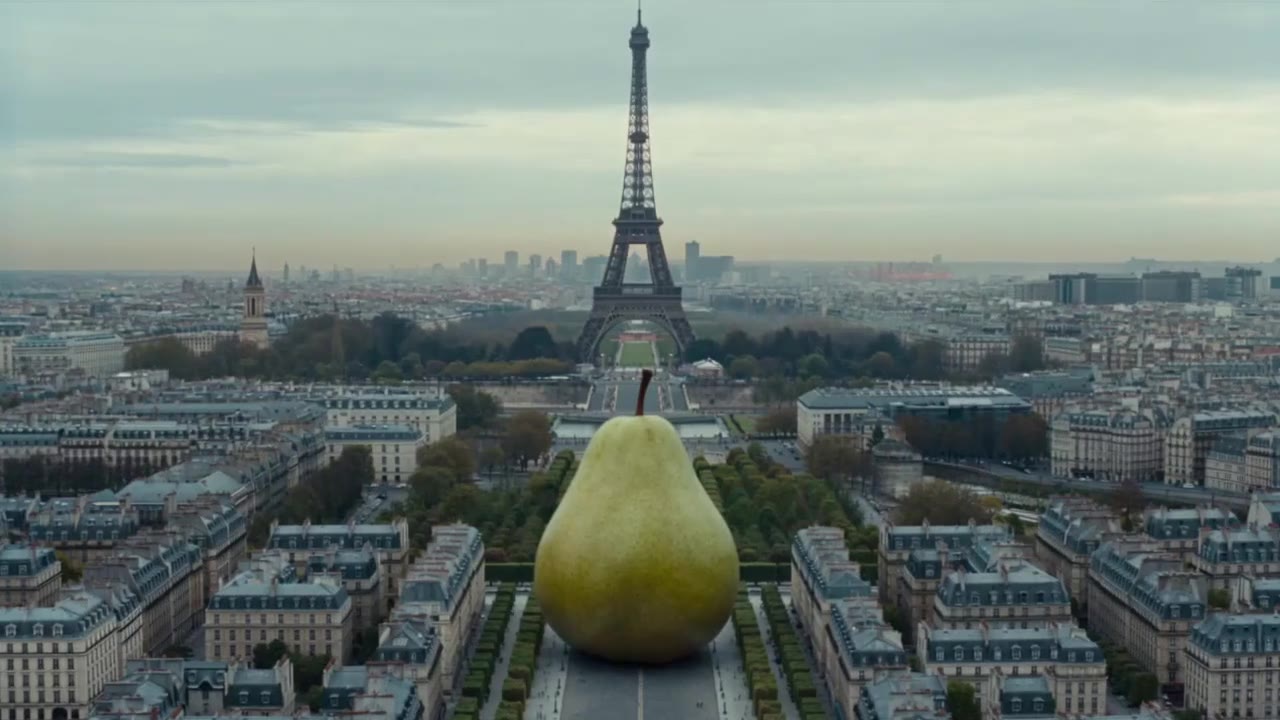
AI video example · Surreal scale
Create Gemini Omni 1.1 Flash videos on Wizstar from image and video references. Generate native 4K clips of 3–10 seconds with audio and consistent visuals.
Gemini Omni 1.1 Flash is a Google video model in the Wizstar AI video generator. On Wizstar it works in the Reference to Video tab. Add image and video references and a prompt, and the model makes a native 4K clip of 3 to 10 seconds with generated audio. Its improved visual consistency helps characters, objects and settings look like your references.
Gemini Omni 1.1 Flash is developed by Google. Wizstar provides the creation workflow described on this page.
Explore the core Gemini Omni 1.1 Flash capabilities available in the current Wizstar workflow.
Combine image and video references to set the character, setting, style and movement of a shot.
Keep faces, costumes, props and settings close to your references throughout the clip.
Make clips at native 4K so character details and textures stay sharp.
Generate sound with the picture, and choose a length from a quick 3-second moment to a 10-second scene.
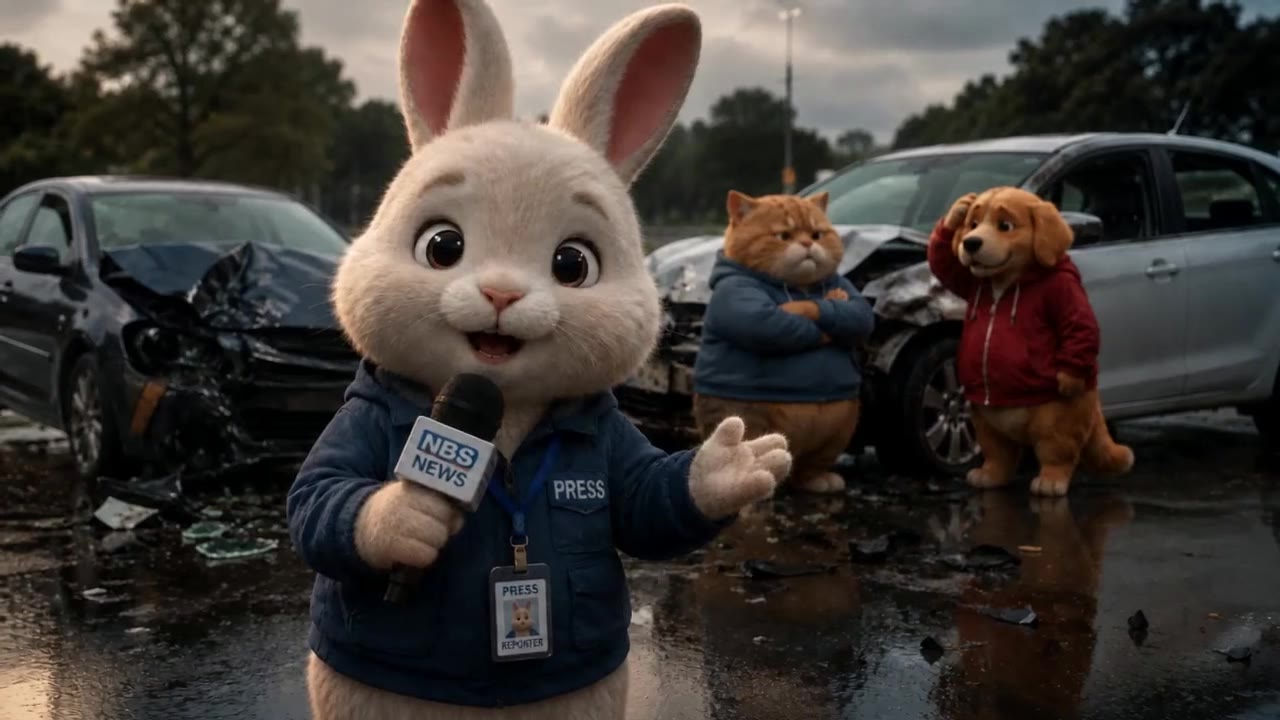
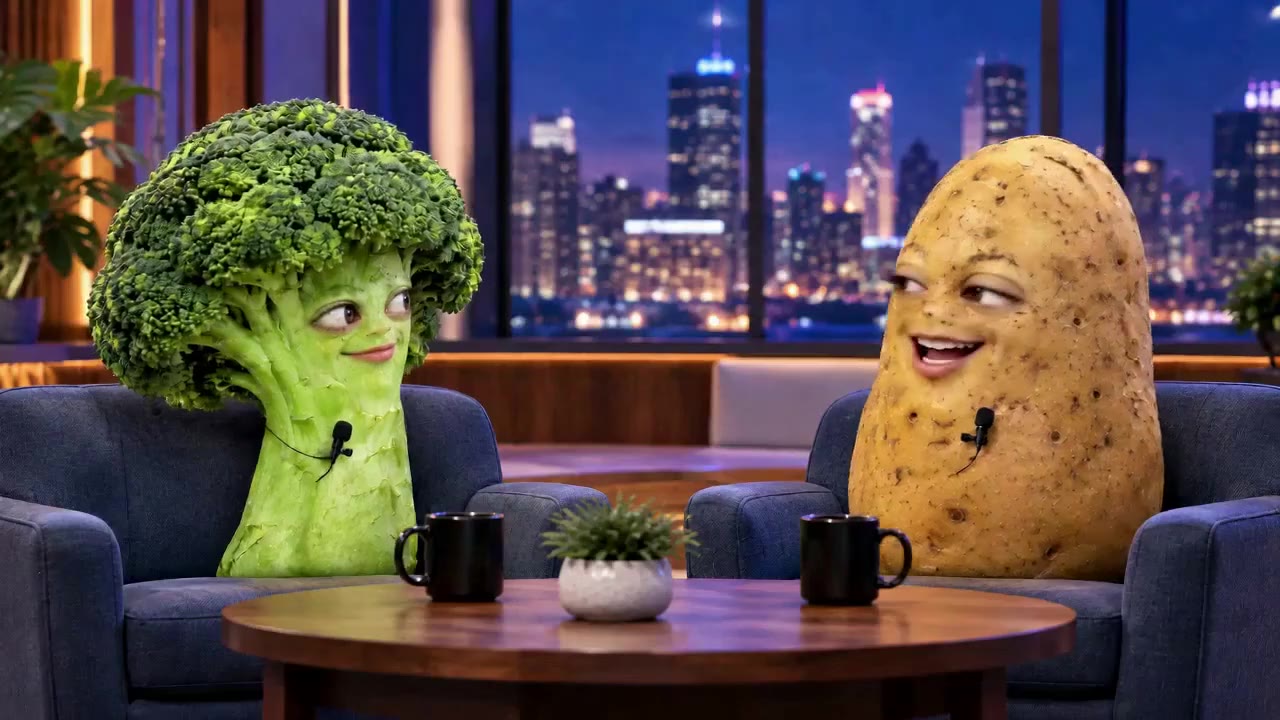
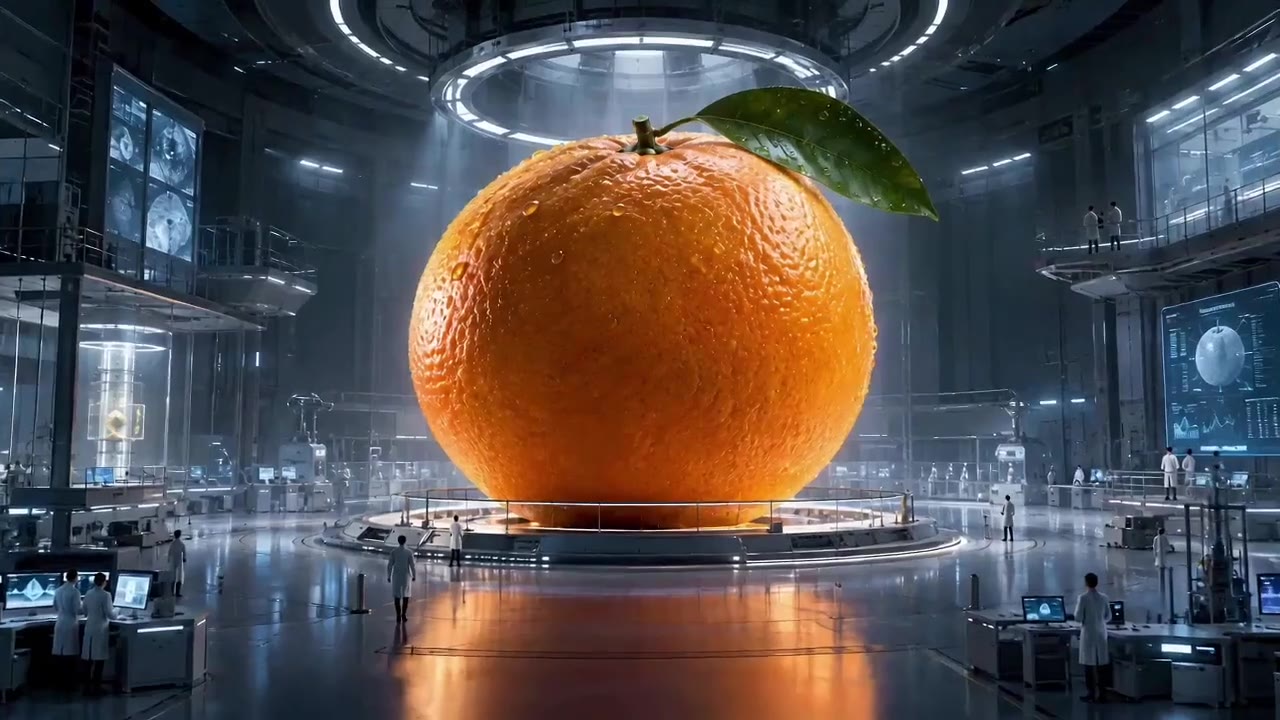
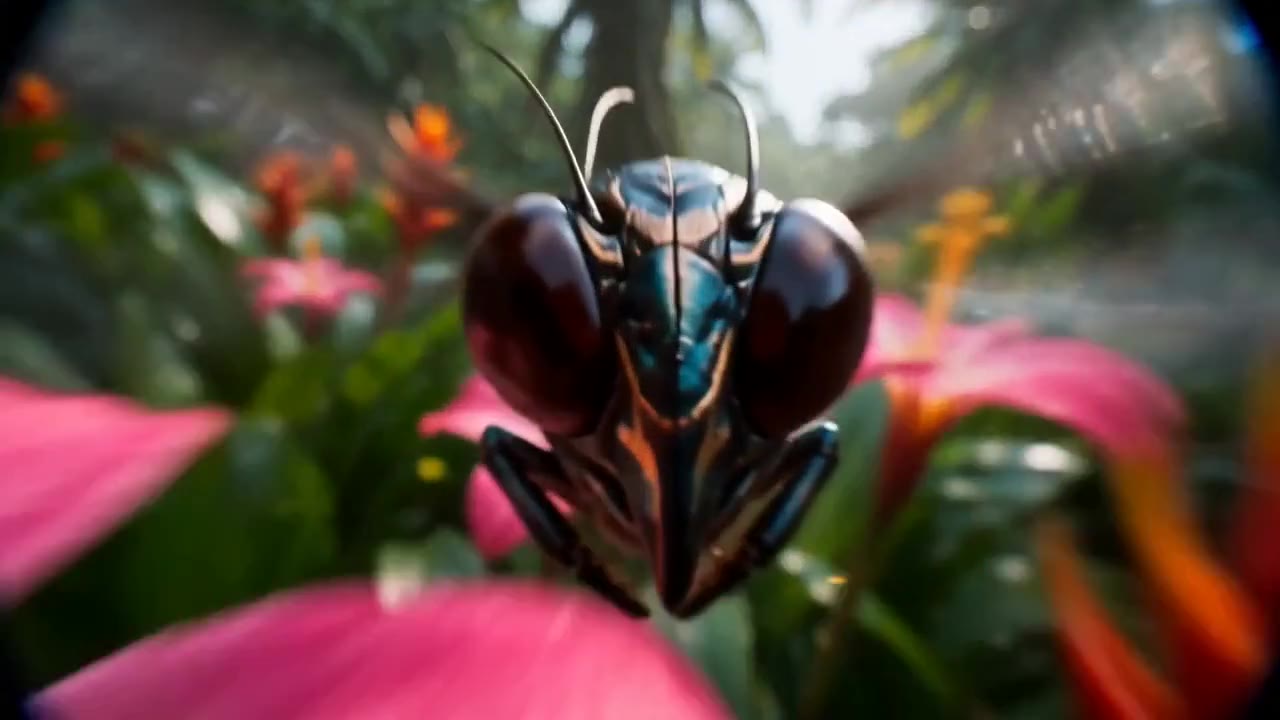
Create with Gemini Omni 1.1 Flash in three steps inside Wizstar.
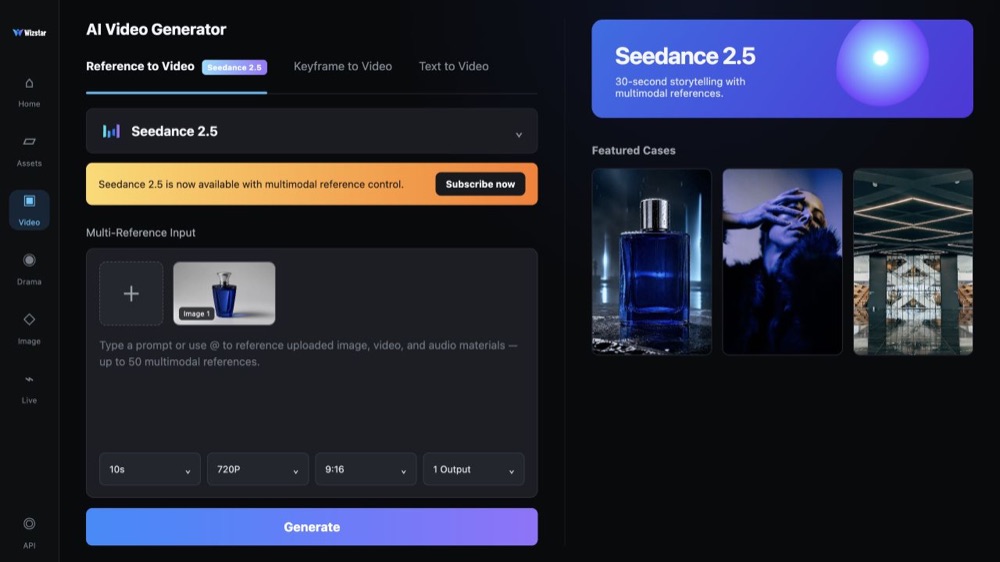
Choose Gemini Omni 1.1 Flash in the Reference to Video tab of the Wizstar video generator.
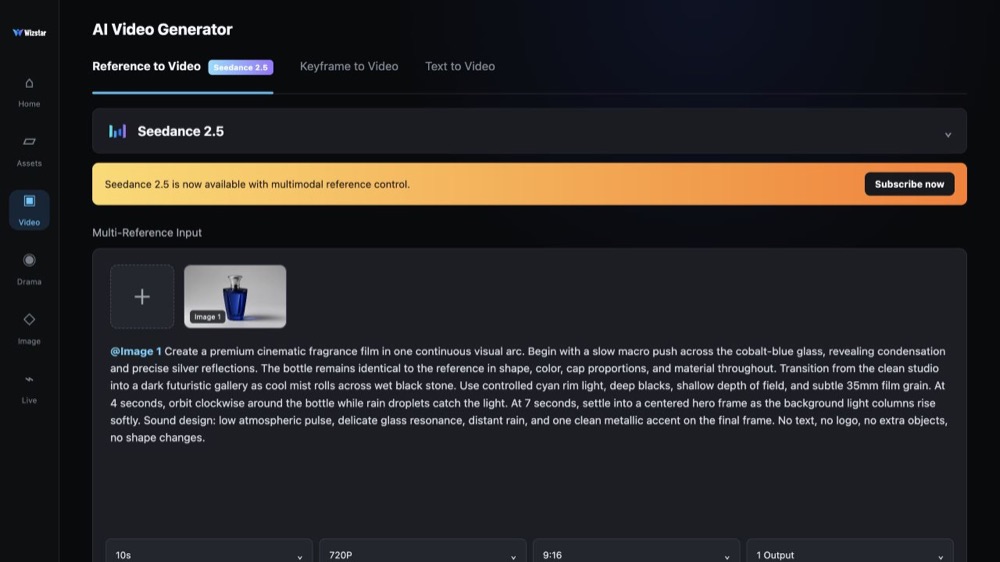
Upload image or video references, give each one a job, then describe the action, camera and sound.
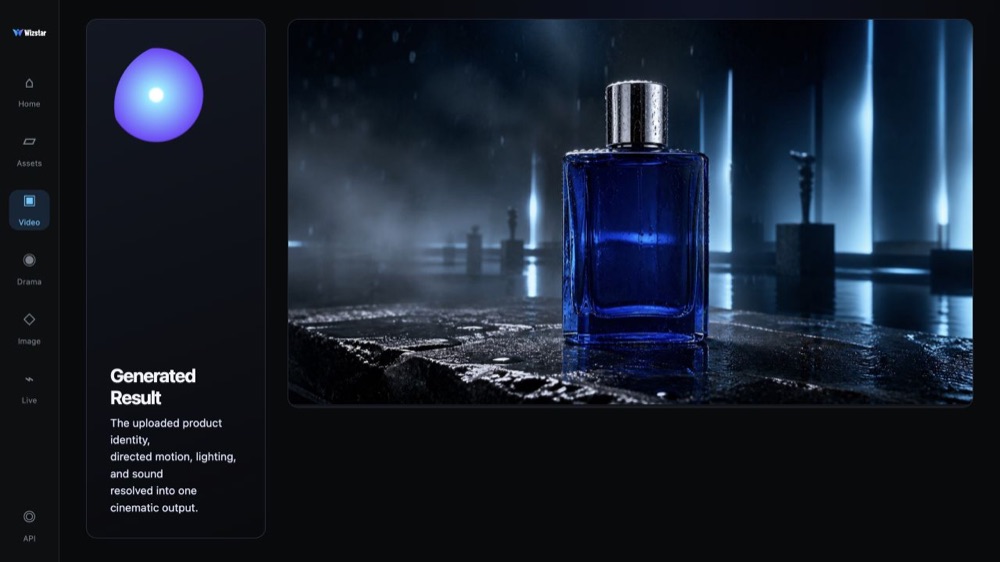
Review the 4K clip with audio, check that the look stays consistent, then change the prompt or references.
Connect Gemini Omni 1.1 Flash capabilities to the creative jobs teams need to complete.
Bring recurring characters to life in short scenes that look consistent, for series and channels.
Create with Gemini Omni 1.1 FlashStage playful sketches with talking animals, objects and food characters.
Create with Gemini Omni 1.1 FlashTurn product or mascot references into short story clips with sound.
Create with Gemini Omni 1.1 FlashShow an idea with a clear subject and setting taken from your references.
Create with Gemini Omni 1.1 FlashCompare the available model workflows before choosing a starting point.
| Model | Type | Best for | Primary input | |
|---|---|---|---|---|
| Seedance 2.5 | Video | 30-second video generation with audio | Text or reference media | View |
| MiniMax H3 | Video | Multimodal video generation with synchronized sound | Text or reference media | View |
| Kling 3.0 | Video | Cinematic motion control | Text or reference media | View |
| Seedance 2.0 | Video | Multi-shot visual storytelling | Text or reference media | View |
| Seedance 1.5 | Video | Superb audio-visual synchronization | Text or reference media | View |
| Veo 3.1 | Video | Cinematic 4K video with rich audiovisual detail | Text or reference media | View |
| Gemini Omni 1.1 Flash Current | Video | Greater control with improved visual consistency | Text or reference media | |
| Gemini Omni Flash | Video | Strong visual consistency across multimodal inputs | Text or reference media | View |
| Sora 2 | Video | Prompt-driven visual storytelling | Text or reference media | View |
| GPT Image 2 | Image | Prompt-led image generation and editing | Text or reference image | View |
| GPT Image 2.5 | Image | Sharper image generation with faster, more precise editing | Text or reference image | View |
| Nano Banana 2 | Image | Fast text-to-image generation and reference editing | Text or reference image | View |
| Seedream 5.0 | Image | ByteDance flagship for high-fidelity generation | Text or reference image | View |
Review the Gemini Omni 1.1 Flash inputs and output controls presented in the source workflow.
Confirm the controls displayed in the generator before beginning production work.
Use these Gemini Omni 1.1 Flash prompt patterns to make the creative direction explicit.
 Give the character a goal
A little mouse in a leather aviator cap and goggles climbs a thick rope up the side of a wooden crate, pausing to look up with determination, warm adventure lighting, playful orchestral music.
 Write the dialogue
A rabbit news reporter in a trench coat holds a microphone and reports live from a minor car-accident scene, flashing lights behind him, handheld news camera, he says: "Breaking news from Carrot Street."
 Keep the characters consistent
Use the reference images for both characters. A broccoli and a potato perform stand-up comedy on a small club stage under a spotlight, trading jokes while the audience laughs.
 Set the scale and camera
A beetle and a frog fly low over a rainforest stream, the camera tracking beside them through ferns and mist, water rushing below, chirping insects.
Practical ways Gemini Omni 1.1 Flash fits into creative planning and review.
Give every image or video reference a clear job, so characters and settings stay easy to recognize.
Write dialogue and sound details into the prompt, so the audio fits the performance.
Reuse the same character references across clips to build a short series that looks consistent.
Answers to common questions about using Gemini Omni 1.1 Flash on Wizstar.
Gemini Omni 1.1 Flash is a Google video model in the Wizstar AI video generator. On Wizstar it works in the Reference to Video tab, takes image and video references, and makes native 4K clips of 3 to 10 seconds with generated audio.
Open the Wizstar video generator and pick Gemini Omni 1.1 Flash in the Reference to Video tab. Upload your image or video references and write a prompt about the action, camera and sound. Generate the clip, then improve the prompt or references for the next try.
Gemini Omni 1.1 Flash takes both image and video references in one prompt. In the prompt, say whether each reference sets the character, setting, style or movement, so the model uses them the way you want.
Gemini Omni 1.1 Flash makes native 4K video, and clips run from 3 to 10 seconds. Check the options in the generator before you submit, because the available settings can change.
Gemini Omni 1.1 Flash adds greater control, improved visual consistency and native 4K output. Choose Gemini Omni Flash for lighter, faster product and beauty clips. Choose Gemini Omni 1.1 Flash when characters and scenes must look the same across the video, at higher resolution.
Gemini Omni 1.1 Flash is not an unlimited free AI video generator. Each generation uses credits. The amount depends on the length and output settings, so check the credit amount shown in Wizstar before you submit.
Start from text, keyframes, or reference media, then direct the motion and sound.