VEO 3.1 · Video
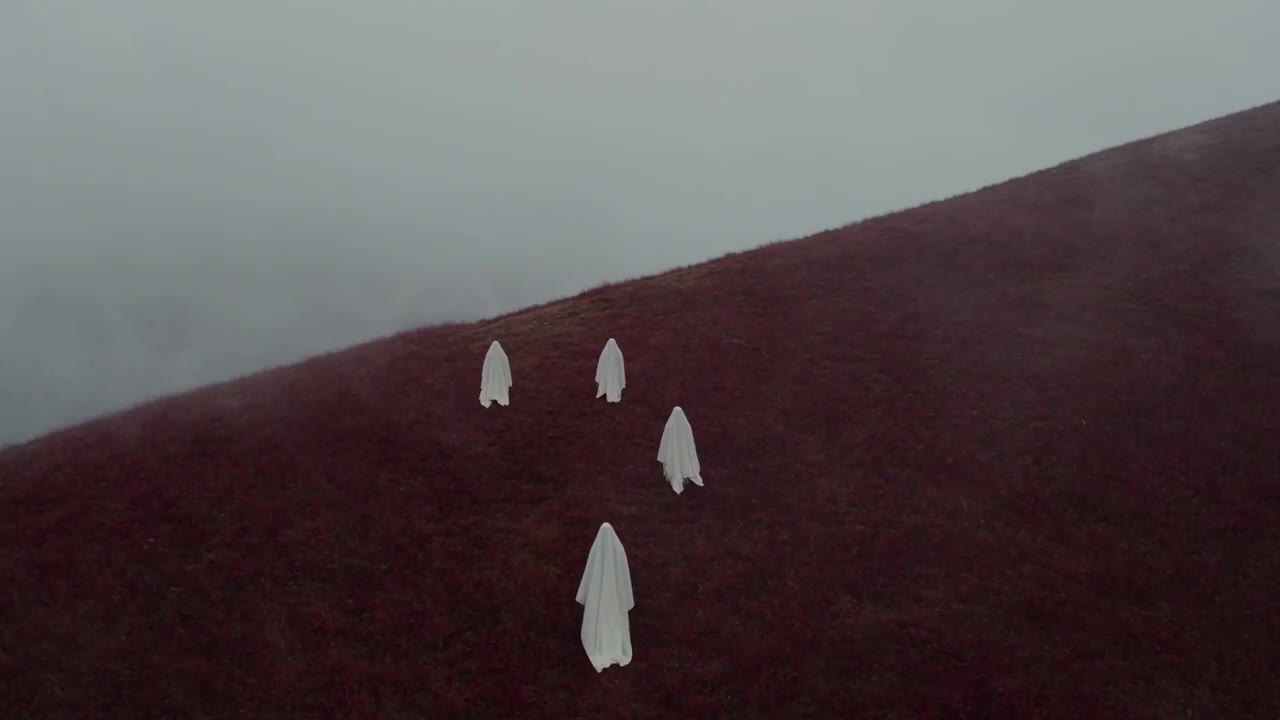
White ghost on a red hillside
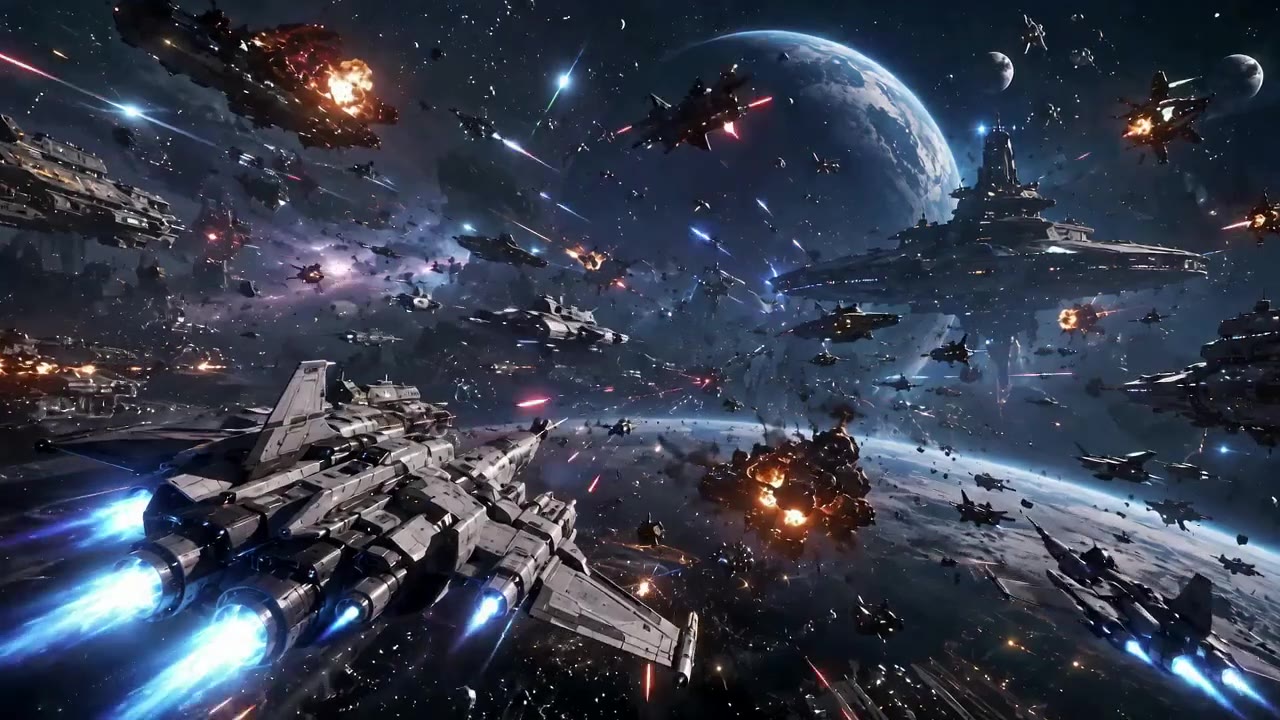
AI video example · Surreal landscape
Create Veo 3.1 videos on Wizstar from up to 3 reference images. Generate native 4K clips of 4–8 seconds with sound for ads, trailers and cinematic scenes.

 9:16|720P
See how Veo 3.1 supports real creative briefs and output formats.
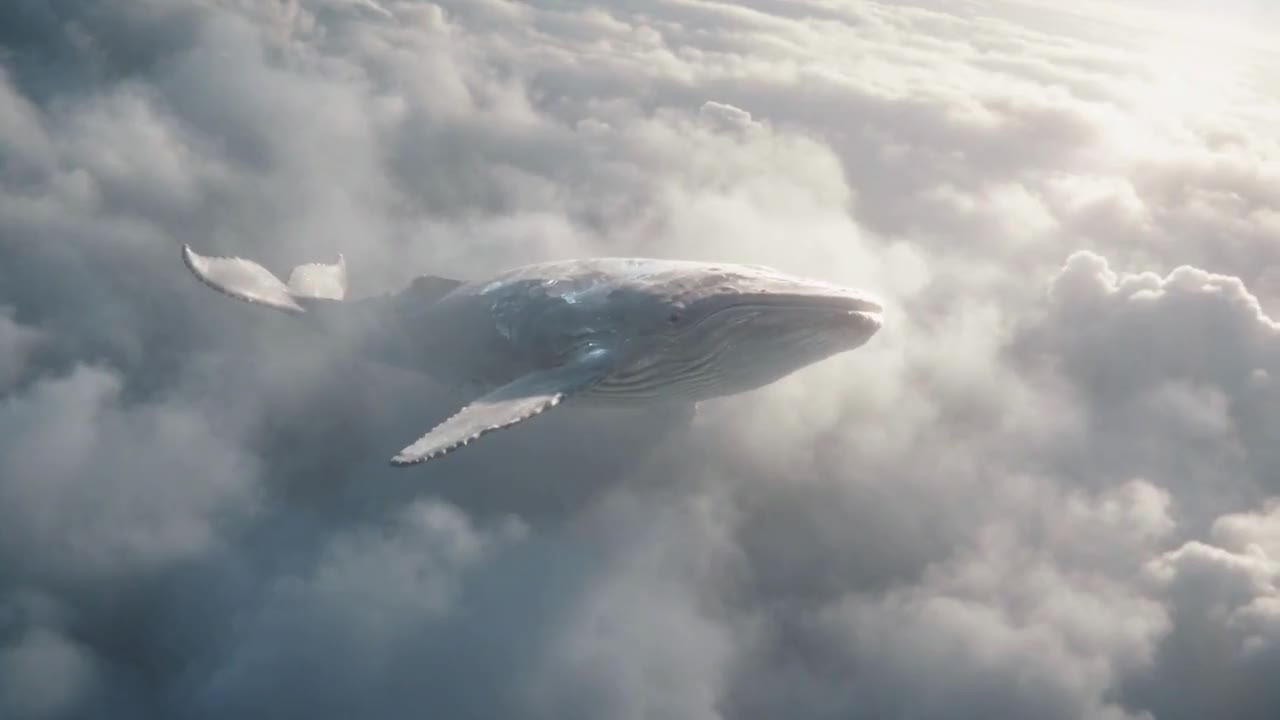
AI video example · Surreal landscape
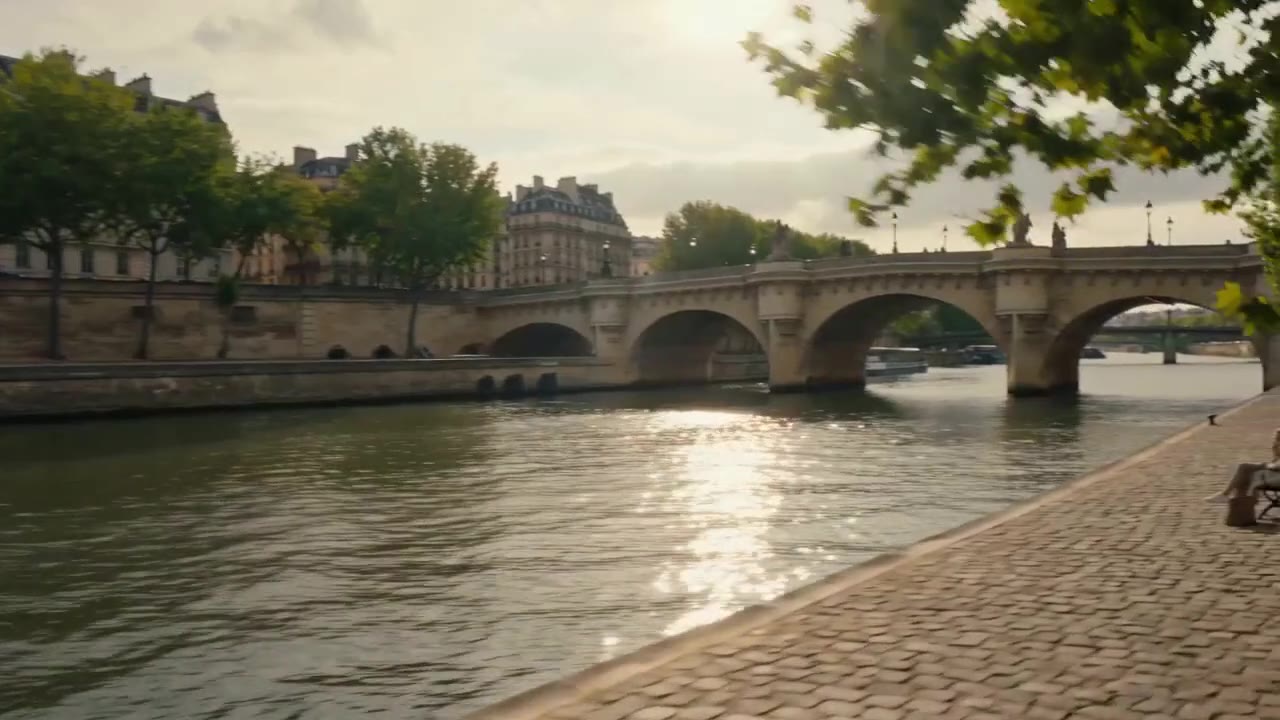
AI video example · City scene
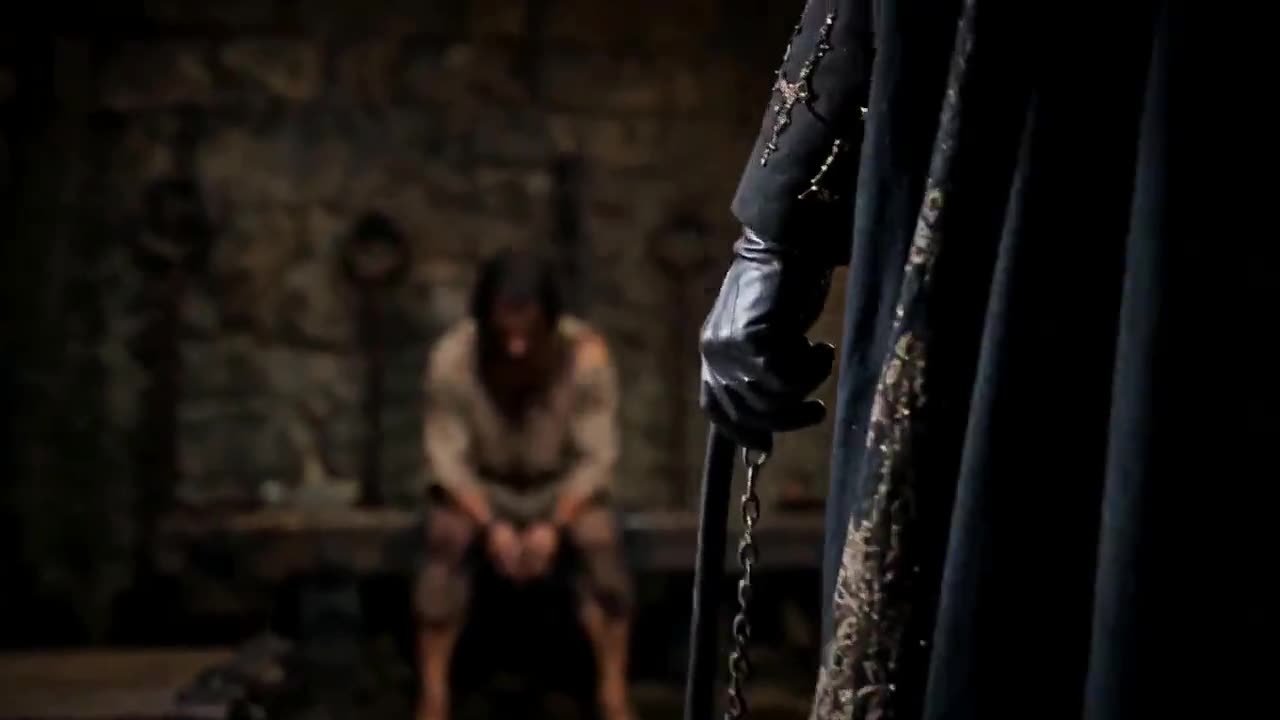
AI video example · Fantasy scene
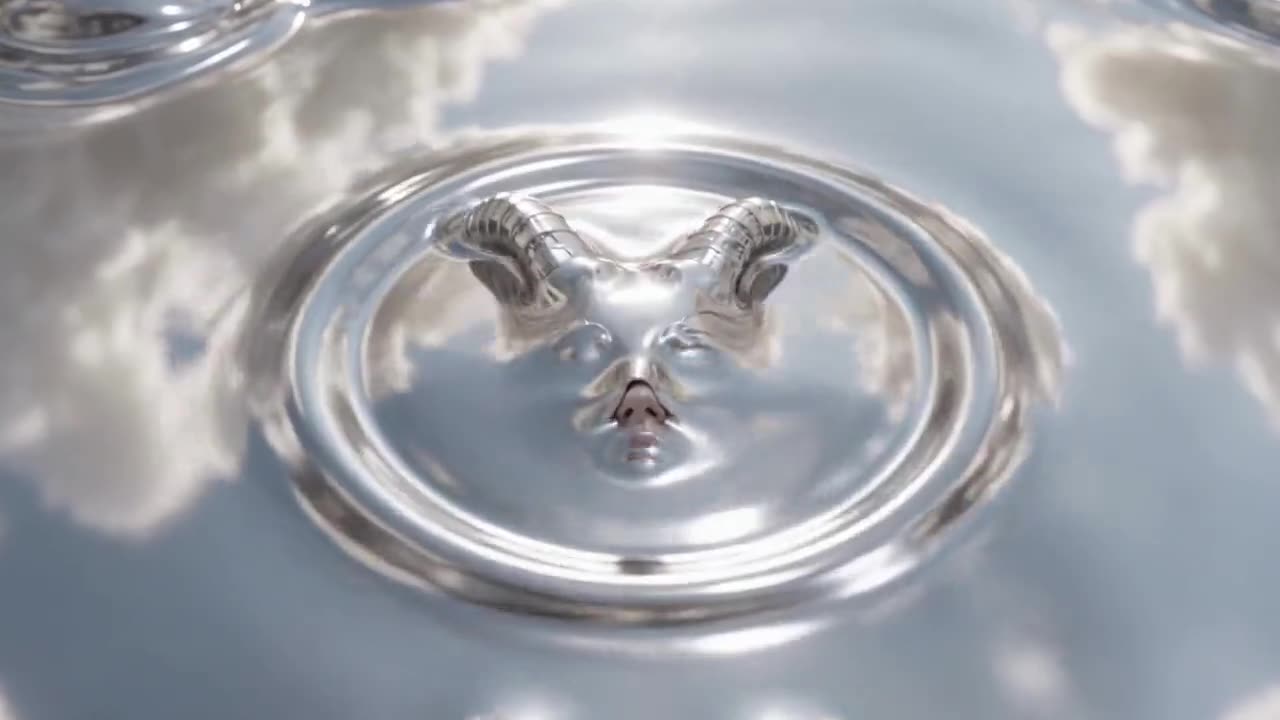
AI video example · Surreal scene
Create Veo 3.1 videos on Wizstar from up to 3 reference images. Generate native 4K clips of 4–8 seconds with sound for ads, trailers and cinematic scenes.
Veo 3.1 is a Google video model in the Wizstar AI video generator. On Wizstar it works in the Reference to Video tab. Add up to 3 reference images, describe the action, camera and sound, and Veo 3.1 makes a native 4K clip of 4 to 8 seconds with generated audio. It is a good fit for film-style shots where the light, textures and sound need to look finished.
Veo 3.1 is developed by Google. Wizstar provides the creation workflow described on this page.
Explore the core Veo 3.1 capabilities available in the current Wizstar workflow.
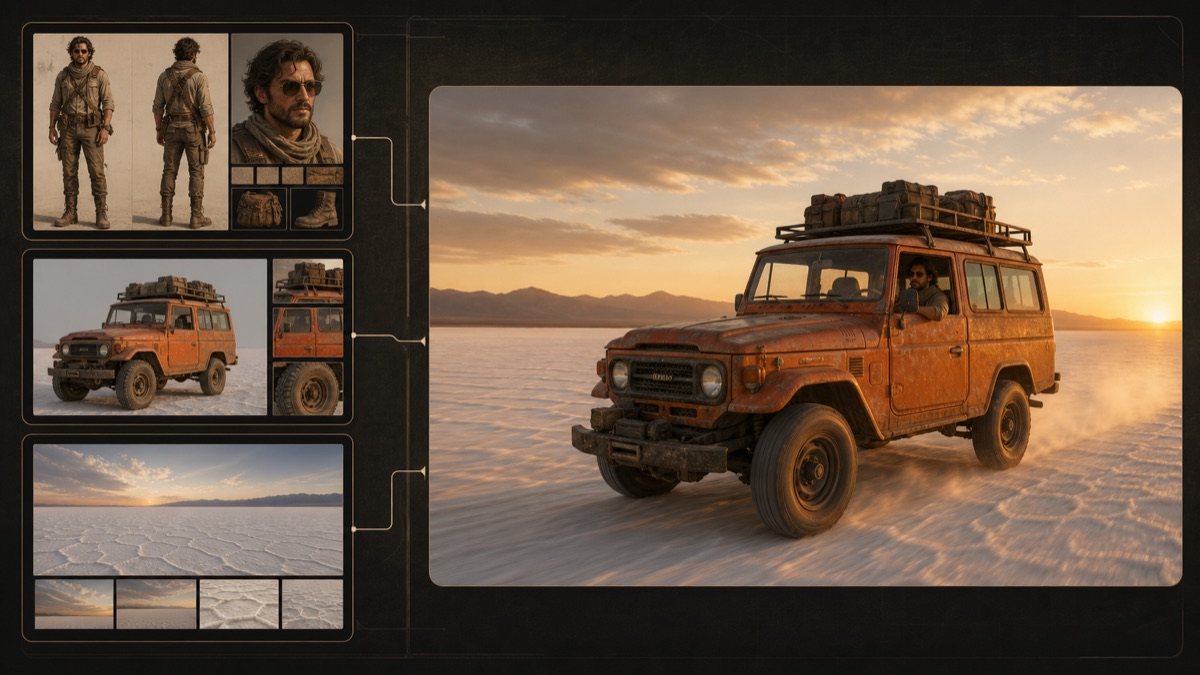
Upload up to 3 reference images to set the subject, setting or style. Then use a prompt to direct the motion.
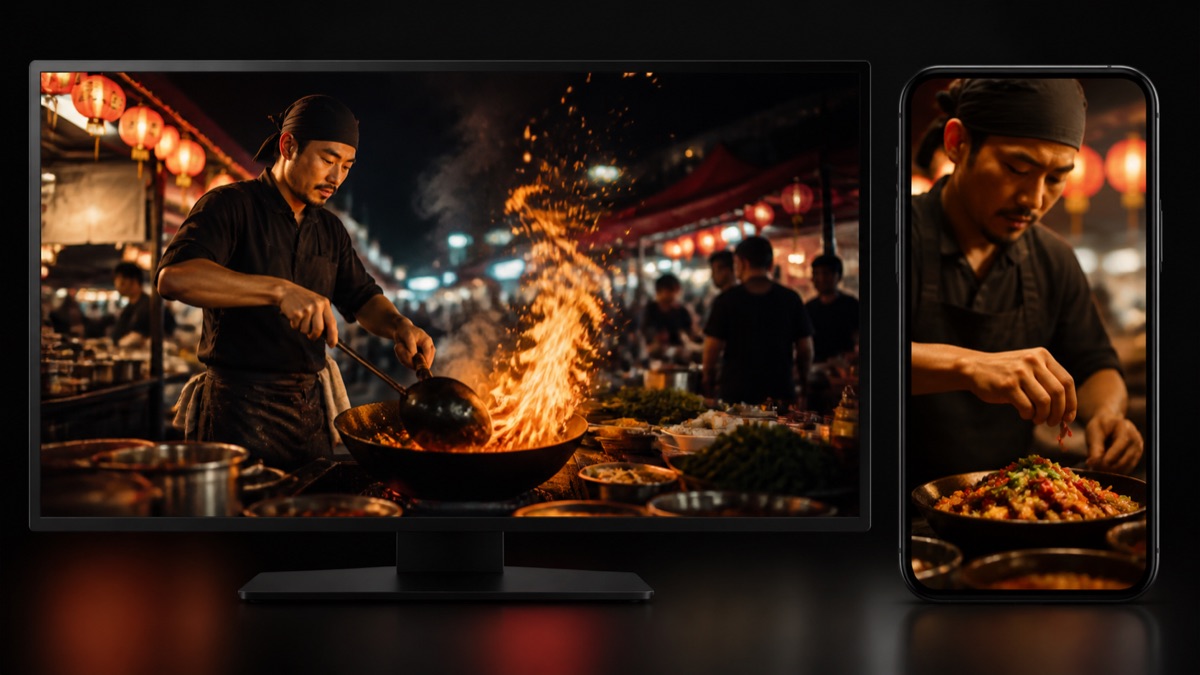
Make clips at native 4K so textures, light and small details hold up on large screens.
Generate sound along with the picture, from background sound and effects to the mood of the scene.
Choose a length for one short moment, from a quick 4-second shot to a full 8-second shot.
Create with Veo 3.1 in three steps inside Wizstar.
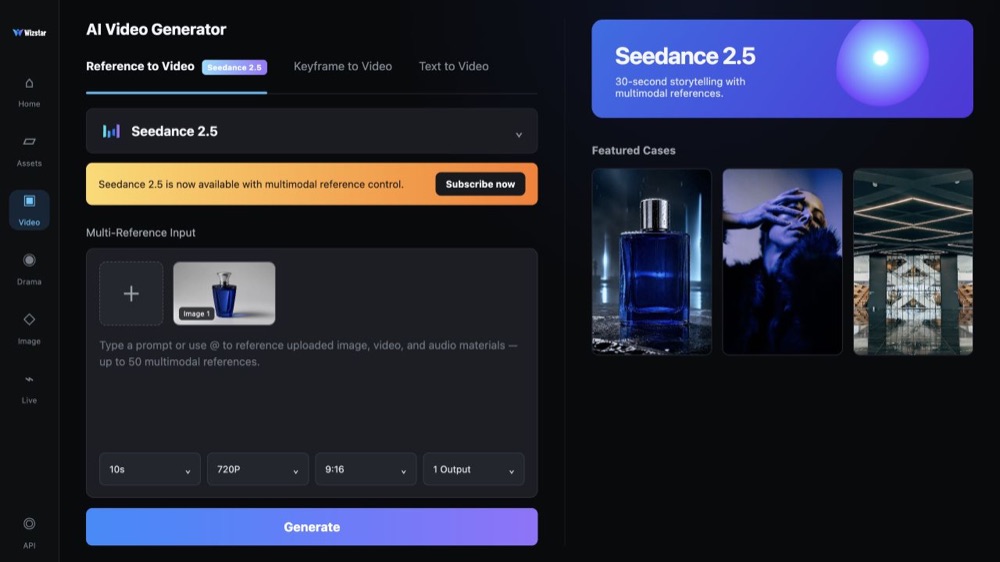
Choose Veo 3.1 in the Reference to Video tab of the Wizstar video generator.
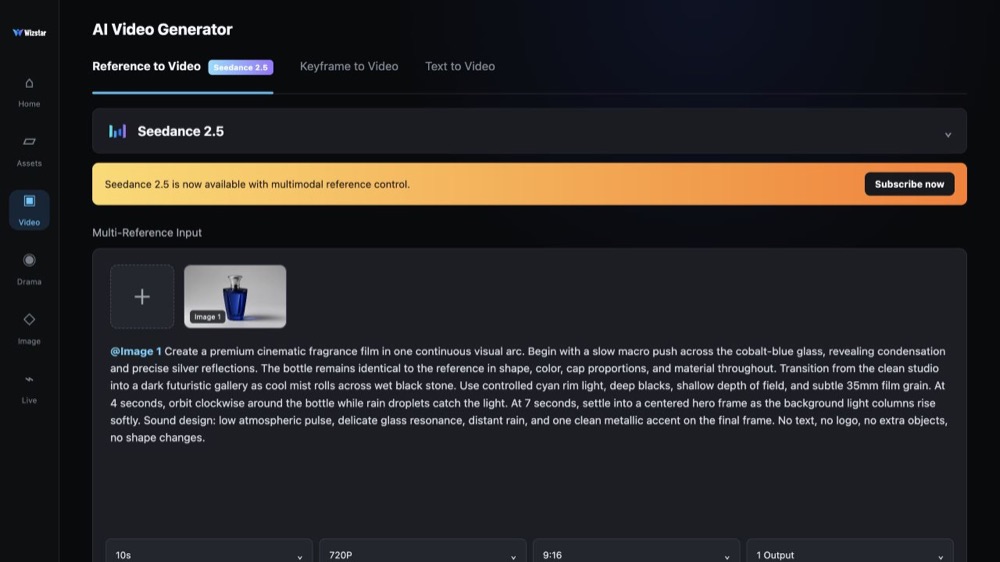
Upload up to 3 JPG or PNG images, then describe the action, camera, lighting and sound.
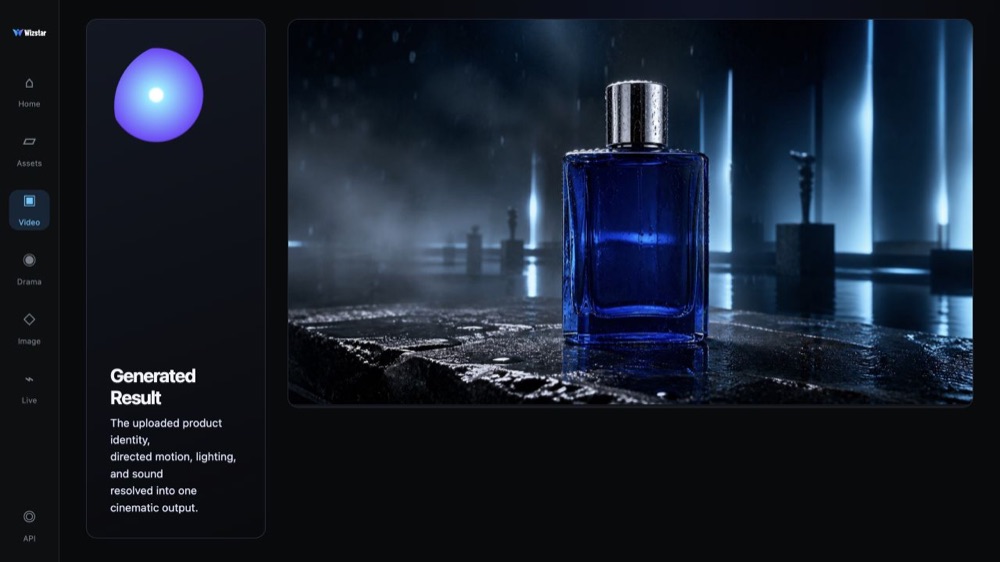
Review the 4K clip with audio, change the prompt or reference images, and generate the next version.
Connect Veo 3.1 capabilities to the creative jobs teams need to complete.
Build big opening shots and action moments with picture and sound together.
Create with Veo 3.1Turn product reference images into dramatic 4K close-ups for launches and ads.
Create with Veo 3.1Create wide landscapes, aerial views and nature scenes for intros and reels.
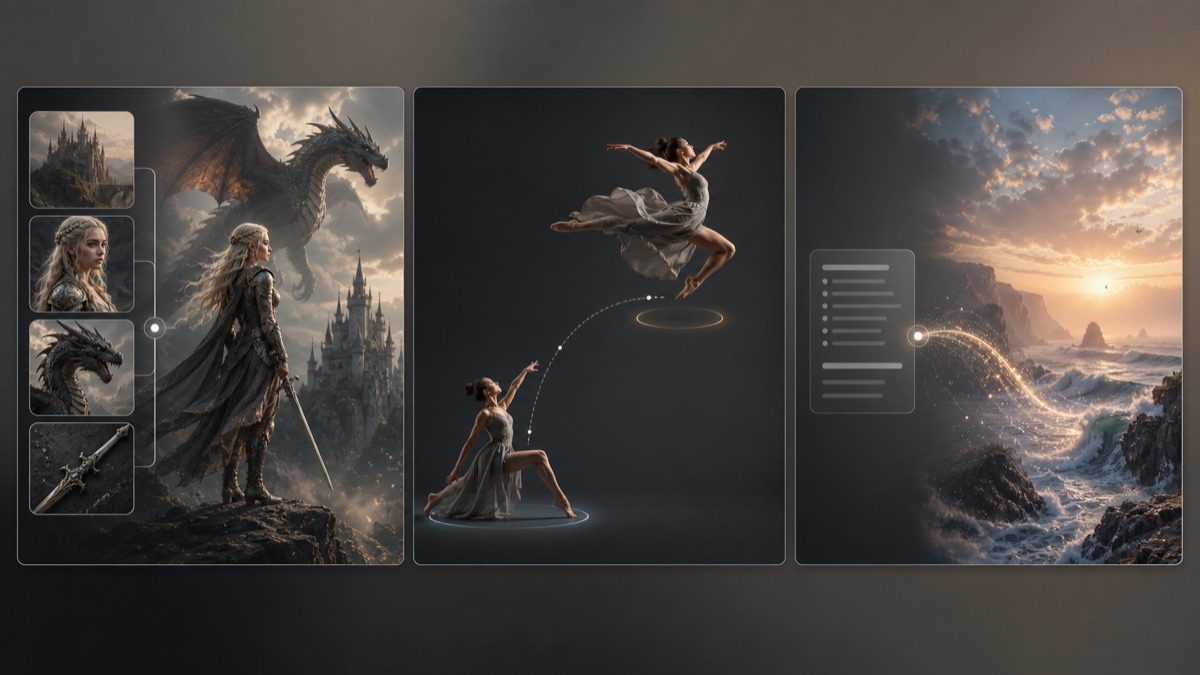
Create with Veo 3.1Show sci-fi and fantasy ideas as shots that look finished, before full production.
Create with Veo 3.1Compare the available model workflows before choosing a starting point.
| Model | Type | Best for | Primary input | |
|---|---|---|---|---|
| Seedance 2.5 | Video | 30-second video generation with audio | Text or reference media | View |
| MiniMax H3 | Video | Multimodal video generation with synchronized sound | Text or reference media | View |
| Kling 3.0 | Video | Cinematic motion control | Text or reference media | View |
| Seedance 2.0 | Video | Multi-shot visual storytelling | Text or reference media | View |
| Seedance 1.5 | Video | Superb audio-visual synchronization | Text or reference media | View |
| Veo 3.1 Current | Video | Cinematic 4K video with rich audiovisual detail | Text or reference media | |
| Gemini Omni 1.1 Flash | Video | Greater control with improved visual consistency | Text or reference media | View |
| Gemini Omni Flash | Video | Strong visual consistency across multimodal inputs | Text or reference media | View |
| Sora 2 | Video | Prompt-driven visual storytelling | Text or reference media | View |
| GPT Image 2 | Image | Prompt-led image generation and editing | Text or reference image | View |
| GPT Image 2.5 | Image | Sharper image generation with faster, more precise editing | Text or reference image | View |
| Nano Banana 2 | Image | Fast text-to-image generation and reference editing | Text or reference image | View |
| Seedream 5.0 | Image | ByteDance flagship for high-fidelity generation | Text or reference image | View |
Review the Veo 3.1 inputs and output controls presented in the source workflow.
Confirm the controls displayed in the generator before beginning production work.
Fast, cost-efficient generation with native audio
Use these Veo 3.1 prompt patterns to make the creative direction explicit.
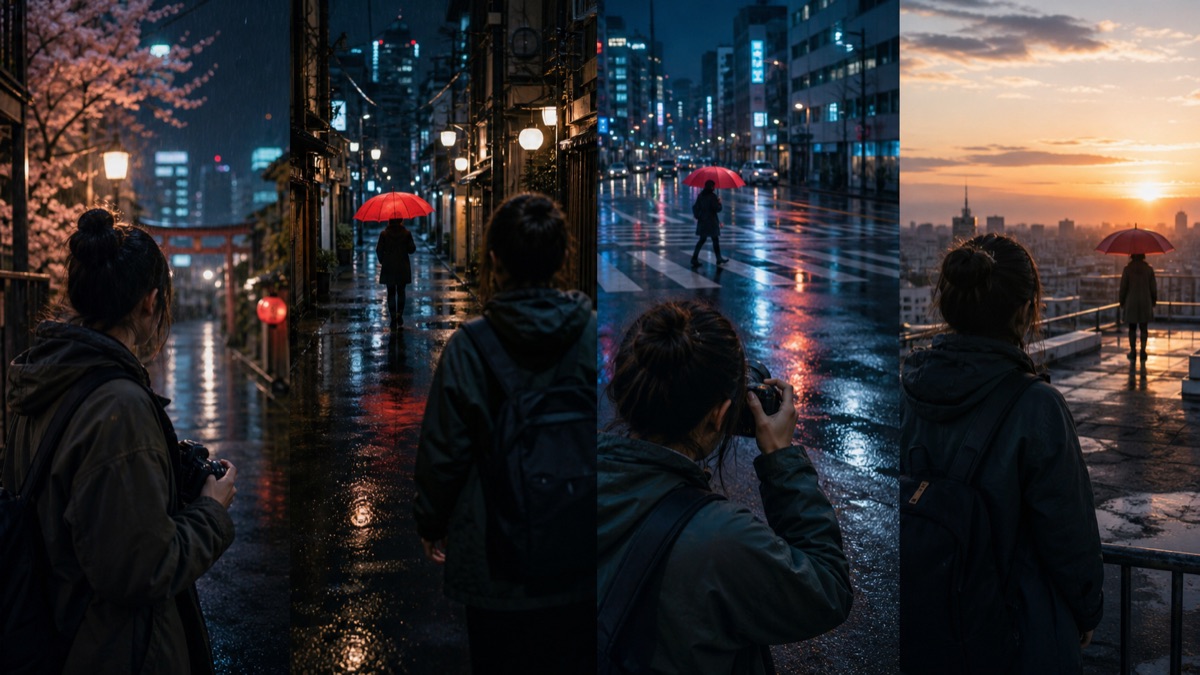 Name the subject and the world
A giant humpback whale glides slowly through a sea of golden clouds at sunrise, mist trailing from its fins, wide cinematic shot, deep whale song echoing across the sky.
 Light the scene
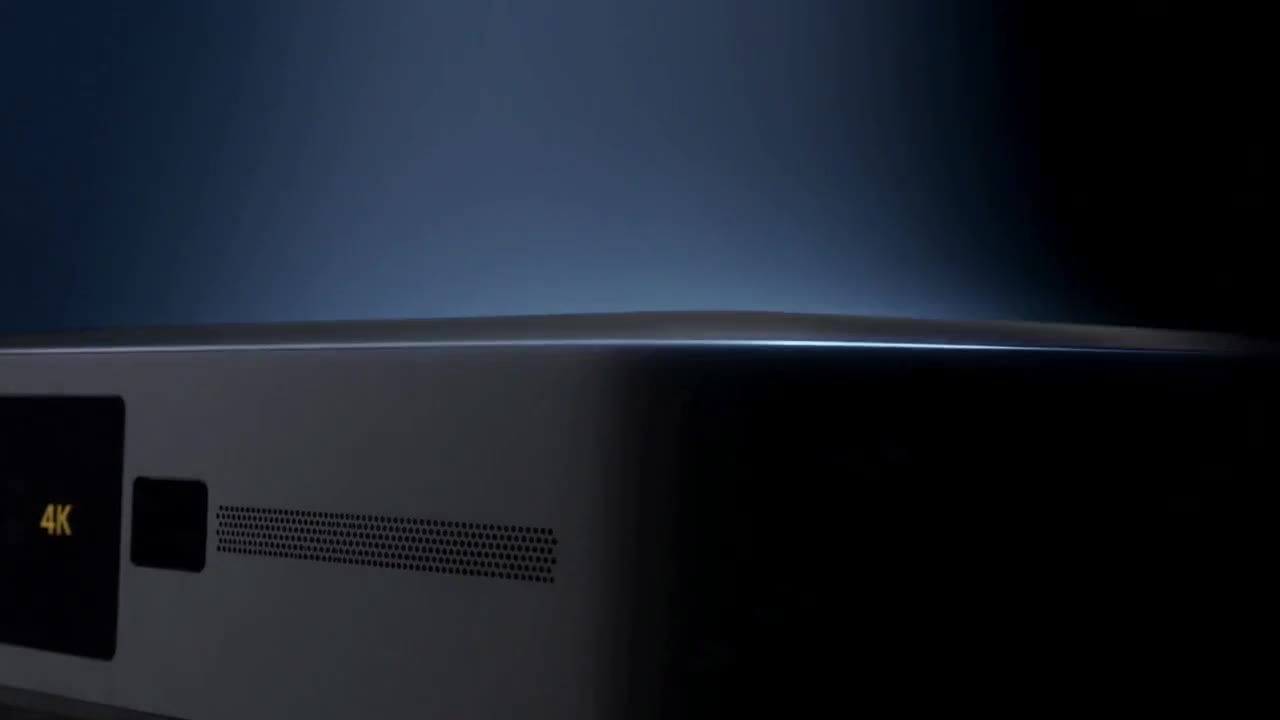
Low-key close-up of a sleek 4K projector in a dark room, a thin beam of light cutting through drifting dust, slow orbit around the lens, soft fan hum.
 Describe the camera move
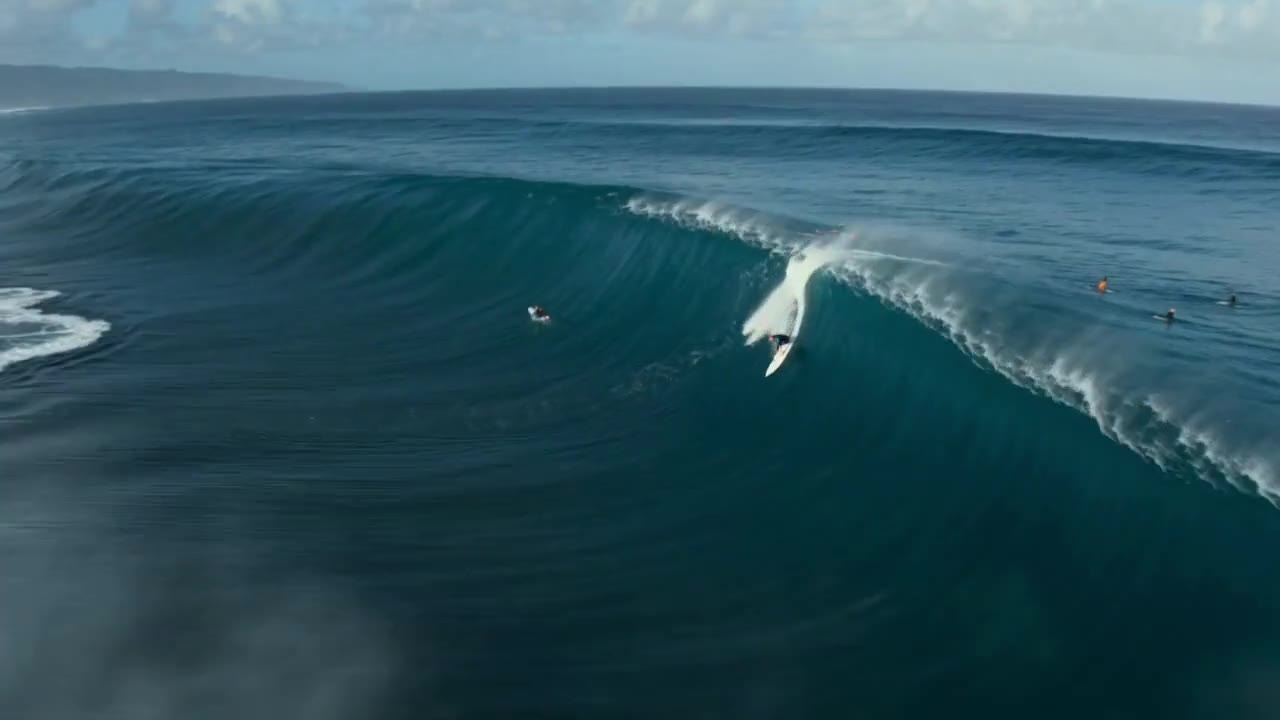
Aerial drone shot following a surfer dropping down the face of a giant wave, spray catching the sunlight, the camera banking alongside, roaring surf.
 Direct the sound
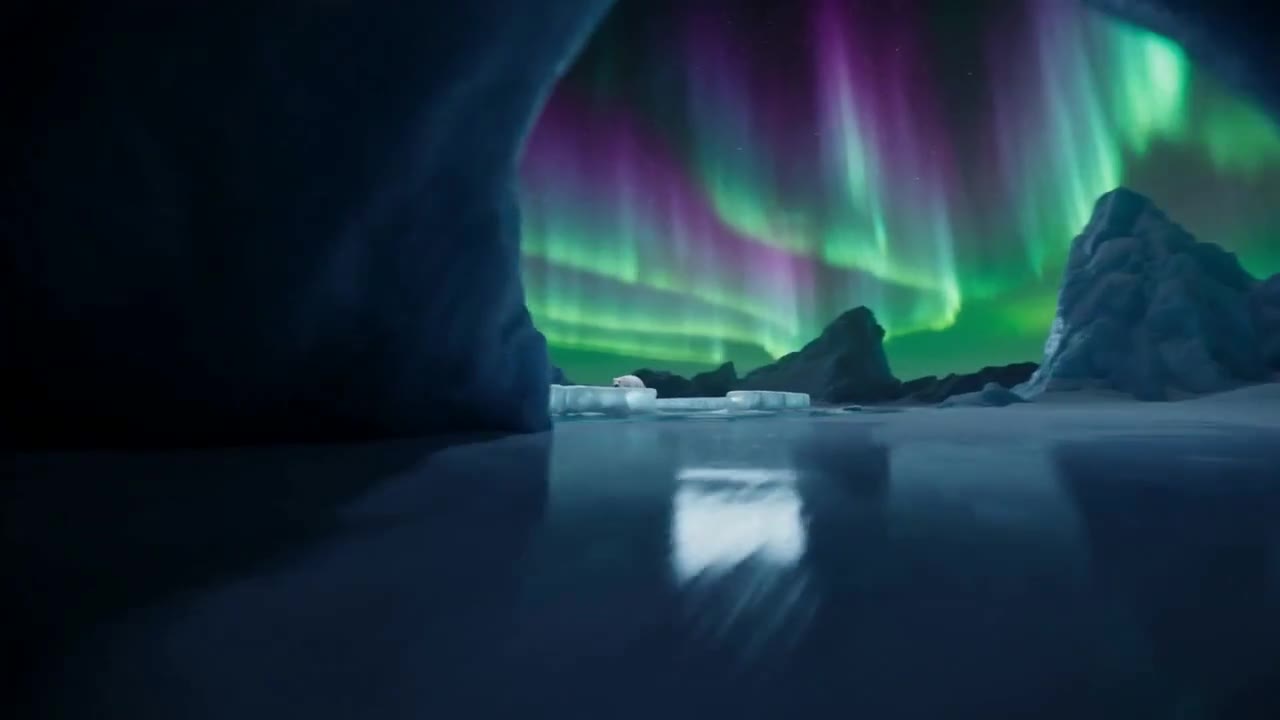
Inside a blue ice cave, the camera drifts toward the opening as green aurora ripples across the night sky, cracking ice and a low wind howl.
Practical ways Veo 3.1 fits into creative planning and review.
Use reference images to keep the subject and setting easy to recognize, while the prompt directs motion and sound.
Write the sounds you want into the prompt, so they match the action on screen.
Keep each 4–8 second clip to one clear moment, then join several clips into a longer video.
Answers to common questions about using Veo 3.1 on Wizstar.
Veo 3.1 is a Google video model in the Wizstar AI video generator. On Wizstar it works in the Reference to Video tab and makes native 4K clips of 4 to 8 seconds with generated audio. It is a good fit for film-style shots, trailers and product hero videos.
Open the Wizstar video generator and pick Veo 3.1 in the Reference to Video tab. Upload up to 3 reference images and write a prompt about the action, camera, lighting and sound. Generate the clip, then improve the prompt or images for the next try.
Veo 3.1 makes native 4K video, and clips run from 4 to 8 seconds. Check the options in the generator before you submit, because the available settings can change.
You can add up to 3 reference images each time you generate. Each one can be a JPG or PNG file of up to 20MB. In the prompt, say what each image should control, such as the subject, setting or style.
Yes. Veo 3.1 generates sound together with the video. In the prompt, describe background sounds, effects and the mood of the music, so the audio fits the action on screen.
Veo 3.1 is not an unlimited free AI video generator. Each generation uses credits. The amount depends on the length and output settings, so check the credit amount shown in Wizstar before you submit.
Start from text, keyframes, or reference media, then direct the motion and sound.