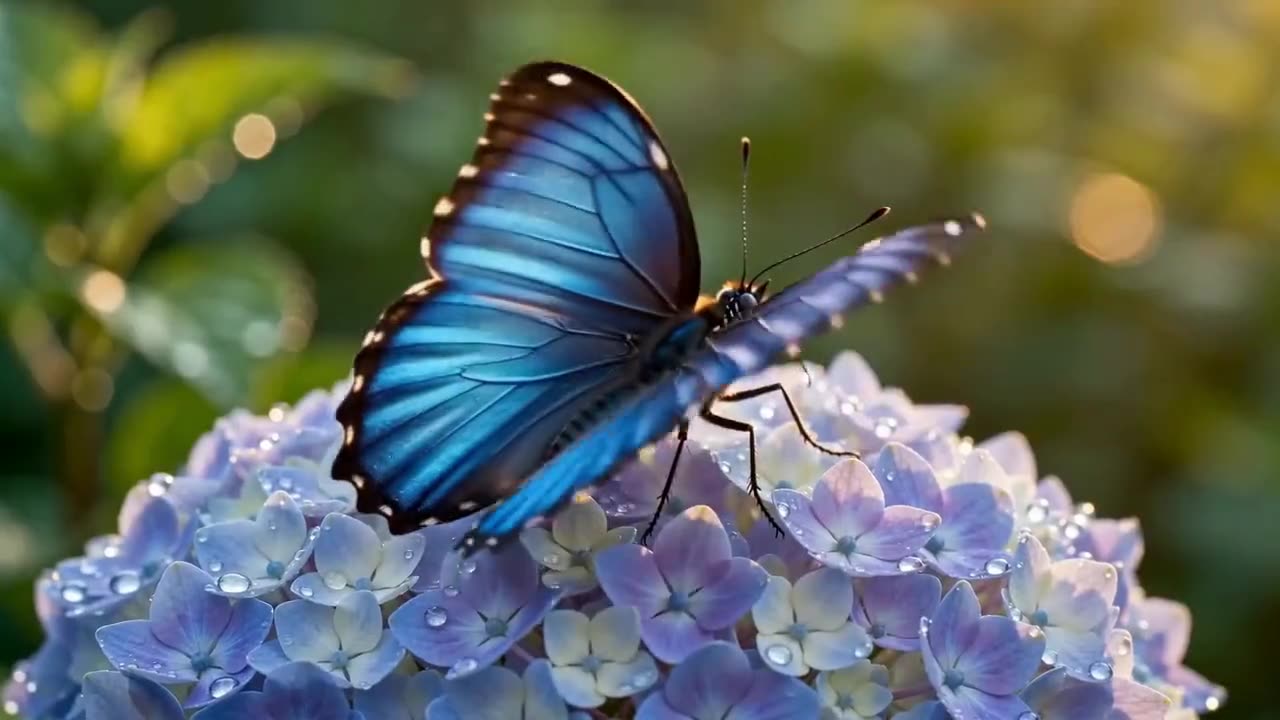
KLING 3.0 · Video
Native 2K video detail
Kling 3.0 example · Output detail
Create videos with the Kling 3.0 AI video generator on Wizstar. Explore text-to-video, image-to-video, cinematic motion prompts and reference workflows.

 9:16|720P
See how Kling 3.0 supports real creative briefs and output formats.
Kling 3.0 example · Output detail
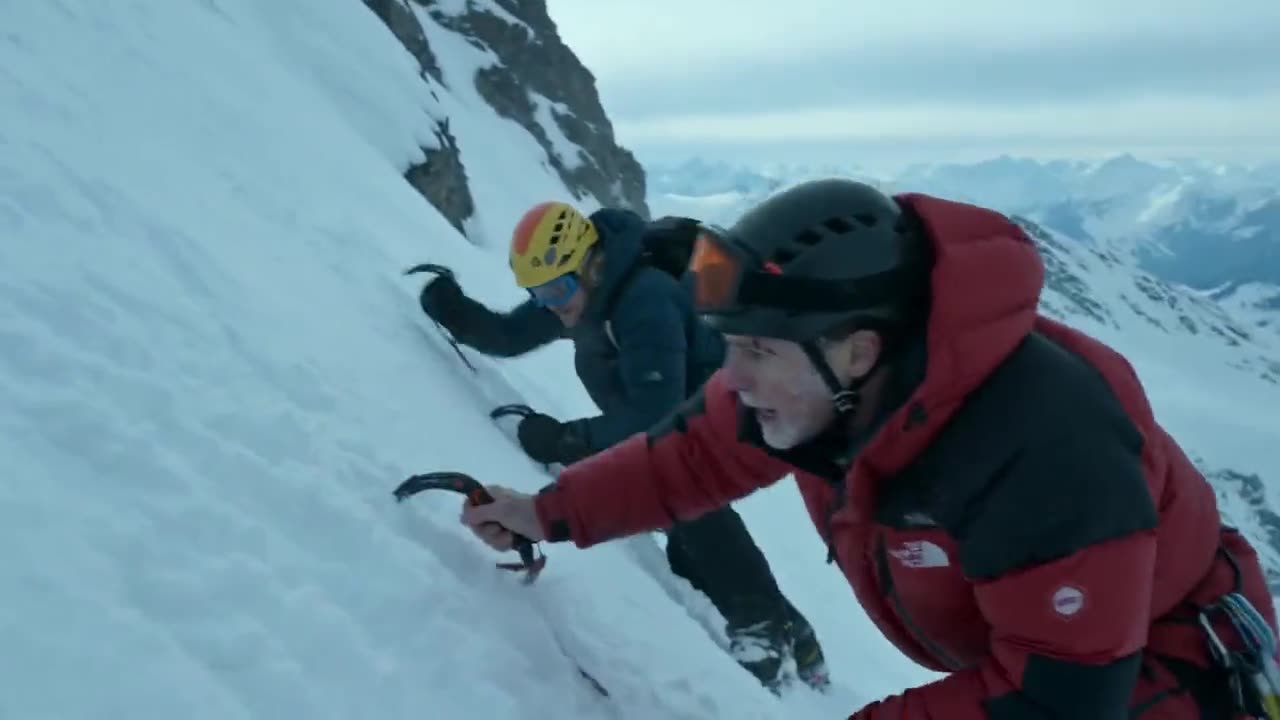
Kling 3.0 example · Native audio

Kling 3.0 example · Conversational editing

Kling 3.0 example · Iterative direction
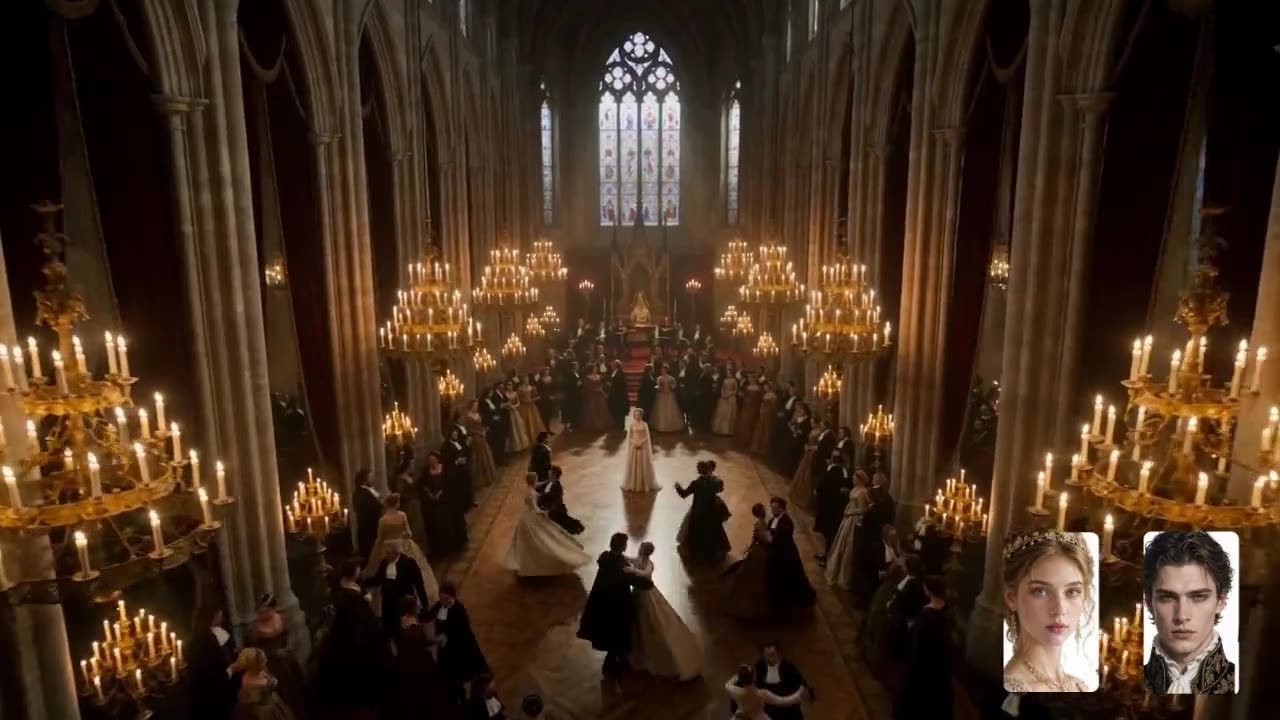
Kling 3.0 example · Subject control
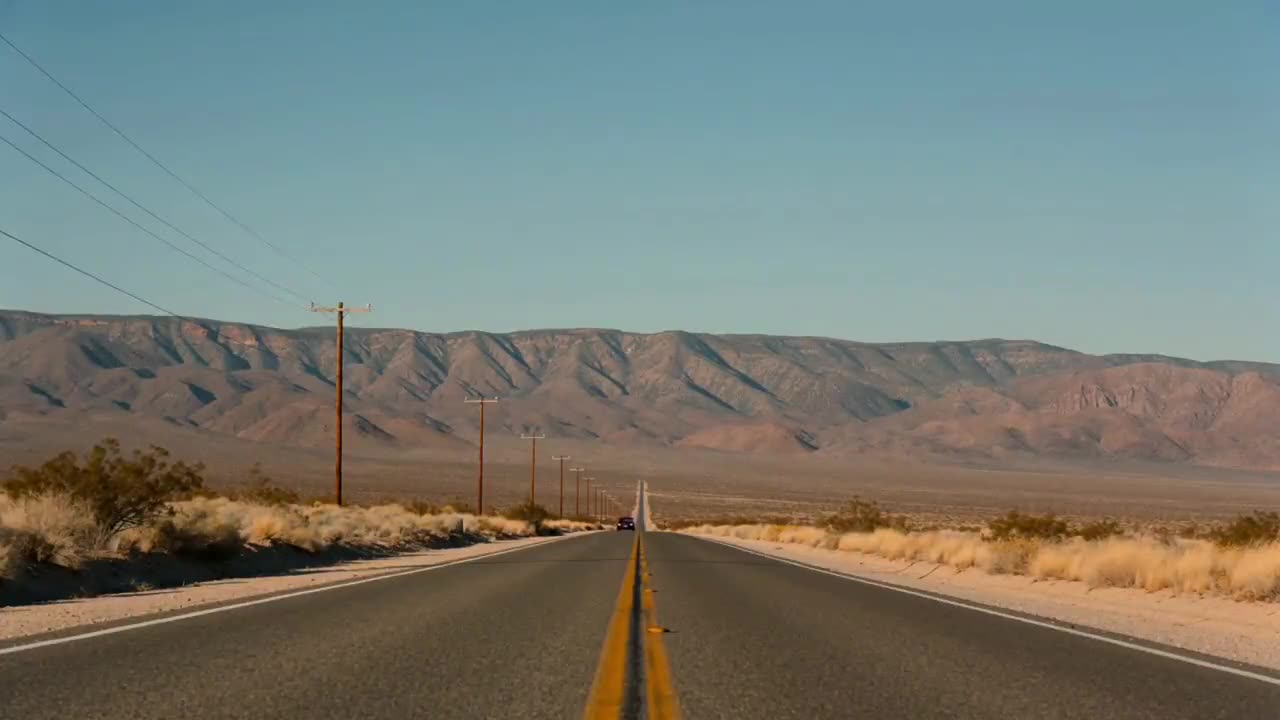
Kling 3.0 example · Flexible inputs
Create videos with the Kling 3.0 AI video generator on Wizstar. Explore text-to-video, image-to-video, cinematic motion prompts and reference workflows.
Kling 3.0 is a Kuaishou video model available in the Wizstar AI video generator. Use it to direct subjects, actions, camera movement, scene continuity, and visual style from text or reference media.
Kling 3.0 is developed by Kuaishou. Wizstar provides the creation workflow described on this page.
Explore the core Kling 3.0 capabilities available in the current Wizstar workflow.
Build a shot from a written description of the subject, action, setting, and camera.
Use a reference image when the opening composition or visual identity matters.
Describe camera movement, subject movement, timing, and the intended final beat.
Review the output, then refine one variable at a time to improve continuity and control.
Create with Kling 3.0 in three steps inside Wizstar.
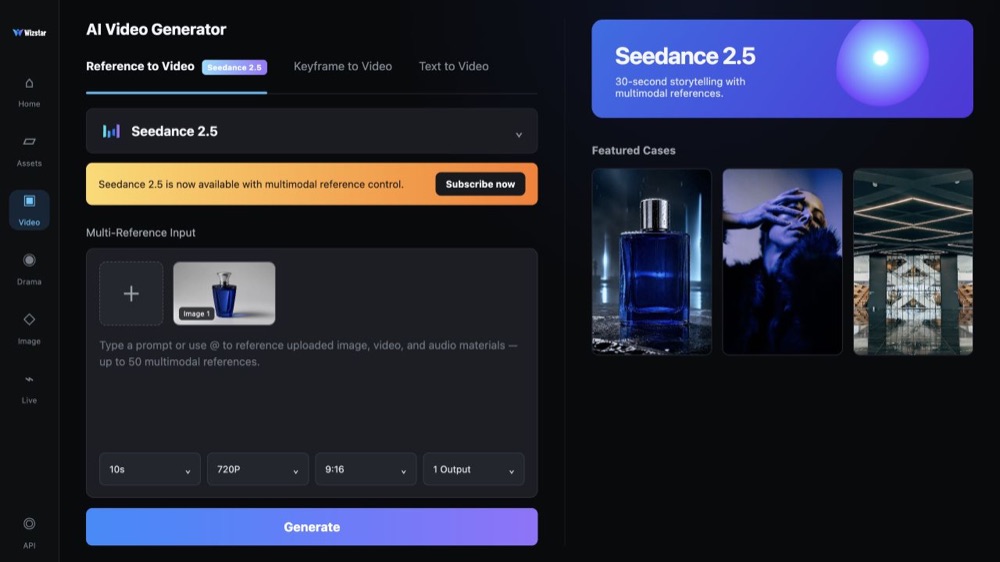
Choose Kling 3.0 from the model selector in the Wizstar video generator.
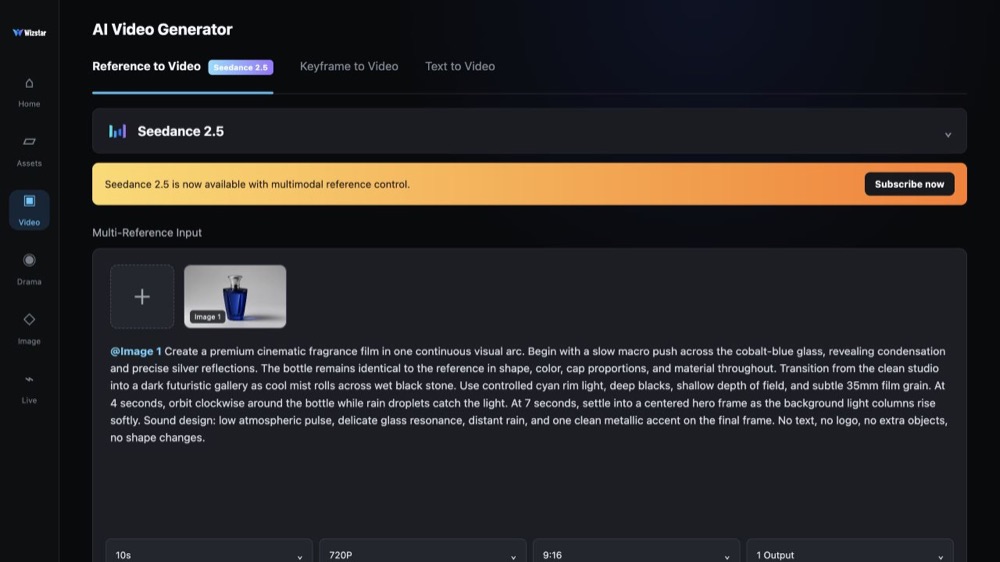
Select a mode, add source material if needed, and describe the intended result.
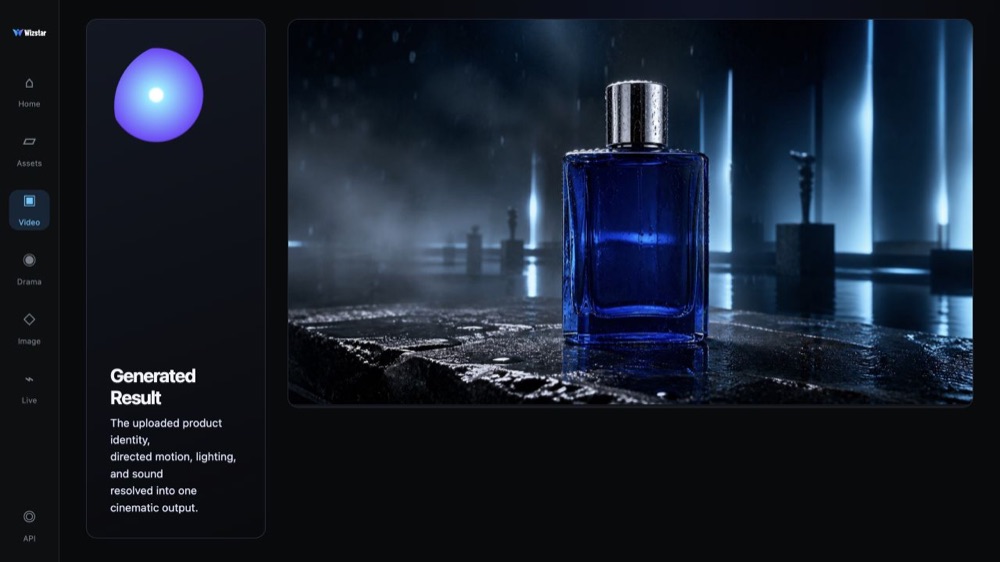
Review the result and refine the prompt or settings for the next version.
Connect Kling 3.0 capabilities to the creative jobs teams need to complete.
Prototype camera moves, atmosphere, and scene transitions with Kling 3.0.
Create with Kling 3.0Turn a product image and motion brief into a short visual concept.
Create with Kling 3.0Plan vertical hooks, action, and pacing for short-form content.
Create with Kling 3.0Explore character blocking and shot direction before production.
Create with Kling 3.0Compare the available model workflows before choosing a starting point.
| Model | Type | Best for | Primary input | |
|---|---|---|---|---|
| Seedance 2.5 | Video | 30-second video generation with audio | Text or reference media | View |
| MiniMax H3 | Video | Multimodal video generation with synchronized sound | Text or reference media | View |
| Kling 3.0 Current | Video | Cinematic motion control | Text or reference media | |
| Seedance 2.0 | Video | Multi-shot visual storytelling | Text or reference media | View |
| Seedance 1.5 | Video | Superb audio-visual synchronization | Text or reference media | View |
| Veo 3.1 | Video | Cinematic 4K video with rich audiovisual detail | Text or reference media | View |
| Gemini Omni 1.1 Flash | Video | Greater control with improved visual consistency | Text or reference media | View |
| Gemini Omni Flash | Video | Strong visual consistency across multimodal inputs | Text or reference media | View |
| Sora 2 | Video | Prompt-driven visual storytelling | Text or reference media | View |
| GPT Image 2 | Image | Prompt-led image generation and editing | Text or reference image | View |
| GPT Image 2.5 | Image | Sharper image generation with faster, more precise editing | Text or reference image | View |
| Nano Banana 2 | Image | Fast text-to-image generation and reference editing | Text or reference image | View |
| Seedream 5.0 | Image | ByteDance flagship for high-fidelity generation | Text or reference image | View |
Review the Kling 3.0 inputs and output controls presented in the source workflow.
Confirm the controls displayed in the generator before beginning production work.
Use these Kling 3.0 prompt patterns to make the creative direction explicit.
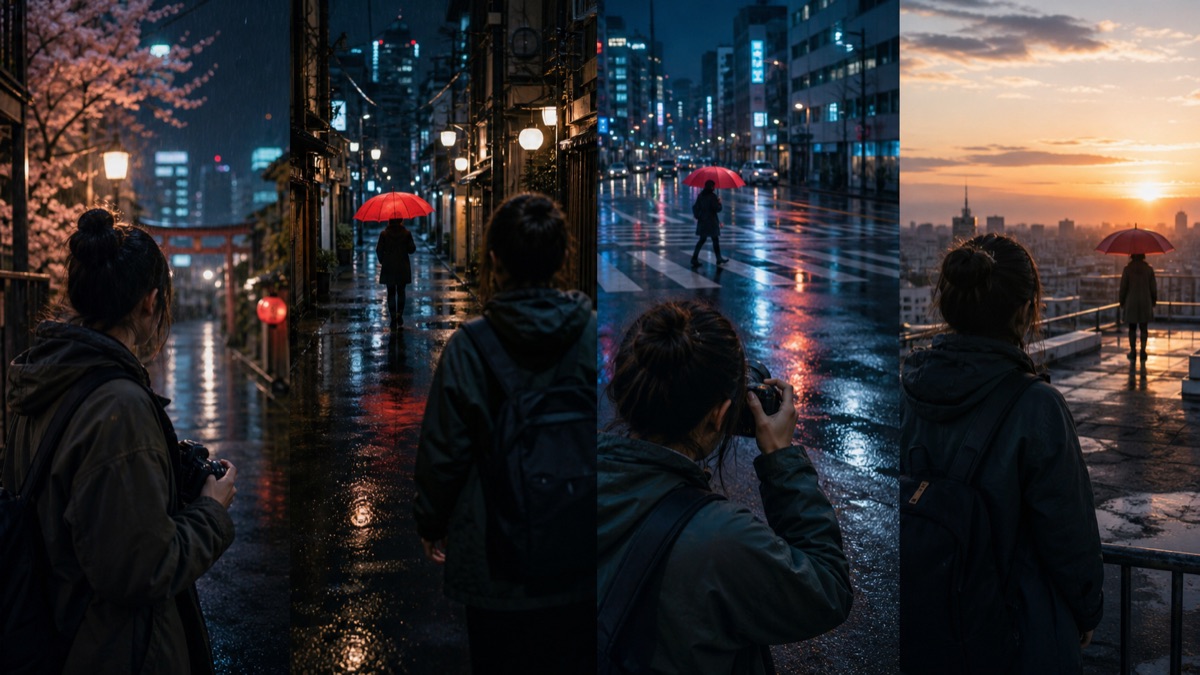 Describe the shot
Describe the subject, action, camera, lighting, pacing, and ending for a Kling 3.0 video.
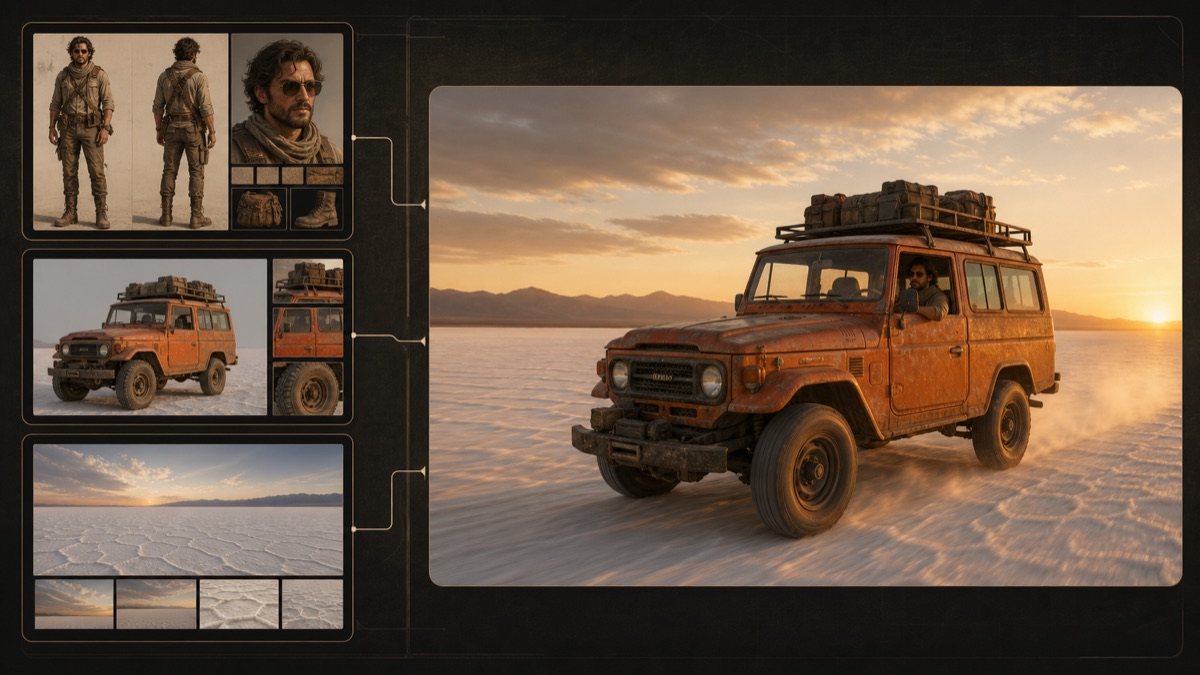 Use references intentionally
Explain what each uploaded reference should control in the Kling 3.0 scene.
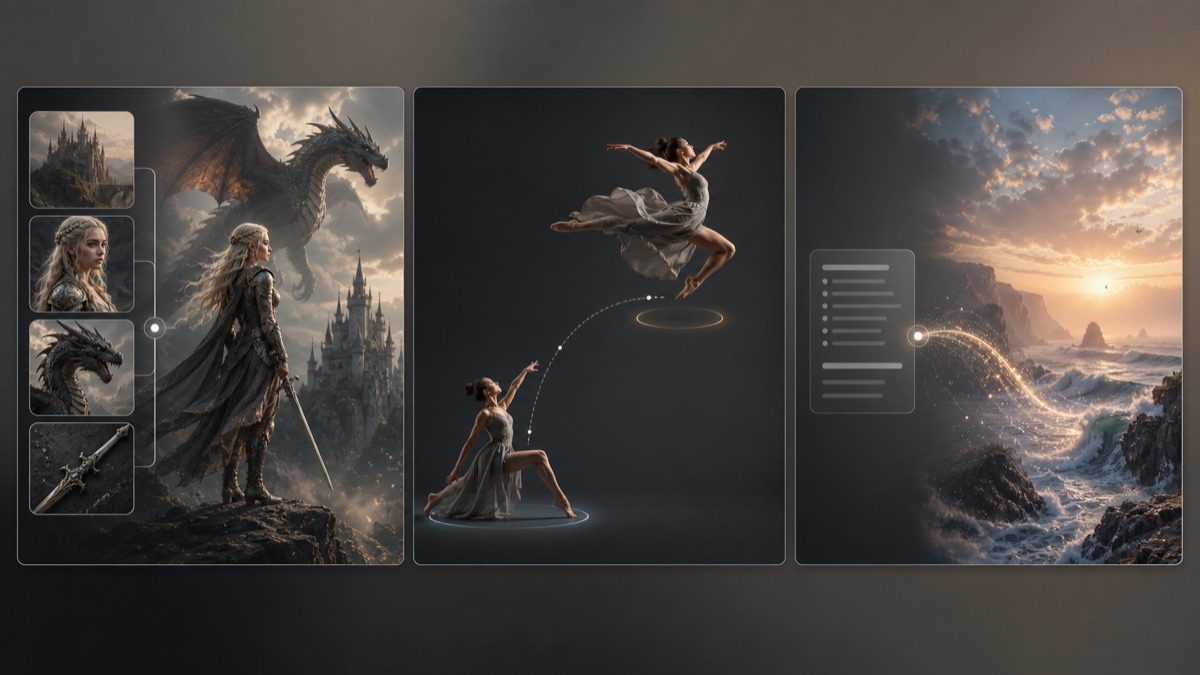 Choose a starting mode
Use the Kling 3.0 mode that matches the material already available for the brief.
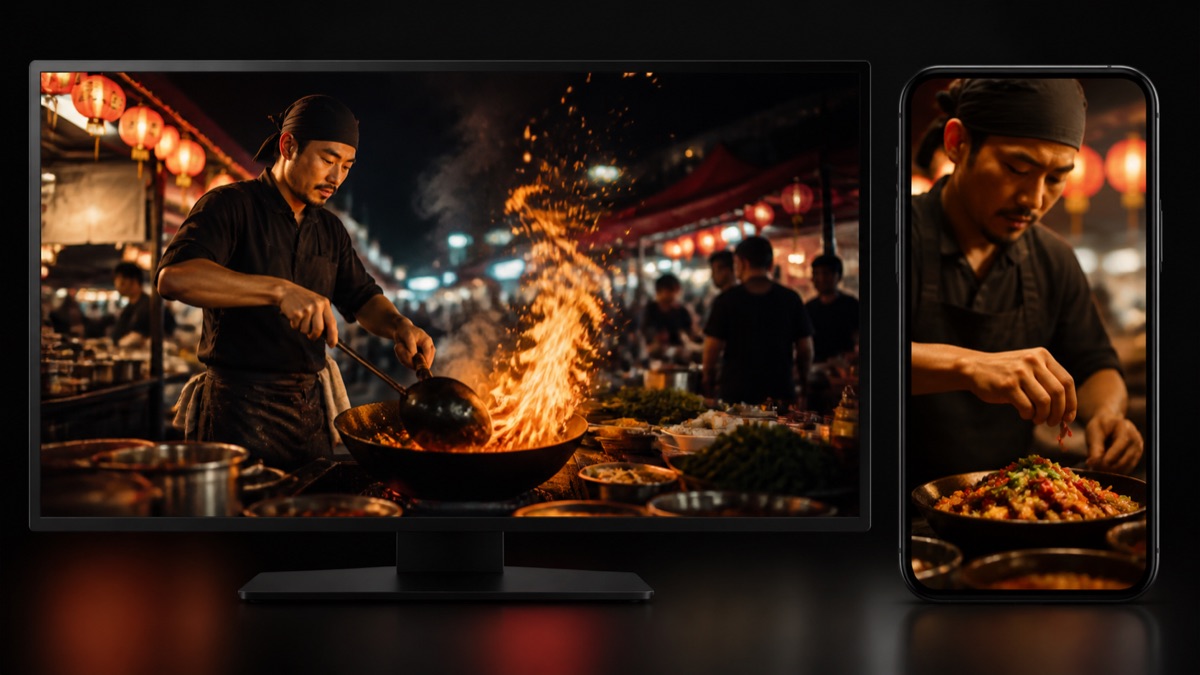 Plan the destination
Choose the target channel first, then write the Kling 3.0 shot for its aspect ratio and pacing.
Practical ways Kling 3.0 fits into creative planning and review.
Use Kling 3.0 as the primary model choice before tuning the shot description and output settings.
Write motion as a sequence: opening composition, main action, camera behavior, and final frame.
Keep the model, reference, prompt, and delivery ratio consistent while comparing iterations.
Answers to common questions about using Kling 3.0 on Wizstar.
Kling 3.0 is a Kuaishou video model available through the Wizstar AI video generator for prompt-led and reference-led creation. The Kling 3.0 AI video generator can be used to explore cinematic concepts, product motion, social video, and story previsualization with explicit direction for the subject, action, camera, and ending.
To use Kling 3.0 online, select Kling 3.0 in the Wizstar generator, choose an available text-led or reference-led workflow, and add a detailed prompt or supported reference. Review the ratio, resolution, duration, and output settings before generating, then refine the result using one clear prompt change at a time.
Yes, use the Kling 3.0 text-to-video workflow when it is available in the generator. Describe the subject and setting first, then specify the action, camera behavior, lighting, visual mood, pacing, and final frame so the model has a coherent sequence to interpret.
Yes, use an available Kling 3.0 image-to-video or reference-led workflow to provide visual direction. Explain whether the image controls the subject, product appearance, composition, environment, or style, and confirm the supported file types and current upload limits shown in the Wizstar generator.
A good Kling 3.0 prompt states what appears in the opening shot, what moves, how the camera behaves, and how the visual mood changes. Add the pacing, lighting, important subject details, and the intended final frame so the Kling 3.0 video has a clear beginning, action, and ending.
Kling 3.0 is not guaranteed to be an unlimited free AI video generator. Credits and generation costs can change by model and settings such as duration, resolution, and output count, so check the current amount in Wizstar before submitting.
Start from text, keyframes, or reference media, then direct the motion and sound.