SEEDANCE 1.5 · Video
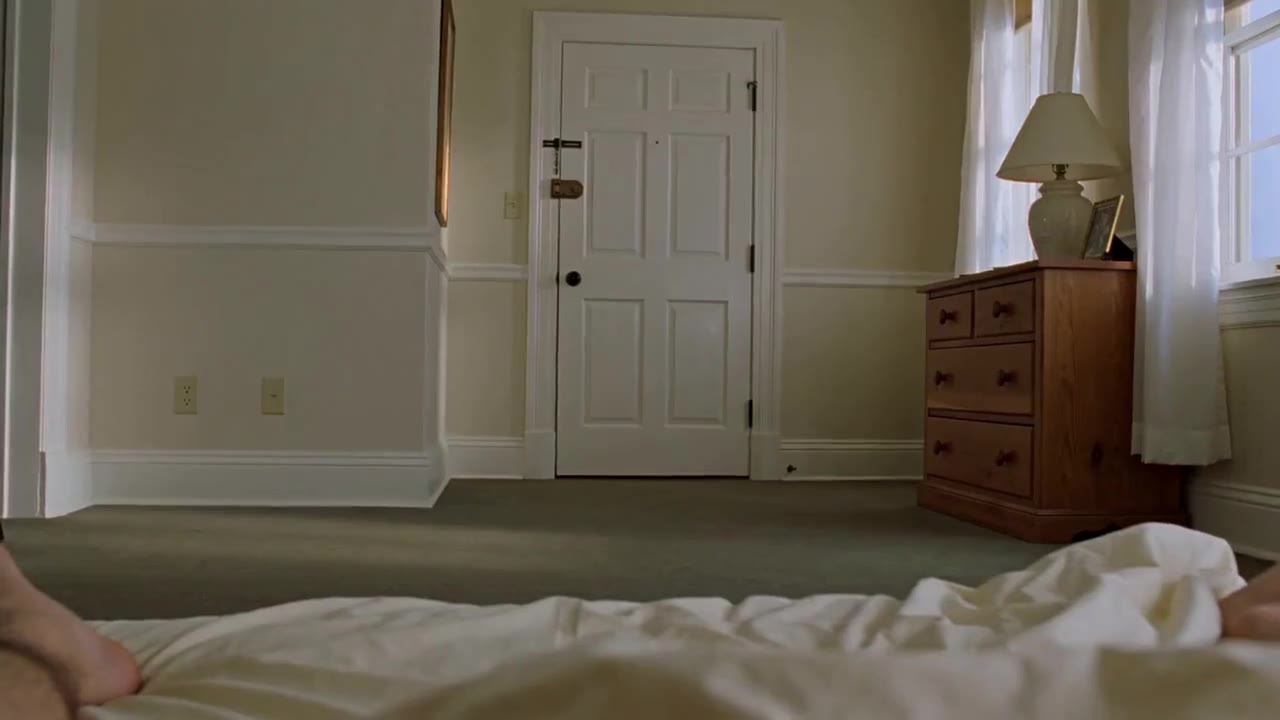
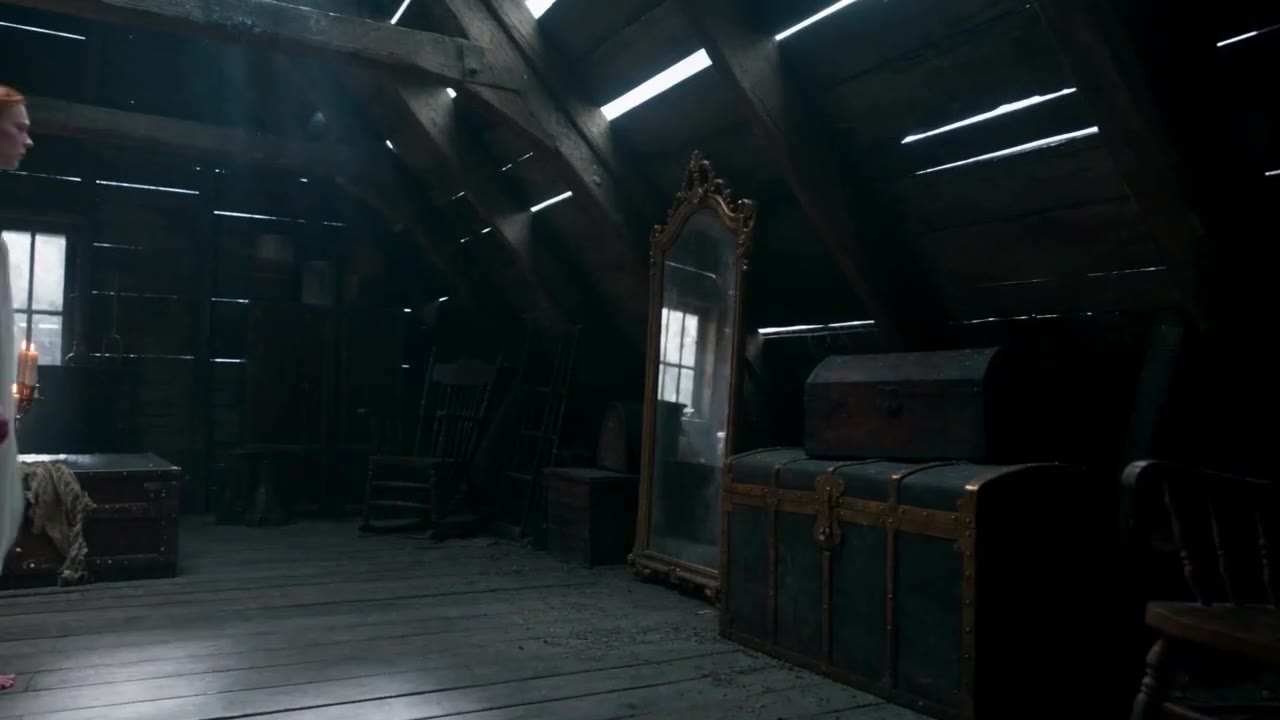
Bedroom doorway reveal
AI video example · Static interior shot
Create videos with Seedance 1.5 on Wizstar. Turn text prompts into 1080p clips of 4–12 seconds for fast drafts, storyboards and idea tests.

 9:16|720P
See how Seedance 1.5 supports real creative briefs and output formats.
AI video example · Static interior shot
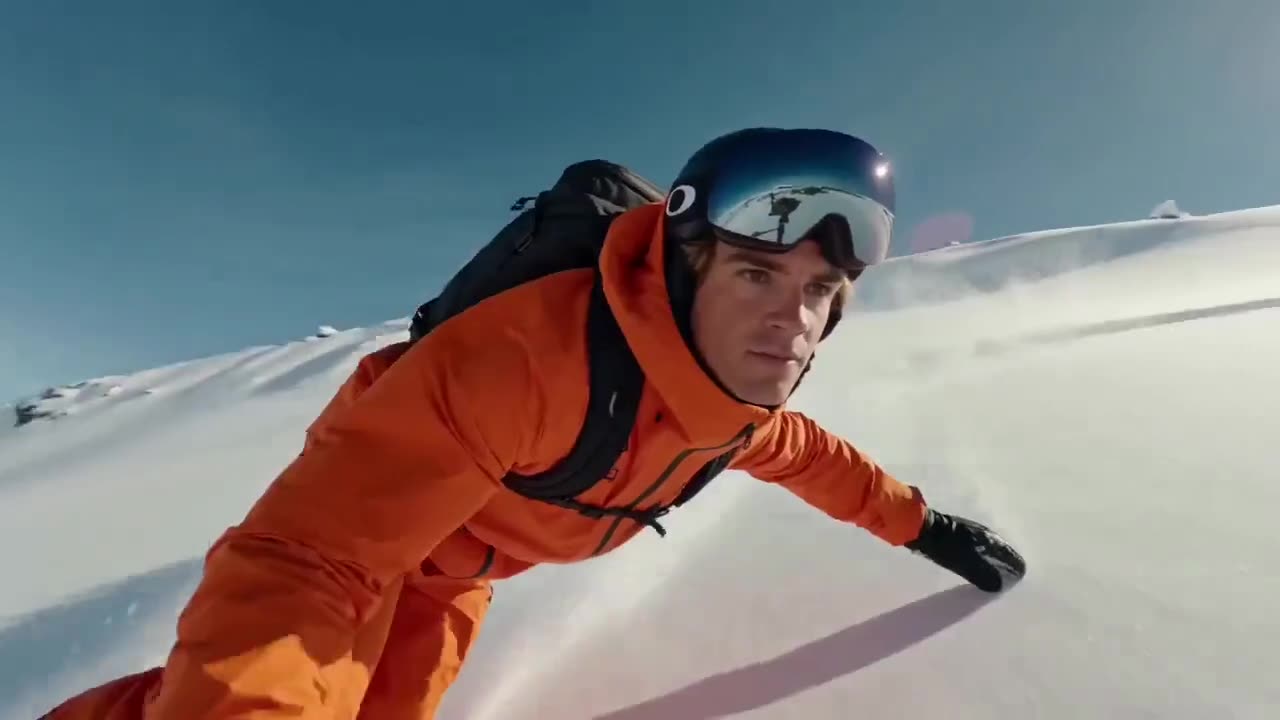
AI video example · Fast motion
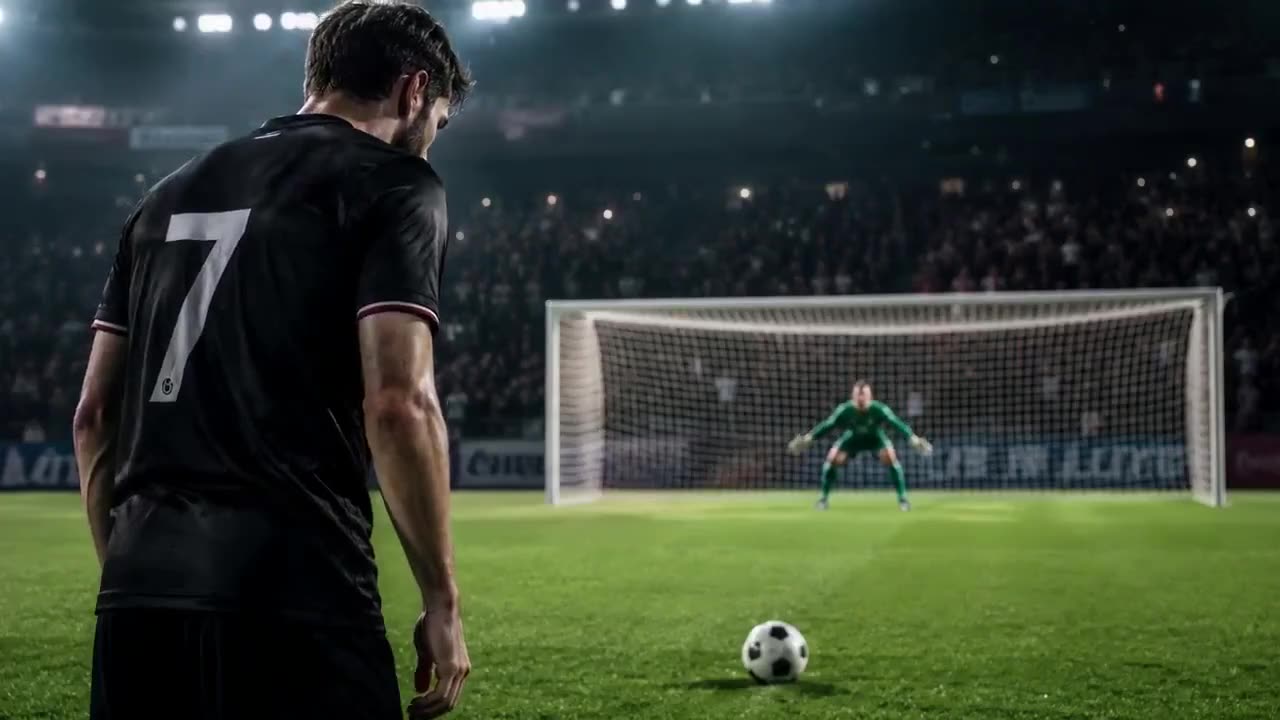
AI video example · Sports action
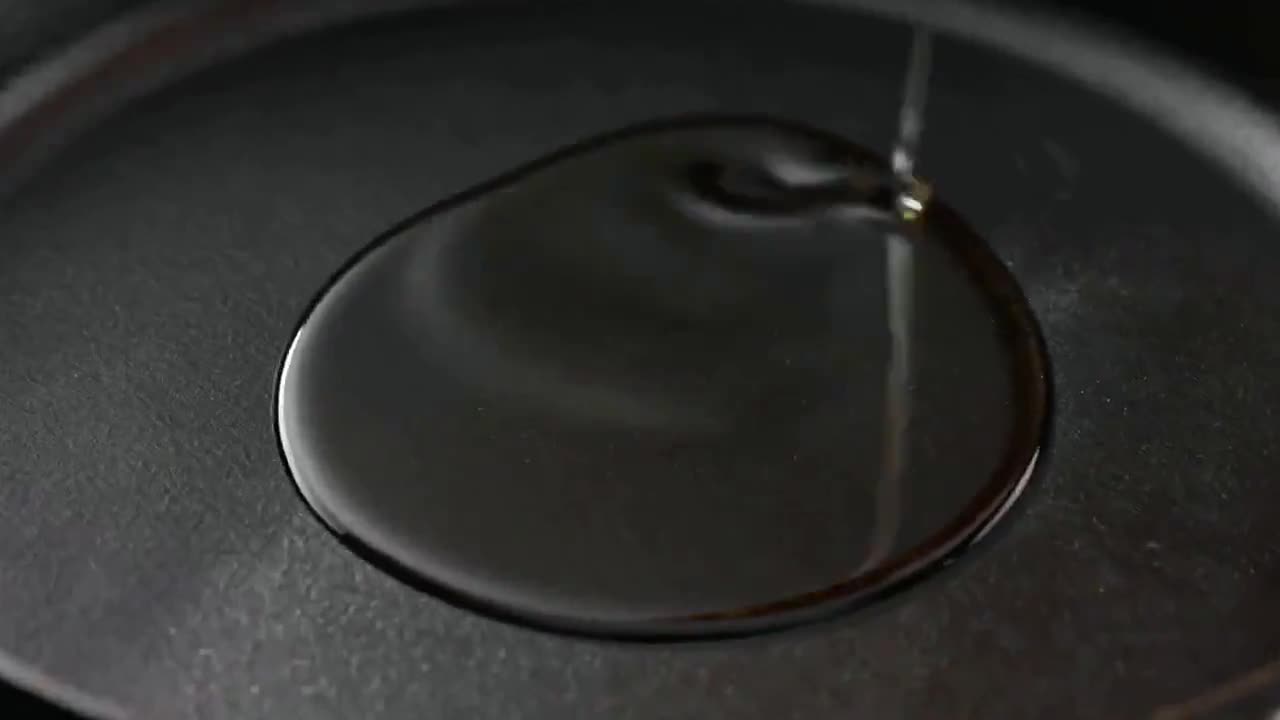
AI video example · Food making
Create videos with Seedance 1.5 on Wizstar. Turn text prompts into 1080p clips of 4–12 seconds for fast drafts, storyboards and idea tests.
Seedance 1.5 is a ByteDance video model in the Wizstar AI video generator. On Wizstar it works in the Text to Video tab. Describe the subject, action, camera and mood, and Seedance 1.5 makes a 1080p clip of 4 to 12 seconds. It is quick, so it is a good fit for drafts, storyboards and trying a few ideas before a final video.
Seedance 1.5 is developed by ByteDance. Wizstar provides the creation workflow described on this page.
Explore the core Seedance 1.5 capabilities available in the current Wizstar workflow.
Describe the subject, action, setting and camera in one prompt. You do not need any starting footage.
Make clips at native 1080p. That is sharp enough for social posts, previews and review links.
Pick a length that fits the moment, from a short reaction shot to a 12-second scene.
Clips come back quickly, so you can compare prompt changes before you choose a final model.
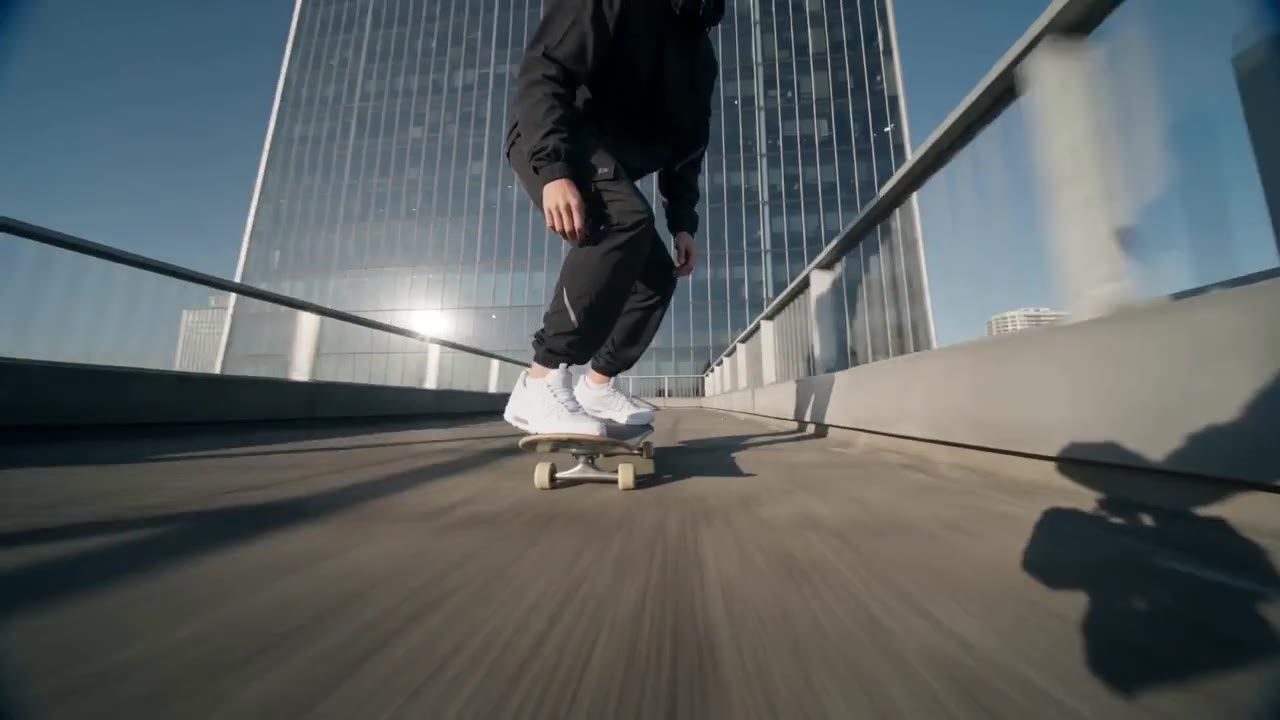
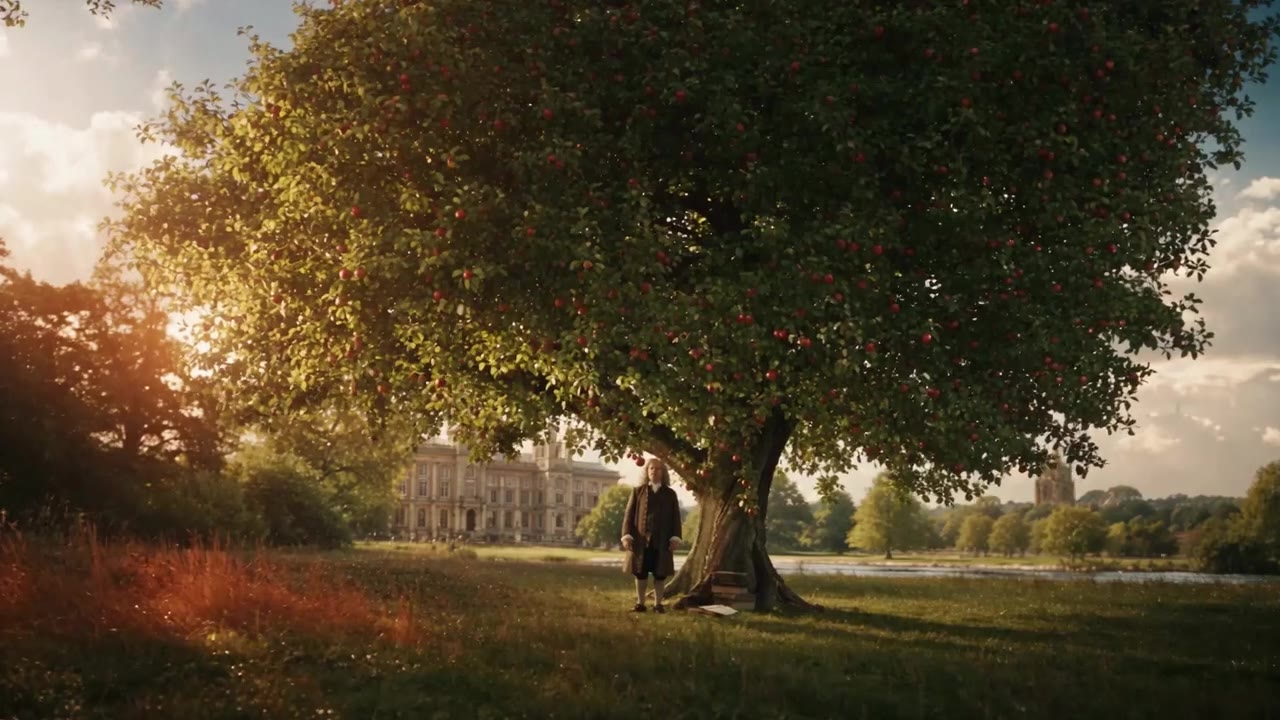
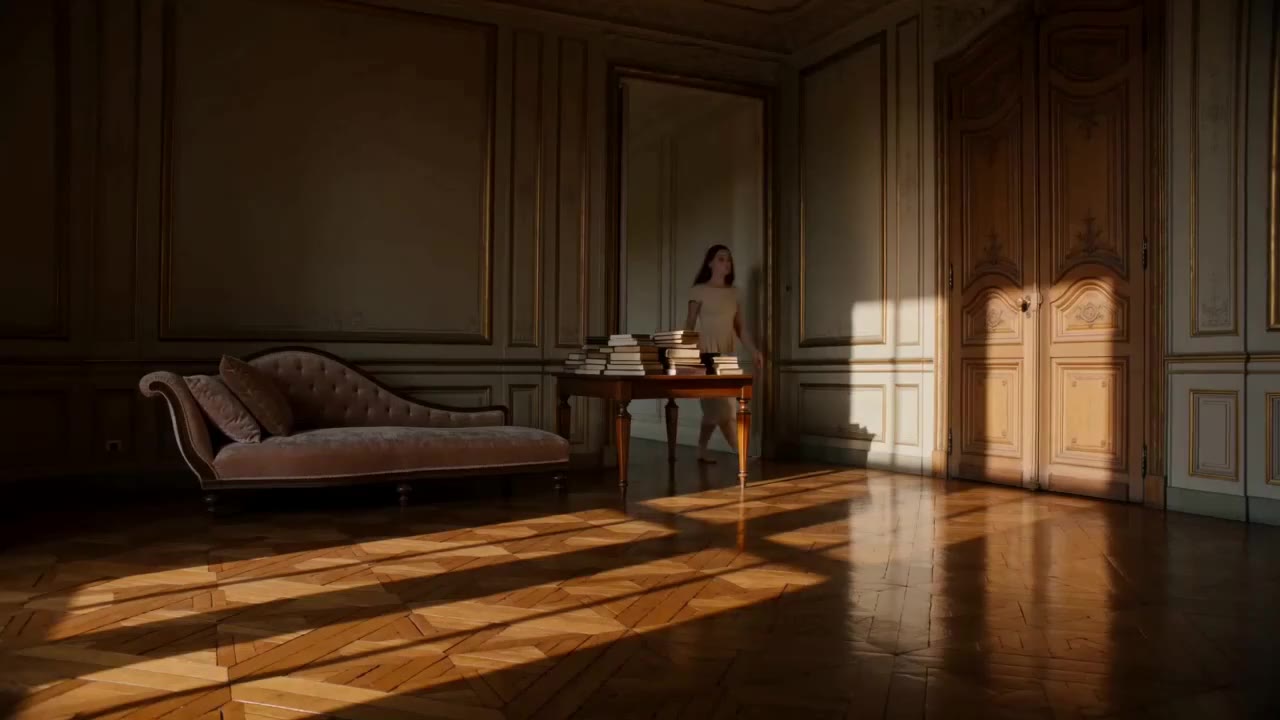
Create with Seedance 1.5 in three steps inside Wizstar.
Choose Seedance 1.5 in the Text to Video tab of the Wizstar video generator.
Describe the subject, action, setting, camera and mood, then set the length and ratio.
Review the clip, change one detail in the prompt, and generate the next version.
Connect Seedance 1.5 capabilities to the creative jobs teams need to complete.
Plan shots and camera moves first, before you use a higher-end model.
Create with Seedance 1.5Make several versions of one idea and keep the one that works best.
Create with Seedance 1.5Make short 1080p clips for feeds, stories and quick announcements.
Create with Seedance 1.5Try different wording and shot setups, then reuse the best prompt on other models.
Create with Seedance 1.5Compare the available model workflows before choosing a starting point.
| Model | Type | Best for | Primary input | |
|---|---|---|---|---|
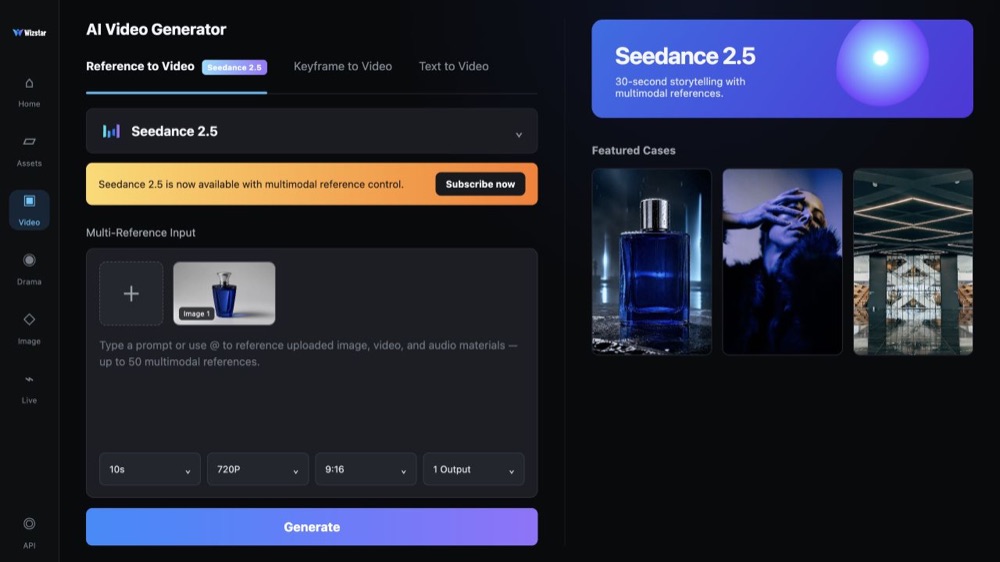
| Seedance 2.5 | Video | 30-second video generation with audio | Text or reference media | View |
| MiniMax H3 | Video | Multimodal video generation with synchronized sound | Text or reference media | View |
| Kling 3.0 | Video | Cinematic motion control | Text or reference media | View |
| Seedance 2.0 | Video | Multi-shot visual storytelling | Text or reference media | View |
| Seedance 1.5 Current | Video | Superb audio-visual synchronization | Text or reference media | |
| Veo 3.1 | Video | Cinematic 4K video with rich audiovisual detail | Text or reference media | View |
| Gemini Omni 1.1 Flash | Video | Greater control with improved visual consistency | Text or reference media | View |
| Gemini Omni Flash | Video | Strong visual consistency across multimodal inputs | Text or reference media | View |
| Sora 2 | Video | Prompt-driven visual storytelling | Text or reference media | View |
| GPT Image 2 | Image | Prompt-led image generation and editing | Text or reference image | View |
| GPT Image 2.5 | Image | Sharper image generation with faster, more precise editing | Text or reference image | View |
| Nano Banana 2 | Image | Fast text-to-image generation and reference editing | Text or reference image | View |
| Seedream 5.0 | Image | ByteDance flagship for high-fidelity generation | Text or reference image | View |
Review the Seedance 1.5 inputs and output controls presented in the source workflow.
Confirm the controls displayed in the generator before beginning production work.
Use these Seedance 1.5 prompt patterns to make the creative direction explicit.
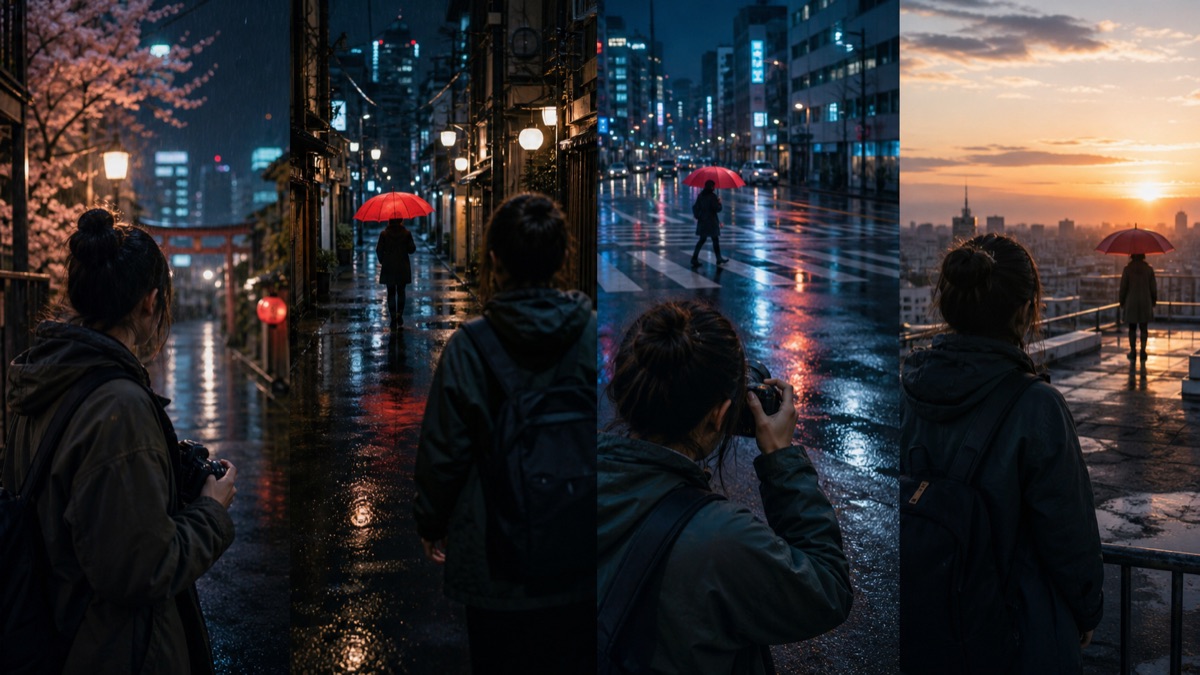 Describe the shot
Low-angle tracking shot of a skateboarder rolling down an empty street at golden hour, wheels sparking dust, warm backlight, smooth camera follow.
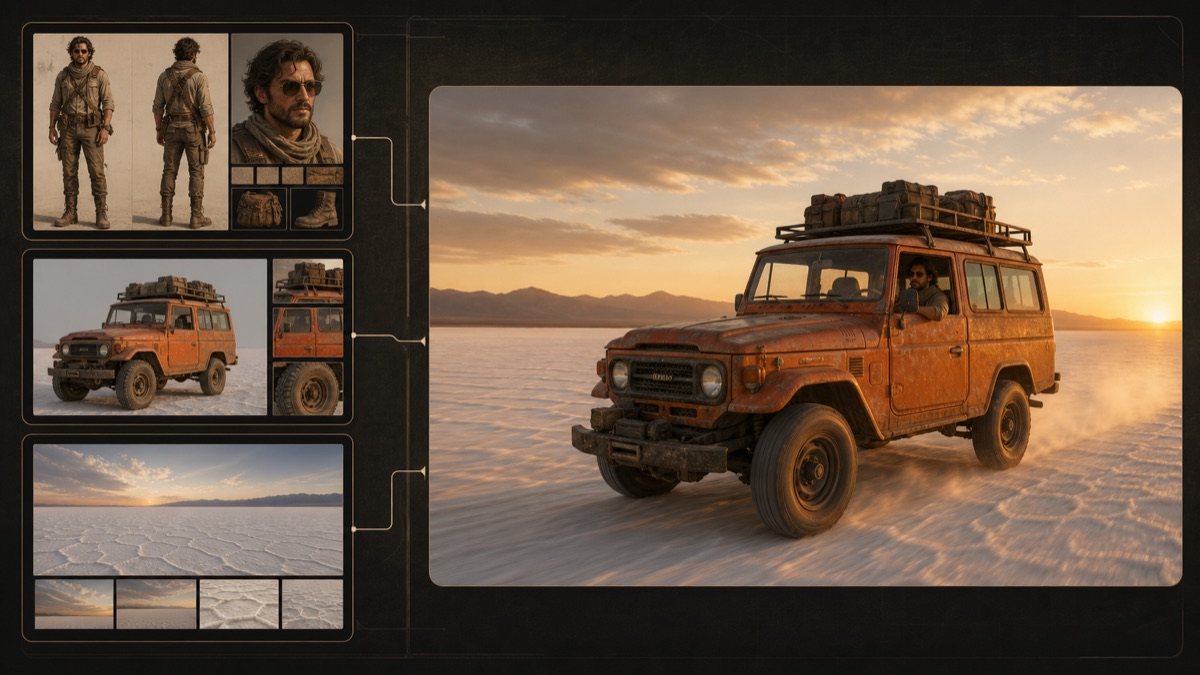 Name the camera move
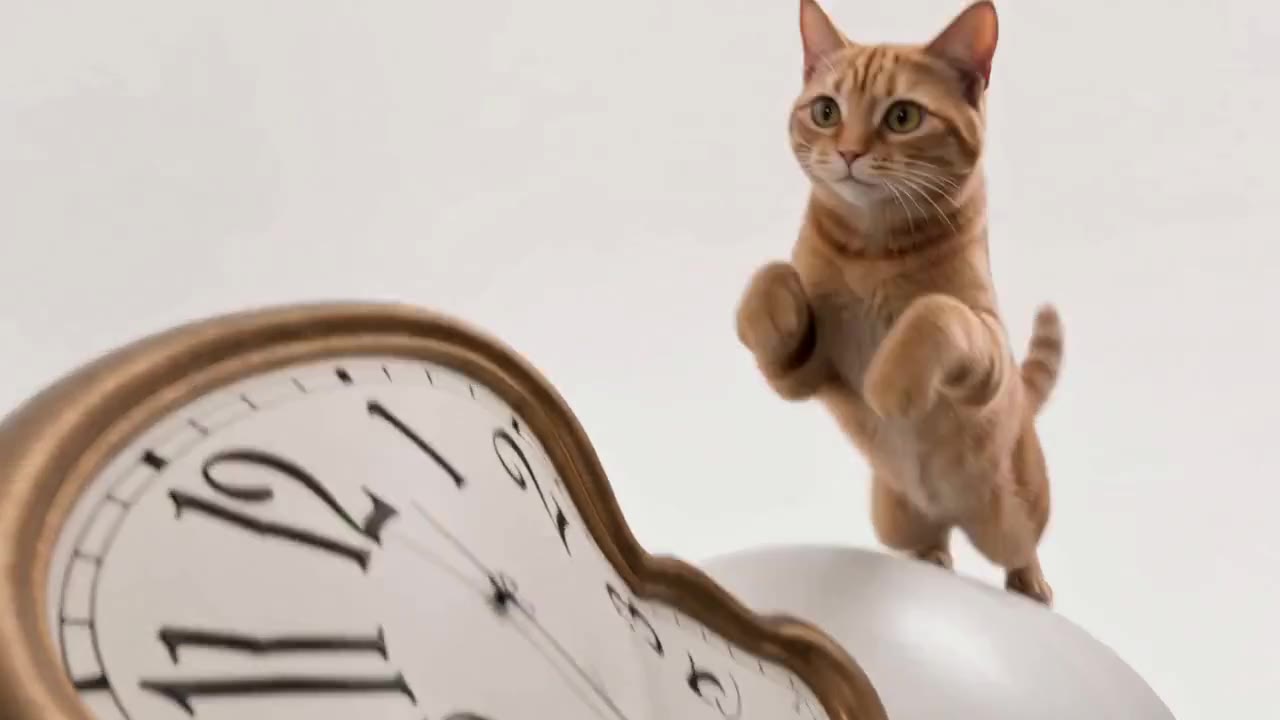
Slow push-in on an orange cat leaping onto a melting clock in a surreal desert, soft shadows, dreamy pastel colors.
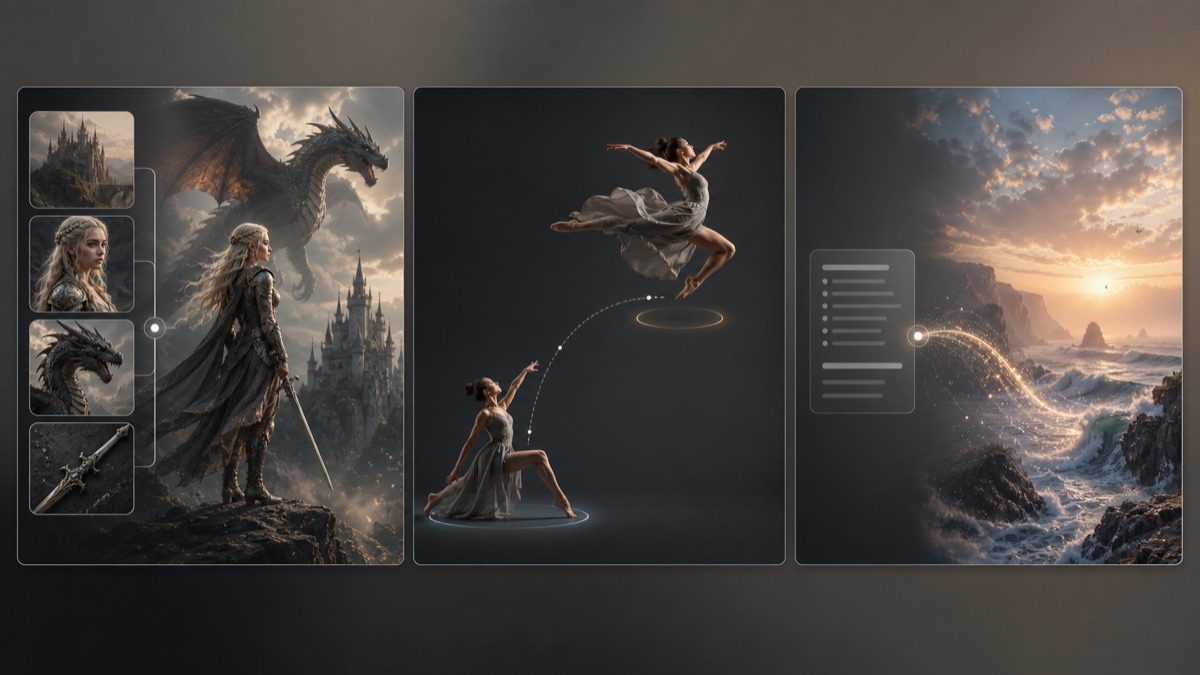 Keep one clear action
An apple falls onto the head of a curly-haired man in period costume sitting under a tree; he looks up, surprised. Static medium shot.
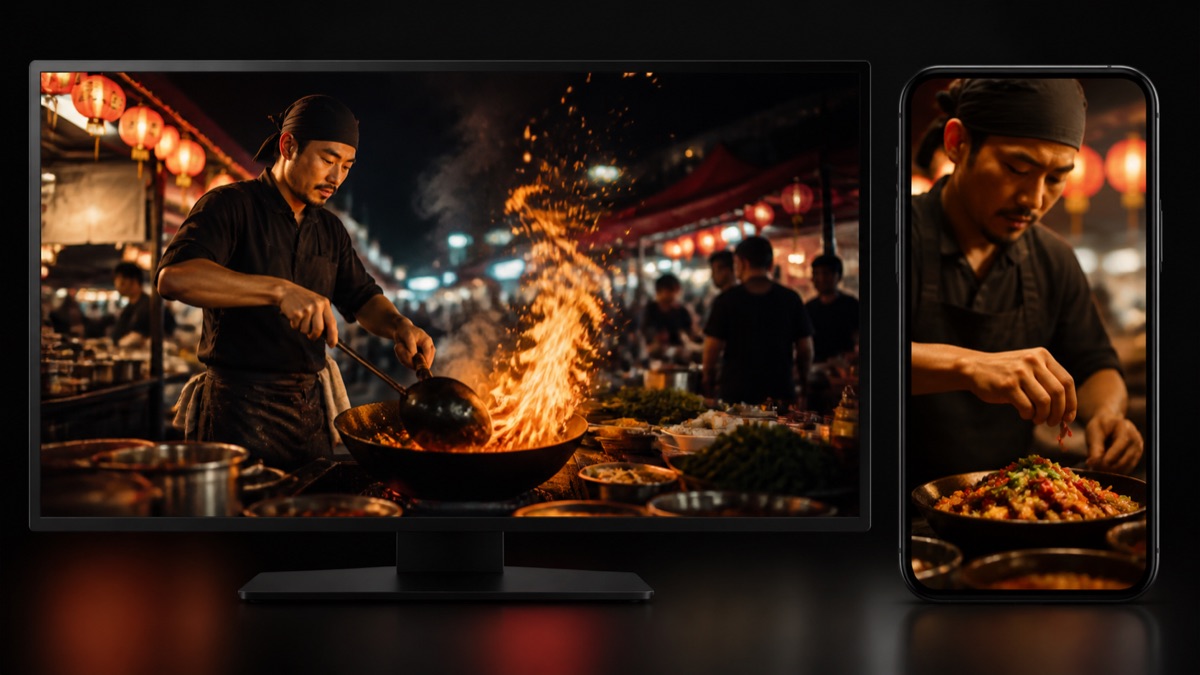 Set the mood
Dusty attic lit by a single window, the camera drifts past wooden trunks toward an antique mirror, quiet and mysterious atmosphere.
Practical ways Seedance 1.5 fits into creative planning and review.
Use Seedance 1.5 to test a few prompt ideas quickly before you pick a final model.
Keep each prompt to one clear action and one camera move, so the clips are easy to compare.
Reuse a prompt that works on Seedance 1.5 as the starting point for a higher-resolution video.
Answers to common questions about using Seedance 1.5 on Wizstar.
Seedance 1.5 is a ByteDance video model in the Wizstar AI video generator. On Wizstar it works in the Text to Video tab and makes 1080p clips of 4 to 12 seconds. That makes it a good fit for drafts, storyboards and quick idea tests.
Open the Wizstar video generator and pick Seedance 1.5 in the Text to Video tab. Write a prompt that describes the subject, action, camera and mood. Check the length and ratio, then generate. Look at the result and improve the prompt for the next try.
Seedance 1.5 makes video at up to native 1080p, and clips can run from 4 to 12 seconds. Check the options in the generator before you submit, because the settings you can pick may depend on the tab you use.
On the Seedance 1.5 page, your prompt goes to the Text to Video tab, which takes text only. If your shot needs reference images, use a Reference to Video model such as Veo 3.1 or Gemini Omni on Wizstar instead.
Choose Seedance 1.5 when speed and cost matter more than top quality, for example when you plan a storyboard or test a few prompt ideas. Once you settle on a direction, you can run the same prompt on a higher-end model.
Seedance 1.5 is not an unlimited free AI video generator. Each generation uses credits. The amount depends on the length and output settings, so check the credit amount shown in Wizstar before you submit.
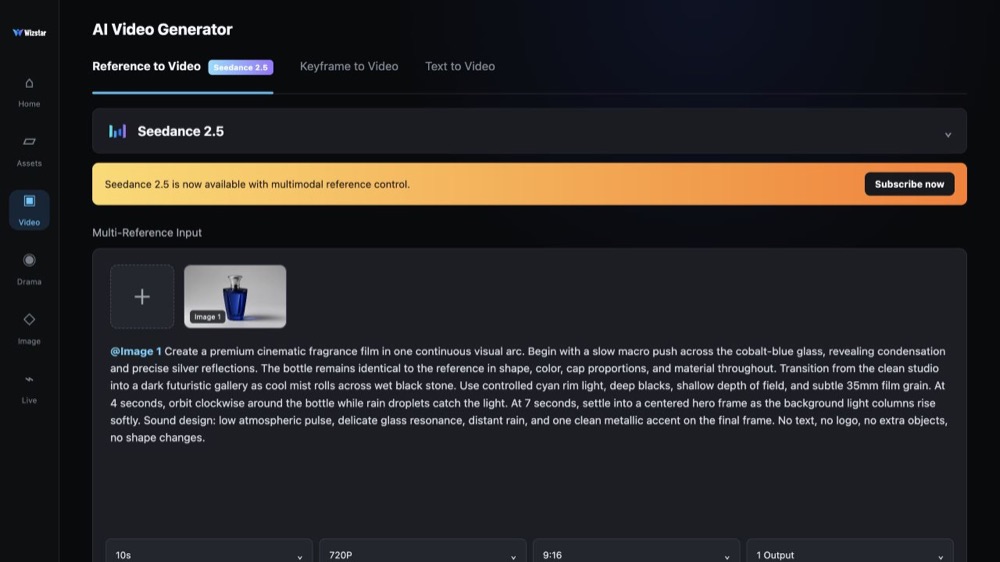
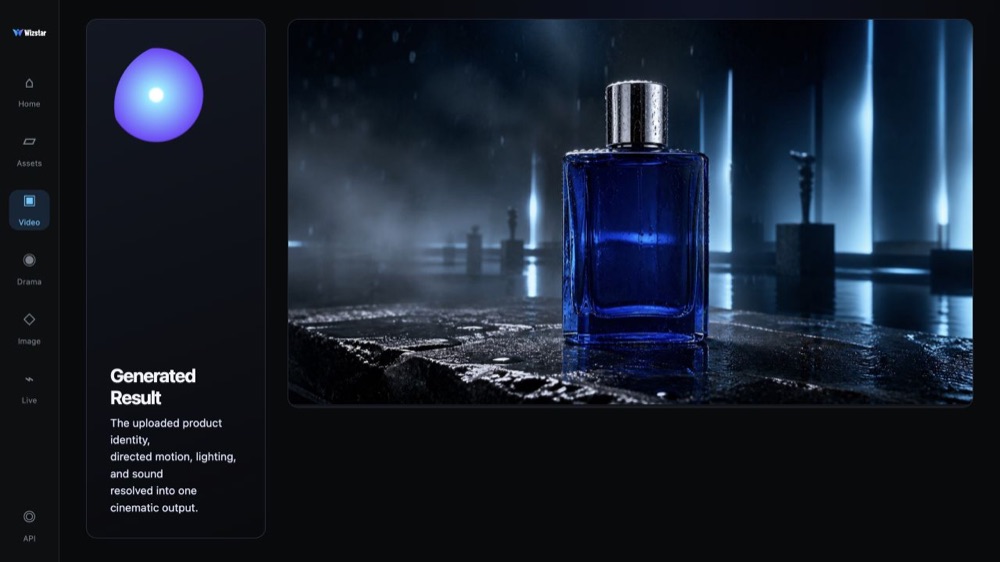
Start from text, keyframes, or reference media, then direct the motion and sound.