The short answer
The most useful FLUX 3 Max prompts for product videos pair an approved packshot with one restrained motion and a clear product-detail check. The prompt should tell the model what changes over time; the still supplies the product’s visible appearance. Neither input guarantees that packaging text or a logo will remain accurate.
What Should a FLUX 3 Max Product Prompt Specify?
Specify the shot’s movement, its end state, and visible SKU details to review without redescribing the entire still. As of October 27, 2026, fal’s FLUX 3 Max image-to-video endpoint takes a starting image and text prompt, with an optional ending image. The still anchors the opening composition; The prompt directs what happens next. Do not confuse this Max route with every control available in Black Forest Labs’ separate FLUX 3 product.
Starting Image, Product Details, and One Camera Move
Choose a still with space around the whole package and a label legible at delivery size. An orbit asks the model to invent unseen sides; A front-facing push keeps the known view in frame. That is a source-image constraint, not a measured claim about model accuracy.
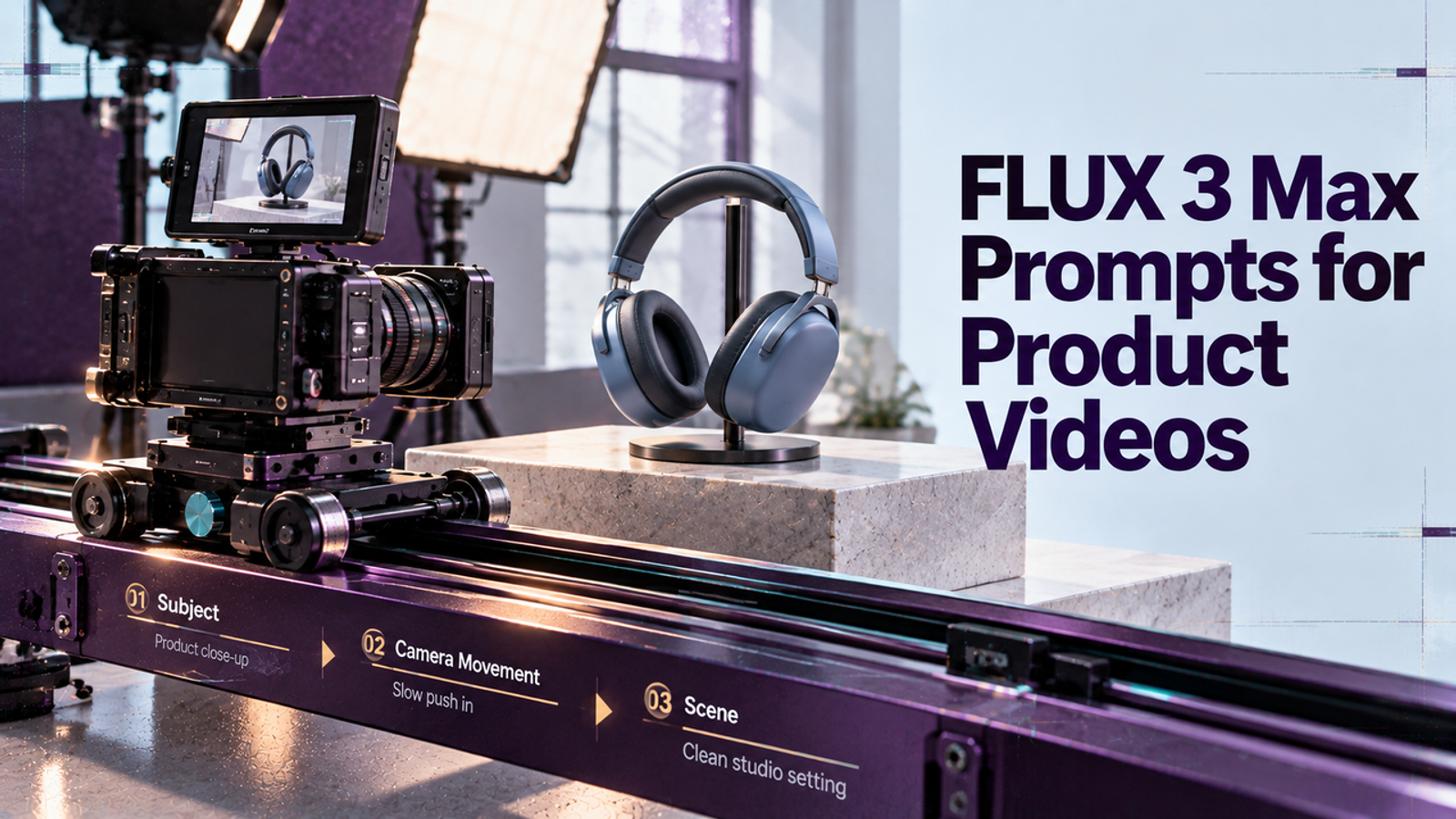
fal’s FLUX 3 Max prompting guide separates camera direction, ordered action, environmental motion, light, and sound. For packaging, keep the product still and choose one small camera or background move. If you need silence, disable generated audio in the setting; it is enabled by default on the current image-to-video endpoint.
Build a Prompt From an Approved Product Still
For a FLUX 3 Max image to video job, set duration, aspect ratio, resolution, and audio in the interface, then save those settings with the prompt. The current endpoint accepts 5–20-second clips and lists 9:16; its auto ratio follows the starting image. A phrase such as “vertical ad” cannot replace the aspect-ratio control. Use an optional ending image only if it shows an approved view of the same product.
Replace the bracketed fields with details visible in the licensed image; omit unsupported claims.
Animate the approved starting image of [PRODUCT AND VISIBLE VIEW] as one continuous shot. Keep the product upright and in the same orientation. The camera makes one [DIRECTION] move at a [PACE] pace, then settles with [END COMPOSITION]. [ONE BACKGROUND OR LIGHT CHANGE] happens behind the package without covering it. Preserve the visible [LOGO POSITION], [LABEL LAYOUT], [PACKAGE COLOR], [CAP OR CLOSURE], and [SILHOUETTE]. Do not rotate the product, invent another side, add objects, alter printed text, or generate new copy. [SOUND DIRECTION, ONLY IF AUDIO IS ENABLED].
A brand-safe video prompt is a reviewable brief, not a preservation switch. Save the source file, prompt version, settings, and any returned seed with each draft; the endpoint returns a seed, but keeping it does not promise an identical rerender.
Prompt Examples for a Reveal and a Packshot
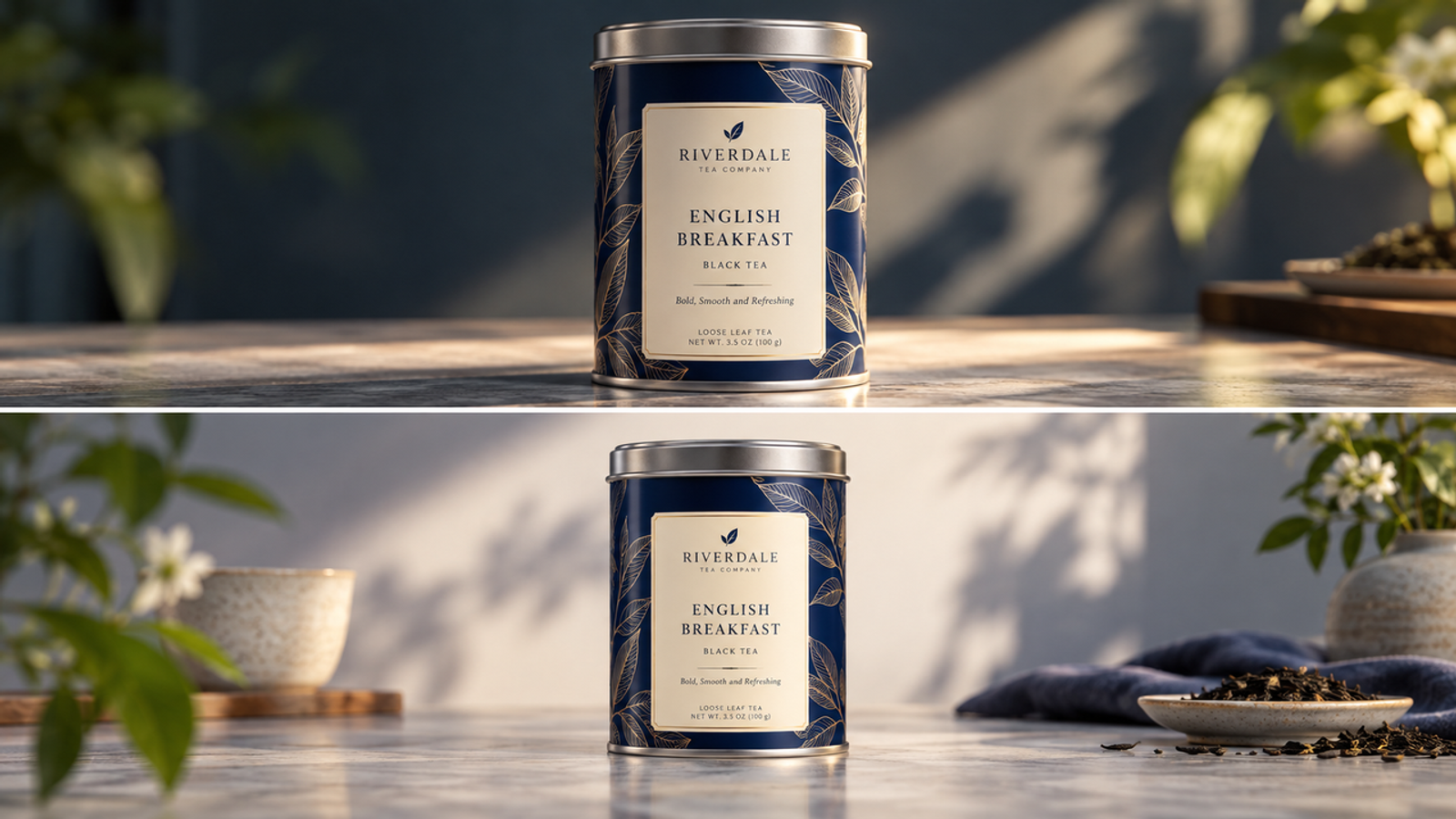
Both examples assume a hypothetical front-facing navy tea tin with a silver lid and cream label. They are proposed briefs, not generated results. Replace those details with an authorized SKU image.
Reveal — motion around a static product:
Use the approved front-facing tea-tin image as the first frame. One continuous six-second shot. The navy tin remains upright and still while the camera slowly pushes forward, stopping with the entire lid and base in frame. A soft shadow recedes across the tabletop behind the tin, revealing the cream front label without crossing it. Preserve the silver lid, navy body, logo position, printed label layout, and straight cylindrical outline. No rotation, hands, new lettering, extra tins, or cut to a second view.
Packshot — legibility first:
Use the same approved front-facing tea-tin image as the first frame. One continuous six-second locked-off shot. Keep the tin centered at the same scale and orientation throughout. A gentle highlight travels across the tabletop behind it and fades, leaving the cream label unobstructed. Preserve the silver lid edge, navy color, logo placement, printed label layout, and complete silhouette. No product movement, camera move, new text, new props, or second angle.
The reveal spends motion on the camera; the packshot spends it on the background. If either distorts print, use a fixed product layer. The next edit is part of the cost.
How Should You Review the Generated Clip?
Play the clip at normal speed, then compare the opening, midpoint, and end with the source image. Inspect exact lettering, logo position, lid, color, and silhouette; note the first timecode where any detail changes. A correct first frame does not clear later frames.
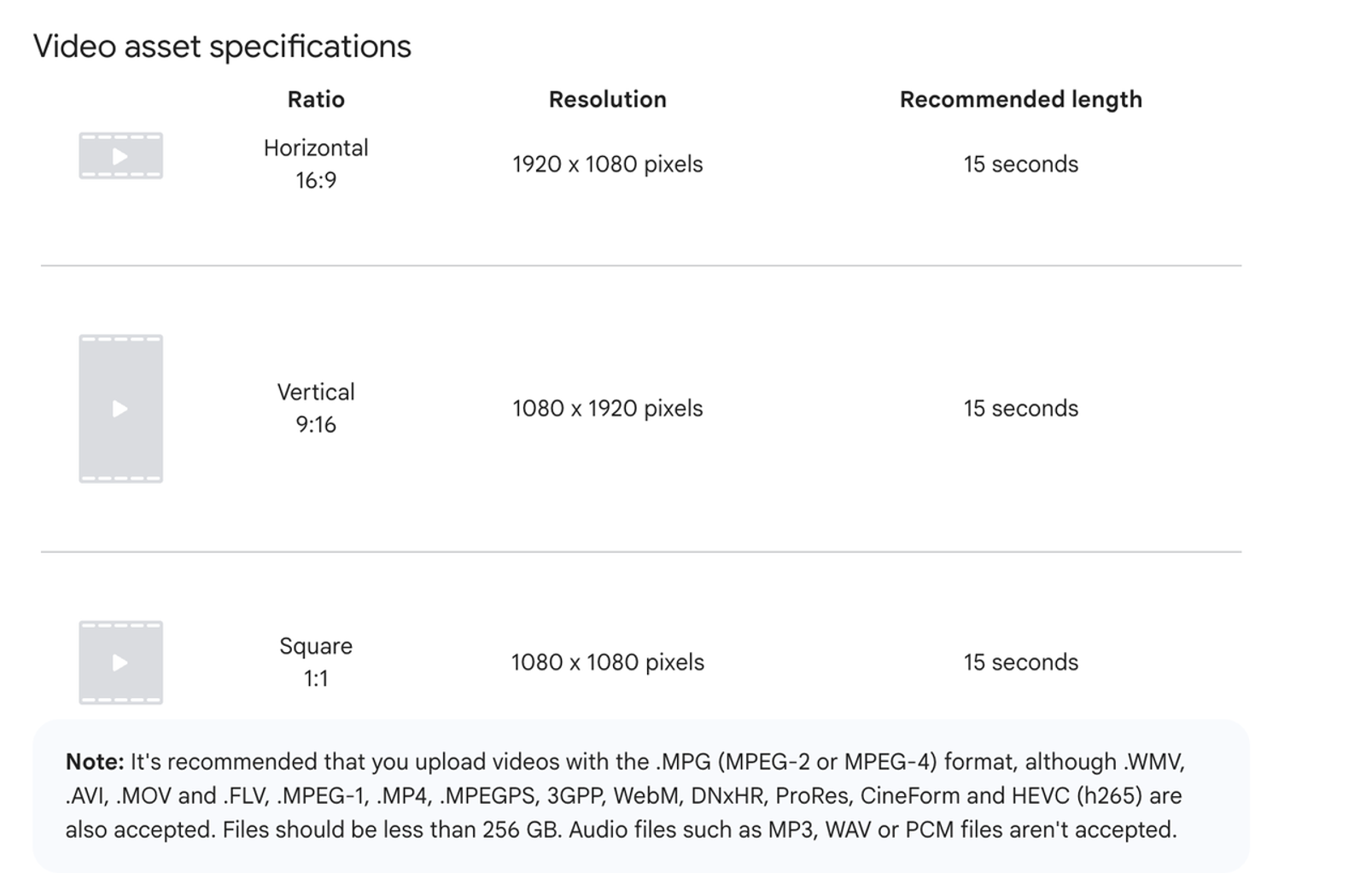
Check the intended crop at delivery size. Is the label still readable, and does the last frame leave enough room for approved copy? A six-second generated shot may need editing into a finished ad; Google Ads’ video specifications, for example, vary by placement. A draft earns a review, not a green light.
Use precise notes: “silver lid turns white at 00:04” tells an editor more than “looks off.” Check implied claims as well as printed copy; a generated scene must not suggest a feature the approved brief cannot substantiate. I would check the label before the lighting.
When Should You Revise the Prompt or the Starting Image?
Revise the prompt when the source is clear but movement causes drift. Reduce camera travel or move an effect behind the package. Hold the image, duration, ratio, audio, and reasoning setting steady while changing one prompt variable. Otherwise you cannot tell which change mattered.
Replace the source if its logo is already blurred, cropped, or hidden. If the brief needs a back panel, supply approved imagery or redesign the shot. Repeated print distortion calls for a fixed photographed layer or conventional footage; another synonym for “preserve” is unlikely to fix it.
Conclusion
A useful FLUX 3 Max product shot prompt makes the clip easier to judge: the approved packshot defines the SKU, the prompt defines the motion, and the review log identifies the first defect. If packaging drifts, choose a simpler shot or a fixed product layer before ad approval.
FAQ
- Can FLUX 3 Max make a clip without an uploaded image?
- Yes. FLUX 3 Max has a separate text-to-video route. For a real SKU, use the image-to-video route so reviewers can compare the result with the approved packshot.
- Does FLUX 3 Max support a vertical product ad?
- Yes. Select 9:16 and use a portrait source crop;
autofollows the starting image. Then check the completed ad against its placement’s duration and resolution requirements. - Does FLUX 3 Max add a visible watermark to exported clips?
- fal’s general tools FAQ says there is no watermark to remove from its outputs. The FLUX 3 Max endpoint does not separately spell out an export guarantee, so inspect the downloaded clip before promising a clean delivery to a client.
- How are failed FLUX 3 Max generations billed?
- fal prices FLUX 3 Max per second of output. Its recent Model API billing guidance says requests ending in a 5xx service error are not charged. That does not make a completed clip free because its label failed brand review, and the model page does not specify every other failure case. Keep the request ID and check the account’s billing record before disputing a charge.
- Can FLUX 3 Max output be used in paid ads?
- fal marks the endpoint for commercial use, subject to its current terms of service and any applicable supplemental terms. That does not clear rights to the uploaded photo, logo, voice, or music, nor ensure ad approval. Check those rights and the destination platform’s rules. This is general information, not legal advice.