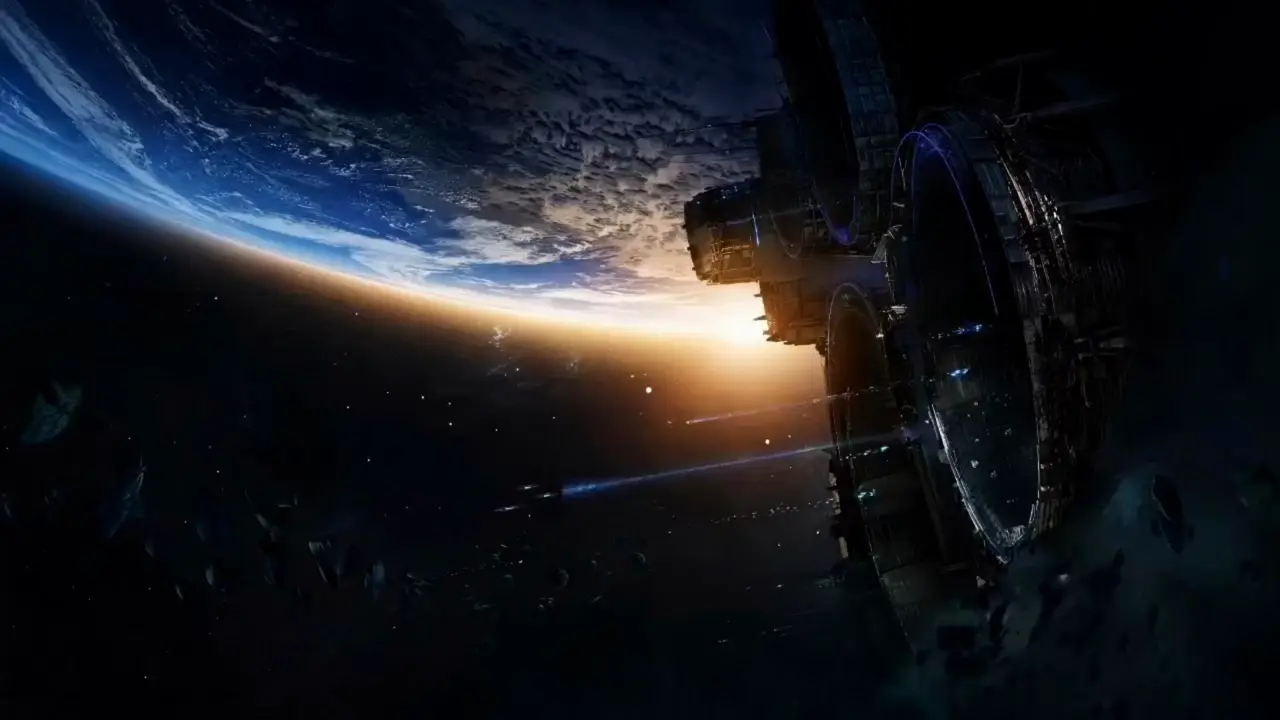
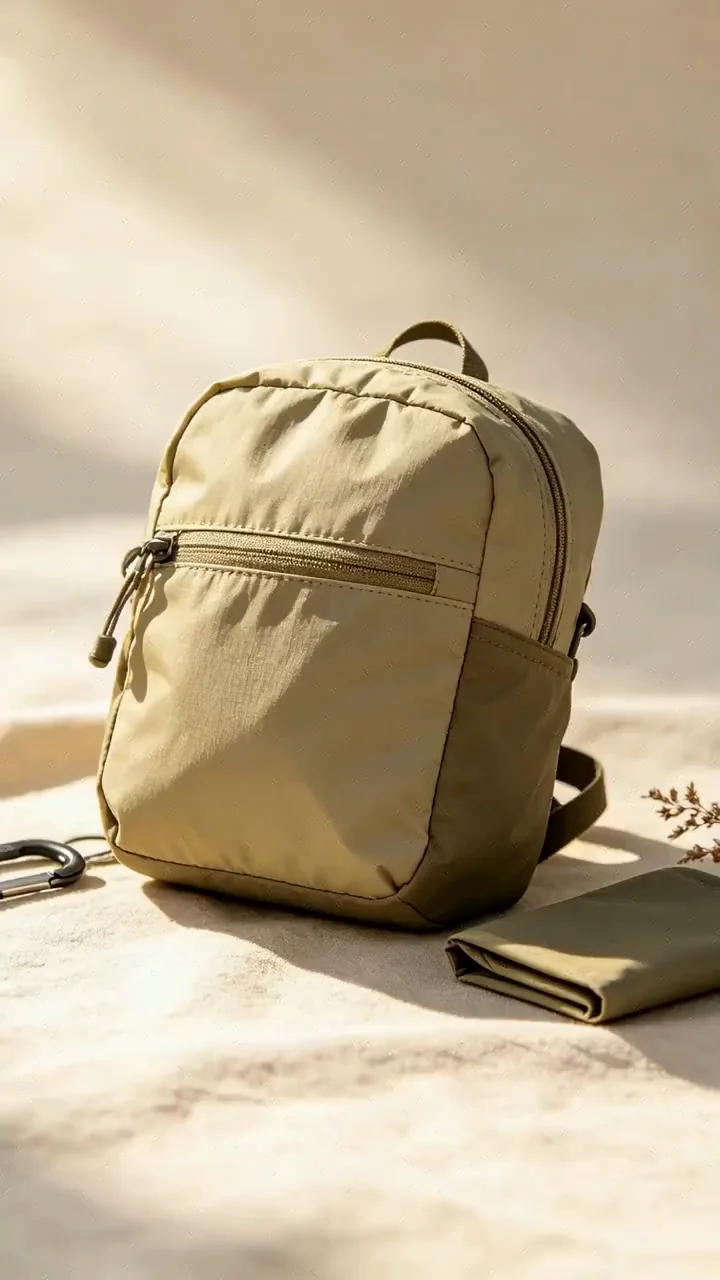
Image to Video AI Bring Your Images to Life
Turn photos, product images, portraits, and illustrations into videos with Wizstar's AI image to video generator. Upload your image and describe the motion.
MADE WITH WIZSTAR
Explore Image to Video Creations
Explore product showcases, cinematic scenes, and creative motion.
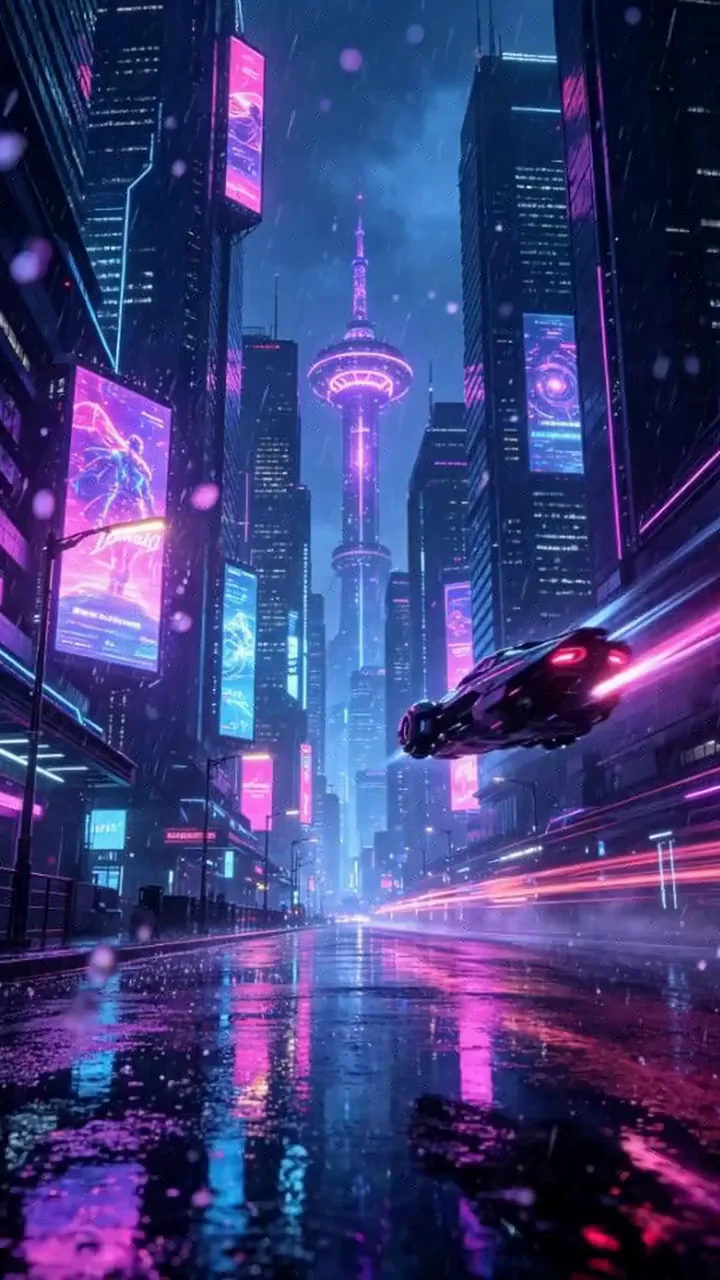
Neon City
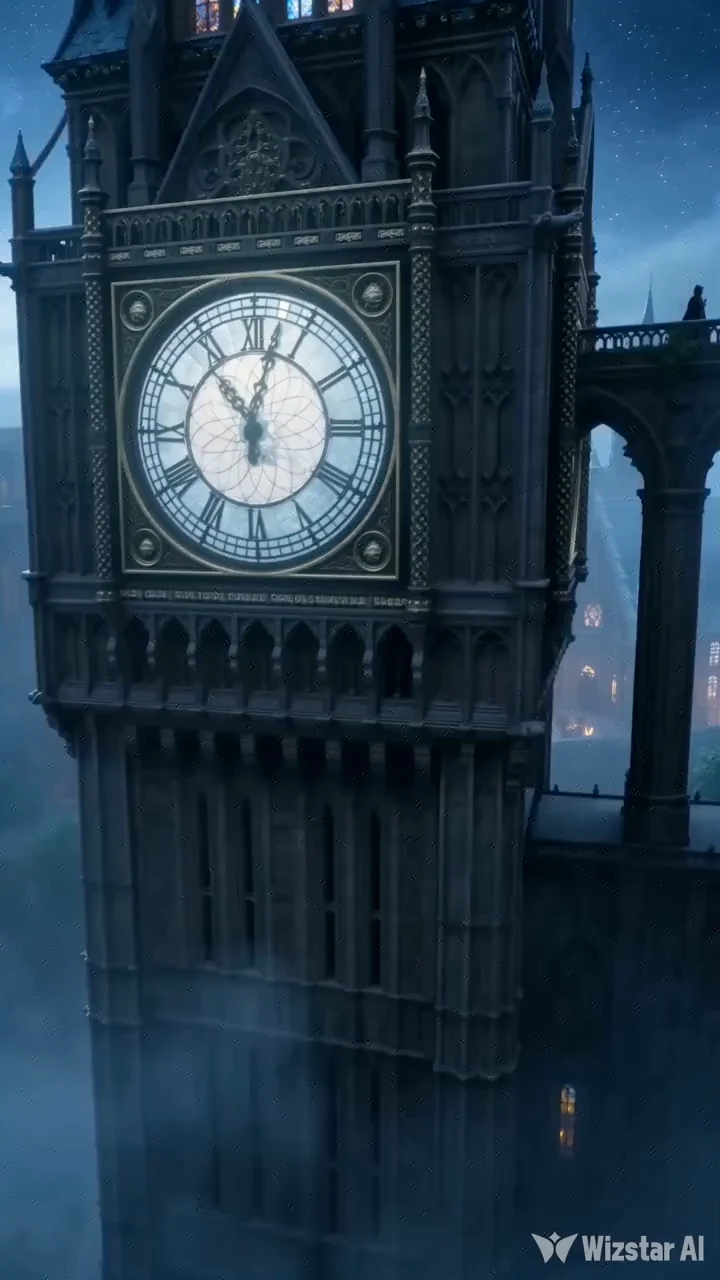
Magic Academy
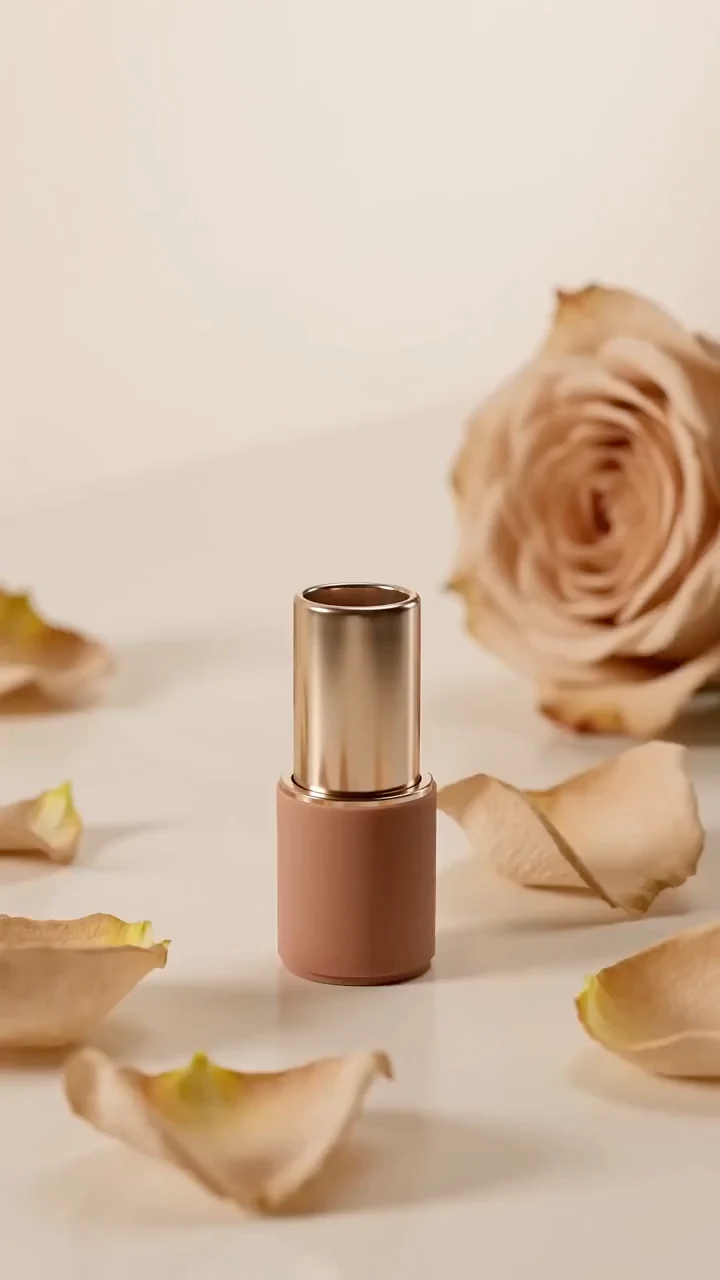
Beauty in Motion
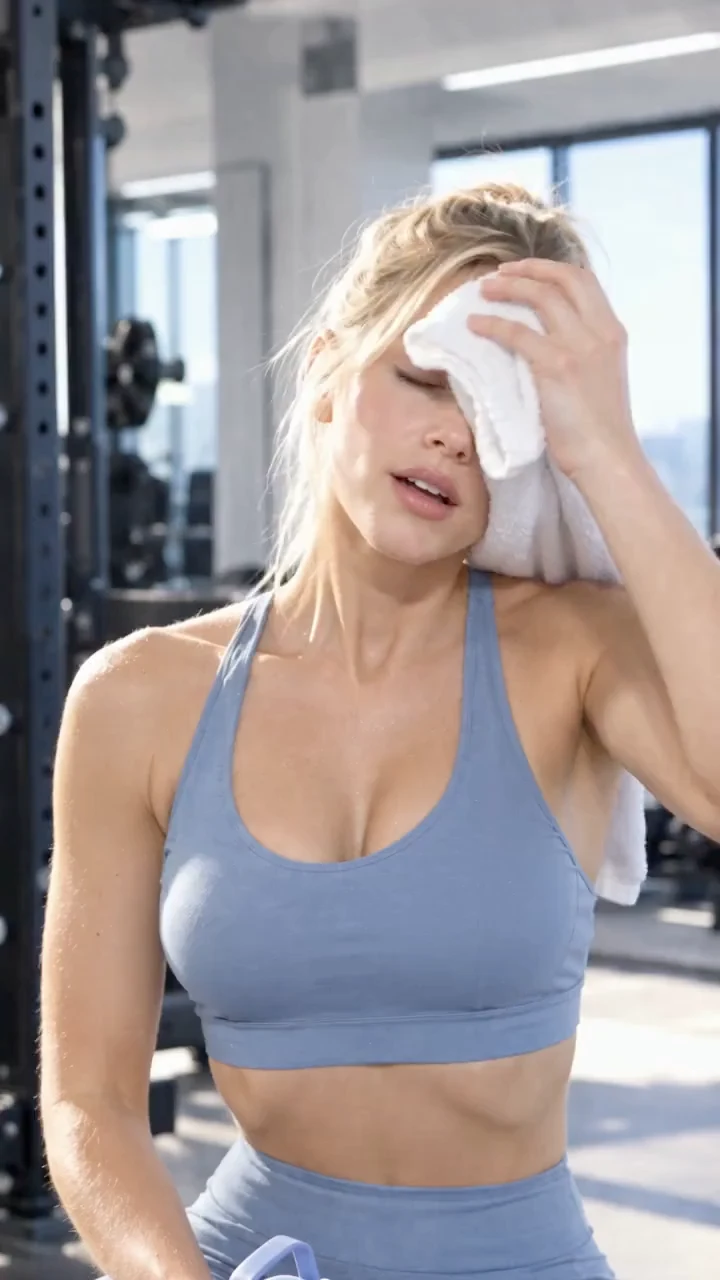
Everyday Fitness
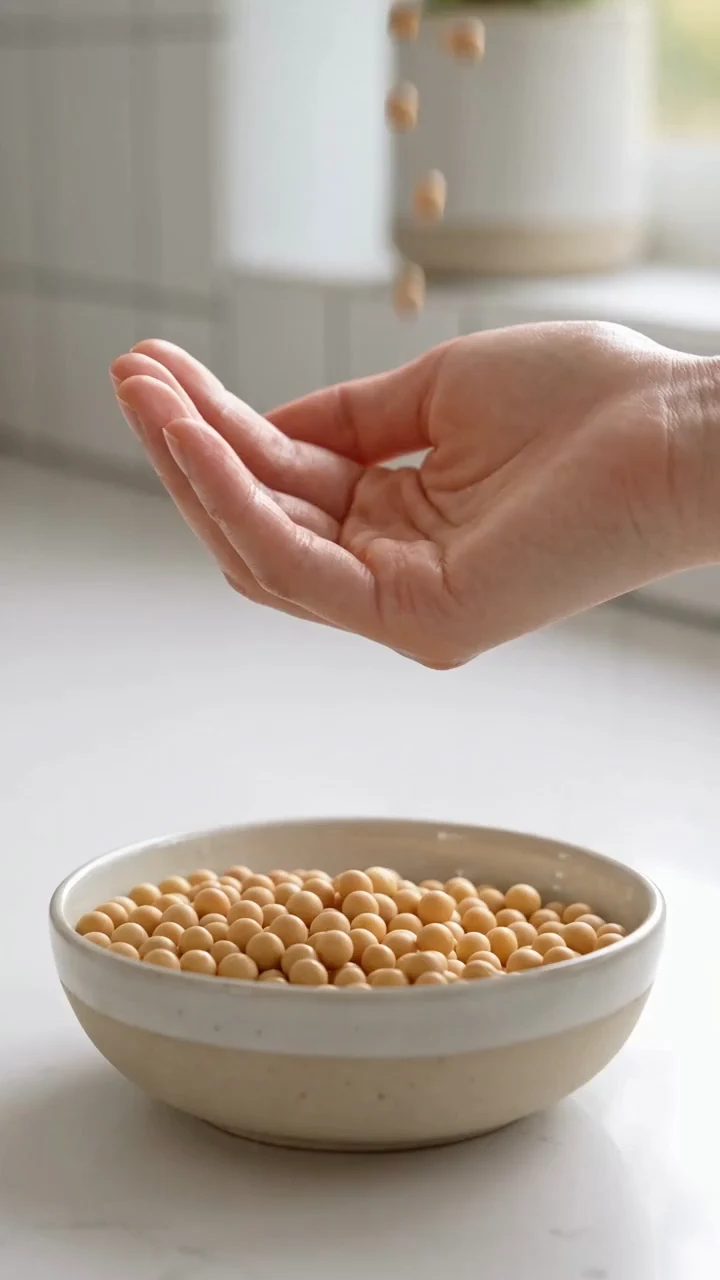
Food Stories
Key Features of Wizstar Image to Video AI
Natural Image Animation
Bring photos, portraits, and illustrations to life with expressive movement, flowing backgrounds, and subtle details that build on your original image.
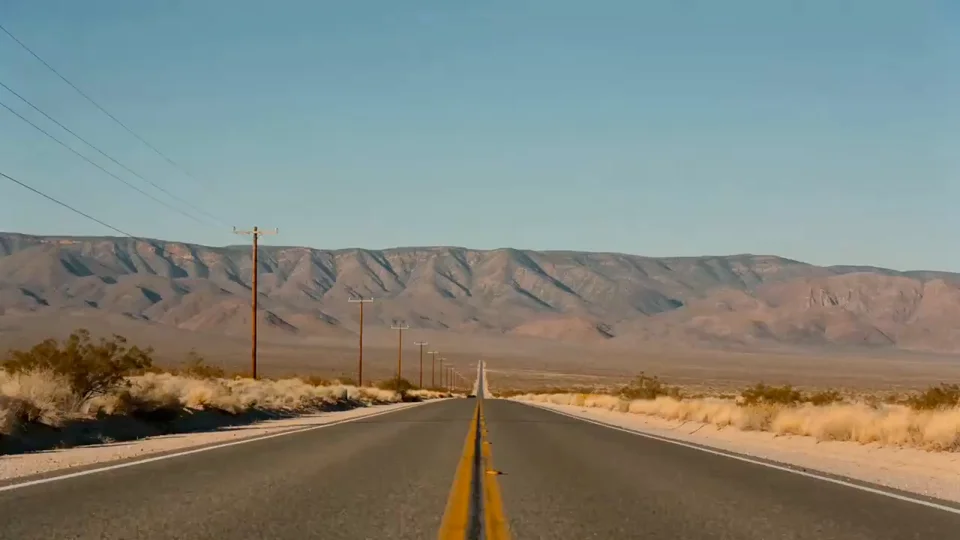
Cinematic Camera Moves
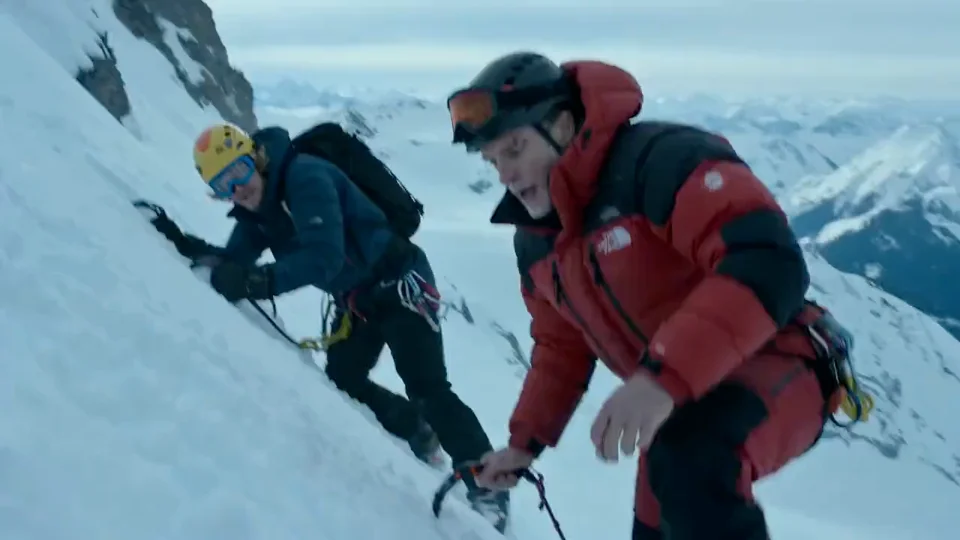
Add slow zooms, smooth pans, tracking shots, or sweeping orbits. Describe the camera movement and subject action to shape the shot.
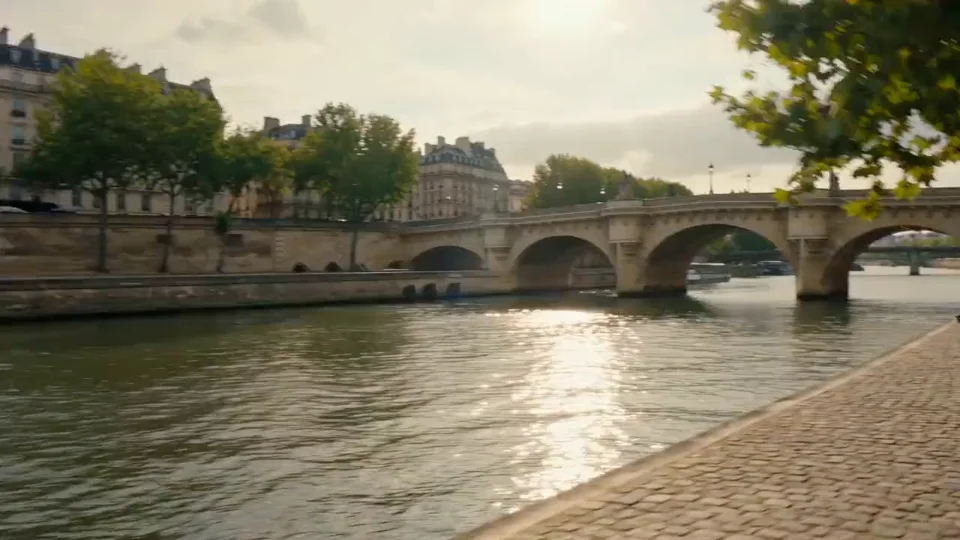
Start & End Frames
Set the opening image and add an ending image to guide the transition between them. Create product reveals, scene changes, and before-and-after sequences with supported models.
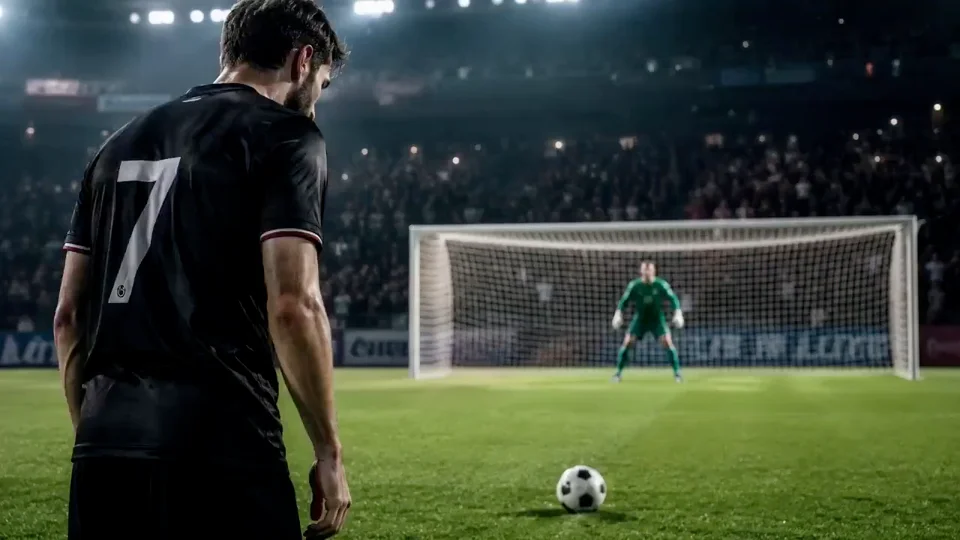
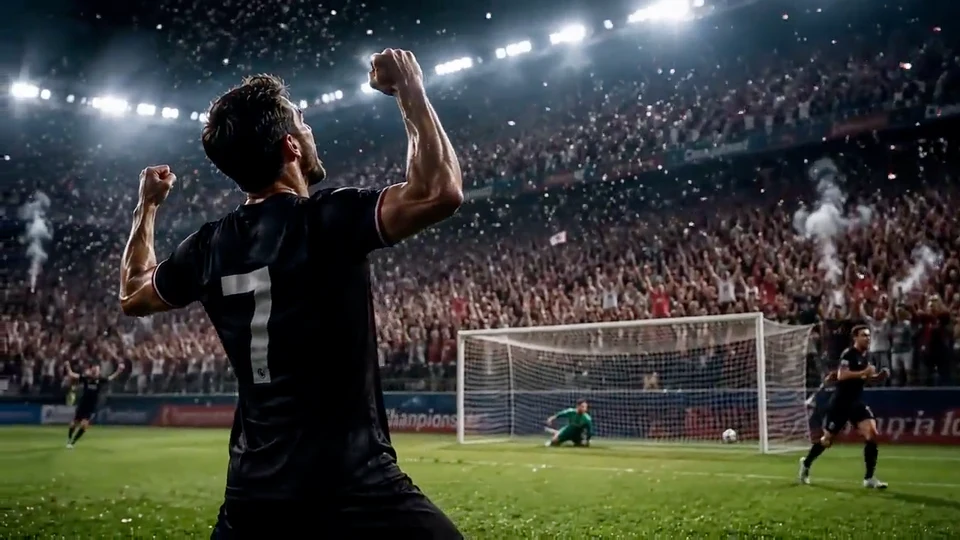
Video with Synced Audio
Generate motion and matching sound together with audio-capable models. Add ambient sounds, sound effects, or dialogue through your prompt.
HOW IT WORKS
How to Turn an Image into a Video
01
Upload Your Image
Choose a clear photo, product image, portrait, illustration, or concept frame with a well-defined subject.
02
Describe the Motion
Write what should move, how the camera should move, how fast the shot should feel, and how it should end.
03
Generate and Refine
Create the clip, review the motion, adjust the prompt or model, and generate another version when you need a closer result.
WHAT YOU CAN CREATE
What Can You Create from Wizstar Image to Video AI?
Product and E-commerce Videos
Turn a catalog image into a product clip that shows shape, finish, scale, or a closer view. Create more product variations without starting a full shoot.
Social Media Content
Animate photos and visual ideas into short clips for TikTok, Reels, Shorts, and other social channels.
Portraits and Personal Photos
Add a gentle expression, camera movement, or environmental motion to portraits and personal images while keeping the subject recognizable.
Illustrations and Concept Art
Bring character designs, posters, paintings, and concept frames into motion while preserving the original style and color direction.
PICK THE RIGHT STARTING POINT
Image to Video AI, Text to Video AI, or Reference to Video AI?
Image to Video AI
Start with an existing image and add movement, camera direction, and atmosphere.
Text to Video AI
Start with a written idea when you do not already have a source image.
Reference to Video AI
Use images, video, or other references when consistency across characters, objects, or scenes matters most.
CHOOSE YOUR MODEL
AI Models for Wizstar Image to Video AI
Find the right model for your image, from longer cinematic shots to detailed product visuals and flexible output formats.
Seedance 2.0
 Seedance 2.0
Stable audiovisual storytelling
Choose it for connected scenes that need reliable visual continuity, synchronized sound, and a smooth narrative flow.
Seedance 2.5
Longer multi-reference shots
Choose it for a single shot up to 30 seconds when several visual references need to stay connected in one directed sequence.
MiniMax H3
 MiniMax H3
High-resolution cinematic control
Choose it for visually rich scenes that benefit from expressive character motion, detailed subjects, and polished high-resolution output.
Kling 3.0 Omni
 Kling 3.0 Omni
Realistic motion and physics
Choose it to bring product shots, characters, and image references to life with grounded movement and believable physical detail.
COMMON QUESTIONS
Image to Video AI FAQ
What is an AI image to video generator?
An AI image to video generator turns a still image into a moving video. You upload a photo, product image, portrait, illustration, or concept frame, then describe the motion and camera direction you want.
How do I turn a photo into a video with AI?
Upload your photo to Wizstar's image to video workflow, describe the subject action and camera movement, choose a video model, and generate. You can refine the prompt or switch models when you want a different result.
Which image formats and sizes can I upload?
The generator on this page accepts JPG and PNG images up to 10 MB. For the image-to-video workspace, use an image at least 300 pixels wide and tall; additional limits can depend on the model. Clear subjects and sharp details give the model more useful visual information.
Can I control the camera movement?
Use your prompt to describe both the subject's action and the camera movement, such as a slow push-in, pan, tracking shot, or orbit. Start with one main action and one camera move, then refine the prompt after reviewing the result. Motion depends on the model and source image.
Can I use a start frame and an end frame?
Yes, with models that support both frames. Start with your opening image, then add an optional ending image in the video workspace. The two images guide the transition and final composition; end-frame availability depends on the selected model.
Which AI model should I use for image to video?
Wizstar offers options including Seedance 2.0, Seedance 2.5, MiniMax H3, and Kling 3.0 Omni. Choose a model that supports the duration, resolution, audio, and frame inputs you need. Compare results from the same image and prompt rather than assuming one model is best for every shot.
Can image to video AI generate sound?
Yes. Choose an audio-capable model and describe the dialogue, ambient sounds, or sound effects in your prompt alongside the action. Sound generation is handled by the model; there is no separate audio switch in the current image-to-video workspace.
How long can my video be, and which resolutions and aspect ratios are available?
The settings on this page update when you choose a model or resolution. Seedance 2.5 offers 4–30 seconds with native output up to 1080P and enhanced output up to 2K. MiniMax H3 offers 4–15 seconds with native 2K output. Some models, including Veo 3.1 and Kling 3.0 Omni, offer native 4K. Select 9:16 or 16:9 where available; Auto means the ratio follows your image. Higher resolutions can restrict the available duration.
How long does it take to generate a video?
Generation time varies with the selected model, clip length, output settings, and queue demand. Wizstar shows the task's progress in the workspace. There is no single turnaround time for every video; check the existing task before submitting the same request again.
Can I try Wizstar's image to video AI for free?
New users receive 20 free credits when they sign up for Wizstar.
Bring Your Next Image to Life
Upload an image, describe the motion, and create your first AI video with Wizstar.
Start Creating Free