The short answer
Strong AI video prompt examples give a generator one business task, approved inputs, one visible action, and a clear review standard. The three templates below cover product, founder, and training clips. Treat each first render as a draft: check it against the brief, then change one variable at a time.
What Should a Business Video Prompt Specify?
Describe the outcome before the look: who will watch, where the clip will run, what one idea it must communicate, and what approved source it may use. Then specify the action, framing, duration, aspect ratio, and what must stay out of frame. Google’s Veo prompt guide emphasizes clear shot and action details. For business use, add the boundary between verified facts and visual choices the model can interpret. That is how to write prompts for AI video generation without asking a prompt to prove a claim.Use this reusable brief, then fill in only what the task needs:
Goal/audience: [one outcome] for [viewer] Placement/format: [channel], [ratio], [duration] Approved source: [asset name, owner, permitted use] Fixed message: [approved script or substantiated claim] One shot/action: [subject does what; camera does what] Keep out: [unapproved text, claims, objects, or actions] Pass if: [visible, verifiable acceptance check]
Keep exact claims and script lines approved; A generator cannot verify them. For cloud tools, check current data terms before entering unreleased names or internal details, and record the source owner and approval status for client handoff.

Copy Three AI Video Prompt Examples
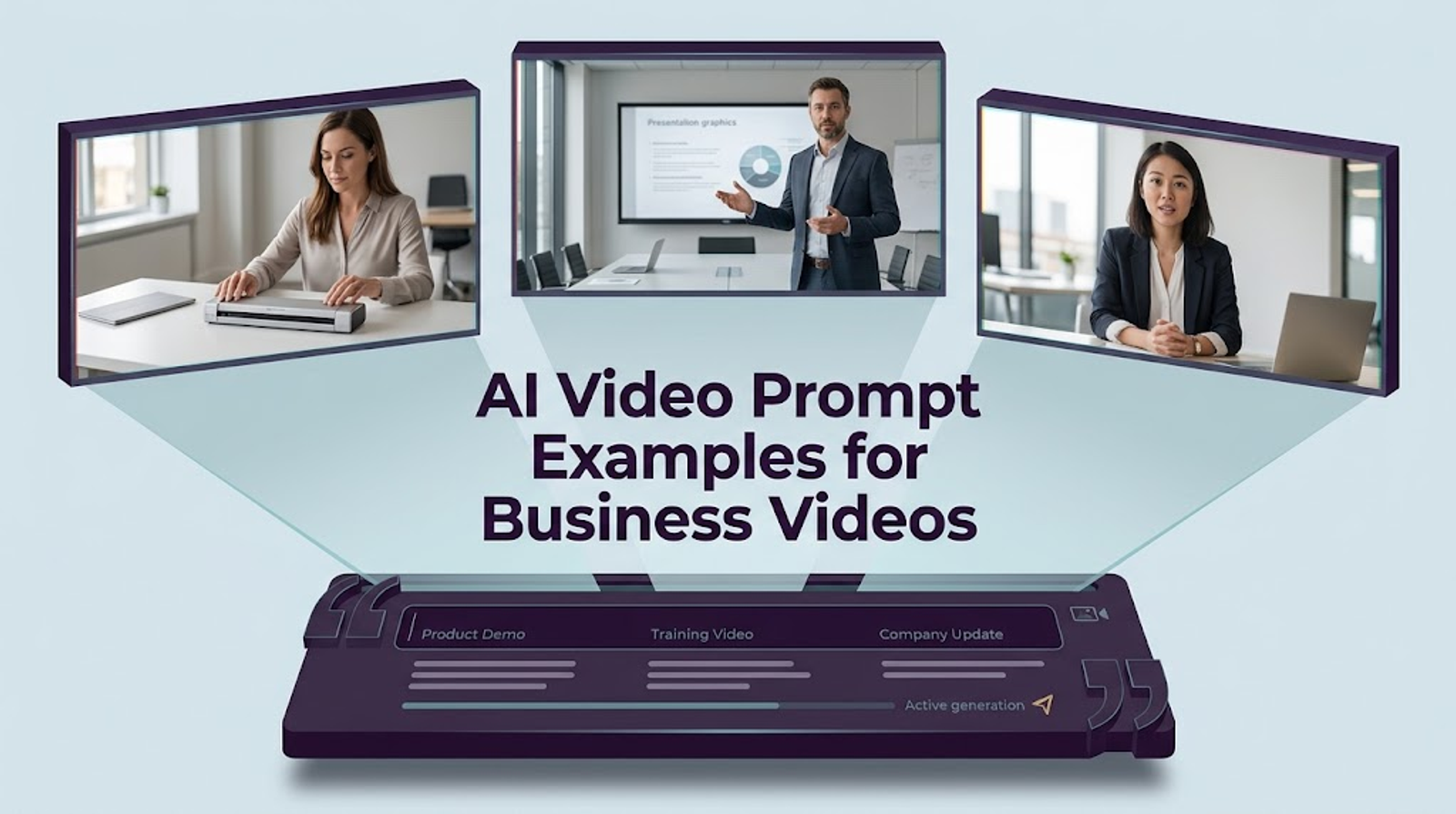
These text-to-video prompt examples each ask for one task, not a four-shot ad. Replace brackets with cleared inputs and map the brief to your tool’s controls; prompt syntax varies. Adobe’s video prompting guidance also organizes a prompt around shot, subject, action, location, and aesthetic.
A Product Feature Teaser
Create one 6-second vertical 9:16 product teaser for [audience] on [placement]. Use the approved image of [product/SKU]. Show [one verified feature] with one slow camera push-in; keep the product stationary and fully visible. Preserve its shape, color, packaging, and visible label. Do not invent text, logos, claims, features, hands, or extra products. Leave space for approved headline and CTA added in editing. No dialogue.
If the source cannot show the feature, choose another shot or provide an authorized demo. A prompt cannot make an unseen capability into evidence.

A Founder Update Without a New Shoot
Create one 10-second 9:16 visual for an approved founder update to [audience] on [placement]. Use [authorized founder portrait / approved office image] only as a visual reference; do not make the person speak, lip-sync, or perform actions absent from the source. Show [one simple background or camera movement] supporting this approved line: “[exact script sentence].” Add no new claims or text; leave space for captions added later.
This supports a written update without implying a new performance. A synthetic speaking likeness needs permission that covers that use and a separate review of the resulting representation.
A Short Training Explanation
Create one 15-second 16:9 training clip for [employee group] explaining [one approved step]. Use the current, approved screenshot or authorized visual. Show the cursor or camera moving only to [named control/action]. Do not invent interface labels, steps, warnings, or outcomes. Keep the composition clear and leave room for captions and a title added in post. Neutral style; no promotional CTA.
Training needs procedural accuracy more than cinematic movement. Have the process owner verify each visible step against the current workflow.

Adapt Each Prompt to Your Approved Assets
Use assets only when their permissions cover the intended campaign. Pair the product image with its claim sheet, the founder image with likeness and script permission, and training visuals with a current process review. Note whether paid use, synthetic alteration, channel, territory, and term are included; a file in a shared folder is not an approval record.
Keep confidential launch details out of a cloud prompt unless your organization has approved the service and its data handling. A placeholder such as “[new product]” preserves the shot direction while the name is checked in post. The NIST Generative AI risk profile can help structure organizational review, but does not establish a provider’s data practices. When the product should lead the frame, Wizstar’s AI video generator describes text-to-video and image-to-video workflows. Check its current terms and controls before uploading sensitive or rights-restricted material. I have the documentation, not a finished test.
Review the First Clip Against the Brief
Review at the intended placement size. First check hard gates: correct product, approved claim, authorized likeness, and accurate training step. Then judge fixable craft issues such as crop, pacing, camera movement, caption timing, and space for copy. “Pretty” is easy to spot; useful means it passes the first checks and can be handed to the next reviewer.
Save the prompt version, source filenames and permissions, model/settings, output, reviewer, timecoded defects, revisions, and decision beside each render. Record generation credits separately from human review and edit time; the cheapest render is not necessarily the cheapest usable ad. If captions are required, request an editable caption file and inspect its timing. W3C’s prerecorded-caption guidance explains that captions cover speech and meaningful audio, not just on-screen headlines. Confirm export formats in the account before promising a handoff.

Revise One Motion or Message Detail at a Time
Name the defect precisely: “the product turns and reveals an unapproved side at 00:04” gives the next pass a target; “make it better” does not. Change one relevant instruction—such as replacing “slow orbit” with “front-facing push-in”—and hold the model, source, duration, ratio, and other prompt lines constant. Record the change and whether it fixed the issue. The next edit is part of the cost, so set a retry limit before generating.
If a protected detail keeps changing, switch the source, shot, or workflow instead of adding adjectives. This controlled revision makes it easier to see whether the prompt helped; it cannot guarantee what the next render will do.
When a Better Prompt Cannot Fix the Source Material
No wording can repair a blurry product photo, a label hidden by glare, an outdated training screen, or a claim without evidence. Supply a better approved source, film the missing action, or choose a shot that does not ask the generator to invent it. For testimonial-style advertising, the FTC’s 2024 rule on fake reviews and testimonials addresses endorsements attributed to nonexistent people or people without the claimed product experience.
Conclusion
The best AI video prompt examples are reviewable briefs, not magic wording. Choose one task, start with approved inputs, define a pass condition, and revise one variable at a time. The review record will show whether the next step is a prompt change, a better source, or another workflow.
FAQ
- Can a team include an unreleased product name in a cloud video prompt?
- Only if the approved service and agreement permit it. Otherwise use a placeholder, then verify retention, model-use, access, and deletion terms before sharing the real name.
- Should client approval records preserve the exact prompt text?
- Yes, if the prompt shaped the deliverable. Keep its version with source assets, settings, output, reviewer, and approval date; exclude unnecessary personal or confidential details.
- Can an employee's photo be used as a presenter reference without a new release?
- Not by default. Confirm permission for AI alteration, paid use, channels, term, and client before uploading, along with the service terms and applicable law.
- Do prompts remain editable when a video project moves to another service?
- The text can be copied, but settings, references, generated assets, and timelines may not transfer as editable elements. Keep prompts and licensed source files separately and expect to remap controls.
- Who may reuse a prompt created for one agency client on a second account?
- The client agreement and service terms decide. Remove private facts and restricted creative; get clearance before reusing distinctive copy or images. Check the contract instead of assuming client-specific inputs belong to the agency.