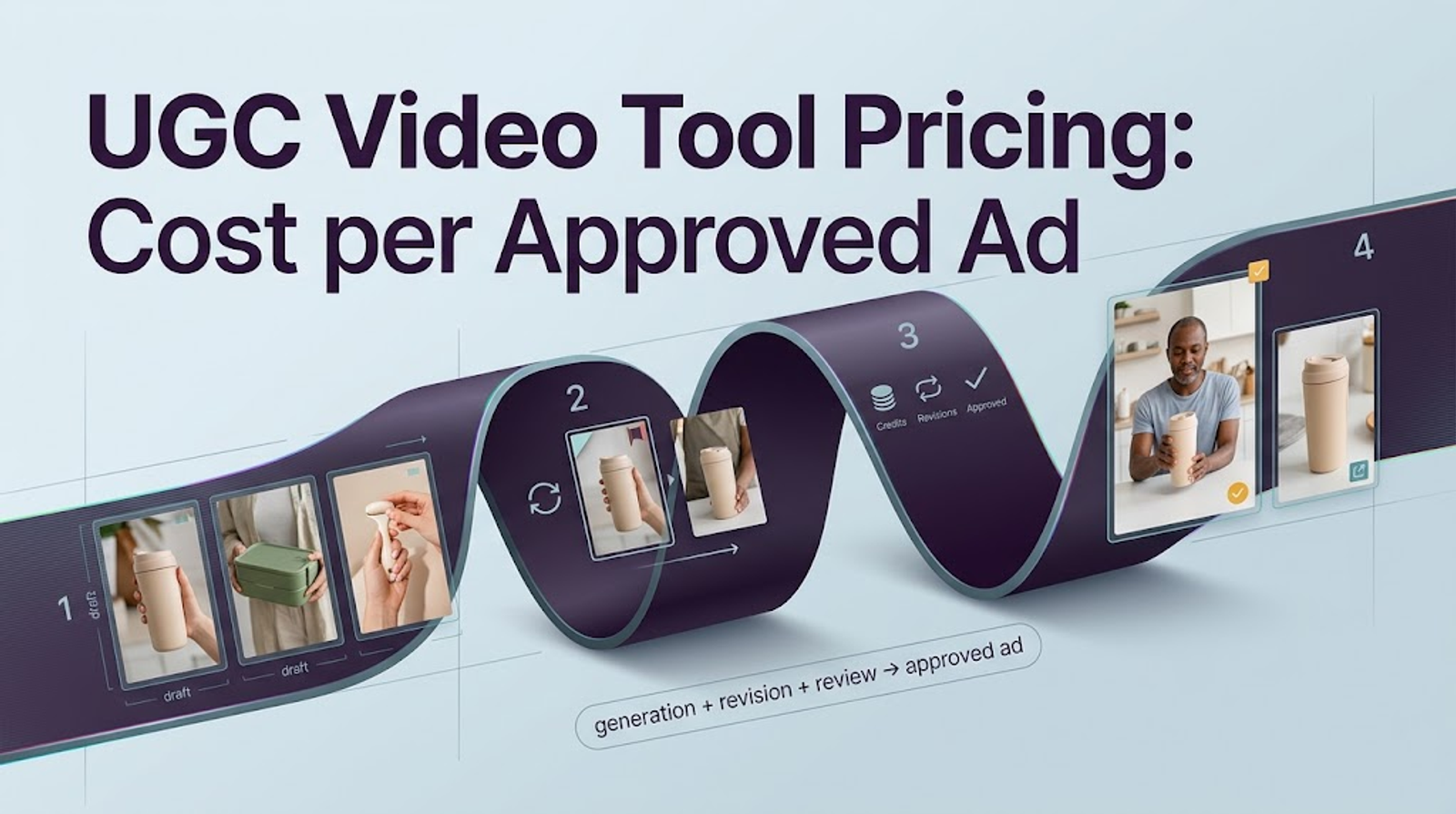
The best UGC video creation tools for Instagram Reels should suit the footage you have and the people editing it. I’d consider CapCut for caption and cut revisions, Adobe Express for controlled brand templates, and Canva for video and cover design in one workspace.
This comparison focuses on editing existing, authorized creator footage. If you still need someone to film a genuine product demonstration, start by choosing a UGC creator. An editor becomes useful once the footage and its permitted uses are clear.

Before paying for software, decide what the team needs to receive. A finished MP4 may be enough for a single post. A campaign that needs new hooks, product shots, and language versions also needs an editable project and access to its source assets.
For the moving video, start with a 9:16 canvas. Meta’s Reels ads guidance recommends vertical creative with audio and key messages inside the safe zone. Those are advertising recommendations; organic posts, ad placements, and profile previews still need their own checks.
Keep the delivery brief practical: readable captions, a visible product, a separate cover, and a version without library music if another soundtrack may be needed. Check the longest caption over the busiest product shot. Review the cover in the publishing account’s grid preview as well as at full size.
That gives you something concrete to compare across editors.
A Shortlist for Branded Reels Production
| Tool | A reason to consider it | Purchase condition that matters |
| CapCut | Revising creator clips and individual caption segments | Required features on your editing device, paid assets, and music permissions |
| Adobe Express | Distributing branded templates with controlled editing | Whether you need a brand kit or Teams/Enterprise template restrictions |
| Canva | Producing matching video layouts, covers, and social graphics | Access to the updated timeline and the assets used in the finished design |
The feature and plan comparisons draw on public documentation checked on October 22, 2026. They support the recommendations below, rather than a ranking based on measured editing or export speed.
1. CapCut: Editing Creator Footage and Captions

CapCut is worth considering when the work centers on the spoken performance: tightening a pause, moving a product close-up, or breaking a long caption into readable pieces.
Its subtitle-editing guidance describes splitting caption blocks on desktop, mobile, and the web, with different controls and possible limitations. That is useful for a Reel where one sentence extends across several shots. You can work on the caption segment that needs attention instead of treating the whole sentence as one visual block.

For example, suppose a creator introduces the product while holding it near the bottom of the frame. Split the caption at a natural pause, then adjust the text placement so viewers can still see the label. After shortening the spoken clip, check both caption timing and meaning; a tighter edit should preserve the creator’s statement.
Start with the free editing option using your own footage. Before upgrading, identify the specific premium feature, asset, or shared-space requirement that makes a paid plan necessary. Check it on the device your editor uses, since a desktop instruction does not establish the same mobile behavior.
Music is a separate purchase decision. Under CapCut’s current U.S. materials license, Commercial Sounds are licensed for CapCut, TikTok, and TikTok for Business. Use elsewhere requires separate permission. A track carrying that label should therefore not be assumed cleared for an Instagram campaign.
I’d keep CapCut on the shortlist for detailed caption revisions. If the bigger requirement is controlling what colleagues can change in a branded template, compare that requirement directly with Adobe Express before buying.
2. Adobe Express: Branded Templates and Team Controls

Adobe Express deserves attention when several people produce variations of the same branded Reel. The useful distinction is how much freedom those people should have.
A team may want creators to replace footage and offer text while preserving the logo, fonts, and colors. Adobe’s controlled templates can restrict editing and brand styles, but those controls are available on Teams and Enterprise plans. Having a brand kit is a different requirement from enforcing template restrictions.

For a repeatable product Reel, build the opening, product demonstration, benefit card, and closing frame around the content people need to replace. Lock only what must stay fixed. A template that prevents someone from correcting an outdated product detail creates another approval problem.
Express also provides caption text and styling controls. Its documented process lets an editor generate captions, correct text in the Transcript panel, adjust formatting, and reposition captions on the canvas. That makes it a candidate for the moving video as well as the branded frames.
For purchasing, compare the Free, Premium, and team plans against the actual assignment. Standard editing, premium content, and controlled template distribution are different buying needs. Team pricing can also involve minimum seats and annual commitments, so compare the total subscription rather than a promotional per-seat figure.
I’d favor this approach when a designer needs to give other editors a usable template with deliberate restrictions. For a solo editor who only needs to cut footage and correct captions, those controls may add little value. Start with the simpler plan that completes the job.
3. Canva: Covers, Brand Layouts, and Timeline Editing

Canva is a sensible candidate when the same person creates the Reel, its cover, and the campaign’s other graphics. Keeping those assets together can make it easier to carry the same visual idea across the campaign.
Its video editor now goes beyond page-based assembly. Canva’s updated timeline documentation describes multiple tracks, direct clip trimming and splitting, and audio waveforms. It also notes gradual availability, so check which timeline your account has before following instructions for it.
That changes how I would compare it with CapCut. If your team already uses Canva, try the required footage and caption changes there first. Calling it a template tool is not enough reason to move the entire project elsewhere.
Consider a Reel with a creator introduction, a product demonstration, and a benefit card. The video needs enough space for the demonstration, while the cover needs to explain the idea without motion. Make those two compositions deliberately; shrinking a full video headline into a thumbnail can leave neither version readable.
The free-export conditions are also useful to understand. Canva says a Free account can export without a watermark when the design uses free elements, images, footage, and music. Paid elements change that calculation. Check the assets in the actual project before committing to a template.
Audio has its own restriction: Canva’s Popular Music license prohibits commercial and promotional uses, including advertising. Stock Music falls under a separate content license. A paid subscription does not make every song suitable for a branded Reel.
Canva makes particular sense when matching graphics and covers are part of the assignment. If caption revisions or project sharing become cumbersome in your account, use those specific difficulties to decide whether another editor is worth adopting.
Compare Tools With the Same Reel Brief

Use a small sample assignment before committing the wider team. For example, make a 20-second product Reel from four authorized creator clips, a product close-up, and one approved product statement. Those are suggested comparison parameters, not an ideal duration or a completed test.
After the first version, make the changes that would affect your purchase:
| Revision | What it reveals |
| Split a long caption and move it away from the product | Whether text, timing, and position can be revised independently |
| Replace a product shot while keeping the spoken explanation | How much of the surrounding edit needs attention |
| Let a colleague change the cover or offer text | Whether project access and template restrictions fit their role |
| Export without library music, retaining the creator’s speech | Whether the audio arrangement supports another soundtrack |
Save the revised project and ask a colleague to make one further change. That exposes a different problem from exporting: can the next editor access the footage, fonts, and editable text?
Record any paid feature needed to finish the assignment. Compare the required seats, assets, and subscription terms. If your existing editor completes those revisions comfortably, a new subscription needs a specific advantage to justify the move.
Where an Editor Cannot Solve Distribution Problems
Music permission follows the track and its license. Instagram’s licensed music library is intended for personal, non-commercial use; Meta describes Sound Collection as an option for commercial uses such as ads. Check the terms for the intended Meta placement rather than treating access as permission to reuse the music everywhere.
The same care applies to creator footage. Agree on paid use, editing, territories, and the license period before building a campaign around it. Keep the original recording alongside the approved edit so a shortened statement can be checked against what the creator said.
Permissions and advertising requirements vary by market and campaign. These are production considerations, not legal advice. An editor’s export button cannot settle a licensing dispute or guarantee ad eligibility.
Conclusion
Choose the editor around the revision that matters most to your team. A caption-heavy edit, a restricted template, and a matching video-and-cover package place different demands on the software.
Before paying, finish one representative Reel on the intended plan and device, then let someone else revise it. Keep the project editable, check the assets and music permissions, and preview the actual Instagram placement. Those results give you a reason to keep your current editor—or a concrete reason to change it.
FAQ
- When does a Reel need a paid partnership label?
- Meta requires the label for branded content involving an exchange of value, including paid posts, gifted products, and affiliate arrangements. That concerns the creator’s relationship with the business partner. Local advertising rules may require additional disclosure; the platform label does not replace that review.
- Can a brand boost a Reel posted by its creator?
- Only when the content, accounts, and permissions meet Meta’s partnership-ad requirements. Agree on permission to advertise using the creator’s identity separately from permission to use the delivered footage. Confirm the arrangement in the publishing and advertising accounts before promising paid amplification; receiving an MP4 does not grant account-level advertising access.
- How should teams handle product links in Reel captions?
- Give the viewer a conversion path that works on the publishing account. Depending on availability, that might be a product tag, profile link, or ad destination. Test it from a viewer account, and make the caption explain the action clearly. Avoid making an untested plain-text URL the campaign’s only route to purchase.
- What changes when a Reel features an underage creator?
- Review the arrangement before filming or licensing the footage. Guardian involvement, privacy, work and compensation rules, and platform eligibility can depend on age and jurisdiction. A release form should not be treated as settling every issue. Get qualified local advice for the campaign rather than leaving these decisions to the editor.