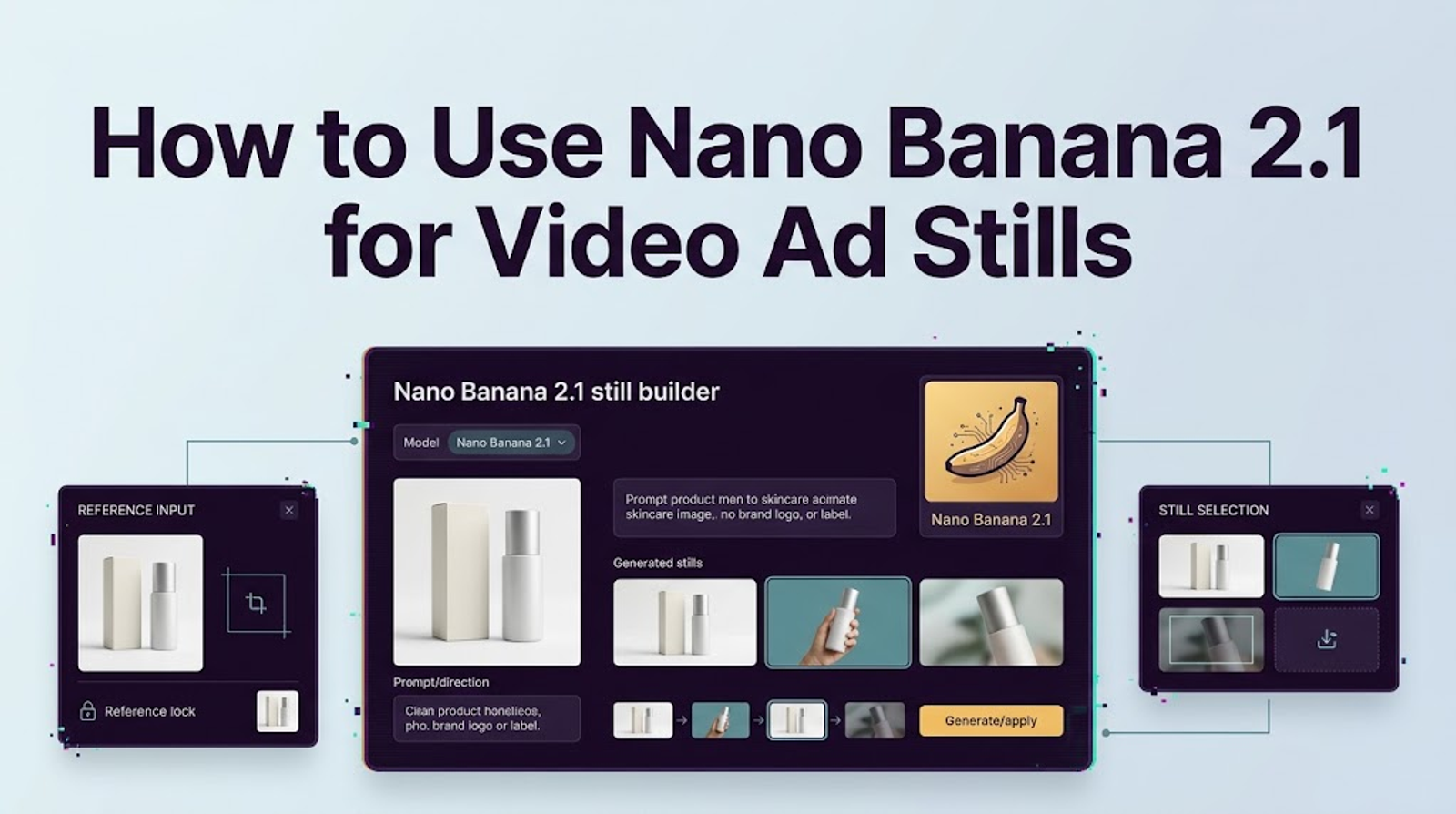
A useful video ad still has to do two jobs: look intentional in the planned shot and keep the product true to the item you sell. Nano Banana 2.1 can help create a first visual draft from authorized product references, but the generated image still needs a human review before it goes anywhere near production.
I'm Vela. I’d keep this workflow narrow: prepare one product brief, generate a still for a specific crop, check the packaging and offer details, then hand the approved image to your video team.
Why Start a Video Ad With a Product Still?
A still gives the team something concrete to approve before adding motion, voice, music, or multiple scenes. You can check whether the product is visible, whether the composition leaves room for a hook or caption, and whether the creative direction fits the campaign. If the still is wrong, it is cheaper to fix that decision before video production begins.
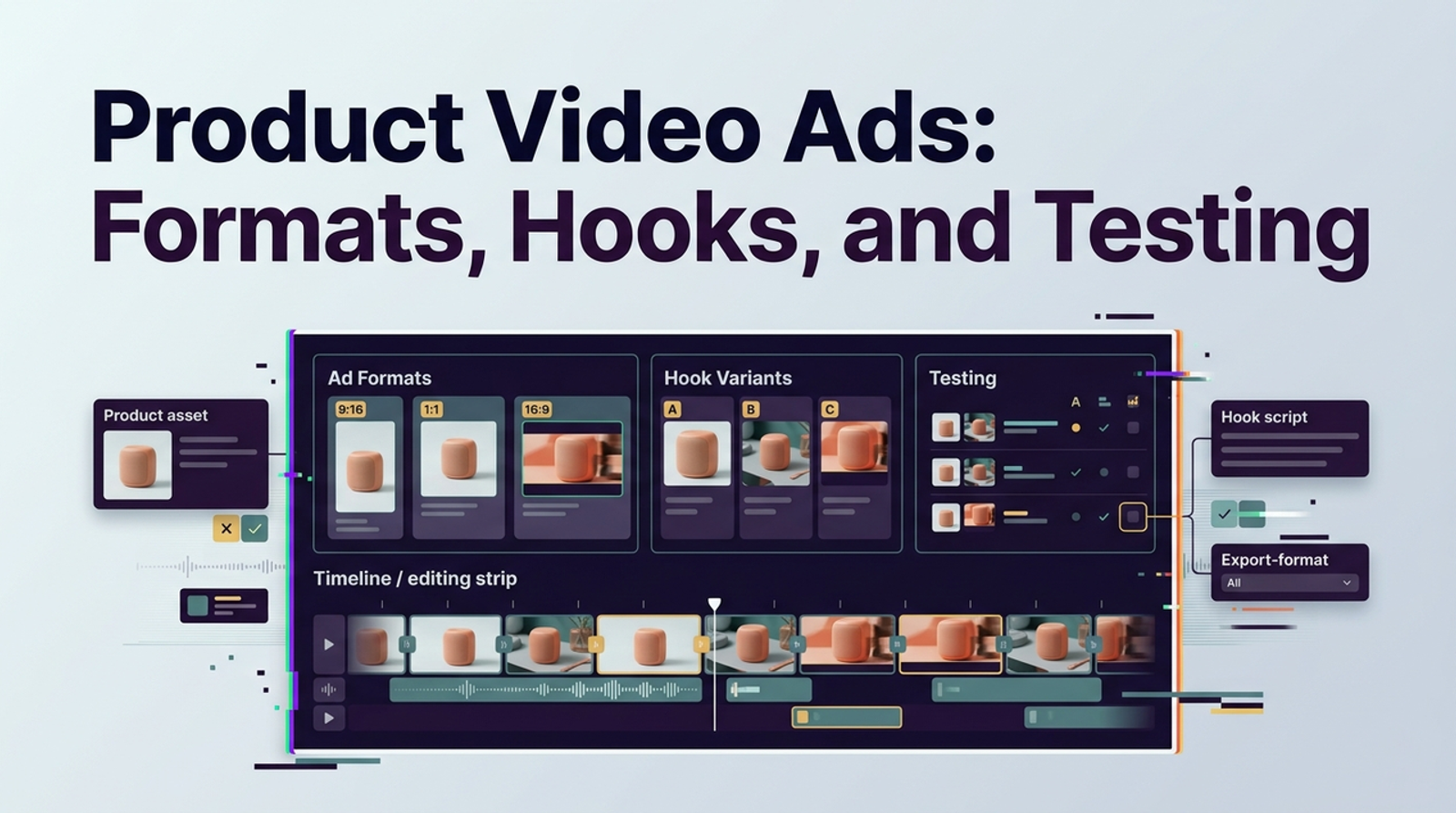
It also makes feedback more specific. “Make it feel more premium” can lead to broad revisions; “keep the bottle label facing camera and leave the upper third clear for copy” gives the next person something to act on. For more on how the still fits into ad planning, see Wizstar’s guide to product video ad formats, hooks, and testing.
Nano Banana 2.1 is Google’s image-generation and conversational-editing model. Google describes it as an update to Nano Banana 2, with improvements to visual quality, prompt adherence, consistency across turns, and text rendering. Those are useful capabilities for drafting, but they don’t make a generated product detail automatically accurate.
Prepare the Product Reference and Ad Brief
Start with assets you’re authorized to use: a clean product photo, a packaging image if the label matters, and any approved brand or campaign guidance. Choose images that show the product’s real shape and key details. A low-resolution or heavily angled reference gives the model less to work with, and a lifestyle image with visual clutter may make it harder to tell which details should stay fixed.
Before prompting, write down what must remain true: product name, packaging, color, logo placement, material, included accessories, and any visible offer or claim. Separate those facts from creative choices such as setting, lighting, camera angle, and background. A scene can be invented; a product feature or discount should not be.
Then define the ad’s job in a few lines: target placement, aspect ratio, the product’s position, the first-second visual focus, and where text or subtitles may appear. If this still is meant to become a vertical short, design for a vertical crop from the start. Don’t approve a wide composition and hope the video editor can rescue it later.
Create a Video-Ready Still in Nano Banana 2.1
Use a channel where Nano Banana 2.1 is available, such as Google AI Studio or the Gemini API, and check that the selected model is actually 2.1. Google’s model documentation lists supported inputs and outputs; the exact controls can differ by product or interface.
I’d begin with one product and one scene. Keep the prompt focused on composition and constraints rather than piling on mood words. For example:
Create one vertical 9:16 still for a short product ad using the attached authorized product reference. Keep the product’s shape, label, logo, colors, and visible packaging details faithful to the reference. Place it on a clean bathroom counter with soft morning window light. Keep the full product in frame, slightly below center, with clear space in the upper third for later copy. Do not add text, badges, extra products, claims, or packaging details that are not present in the reference.
If the first output is close, revise one thing at a time: move the product, simplify the background, change the light, or make more room for text. That makes it easier to see what the revision changed. Google’s image-generation guide shows image and video inputs, image outputs, aspect-ratio options, and multi-image examples for the API workflow. Treat those as API capabilities; don’t assume every Gemini interface exposes the same controls.
Frame the Product for the Planned Video Crop
The still should match the delivery frame, not just look good in a preview. Check that the product remains readable at phone size and that the main focal point won’t be covered by platform controls, subtitles, or a later headline. Keep important details away from the edges, where a crop or reframing pass could cut them off.
If the video editor will add movement, leave visual breathing room in the direction the product may move or the camera may pan. A still packed edge to edge can leave no useful space for motion. Shopify’s recent AI product photography guide also recommends starting with your own reference image and documenting brand guidelines, a practical habit when teams want assets to feel consistent across channels.
Check Packaging, Logos, and Offer Text
Zoom in. Compare the generated image against the source, especially around the logo, product name, dosage or size, flavor or color variant, seals, and any small print. Text that looks plausible can still be wrong. If an offer, price, or claim appears in the image, verify it against the approved campaign copy and current promotion details. When exact text matters, it is usually safer to add it in the video-editing stage instead of asking the image model to reproduce it.
I’d treat the still as a reviewable draft, not approved artwork. Have the product owner or campaign reviewer confirm the visual facts, and record which reference assets and prompt produced the version they approved. Google DeepMind’s Nano Banana 2.1 model card describes model inputs and outputs; that information explains the tool, but it does not certify an individual image’s accuracy.
Hand Approved Still for Video Production
Once the still passes review, send the image file with a short handoff note: approved reference version, intended aspect ratio and placement, elements that must remain unchanged, permitted motion, and any copy that must be added separately. Tell the editor whether the still is a visual guide, a shot to animate, or a frame to use as the opening of a sequence. Those are different instructions.
Keep the original product reference and approved generated still together. If the team later creates another scene, use the same reference set and brand notes, then review that scene on its own. Consistency features can help across conversational edits, but they are not a guarantee that every later image will preserve the product perfectly.
For video work, the still is only one handoff asset. The production team still needs to decide how to create movement, sound, captions, and final exports using its chosen video tools. This article does not imply that Wizstar currently offers Nano Banana 2.1 as an integrated image-generation option.
When This Image-First Workflow Falls Short
This approach is a poor fit when the ad depends on precise product handling, a demonstrable mechanism, a person using the item correctly, or fine packaging text that must be legible in every frame. It can also be a weak starting point if the authorized references don’t show the product clearly enough to preserve its real details. In those cases, use a real product photo or a controlled shoot for the evidence-bearing shot, and use generated imagery only for elements the team can safely invent.
A still cannot prove that a product works, that a claim is true, or that a campaign will perform. It can help a team agree on framing and visual direction before spending time on motion. That is useful on its own; it just has a defined boundary.
Conclusion
Use Nano Banana 2.1 to create a first still around an approved product reference and a defined video crop. Then check the details that affect product truth, get a person to approve the image, and give production clear instructions for the handoff. I’d start with one real SKU and one scene. If the still is accurate and reviewable, you have a useful starting point for video production.