The short answer
Fibo 2 prompts can help a team draft product storyboard stills from text or an authorized image reference, but Fibo 2 does not make those stills move or assemble them on a timeline. Use a distinct role for each frame, hold the product description steady, and review the board before production. Bria’s current documentation describes image generation and editing, reference images, structured prompts, and seeds.
I have the documentation, not a finished test. So I would treat the images as a visual planning aid: useful for agreeing on framing, lighting, and the order of ideas, but still subject to brand review and a separate video workflow.
What Should a Product Storyboard Prompt Contain?
A useful frame states what must be visible, what the camera sees, its role in the ad, and what must stay unchanged. “Premium product shot” is vague. “Front three-quarter view of the approved bottle on pale stone; show the cap and full label; leave upper-left space for a headline” is reviewable.
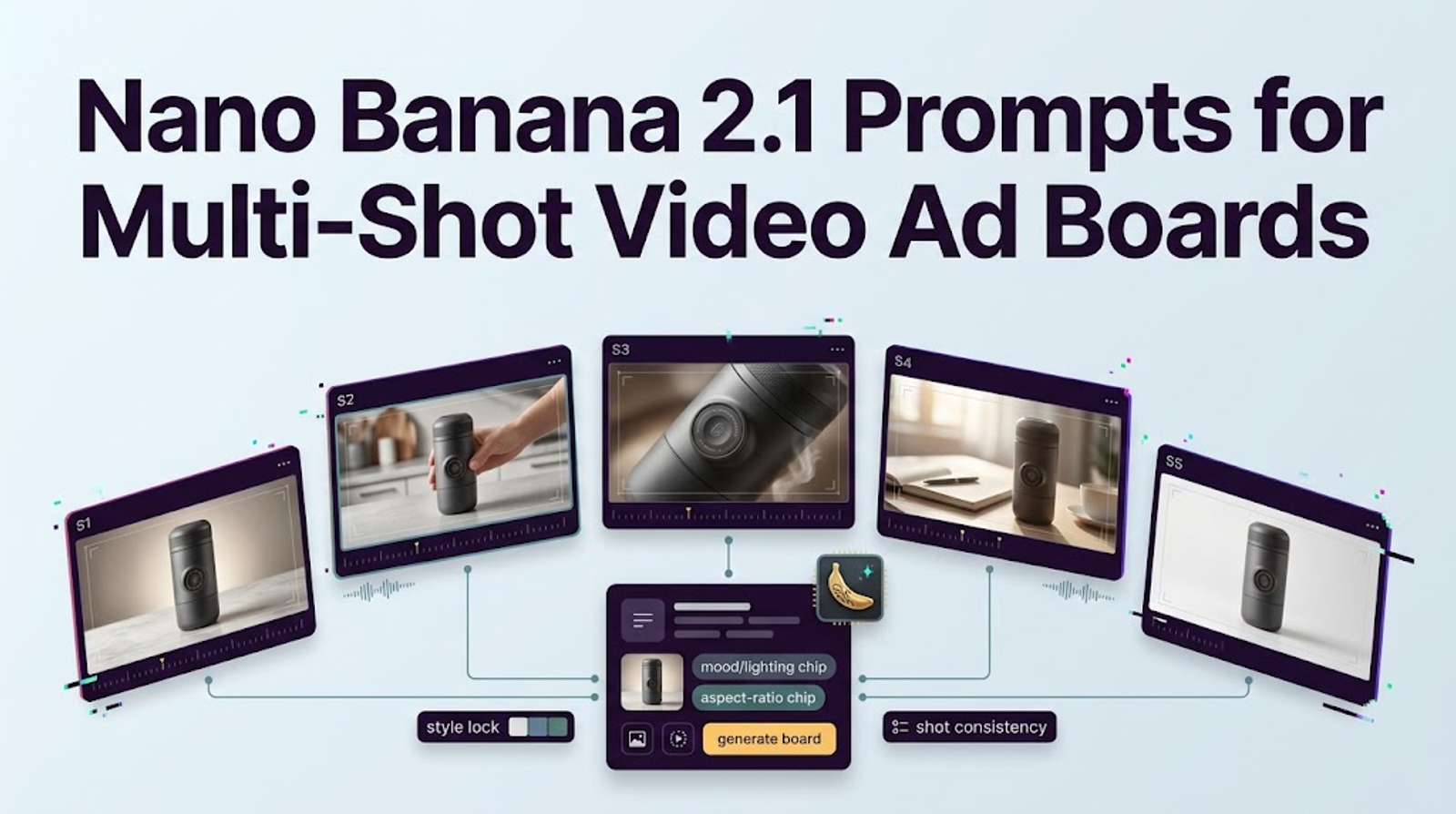
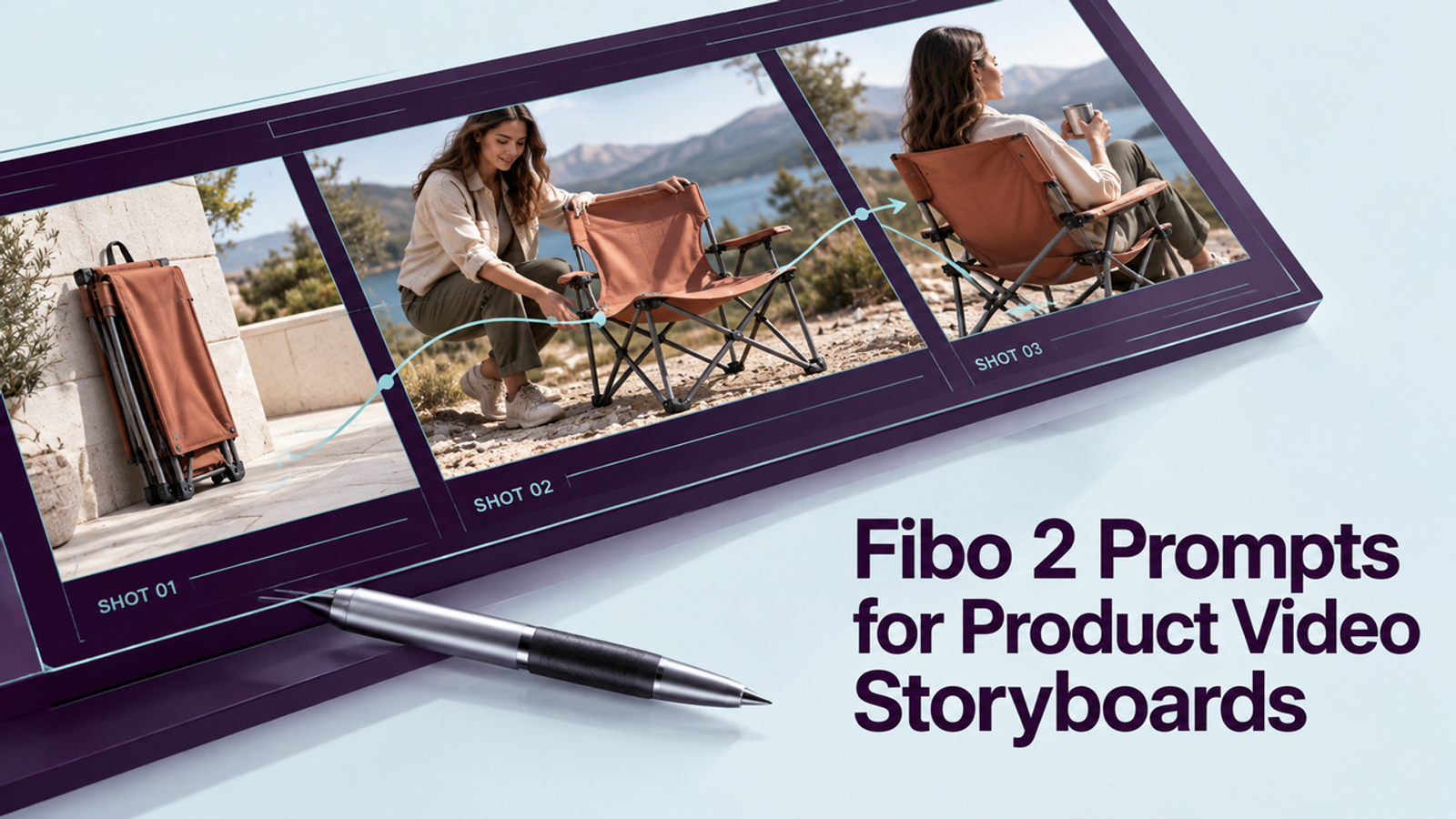
Plan shot roles before adding adjectives. A short product spot might use a hero frame, a use frame, a material or feature detail, and a closing frame with room for a verified offer. Each still should advance one idea; repeated shots or a missing clear product view signal a weak board.
An Adobe-published Newell Brands storyboard example pairs scene groupings with frame descriptions and production notes. That is the useful lesson: a storyboard is a communication document, not just a row of attractive images.
Describe the Product and Each Shot's Role
Start with an approved SKU description: product type, package shape and color, label wording, logo placement, and required visible features. Lock those details, then vary the background, camera angle, and light.
For a simple example, imagine a fictional amber facial-oil bottle. “30 ml,” ingredient names, benefits, and certifications are not implied facts; only include them if the brand has approved them for the actual SKU. Use a reusable prompt structure like this:
Create one photorealistic still for frame [number], shot role [hero / use / detail / closing]. Use the authorized reference image as the product source [omit if starting from text alone]. Preserve the approved product’s silhouette, materials, label, logo, and printed wording. Show [one clear action or composition], in [setting], with [camera angle], [lighting], and [color palette]. Leave [specific area] uncluttered for copy added later. Do not invent packaging, claims, props, or text. Show one readable moment, not a collage or video.
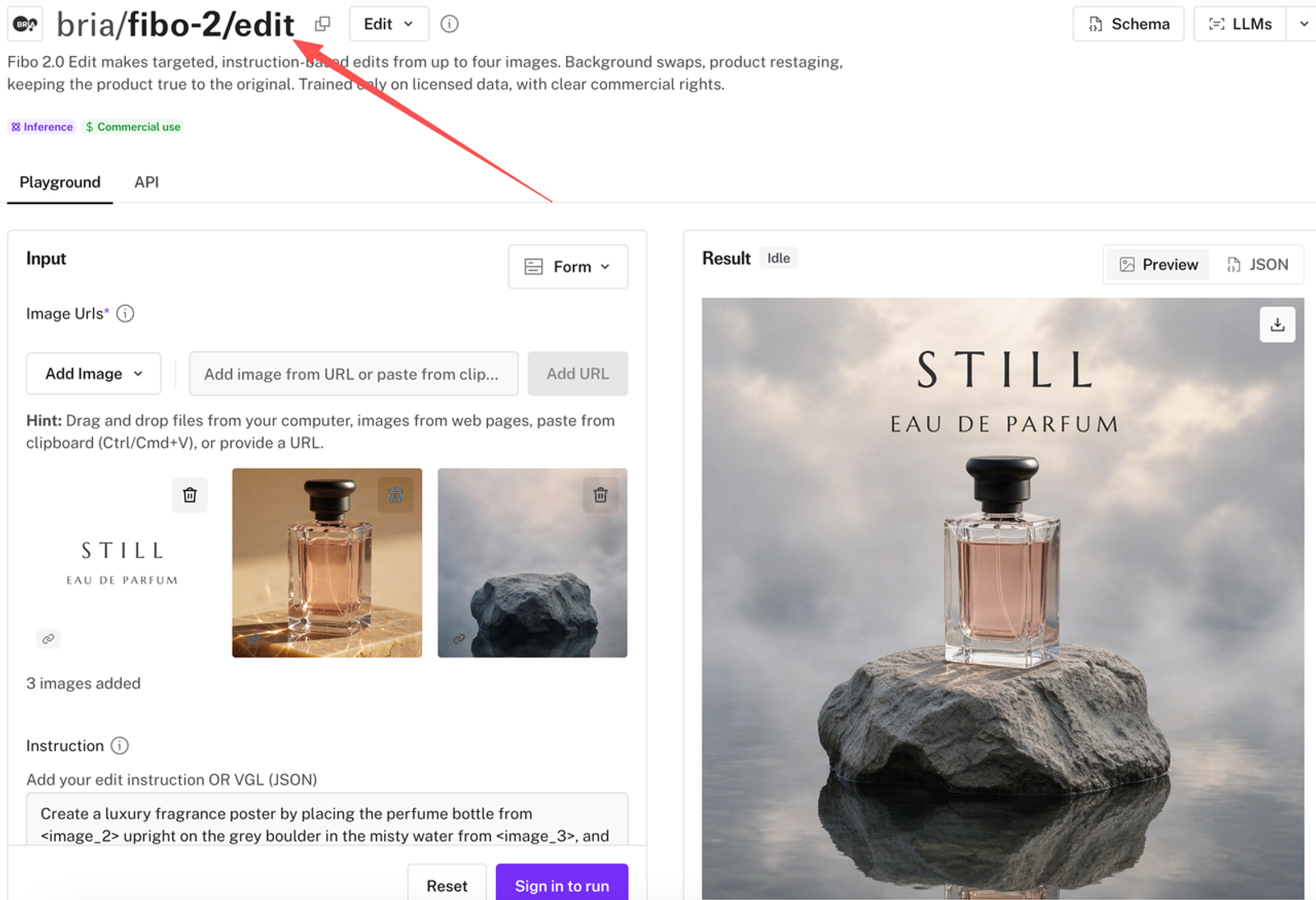
Ask for one frame at a time. “Create a sequence of four shots” may return a collage, so name each role and number each output in the board. Bria’s Fibo 2 documentation describes text-to-image, image editing, reference images, and seed-based refinement. These controls can help reproduce or revise a frame; they do not guarantee product consistency across different prompts.
Generate a Small Set of Storyboard Stills
For the fictional facial-oil bottle, keep the product description and visual direction fixed, then change the shot role. These are complete starting prompts, not generated results.
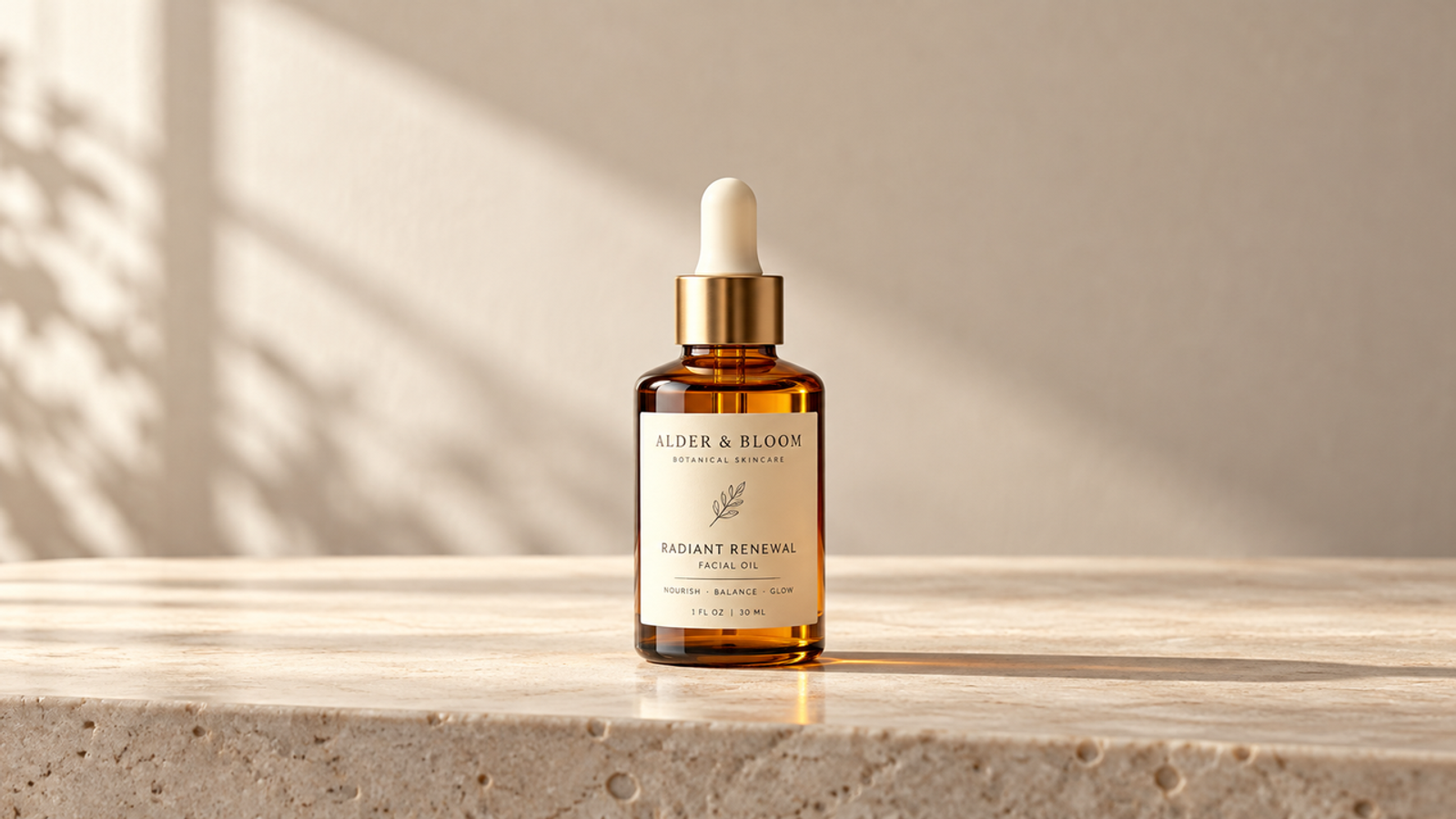
Frame 1 — Hero: “Wide, eye-level hero still of the approved amber facial-oil bottle centered on a pale limestone vanity, morning window light from camera left, soft shadow, calm neutral palette. Keep the full label facing camera and readable; leave open space above the bottle for a later headline.” This gives the editor an opening image and establishes the visual world.
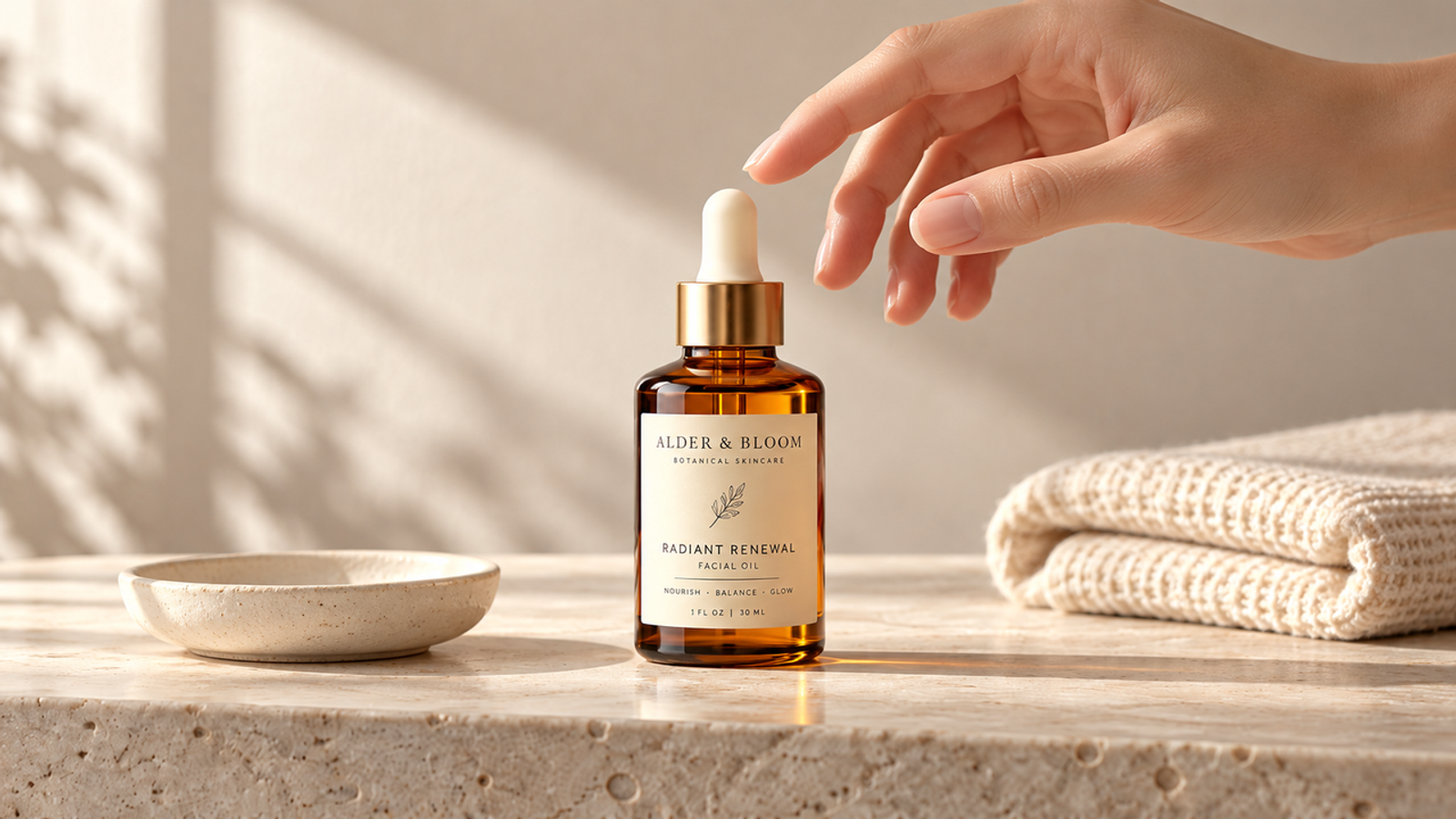
Frame 2 — Use context: “Medium close-up storyboard still of the same approved bottle beside a folded towel and a small ceramic dish on the same limestone vanity. A hand with clean, natural nails reaches toward the dropper but does not dispense or apply the oil. Preserve bottle size, glass color, cap, label, and lighting direction. No extra products or implied results.” This suggests a use moment without claiming a skincare effect.
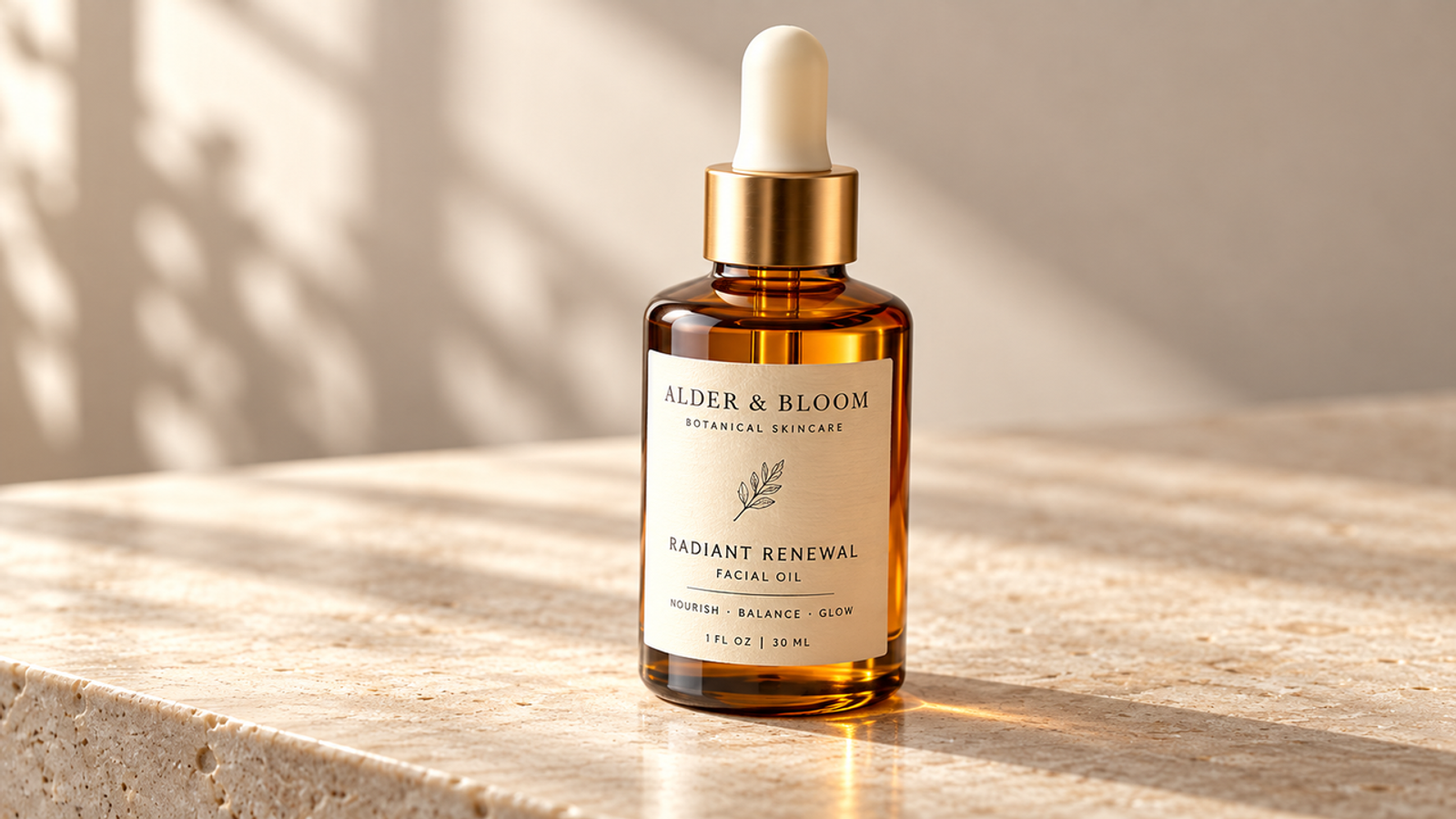
Frame 3 — Detail: “Tight product detail still of the same bottle, three-quarter angle, showing the dropper top, amber glass, and front label. Use a soft controlled highlight along the glass; keep text and logo unchanged, with no new reflections that resemble extra lettering.” This directs attention to build and finish rather than asking the model to invent a benefit.
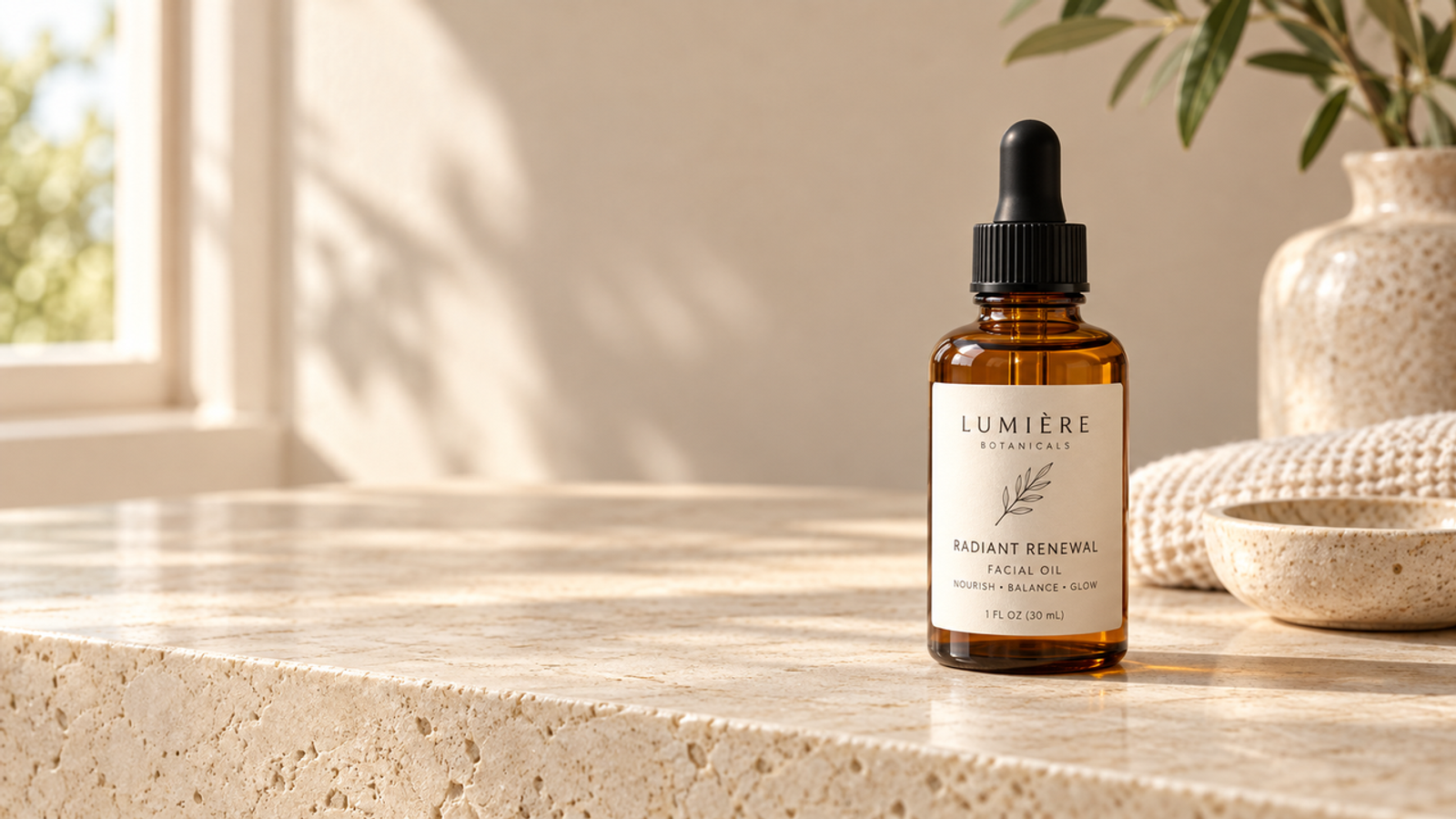
Frame 4 — Closing: “Clean closing storyboard still of the same bottle on the limestone vanity, framed slightly right of center, label facing forward. Leave clear negative space on the left for a verified offer to be added to editing. Match the earlier warm daylight and neutral palette. Do not generate a price, discount, claim, or additional text.” The ad team can insert approved copy later in a design or editing tool.
An AWS Partner Network article on structured visual prompts and iterative refinement is a useful example of making visual instructions explicit. Its claims about workflow performance are the authors’ own; here, the practical takeaway is narrower: specify composition, lighting, color, and protected product details separately so reviewers can identify what changed.
Check Continuity, Labels, and Visual Rights
Place frames side by side. Check package silhouette, cap, label, logo, and color for consistency; confirm the setting and light belong to one campaign; then make sure each frame advances a different beat. An attractive frame still weakens the board if it changes the SKU or repeats the hero shot.
Review label text, claims, offer language, and anything that suggests a product result. A draft earns a review, not a green light. I want to see what survives a second look: zoom in on the label, compare each frame with the packshot, and reject invented features instead of explaining them away in shot notes. Mark placeholder copy and name its approver.
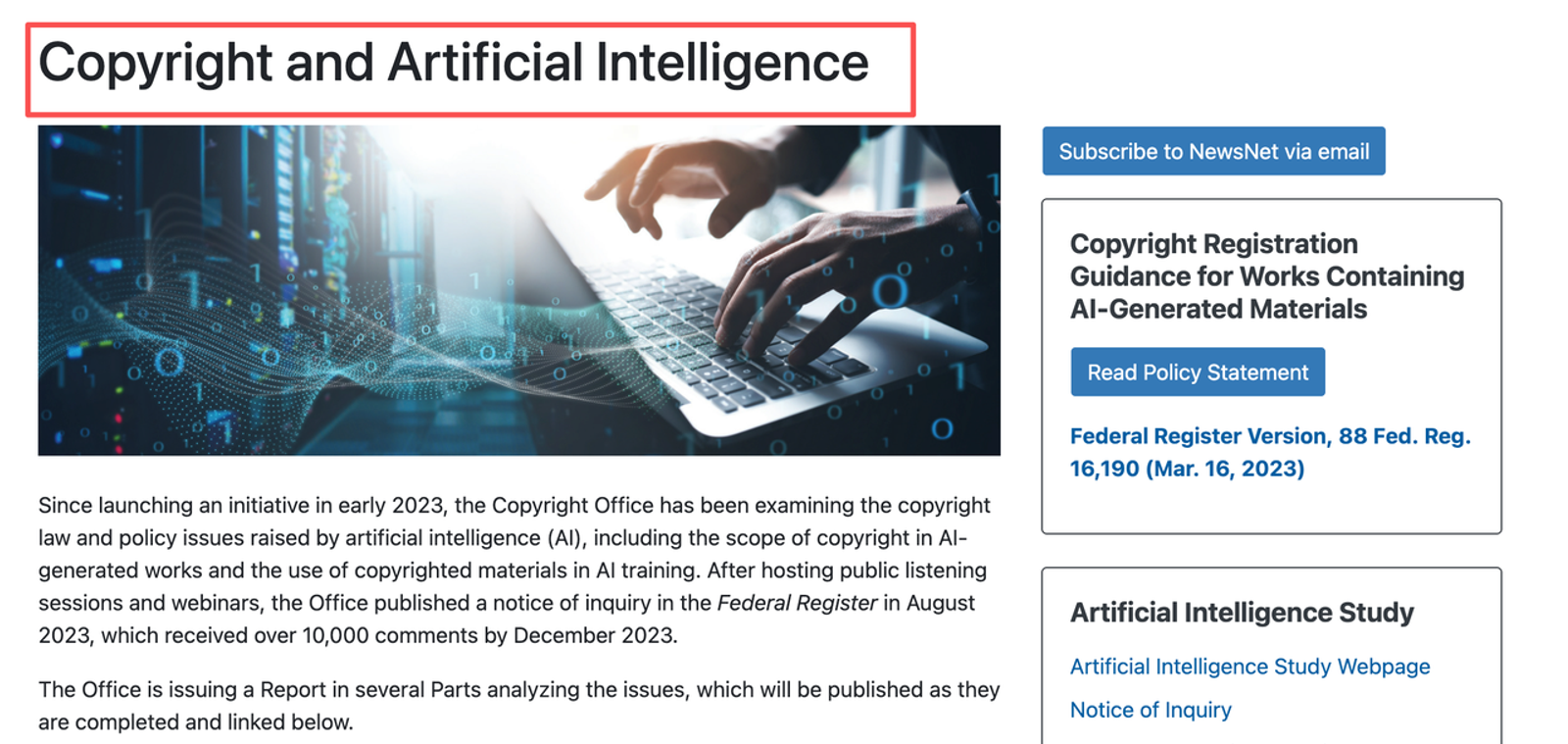
Only use product photos, logos, people, locations, and reference images that the team is authorized to use for this purpose. Bria’s model training data and your rights to uploaded assets are separate issues. For campaign boards, confirm the generation service’s terms, the source asset license, and client permissions before sharing externally. The U.S. Copyright Office’s AI guidance explains current U.S. copyright questions about AI-generated material; it does not replace checking permissions or local rules for an actual campaign.
Pass the Approved Board to Video Production
After review, attach a shot number, intended duration, motion direction, transition, copy or voice-over note, and approved reference. For example: “Frame 3, 2 seconds, slow push-in, no rotation; keep label facing camera; no generated text.” This gives the video team an actionable handoff without asking it to infer motion from a still.
The next stage can use a video model, live shoot, or hybrid edit. Wizstar’s AI Video Generator describes text-to-video, image-to-video, and reference-to-video workflows. Confirm that the chosen route accepts your Fibo 2 still, then recheck product shape, label, and framing after adding motion. Pretty is easy to spot. Useful takes another look.
Conclusion
Use Fibo 2 prompts to create a small, role-based set of product storyboard stills when the team needs to align on framing and visual direction before video production. Keep the product block fixed, make each frame do a different job, and review continuity, labels, claims, and rights before the handoff. Fibo 2 can help visualize the plan; a separate production step still has to make it move.
FAQ
- Can Fibo 2 create images from text alone?
- Yes. Bria documents text-only image generation, as well as workflows that combine text and a reference image. That produces a still image, not a moving clip.
- Can Fibo 2 use a packshot as an image reference?
- Yes. Bria’s documentation describes image references for generation and image inputs for editing. Use an approved packshot and compare every output with it; reference conditioning is not a guarantee that labels or proportions will remain exact.
- Does Fibo 2 support a fixed seed for storyboard variants?
- The API accepts an optional seed for deterministic generation and supports refinement using a returned structured prompt and seed. Reusing these can help reproduce a frame, but a fixed seed alone does not guarantee identical products across different shot prompts.
- Does Fibo 2 include a timeline editor?
- The Fibo 2 documentation describes image generation and editing, not a video timeline editor. Arrange the stills in a storyboard or presentation tool, then move approved frames into a separate video workflow.
- Can Fibo 2 outputs be used in client campaign boards?
- That depends on the terms for the service and plan you use, plus rights to every input asset. Check those terms and client permissions before external sharing or production use; This article is general information, not legal advice.