
The short answer
Start with Seedance 2.5 Flash if you need several takes of a short product shot and 720p is enough for review or delivery. Choose Seedance 2.5 when you need more references, higher-resolution output, or a Draft-to-final workflow. Keep Seedance 2.0 in the comparison for short, high-resolution shots with a compact reference set.
Which Seedance Model Fits a Product Video Brief?
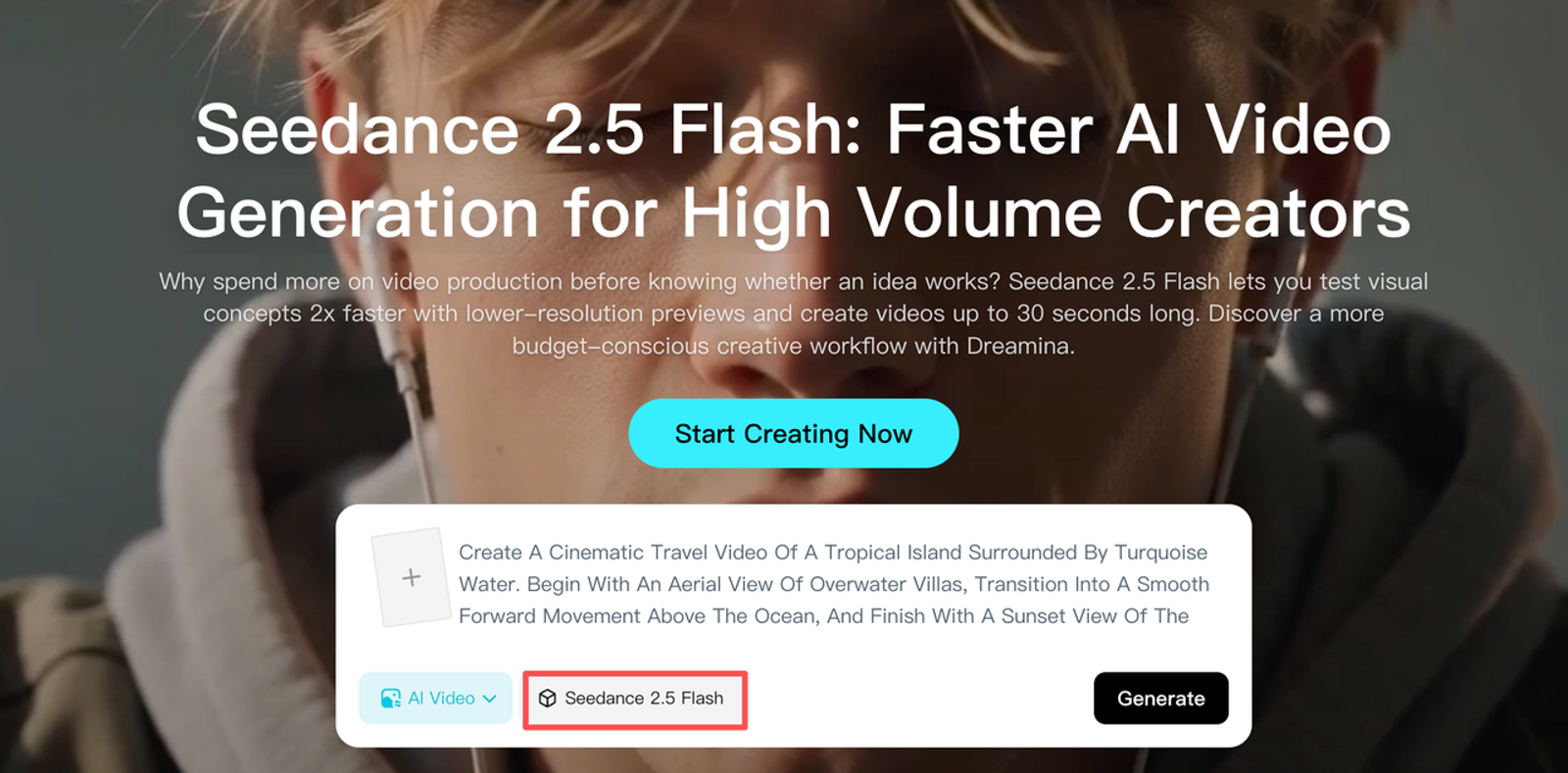
Flash is a practical first candidate for a five-second product reveal with a 720p delivery requirement. Dreamina’s official Flash page positions the model for exploring motion, camera direction, and alternative takes. A Flash clip can also serve as the deliverable if it meets the placement requirements and passes brand review.
Use two authorized stills of one boxed SKU, a front view and a three-quarter view. Set the baseline to five seconds, 16:9, and 720p for a product-page video slot. Ask for a slow camera push toward the stationary box, ending in a steady hold with the front label readable. Use the same prompt and stills if you bring 2.5 or 2.0 into the comparison. Run a separate delivery check if the campaign also needs a vertical crop or a higher-resolution master.
What Does Seedance 2.5 Flash Offer?
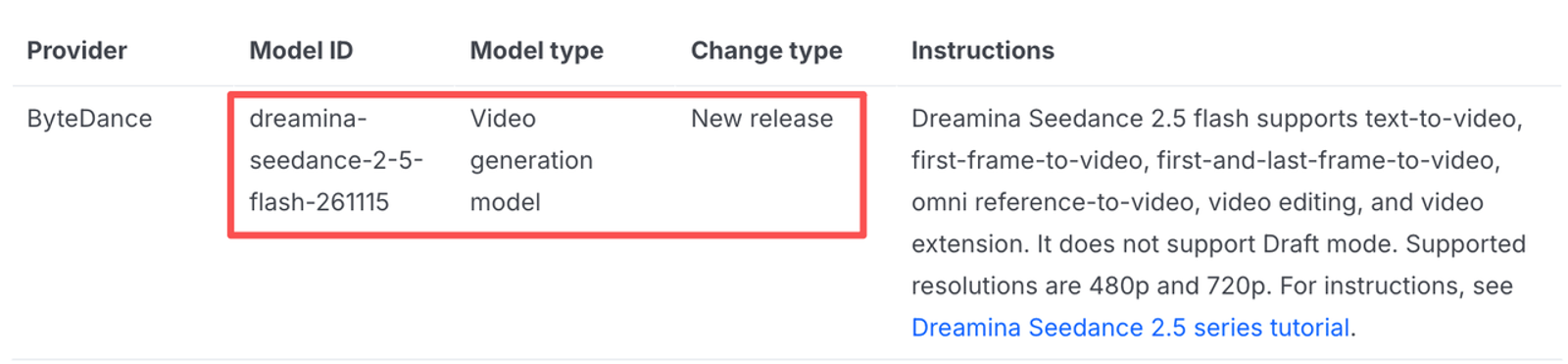
On ModelArk, Flash generates at 480p or 720p and supports first-frame, first-and-last-frame, and multimodal reference generation. The BytePlus series documentation also lists video editing and extension. For the boxed-product brief, the two-image reference task gives Flash both the front panel and a view of the package’s depth.
The Role of Flash in the Seedance Lineup
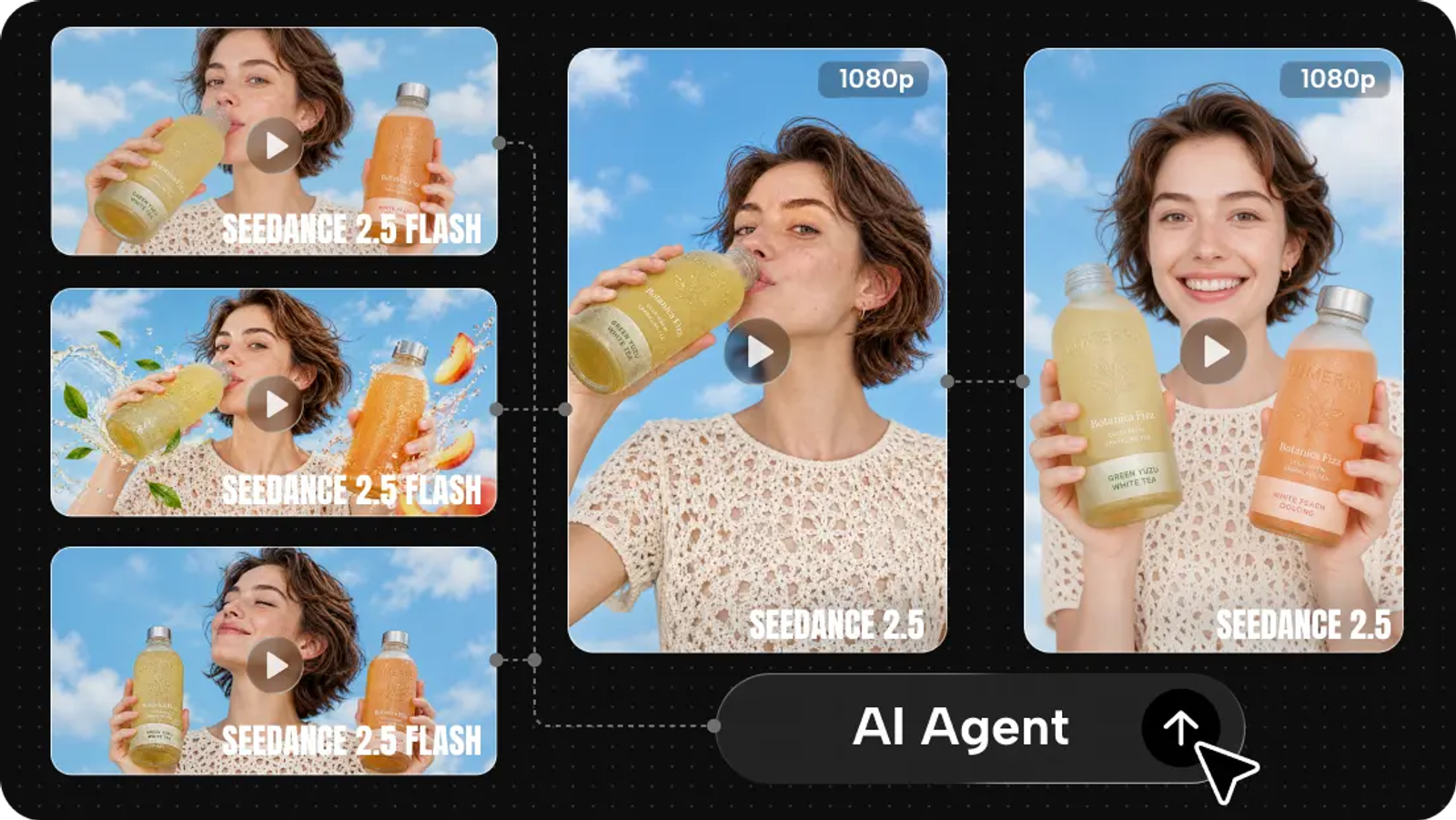
Each Flash generation produces a separate clip. If a take establishes the right composition and you switch to full 2.5 for a higher-resolution master, carry over the approved brief and review the fresh render. Full 2.5 also offers a Draft workflow that uses a selected preview task as the basis for a higher-resolution final. In Seedance 2.5 Flash vs 2.5, that handoff matters when the team needs to carry a selected preview’s settings into final generation.
Brand Asset Roles in a Flash Brief
Use the front packshot for the logo, label, and color. Identify the three-quarter photo as the same box so it can guide depth and edge shape. If you later add a motion clip, specify what to borrow from it, such as the speed of the camera move. Keep the initial comparison to the same two stills so the models start with the same inputs and billing category.
How Do Seedance 2.0, 2.5, and 2.5 Flash Compare?
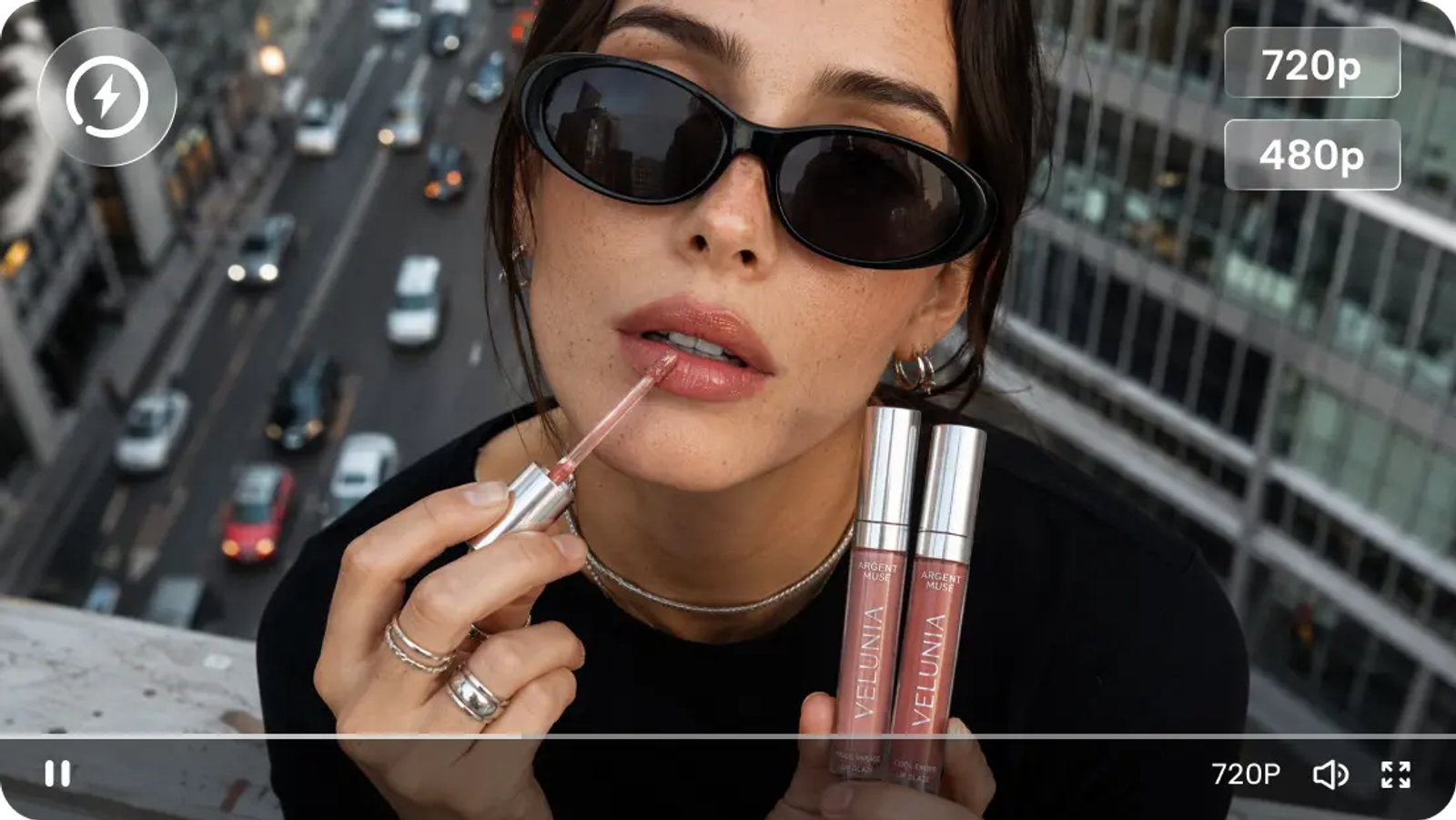
Flash fits the two-packshot brief at 720p. The alternatives become relevant when the shot needs more references, a higher-resolution export, or a different revision workflow. The table shows the documented ModelArk options. Wizstar’s Seedance 2.5 vs Seedance 2.0 overview gives additional context on those two models.
| Model | Omni-reference limits by media type | Output resolutions | Generation duration |
| Seedance 2.5 Flash | 10 images, 5 videos, 5 audio clips | 480p, 720p | 4–30 seconds |
| Seedance 2.5 | 30 images, 10 videos, 10 audio clips | 480p, 720p, 1080p, 4K | 4–30 seconds |
| Seedance 2.0 | 9 images, 3 videos, 3 audio clips | 480p, 720p, 1080p, 4K | 4–15 seconds |
Reference Assets and Shot Control
Flash and full 2.5 support audio-only references on ModelArk. With 2.0, an audio reference needs an image or video alongside it. The two-packshot brief fits within all three models’ limits. If the shot expands to include more product angles, motion examples, and sound cues, count the assets by media type to see whether Flash still fits. Wizstar’s multi-reference video guide shows how to give each asset a clear role.
Resolution and Editing Options
All three can edit or extend an input clip on ModelArk. In the 2.5 series, an edit follows the source aspect ratio and approximately its duration. If you revise the five-second Flash take, check the result against the intended slot again. For a 1080p or 4K deliverable, confirm that full 2.5 or base 2.0 offers the required resolution in the exact task mode you plan to use.
Price per Attempt and Cost per Usable Clip
For a five-second, 16:9, 720p generation without video input, the BytePlus billing examples estimate $0.76 for Flash, $1.156 for full 2.5, and $0.76 for base 2.0. Flash costs less than full 2.5 per attempt in this example and matches 2.0. If a retake introduces a video reference, check the separate video-input rate and estimated usage.
The next edit is part of the cost. Divide generation charges plus review and cleanup labor by the number of clips that pass. If no clips pass, record the spend and the reason, such as a label that changes during the push-in. Include any compositing or extra review before counting a repaired take as usable.
How Should a Team Evaluate One Product Shot?
Run Flash on the approved packshots first. Save the model ID, prompt, input files, and output settings with each take. For a comparison, give the other candidate the same number of initial attempts and apply the same approval criteria. The Seedance 2.5 prompt guide gives examples of making camera and subject instructions more specific before a retake.
Packaging, Labels, and Motion
I would check the label before the lighting. Compare the opening, the middle of the push-in, and the final hold with the approved stills. Then watch the entire clip at its intended display size.
- Label and claims. Confirm the product name, variant, and any visible claim. Check that the label is readable on the final hold.
- Package shape. Compare the box’s proportions, top corners, and base with the packshots, especially midway through the move.
- Motion and contact. Watch the push-in at normal speed. The box should stay planted, and the final hold should give viewers time to read the label.
Retakes, Cleanup, and Approval
If excess hold time is the only issue and the placement allows a shorter cut, trim the tail. If the box warps during the push-in, try reducing the camera move while keeping both images and the settings fixed. Incorrect variant text can call for a new render or a composite using approved artwork. Track the time to the first approved shot, including repair and final review.
Which Version Fits Each Production Need?
Choose Flash when the job is to compare product openings and 720p meets the review or delivery requirement. Move to another version when a specific asset, revision, or export requirement calls for it.
Fast Concept Variations
Use Flash to try a push-in and a gentle sideways move on the same box. Keep the product, duration, and crop fixed so reviewers can judge the motion. In a Seedance 2.0 vs 2.5 Flash decision, compare the time and cost to an approved take for the same brief. With matching estimated 720p generation costs in the billing example, review and repair time can decide which fits the team better.
Reference-Heavy or High-Resolution Work
Choose full 2.5 if the shot needs more source assets than Flash can accept or if you expect to revise a specific moment. ByteDance Seed’s 2.5 launch notes describe timestamp-level editing for that kind of revision. Base 2.0 remains a candidate for a short, high-resolution hero shot with a few references. For either choice, inspect the tightest crop at delivery size and check the smallest label text that must remain legible.
What Limits Matter Before a Team Commits?
Confirm Flash access for the production account, check the settings available for your task, and clear the footage for the intended placement before committing budget.
Access and Settings Depend on the Platform
BytePlus documents Flash access through ModelArk and its video-generation API. A complete public country-by-country Flash availability list remains unconfirmed. Check the exact model and task mode in the account and region that will run the work. The public Wizstar catalog lists 2.0 and full 2.5. Flash availability on Wizstar remains unconfirmed.
Rights, Uploaded Assets, and Ad Review
Under the BytePlus video model terms, customers are responsible for their inputs and use of the output, and existing third-party rights still apply. Clear the packshots, logo, and any music or footage for the intended use. Before publication, consult the latest terms for your account and the destination’s ad policies on synthetic-media disclosure and product claims.
Conclusion
Start with Flash and one approved packshot brief. Scale to more variants if the output meets the placement requirements, keeps the packaging accurate, and comes in within your budget per approved clip. If the pilot shows you need a larger reference set or a short high-resolution master, use the same packshots to try the relevant Seedance 2.5 or 2.0 workflow in the Wizstar model catalog.
FAQ
- Does BytePlus add a watermark to Seedance 2.5 Flash exports?
- No visible watermark is added by default on the ModelArk API. In the video-generation API reference, setting
watermark: trueadds an AI-generated mark in the lower-right corner. - Which image file formats can BytePlus accept as Flash references?
- The ModelArk API accepts JPEG, PNG, WebP, BMP, TIFF, GIF, HEIC, and HEIF. A single image must be under 30 MB.
- Can a Flash task return its last frame for a follow-on shot?
- Yes. Set
return_last_frame: truewhen creating the task. Retrieve the returned JPEG and use it as the first-frame input for the next shot. - How long can a completed Flash task be downloaded from BytePlus?
- The ModelArk video download URL stays valid for 24 hours and allows up to 100 downloads. The task ID remains valid for seven days from creation. Save the clip to team storage when the task succeeds.
- Can a team generate a silent Seedance 2.5 Flash product clip?
- Yes. Set
generate_audio: falseon the ModelArk API. The default istrue, which generates synchronized audio.