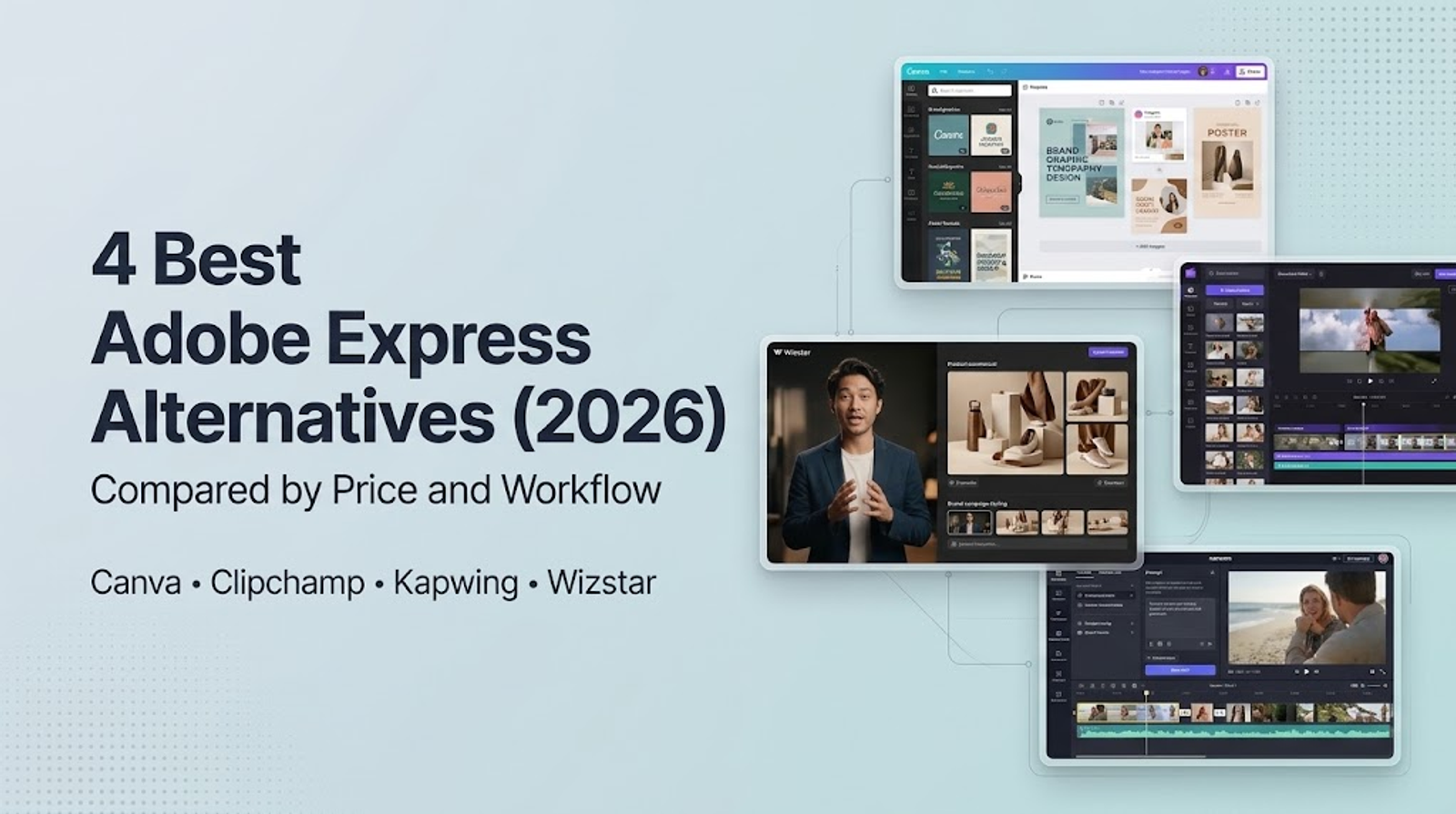
Among Adobe Express alternatives, Canva remains the default choice for everyday graphic design, while Clipchamp fits video projects assembled from assets you already own. Kapwing combines timeline editing with generative AI tools in one browser workspace, and Wizstar focuses on generating original visual assets with agent-led scene planning. I always recommend choosing your tool around your next revision cycle, because a massive template catalog will not help if you are missing key video footage.
A single product announcement can require very different assets: a static marketing graphic, an edited sequence of pre-recorded clips, or entirely new visual material. Those deliverables sound similar until the review stage. Moving a headline across social layouts requires one type of editor; replacing a generated scene requires an entirely different workflow. You will save money and avoid friction by paying for the edits you make repeatedly, rather than the longest feature list on a pricing page.
Which Adobe Express workflow are you replacing?
Adobe Express alternatives serve different needs because arranging existing media and generating new media solve distinct production problems. Templates give your photos, recorded clips, and copy a ready-made structure for lightweight graphics or template-driven video. Generative visual content demands a different review process: you still have to prompt, inspect, and refine each output before it earns a place in your final cut.
Adobe Express Free already includes recurring generation allowances, and Adobe offers paid tiers with expanded credit pools. Moving away from Adobe Express makes sense only when you need a specific capability: faster brand asset distribution, a dedicated timeline video editor, or hands-on help turning an outline into a complete scene plan.
The shortlist below compares verified product features rather than unverified benchmarks.
| Tool | Main task | Starting point and control | Important distinction |
| Canva | Everyday design | Templates, drag-and-drop editor, brand assets | AI features share a central account allowance |
| Clipchamp | Videos from existing assets | Templates, uploaded clips, stock library, timeline editing | Paid branding and 4K output; free plan exports watermark-free 1080p |
| Kapwing | Editing and AI creation | Timeline projects, auto-captions, generated assets | Unlimited projects do not lift monthly AI credit caps |
| Wizstar | Generated images and video | Text briefs, scene-by-scene planning, targeted shot revision | Credit consumption varies by selected AI model and settings |
The decisive factor is what you need to adjust after the first draft: layout rules, assembled video clips, or newly generated scenes.
What the representative monthly plans actually include
| Tool and selected plan | USD monthly price | Allowance or output | Why this plan |
| Adobe Express Premium | US$9.99 | 250 credits per user | Express baseline; no annual commitment |
| Adobe Firefly Pro | US$19.99 | 4,000 credits; up to 40 five-second videos | Heavier Adobe AI baseline |
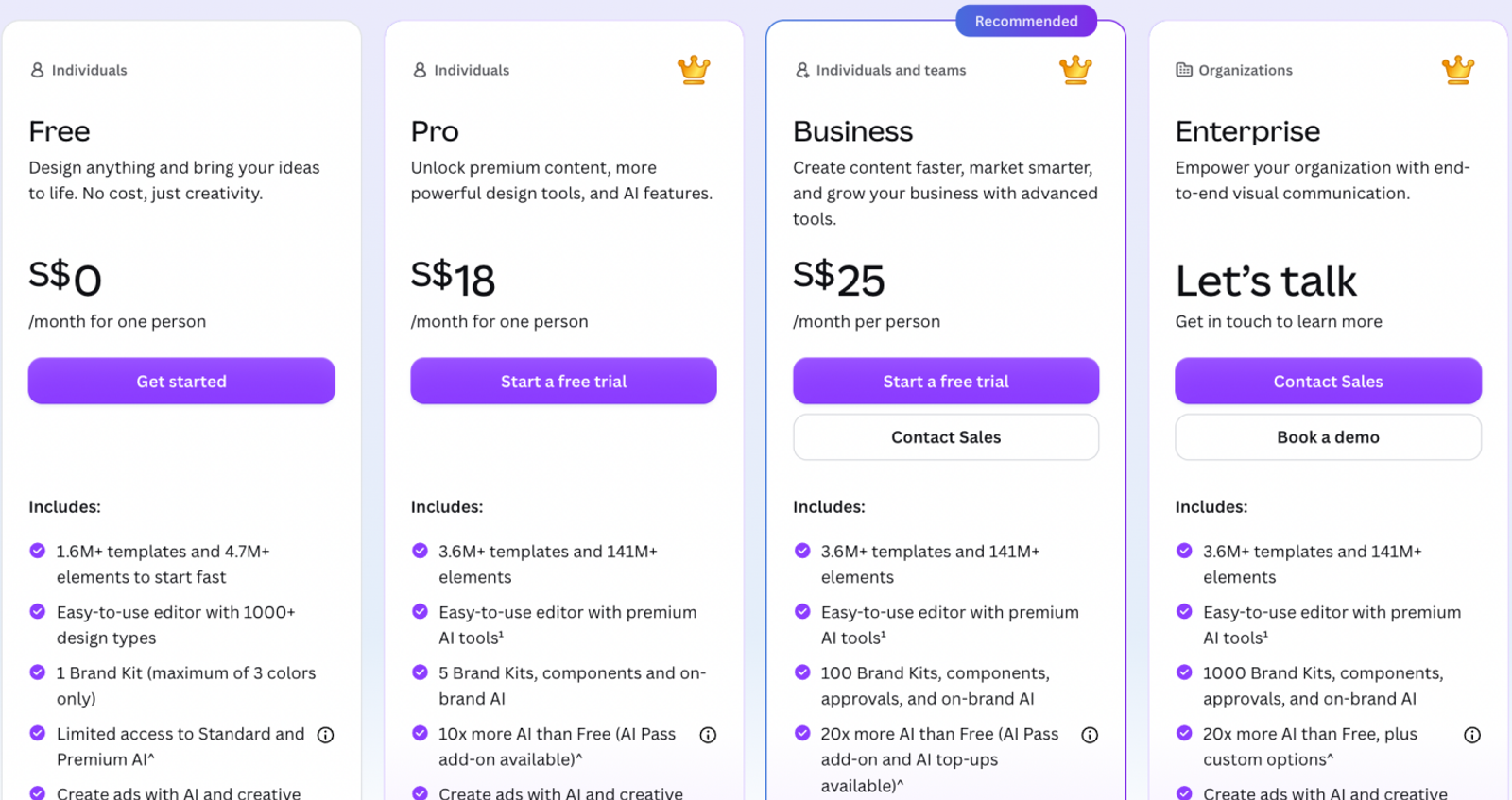
| Canva Pro | US$18 | Shared AI allowance | Five Brand Kits; scheduling |
| Clipchamp | US$9.99† | Premium 4K; one Brand Kit | Branding and 4K for one creator |
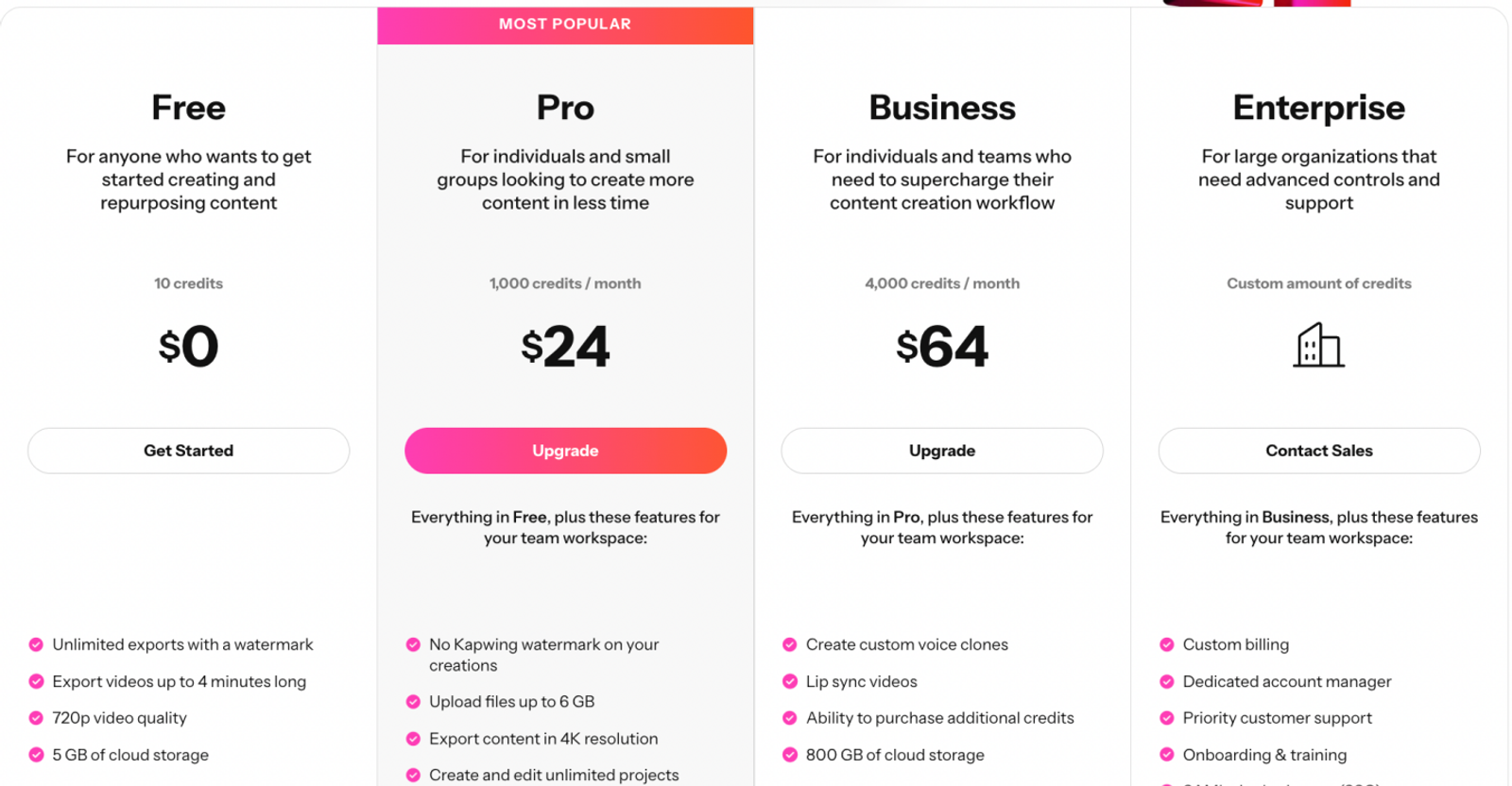
| Kapwing Pro | US$24 per member | 1,000 credits; 4K; watermark-free | Branded editing plus AI creation |
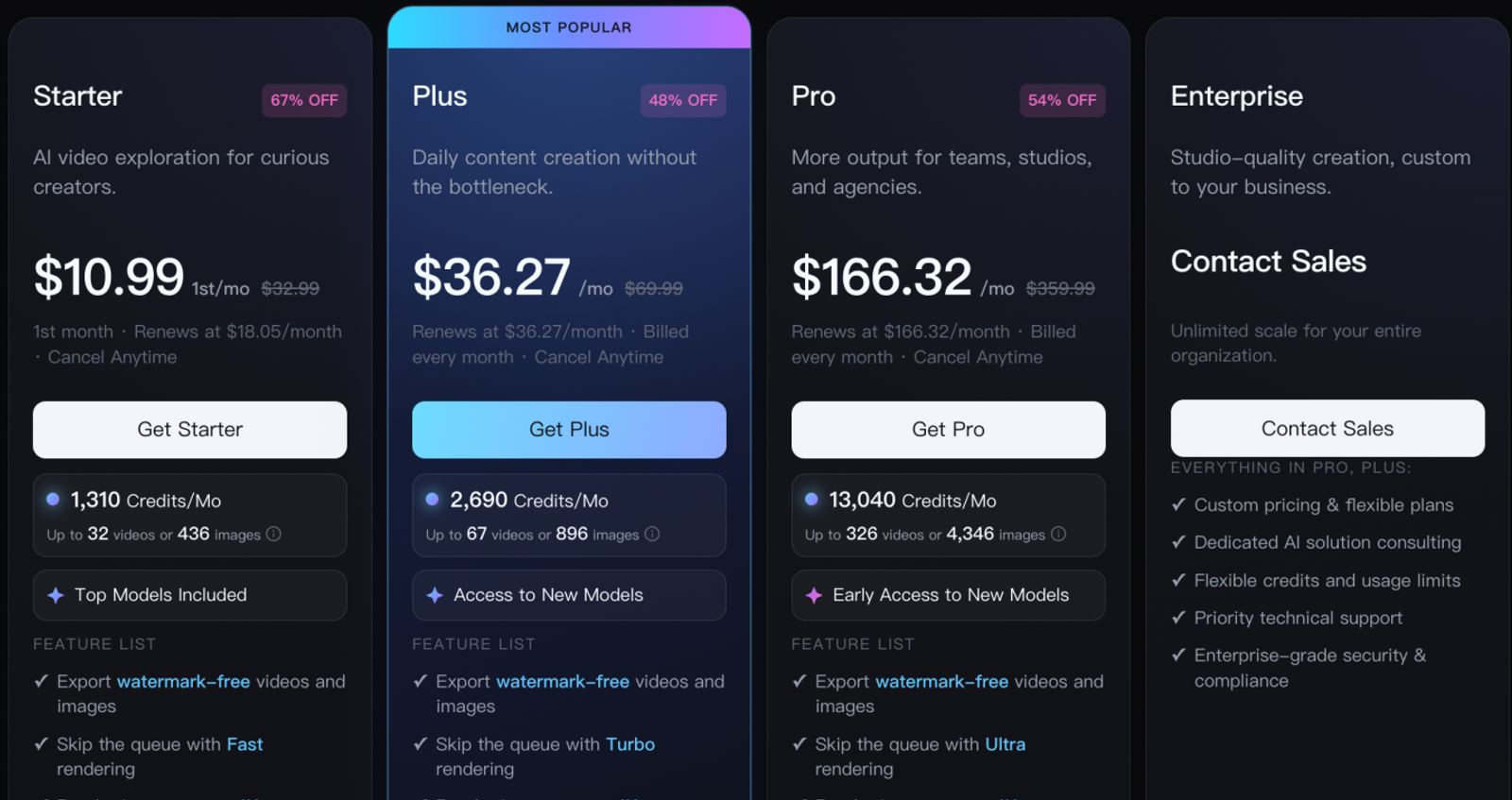
| Wizstar Plus Monthly | US$36.27; renews at US$36.27 | 2,690 credits; all included models | Multi-model visual creation and agent workflow |
These prices purchase fundamentally different capabilities, so a lower monthly bill does not identify the most practical replacement.
- Canva Pro's value rests on high-volume design and brand consistency across channels.
- Clipchamp's paid features make the most sense if you also value the broader Microsoft 365 suite.
- Kapwing Pro pairs custom brand controls and editable projects with a fixed monthly generation allowance.
- Wizstar Plus supports the broader model scope and compute behind its guided visual workflow.
Always budget generation attempts separately from completed deliverables, because platform credits are never equivalent across tools. Trimming an existing video or exporting a project file is not a generation attempt, and Adobe's estimated video yield depends heavily on the applicable model and settings. Check regional checkout taxes, auto-renewal terms, and current rates before paying. No raw credit count establishes an accurate cost-per-finished-video benchmark.
Canva: The closest fit for everyday design
Canva is the most direct starting point for everyday visual design, offering thousands of layout templates and an intuitive editor for formatting content across channels. The Canva Pro plan includes five Brand Kits and social media scheduling, extending that work to recurring brand governance and publishing calendars.
For day-to-day graphic production, practical workflow controls matter far more than generative AI labels. Consider a promotional launch that requires matching layouts across Instagram stories, web banners, and newsletter headers. The message must adapt across dimensions using your brand assets; generating a new AI image from scratch contributes nothing to that task.
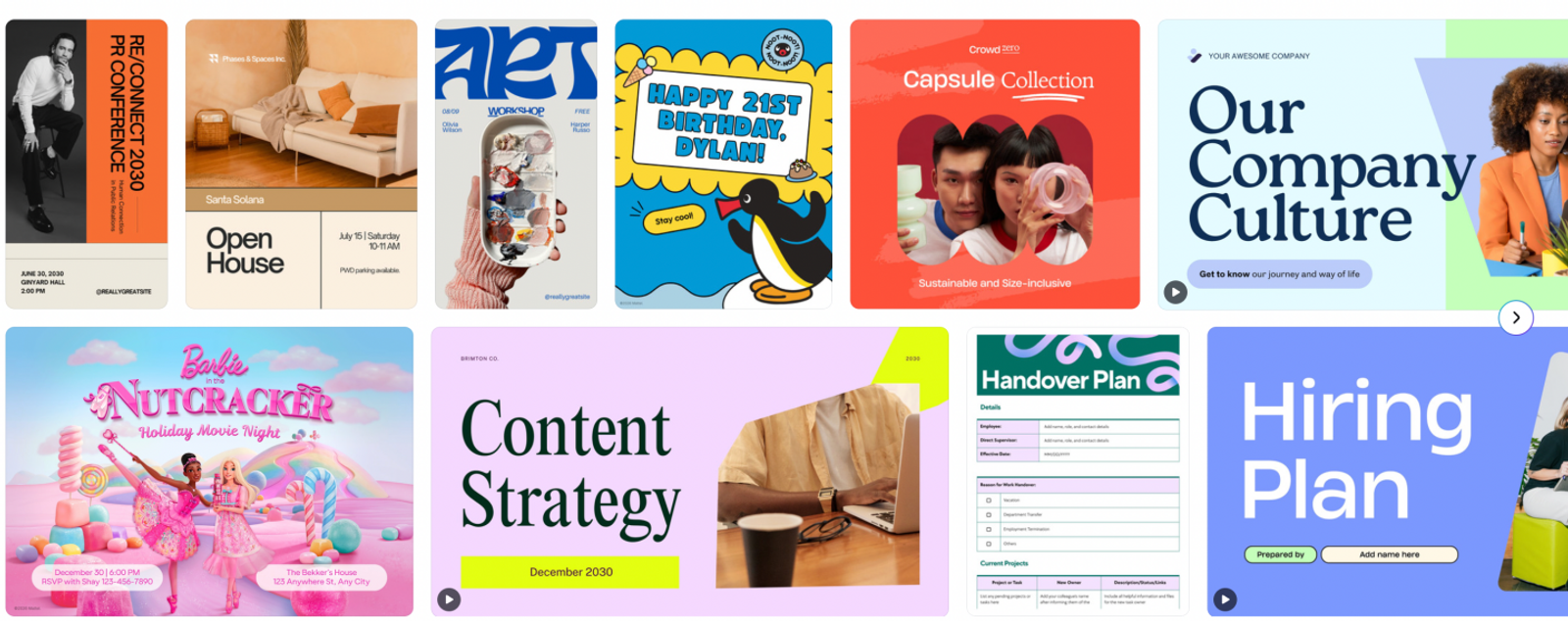
Managing recurring brand assets across formats is the real reason to pay for Canva Pro. A template library alone does not justify an ongoing subscription. Occasional graphics and a steady stream of branded social posts represent different requirements. Spend on the controls that support what you actually make every week.
Canva uses a pooled credit allowance for its AI features, and different creative tasks draw from that pool at different rates. Having access to a broad template selection does not mean your subscription will support a heavy video generation workload. Keep design convenience and generation volume separate, even when both appear in the same editor toolbar. A familiar layout workflow can still leave your project short of generation capacity.
Clipchamp: Template videos from assets you already have
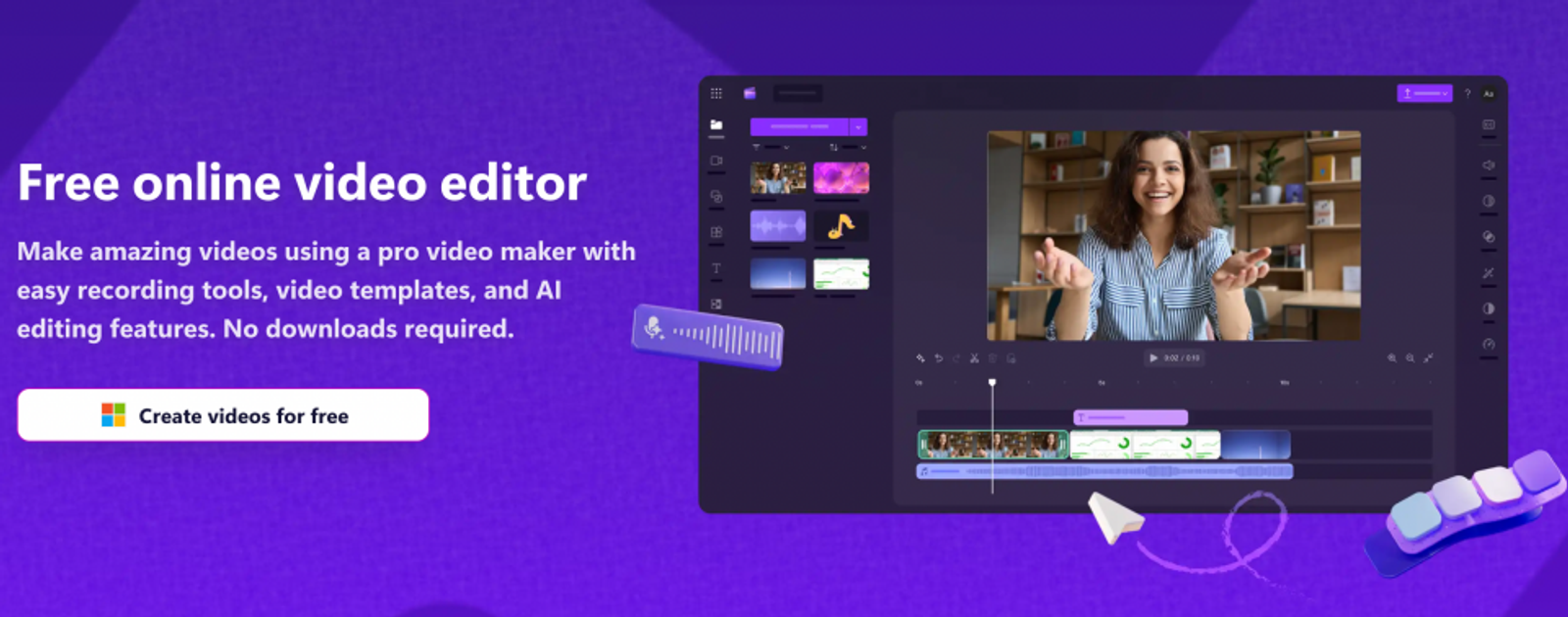
Clipchamp works best for videos whose core ingredients already exist: product photos, screen recordings, stock footage, and an approved script. Its video editor provides purpose-built templates for social media, corporate communication, and training, alongside timeline trimming, automatic captions, text-to-speech, and auto-composed highlight reels.
These tools focus strictly on assembly and editing. A product walkthrough might need its screen recordings trimmed, its voiceover captioned, and its structure aligned to a social template. Because the footage is already recorded, Clipchamp handles the assembly cleanly. Generating a scene that nobody recorded is an entirely different assignment.
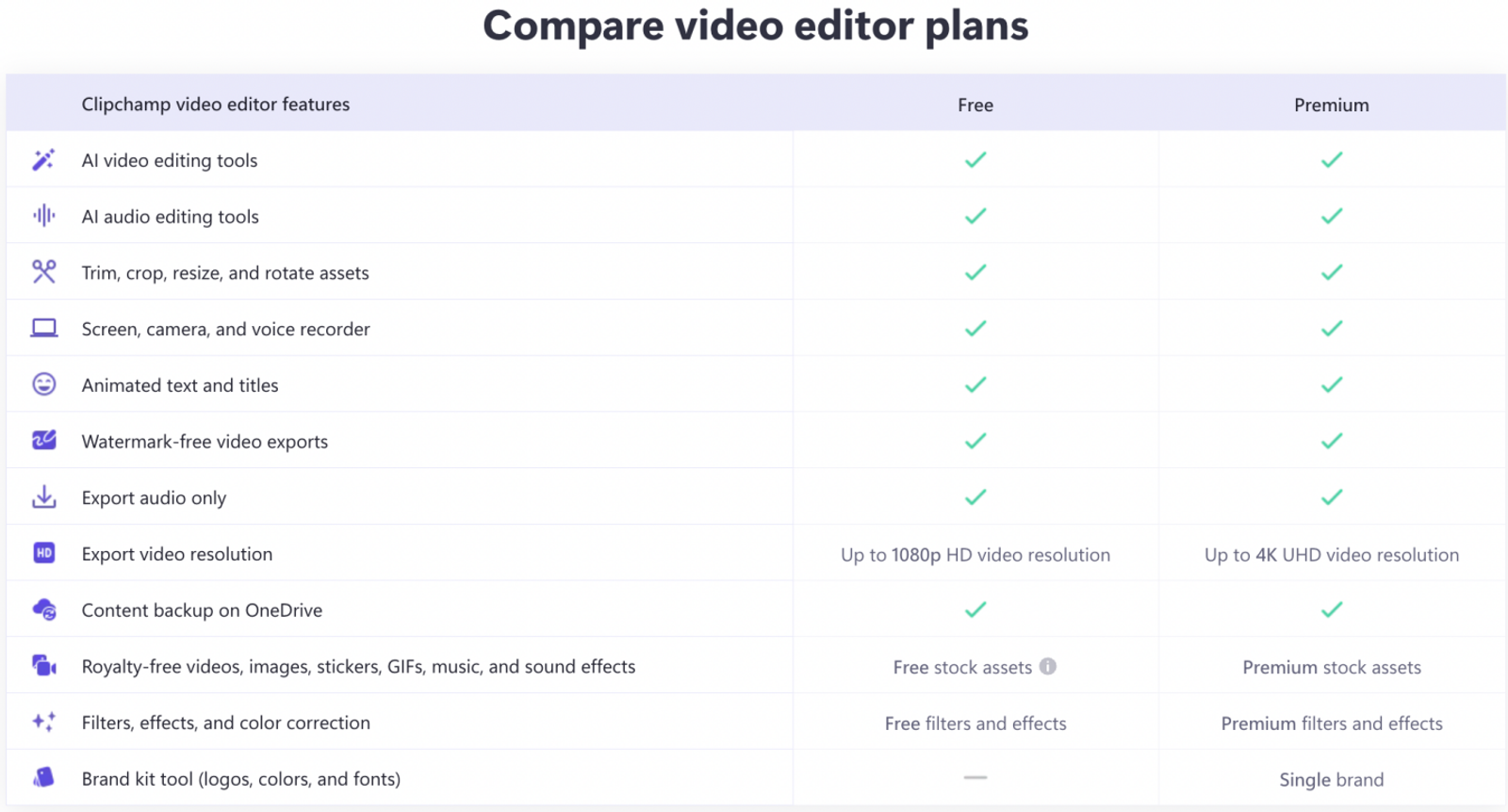
Clipchamp Free provides watermark-free 1080p exports alongside standard AI video and audio editing. Do not pay to remove an export watermark that this free workflow does not impose. Check the free tier first.
Premium features include 4K rendering, premium stock media, and one Brand Kit through an eligible Microsoft 365 Personal or Family subscription. This comparison references the Personal tier for an individual creator. I recommend paying for these additions only when commercial branding or 4K delivery mandates them, rather than treating basic assembly as a paid expense. Existing Microsoft 365 subscribers should confirm their included access before buying separate tools.
Kapwing: Editing and AI creation in one workspace
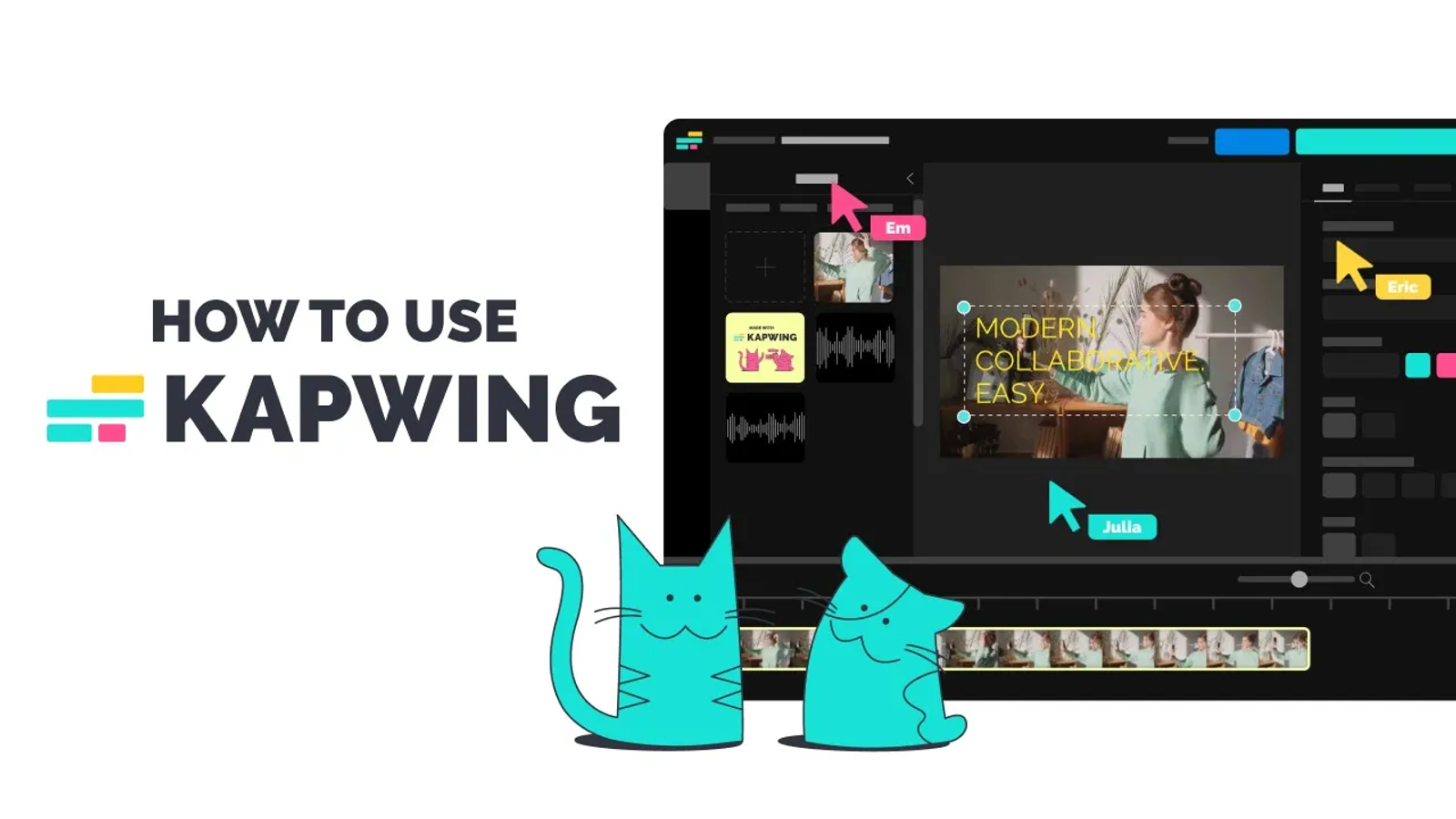
Kapwing places an editable timeline and generative AI tools in the same browser workspace, making it easy to create subtitles, resize video clips, and generate supporting assets side by side. It belongs on this shortlist when your final deliverable requires hands-on video editing alongside newly generated material. A generated shot almost always needs trimming, revised branding overlays, or a tighter soundtrack before it is ready to publish.
Kapwing Pro includes a Brand Kit, custom typography, watermark-free output, and 4K exports. It also allows unlimited project creation and timeline revisions. For a solo marketer handling quick turnaround edits, this timeline workspace provides clear practical value; the AI balance is secondary.
Generation remains metered separately. Pro includes 1,000 credits each month. Image generation consumes 4 to 6 credits per attempt, while video generation starts at 20 credits and scales based on duration, resolution, and model selection. Other AI tasks draw from that same pool, so automatic captioning and visual generation compete for the same monthly allowance.
Treat the timeline workspace and the generation balance as two separate considerations. Unlimited projects do not equal unlimited AI generation. If your work focuses on captions, timing tweaks, and revisions around existing footage, Kapwing's editing capabilities deserve priority. When the main difficulty is planning and generating entirely new visual scenes, Wizstar's agent-led setup becomes the more relevant comparison.
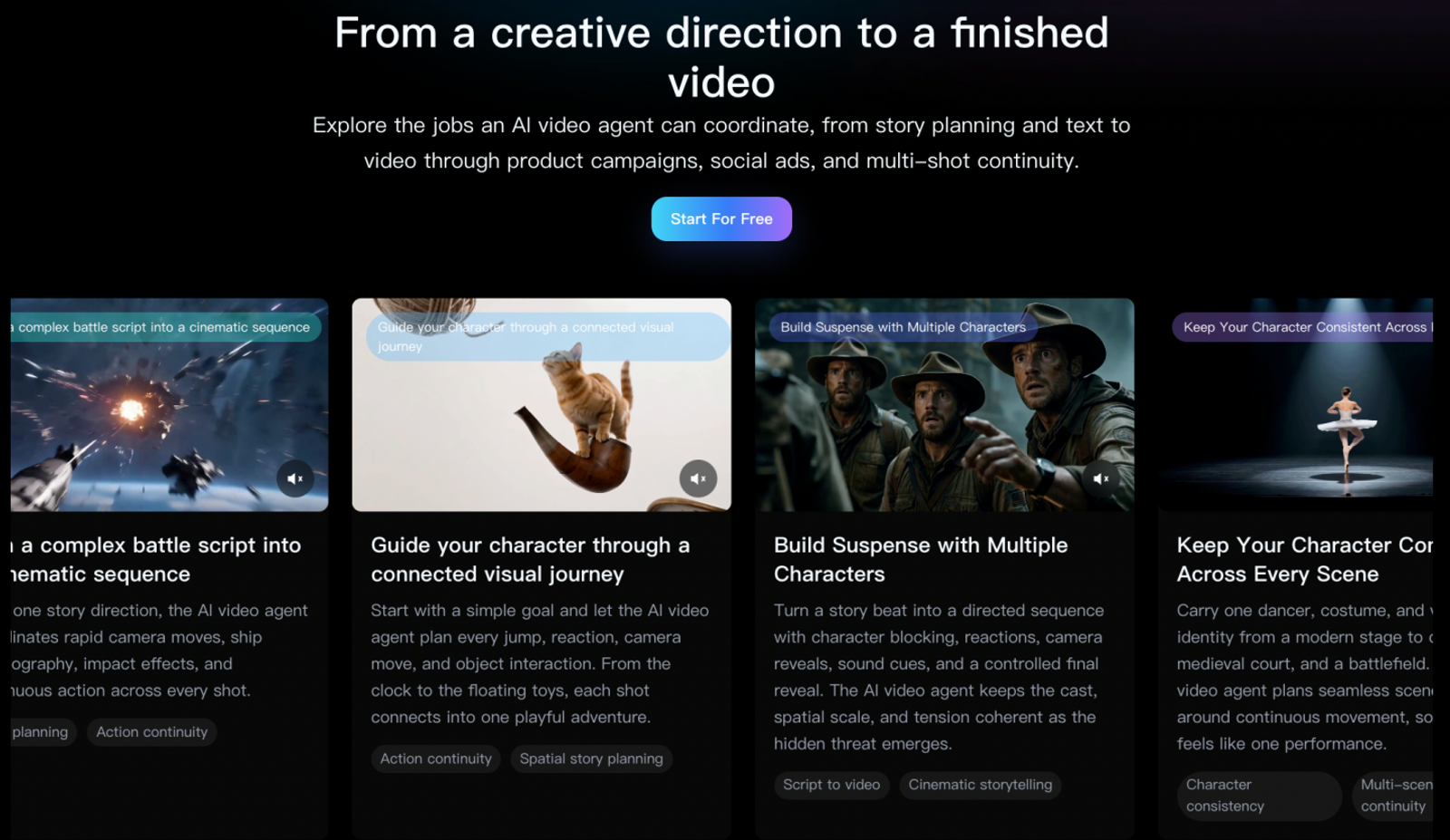
Wizstar: Generated visuals and a Creative Agent workflow
Wizstar addresses projects where visual assets do not exist yet. Instead of starting with a static template or an empty timeline, its Creative Agent workflow accepts a brief, script, product image, or reference visual, and then coordinates scene planning, model routing, preview generation, and shot refinements.
Producing an original video from scratch leaves several major decisions open: what each shot communicates, which visual assets need generation, and what should change after review. Coordinating those steps is where production time actually goes. The decisive question is whether your brief needs help turning into a structured scene plan.
Wizstar also supports shot-level revisions. If an opening scene needs a different camera angle or lighting style while the rest of the sequence works, you can adjust that single shot without rebuilding the entire project. This targeted approach does not guarantee that every revision will preserve visual continuity automatically, but it gives you control over iterative fixes.
This workflow gives Wizstar a distinct role beyond standalone image or video generation tools. Combining structured scene planning with targeted shot adjustments makes a creative agent practical when you need to invent visual material rather than assemble pre-recorded footage.
Wizstar Plus Monthly serves as the representative tier for individual creators working across its multi-model library. Check model eligibility and feature availability for your target resolutions. If you only need to lay out social posters or assemble existing video clips, Canva and Clipchamp offer faster, more direct routes. Agent-assisted planning makes sense when you have an outline that requires new visual assets.
Choose around the next revision
For light or occasional template work, test Express Free or review your existing subscription benefits first, because a new recurring charge needs real work to justify it. Do not switch software merely to gain a slightly different editor for a small workload.
Look at your next deliverable and how it will likely need to be revised. A layout tweak across social dimensions points toward Canva; reordering and captioning recorded footage points toward Clipchamp. Compare Kapwing's editing workspace with Wizstar's scene coordination when producing brand-new visual scenes becomes central. Pay for the plan that supports the revisions you make most often.
FAQ
- Can I use Adobe Express Free without starting a Premium trial?
- Yes. Adobe Express Free is an independent plan that does not require a credit card or an automatic trial opt-in. On the official pricing page, select Free rather than the Premium trial option. If you do activate a trial, paid monthly billing begins automatically when it ends unless you cancel beforehand. The resulting subscription renews automatically until canceled, so double-check which option you have selected before confirming your signup.
- Which browsers and computer specifications does Adobe Express require?
- Adobe Express requires a supported desktop operating system, an updated browser, and at least 4 GB of system memory. Adobe's web technical requirements specify Windows 11 or later, macOS 11 or later, and ChromeOS. Supported browser minimums include Chrome 100, Edge 107, Safari 17, and Firefox 117. JavaScript and hardware acceleration must be enabled, with WebGL 2 and WebAssembly support. Check these system settings if you run into performance or access issues on your computer.
- Can I export an Adobe Express presentation as a PowerPoint file?
- Yes. Adobe Express supports exporting presentations directly as .pptx files, but other Express file types do not currently support this export format. Open your presentation, select Download, choose .pptx as the file format, and download it. Adobe's PowerPoint export instructions specify modern .pptx rather than legacy .ppt. If the receiving computer lacks the specific fonts used in your deck, system font substitutions can alter your layout, so install any required brand fonts before presenting.
- Why do fonts or text sizes change when I translate an Adobe Express design?
- Automated translation can trigger font substitutions and layout reflow when the original font lacks required language characters or translated copy requires more space. Adobe's translation requirements explain that fallback fonts replace unsupported characters, while text can shrink by roughly 25% to preserve layout bounds (subject to a minimum readable font size). Text frames can also expand or shift position. Review line breaks, brand styling, and text hierarchy before publishing translated creative.
- Does Wizstar share uploaded content with third-party AI providers?
- Yes. Wizstar's privacy policy states that user uploads submitted through AI features are provided to the corresponding model infrastructure providers to complete generation requests. The privacy policy also outlines data sharing with moderation providers for content safety reviews. Uploaded material can include images, copy, audio files, and video clips. Before submitting confidential client assets, confirm you have permission for that processing and remove sensitive details that the task does not require.
- How can I cancel my Wizstar subscription, and will I receive a refund?
- You can cancel your Wizstar membership at any time through your account billing settings before renewal to stop automatic charges. Under Wizstar's terms of service, cancellations take effect at the end of the current billing period, with account access continuing until that date unless applicable law requires otherwise. Subscription fees are generally nonrefundable, covering partial billing periods or unused credits, except where applicable consumer law or written policy terms expressly provide otherwise.
- Which payment methods does Wizstar accept, and when is tax added?
- Wizstar displays the payment methods available in your region before you confirm payment, and calculates applicable taxes at checkout based on your billing address. Its pricing page displays baseline rates in USD and lists supported gateways that can include major credit/debit cards, Link, Apple Pay, Google Pay, and Alipay depending on your location. Available payment methods vary by country, so use your live checkout screen as the reference and review all taxes and totals before paying.