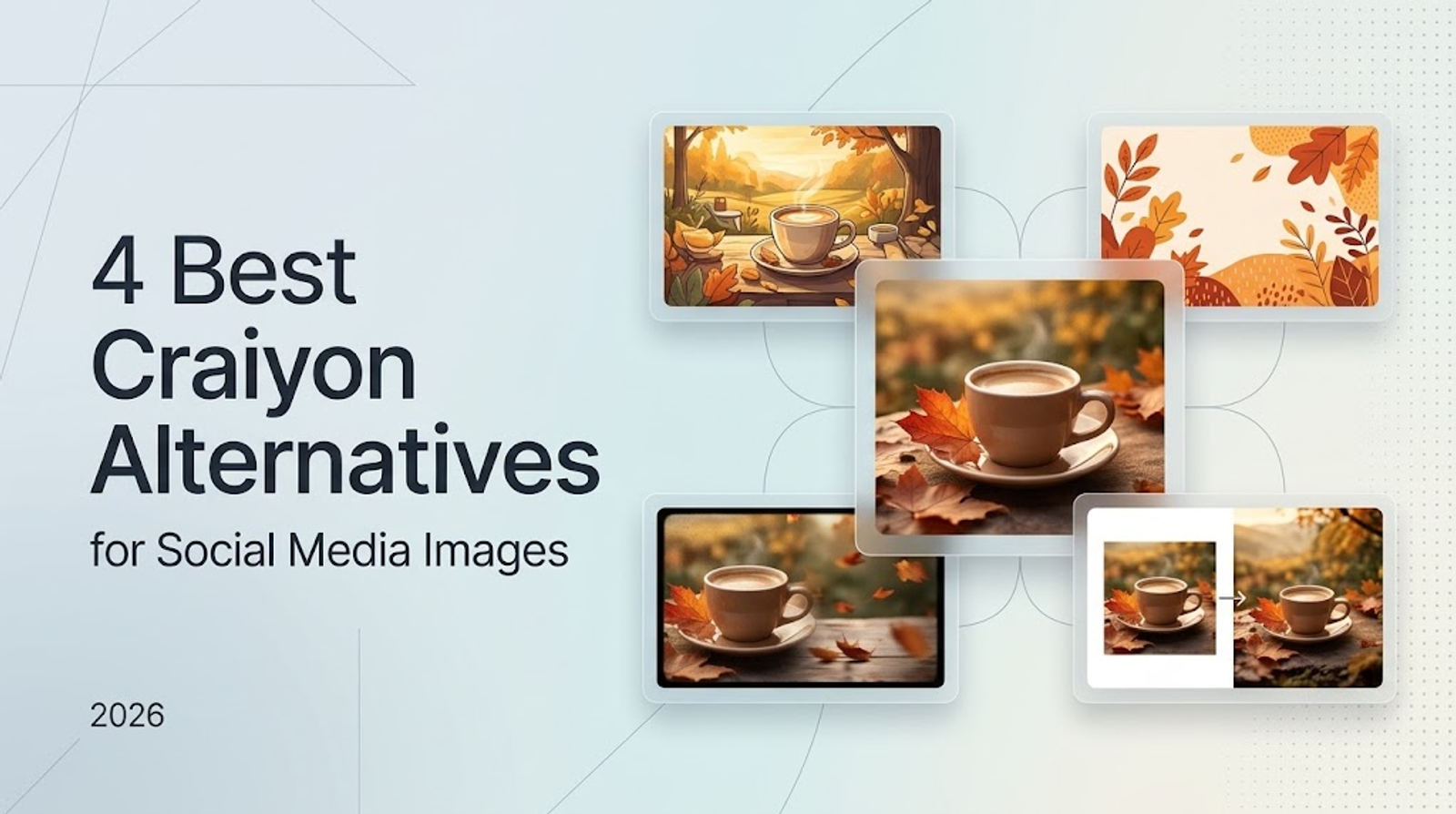
As an experienced AI creator who spends hands-on hours testing image and video production workflows, I know that choosing the right Craiyon alternative for social media content isn't about picking a random "best" tool—it comes down to the exact asset sitting in front of you. Based on my practical testing of monthly production volumes, the best choice depends entirely on your immediate task:
Use Bing Image Creator for text-to-image generation with built-in editing, DeepAI for quick illustrations without signing up, OpenArt for targeted edits and canvas expansion, or Wizstar to turn an approved image into a starting point for video generation.
This guide compares those four workflows and calculates monthly costs against a realistic workload of 80 image-generation attempts, helping you map your available assets to the right platform without wasting budget.
What Does Your Next Social Post Need?
Start by evaluating your available assets. If you only have a concept and a few lines of copy, you need a net-new generation tool. If you have an event snapshot or product render that just needs minor adjustments, you need an editing workflow. If your static visual is already approved and the next item on your content calendar is a short video clip, you need an asset-reuse pipeline.
Categorizing your tasks this way solves a frequent workflow issue: treating every image generation task as the same job. For example, a local coffee shop's fall campaign might require a fresh decorative background on Monday, an expanded canvas crop for a vertical feed on Wednesday, and an animated motion clip for a weekend story. Those represent three entirely different production steps, even if they share the same campaign brief.
Map your current materials and intended actions to each platform's native strengths:
| Tool | Material You Have | Supported Action | How to Start |
| Bing Image Creator | Post idea or text description | Generate visuals with aspect-ratio and model controls, then open built-in editing | Sign in with a personal Microsoft account, input your prompt, and pick your aspect ratio |
| DeepAI | Description of an illustration or background | Convert text descriptions into graphics directly in your browser | Open the text-to-image page, describe the subject and setting, and run without signing up |
| OpenArt | Existing image needing adjustments | Modify specific image regions or expand the canvas dimensions | Upload your asset, select target areas with the inpainting brush, or choose an expansion direction |
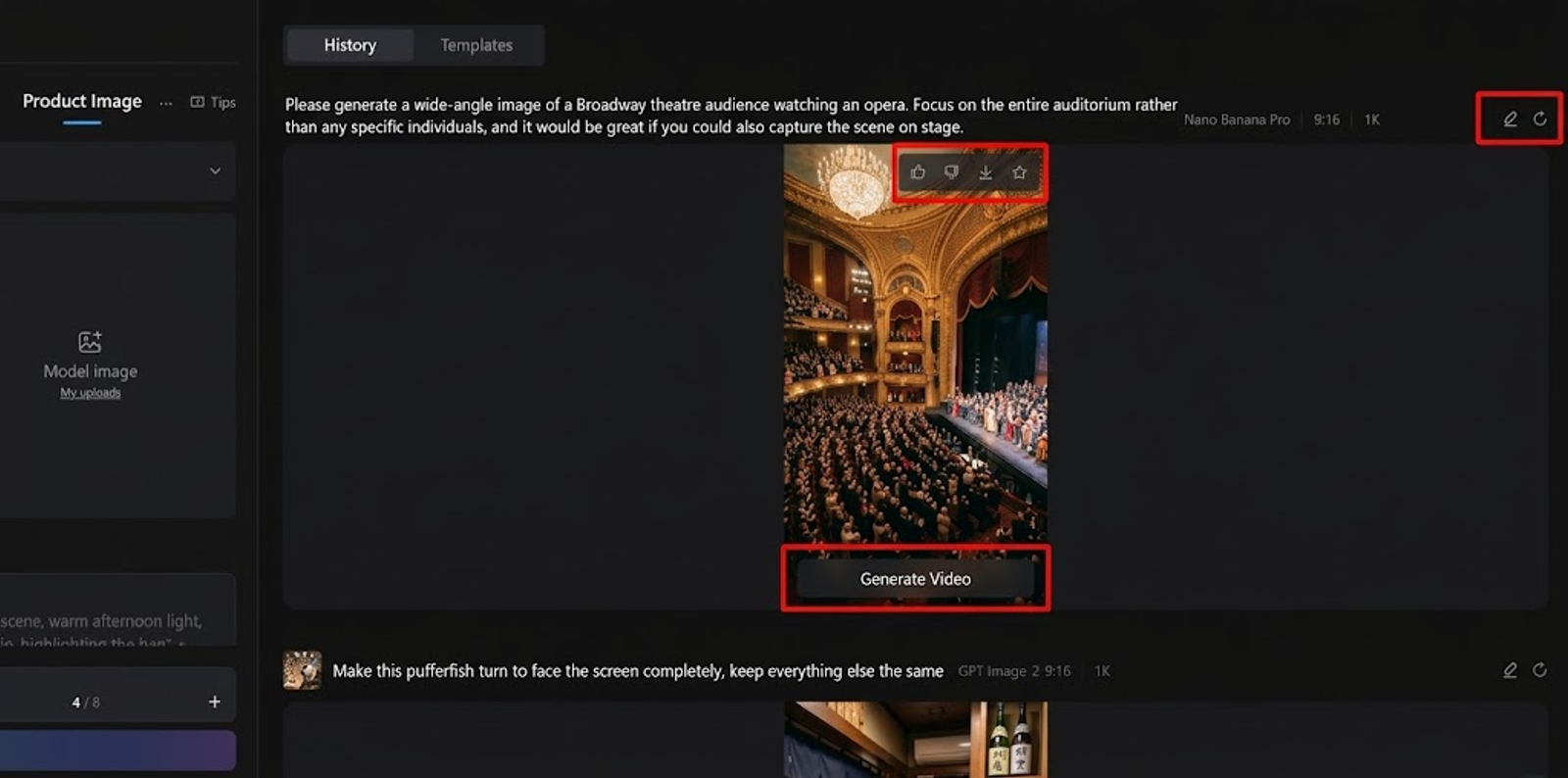
| Wizstar | Image generated and selected on the platform | Pass a finished static visual directly into video generation | Locate the image in your workspace history and click "generate video" |
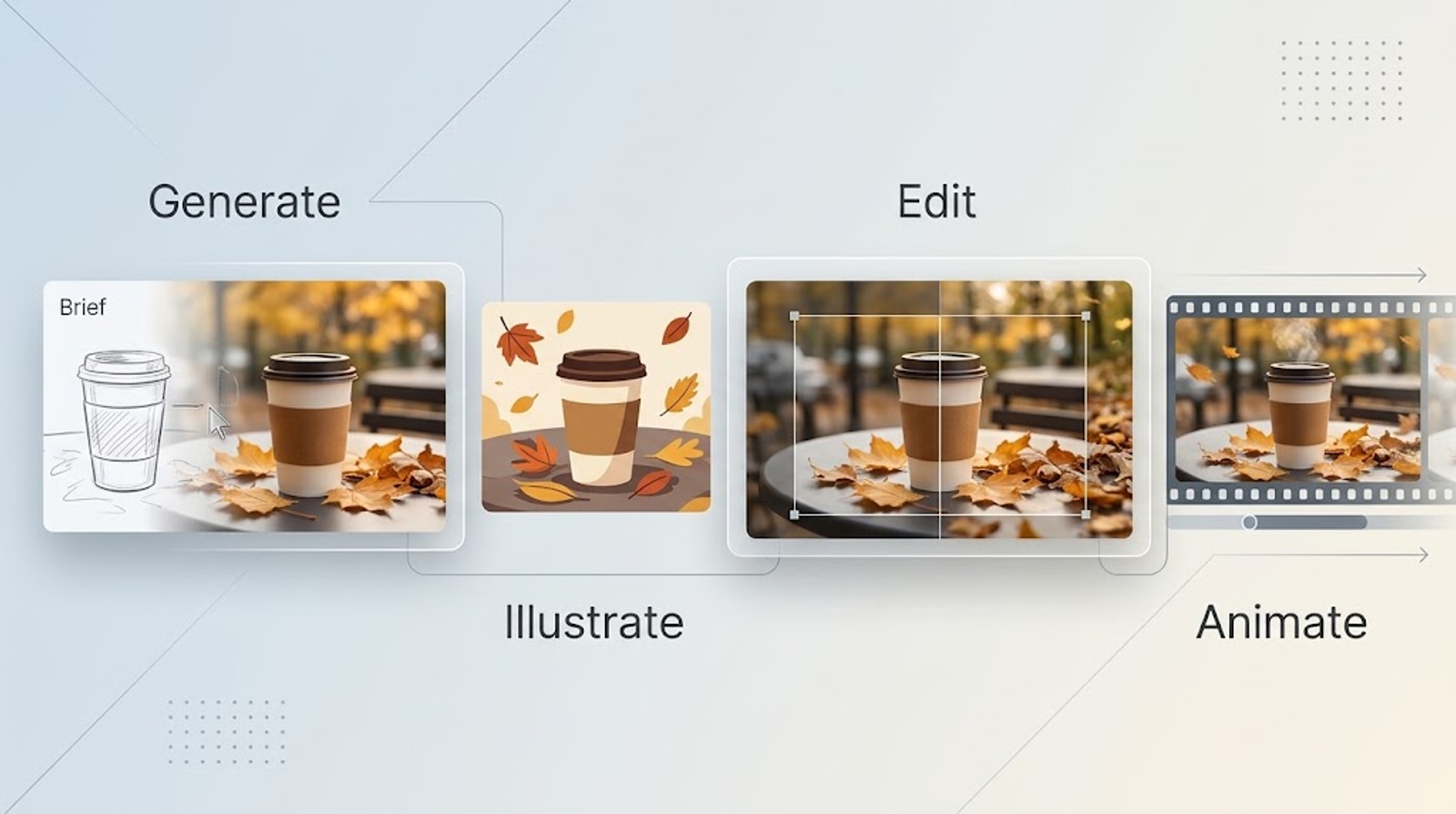
Create an Image From a Social Post Brief
Keep your creative brief focused when you have written copy but no existing imagery. Clearly define the main subject, setting, lighting, and aspect ratio. Always save your promotional text, logos, and offers for graphic design software afterward; a text-to-image generator is meant to deliver a visual foundation, not a print-ready promotional flyer.
Both Bing Image Creator and DeepAI handle text-first briefs well, but they offer distinct entry points depending on how your team works.
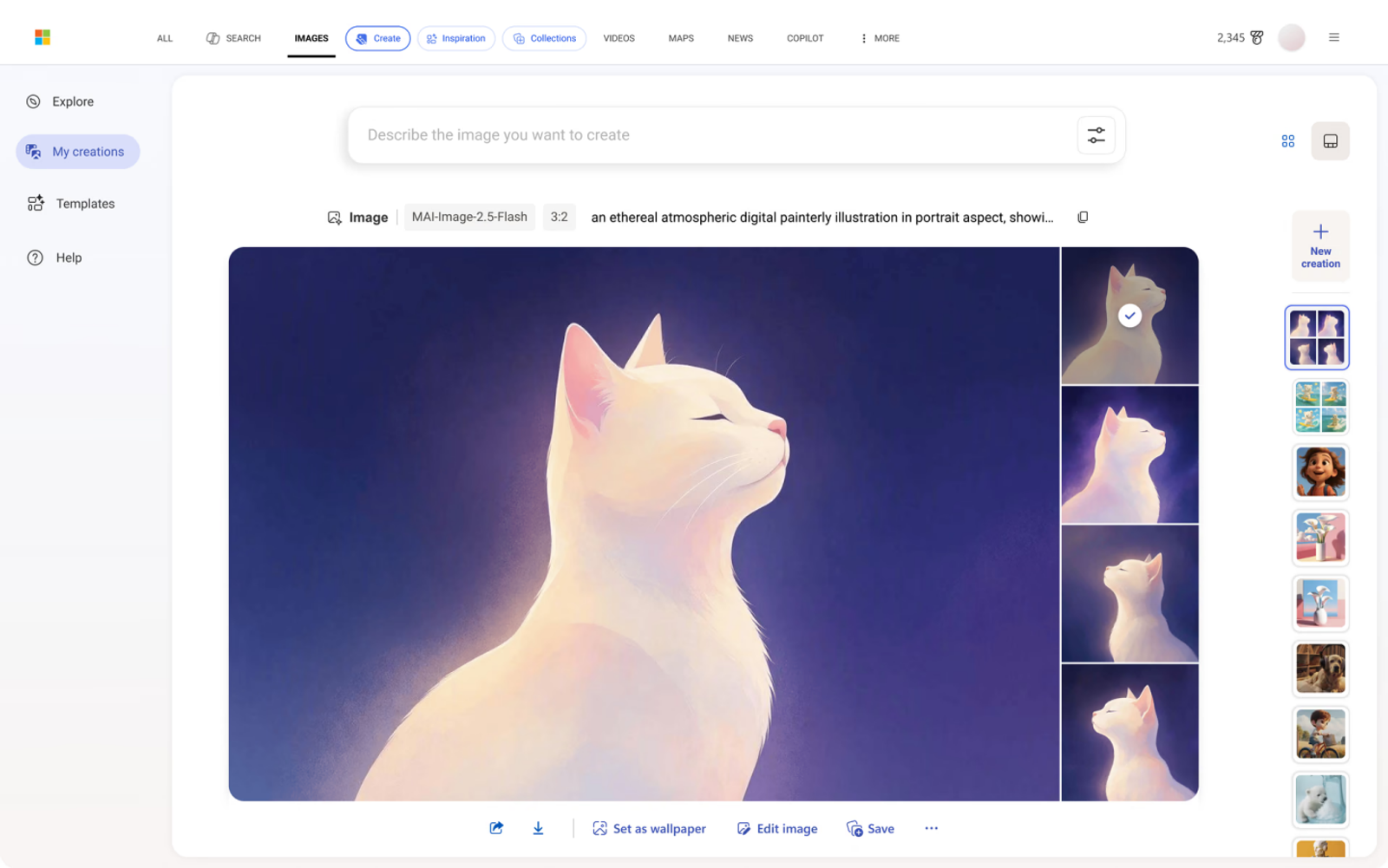
Bing Image Creator: Start From the Post Idea
Bing Image Creator accepts standard text prompts while offering direct controls over aspect ratios and model parameters. It also includes an image editor directly in the interface, allowing you to refine your output without switching tools. Note that access requires a personal Microsoft account rather than an enterprise Entra ID.
This option works best if your social media manager already uses a personal Microsoft account and wants native prompt formatting and editing in a single browser tab. Because account sign-in is mandatory, confirm your login setup before planning your campaign production around Bing.
If you already have that account access, Bing provides a reliable creation environment. If your team needs to test prompts immediately in a browser without setting up credentials, DeepAI is the faster alternative.
DeepAI: Create a Standalone Illustration or Background
DeepAI provides a straightforward browser interface that lets you generate visuals without creating an account. This makes it an efficient option for turning quick descriptions into spot illustrations, textures, or post backgrounds.
DeepAI fits standalone generation tasks where an operator needs quick visual assets without managing another set of platform credentials. Remember to treat the generated image as a raw background layer in your design canvas so your promotional text remains clean and editable.
The core difference between Bing and DeepAI comes down to onboarding friction and account management. Select the workflow that fits your team's login preferences. Within the scope of this comparison, neither option holds a definitive edge in raw generation speed or output quality.
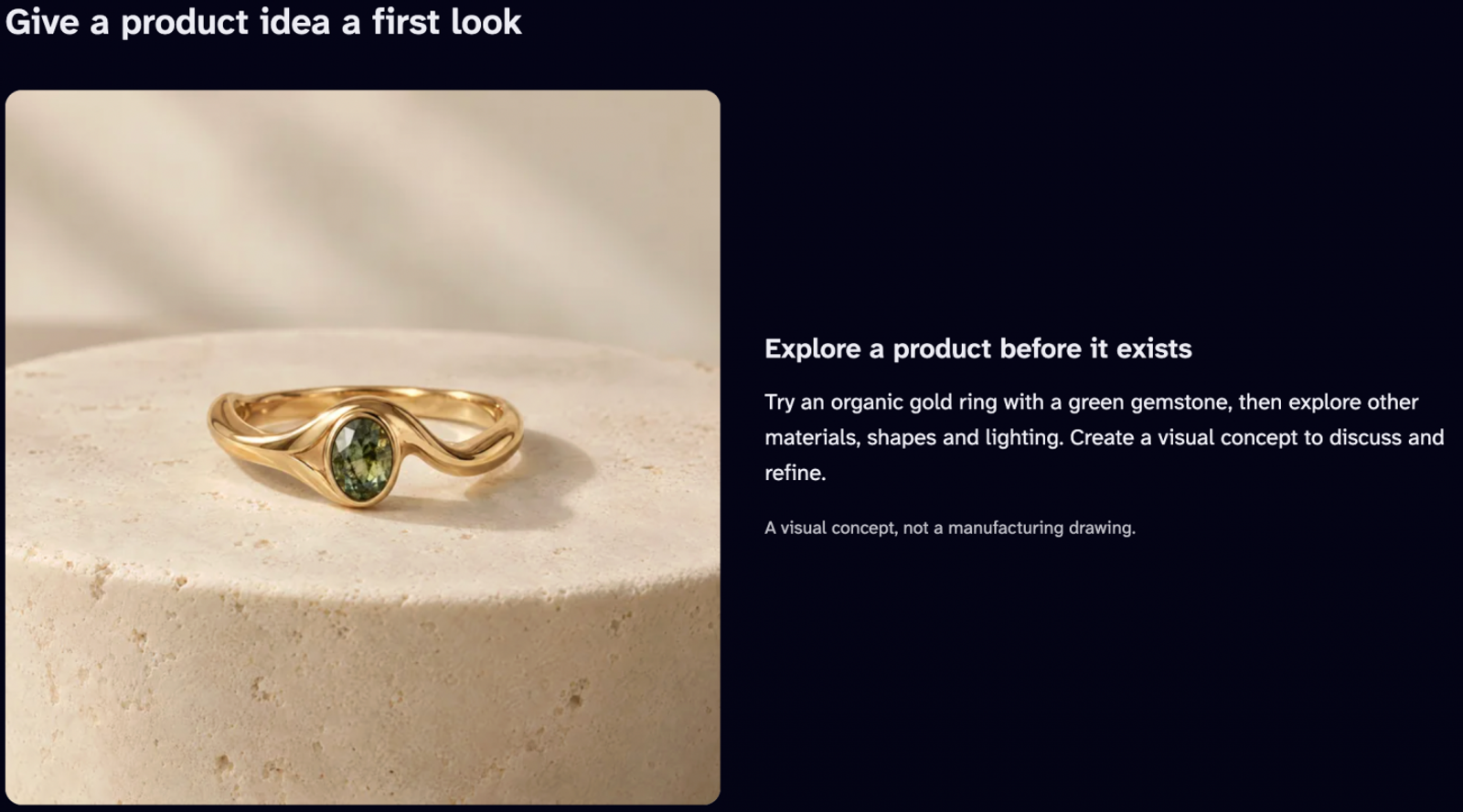
Change an Existing Post Image With OpenArt
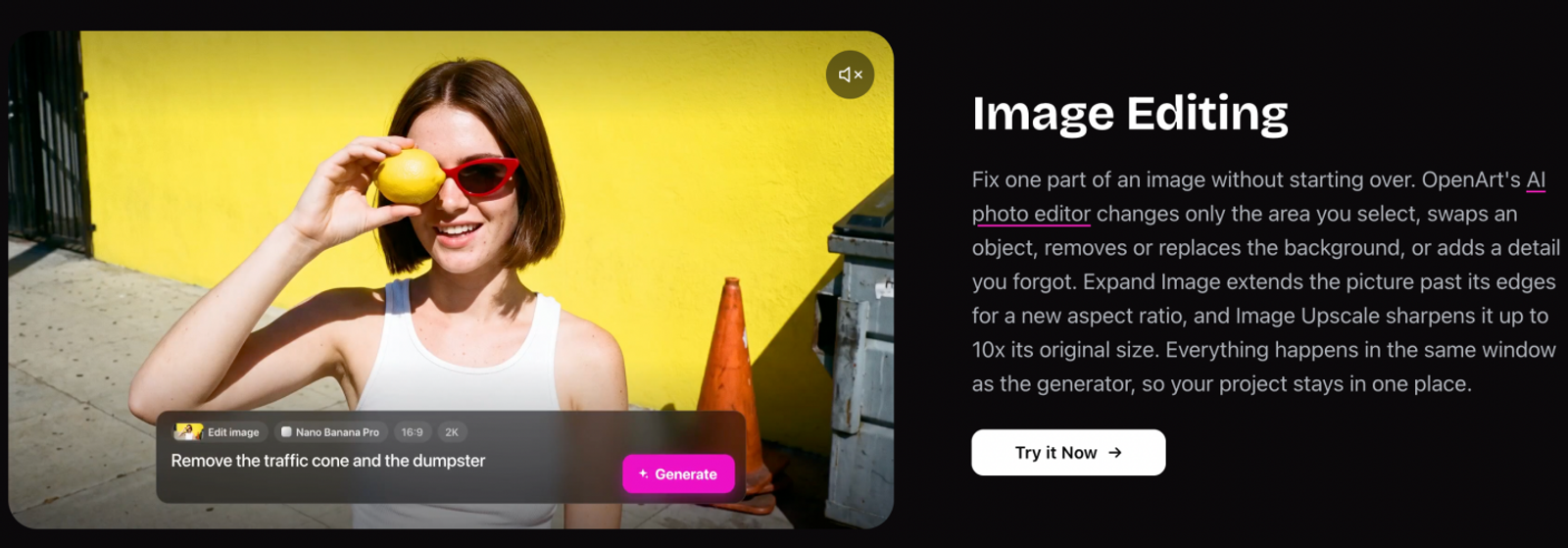
When working with an event photo or product mockup that is almost usable, pinpoint the specific defect first. The core subject might look great while a small element in the background needs removal, or the visual might need extended borders to fit a different platform's aspect ratio. OpenArt handles both scenarios through targeted inpainting and outpainting tools.
Selected-area inpainting works best for localized fixes, like cleaning up clutter or replacing a prop. Canvas expansion (outpainting) adds background context beyond the existing frame to adapt square images for vertical or landscape placements. Document the exact coordinates or direction of change before editing so you can measure the result against your original creative brief.
OpenArt is the logical choice when your source visual is solid and only needs regional adjustments. If a post requires an entirely new concept or composition, switch back to a dedicated text-to-image generator rather than over-editing an unsuitable asset.
Keep a brief note in your asset tracker describing what was retouched and where the canvas was expanded. That extra step prevents team members from mistaking a localized edit for an entirely fresh asset.
Reuse and Edit a Post Image Before Creating a Short Video With Wizstar
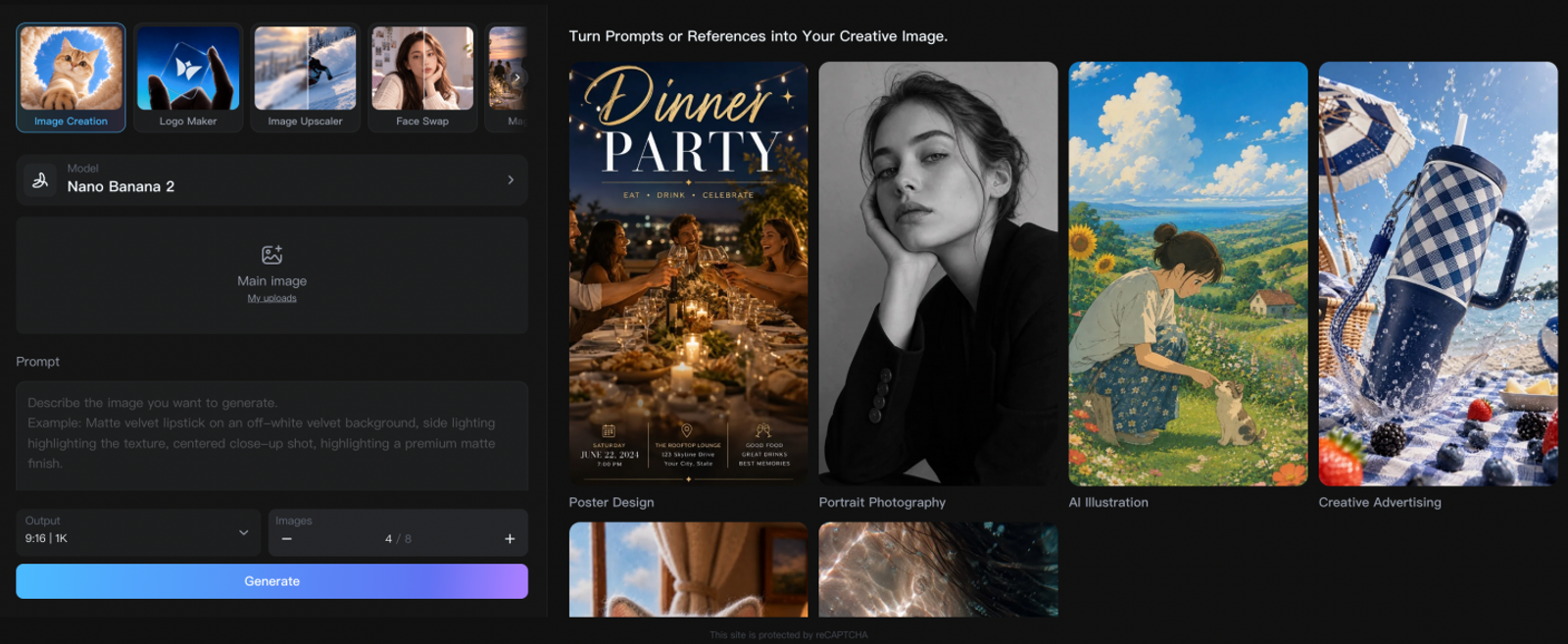
A strong social media visual often needs more than one output format. Wizstar’s Image Generator lets you refine existing assets with tools such as Image Upscaler, Face Swap, Magic Eraser, and Product Image, so you can clean up details, enhance resolution, remove unwanted elements, or adapt a product visual before publishing. This makes Wizstar useful when the source image needs editing rather than complete replacement.
Once the image is ready, the History list lets you click “Generate Video” on the selected asset. Wizstar opens the AI Video Generator and uses that image as an input, reducing the need to download, re-upload, and rebuild the same visual context in another workflow. For a weekly campaign, you can edit the static asset first, then reuse the approved version for Reels, Stories, or other short-form video placements.
Use this workflow when a post image needs correction, enhancement, or format preparation before becoming a video. Keep the original file as a reference, record the edits you made, and check the final video against the approved image. If the post only requires a static graphic, stop after the image-editing stage instead of adding an unnecessary video step.
What Would a Month of Image Generation Cost?
Pricing models only make sense when compared against an identical production workload. Consider this realistic monthly baseline for a small business: four weeks, four post briefs per week, and five generation variations per brief. That schedules 80 generation attempts per month. The table below compares the direct cash outlay for that workload against each plan's total capacity.
| Tool / Plan | Monthly Cash Basis | Included Unit / Setting | 80-Image Workload | Full-Use Reference or Exact Limit |
| Bing | $0 standard | 15 fast boosts/day within 200 prompts/24h, including Edit | Output count cannot be fixed from prompt counts | A single prompt may return multiple images; no fixed monthly image cap |
| DeepAI Pro | $9.99 | 500 HD generation/editing calls; this scenario uses HD generation only | $9.99 / 80 ≈ $0.1249 / image | Full 500 images ≈ $0.01998 / image; additional HD images cost $0.01 each |
| OpenArt Starter | $14 / seat | 4,000 credits; exact model quote required | 80-image capacity not established | Per-image deduction depends on model and settings |
| Wizstar Starter | $18.05 renewal; $10.99 intro noted separately | 1,310 credits; Nano Banana 2 at 1080P, quantity one, 6 credits/image | 480 credits; $18.05 / 80 ≈ $0.2256 / image | Full allowance: 218 images with 2 credits left; ≈ $0.0828 / image |
Note:
As of October 2026, prices reflect pre-tax amounts on standard monthly renewals unless marked as introductory or annual rates. Calculations assume all 80 generation attempts are processed and billed, not that every output becomes an approved post. Output resolutions and models vary across tools and cannot be treated as identical. Unused secondary features on DeepAI are excluded from HD calculations, and Wizstar metrics reflect listed paid quotas without promotional bonus credits.
If Bing's standard tier meets your aesthetic requirements, you can handle this volume without adding a subscription cost. However, treat its prompt allowance strictly as prompt attempts. Because a single prompt can return multiple variations or inconsistent results, you cannot translate prompt counts into a guaranteed monthly image total.
For DeepAI, budget $9.99 per month. The Pro subscription covers 80 HD images with room to spare. Unused generation credits do not lower your actual out-of-pocket payment for that month, and the theoretical full-capacity rate ($0.01998 per image) represents maximum usage rather than your actual project cost.
OpenArt requires checking real-time credit consumption before committing to a plan. Because deductions vary based on the specific base model, resolution, and inpainting features you select, check the exact credit quote for 80 runs before relying on Starter’s 4,000-credit allotment.
For Wizstar, plan for the $18.05 monthly renewal cost. Running 80 generations under the specified setting consumes 480 credits, leaving 830 credits in your balance. The plan easily accommodates this baseline volume without requiring an upgrade. The $10.99 introductory pricing applies only to the first month.
Final Takeaway
Balancing cost, speed, and platform flexibility means avoiding a one-size-fits-all approach to AI image generation. From my hands-on testing across daily campaigns, I've found that keeping your workflow efficient comes down to one principle: calculate your tooling budget around your actual scheduled volume, document the relevant settings, and review expenses whenever your monthly post count or model choices change.
Whether you are generating a quick background with DeepAI, creating a net-new asset with Bing, touching up a graphic in OpenArt, or turning a static visual into a short video with Wizstar, this approach keeps your content pipeline predictable and cost-effective. If you are ready to test an image-to-video pipeline or claim your trial credits for your upcoming posts, head directly to the Wizstar workspace above to start generating.
FAQ
- Can I try Wizstar without a paid subscription?
- You can try Wizstar without a paid subscription using the free version advertised with 20 credits. The free-version link leads to its sign-in entry, so plan to access an account to claim the offer. Check the selected model’s displayed charge before generating. Treat those credits as a limited trial allowance, rather than a promise of unlimited images or a recurring monthly grant.
- Can I download Wizstar images without a watermark?
- Yes, Wizstar lists watermark-free image exports as a feature of its paid plans. The plan comparison includes this feature for Starter, Plus, and Pro, so watermark removal alone does not justify choosing a higher tier. For a business post, inspect the downloaded file before adding your logo and offer text. Judge the actual export, rather than relying on a preview or screenshot.
- Does Wizstar share uploaded images with third parties?
- Yes, Wizstar’s privacy policy says uploaded content is provided to the corresponding AI model service provider when you use integrated AI features. It also describes content moderation sharing and information use for training and improving its technologies. Before uploading unreleased product photos or client materials, confirm that this processing is permitted by your agreement with the owner. Review the privacy policy for the applicable terms; service-provider access is different from public display.
- Can AI-generated images be used in commercial social media posts?
- Yes, when the service’s license permits commercial use and you have the necessary rights to the material involved. Wizstar’s paid-plan comparison lists commercial use as included, subject to its terms. Before posting, check permission for reference photographs, recognizable people, logos, and other protected material. For client work, keep the applicable license terms and input permissions with the project files so the client can trace the basis for commercial use.
- Can I copyright an AI-generated social media image?
- In the United States, protection can cover sufficient human creative contributions, but a prompt alone does not establish copyright in the resulting image. The U.S. Copyright Office distinguishes human authorship from material generated by AI. Preserve your original artwork, meaningful edits, and composition decisions when documenting a project. Permission to use a tool’s output commercially is a separate question from whether you can claim copyright protection.
- Do unused Wizstar subscription credits carry over?
- Carry-over depends on the rules displayed for your Wizstar plan in your account and at checkout. The official billing FAQ directs subscribers to those plan-specific expiry and carry-over terms. Before planning next month’s posts around a remaining balance, check its expiry date and whether the rules cover subscription credits or separately purchased top-ups. Save the terms associated with your purchase so you can resolve any discrepancy with support.
- How do I cancel a Wizstar subscription?
- You can cancel your Wizstar subscription from your account settings. The official cancellation FAQ states that remaining access follows the cancellation terms shown for your plan. Check the effective date and retain the cancellation confirmation for your billing records. If you are also disputing a charge, contact support with the order details; cancellation and a refund request are separate matters, and refunds follow the purchase terms.