An effective ai image generation tutorial for Amazon has one practical goal: turn a real product photo into a candidate you can verify. GPT Image 2.5 can generate and edit images from text and image inputs, but a prompt is not proof that the output still matches the sold SKU. Amazon’s current product-image guidance remains the marketplace checkpoint.
Define the product and the image-generation job before prompting
Confirm the sold SKU, quantity, color, and included parts
Create a short fact sheet before opening an image tool. Record the SKU or internal identifier, the product name, finish or color, quantity sold, and every included part or accessory. Amazon’s product-image guidance calls for an accurate representation of color, size or scale, quantity, and included accessories. Keep those merchandise facts separate from background, lighting, and camera requests. Do not turn a two-pack into one unit, add a missing lid, change a finish, or invent a control because the result would look more polished.
Decide whether the source photo proves every visible product detail
Inspect the source image before writing the prompt. Check the edges, openings, labels, handles, connection points, and the back or underside when those areas affect identity. Cropping, glare, blur, or a blocked view can make a detail uncertain. An AI-generated detail may appear plausible while being wrong for the SKU.
If the source does not prove a key feature, use another angle or detail photo. OpenAI’s prompting guidance supports assigning roles to reference images and stating which properties should be preserved; more references clarify what is visible but do not verify an unseen fact. Mark any untraceable detail unknown and plan a new photo or controlled edit.
Separate merchandise facts from background, lighting, and framing requests
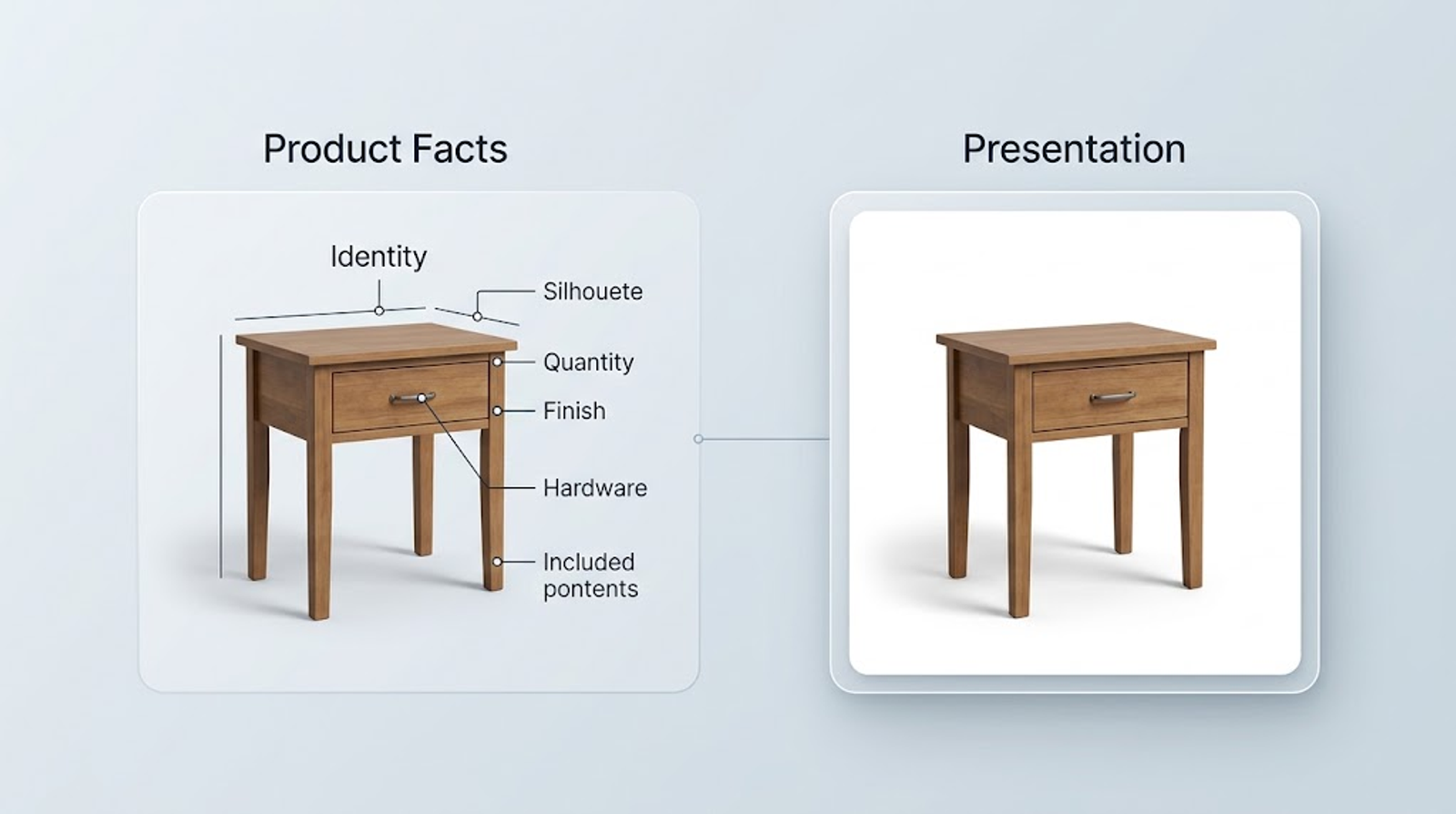
Keep two lists in the working brief. The first list contains identity: shape, count, color, materials, labels, hardware, attachments, and included contents. The second contains presentation: pure-white background, neutral studio light, full-product visibility, margins, and a natural contact shadow.
This separation makes review easier: a wrong number of legs is an identity failure, while a gray background is a presentation failure. Correct the relevant instruction without redesigning the merchandise.
Build an AI image generation prompt for an Amazon main image
Write the product-preservation block
Start with the attached image’s role and the facts it proves. For example:
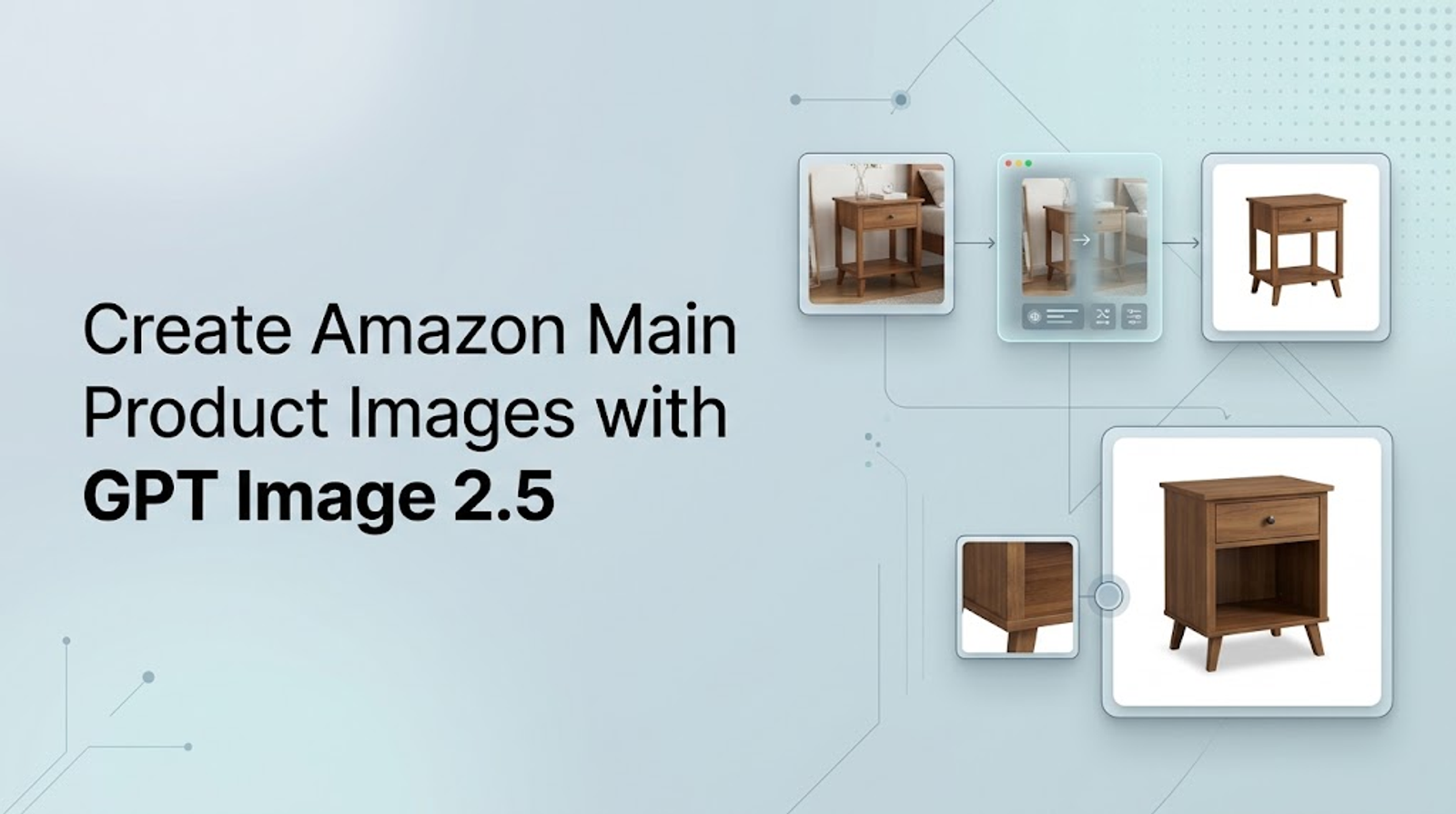
Use the attached photo as the product reference. Edit one walnut bedside table, SKU BT-118. Preserve the rectangular top, single drawer, brass pull, four legs, walnut tone, proportions, and one-unit quantity as shown. Do not add or remove parts.
This is a pattern, not a claim about your catalog. Replace it with verified facts. OpenAI recommends describing reference-image roles and intended changes clearly; keep the wording specific enough for comparison and narrow enough to avoid invention.
Add the pure-white background and full-product brief
Once the identity block is complete, state the presentation job:
Replace only the gray wall with a pure white RGB 255, 255, 255 background. Show the complete product in one view, centered with comfortable margins, soft neutral studio lighting, and a natural contact shadow.
Amazon’s guidance specifies a pure-white main-image background and a full product view. It also lists a longest side between 500 and 10,000 pixels and recommends at least 1,000 pixels for zoom. Check those values in the saved file. A number written in the prompt does not configure the output dimensions.
Keep composition subordinate to identity. If a camera or lighting phrase causes distortion, remove it and rerun a narrow correction.
Note: Amazon’s image requirements may change over time; check the current Product Image Guide in Seller Central for the latest specifications.
Add exclusions without asking the model to invent missing facts
Use an exclusion block to protect the single-item scope:
No room scene, hands, plants, packaging, props, additional tables, badges, price text, or invented features. Do not change proportions, color, materials, or included contents.
Exclusions reduce ambiguity but cannot guarantee pixel-level preservation or replace missing evidence. An unreadable label remains unverified. Prompt text and output controls are separate: source images and prompts are inputs, while size, quality, background, and format are request settings. Use available ChatGPT controls, then inspect the downloaded file.
Generate one candidate, then review it against the real item
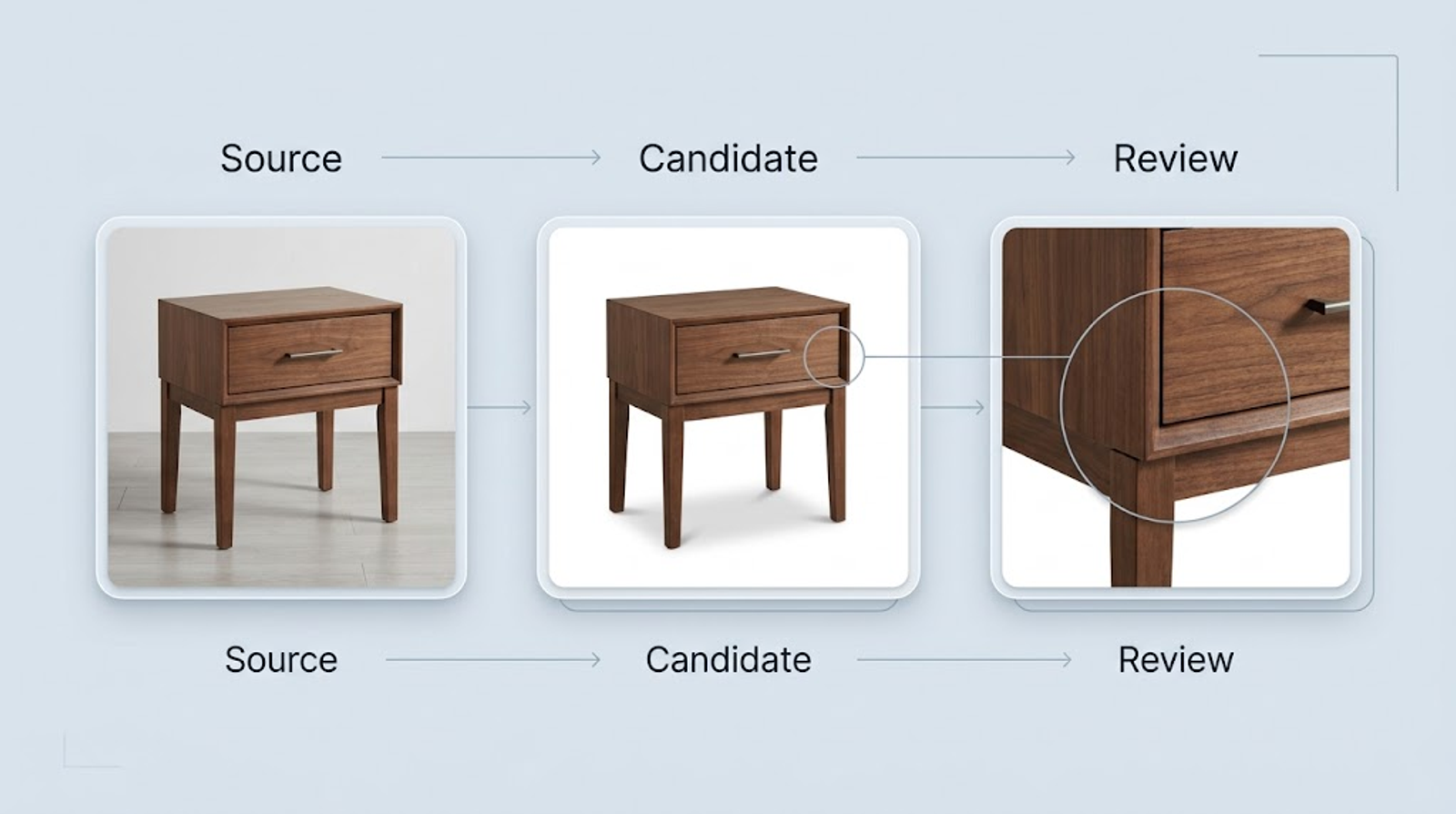
Compare silhouette, finish, labels, hardware, quantity, and accessories
In ChatGPT, upload the source photo, paste the layered prompt, generate one candidate, and save the result before making another edit. Review it beside the source and, when possible, the physical product. Check silhouette, finish, labels, seams, hardware, cords, accessories, and quantity. Zoom into small text and edges; mark unverifiable details unresolved. OpenAI supports iterative editing but warns that edits can alter protected details.
Check background, visibility, file format, dimensions, and category scope
Confirm that the background is pure white and that the complete product is visible without props or extra units. Then inspect the saved file’s actual format and dimensions. Amazon lists JPEG, TIFF, PNG, and non-animated GIF as accepted formats and recommends JPEG. The current OpenAI image-edit reference documents PNG, JPEG, and WebP outputs, so convert WebP before an Amazon upload path.
Reopen the converted file and verify the actual dimensions and format. Check the 500–10,000-pixel longest-side range and 1,000-pixel zoom recommendation alongside product accuracy. This tutorial covers one non-apparel, single-item home-goods SKU; check current category guidance before adapting it to apparel or multipacks.
Correct one failure at a time or return to photography
When identity is clear, correct one failure at a time: keep the same item while changing a gray background, or remove only an invented rear leg. A narrow edit is easier to compare than a prompt that changes five variables. If a key fact remains uncertain, supply a new angle, detail photo, or controlled edit; OpenAI points toward compositing when an exact region matters. If comparison remains unreliable, return to photography.
Know what this tutorial cannot guarantee
Prompt wording does not set every file or API parameter
A prompt describes content and appearance; it does not automatically set every API or interface control. Do not confuse “8K” or a pixel count in prose with configured output size. Select available settings, save the file, and inspect dimensions and format.
A polished AI result is not automatic Amazon approval
Uploading does not guarantee Amazon will select or display an image. Guidance says failures may be rejected, removed, or contribute to listing suppression, and display is conditional on selection. Review current rules and check the product detail page after processing; a successful upload is not approval evidence.
Use controlled editing or a new source photo when identity is uncertain
The stopping rule is identity. If quantity, color, shape, labels, hardware, or included parts cannot be verified, use a clearer source photo or controlled compositing and repeat the comparison. The workflow helps when it reduces cleanup while preserving traceable facts; it is unsuitable when the source cannot establish what the item is.
Try GPT Image 2.5 in Wizstar
Once your product facts and review checklist are set, take the same workflow into Wizstar—now powered by GPT Image 2.5. Simply upload your product references, build prompts around verified specifications, and inspect the final renders to ensure they're retail-ready for your Amazon listings.