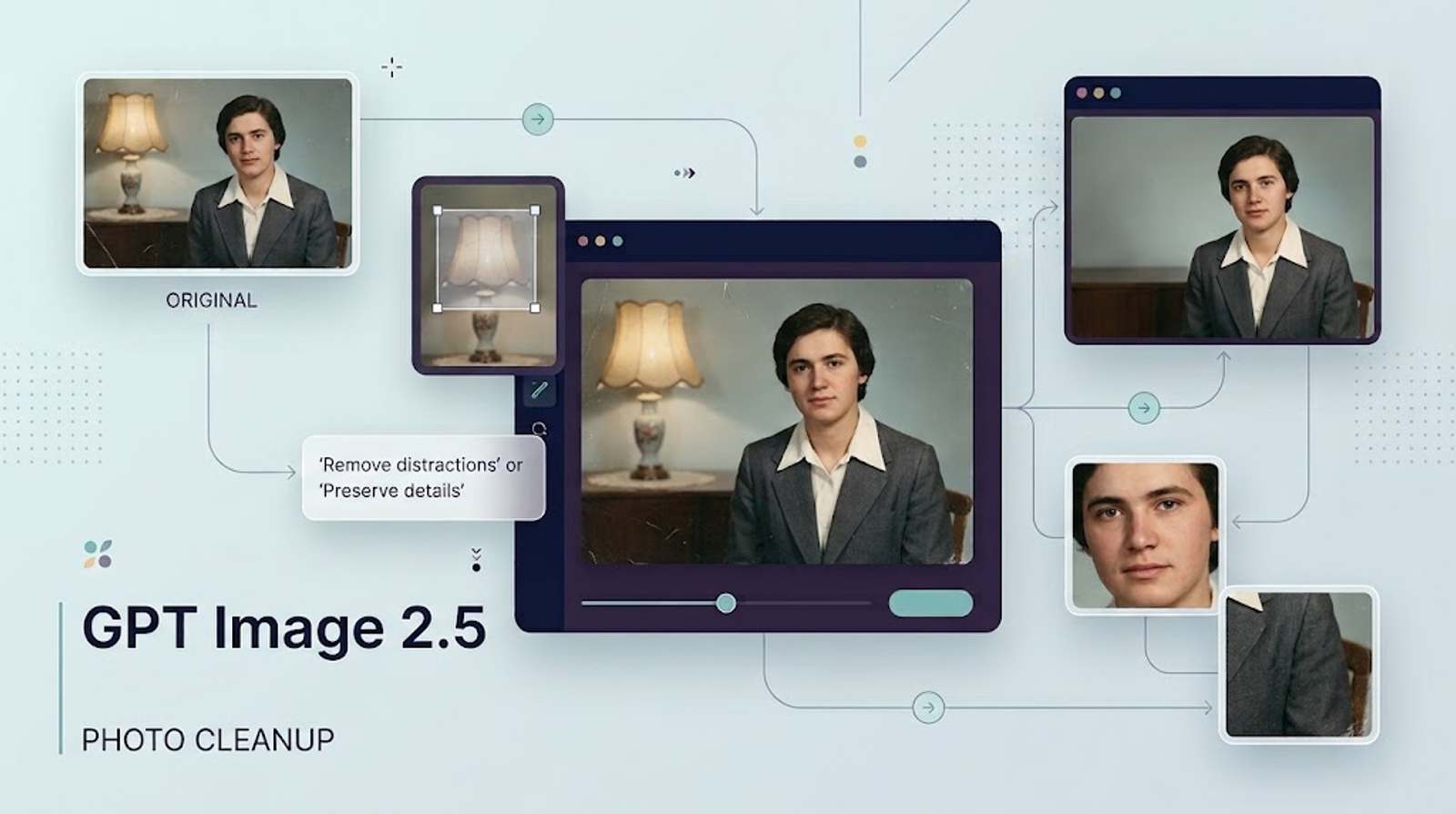
Yes. GPT image 2.5 can clean up photos with its current image-editing experience, which OpenAI documents as GPT image 2.5. You can upload an existing photo, describe the change, and either let ChatGPT edit the image directly or select a specific area first.
I’m Lyra, and my standard for photo cleanup is simple: the result should look cleaner without quietly changing the information that matters. That means checking the face, clothing, nearby objects, edges, text, and distinctive textures against the original. A smoother or sharper image is not automatically a more accurate one.
What “Clean Up” Means in GPT Image 2.5
Surface cleanup versus generative reconstruction
“Clean up” can describe two different operations.
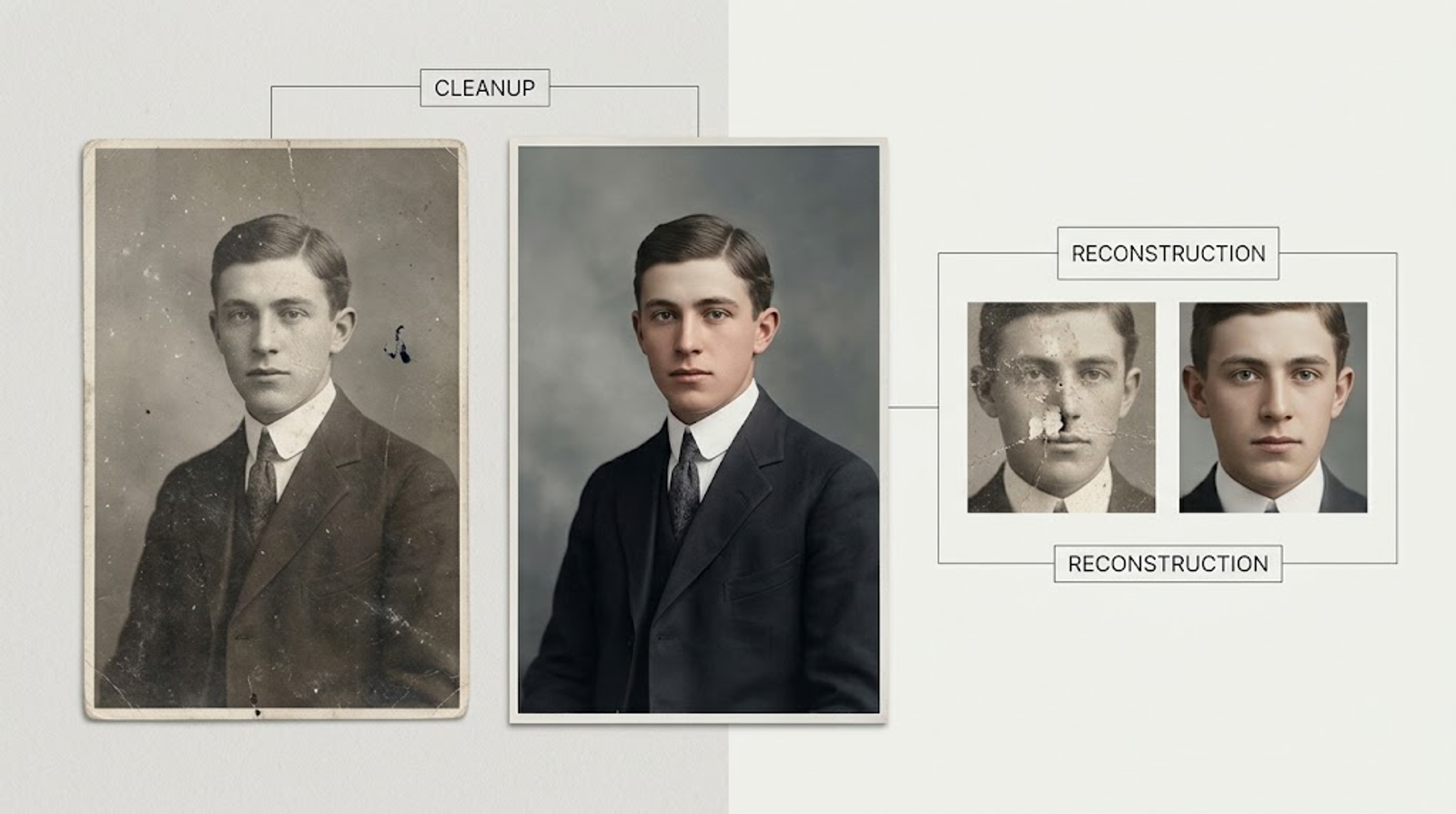
Surface cleanup improves what is already visible. Examples include reducing a distracting background element, improving color balance, removing a small object, or making a lightly damaged area look less noticeable.
Generative reconstruction goes further. When part of a face, sign, texture, or background is blurry, scratched, or missing, the model may redraw that area based on context. The result can look natural while still being different from the original scene.
That distinction matters most for old family photos. An AI-generated eye, wrinkle, button, or handwritten mark may look plausible, but plausibility is not proof that the detail is historically correct. I would describe that result as visual enhancement or reconstruction rather than genuine restoration.
The photo problems GPT Image 2.5 can attempt
ChatGPT can attempt several common cleanup tasks:
- Remove a person, object, wire, stain, or background distraction.
- Reduce the visual impact of scratches, blur, or damage.
- Improve lighting, contrast, and color balance.
- Restore attention to a subject by simplifying the background.
- Make a local change while preserving the broader composition.
- Edit an image on web, iOS, or Android.
OpenAI’s documentation says you can upload an existing image and describe the changes you want. It also supports editing with or without the selection tool. These are useful capabilities for personal photo cleanup, but they do not guarantee pixel-level preservation.
How to Clean Up a Photo with GPT image 2.5
Upload the best source image available
Start with the original scan or the highest-quality copy you have. Avoid screenshots of compressed social media previews when a camera file, scan, or full-resolution export is available.
Keep the original file somewhere separate before editing. This gives you a rollback copy if a later revision changes a face, texture, or background detail.
A good source image should be:
- Clearly focused enough to show the important details.
- Correctly oriented.
- Free from unnecessary compression.
- Large enough for the intended use.
- Cropped only when the crop does not remove context needed for the edit.
For a damaged old photo, keep both the untouched scan and the cleaned version. The cleaned image may be easier to view, but the scan remains the stronger historical reference.
Describe the exact change and what must remain unchanged
A useful ChatGPT photo cleanup prompt separates the requested change from the preservation list.
For example:
Remove the trash bin in the lower-right corner. Continue the sidewalk and wall naturally behind it. Keep the person, face, clothing, camera angle, lighting, shadows, and image framing unchanged. Do not add objects, text, or new people.
This is more controlled than saying “make this photo perfect.” OpenAI’s image prompting guidance recommends identifying what should change and what must stay the same, then refining one thing at a time.
I would also name the exact location of the target. “Remove the person behind the subject on the left side” gives the model a clearer task than “remove the background person.”
Use the selection tool for local edits
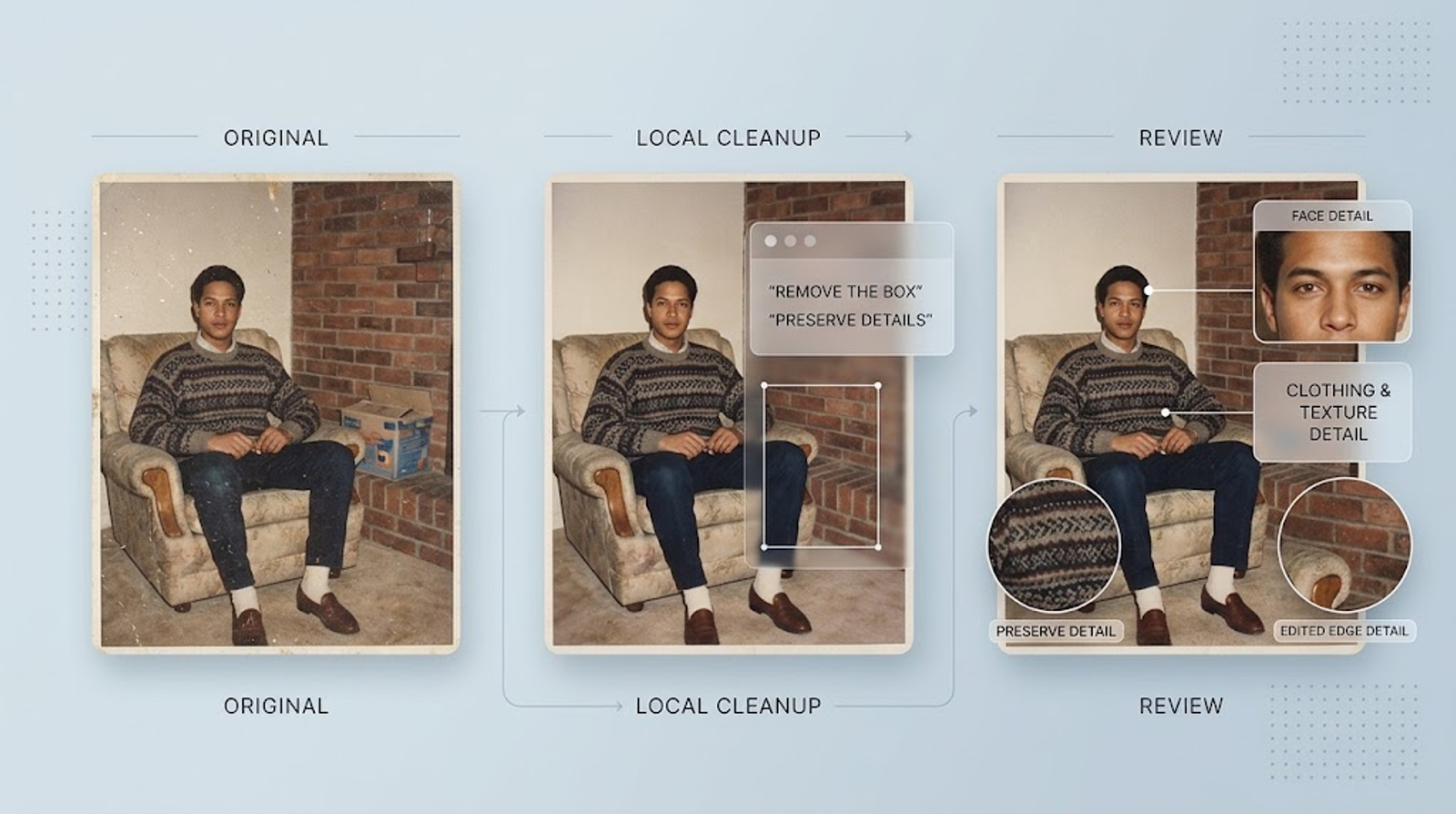
When the change is local, select the smallest practical area around it. OpenAI’s ChatGPT image editor documentation explains that you can highlight part of an image and then describe the edit.
A precise selection can reduce unnecessary changes, but it is not a hard pixel boundary. OpenAI explicitly warns that highlights are not always precise and edits may extend beyond the selected area.
After selecting, describe both the target and the surrounding context:
Remove the highlighted street sign. Reconstruct the building facade behind it. Keep the window frames, person, face, shadows, and perspective unchanged.
If the first result changes too much, do not immediately add five new requirements. Narrow the request and repeat the preservation list. Smaller iterations make it easier to see which instruction caused a change.
Review the output against the original
Do not treat the first generated result as final. Compare it with the original at full size.
My review checklist includes:
- Eyes, teeth, facial proportions, and distinctive marks.
- Hair edges, fingers, jewelry, and clothing patterns.
- Object boundaries and repeated textures.
- Shadows and reflections near the edited area.
- Text, signs, labels, and handwriting.
- Background lines that should remain continuous.
- Color and lighting consistency.
OpenAI’s prompting guidance also recommends checking whether identities, product shapes, labels, and reference details remain intact, and whether the edit changed only what was requested.
If an important region must remain pixel-identical, prompting alone is not the safest method. Use a conventional editor to composite the approved area back into the original.
A Prompt Framework for Safer Photo Cleanup
State the target change
Name one action and one target:
Remove the telephone pole crossing the sky on the right side.
Avoid combining object removal, color grading, face enhancement, sharpening, and cropping in one request. Each additional change increases the number of details the model may reinterpret.
Add a preservation list
State what must remain fixed:
Preserve the person’s identity, facial expression, pose, clothing, body proportions, camera angle, lighting, and background perspective.
For an old photo, include historical details:
Preserve the original clothing style, facial features, hairstyles, furniture, architecture, and composition.
This is useful for an old photo restoration prompt, but it is still an instruction rather than a guarantee.
Add negative constraints and output requirements
Negative constraints tell the model what not to introduce:
Do not add new people, extra objects, text, logos, watermarks, modern clothing, or cinematic color grading.
You can also specify the output goal:
Keep the result photorealistic, natural, and consistent with the original image. Make the smallest possible change.
Use separate prompts for scratches, blur, color, and object removal
Different problems require different instructions.For scratches:
Reduce visible scratches and dust while preserving facial details, film grain, clothing texture, and the original contrast.
For blur:
Improve apparent clarity only where the image is soft. Do not invent facial details, text, or background objects.
For color:
Correct the yellow cast and restore natural skin tones. Preserve the original lighting direction and clothing colors.
For object removal:
Remove the highlighted object and reconstruct only the area behind it. Keep surrounding edges, shadows, and subjects unchanged.
Separating these requests gives you better checkpoints and makes unintended changes easier to identify.
What GPT image 2.5 Cannot Reliably Preserve
Missing facial or historical details
If a face is heavily blurred, scratched away, or partly missing, the model cannot reliably recover the original features. It can generate a plausible face, but that does not make the result documentary evidence.
For family archives, legal records, genealogy, or historical work, preserve the original scan and label the AI version as edited. If facial identity is critical, compare the output with other verified photographs rather than trusting visual smoothness.
Selection boundaries and unintended changes
Selection helps localize an edit, but official documentation warns that edits may extend outside the selected region. Nearby hair, shadows, textures, and objects can change even when they were not the intended target.
After every local edit, inspect a wider area than the selection itself. Look for shifted edges, duplicated patterns, altered expressions, and changes in lighting.
Resolution, text, and fine-detail limitations
An edited image can look convincing at thumbnail size while failing at full resolution. Small text, handwriting, jewelry, fabric patterns, and fine architectural details deserve special attention.
OpenAI’s image-input documentation notes that images may be resized during processing and that vision systems can struggle with small text, rotated images, and precise spatial interpretation. For a print or archival use case, inspect the exported file at its intended size.
Privacy and File Handling Before Uploading a Photo
Image availability, supported formats, and file size
OpenAI’s File Uploads FAQ states that images uploaded to ChatGPT have a 20 MB per-image limit. OpenAI’s image-input documentation lists PNG, JPEG, WEBP, and non-animated GIF among supported image inputs, while availability can vary by product surface, account, and platform.
Use a clear, correctly oriented image and keep a local backup. If the upload fails, reduce the file size without overwriting the original.
Data Controls and Temporary Chat
For personal ChatGPT accounts, you can turn off Improve the model for everyone under Settings → Data Controls. OpenAI’s Data Controls FAQ says conversations remain in history but are not used to improve ChatGPT after this setting is disabled.
A Temporary Chat stays out of history and is not used to improve OpenAI models while it remains temporary. However, OpenAI’s Temporary Chat guidance says a copy may be retained for up to 30 days for safety purposes.
These settings reduce exposure, but they do not make uploading a sensitive image risk-free.
When not to upload a sensitive image
Do not upload a photo if you do not have permission to share it or if the potential exposure would create a serious problem. Be especially cautious with:
- Government IDs and financial documents.
- Medical images or records.
- Private images of children.
- Photos containing addresses, badges, or confidential screens.
- Images involving someone else’s identity or consent.
If the cleanup can be done with a cropped, anonymized, or lower-risk copy, use that version first.
When GPT Image 2.5 Is a Good Fit
Quick personal-photo cleanup and visual enhancement
ChatGPT is a good fit when you need a fast, conversational edit: removing a background distraction, adjusting color, reducing visible damage, or testing a simple old photo restoration prompt.
It works best when the requested change is visually clear, the source image is readable, and you can review the output yourself. The workflow is convenient because you can describe the change in plain language and refine it across turns.
When pixel-level editing or professional restoration is safer
Use a conventional pixel editor when a region must remain unchanged, when you need precise masks, or when the output must match an original file exactly.
Use professional restoration when the image has important historical, legal, evidentiary, or archival value. In those cases, the goal is not simply to make the photo look better. You need a documented process, preserved originals, controlled retouching, and a clear distinction between recovered information and generated reconstruction.
ChatGPT can clean up a photo, but the safest conclusion is conditional: it is useful for controlled visual improvement, while sensitive or historically important images require stronger review and a more reversible workflow.
Try GPT Image 2.5 Sunburst & Flare on Wizstar
Take your image creation and editing to the next level. Wizstar now supports both GPT Image 2.5 Sunburst and Flare—experiment with your own assets today to find the perfect fit for your creative workflow.