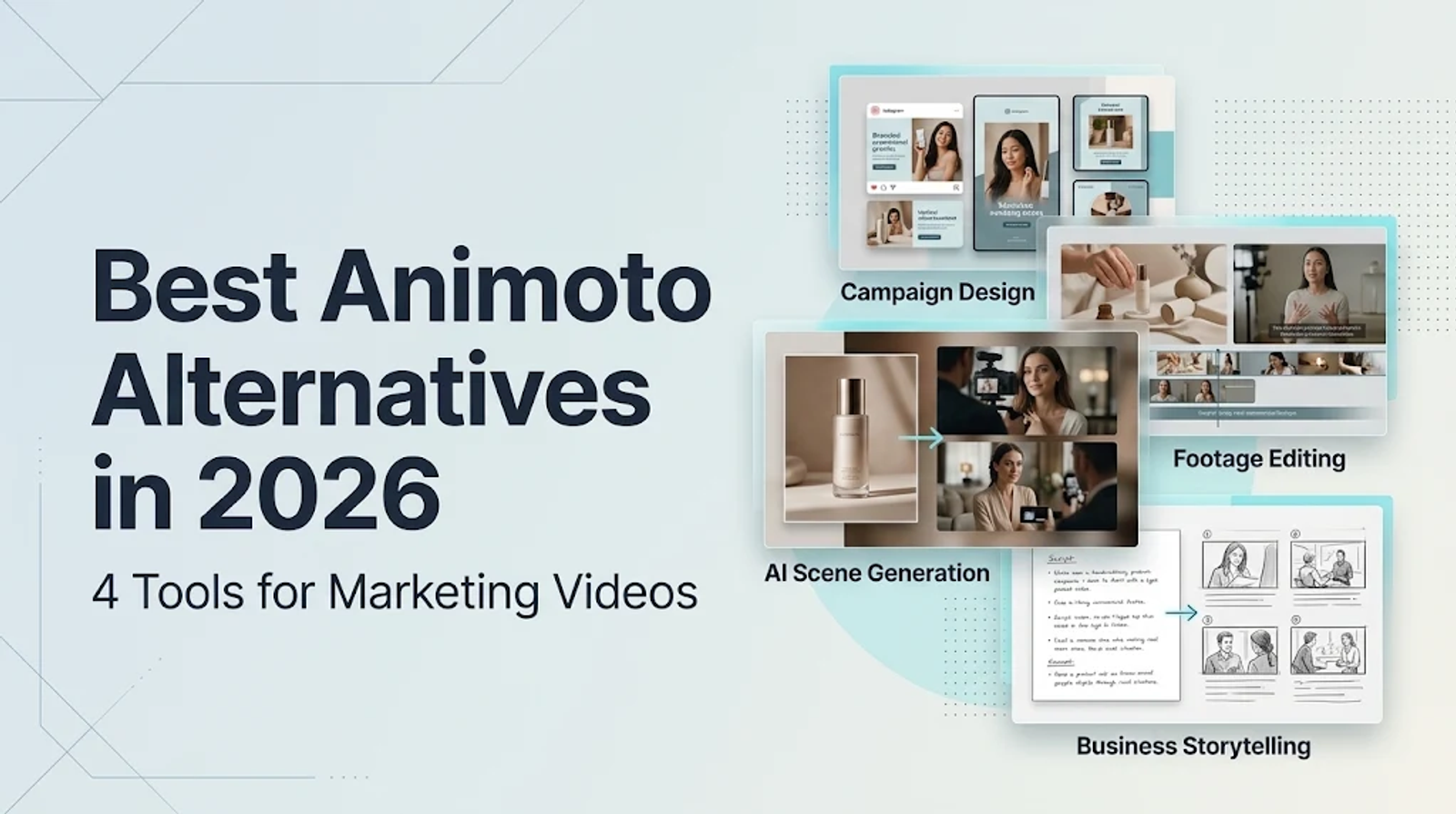
The best Animoto alternatives don’t just copy its slideshow workflow—each solves a distinct marketing-video bottleneck. Canva connects video with your wider campaign assets, Clipchamp focuses on editing footage you already have, Biteable turns scripts into structured business videos, and Wizstar generates new product scenes from a brief.
Before migrating your entire workflow, pinpoint the exact stage where Animoto slows you down. The most practical comparison starts with that specific bottleneck: cross-campaign consistency, hands-on footage editing, structured business storytelling, or creating scenes from scratch.
Start with the job Animoto already does
Animoto combines marketing templates, user-uploaded photos and clips, stock media, music, and basic brand customization. Its AI video maker also assists with scripting, structuring, and assembly, while its URL-to-video feature pulls text, photos, and videos directly from a webpage. Because Animoto already covers basic assembly, a worthwhile alternative has to offer more than an "AI" label.
For a short product promotion, the real question is where production gets stuck. Maybe your video needs to share layouts and brand elements with several other campaign graphics. Maybe your footage is already shot and just needs tight trimming, or your campaign concept requires product scenes that do not exist yet. Those are very different production jobs, even when the final deliverable is the same length.
This shortlist breaks down each tool by the specific bottleneck it removes:
| Platform | Main production task | Relevant control |
| Canva | Branded video alongside other designs | Layered timeline and resizing |
| Clipchamp | Edit supplied footage | Trimming, recording and animated text |
| Biteable | Build template-led business videos | Editable AI storyboard, stock and animation |
| Wizstar | Create product scenes from a brief | Scene planning, model coordination and refinement |
The right pick depends on what your workflow is missing: multi-asset campaign design, hands-on clip editing, structured business storytelling, or new scene creation.
Canva connects the video to the wider campaign
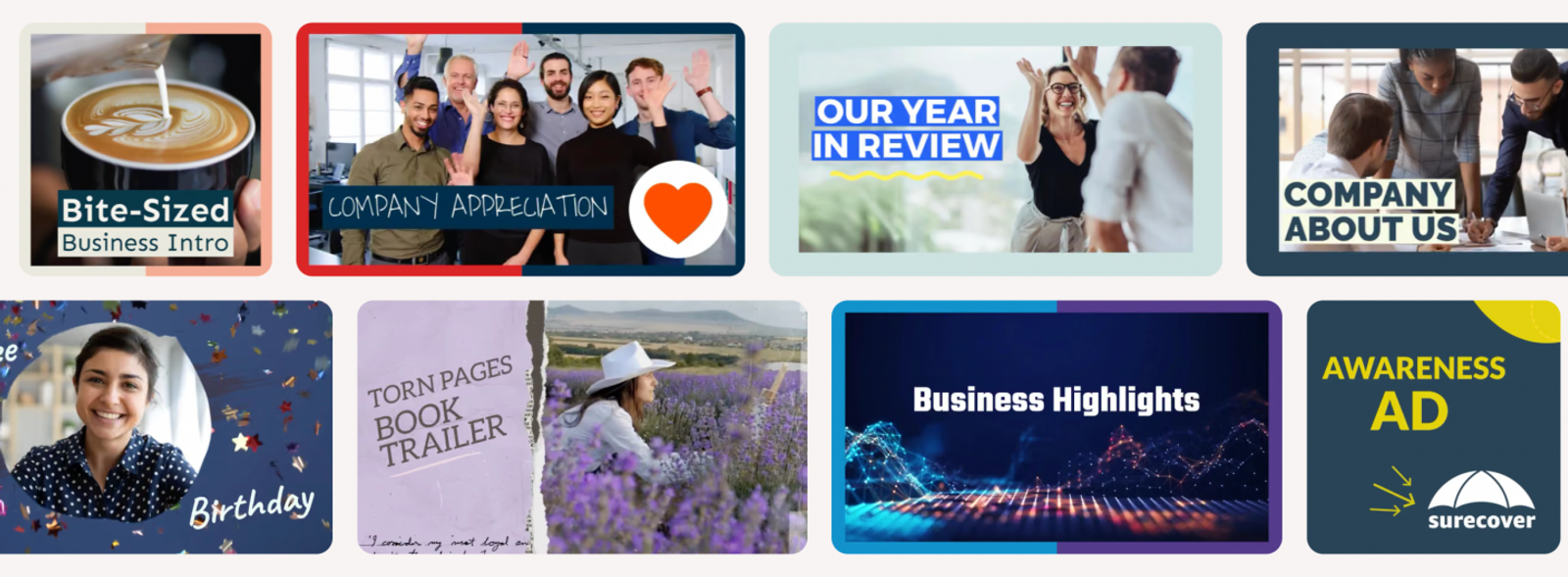
When a video is just one piece of a larger rollout, the biggest headache is keeping every asset visually aligned. Canva solves that coordination problem by pairing templates and a multi-layer timeline with instant resizing, animations, and captions inside its video editor. Everything lives inside the same broader design workspace.
Imagine a product launch that needs a short promo video, a static social announcement, and a second video aspect ratio. Your main job is carrying the exact same offer and visual look across all three deliverables. Layered editing lets you adjust individual video elements, while resizing adapts the layout for different channels—just be sure to check how the text reads in each format before signing off.
I’d choose Canva whenever campaign reuse is the top priority and your video needs to match the rest of your promotional graphics. Features like Magic Video and image-to-video add extra creation paths, though cross-asset reuse remains the main reason to switch. On the other hand, if all you need is to trim an already approved clip, a full design suite is more tool than the job requires.
Clipchamp keeps the supplied footage central
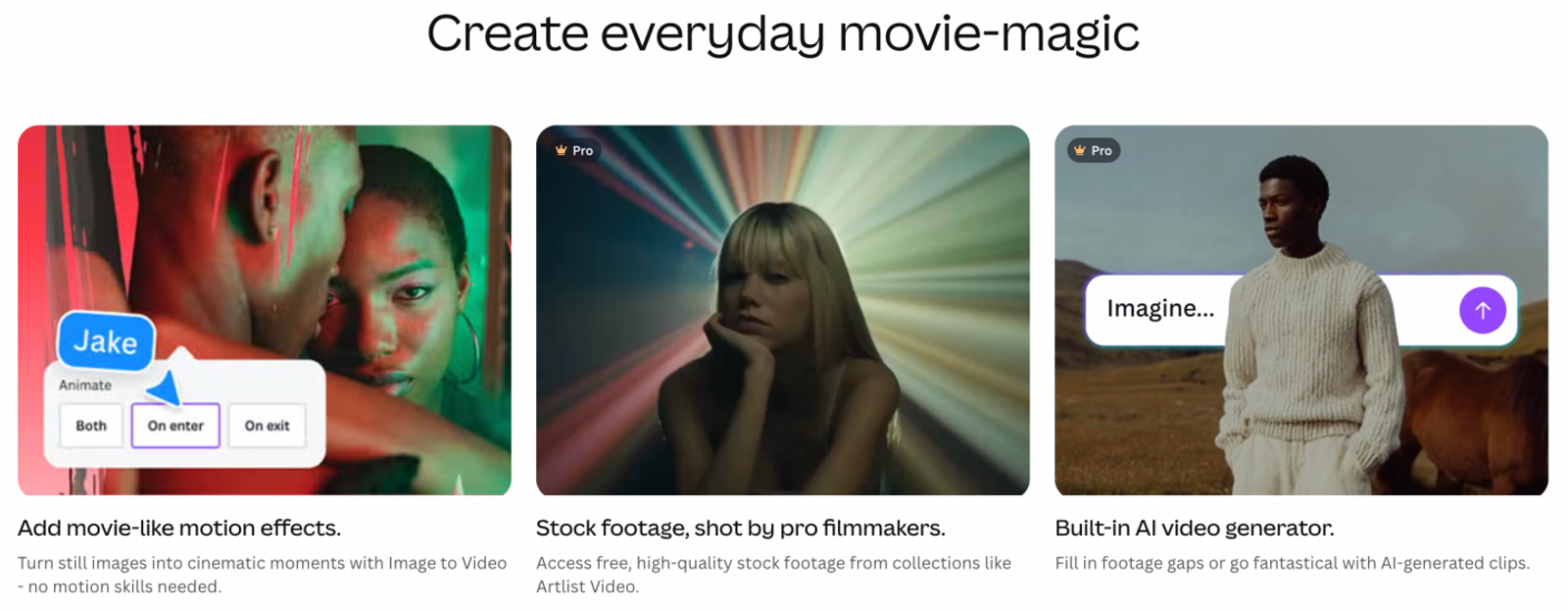
If your existing footage already carries the core message, you do not need a heavy template system—you need clean, direct editing. Clipchamp focuses squarely on that workflow through recording, trimming, animated text and stock media, making it easy to decide what stays, how clips are ordered, and where callouts land.
Take a product demo that already has a clear hook, a solid feature walkthrough, and a closing offer. Editing comes down to making sure every second earns its spot: tight trimming keeps the demo moving, while animated text highlights the offer at the end.
Clipchamp is the more focused pick for this type of footage-first editing. I’d keep the core demonstration intact and build the edit around its strongest moments, using built-in screen or camera recording to fill gaps and stock clips to cover transitions. The real reason to switch is straightforward control over the clips you plan to publish.
Biteable turns the script into a business-video structure
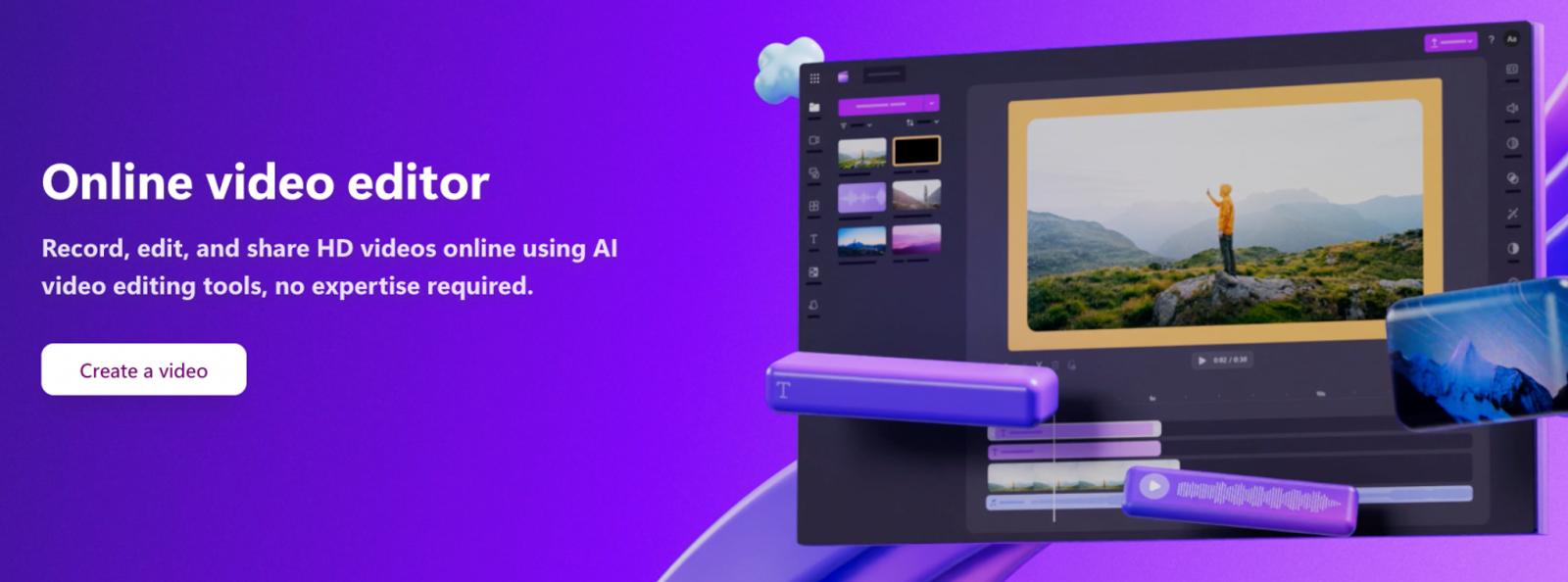
Sometimes the copy is ready, but turning that script into a clear visual sequence is where things stall. Biteable bridges that gap with business-video tools that combine templates, stock footage, and animations with screen recording and an AI script-to-editable-storyboard builder. That storyboard maps your copy directly onto a scene sequence you can rearrange.
Suppose a service promo needs to state a problem, introduce your solution, and close with an offer. A template provides a starting structure, but pacing still takes human judgment—if the problem setup drags on, the offer arrives too late. An editable storyboard lets you fix that pacing and scene order before committing to final visual polish.
I’d lean toward Biteable for recurring, structured business videos where a written script needs an adjustable visual flow. Stock clips and animations carry individual sections without forcing you to film every scene from scratch. Its biggest advantage is giving you a clean path from finished copy to an editable storyboard.
Wizstar directs scenes the campaign does not yet have
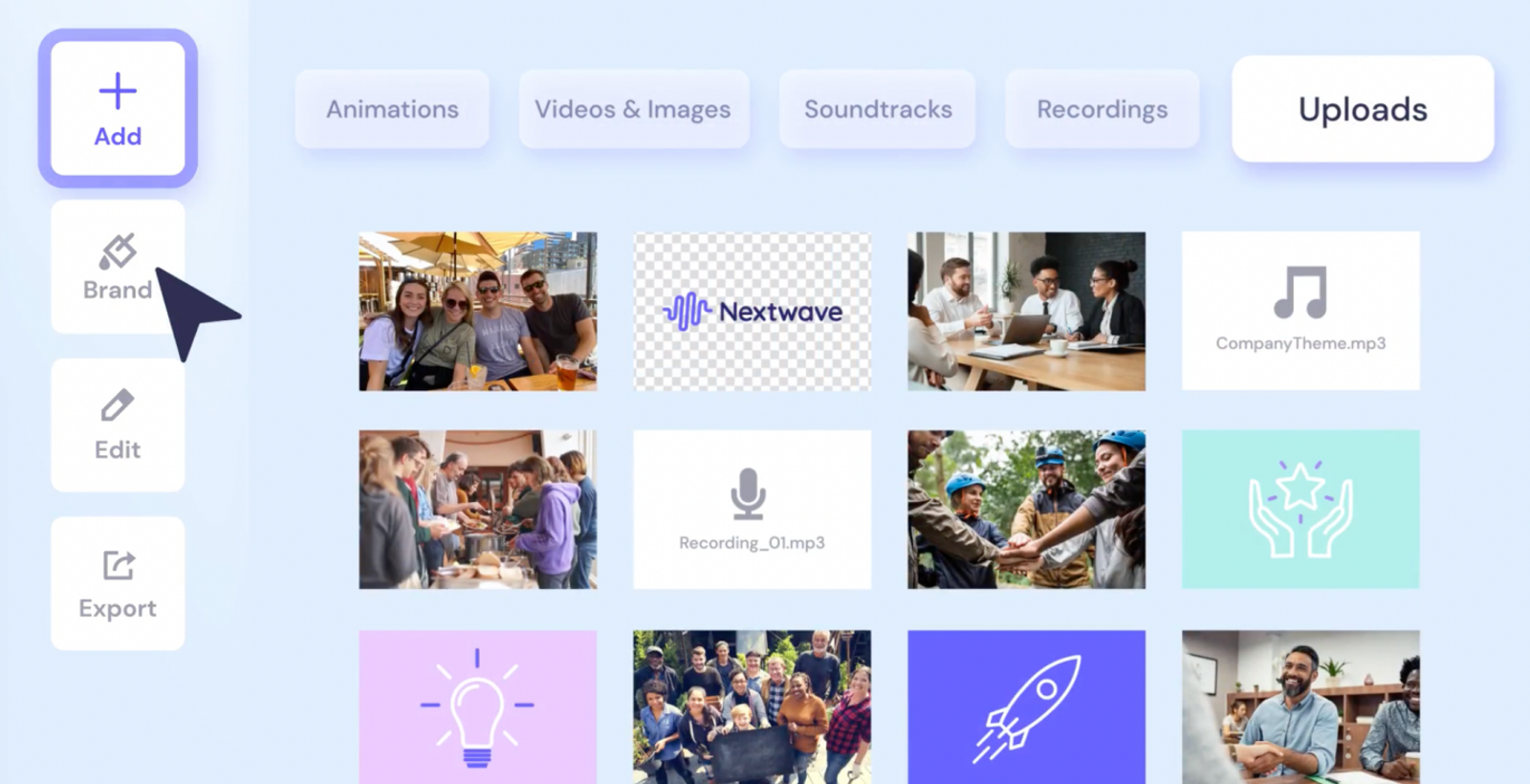
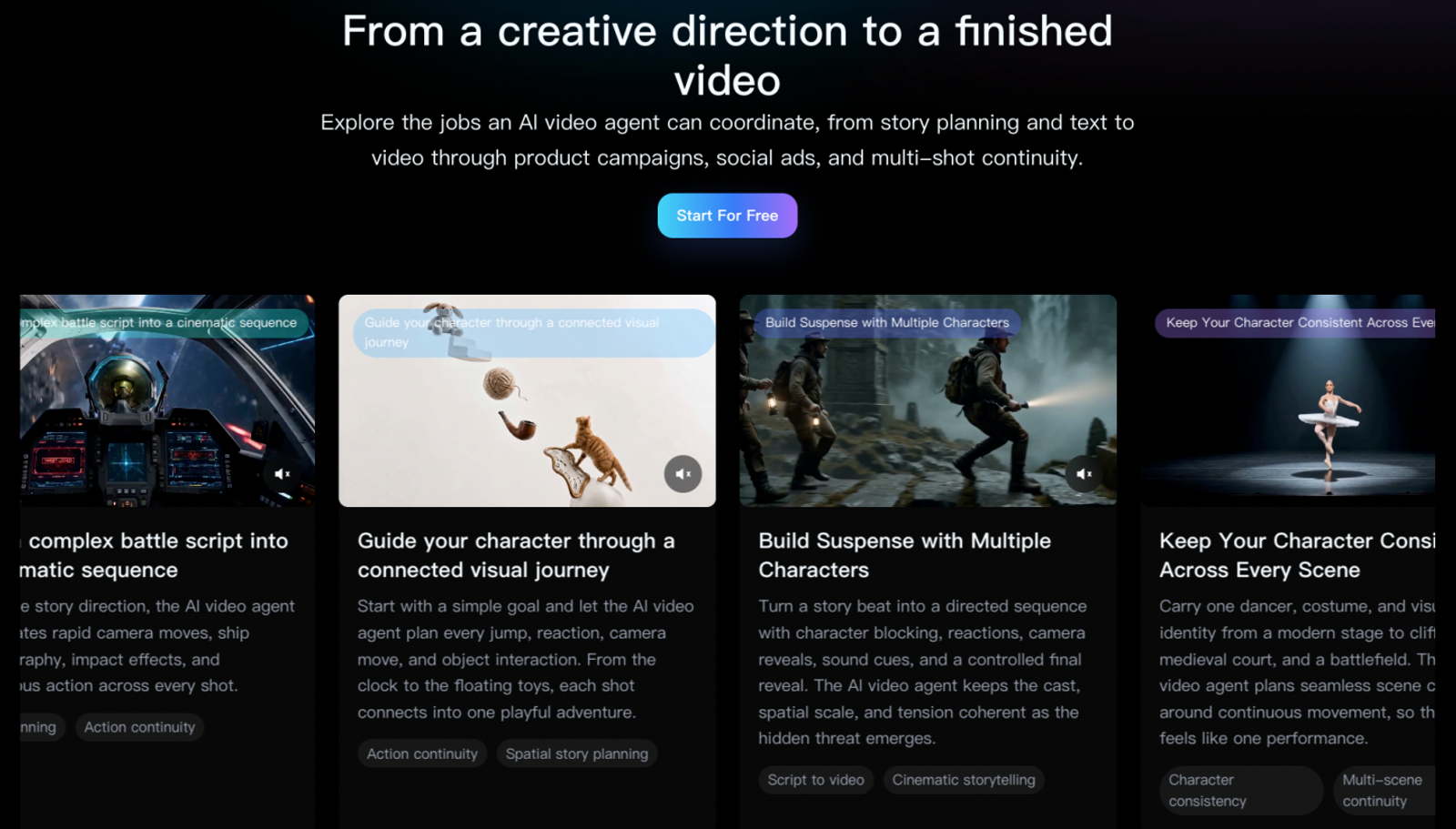
When you have a product image and a campaign brief—but no actual video footage of the scenes you want to show—assembly tools hit a wall. Wizstar’s AI Video Agent takes a brief, script, product photo, or visual reference, plans out individual scenes, coordinates video generation models, and supports step-by-step review and refinement. In practice, that means turning a product brief into a campaign video or a single product shot into a model-led ad.
This replaces Animoto's role in producing short product promos, but shifts how the source footage is created. While Animoto assembles existing media with AI assistance, Wizstar generates and directs new shots directly from your campaign brief. That difference matters most when you have a product photo on hand, yet the lifestyle or promotional scenes your campaign calls for have never been filmed.
For instance, a marketer might have a clean product reference and a promotional offer, but need a sequence of new, product-focused shots to bring it together. Scene planning keeps those generated clips tied to the campaign's broader creative direction. I’d turn to Wizstar for this missing-scene bottleneck, using the original product reference as the benchmark for approving outputs.
Always inspect the product closely across every generated clip—a warped package shape or distorted label can make an otherwise great-looking shot unusable for a real campaign. Running one controlled product sequence and one targeted revision is usually enough to judge whether it fits your standard. If you already have approved real footage that demonstrates the product clearly, sticking with your current assembly editor is the smarter call.
Compare annual plans by what the payment actually buy
| Representative plan | Annual USD payment | Monthly equivalent | Included allowance or feature | Material gate |
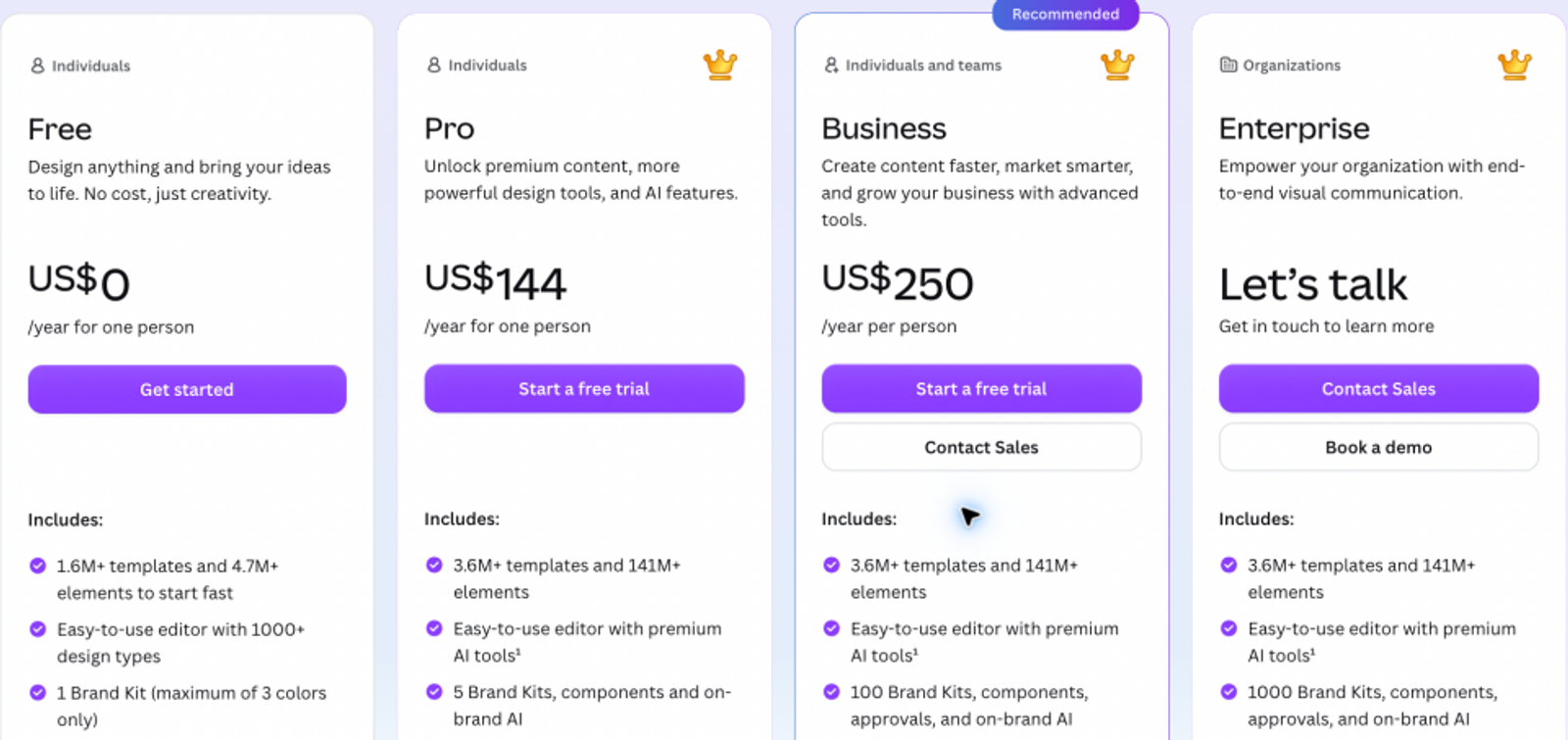
| Canva Pro | $144 | $12 | Up to five Brand Kits | One person; team approvals require Business |
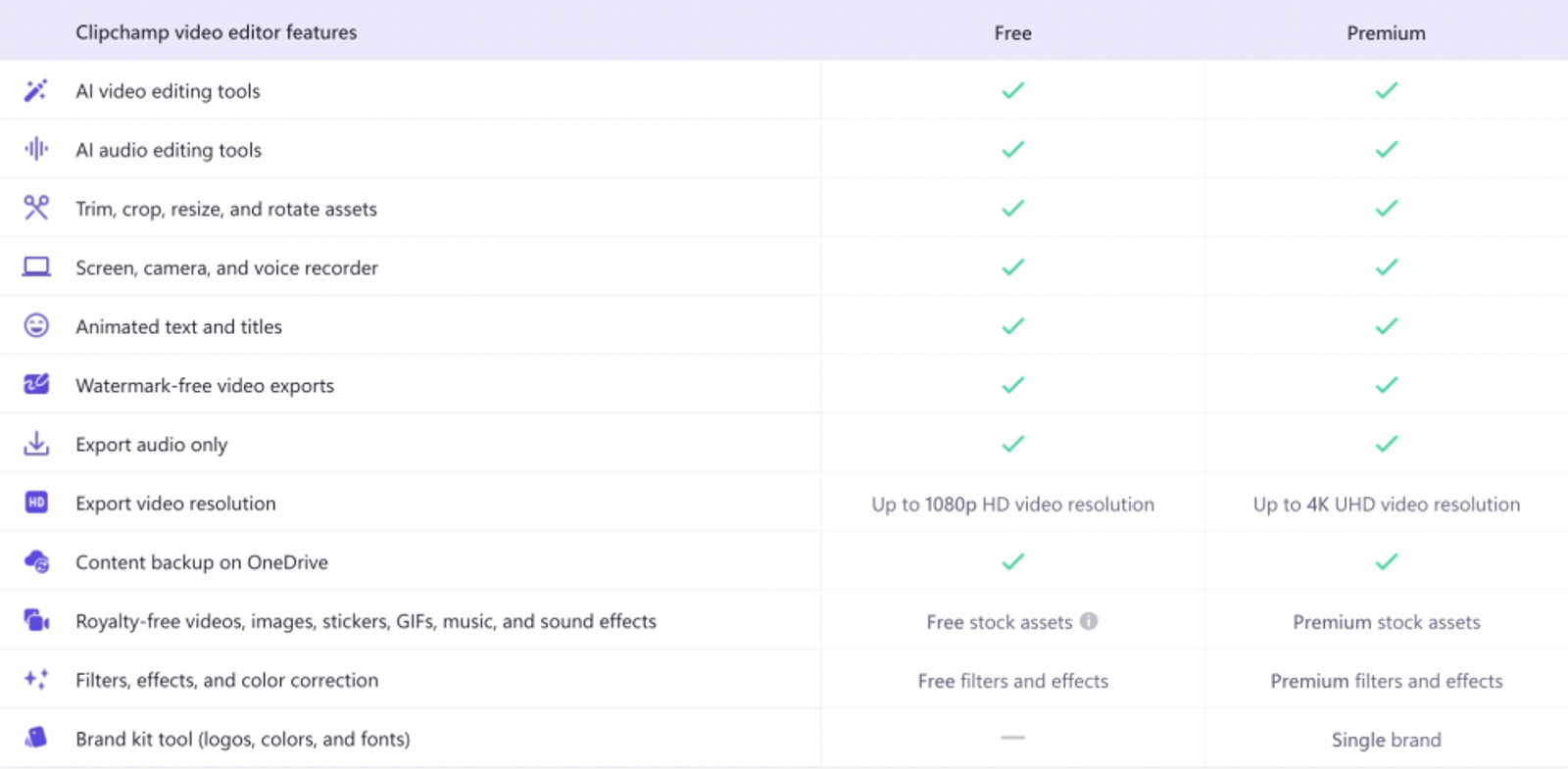
| Clipchamp via Microsoft 365 Personal | $99.99 | $8.33, rounded | Up to 4K, premium stock, single brand kit | Personal subscription for one person |
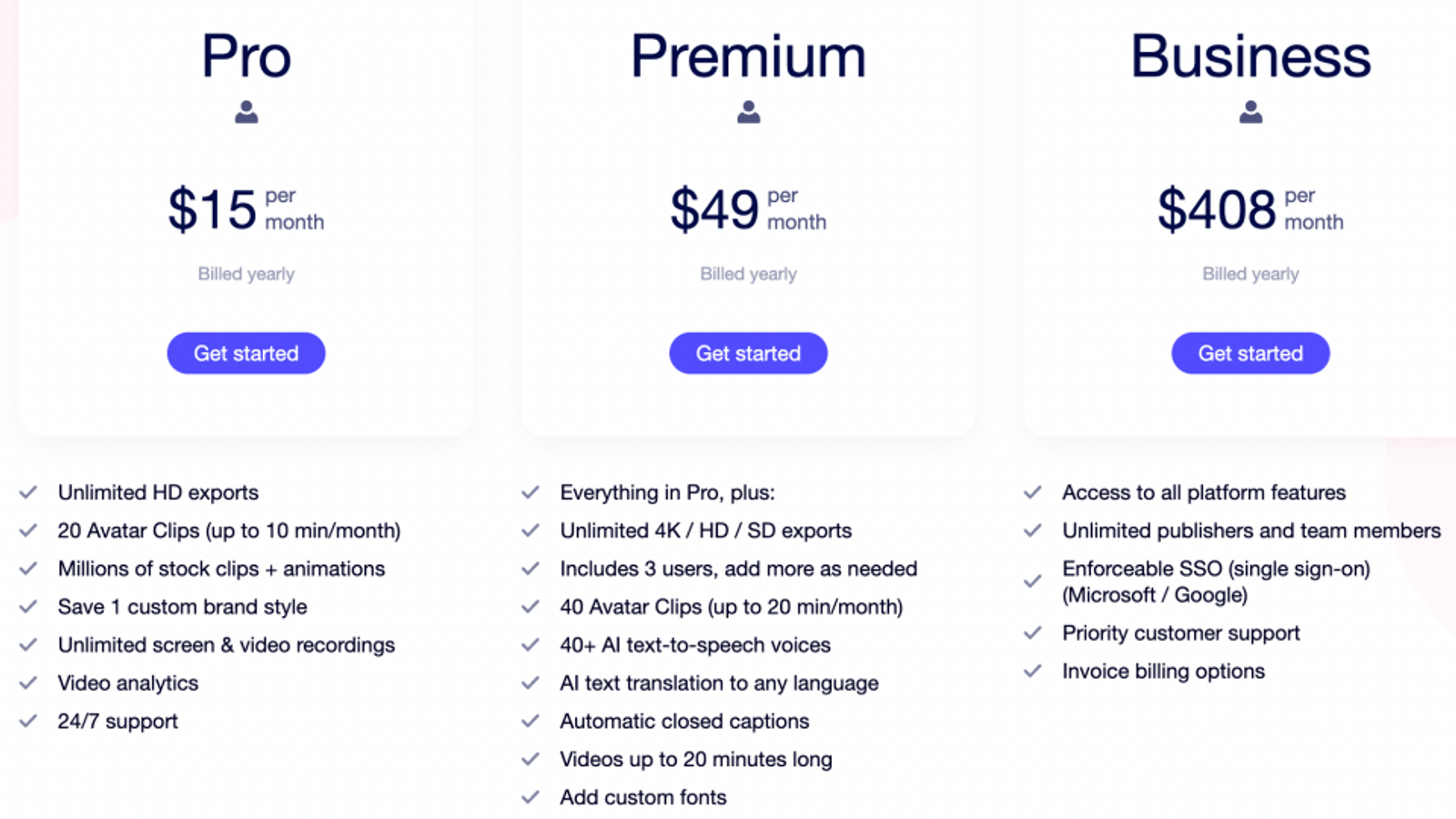
| Biteable Pro | $180 | $15 | Unlimited HD exports, up to 1080p | One user, one brand, ten-minute maximum |
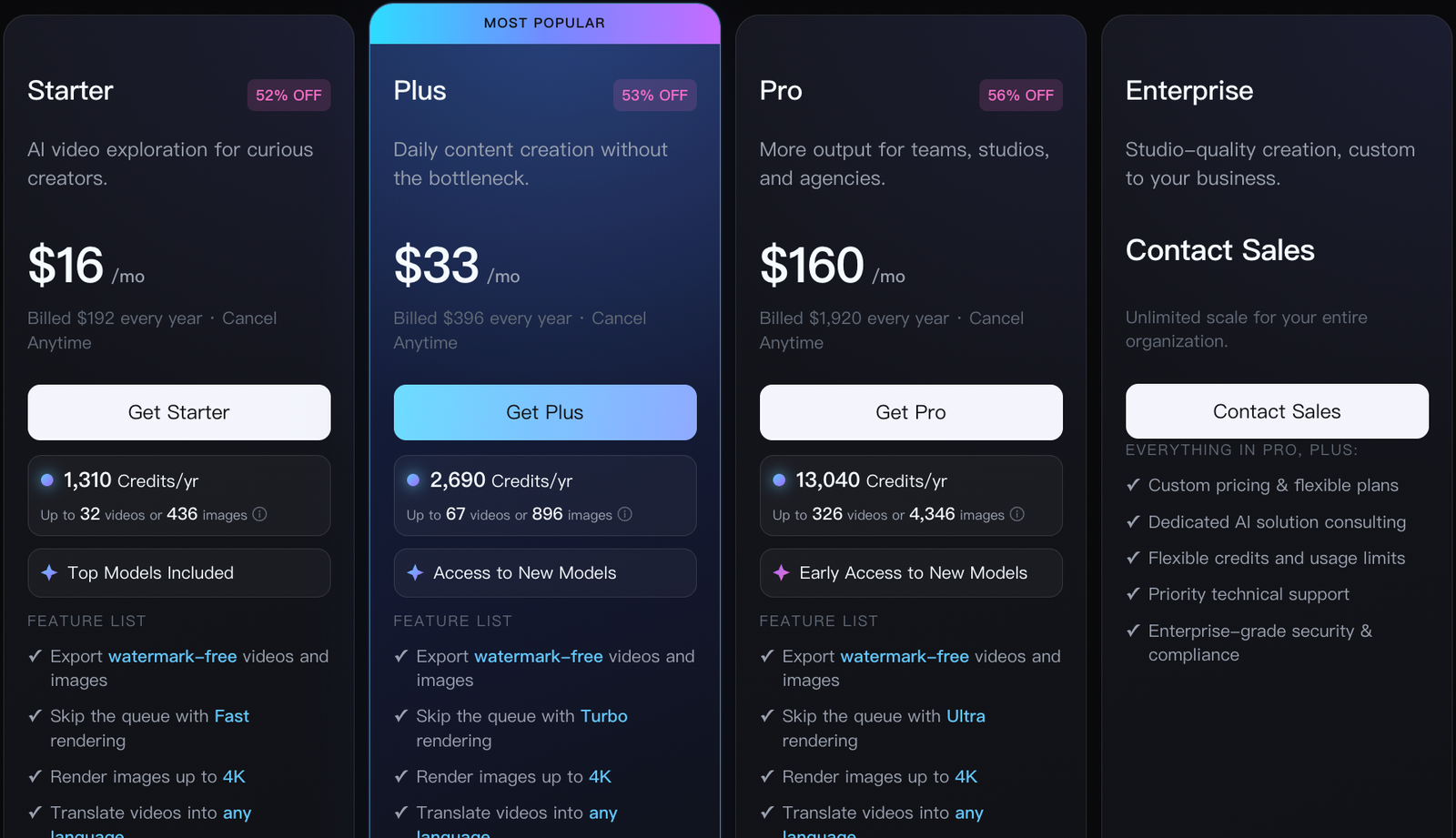
| Wizstar Starter | $192 | $16 | 1,920 shared image/video credits yearly | Generation consumes the shared pool |
An annual plan only pays off when its usage limits match the kind of videos you produce week after week.
Canva Pro’s $144 annual payment is my default paid starting point for a solo marketer building recurring branded campaigns. Having up to five Brand Kits keeps logos, fonts, and colors consistent across formats. Keep in mind that team approval workflows and shared workspaces require Canva Business with separate per-seat pricing, so Pro should not be used to estimate a multi-person team budget.
For straightforward clip editing, Clipchamp Free already covers watermark-free exports up to 1080p, so there is no need to pay if HD meets your specs. Upgrading only makes sense if you need 4K exports, premium stock, or a single brand kit—and note that the $99.99 figure is Microsoft 365 Personal’s regular annual price, not a standalone Clipchamp fee. If you already pay for Microsoft 365 Personal, factor in that existing access before buying another editor.
Biteable Pro’s $180 annual payment fits a solo creator regularly producing business videos for a single brand. Unlimited HD exports, built-in analytics, and commercial usage rights cover most ongoing promo needs. However, the ten-minute video cap and single-user, single-brand limits are firm boundaries—multiple creators or brands will push you into a higher tier. Here, unlimited export volume is the main value driver.
Wizstar Starter’s $192 annual payment includes 1,920 credits shared across image and video generation, with watermark-free exports and commercial use subject to terms. Using MiniMax H3 at 720P through the AI Video Agent costs six credits per second, which works out to 320 theoretical seconds of generated video per year (1,920 ÷ 6 = 320) if you spend the entire balance on that single mode. Generating images, using other modes, or discarding rejected takes will reduce your final usable footage—so treat that number as a raw capacity ceiling, not a guaranteed count of finished ads.
Save those generation credits strictly for new scenes your campaign lacks. Re-exporting an existing cut is an editing task, so reserve your AI budget for visual assets you cannot easily shoot or assemble elsewhere.
Replace the constraint, keep the working parts
A full platform migration only makes sense when your recurring video workflow has fundamentally changed. Otherwise, replace the specific step holding your campaign back and keep whatever already works. Adding a new scene-generation tool alongside a reliable timeline editor—or moving into a broader design suite when cross-channel consistency becomes the priority—keeps your production process lean and repeatable.
Conclusion
Pick the alternative that removes your immediate production bottleneck. Stick with Animoto or switch to Clipchamp when approved footage already carries your message; choose Canva when video has to stay tightly integrated with wider branded campaign graphics; go with Biteable when your recurring need is turning scripts into structured business videos.
Wizstar is the practical next step when your campaign needs product scenes that do not exist yet. Start by testing one product brief, reference image, and approved offer inside the Wizstar AI Video Agent. Review one generated sequence and run one targeted revision before shifting more campaign work over—that single test will tell you whether to keep your current editor for assembly and bring in Wizstar specifically for missing product scenes.
FAQ
- Can I cancel my Animoto plan?
- You can cancel your Animoto plan through your account page no later than the day before renewal. According to its cancellation FAQ, your paid access continues until the end of the current billing period. Time your transition around that remaining window so you can wrap up active projects without rushing, and remember that canceling auto-renewal and permanently deleting your account are two separate actions.
- What happens to my Animoto videos if I cancel?
- Your Animoto account reverts to the Free tier, and you keep full rights to your videos. However, Animoto’s pricing FAQ notes that videos stored in free accounts may be deleted after advance warning. Download local copies of all campaign masters rather than treating your account as long-term storage—retaining copyright does not guarantee cloud hosting once your paid term expires.
- Which payment methods does Animoto accept?
- Animoto accepts Visa, MasterCard, American Express, Discover, and PayPal. Its payment FAQ directs users to contact help@animoto.com for alternative arrangements if none of those options work. Check which payment methods your company approves beforehand, and specify the exact payment option you need when reaching out to Animoto support.
- Can I edit Animoto's AI-generated script before making a video?
- Yes. Animoto’s AI video maker FAQ lets you tweak or regenerate your inputs before the AI assembles the video. Use that step to verify your product name, offer details, and call to action—locking in the copy early gives the assembly engine a much clearer brief. Because script editing is already built into Animoto, copy revisions alone are not a reason to switch platforms.
- What happens to reference files uploaded to Wizstar?
- Wizstar uses uploaded reference files to guide content generation. Its Privacy Policy governs uploaded and generated content, technology training and improvement, and passing inputs to underlying model providers for generation. Data retention is purpose-based—with legal and product-improvement exceptions—rather than tied to a short fixed window. Only upload approved, rights-cleared assets and secure permission before sharing confidential brand materials, as uploading a reference file does not guarantee immediate deletion or opt-out from training.