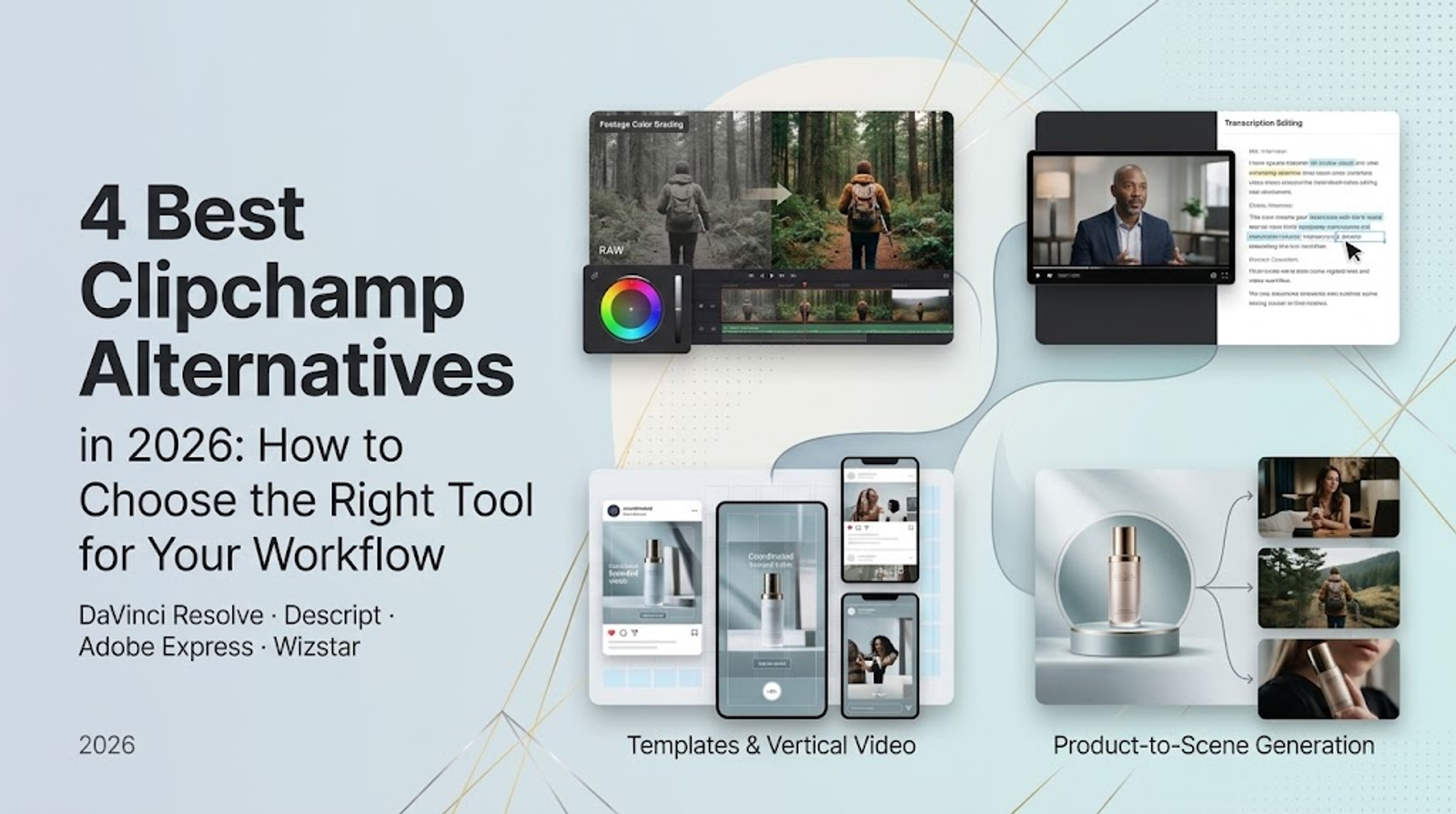
The Clipchamp alternatives to start with are DaVinci Resolve for footage control and Descript for recorded speech. Adobe Express handles reusable branded templates, while Wizstar handles product or reference-led video generation. For basic, watermark-free 1080p editing, Clipchamp is already enough.
I would make the choice around the work you repeat each week. A timeline editor, a transcript editor, a template system, and a generative workflow replace different parts of a creator’s day. Switching only helps when the new tool addresses the part that actually needs to change.
What should replace Clipchamp?
Clipchamp remains a sensible baseline for solo creators who want personal-plan editing, templates, and everyday AI video or audio tools. Its Free plan exports watermark-free video up to 1080p HD. Premium access through Microsoft 365 Personal or Family adds premium stock, a brand kit, and exports up to 4K UHD. Free users cannot export projects that contain premium assets.
Microsoft 365 Personal is listed at $9.99 per month in the US. That purchase gives you a full Microsoft 365 subscription with Clipchamp Premium access included, rather than a standalone Clipchamp plan. Make sure to consider that bundled access before paying for another editor. For occasional basic editing, stick with the Free tier if watermark-free 1080p exports cover what you need.
Compare each tool’s primary job with the allowance or output limit attached to its representative plan:
| Tool | Main job | Representative plan and displayed price | Relevant allowance or output limit | Main boundary |
| Clipchamp | Basic editing and templates | Free; M365 Personal $9.99/month Premium | 1080p Free; 4K Premium | Premium assets require eligible access |
| DaVinci Resolve | Footage, color, audio control | Free desktop edition | 8-bit up to UHD at 60fps | Free scope excludes Studio AI tools |
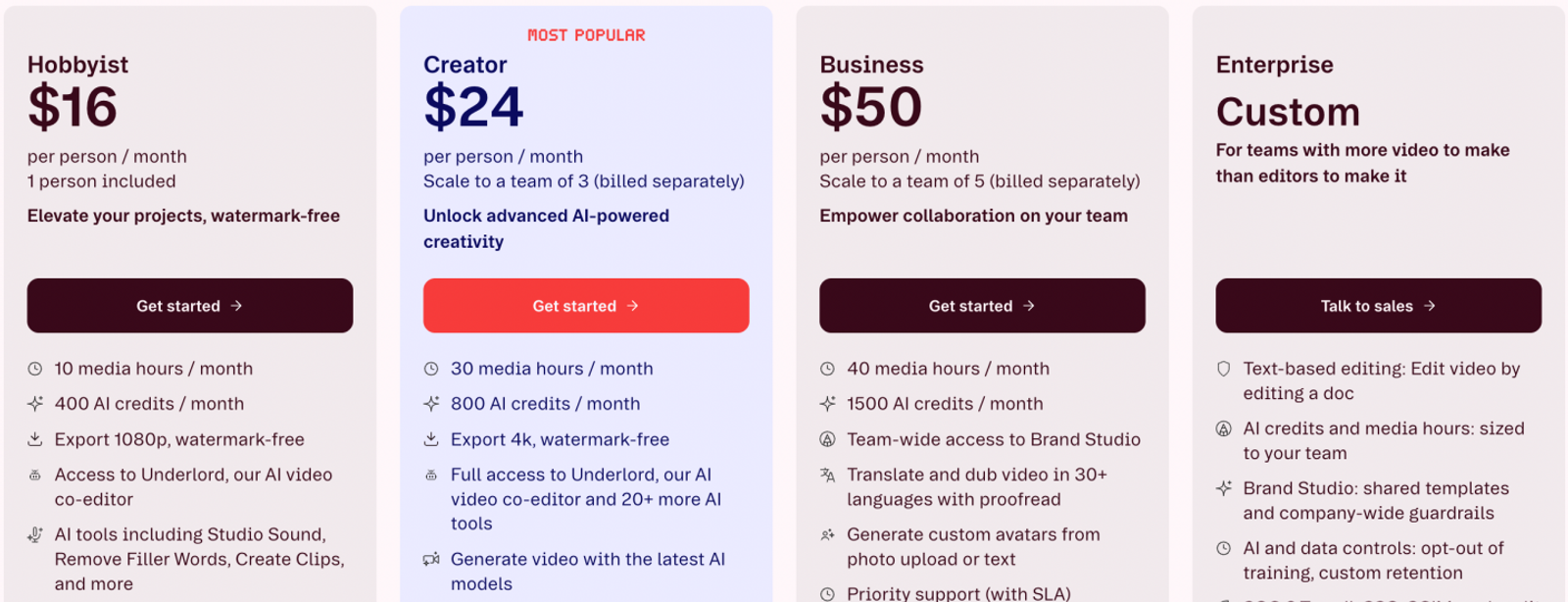
| Descript | Transcript-led speech edits | Hobbyist $24/person/month | 10 media hours; 400 AI credits; 1080p | Built around recorded speech |
| Adobe Express | Brand templates and resizing | Premium US$9.99/month | 250 generative credits per user | Credits do not equal video count |
| Wizstar | Product and reference-led generation | Starter $10.99 first month; $18.05 renewal | 1,310 Credits/Mo; watermark-free | Credits do not guarantee an output count |
The task column should drive your choice: keep Clipchamp unless footage control, speech revisions, brand reuse, or prompt-based generation is your recurring bottleneck.
DaVinci Resolve: more control over footage you already have
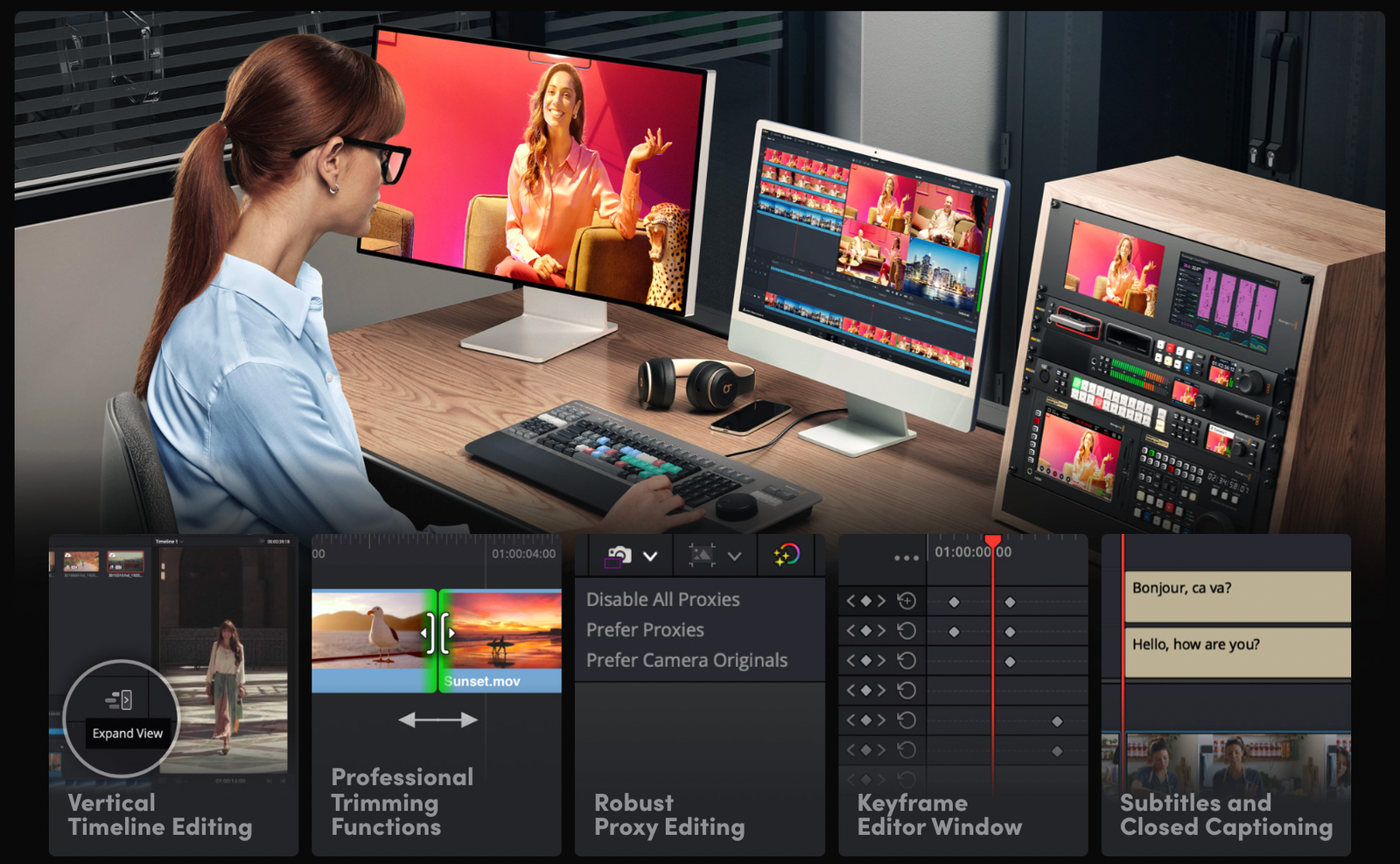
DaVinci Resolve 21 is the premier free desktop choice when your main challenge is controlling footage, color grading, effects, or audio. Move to Resolve when your raw footage demands deeper precision than a browser-based timeline provides. Its dedicated edit, color, VFX, and audio panels address those tasks directly.
I choose Resolve for surgical trimming, a proper color correction pass, or a more deliberate audio mix. Direct controls put every adjustment right at your fingertips. At the same time, they require you to make more technical decisions yourself, so consider how much granular control your project actually demands.
Start with the free edition’s editing scope
Resolve’s free edition supports virtually all standard 8-bit video formats up to 60fps and Ultra HD (3840 × 2160). These figures describe supported file formats, frame rates, and export resolutions. They do not represent a monthly allowance of input hours or generated video minutes, so comparing them against another tool's cloud credits would obscure the real trade-offs.
Resolve Studio’s AI Neural Engine and automated text-based editing are not part of the Free edition. Do not factor Studio features into the equation when deciding whether the free version covers your day-to-day work. The core advantage of free Resolve rests entirely on its industry-standard footage, color, visual effects, and Fairlight audio controls.
Switch to Resolve when those manual controls eliminate an ongoing editing bottleneck. A paid subscription elsewhere is not automatically better just because you edit frequently. Stick with Clipchamp when your clips are already clean, brief, and ready for a quick export. Extra control only helps when the raw material truly demands it.
Descript: edit recorded speech through a transcript
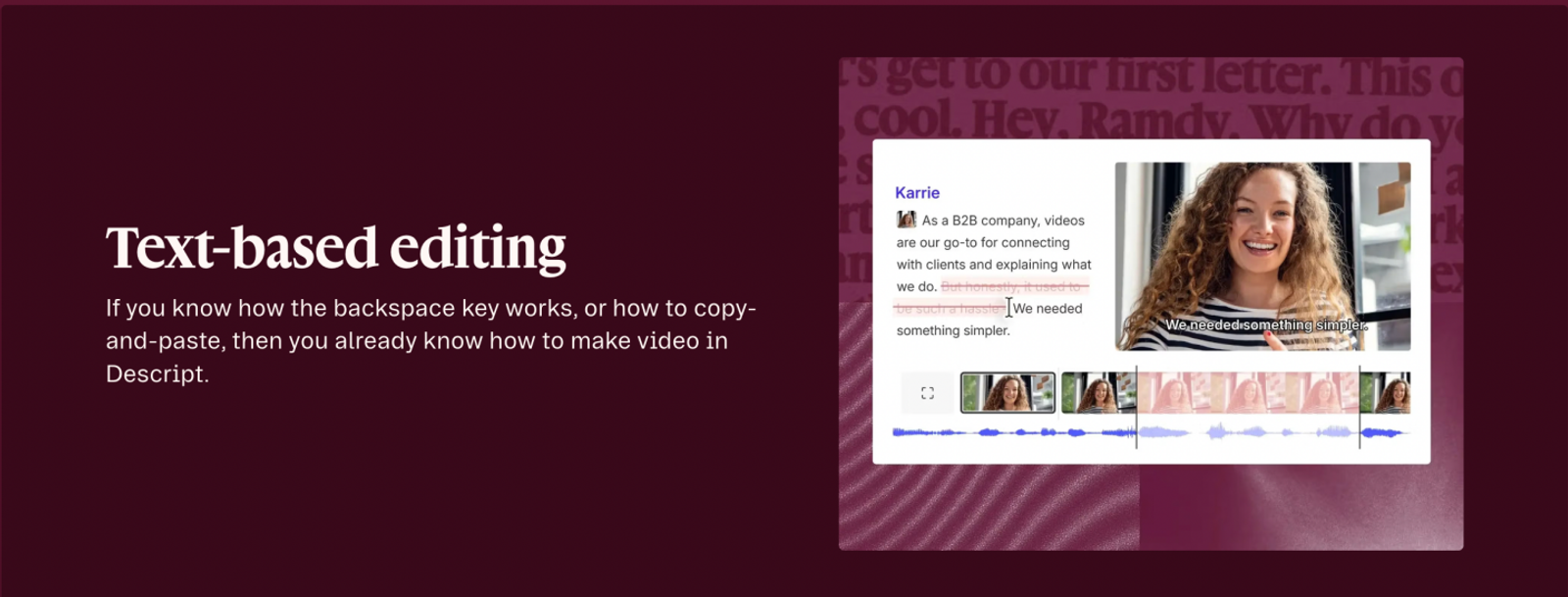
Descript is the specialized choice for spoken content that changes line by line. Its text-based workflow lets you revise recorded speech directly through an interactive transcript, then apply tools like Remove Filler Words, Studio Sound, Underlord, and Create Clips. A wording revision begins with the written transcript rather than tedious timeline slicing.
I lean toward Descript when the spoken dialogue is the element that undergoes constant revisions. Editing multi-take interviews or updating tutorial scripts gives this transcript-first model clear value. If the voiceover is finalized and the visual presentation needs polish, stay with a standard timeline editor. Resolve remains the better choice for b-roll pacing, color grading, and complex visual sequences.
Pay for transcript work, and count the input hours
The Hobbyist plan is $24 per person per month for a single seat. It includes 10 media hours per month, 400 AI credits per month, and 1080p watermark-free exports. Media hours reflect the duration of raw source files you import into your account each month—they do not represent finished video duration.
For recurring voice edits, weigh that cost against your actual transcription needs and the run time of your raw recordings. A 60-second social clip can easily originate from a 30-minute interview take. The monthly input allowance and the 1080p export cap therefore deserve close attention when evaluating whether the Hobbyist tier meets your production demands.
Adobe Express: reuse video templates and brand assets
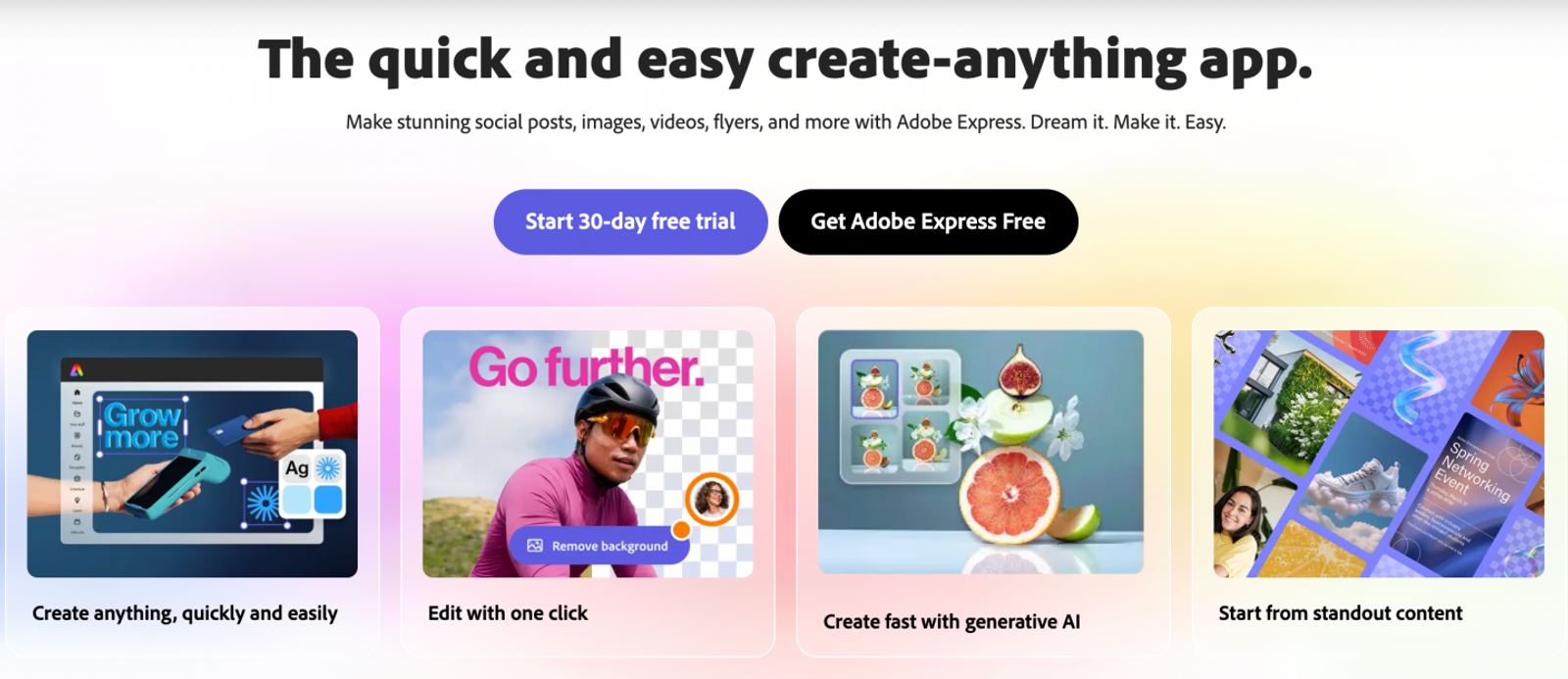
Adobe Express is the go-to platform for template consistency and brand asset reuse. Its library of premium video and static templates, one-click resizing, shared brand kits, and automated Remove Video Background tool streamline repetitive layout and presentation tasks. My default pick is Adobe Express whenever branded uniformity is the goal, particularly when the recurring job is adapting one visual concept across multiple platforms.
Templates provide a reliable starting structure for product launches, captioned short-form clips, or multi-ratio social graphics. However, templates cannot fabricate product footage that was never shot. Keep that distinction clear: a missing layout template and missing raw footage require fundamentally different tools.
Premium earns its place through repeated brand work
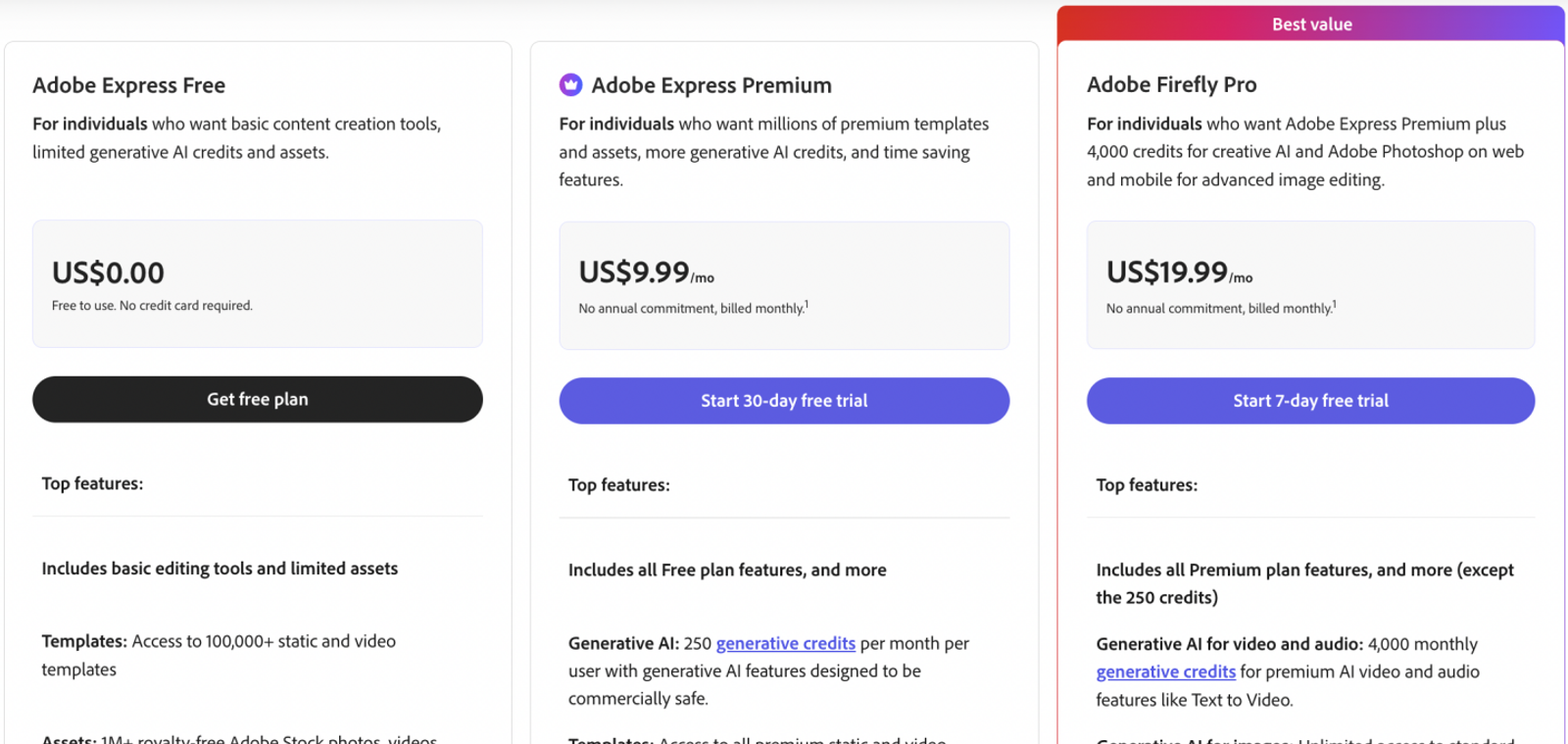
The Premium plan costs US$9.99 per month billed monthly with no annual commitment. It unlocks the full set of premium design tools and provides 250 generative credits per user each month. That credit count is a monthly account allowance, not a standardized unit of completed videos that can be compared apples-to-apples with Wizstar.
The free tier of Adobe Express still provides basic editing and standard templates. Stick with the Free plan if those tools handle your needs, especially for occasional social posts. The Premium tier justifies itself when brand kits, continuous multi-platform resizing, or premium assets are part of your weekly routine. Invest in the specific efficiencies you will use on a regular basis.
Base your decision on whether brand continuity is an everyday hurdle. A recurring need to reformat branded assets gives Premium a clear purpose that goes beyond simply having access to a larger template library. If your main challenge is manipulating timeline footage, Resolve will serve you far better than paying for design software.
Wizstar: generate product videos from ideas and references
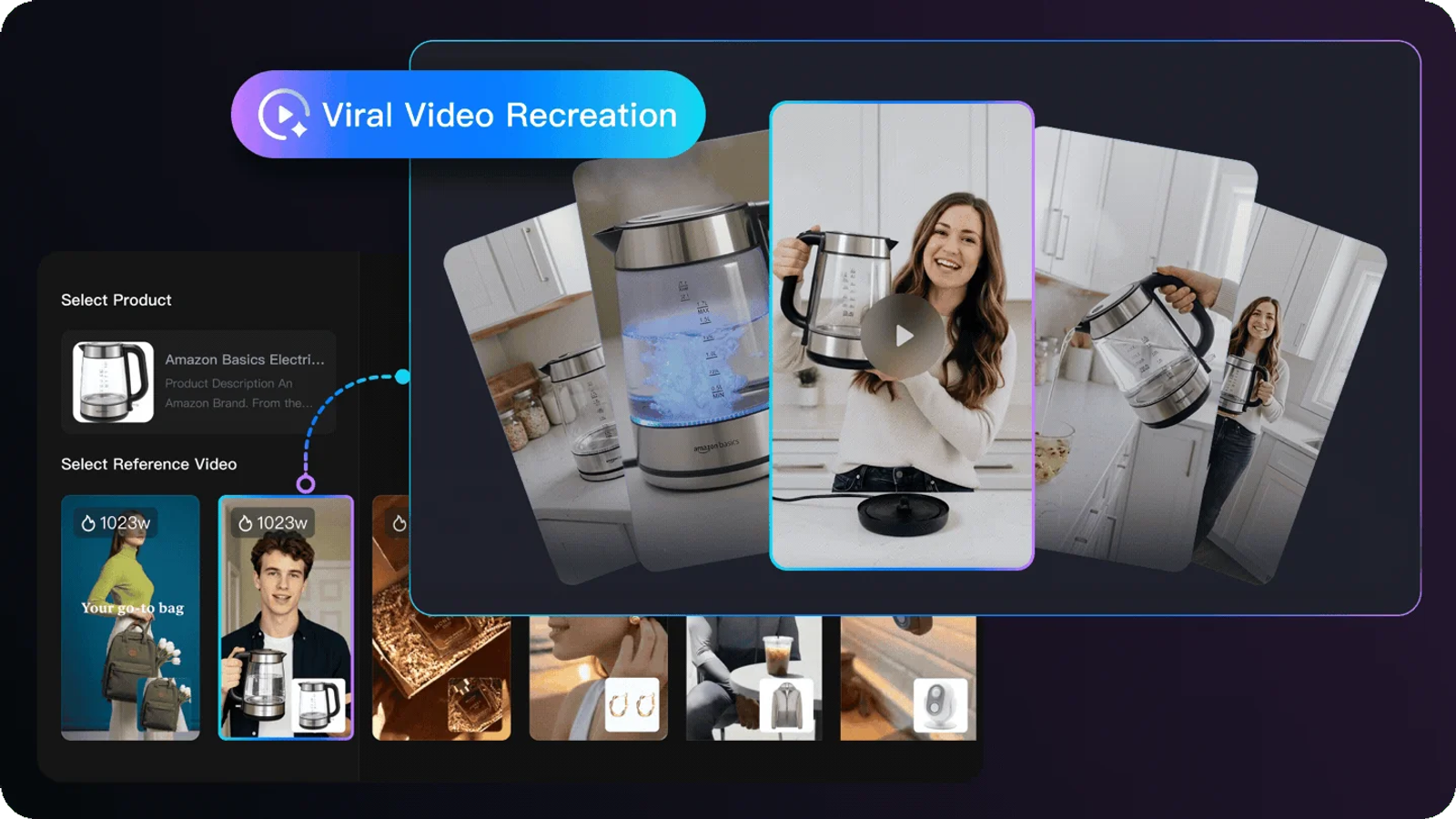
Wizstar uses text prompts, static photos, product URLs, scripts, or reference clips to generate brand-new, product-focused video content. Its Viral Video Recreation workflow is built to analyze a reference clip's script structure, shot framing, visual pacing, and transitions, adapting those patterns for your own product. Supported inputs include your product details, Trending Ads or an uploaded video, target language, and custom prompts.
A reference clip provides a structural starting point. It does not guarantee an exact frame-by-frame visual match or identical product consistency across every camera angle. Similarly, the Viral Video Recreation feature name describes a production workflow rather than a promise of guaranteed social reach. Keep your product assets and reference files organized, ensuring clear product positioning takes priority over rapid motion styling.
I use this approach to transform a new product concept into a visual draft when no existing video assets exist. Project compatibility with Clipchamp has not been established, so do not expect to import native Clipchamp project timelines directly into Wizstar. Continue relying on Clipchamp for straightforward cuts on footage you have already captured.
Budget around renewal and the generation task
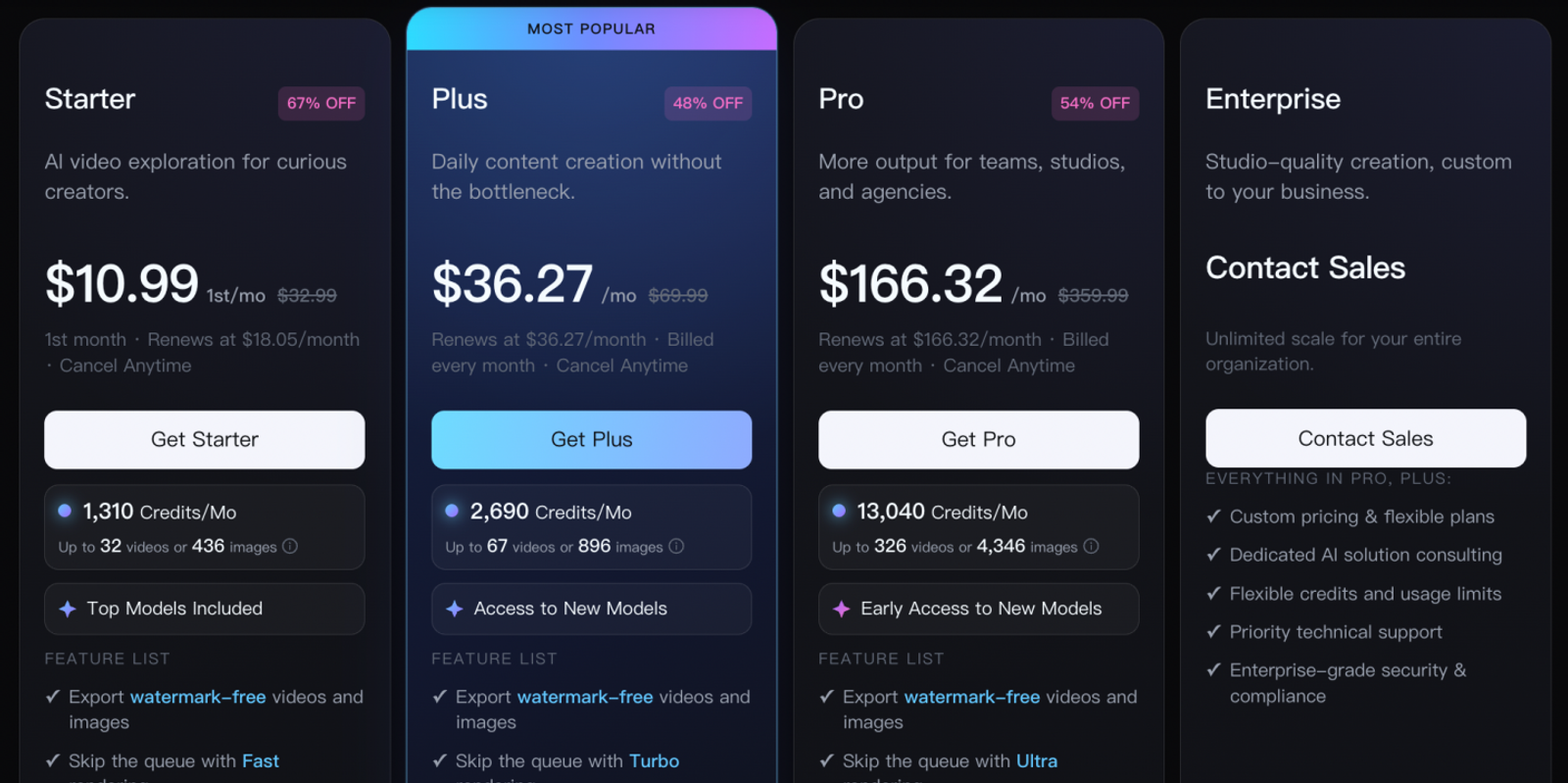
The Starter Monthly plan is listed at US$10.99 for the first month and renews at US$18.05 per month. It includes 1,310 Credits/Mo and watermark-free downloads. When planning for ongoing video generation, calculate your long-term budget around the $18.05 renewal rate rather than the introductory first-month price.
Always confirm model access levels and credit consumption estimates before calculating your expected video volume. Raw credit totals cannot be converted into an exact number of finished seconds, images, or renders. Avoid budgeting around expected similarity scores or render speeds without running real-world test outputs first. A larger credit allotment between different services does not automatically represent better creative value.
Wizstar’s paid tier fills a distinct need when generating novel, reference-inspired product video is your primary bottleneck. For basic clip trimming and quick exports, Clipchamp’s built-in free tier already handles that job cleanly. Let your operational gaps guide your spend: timeline control, speech revisions, brand layouts, and AI video generation each call for a completely different software choice.
Conclusion
Before changing editors, clearly define your next project, the assets you currently hold, and the final deliverable you require. Synthesizing missing product footage from scratch demands an entirely different toolchain than trimming a few seconds off an existing clip. For recurring paid software, evaluate the regular renewal price against your monthly production workload. If your current tool already fulfills your criteria, keeping it remains the smartest move.
If you need new product scenes shaped around an existing reference format, assemble your product images and a benchmark video. Open Wizstar's Viral Video Recreation workflow to see how your assets map to its setup. Review available AI models, the active subscription pricing, and estimated credit costs before upgrading. Finally, verify that your project format requirements match before migrating away from your current workflow. Running these checks upfront ensures that any subscription you choose solves a real operational problem.
FAQ
- Which browsers does Clipchamp support?
- Clipchamp officially supports Google Chrome and Chromium-based versions of Microsoft Edge. Microsoft recommends updating your browser to the latest stable release before launching the web editor. If you are experiencing playback or export glitches, update your browser first before assuming you need a different video editor. Note that desktop browser compatibility does not automatically guarantee full functionality on mobile browsers, so test your smartphone or tablet workflow independently.
- Can Microsoft 365 commercial or education customers use Clipchamp?
- Select Microsoft 365 business and education license tiers include standard access to Clipchamp for work accounts. According to Clipchamp's pricing documentation, accessing advanced premium features and automated AI video creation in work environments requires an eligible Copilot add-on or specific enterprise licensing. Check your tenant's assigned license with your IT administrator before paying for an external subscription. Personal Microsoft 365 plan features do not mirror organizational account entitlements, which vary across institutions.
- What format does Clipchamp export videos in?
- Clipchamp exports completed video projects as standard MP4 files. Its technical documentation also notes that both personal and work accounts can export audio-only M4A files, or convert video segments up to 15 seconds into looping animated GIFs. Audio-only exports work well for podcast tracks or extracting dialog from existing clips. Determine your final distribution channel before choosing your output format: a standard MP4 video, a standalone audio track, or a lightweight GIF.
- Can Clipchamp users save different versions of a video?
- Yes, personal accounts can maintain distinct editable project milestones by duplicating a project. While Clipchamp automatically saves changes to your active workspace, duplicating the project allows you to test structural revisions without overwriting your baseline cut. From the main project dashboard, click the three-dot menu on any project card and choose Make a copy. When opening a cloned project, you may occasionally need to relink local media files. Alternatively, you can export intermediate MP4 checkpoints along the way, though that creates standalone video renders rather than editable project forks.
- Do unused Wizstar subscription credits carry over?
- Wizstar’s credit rollover and expiration policies depend on your specific tier and billing terms. The platform's pricing FAQ advises users to consult their account dashboard and the checkout terms for the most up-to-date conditions. If you only produce content occasionally, review these rollover dates before relying on banked credits for future campaigns. Never assume that unused credits accumulate indefinitely, as credit mechanics vary significantly across different SaaS platforms.
- How can Wizstar subscribers cancel a subscription?
- Wizstar subscribers can manage or cancel their recurring membership directly within their account billing settings. Subsequent platform access and remaining credit validity follow the specific cancellation terms tied to your active plan. Check your account terms before selecting a cancellation date, particularly if you have active projects or unrendered drafts scheduled for the current billing cycle. Always rely on the exact cancellation terms outlined in your billing portal when planning your workflow transitions.