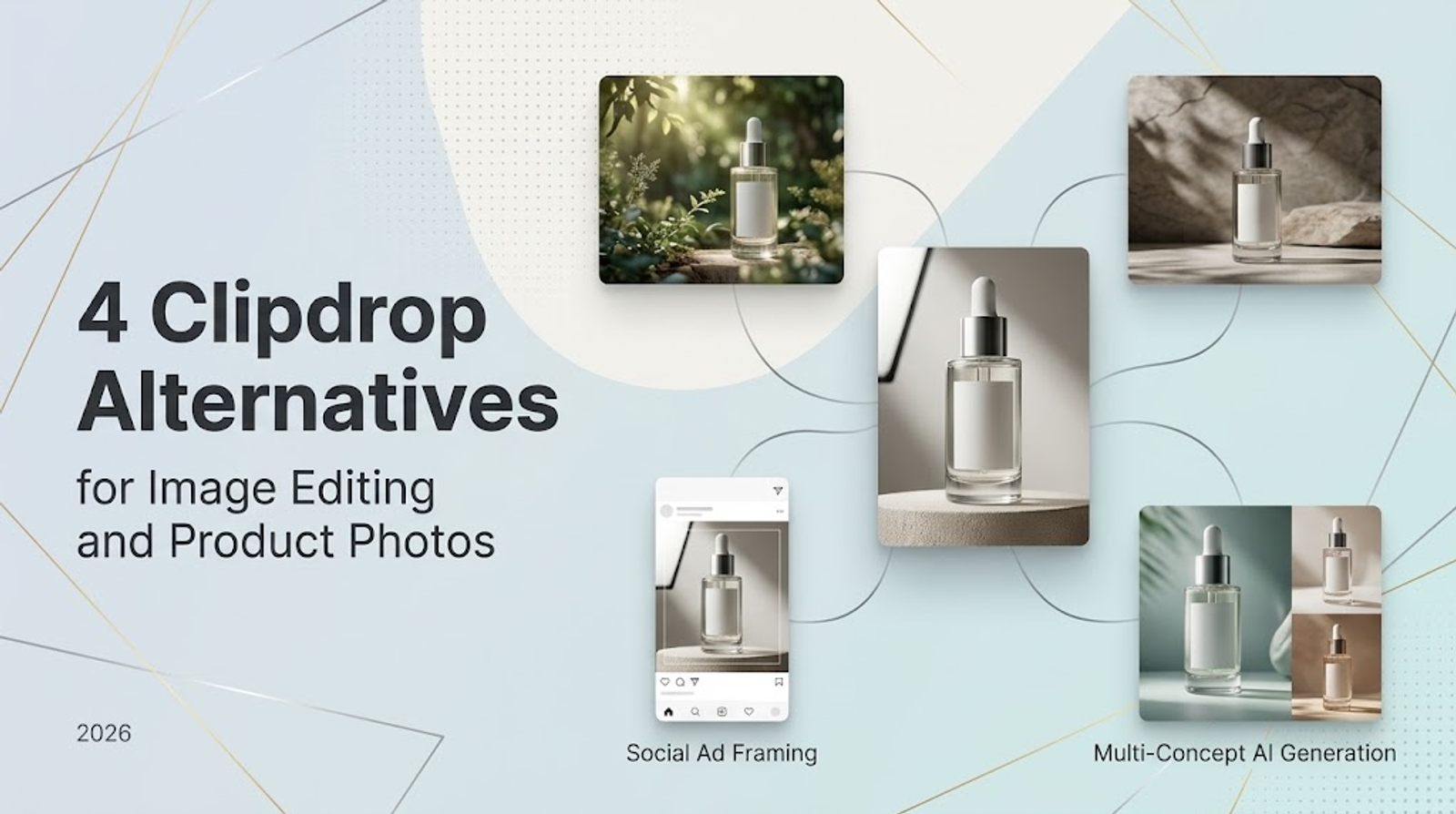
Pixelcut leads these Clipdrop alternatives for product-photo edits, while Adobe Firefly is the standard choice for repeated Generative Fill. Canva best suits branded design layouts, and Wizstar stands out for model-based image generation using text or image reference inputs. My starting point is always the exact asset you need to produce: a clean cutout, a retouched photo, or an entirely new commercial scene.
While these outputs may look similar at first glance, they demand very different toolsets. Preserving the exact details of an existing product requires one approach, while generating a completely fresh environment around it requires another.
A shortlist built around the image job
Clipdrop covers background removal, image cleanup, text-to-image generation, and background replacement. It remains the benchmark for determining which specific part of your visual workflow requires an alternative.
The shortlist below organizes each tool by its primary job and the key controls supporting that workflow.
| Tool | Main image job | Controls and workflow |
| Clipdrop baseline | Cutouts, cleanup, generated images | Background removal, cleanup, background replacement |
| Pixelcut | Product-photo edits and scenes | Background removal, batch exports, Product Studio |
| Adobe Firefly | Generative image edits | Standard Generative Fill |
| Canva | Branded posts and ad layouts | Background removal, resize, Brand Kits, scheduling |
| Wizstar | Model-based generation and product images | Text/reference inputs, magic erasure, product image generation |
The critical distinction comes down to what happens to the asset next: precision editing, generative scene creation, or final graphic design layout.
Pixelcut for product-photo edits and scenes
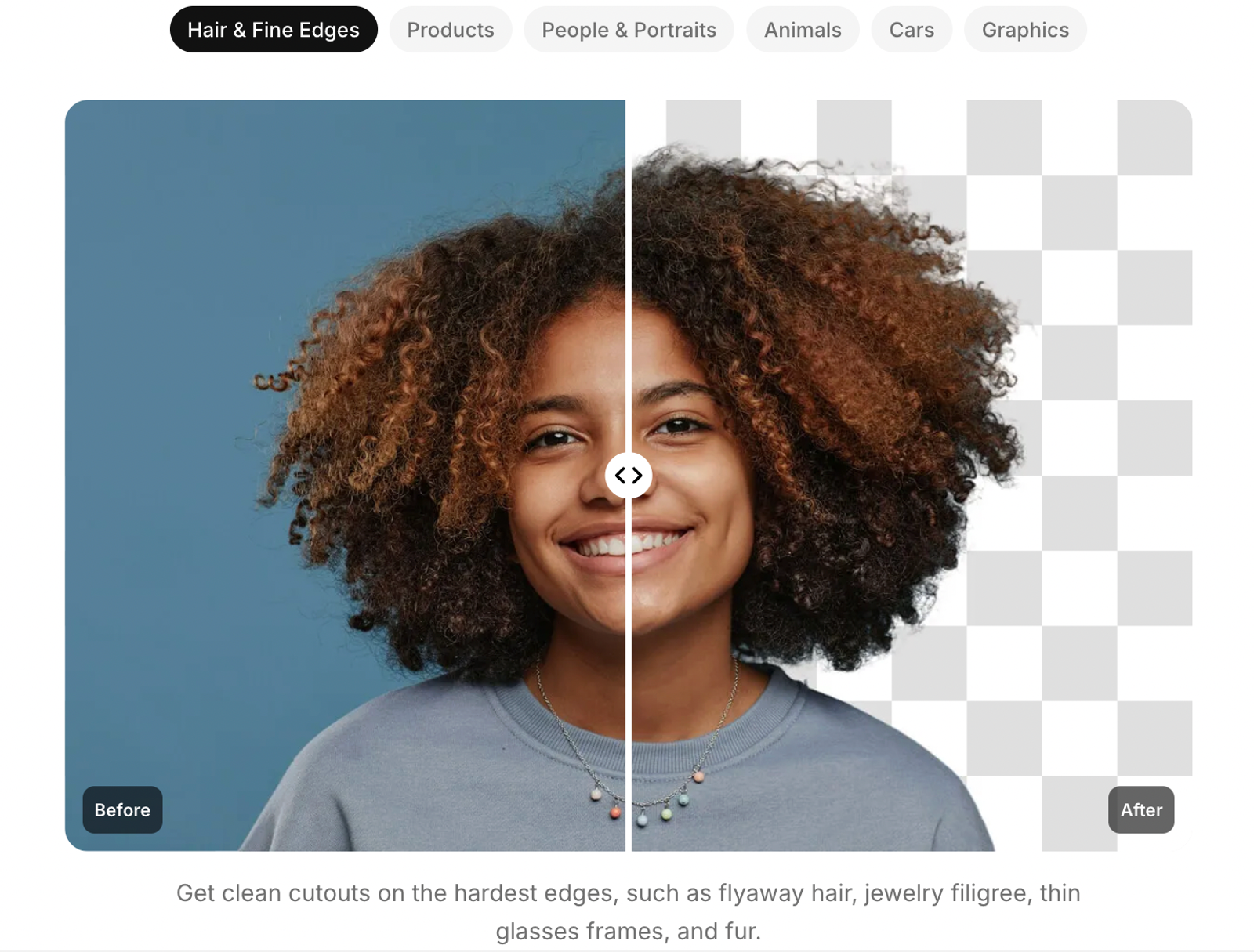
Pixelcut integrates background removal and product scene staging into a single workflow. Its editing suite features Generative Fill, AI Backgrounds, and Pro Eraser, alongside automated background removal and batch export capabilities. This setup works well whether an existing photograph needs quick cleanup or an isolated item requires a new backdrop.
Its Product Studio begins with a single product photograph, guiding you through template selection, scene customization, image generation, and export.
When generating commercial backgrounds, inspect product labels, typography, and edge contours against the original image before applying the workflow across a full product catalog.
Adobe Firefly for repeated generative edits
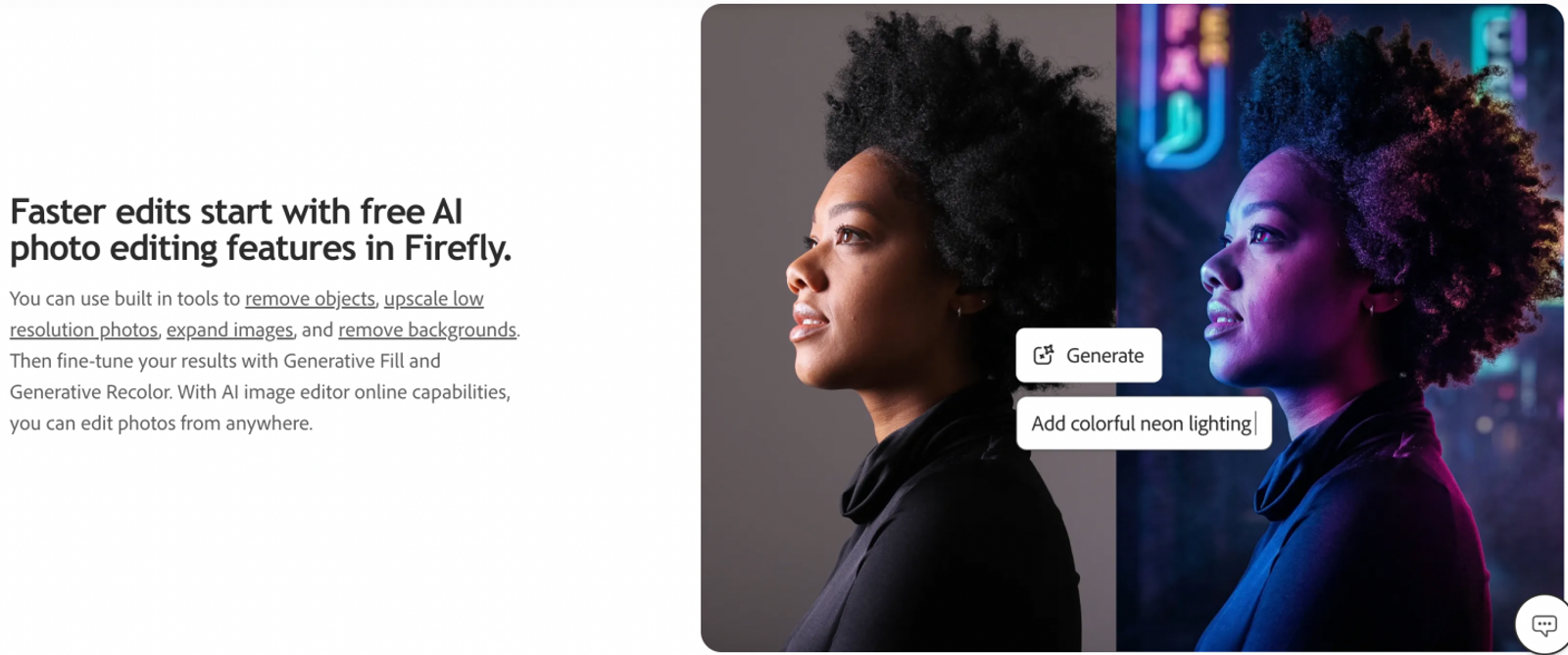
Adobe Firefly anchors this comparison around standard image generation and editing tools like Generative Fill. Its distinct strength lies in generative modifications: expanding canvases or altering existing visuals when the brief specifically calls for seamless fill operations.
Firefly belongs on your shortlist when you regularly execute generative edits where the original image serves as the permanent base.
Canva for turning images into finished designs
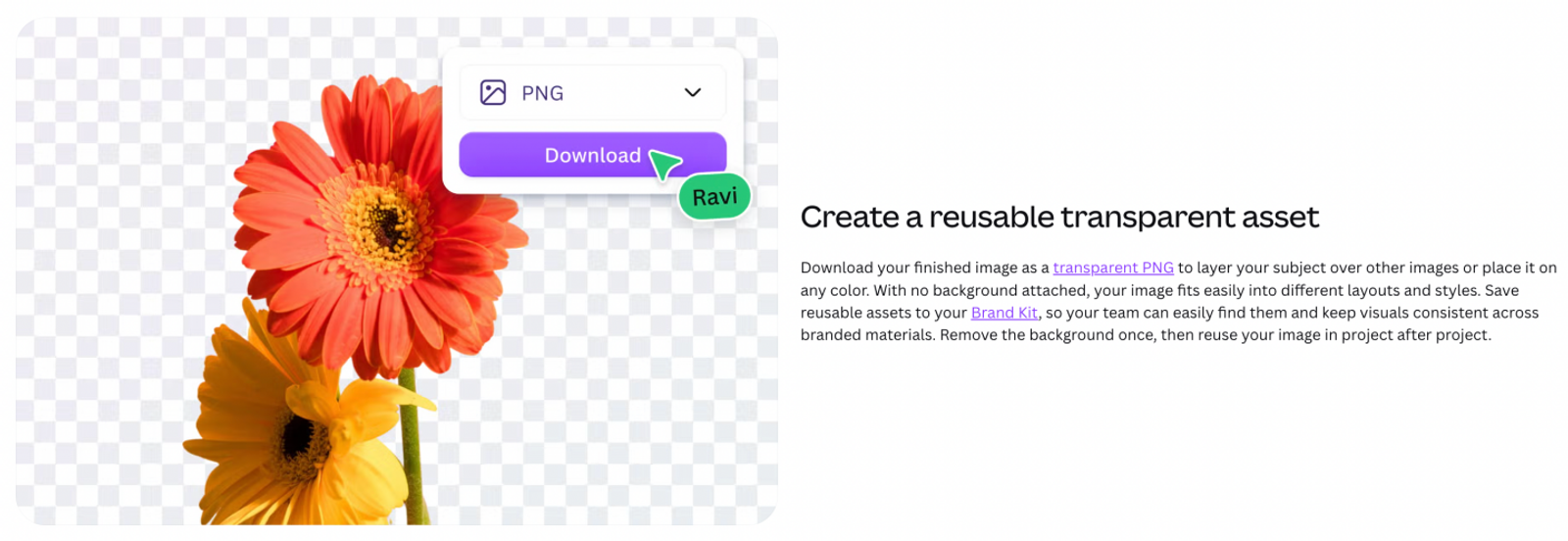
Canva connects image preparation directly to the marketing collaterals and social ad layouts that follow. Its documented feature set covers background removal, instant resizing, centralized Brand Kits, text translation, and post scheduling.
A single promotional campaign often requires one product cutout adapted across multiple formatted layouts. In that case, isolating the subject is merely the first step. Final asset layout and distribution tools carry the most weight when multi-channel publishing is part of the assignment.
Wizstar for model-based image generation
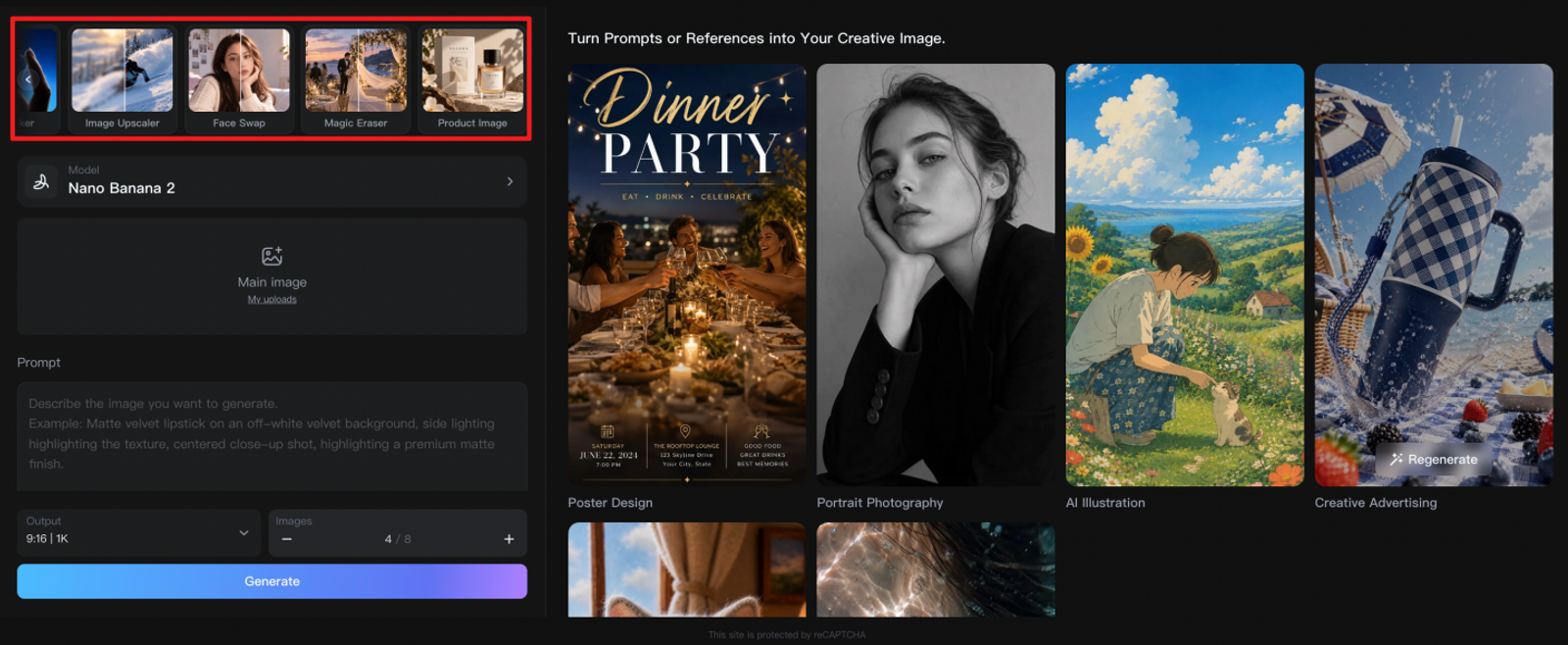
Wizstar’s AI image generator combines text and image reference inputs with flexible generative rendering, magic erasure, and targeted product photography creation. Direct access to specific generation models is a primary draw, allowing you to build assets from written prompts or uploaded reference imagery.
The magic erasure tool adds localized editing alongside raw generation, ensuring the studio handles more than just text-to-image prompts. Wizstar belongs on your shortlist when your production pipeline requires fine-grained model selection, reference image fidelity, and creative rendering.
What will these Clipdrop alternatives actually cost?
The most practical metric is how much a monthly subscription covers relative to your realistic production volume. The subscription pricing below was verified on November 2, 2026, in USD based on monthly billing terms. Annual prepay discounts and API rates are excluded. Canva pricing excludes local sales tax; Wizstar calculates applicable tax at checkout.
Note on plan selection:
The plans analyzed here reflect the workflows discussed: Clipdrop Pro for high-resolution editing, Pixelcut Pro for background cutouts and batch processing, and Canva Pro for graphic finishing. Firefly Standard includes unlimited standard Generative Fill. Wizstar Plus provides access to all integrated models, supporting the model-specific cost breakdowns below. Standard, Pro, and Plus designate provider-specific tiers rather than equivalent functional bundles.
The table outlines the baseline subscription cost and the usage allowance powering each calculation.
| Tool and selected plan | Monthly price | Included access or allowance |
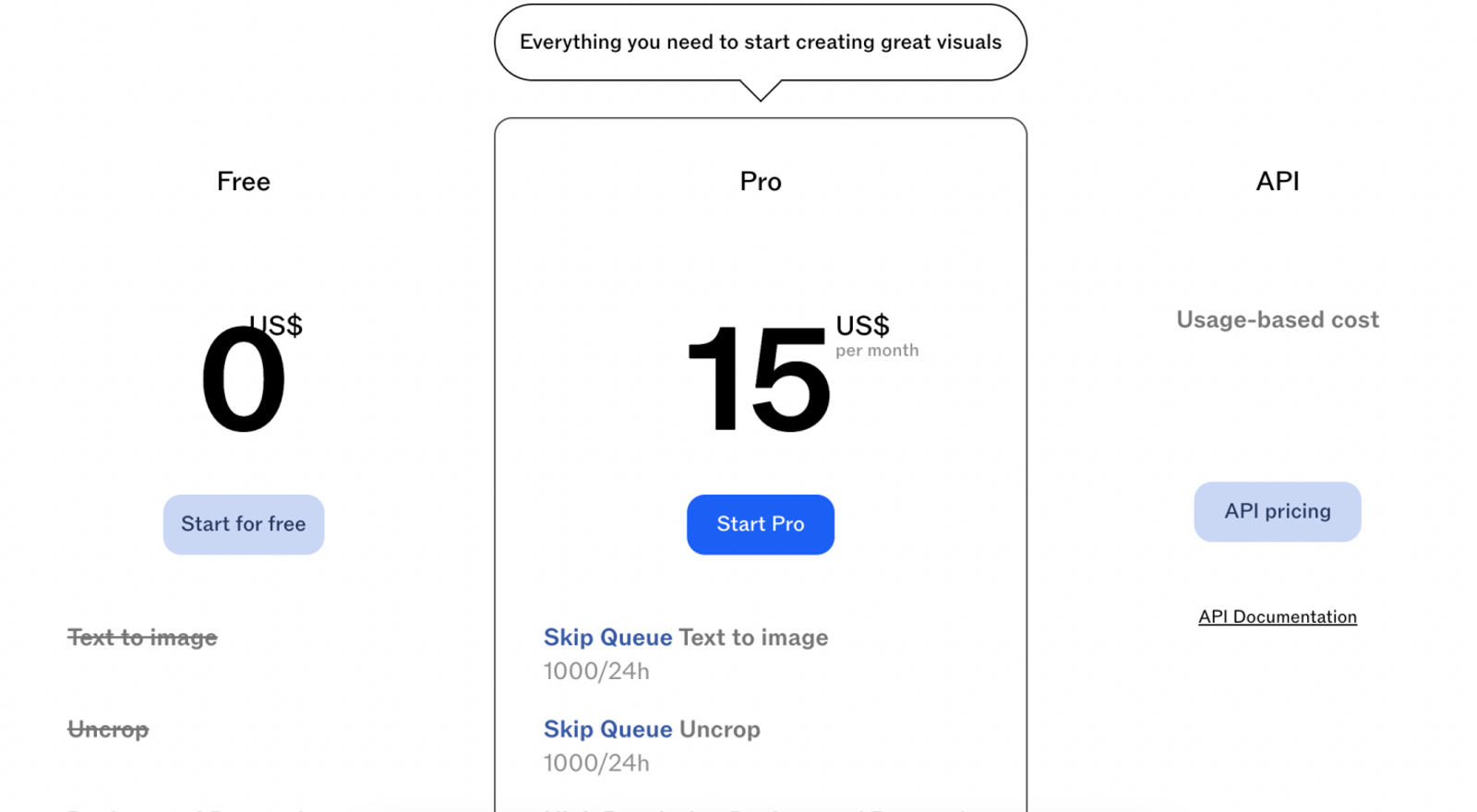
| Clipdrop Pro | $15 | Relevant tools capped at 1,000 operations per 24 hours |
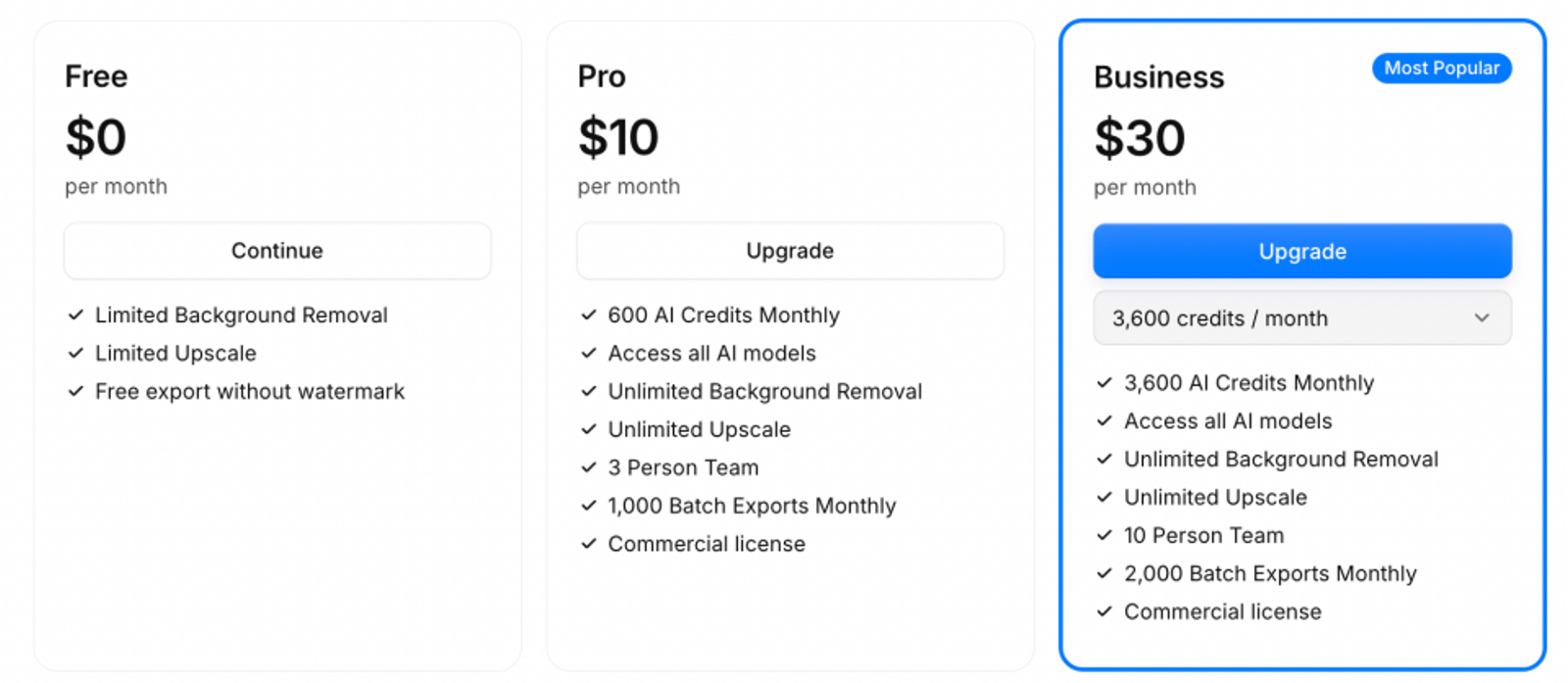
| Pixelcut Pro | $10 | 600 AI credits; unlimited background removal; 1,000 batch exports |
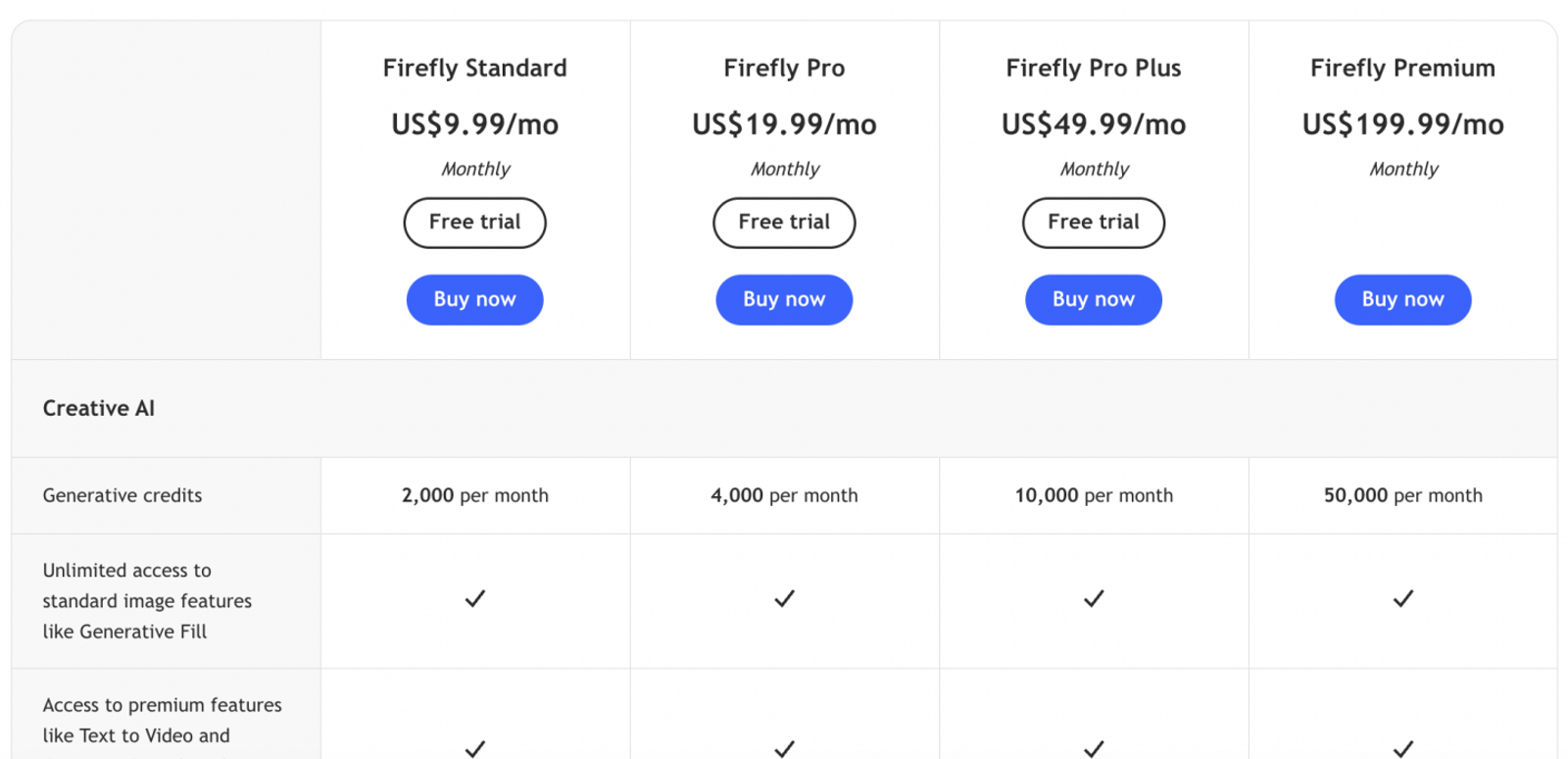
| Adobe Firefly Standard | $9.99 | 2,000 generative credits; unlimited standard image features |
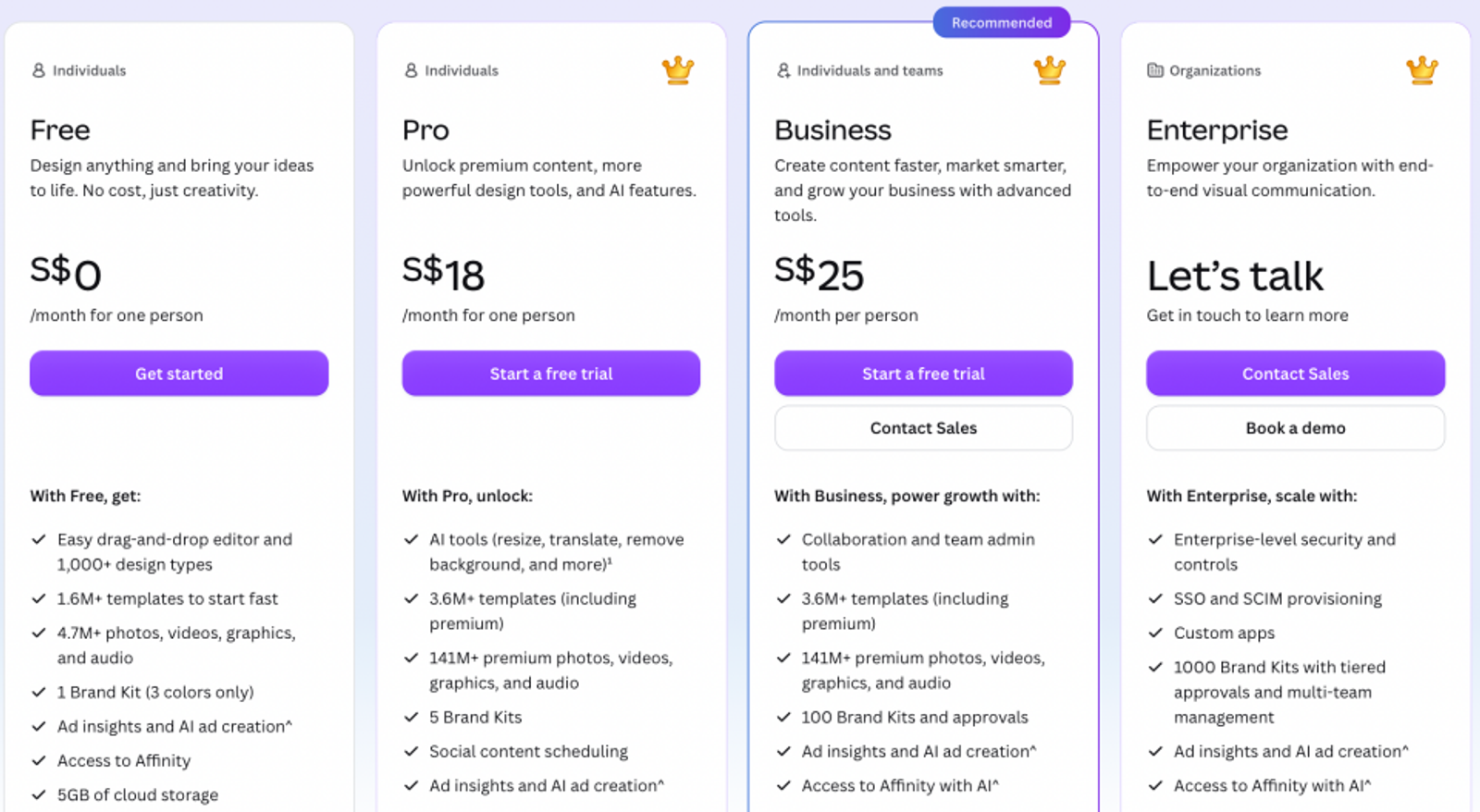
| Canva Pro, one person | $18 | Design features and variable AI allowances; fair-use limits apply |
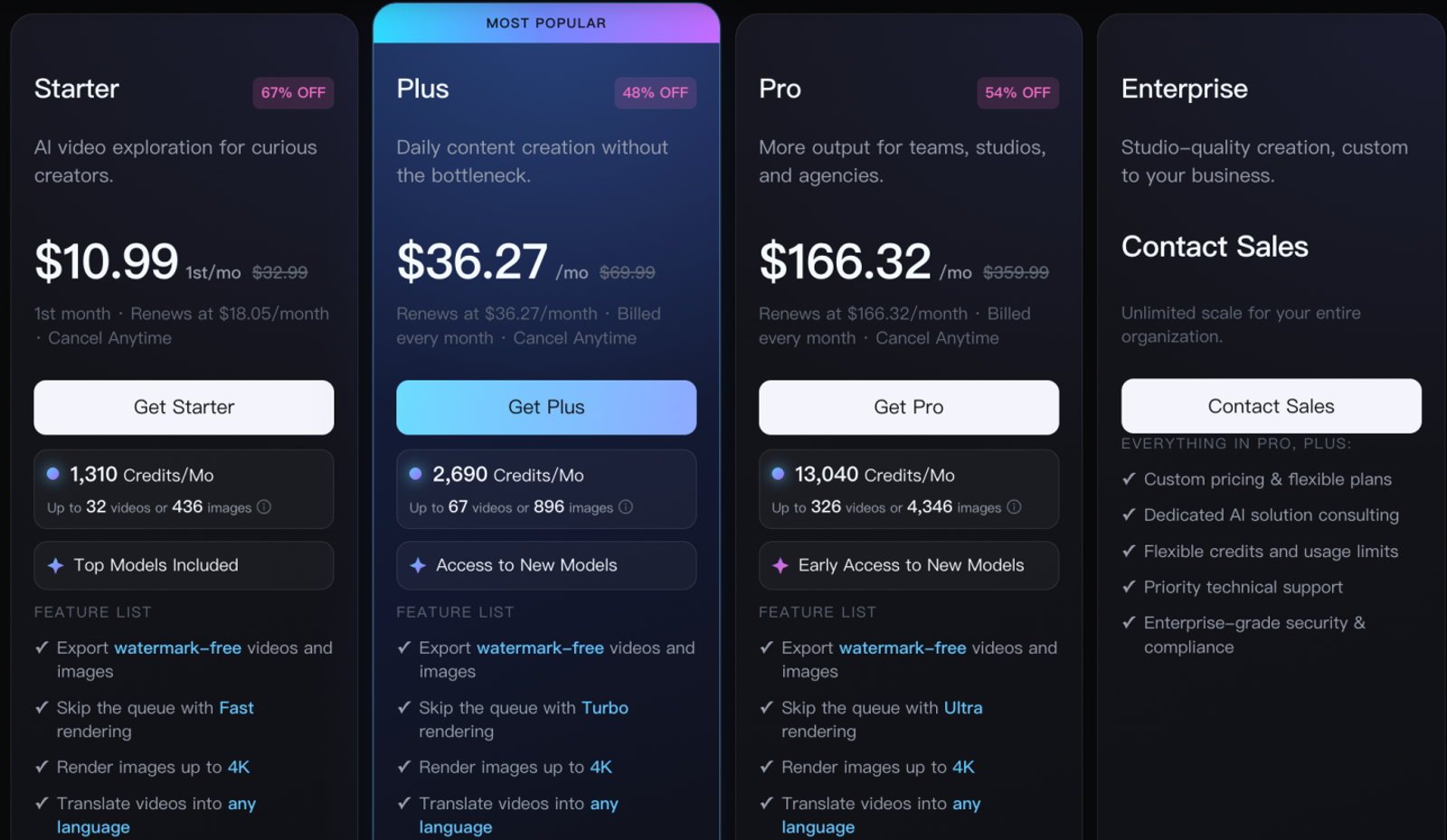
| Wizstar Plus | $36.27 | 2,690 shared image/video credits; all included models |
A lower entry cost benefits intermittent usage, whereas credit consumption patterns dictate the real economics of ongoing image generation. Unit costs below allocate the entire monthly plan fee across the stated volume. Generated outputs represent generation attempts rather than guaranteed final deliverables.
Clipdrop Pro proves cost-effective when your team actively relies on several of its bundled retouching tools. If you run 100 background removals in a single day, allocating the full monthly fee yields $0.15 per image, well under the platform's daily per-tool threshold. The main trade-off is paying for unused surplus capacity. Free background removal and object cleanup allow 20 operations every 24 hours. When free resolution limits meet your quality bar, 100 cutouts can simply be distributed across five days. Stay on the free tier for flexible deadlines; upgrade when the daily volume caps interrupt client delivery.
Pixelcut Pro delivers a lower subscription barrier for pure cutout pipelines. Processing that same 100-image batch works out to $0.10 per image, within its batch export allowance. Generation costs follow a different structure. Published Pro plan allowances provide 20 Nano Banana 2 generations, which equals $0.50 per image if the entire monthly fee is allocated to them. That base allowance cannot support 100 generative renders on its own. Pixelcut remains economical for background cutouts and batch tasks, but its unlimited cutouts should not be conflated with unlimited generative rendering.
Firefly Standard delivers predictable monthly expenses for high-frequency Generative Fill because standard fill operations do not deduct from your monthly credit balance. This makes the plan cost-effective when standard generative adjustments form the core of your daily edits. Premium features and third-party models follow different metering rules; if those capabilities dominate your pipeline, the 2,000-credit headline will not suffice for accurate budgeting. Calculate their exact credit burn rate before subscribing.
Canva Pro justifies its pricing when your deliverables encompass branded layouts, asset resizing, and marketing schedules alongside basic photo edits. The platform covers multiple adjacent steps in a single production pipeline. For standalone image generation, its unit value is harder to benchmark. Because AI credit consumption varies by tool and task complexity, fixed per-image output cannot be determined upfront. Invest in Canva when multi-format design finishing is a recurring requirement, rather than on an estimated cost per generated visual.
Wizstar Plus carries the highest upfront monthly subscription in this group, but its published model-and-resolution tiers allow for transparent production budgeting. Nano Banana 2 consumes 6 credits per image at the pricing table’s 1080P tier and 11 credits at 4K. Allocating all 2,690 monthly credits to a single resolution provides 448 generation attempts at about $0.081 each, or 244 attempts at about $0.149 each, respectively. Video rendering draws from the same unified credit balance and will reduce overall image totals.
Production volume remains the decisive factor. If you generate only 100 images per month at the 1080P rate, that run consumes 600 credits. Allocating the full monthly subscription against that lower volume raises the unit cost to $0.3627 per attempt. For teams running recurring product concept sprints and visual variations using specific AI models, Wizstar Plus makes financial sense when your workflow consumes the majority of its monthly allowance. Its primary advantage is a predictable unit cost calculated by model architecture and output resolution; teams with occasional needs should weigh that against the higher monthly platform fee.
Calculation note: Wizstar’s pricing table lists a 1080P resolution tier while the active workspace interface references 1K; verify the selected setting and credit debit before launching large generation runs. Pixelcut’s documentation omits resolution specifications for its model count and does not define standard Product Studio export dimensions. Consequently, these metrics provide platform-specific budget baselines rather than direct one-to-one comparisons at identical resolutions.
Turn your next image brief into a decision
Before committing to any subscription, map out your typical monthly production requirements: how many raw product photos need retouching, how many net-new conceptual variations you need to generate, and where the final visuals will be published. That assessment turns software pricing into an actionable business decision.
If your primary workload focuses on creating product variations and commercial concepts, open the Wizstar AI image generator with a clear product reference photo and creative brief. Define the required background environment, composition, and essential product details that must stay true to the physical item. Use those visual results to evaluate quality, and your monthly generation volume to evaluate the software tier.
FAQ
- Can I try Wizstar before paying, and do I need to register?
- Wizstar provides 20 free credits upon account registration; basic browsing is available without an account, but creative generation tools require authentication. The pricing page details the free onboarding offer. Once signed in, check which image tools accept free credits and review the displayed credit cost before generating. Because access is governed by credit consumption, the sign-up bonus does not guarantee a fixed image yield or access to every premium feature.
- Can I use Clipdrop-generated images in ads and product listings?
- Yes, Clipdrop’s terms of service do not restrict commercial utilization for images generated on its platform. Its official commercial-use FAQ confirms this policy. However, commercial clearance from the platform does not automatically resolve copyright or trademark rights in uploaded photos, recognizable individuals, or proprietary brand marks. When preparing commercial ads and product listings, ensure you hold the rights to any source imagery you upload and review the final output before publishing.
- Does Wizstar share my uploaded images with third-party AI providers?
- Yes. Wizstar’s Privacy Policy outlines that media uploaded to run integrated AI features is transmitted to the respective third-party model provider to complete processing. The privacy agreement also notes that input data may be used to train and improve underlying machine learning systems. If you work with unreleased product packaging or confidential client assets, confirm that these data processing terms comply with your enterprise confidentiality agreements before uploading. Remove unnecessary personal data and secure authorization before processing client files.
- How do I export a transparent background from Clipdrop instead of a white background?
- Export the background-removed visual in PNG format, as JPEG files do not support transparency layers and will automatically fill transparent areas with solid white. Clipdrop’s background-removal documentation outlines uploading a source file, executing the cutout, and downloading the PNG output. If your system image viewer displays a white background, place the exported file over a colored background in an editing tool to verify transparency. PNG preserves alpha channels, but an opaque white background that has already been flattened into the file cannot be rendered transparent automatically.
- Do unused Wizstar subscription credits roll over to the next month?
- Do not assume unused monthly subscription credits roll over into subsequent billing cycles; exact rollover policies are outlined in your user dashboard and checkout terms. The billing FAQ details plan-specific expiration schedules. Review recurring subscription terms and one-time top-up credit rules separately before allocating credits for future projects. Your account dashboard provides real-time visibility into current balances and active credit burn rates.
- How do I cancel my Wizstar subscription, and will I receive a refund?
- You can cancel recurring billing at any time within your Wizstar account settings; refund eligibility is an independent determination governed by the sales terms agreed upon at checkout. The subscription FAQ specifies that remaining plan access follows standard cancellation terms. Check your billing dashboard to confirm the exact date your access expires, and keep transaction receipts if you need customer support to review a disputed charge. Canceling a recurring subscription does not automatically grant a refund for previous payments.