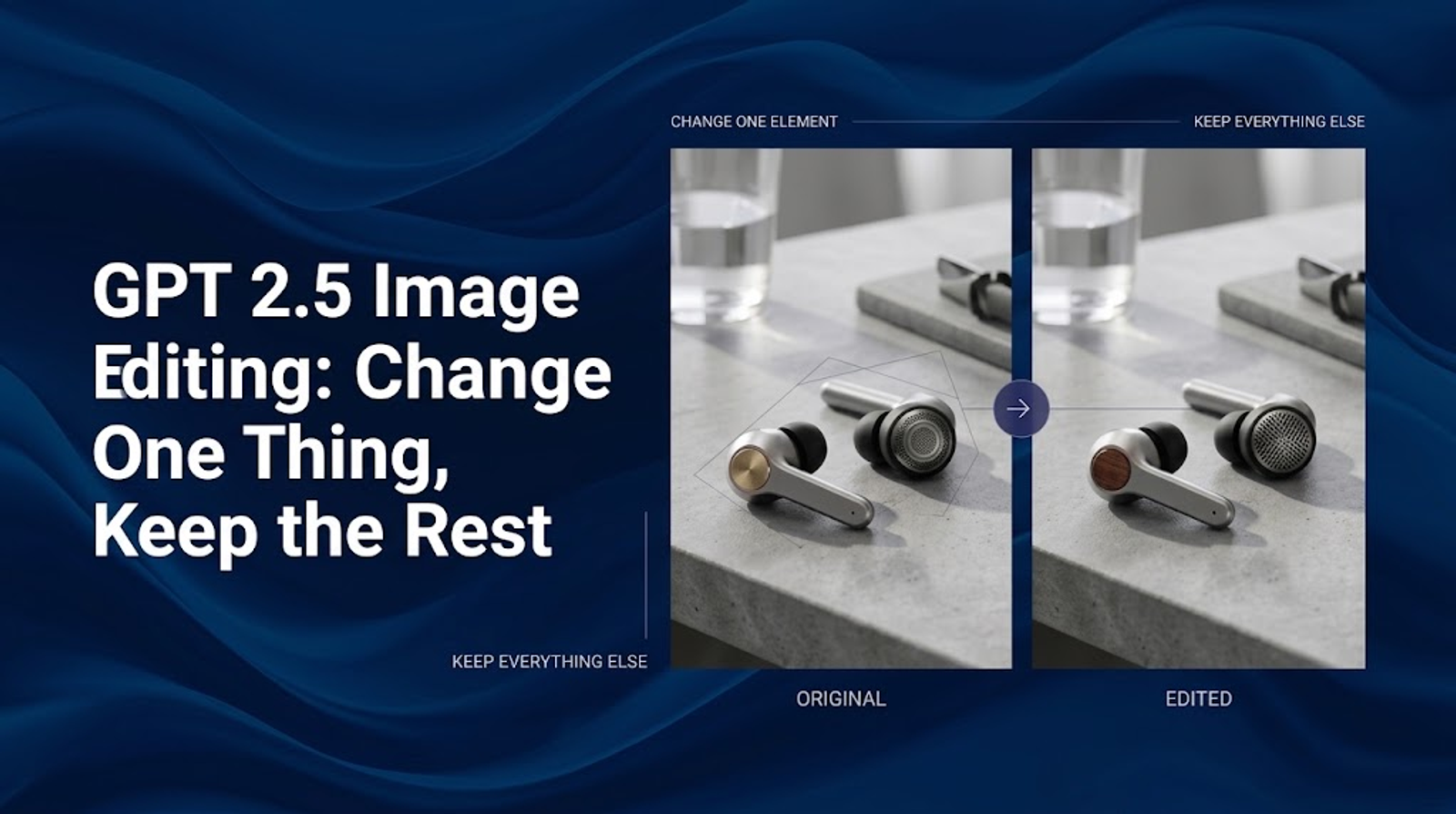
A useful AI image is rarely finished after one generation. A designer may want to change a jacket color. A product marketer may need a different background. A content team may need the same visual in a new aspect ratio. The difficult part is making that change without losing the details that already work.
My working rule for GPT Image 2.5 image editing is simple: every revision needs a change boundary and a preservation boundary. The change boundary says what should be different. The preservation boundary says what the model should leave alone. That distinction turns an open-ended prompt into a reviewable editing task.
OpenAI describes GPT Image 2.5 as better at targeted edits, reference-photo fidelity, and following instructions across multiple edits. The API documentation identifies GPT-Image-2.5-Sunburst for workflows where editing precision matters most and GPT-Image-2.5-Flare for faster everyday generation and editing. See the official OpenAI image generation documentation for current model and API details.
What controlled image editing means
“Change one thing” does not mean the model can guarantee that every other pixel will remain identical. It means the request should be narrow enough that you can inspect whether the intended change happened and whether unwanted drift is acceptable.
A weak instruction is:
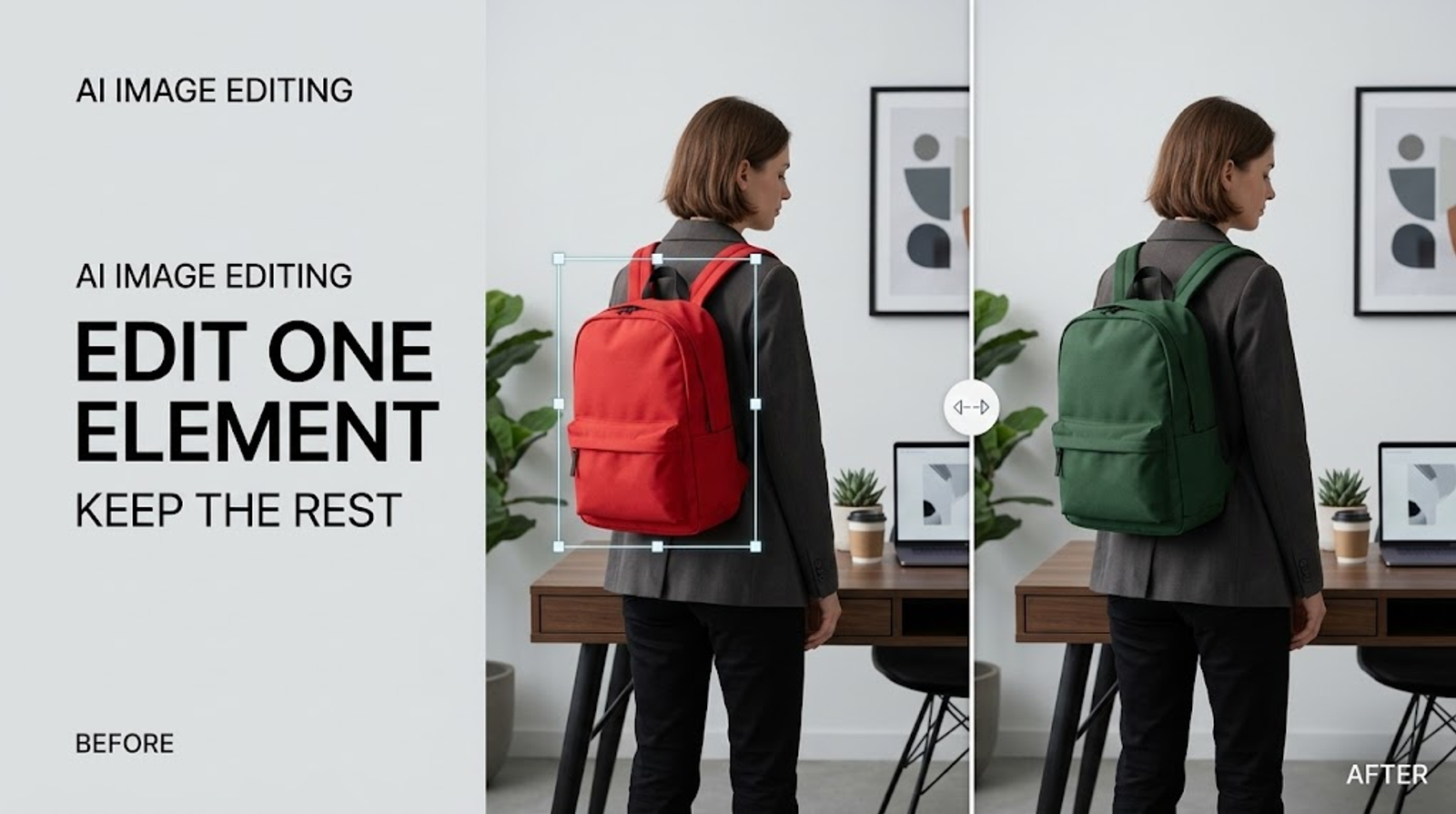
Make the backpack green.
A bounded instruction is:
Change the backpack from red to forest green. Preserve the subject’s face, pose, clothing, camera angle, background, shadows, and image dimensions. Do not add or remove other objects.
The second prompt gives the model a target and a comparison set. It also gives the reviewer a practical test: did the backpack change, and did the listed details remain recognizable?
The five-step GPT Image 2.5 editing workflow
1. Define the modification
Name one primary modification before writing the prompt. Use a concrete object and, when useful, its location:
- the phone in the subject’s right hand
- the label on the front of the bottle
- the sky above the skyline
- the chair behind the table
If the request contains five unrelated changes, split it into several turns. Smaller edits make it easier to identify why a result drifted.
2. State what must remain unchanged
List the details that carry identity or production value. Depending on the image, that may include:
- face and body position
- product silhouette and proportions
- logo and label placement
- camera angle and perspective
- lighting direction
- shadows and reflections
- background geometry
- negative space for copy
Also state exclusions when they matter:
Do not crop, zoom, restyle, relight, sharpen, blur, or change objects outside the requested area.
This is a control device, not a guarantee. OpenAI still lists consistency and precise composition as limitations, so the output needs review.
3. Edit with the right input
Start with the best available source image. Avoid using a heavily compressed screenshot when an original asset exists. If identity matters, provide a reference image and explain its role:
Image 1 is the base image. Image 2 is the approved logo reference. Change only the package color in Image 1 and preserve the logo’s proportions from Image 2.
The API supports existing-image edits and reference-based generation. For a single image and a single prompt, the Image API is usually the simpler conceptual fit; for conversational, multi-turn editing, the Responses API supports iterative image workflows.
4. Inspect before accepting
Compare the source and output at the same size. I check the requested element first, then the details most likely to drift:
- text and logos
- product edges
- hands and faces
- reflections and contact shadows
- repeated patterns
- background objects
- overall crop and negative space
An edit can be visually attractive and still fail the production requirement if the product label changed or the subject moved.
5. Decide whether to iterate or restart
Continue editing when the main image is sound and the defect is local. Use a follow-up instruction such as:
Keep the previous result. Correct only the bottle label so that the logo is centered and the text remains unchanged.
Narrow the prompt or use a mask when the model changes too much around the target. Start again from the clean source when several rounds have accumulated drift, the composition is no longer useful, or the original premise was wrong. A new generation is sometimes more efficient than repairing a compromised image.
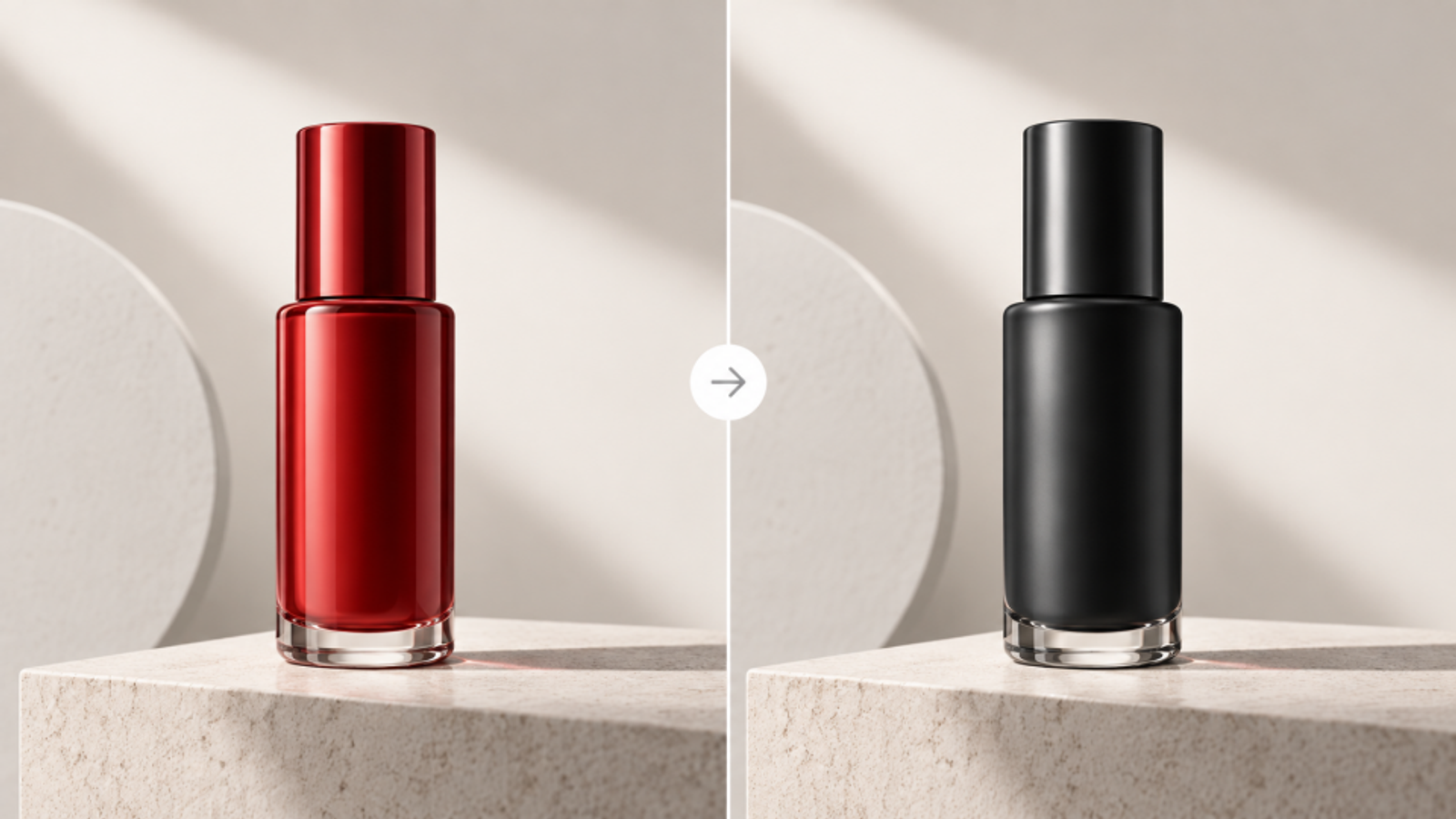
Prompt patterns for precise image editing
A reliable structure is:
Edit the provided image. Change [specific element] to [desired state]. Preserve [identity, composition, lighting, brand details, and text]. Do not change [explicit exclusions].
For a product:
Replace the blue bottle cap with a matte black cap. Preserve the bottle shape, label typography, reflections, camera angle, white background, and shadow. Keep the product centered.
For a person:
Change the jacket color to muted olive. Preserve the person’s face, hair, pose, body proportions, background, lighting direction, and camera framing.
For a background:
Replace only the wall behind the product with a warm plaster texture. Match the existing perspective and light. Keep the product, table, reflection, and foreground shadow unchanged.
For text, be especially cautious:
Replace the sign text with “OPEN TODAY.” Keep the sign’s perspective, material, lighting, and surrounding architecture unchanged. Verify the spelling exactly.
OpenAI notes that text placement and clarity can still be difficult. For prices, legal copy, claims, and campaign headlines, I treat generated text as a draft unless it passes a separate proofing step.
Reference-based editing and masks
Reference-based editing helps when the output must retain a person, product, package, material, or environment. Provide only the references that solve a real ambiguity, and label their roles. Too many unrelated references can make the instruction harder to follow.
Masks are useful when the edit has a clear physical area. The official documentation says the image and mask must have the same format and dimensions, and the mask must include an alpha channel. It also warns that the model uses a mask as guidance and may not follow its exact shape with complete precision.
A practical masked instruction is:
Replace only the masked area with a small ceramic vase. Match the scene’s perspective, lighting, depth of field, and contact shadow. Keep every unmasked object unchanged.
Afterward, inspect the boundary. Look for halos, repeated textures, broken reflections, or a product edge that has been redrawn.
How to evaluate preservation and visual consistency
I use five questions before approving an edit:
- Did the requested element change in the intended way?
- Is the subject or product still identifiable?
- Are brand details, text, and proportions accurate?
- Did lighting, perspective, shadows, or reflections drift?
- Did any unrequested object move, disappear, or appear?
For a campaign, add a sixth question: does the result still belong to the same visual system? Consistency includes color treatment, camera language, prop style, background density, and space reserved for copy.
GPT Image 2.5 may improve consistency across multi-turn edits, but that should be treated as an observed target of the workflow rather than a promise that every recurring character or brand element will remain identical. OpenAI’s documentation continues to list recurring-element consistency and layout-sensitive composition among limitations.
When to continue, regenerate, or change the prompt
Use the failure pattern to choose the next action:
- Small local defect: Keep the image and make a focused follow-up edit.
- Correct target, broad drift: Add a stronger preservation list or use a mask.
- Wrong object changed: Identify the object by location, appearance, or relationship to nearby objects.
- Text remains unreliable: Finish the text in a design tool.
- Several rounds look degraded: Return to the clean source instead of stacking more edits.
- Composition no longer supports the goal: Regenerate from the source with a revised concept.
This decision rule prevents two common mistakes: accepting an attractive but inaccurate image, and endlessly repairing a result that should have been restarted.
Choosing Sunburst or Flare
OpenAI positions Sunburst for workflows where editing precision matters most and Flare for faster, high-quality everyday generation. For a careful product revision, a multi-step brand asset, or an edit that needs repeated inspection, Sunburst is the more relevant starting point. For quick concept exploration or higher-volume variations, Flare may be the practical choice.
This is a workflow recommendation, not a universal quality ranking. Actual results depend on the input image, prompt, quality setting, and account or API configuration. The API also supports controls for size, quality, format, compression, and background. Use lower settings for drafts and compare higher settings for final candidates.
Final takeaway
The most reliable GPT Image 2.5 image editing workflow is controlled and iterative: define the modification, state what must remain, edit from a strong source, inspect the result, and choose the next action based on the type of drift.
The goal is not to assume that an AI edit will preserve everything automatically. The goal is to make preservation testable. When the image passes the checks that matter to the project, continue. When it does not, narrow the prompt, add a reference or mask, or return to the clean source.
GPT Image 2.5 is coming soon to Wizstar. Stay tuned and be among the first to explore a faster, more flexible way to create AI-powered visuals for your brand.
FAQ
- Can I use GPT Image 2.5 for free image editing?
- Access is not universally free; availability and usage limits depend on the product, account, and plan. ChatGPT and API access have separate conditions, and API image generation can incur usage charges. Check the current product or pricing information before planning a production volume.
- Can I edit GPT Image 2.5 images on a phone?
- Yes, ChatGPT image features are available across web and mobile experiences where the feature is enabled. API workflows require a separate application or integration. For serious review, use a screen large enough to inspect labels, edges, small text, and unintended changes.
- Why did GPT Image 2.5 change details I did not request?
- The model can reinterpret nearby content when the instruction or target area is ambiguous. Name the object precisely, list preservation constraints, use a reference or mask when appropriate, and compare the output with the source before accepting it.
- What should I do when an image edit fails?
- First identify whether the problem is the prompt, the input image, the mask, or the requested change. Simplify the instruction, remove competing edits, verify image and mask dimensions, and retry with a focused request. Do not automatically repeat the same failed prompt.
- Can GPT Image 2.5 preserve product logos and packaging text?
- It can use those details as references, but exact preservation is not guaranteed. Review logos, labels, prices, and regulated claims manually, and place final commercial text in a design tool when accuracy is critical.
- Is GPT Image 2.5 suitable for commercial image editing?
- It can support commercial creative workflows, but suitability depends on your access terms, content rights, review process, and brand or legal requirements. Keep source rights documented and approve every final asset before publication.
- When should I use a mask instead of a text-only edit?
- Use a mask when the target has a clear physical area and surrounding details must remain stable. A mask provides guidance, but it is not a pixel-perfect selection, so inspect the boundary and nearby shadows after generation.