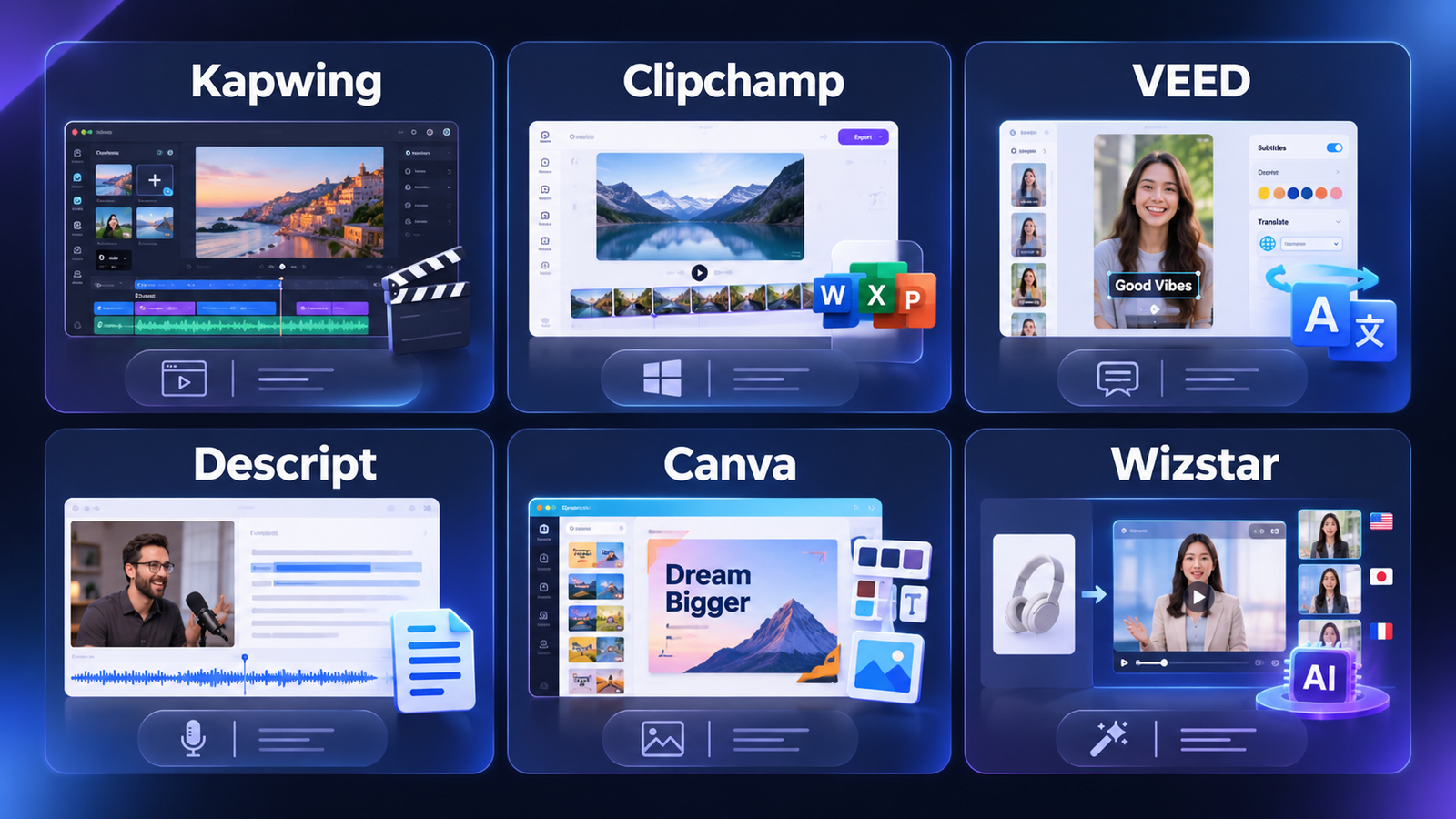
Finding the right Kapwing alternative depends entirely on which part of its massive toolkit you actually use. Clipchamp is the go-to for free browser editing with watermark-free exports. VEED is tailored for social media edits, auto-captions, and translation. Descript dominates transcript-led audio and video production. Canva fits teams needing branded visual consistency. Wizstar is the choice for AI-generated product videos, avatars, and video translation. While these tools overlap on paper, they solve completely different production bottlenecks.
Personally, I always choose a tool based on the exact asset I need to deliver next, rather than just comparing broad feature lists. The breakdown below separates functional fit from pricing, ensuring you don't mistake a cheaper subscription for a workflow that actually gets your job done.
What a Kapwing alternative must replace
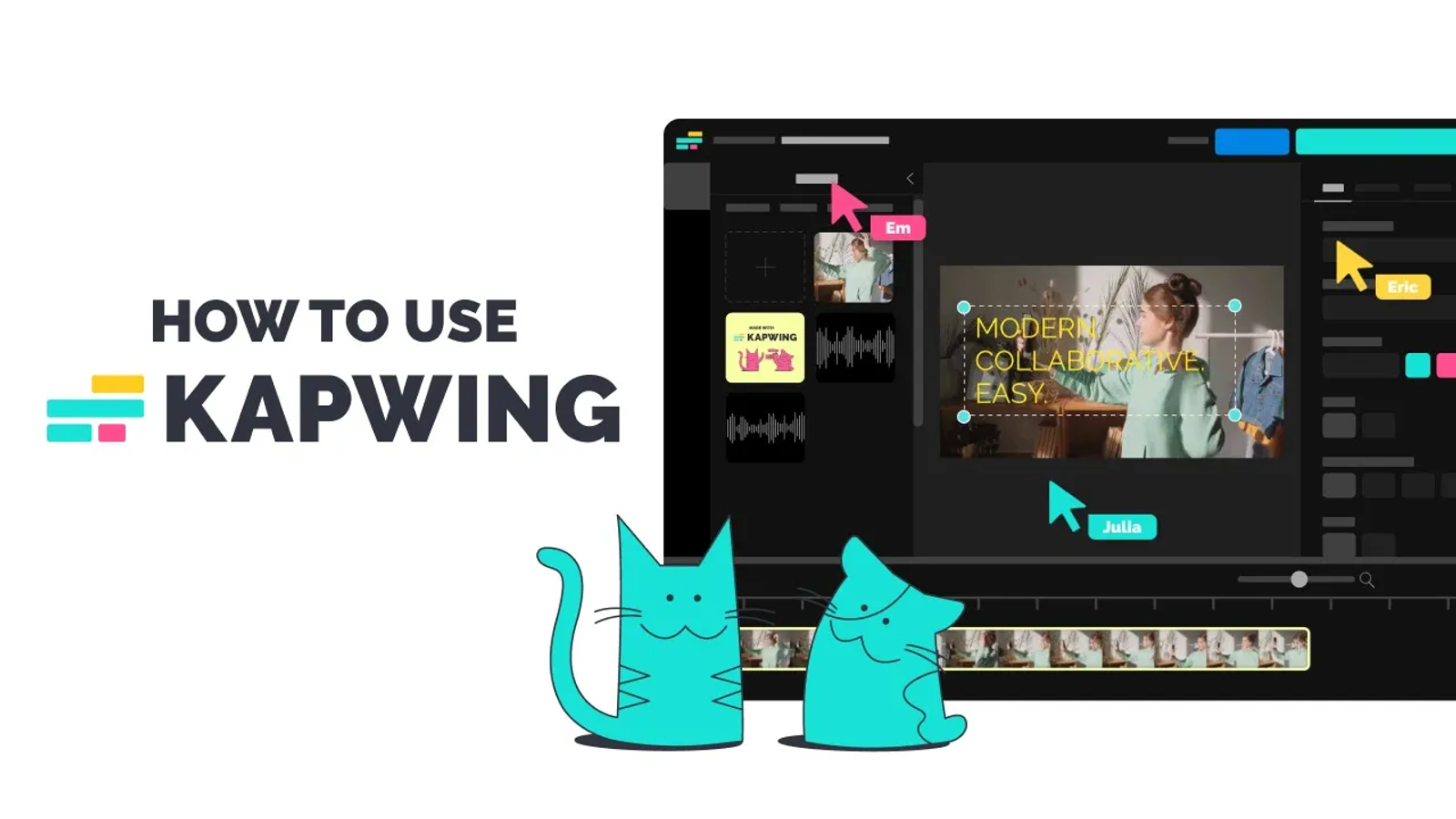
Kapwing combines a browser-based timeline editor with captions, transcription, dubbing, social repurposing, and AI generation tools. Its Free plan is listed at $0, offering 10 credits, 720p output, four-minute maximum exports, a watermark, and 5 GB of storage. Its pricing page shows the Pro tier at $16 per month (billed annually).
That baseline covers several distinct jobs. To replace it, you might need to edit on a browser timeline, turn speech into accurate captions, reformat a video for different social platforms, manage branded assets, or generate footage directly from a text prompt or product link. A tool that excels at one of these jobs could be a terrible replacement for another.
Your first decision is strictly functional: do you need a traditional editor, a captioning and localization workflow, a brand-design system, or an AI generation engine? Price only matters after you lock in that answer.
Pricing and output economics
This price comparison relies on official USD pricing and looks at the most functional paid tier for each specific workflow. Kapwing Pro represents the baseline for paid browser editing. Clipchamp is represented by the Microsoft 365 bundle, as its Premium features are packaged there rather than sold separately. Where annual billing applies, the table lists both the monthly equivalent and the total yearly commitment.
| Tool | Comparable plan | USD price and billing basis | Included allowance or output | What the price buys |
| Kapwing | Pro | $16/month; $192/year, annual billing | 1,000 credits/month and exports up to 2 hours; the Free plan has 10 credits, 720p, four-minute exports, 5 GB storage, and a watermark | A paid browser-editing baseline for longer, cleaner exports and higher monthly usage |
| Clipchamp | Premium via Microsoft 365 | Included with Microsoft 365 Personal/Family; no separate Clipchamp Premium price | Free exports up to 1080p without a watermark | The bundle makes sense for Microsoft 365 users; it is not comparable to a standalone editor subscription |
| VEED | Creator | $10/user/month; $120/user/year with annual billing | Social editing, subtitles, and translations | A lower per-user entry point when captions and language versions are part of regular publishing |
| Descript | Hobbyist | $16/person/month; $192/person/year with annual billing | 1080p watermark-free export; Creator lists 4K and Business lists dubbing in 30+ languages | The cost pays for transcript-led editing, so it is strongest for spoken-content teams |
| Canva | Pro | $144/person/year | Templates, AI tools, and social scheduling; Business adds collaboration and administration | A per-person annual cost for repeatable branded production and publishing coordination |
| Wizstar | Starter | $16/month; $192/year | 1,920 credits/year; paid exports are watermark-free; video translation; images up to 4K | A generation and localization budget; shared credits mean output depends on model, duration, and quality |
Here is how I would break down those price tags in practice:
Use Clipchamp when you simply need a free, clean browser export. Use VEED Creator when social captions and translations are your daily grind.
Pay for Descript’s Hobbyist plan if text-based editing saves you hours of timeline scrubbing.
Opt for Canva when your team needs annual access to strict brand and scheduling tools.
Choose Wizstar’s Starter tier when AI generation or translation is your main bottleneck and the yearly credit pool matches your expected output.
Feature comparison: choose by job
| Tool | Core capability | Best fit | Important boundary |
| Clipchamp | Browser editing and social formats | Free, clean video exports | Requires a personal Microsoft account |
| VEED | Social editing, subtitles, and translation | Short-form teams handling captions and language versions | Per-user plans should be matched to team volume |
| Descript | Text-based editing, transcription, clips, and dubbing | Spoken content where the transcript drives the edit | Less suitable when visual timeline composition is the main task |
| Canva | Templates, AI tools, brand controls, and social scheduling | Repeatable branded visual content | Not a substitute for transcript-first editing |
| Wizstar | AI video, product video, avatars, translation, and agents | Generation and localization from prompts, images, links, or scripts | Manual timeline assembly and project migration remain separate editing tasks |
The choice here is straightforward: stick to a timeline editor for manual video assembly, a transcript tool for heavy spoken-word edits, a brand system for scaled visual content, and Wizstar when AI generation or localization is the step slowing you down. Think of this table as your routing guide; the sections below explain exactly why each route works.
Clipchamp: Best for free browser editing
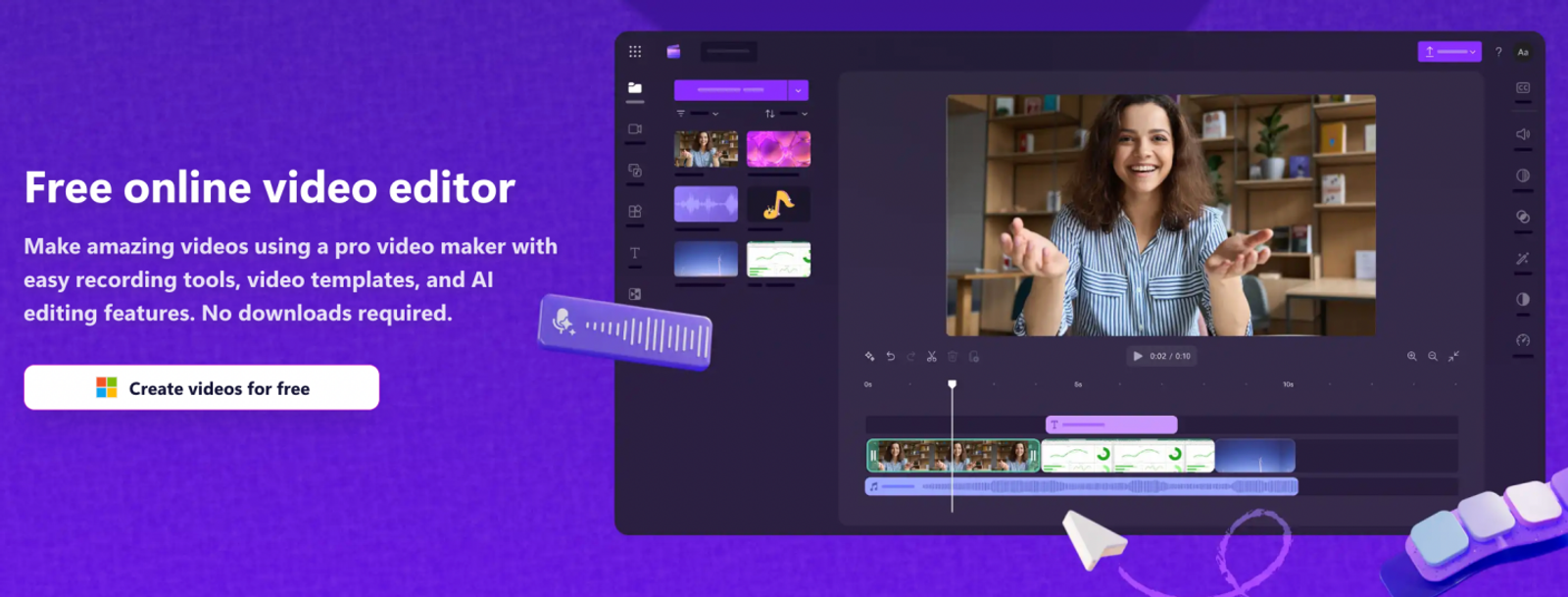
Clipchamp Free requires a personal Microsoft account. It requires no payment or software download and supports watermark-free exports up to 1080p. Premium features are unlocked if you already subscribe to Microsoft 365 Personal or Family.
Its biggest advantage is providing a clean, low-friction browser environment for standard timeline editing. This makes Clipchamp the strongest fit when your only real requirement is to assemble clips and export a publishable, watermark-free file. For existing Microsoft 365 users, it keeps premium video capabilities inside a subscription ecosystem they already understand.
The obvious trade-off is account dependency. If your team relies on a different workspace model or needs a generation-first AI workflow, Clipchamp only covers the manual editing portion. I view it as the ultimate free browser baseline, but not as a replacement for dedicated AI product-video creation.
VEED: Best for social captions and translation
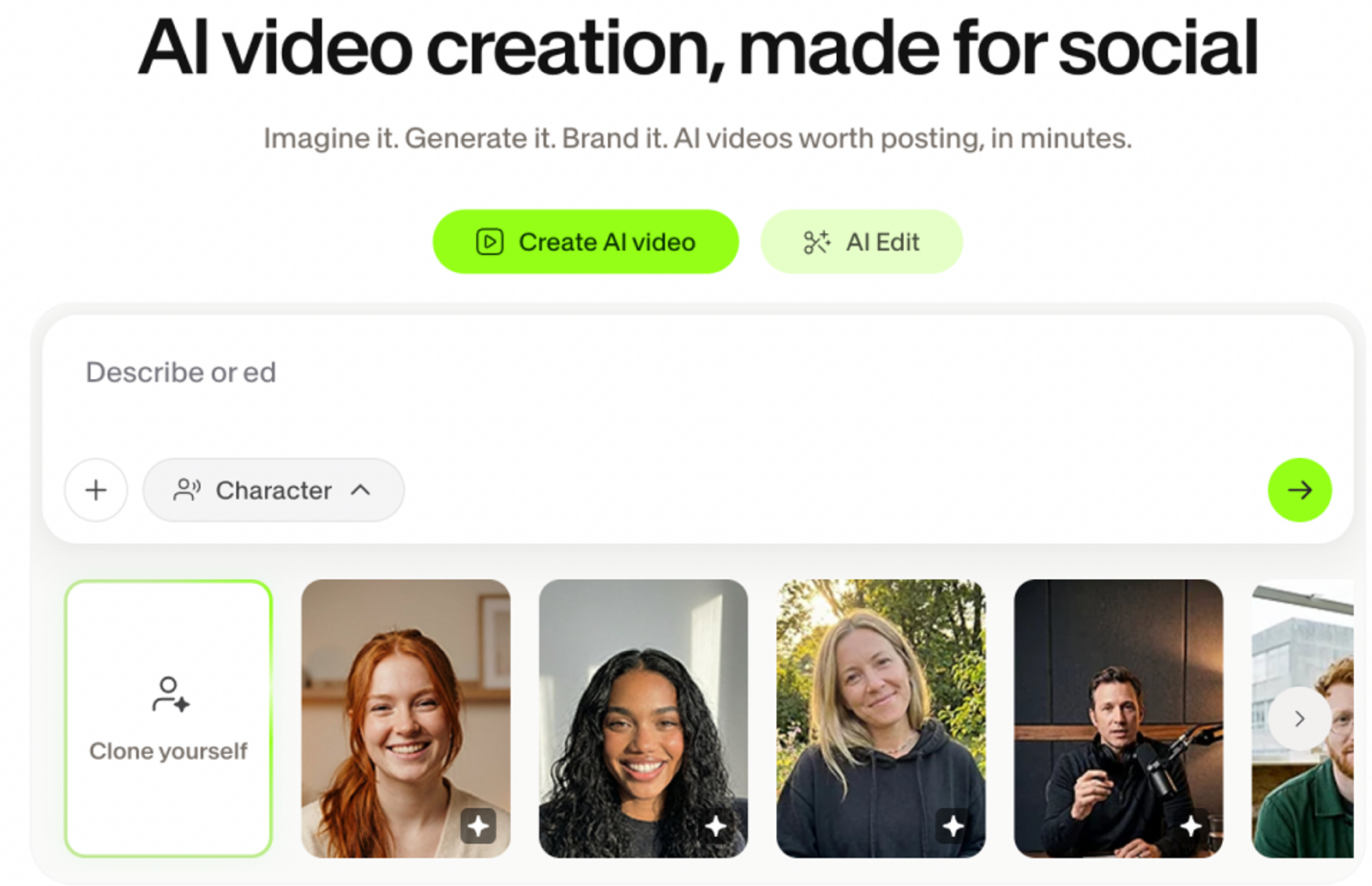
VEED positions itself around short-form social editing, fast subtitles, translations, dubbing, avatars, and AI video elements. Its workflow shines when a social media team needs to edit a clip, generate captions, and prep translated variations all within the same browser tab.
The core advantage here is task consolidation. Captions and translation act as native parts of the publishing workflow, rather than a separate, tedious cleanup step performed after the video is exported. This dramatically reduces handoffs for creators who publish across multiple formats and languages daily.
Because VEED uses per-user pricing, team size must factor into your buying decision. Its real value comes from keeping social editing, subtitles, and localization housed in one place. Choose VEED if those tasks are equally important to your daily output.
Descript: Best for transcript-led production
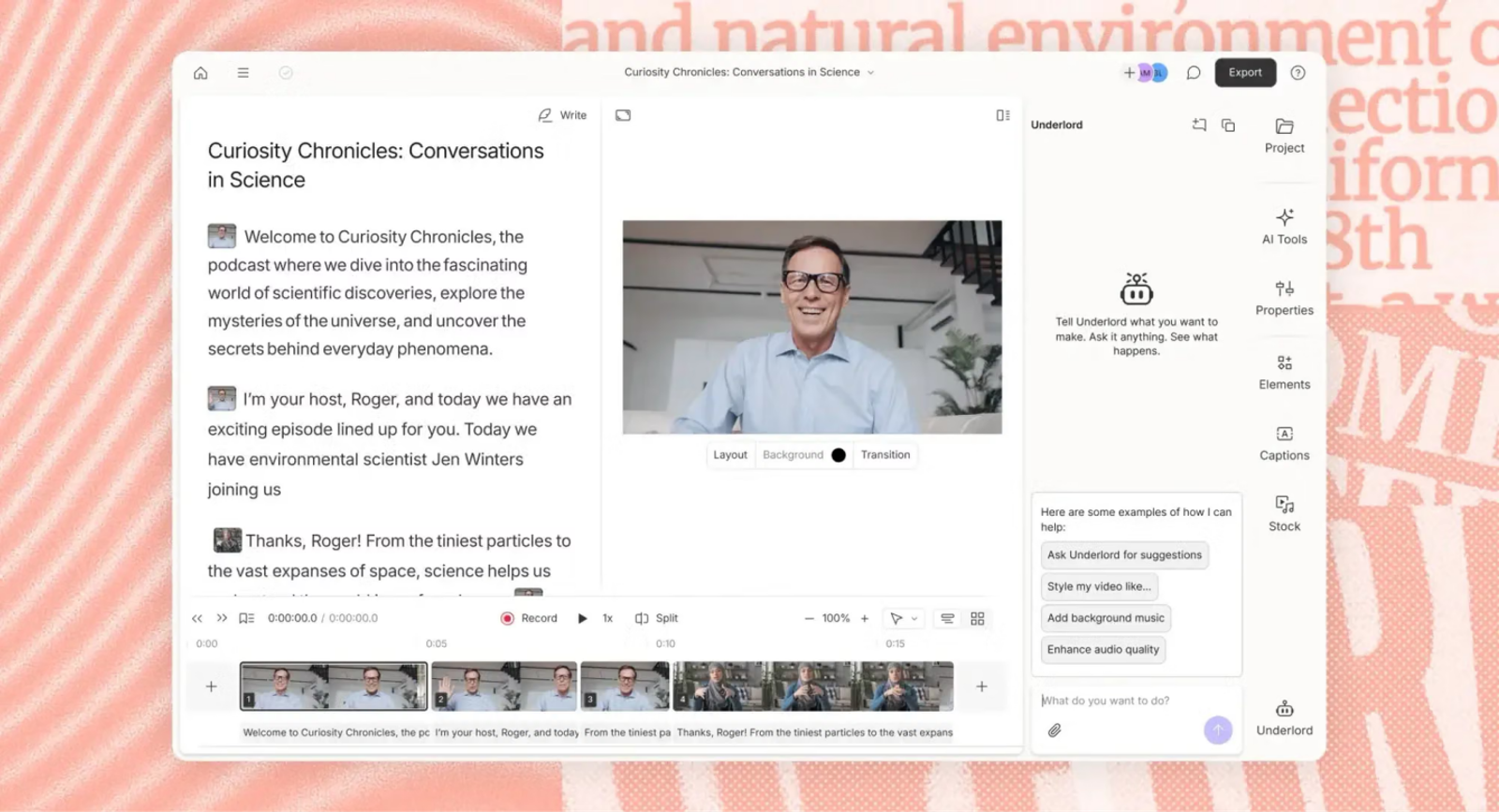
Descript completely rethinks editing by building it around text: you get transcription, text-based cutting, easy social clips, and AI dubbing. Its model is incredibly useful when the spoken word is your source of truth—just delete a sentence in the text document, and the video timeline automatically makes the cut.
This workflow is tailor-made for podcasts, talking-head interviews, and spoken explainers. It also offers teams a seamless route from a single master recording to multiple short social clips. However, its advantage shrinks drastically if your work depends on precise visual timing, layered graphic animations, or complex manual timeline composition.
Choose Descript for transcript-led production. If your main editing question is "Which words do we keep?", it is a brilliant Kapwing alternative. If the question is "How exactly should this graphic slide across the screen?", stick to a traditional timeline editor.
Canva: Best for branded visual production
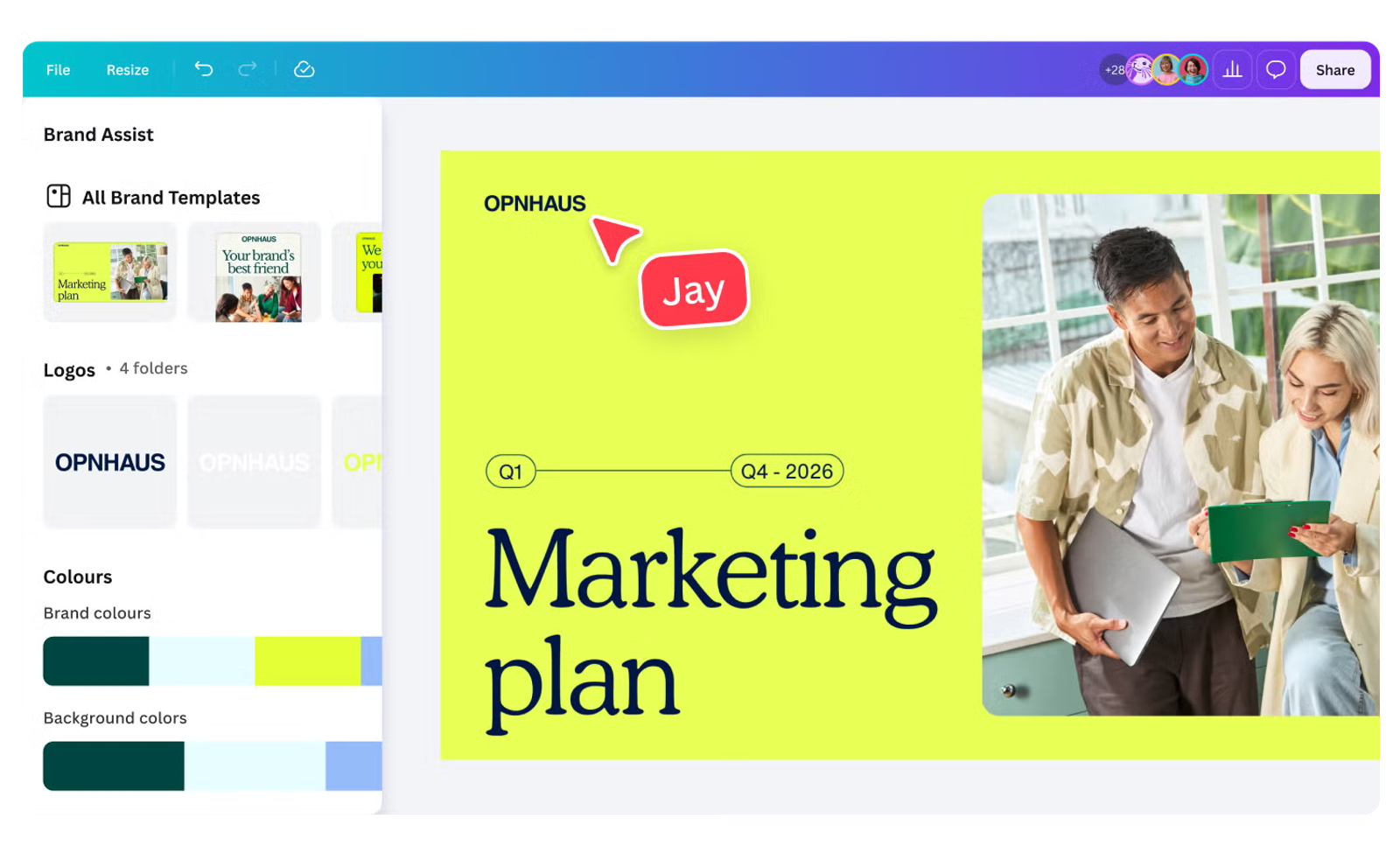
Canva brings together templates, AI design tools, brand guardrails, social scheduling, and team collaboration. Its superpower is repeatability: a team can generate visual assets within a strictly defined brand system and coordinate them directly with a social publishing calendar.
This makes Canva a powerful alternative when video is just one slice of a much larger branded content operation. You are paying for the ecosystem of templates, brand kits, and publishing coordination, not for a dedicated, frame-accurate video editor.
Treat Canva as a conditional Kapwing replacement. Choose it when brand consistency and social rollout matter just as much as the video itself. But keep a dedicated video editor on hand if you require deep transcript control or intricate timeline assembly.
Wizstar: Best for AI product, avatar, and translated video
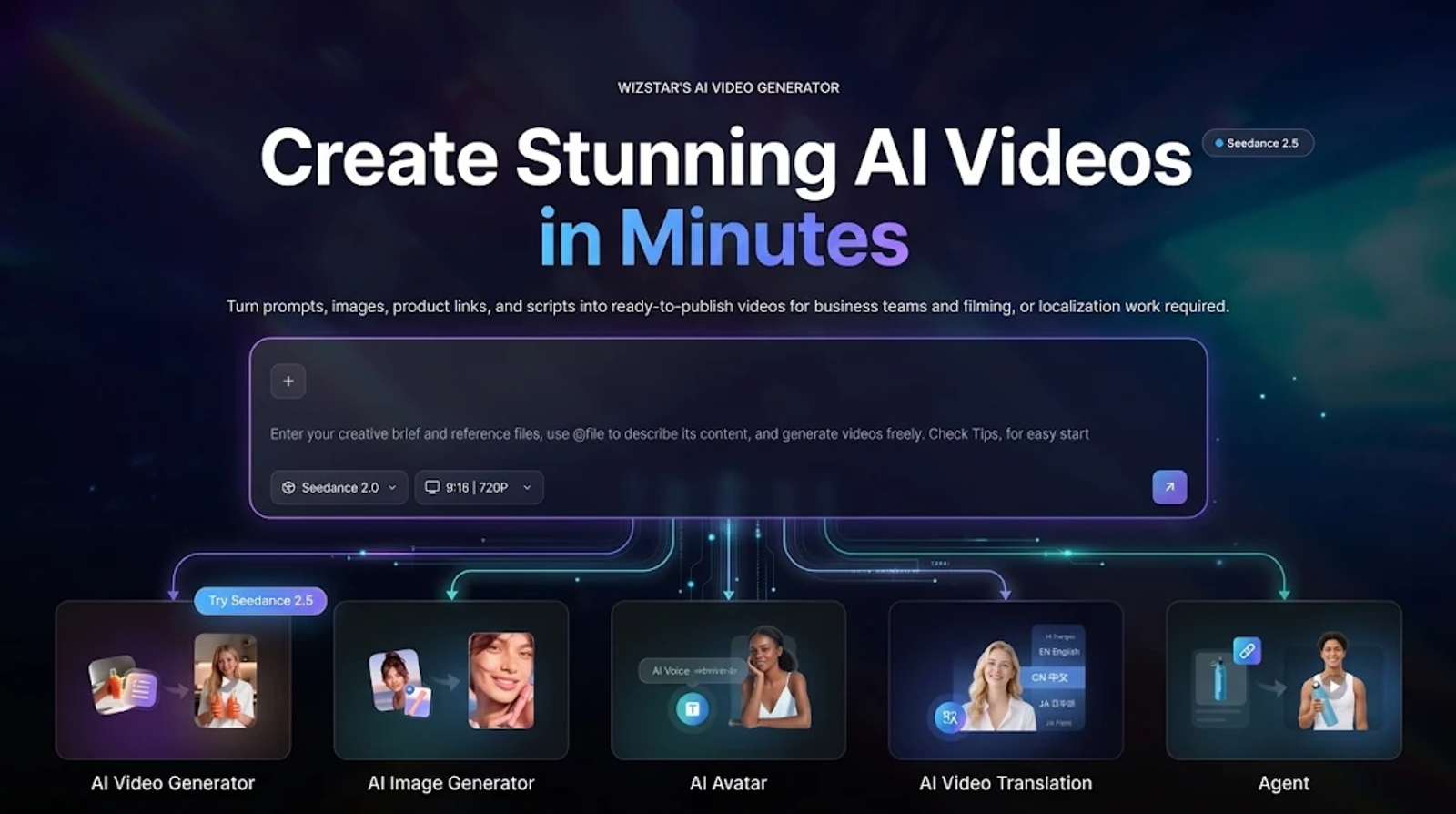
Wizstar operates from direct inputs like text prompts, images, product links, and scripts. Its documented workflows include AI video generation, product video creation, avatars, video translation, and intelligent Creative and E-commerce Agents. Paid tiers include watermark-free exports, translation into any language, and image rendering up to 4K, with commercial use included subject to terms.
Wizstar targets a completely different bottleneck than a manual browser editor. It transforms a raw product input or brief into a fully generated asset, and then handles localization through video translation. This directly overlaps with the AI generation and localization tasks people often attempt in Kapwing.
Understanding this boundary is key. Wizstar is engineered for generation and localization. Manual timeline assembly and importing old Kapwing projects still belong in a traditional editor. Therefore, Wizstar is a perfect replacement for Kapwing’s generative tasks, rather than a full replacement for its manual editing workspace. Use it to create the asset, then hand it off to an editor for final polishing if needed.
What to test before switching
Before migrating, run the exact same representative asset through the specific part of the workflow you want to replace. For a browser editor, test the import speed, timeline responsiveness, export resolution, and watermark rules. For auto-captions or translation, check the timing accuracy, language quality, and how much manual cleanup you actually have to do.
For Descript, change a few words in the transcript and ensure the resulting video cuts look natural. For Canva, recreate one standard branded social post and see if the templates genuinely reduce your production steps. For Wizstar, input a standard text prompt, product link, or script, and verify that the generated video can seamlessly drop into whatever manual editing stage you still require.
Your test should answer one simple question: does this tool eliminate my bottleneck without forcing me into a new, time-consuming handoff? That answer is infinitely more valuable than comparing feature counts.
Choose the workflow you need to improve
Leaving Kapwing only makes sense if the alternative tool removes a specific friction point in your production. Look at the time required to finish one video, the manual tweaks that remain, and the recurring cost of producing that asset. A cheaper monthly subscription is useless if it requires you to export and re-import files across three different apps.
If your biggest bottleneck is generating that initial video from a raw product image, URL, or script, I highly recommend testing Wizstar’s AI Video Agent. Take an asset you already need to publish this week, run it through the Agent, and see how the output fits into your existing review process. That will give you hard proof of whether Wizstar should replace your AI generation step entirely or simply sit alongside your current manual editor.
FAQ
- Is Kapwing free to use?
- Yes. Kapwing offers a Free plan at $0, but "free" comes with strict usage and output limits. The plan includes 10 credits, 720p maximum output, four-minute export limits, a permanent watermark, and 5 GB of storage. It is perfectly fine for evaluating the browser workflow, but it likely won't suffice for professional publishing that requires clean, high-resolution exports or longer runtimes.
- What are the limits of Kapwing’s Free Plan?
- Kapwing’s Free plan is capped at 10 credits, 720p resolution, four-minute exports, a forced watermark, and 5 GB of storage. These boundaries impact both testing and final publishing. While a quick social draft might fit within these limits, longer or client-facing assets will immediately require a paid upgrade. Treat this allowance as a trial budget before committing your entire workflow.
- Does Kapwing add a watermark to free exports?
- Yes. Kapwing forces a watermark on all exports under its Free plan. This makes the free tier great for testing the editor's capabilities, but it effectively blocks you from using it for final brand deliverables where visual assets must remain clean. If watermark-free files are mandatory for your work, you will need to compare paid tiers immediately.
- How much does Kapwing Pro cost?
- Kapwing Pro costs $16 per month when billed annually (totaling $192/year).Always compare this plan’s specific export limits and credit allowances against your actual monthly video volume before committing.
- Can Wizstar replace Kapwing for AI video creation?
- Wizstar can easily replace that specific portion of your workflow when you need to generate AI product videos, avatars, or translated content directly from prompts, images, product links, or scripts. Wizstar is purpose-built for generation and localization. However, manual timeline editing and migrating old Kapwing project files remain separate tasks. Use Wizstar for the heavy generative lifting, then keep a traditional editor handy for final manual tweaks.
- Does Wizstar translate videos like Kapwing?
- Yes. Wizstar’s pricing documentation confirms that paid tiers can translate videos into any language. This directly supports localization workflows alongside its AI video and avatar generation. Note that this describes its translation capability, not identical timeline editing controls. If your process relies heavily on manual timeline adjustments, treat translation as one distinct, replaceable step in your pipeline.
- What can I use as input in Wizstar compared with Kapwing?
- Wizstar’s home page lists text prompts, images, product links, and scripts as valid starting inputs. These inputs drive its generative product, avatar, and translation workflows. Conversely, Kapwing’s Free plan is defined heavily by its output restrictions (credits, duration, watermarks, storage). Use Wizstar's inputs when your primary task is generating net-new assets, then confirm how you plan to handle any remaining manual editing required before launch.