The short answer
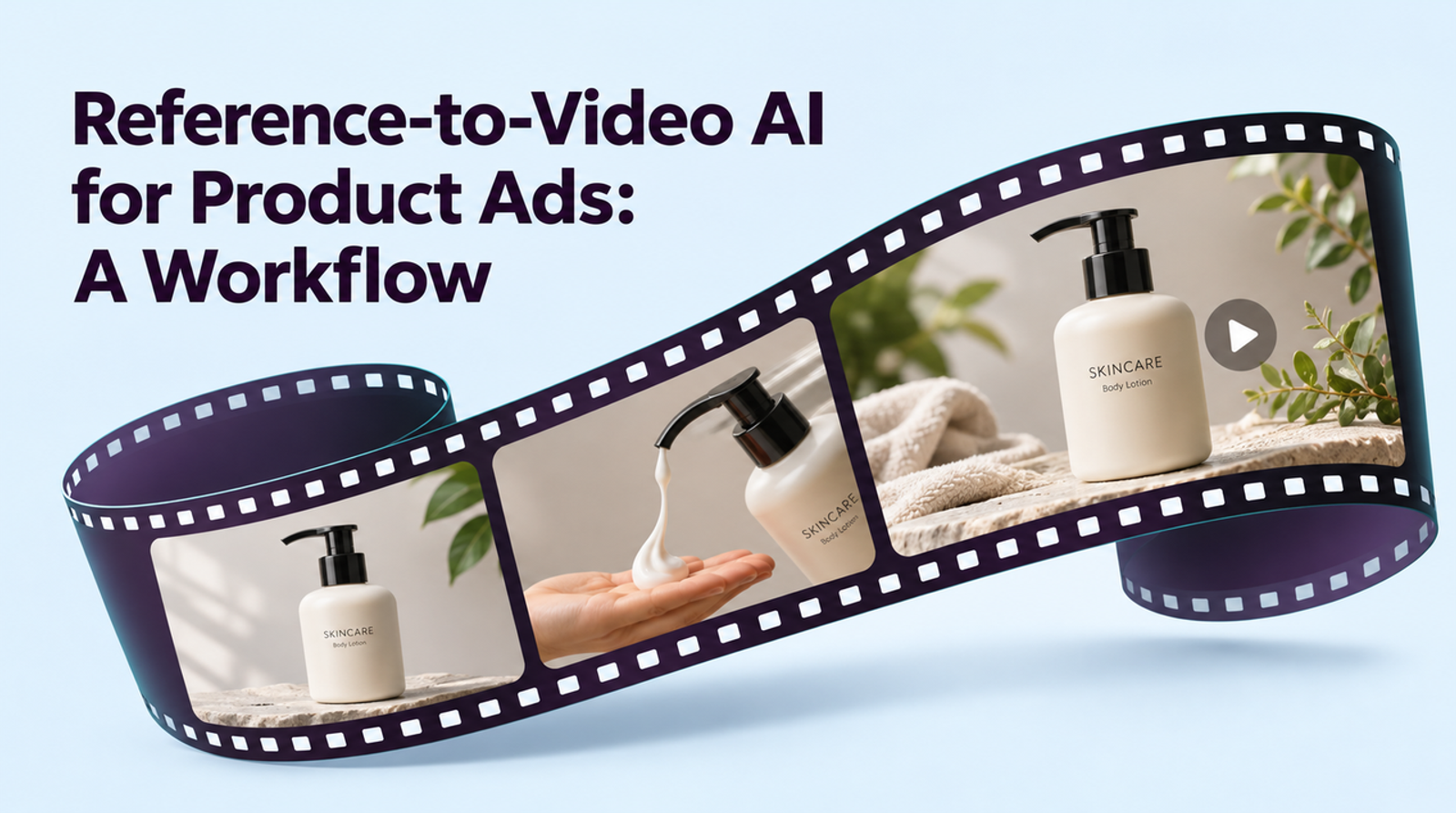
Reference to video AI helps a product team turn an authorized clip's movement into a new ad shot with its own product, setting, and message. The useful move is to borrow a camera idea, give it a clear job in your brief, and see whether the product still reads after the motion. That is a more practical goal than asking a generator to remake an ad you already like.
What Does a Reference Clip Control?
Motion and Composition Versus Product Identity
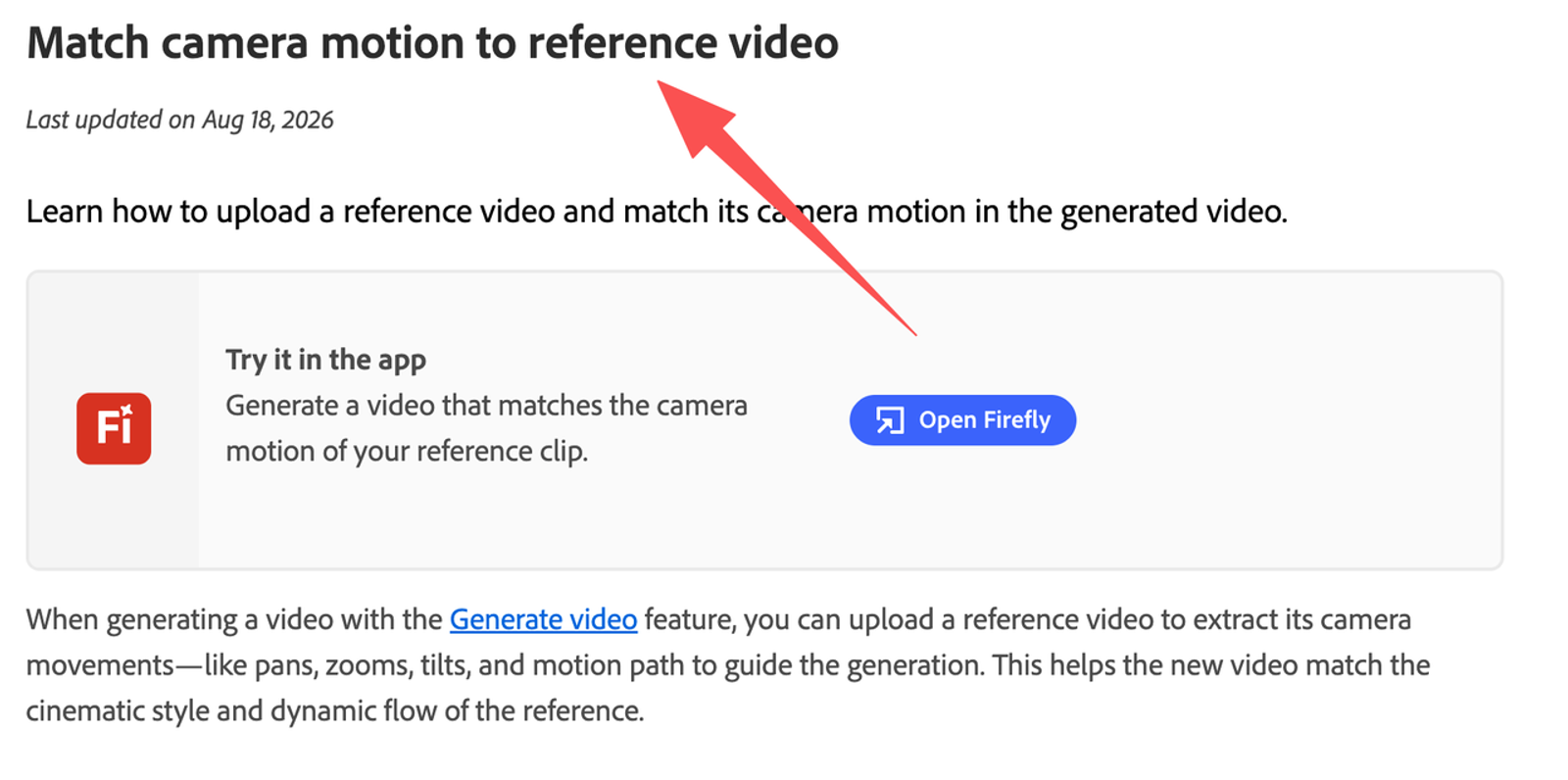
A video reference answers questions a still cannot: how quickly the camera approaches, where the item enters, and where the move ends. Adobe's motion-reference documentation describes using a clip to guide pans, zooms, tilts, and motion paths. The video can describe how the shot unfolds; An approved product image describes what the item must look like.
If the reference shows a bottle turning in a hand, the useful pattern might be “hand enters, quarter turn, close-up on the front label.” Static image-to-video starts from a frame and invents the movement; reference video to AI video supplies a time-based guide. The product image supplies the identity. Expect an interpretation of the motion, not a frame-for-frame transfer. For a simple push-in, the PixVerse still-to-video workflow gives you a one-photo baseline to compare against.
What Do You Need Before Generation?
A Reference You Are Allowed to Use
Start with footage the brand shot, commissioned with reuse rights, or licensed for this purpose. A public ad is not automatically yours to upload or adapt. If the rights are unclear, choose another clip.
Next, ask what makes that clip unmistakably itself: a signature character, set, slogan, choreography, or audio cue. Leave those behind. The U.S. Copyright Office's 2025 AI copyrightability report discusses human expression in AI outputs; it does not give a brand permission to borrow another creator's work. Use the general shot pattern and build a different product moment around it. A close adaptation or restrictive license belongs to the legal team.
Approved Product Images and a Single Ad Brief
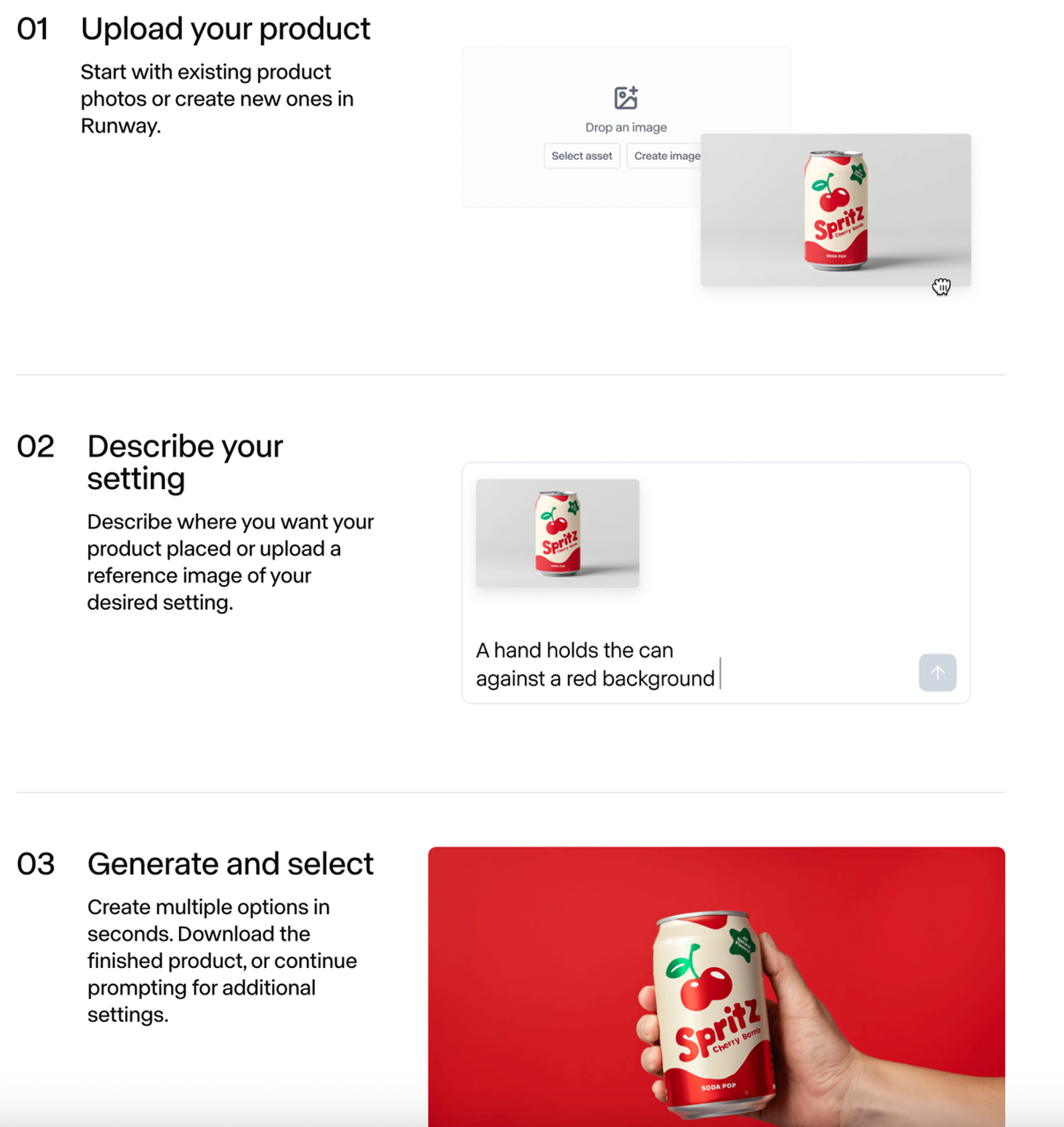
Bring an approved hero photo, another angle if the move exposes a new side, and a short brief: product, one supported claim, audience, target ratio, and details that cannot change. “Keep the blue cap and white label; show a slow reveal; leave space for the offer overlay” gives the model a job. “Make this viral” does not. Keep logos, prices, and required copy editable for the final cut.
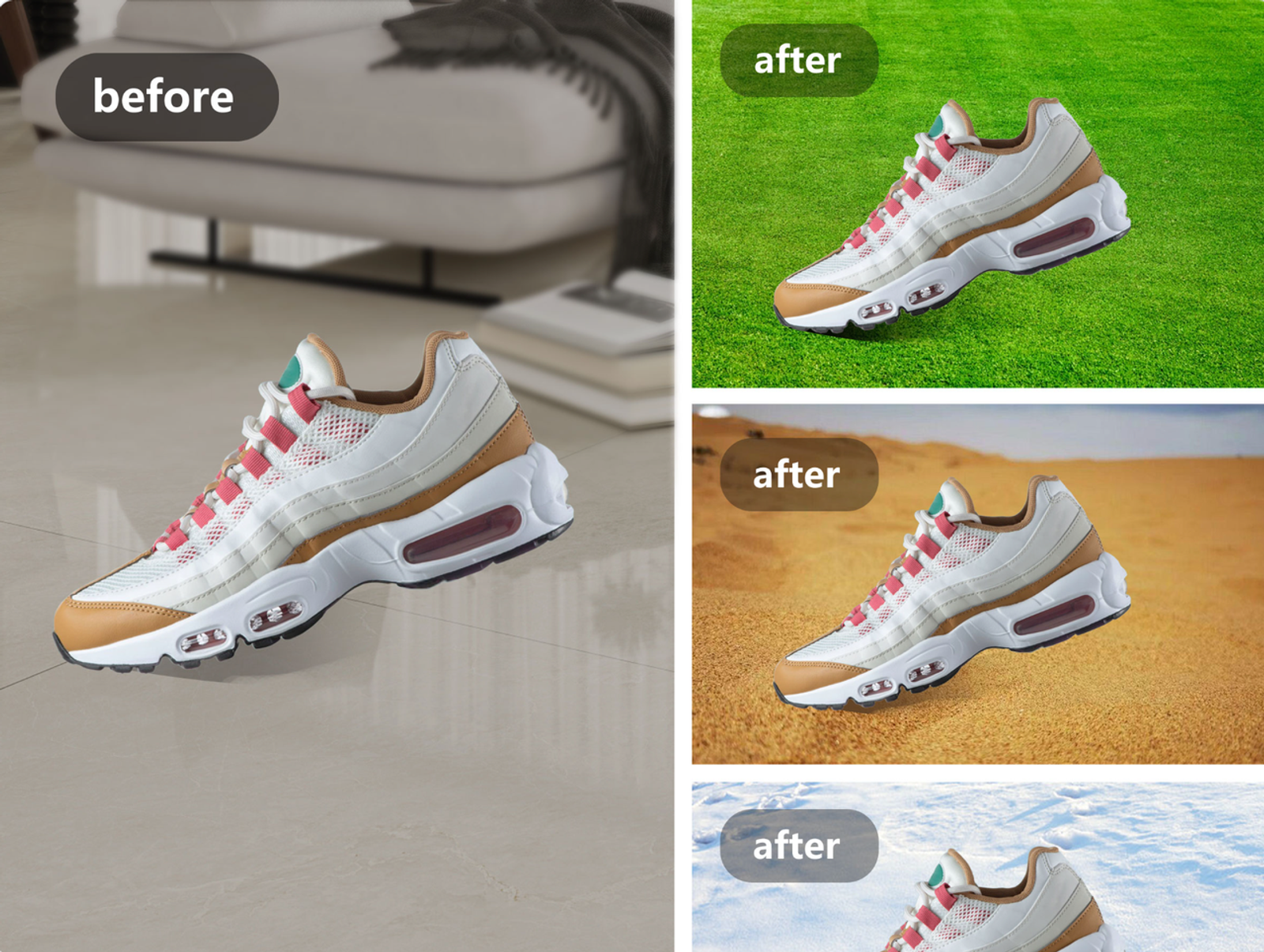
If the hero photo needs background cleanup, adapt these GPT Image 2.5 photo editing prompts and recheck the label before approving the edit.
Choose a reference with one meaningful action. A montage brings in several timing and continuity problems before you know whether the basic product shot works.
How Do You Turn a Reference Into a Product Shot?
Identify the Shot Pattern Without Copying the Original
Watch the authorized clip without sound and write down its mechanics: “vertical frame; wide start; product crosses center; slow push-in; final hold on front panel.” Then name what changes: “new tabletop, approved jar, new opening, no source talent or typography.” This is a brief an editor can use. If removing the original actor or slogan kills the idea, the team needs a different idea.
Keep only movement that serves the new product. A slow turn may work for a shoe but reveal an invented back panel on a bottle. I want to see what survives a second look: the silhouette, the claim, and where the viewer's eye lands after the move.
Add the Product, Brand, and Motion Instructions
Wizstar offers a route worth checking for this job. Its feature directory lists Viral Video Recreation for working from a video's script, shots, rhythm, and transitions with your own assets. A separate Gemini Omni 1.1 Flash page describes a Reference to Video path with image and video references. The two entry points have different descriptions, so use the controls shown in the one you choose.
Give each input one role. For the video: “Use only the slow push-in and the timing of the final hold.” For the product image: “Keep this jar's cap shape and label colors.” Add the new setting and ending, and leave source talent, typography, music, and branding out of the shot. The live controls decide how much of this brief the selected mode can accept.
If you need wording for a push-in, pan, or tracking shot, use the Seedance 2.5 guide to camera control to describe the move in the brief.
Generate and Compare Drafts Against the Brief
Generate at the target ratio, then change only the motion instruction for draft two. Put both exports beside the approved product image. Which one keeps the jar recognizable throughout, and which gives the editor a useful ending? A prettier clip that hides the label answers neither question.
If the product survives only in the opening frame, try a shorter move or a better source angle. If the model keeps inventing packaging, use a conventional edit. The next edit is part of the cost.
How Do You Review the New Clip?
Product Accuracy and Brand Ownership
Review the export at phone size, then pause at the start, middle, and end. Does the cap stay the same shape? Can you still read the label? Does a generated hand change the package scale? A plausible turn can invent a side the source photo never showed. Supply an approved angle or cut the move before that happens; I would not ask a model to invent the back of a regulated pack.
If the shot includes generated audio, give it a separate pass. The MiniMax H3 audio review criteria cover spoken accuracy and whether music or sound effects need rights clearance.
Check whether a source logo, prop, face, or voice has slipped into the new shot. Keep the reference, product assets, prompt, and approved export together so a reviewer can trace what was used. The C2PA working group's 2025 explanation of Content Credentials describes provenance metadata that can support that record where available. It does not grant rights or approve the ad.
Excessive Similarity and Misleading Claims
Play the source and new clip side by side with sound off. If the distinctive sequence, set, and reveal are still there, a new SKU has not done enough work. Change the beat order, location, camera distance, or purpose of the shot. I would be especially wary of a result that could be mistaken for a competitor's campaign.
Now watch for an accidental product claim. A generated action can suggest a result, size, or use that the real item cannot deliver. The FTC's advertising guidance says ad claims must be truthful and evidence-based; visuals contribute to that impression. If the action implies an unsupported claim, rebuild the shot before polishing its typography.
Where Does Reference-to-Video Fall Short?
Limits of Motion Transfer and Final Ad Assembly
Reference-to-video is useful for a contained movement or composition. It cannot be your entire production plan: exact choreography, clean package text, captions, sound, and the end card may still need an editor.
If the reference's camera move keeps hiding the label, stop asking for the same move again. Change the reference or build the movement in an editor around a clean product shot. A draft earns a review, not a green light. The useful outcome here is one original shot ready for the ad team's next cut.
Conclusion
Treat a reference clip as a direction for motion, not as a shortcut to someone else's finished ad. With permission in place, a clear product brief, and a narrow shot pattern, reference to video AI can help a DTC team explore one original product-ad shot worth reviewing. Teams with an authorized reference clip can inspect Wizstar's current recreation entry point and check the available inputs before they commit campaign footage.
FAQ
- Is there a minimum length for an uploaded video reference?
- There is no universal minimum across reference-video tools. Adobe's current Firefly motion-reference instructions specify a 5–10 second source clip. Wizstar's public Viral Video Recreation description does not state a minimum, so check the selected upload control before cutting your source footage.
- Do reference-video tools preserve the uploaded clip's audio?
- Not automatically. A reference can guide picture movement while the output has generated, replaced, or no audio. Wizstar's Gemini Omni 1.1 Flash description says it generates audio with the new clip; that is not a promise to carry over the source soundtrack. Keep licensed audio as a separate asset and decide deliberately whether it belongs in the final ad.
- What video file types does Wizstar accept as references?
- Wizstar's public model page confirms video-reference input, but the Viral Video Recreation description does not list supported file types or codecs. Check its live upload dialog before converting a batch of clips; Another model's requirements may differ.
- How long do video-reference services retain uploaded footage?
- Retention depends on the provider, model path, account terms, and deletion process. Wizstar's public feature description does not give a retention period for Viral Video Recreation uploads. For unreleased footage, confirm the applicable privacy terms and provider processing before uploading, then record when the project files should be deleted.
- Can one reference be reused across several campaign variants?
- Yes, if the license covers those uses and the team is creating distinct brand work rather than repeating a protected ad. Keep the motion idea consistent, but change the offer, framing, product angle, or final beat to suit each placement. Reusing one approved reference can make comparison cleaner; it does not guarantee that every generated variant will preserve the same product details.