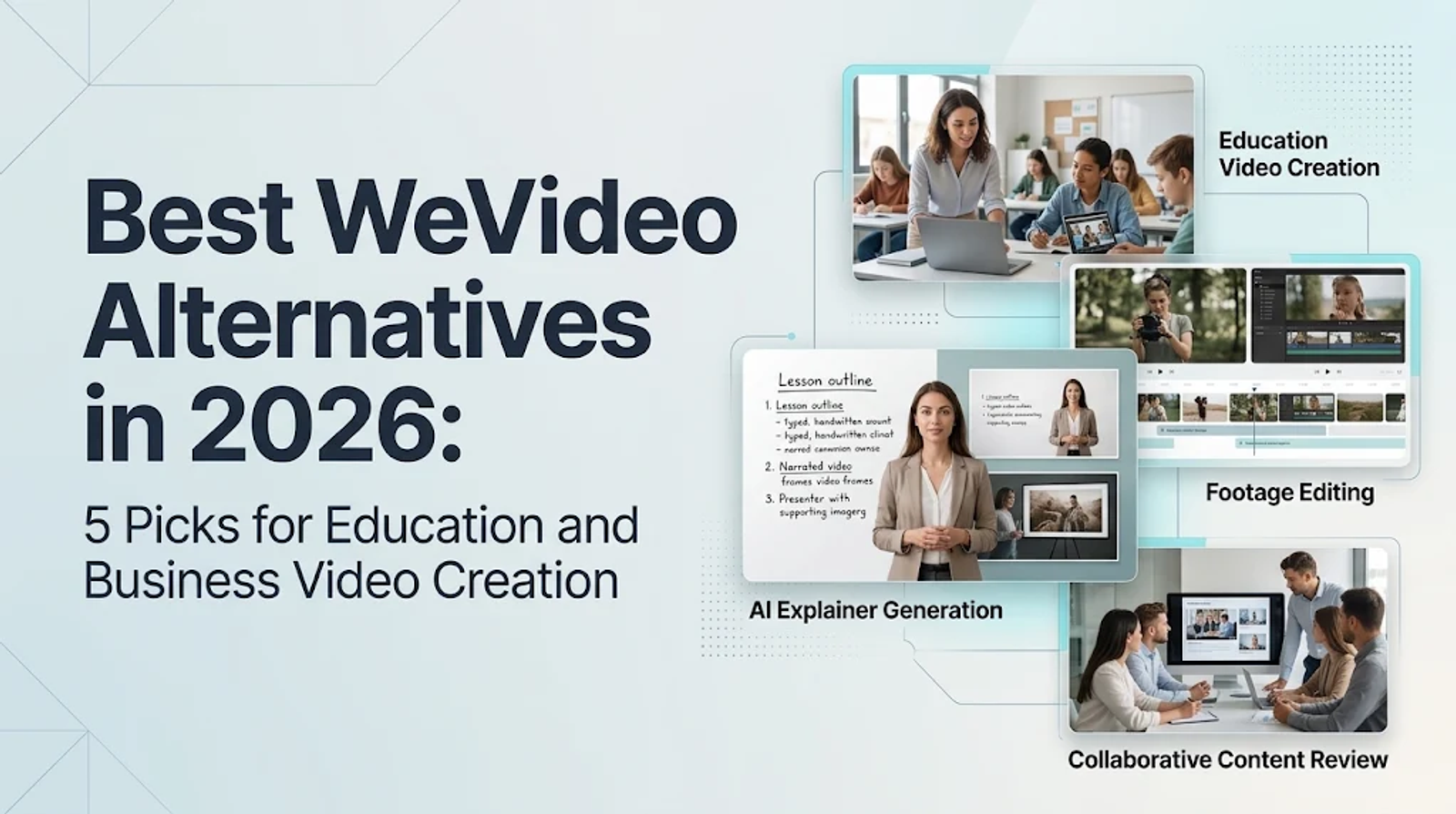
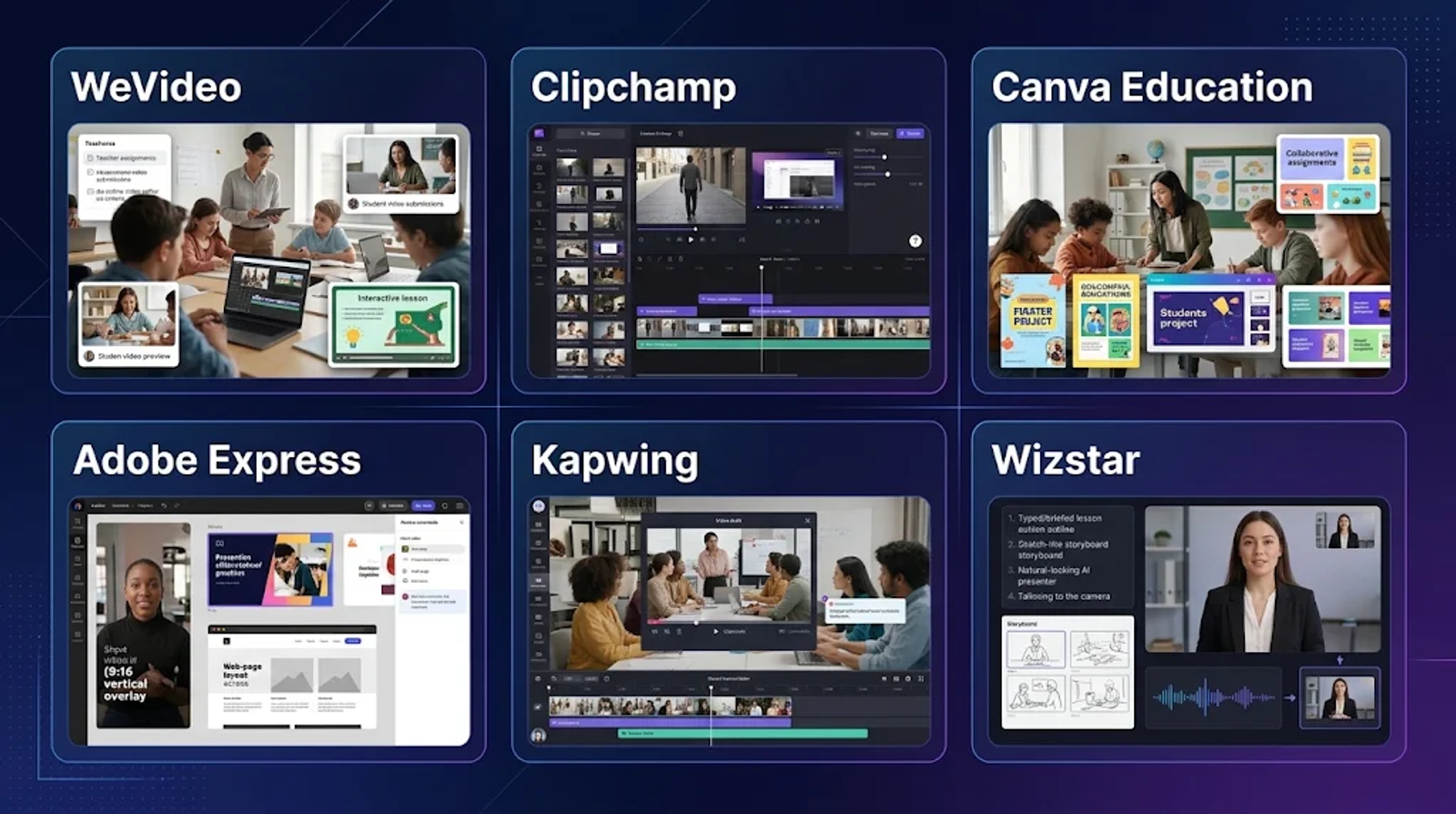
When looking for WeVideo alternatives, start with the specific workflow advantage you need rather than the brand label. Clipchamp takes the friction out of editing footage you already have. Canva keeps K–12 assignments and LMS delivery inside one classroom flow. Adobe Express simplifies review across mixed media formats. Kapwing gives adult collaborators a shared production workspace, while Wizstar shifts the job from arranging clips to generating a narrated explainer from a brief or script. Stick with WeVideo if student accounts, LMS integration, or interactive video learning is the core requirement you cannot afford to lose.
A timeline editor, a classroom workspace, and a script-to-video agent solve fundamentally different problems. Start with the final handoff that has to work for your audience or students, then pick the tool built around that step—pricing only matters once the workflow fits.
Feature comparison: where each alternative has an advantage
WeVideo’s main strength is its connected learning environment: video editing sits right alongside class assignments, group collaboration, LMS integrations, and plan-dependent AI Assist. Switching only makes sense when another platform handles a specific part of that workflow better for your exact use case.
| Need to replace | Candidate | Workflow starting point | Main handoff to preserve |
| Keep the connected classroom workflow | WeVideo | Assignments, student access, LMS connections, and AI Assist | Learning delivery around the editor |
| Edit footage you already have | Clipchamp | Clips, screen recordings, or camera footage | A finished file from existing media |
| Keep video inside classroom assignments | Canva Education | Teacher brief, media, and an assignment | Assignment and LMS delivery |
| Review video with other formats | Adobe Express | Video, graphics, pages, and templates | One shared communication asset |
| Let adults revise shared drafts | Kapwing | Team files and a shared production workspace | Collaborative video production |
| Create an explainer from written direction | Wizstar | Brief, script, or reference | A reviewed explanation rather than a classroom project |
The selection rule is straightforward: pick the tool that removes your biggest current bottleneck, and keep WeVideo if its connected classroom handoff is still essential.
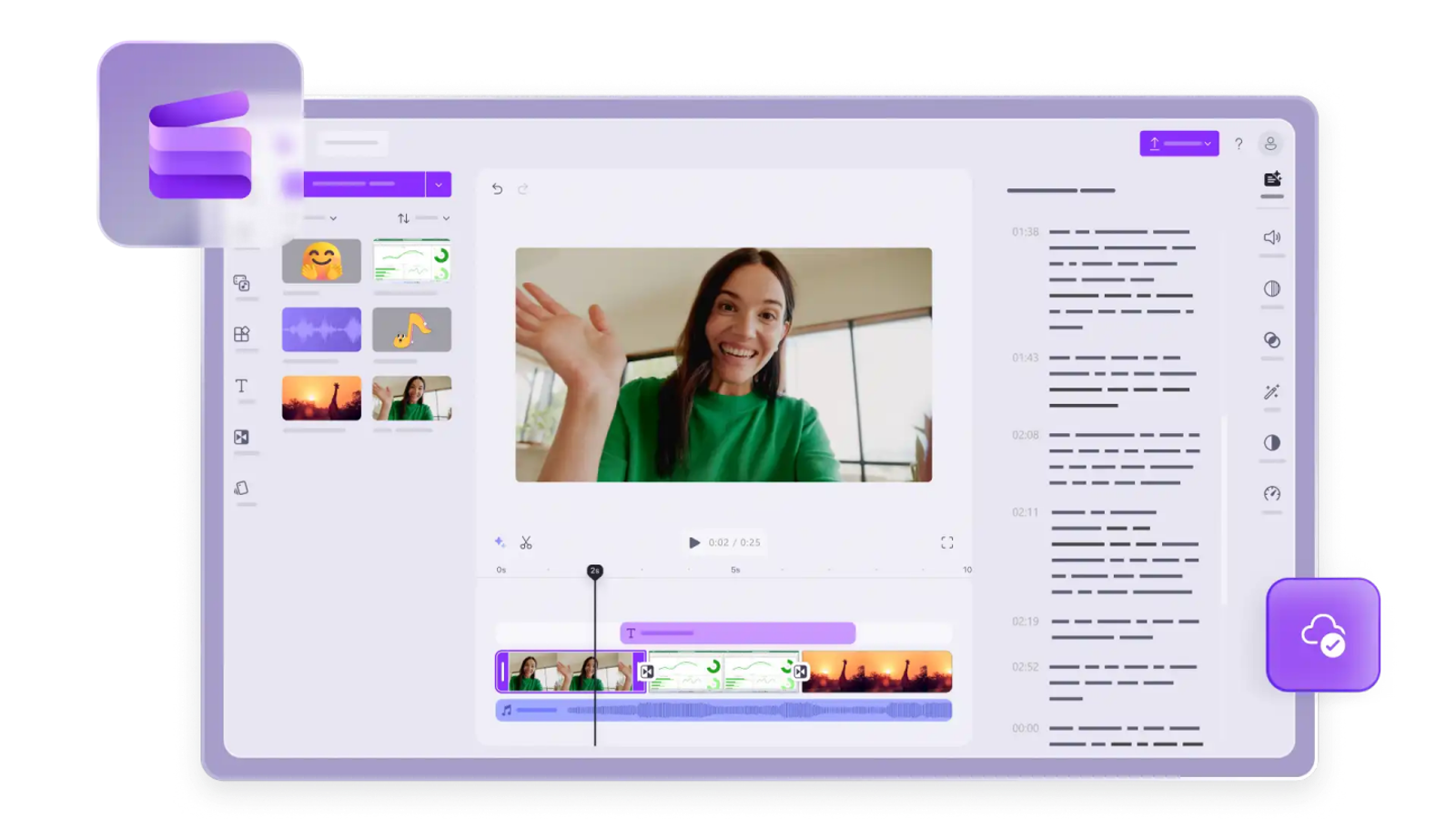
Clipchamp: low-friction editing for existing footage
Clipchamp shines when your raw material is already recorded. You can drop in camera clips or screen recordings and move straight into trimming, cropping, resizing, and timeline assembly. When the creative decisions have already been made during recording, a direct editor is much faster than a brief-to-video generator.
Its Free plan gives you a practical baseline for straightforward edits, though premium stock assets and effects require a paid plan to export. That premium access is included with Microsoft 365 Personal or Family subscriptions. The core appeal here is a short, predictable path from raw recordings to a finished video file.
I would choose Clipchamp when basic footage assembly is the main job. Turn to a classroom workspace, team editor, or generative tool when your real bottleneck is student delivery, multi-person review, or creating scenes from scratch.
Canva: assignment-centered classroom workflows
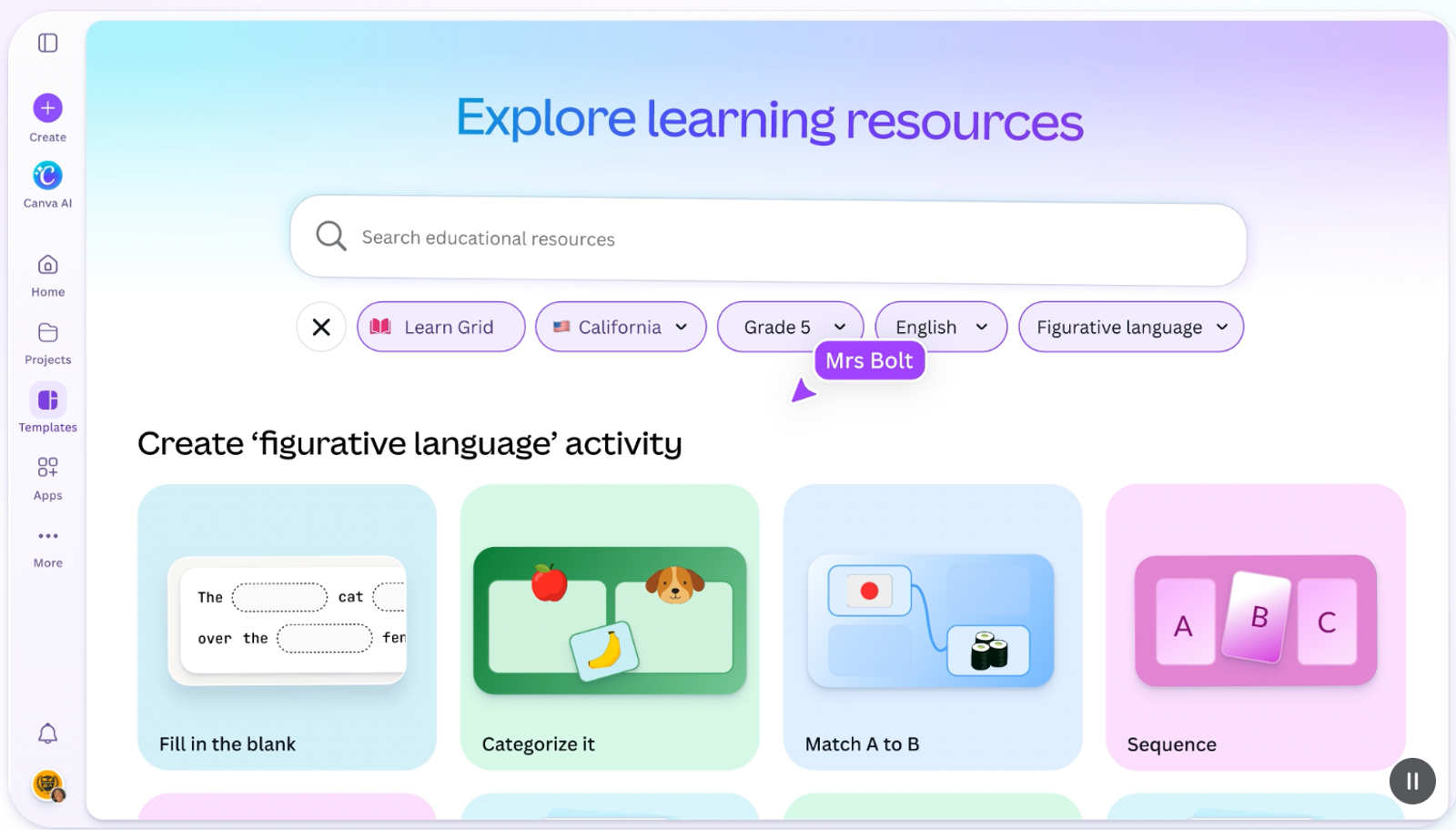
Canva focuses on everything that happens around the video file in a school setting. Eligible K–12 teachers, students, and institutions get free access to Canva Education, combining video editing with classroom assignments and LMS connections. Teachers can keep video projects inside the same assignment flow instead of treating them as standalone file exports.
That setup differs sharply from a pure timeline editor. Canva works best when video serves as proof of learning or one piece of a broader classroom activity. It does not replicate every interactive learning feature in WeVideo one-for-one, and higher-education or adult-training eligibility must be verified separately.
I would choose Canva when assignment distribution, student submissions, and LMS syncing sit at the center of your workflow. Keep WeVideo if a specific interactive video lesson setup is already running smoothly and would take too much effort to rebuild.
Adobe Express: cross-format collaboration and review
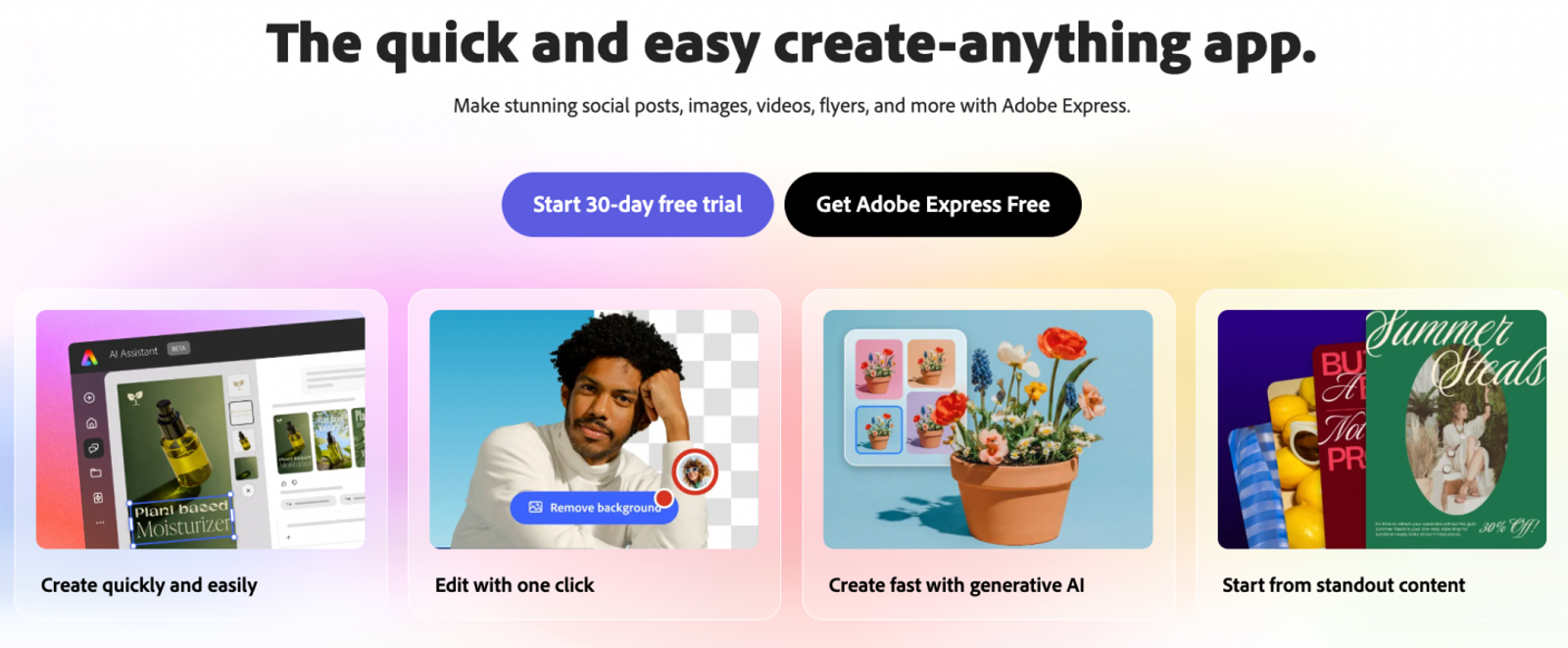
Adobe Express streamlines feedback when a project involves more than just video. Teams can build across short videos, graphics, web pages, and templates in one place, with commenting and real-time co-editing available for eligible K–12 users. Instead of reviewing an isolated timeline, collaborators work on the broader communication asset together.
This makes Adobe Express a stronger fit for mixed-format deliverables than a video-only editor. Its education access does come with conditions: eligible K–12 teachers can get a free version with most Premium features, whereas higher-education institutions do not automatically qualify for free access. It also does not natively replicate WeVideo’s student-roster management or interactive video quizzes.
I would choose Adobe Express when your group needs to review and revise videos alongside graphics and other formats. Keep a dedicated classroom platform when student accounts or interactive learning tasks drive the project.
Wizstar: brief-to-explainer video creation
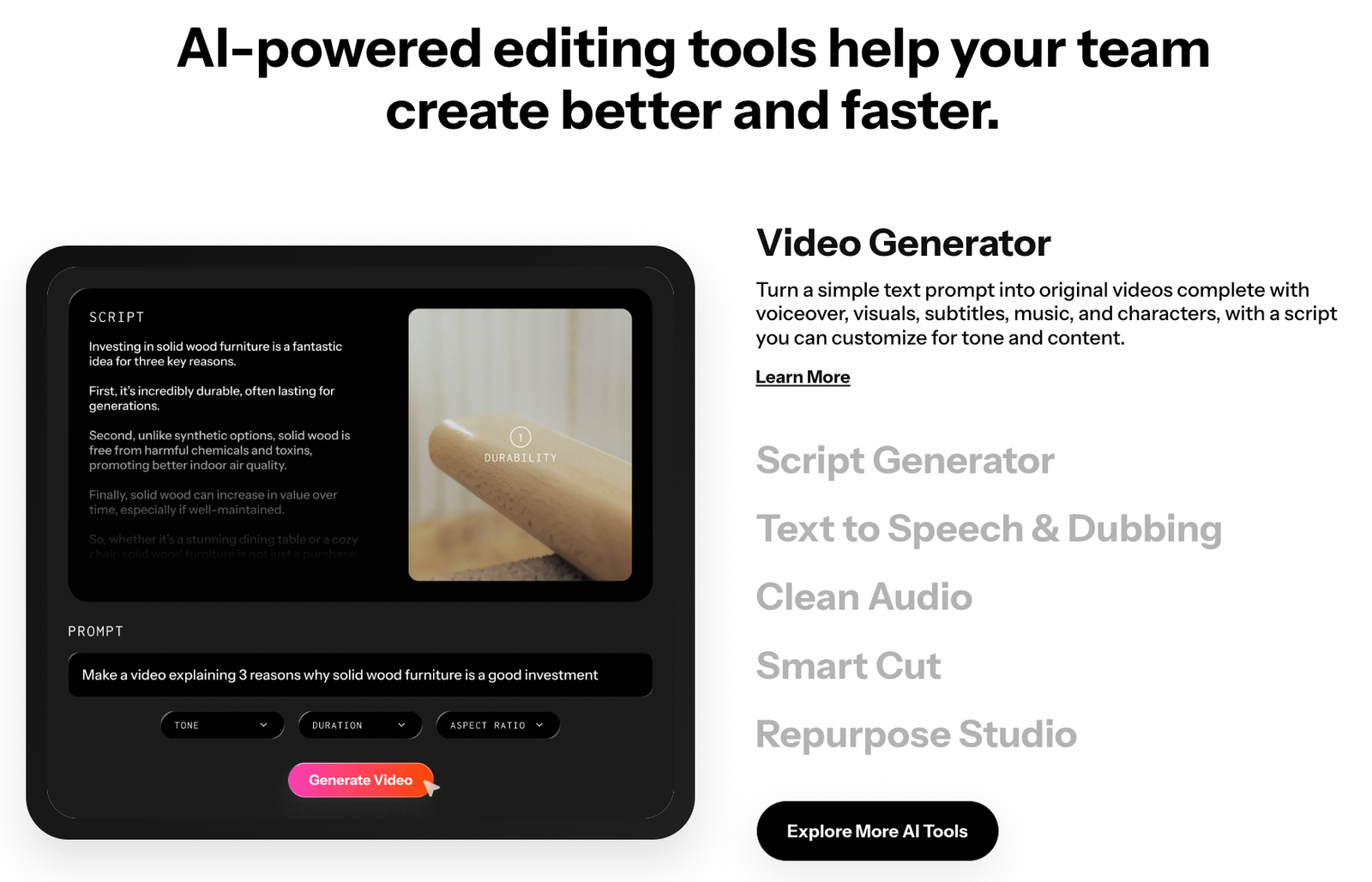
Wizstar is a stronger fit when your starting point is a lesson outline, script, or visual reference rather than a folder of pre-recorded clips. Its AI Video Agent turns that written direction into planned scenes, voiceover narration, captions, and rough edits that you can review before final synthesis. Instead of stitching existing footage together, you are shaping a brand-new explainer directly from approved content.
That is Wizstar’s main advantage over an editor-first workflow: educators and trainers can start with the exact concept they want to teach, then review and refine how the Agent translates it into video. Choose Wizstar when your goal is turning written material into a new explainer or presenter-led lesson, and keep WeVideo when your project relies on student accounts, LMS delivery, interactive quizzes, or fine-grained timeline editing. Wizstar replaces the brief-to-explainer production step—not the classroom delivery layer.
Price comparison: choose the right cost model
| Plan | Monthly USD basis | Annual option paid upfront | Key allowance or condition |
| WeVideo Creator | $28/month | $240/year | Up to 4K Ultra HD; individual creator baseline |
| Clipchamp Free | $0 | — | Watermark-free 1080p; personal Microsoft account |
| Canva Education | $0 for eligible K–12 users | Eligibility-based | Education access; video, assignments, and LMS connections |
| Adobe Express Premium | $9.99/month | Monthly plan | No annual commitment; 4K and up to two-hour video |
| Kapwing Pro | $24/member/month | $16/member/month | Shared workspace; 4K; 200 GB; 1,000 credits/month |
| Wizstar Starter | $10.99 first month, then $18.05/month | $16/month equivalent | 1,310 credits/month on monthly plan; taxes at checkout |
WeVideo Creator serves as the baseline here because it is the closest individual tier for comparing creator workflows. WeVideo also sells specialized multi-seat tiers: WeVideo Teams costs $75 per month or $624 per year for three seats, while WeVideo Instructor costs $384 per year for 30 education seats. Placing those multi-seat packages directly against single-user plans would distort the comparison.
For a three-person adult team, WeVideo Teams runs $75 per month compared to $72 per month for three Kapwing Pro seats on monthly billing. A $3 monthly gap is too small to drive the decision—workspace permissions, export caps, and how smoothly teammates can revise drafts matter far more.
Keep eligibility and billing terms in mind when budgeting. Canva Education and Adobe Express’s free teacher tier depend on K–12 verification rather than open public access. Clipchamp is a strong $0 option for editing existing clips, with paid upgrades bundled into Microsoft 365 Personal or Family. For Wizstar, treat $10.99 as an introductory first-month rate and budget around the ongoing $18.05 monthly renewal price (or the $16/month annual equivalent).
Finally, remember that Wizstar credits cover storyline planning, scripting, and video generation together, so a single model’s per-second rate does not equal the total cost of a finished, approved explainer. Choose Wizstar when turning written briefs into explainers is the core value; choose a timeline editor when you are primarily cutting existing footage.
Conclusion
Match your replacement to the handoff that matters once the video is exported. Use Clipchamp when you are cutting recorded footage, Canva when video sits inside an eligible K–12 assignment, Adobe Express when mixed media formats require joint review, and Kapwing when adult teammates need a shared editing workspace. Keep WeVideo when student accounts, LMS delivery, or interactive learning features carry the project.
For adult instructional and training explainers, the decision comes down to your starting input. When you have an approved brief or script rather than raw video clips, test the workflow in Wizstar’s AI Video Agent, which maps out scenes, narration, captions, and edits for review before rendering. If your lesson calls for an on-screen presenter, compare that workflow with Wizstar’s AI Avatar tools. Review current Wizstar pricing before subscribing, and make sure the language support, asset rights, and audience handoff fit your project’s boundaries.
FAQ
- Is there a free version of WeVideo?
- WeVideo currently offers a seven-day free trial for Creator or Instructor plans rather than an unlimited permanent free tier. Exports made during the trial carry a watermark, and you must re-export your project after upgrading to remove it. Once the trial expires without a paid plan, access to the trial account ends—always check the signup terms, as trial conditions can vary by account type.
- Can students use WeVideo without creating a personal account?
- Yes, in many school deployments students can log in without a personal email address when access is provisioned through a school roster or LMS integration. The exact sign-in flow depends on how your school district or institution configures authentication. Always rely on your school’s LMS or IT setup instructions rather than assuming every classroom account behaves the same way.
- Can I cancel anytime?
- You can cancel your WeVideo subscription before the next billing date, and your paid access typically continues through the end of the current cycle before auto-renewal stops. According to WeVideo’s published terms, partial or past charges are non-refundable, so submit your cancellation ahead of renewal if you are done using the platform. Keep your billing dates on file if a school or team administrator manages the subscription.
- Does Wizstar use uploaded content to train AI?
- Wizstar’s terms permit uploaded content to be used for training, fine-tuning, and improving its technology, and its privacy policy notes potential processing by third-party model providers alongside technical improvement. Because there is no blanket guarantee that uploads are excluded from model training, only upload materials you have the right to share and follow your organization’s policies on confidential or regulated data.
- Can I use my own audio for AI lip sync?
- Yes. Wizstar allows you to upload your own recorded audio track or generate narration from a written script to drive avatar lip sync. If your audio or reference image features another identifiable person, you must obtain clear written permission beforehand. Note that custom voices and custom avatars are paid add-ons rather than standard features in the base plan.
- Can I edit subtitles in Wizstar Agent videos?
- Yes. Wizstar Agent lets you toggle captions on or off and customize their style, font, and font size. Review both the storyboard and the script before triggering final synthesis and download—treating that pre-render check as part of your core editing process ensures names, figures, and instructional terms match your approved script before publication.