First month 40% off — unlock Seedance 2.5, Wizstar R1 with Unlimited Video Generation for $10.99First month 40% off — Seedance 2.5, Wizstar R1 & Unlimited Video for $10.99

AI Photo Editor

Upload a photo, type what to change, and get an edited version in seconds.

Swap backgrounds, fix lighting or restyle any shot, with output up to 4K.
  • Free to start
  • Commercial use
  • 8 aspect ratios

See What the AI Photo Editor Can Do

Each edit below started from one photo and one sentence. Hover a pair to see the prompt behind it, then try the same AI photo editor prompt on your own picture.
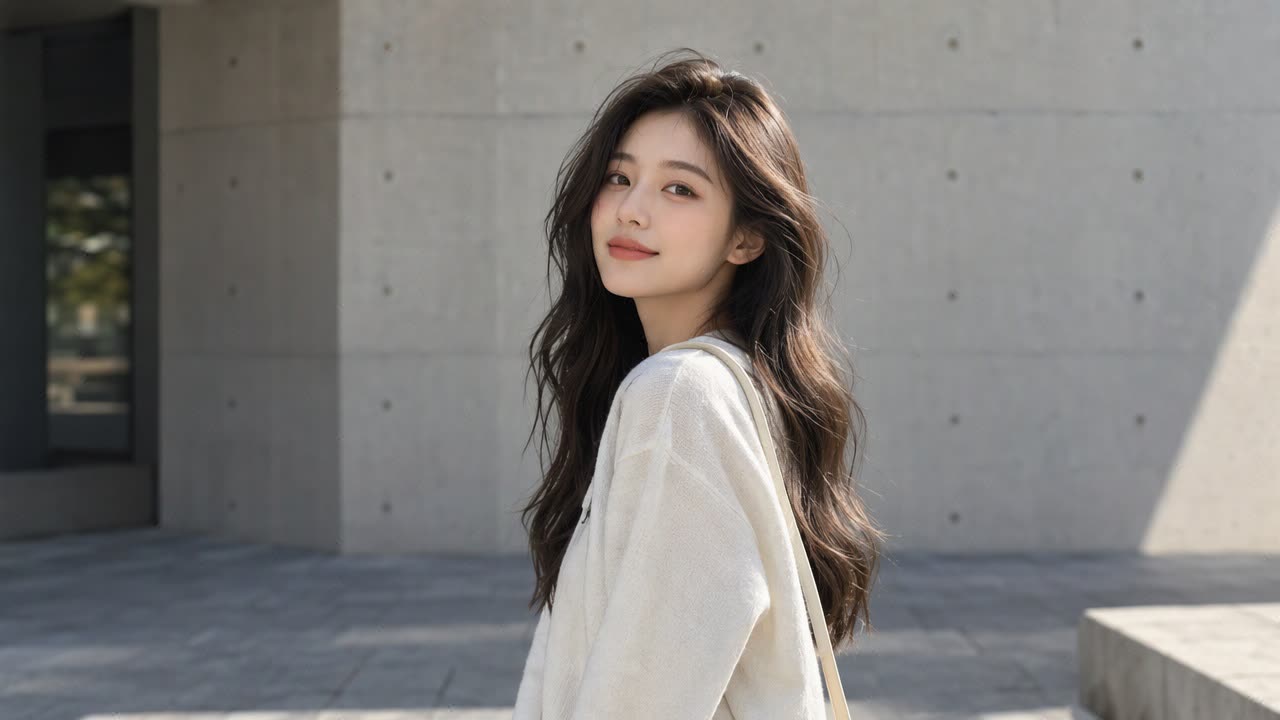
Original photo of a woman standing in front of a gray concrete wall
Before
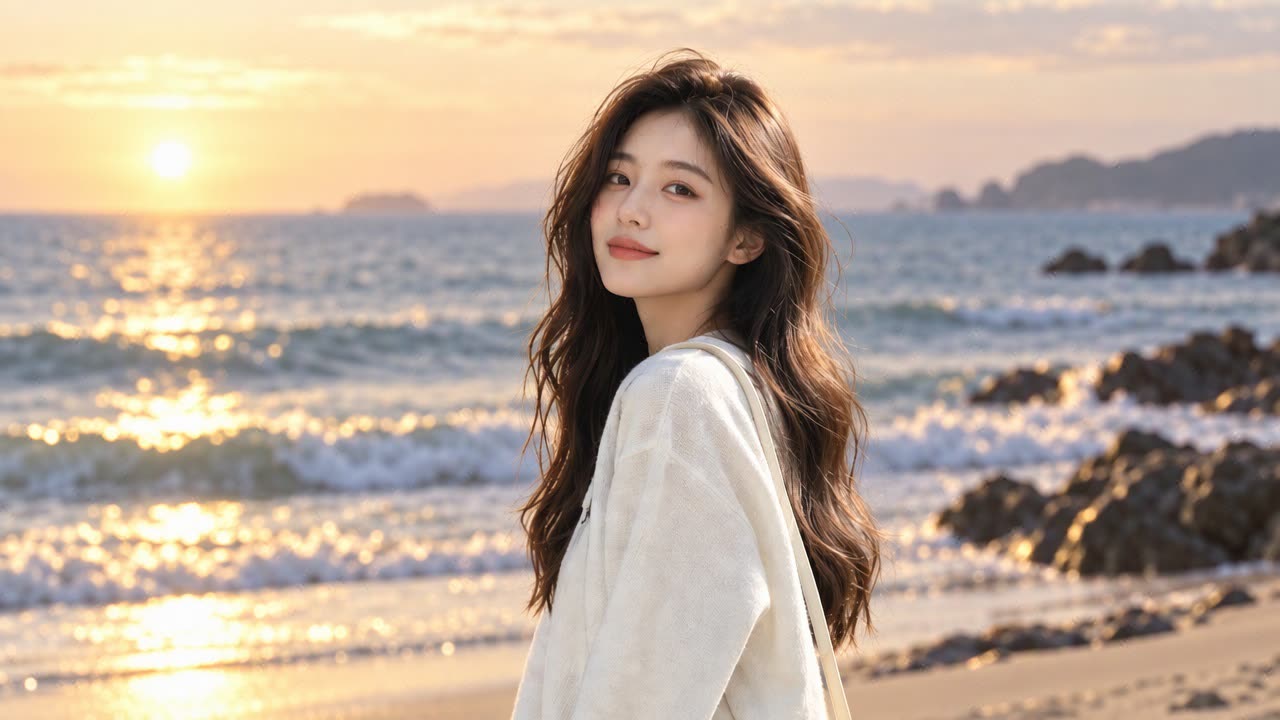
AI photo editor result: the same woman on a sunset beach with the background replaced
After · Change the background
“Replace the background with a beautiful beach at sunset, keep the person the same”
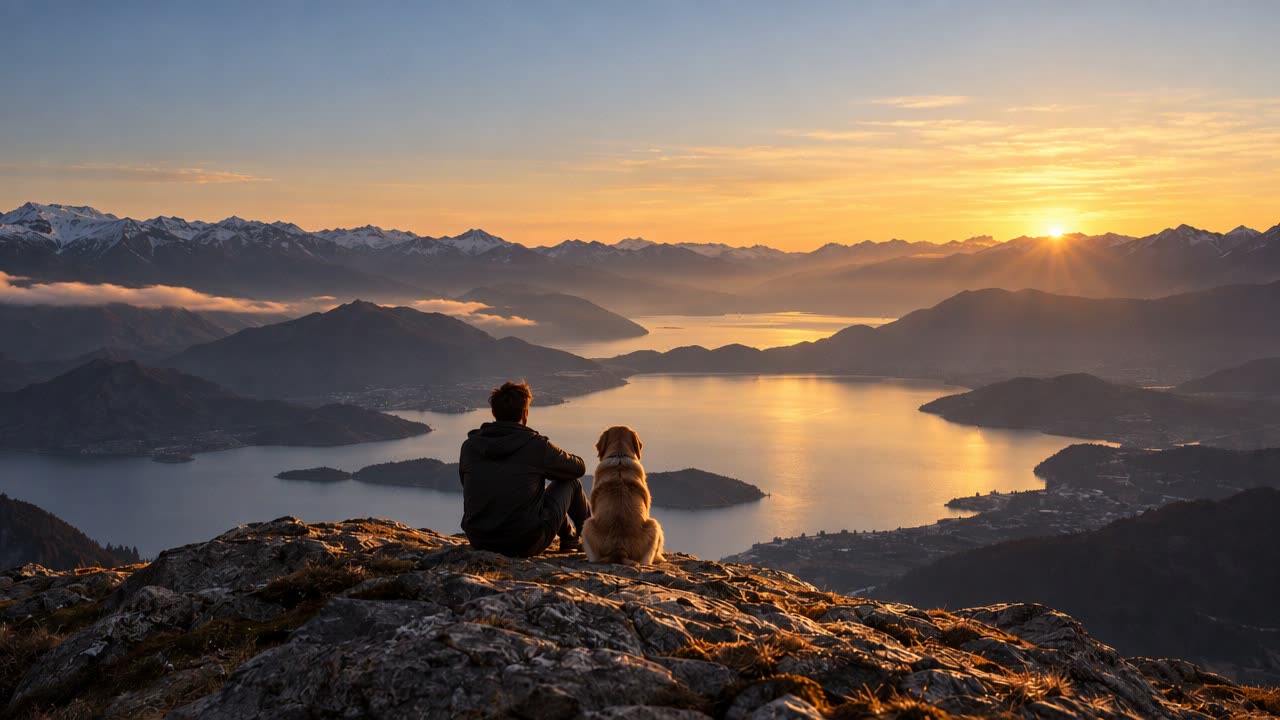
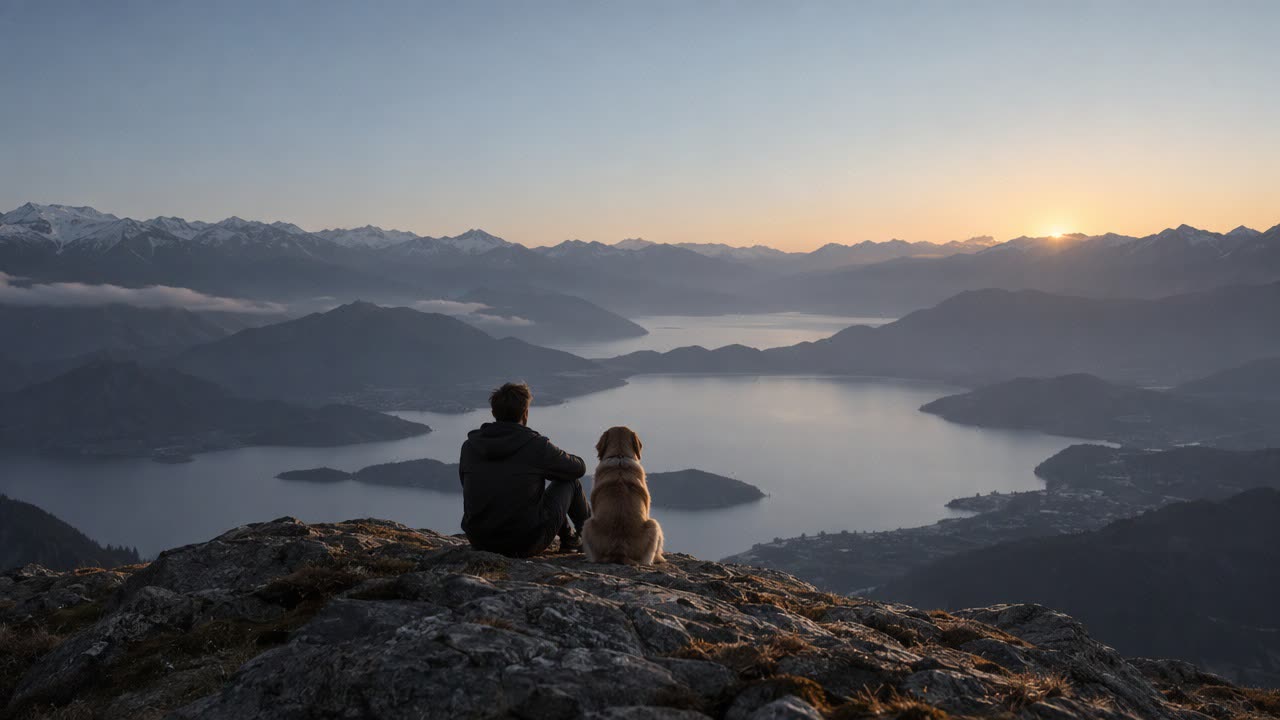
Original photo of two figures on a cliff above a lake with flat evening light
Before
AI photo editor result: the same cliff scene with warm golden-hour sunlight
After · Fix the lighting
“Add warm golden-hour sunlight and make the sunset glow brighter”
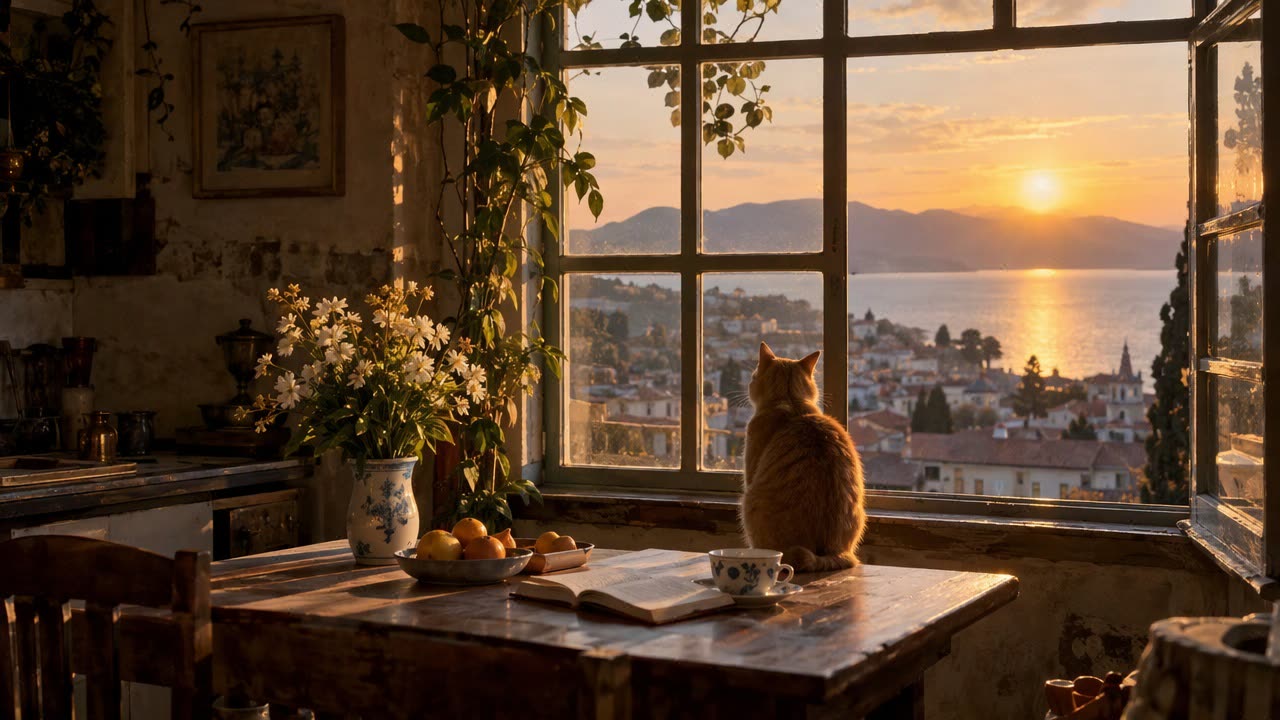
Original photo of a cat by a window at sunset in a cozy room
Before
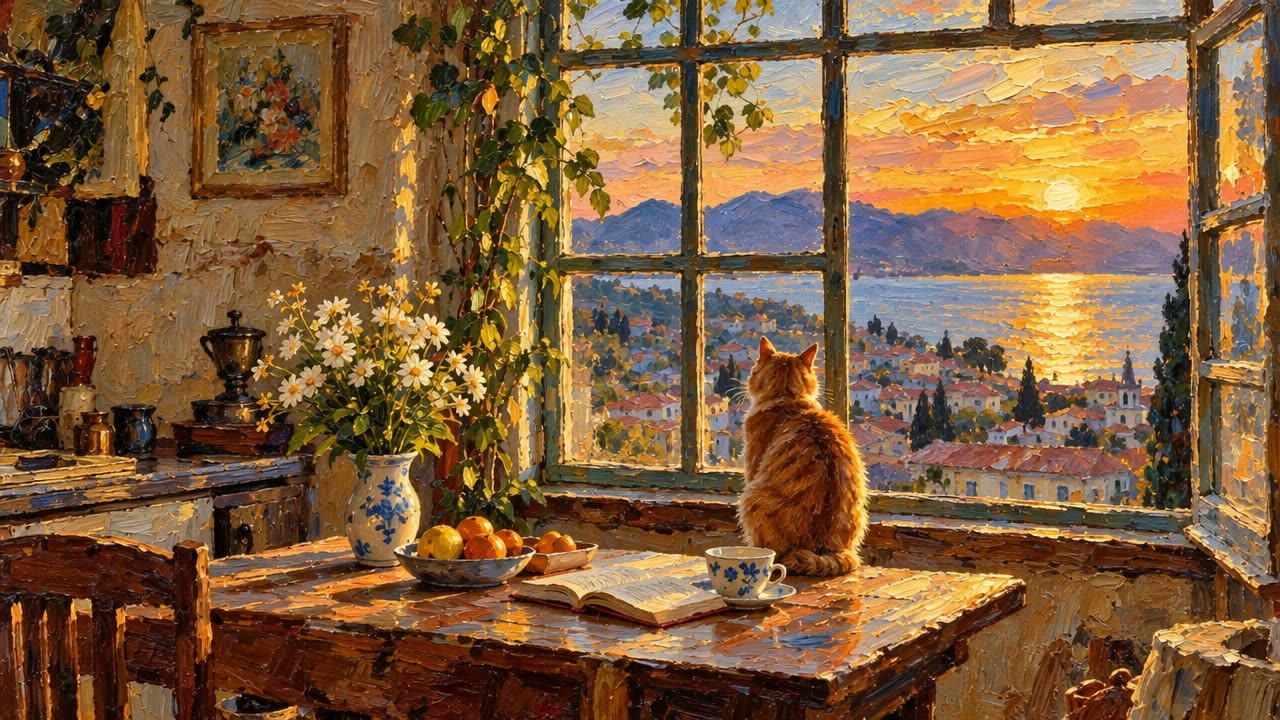
AI photo editor result: the same room restyled as an oil painting
After · Restyle the photo
“Turn this photo into an oil painting with visible brush strokes”
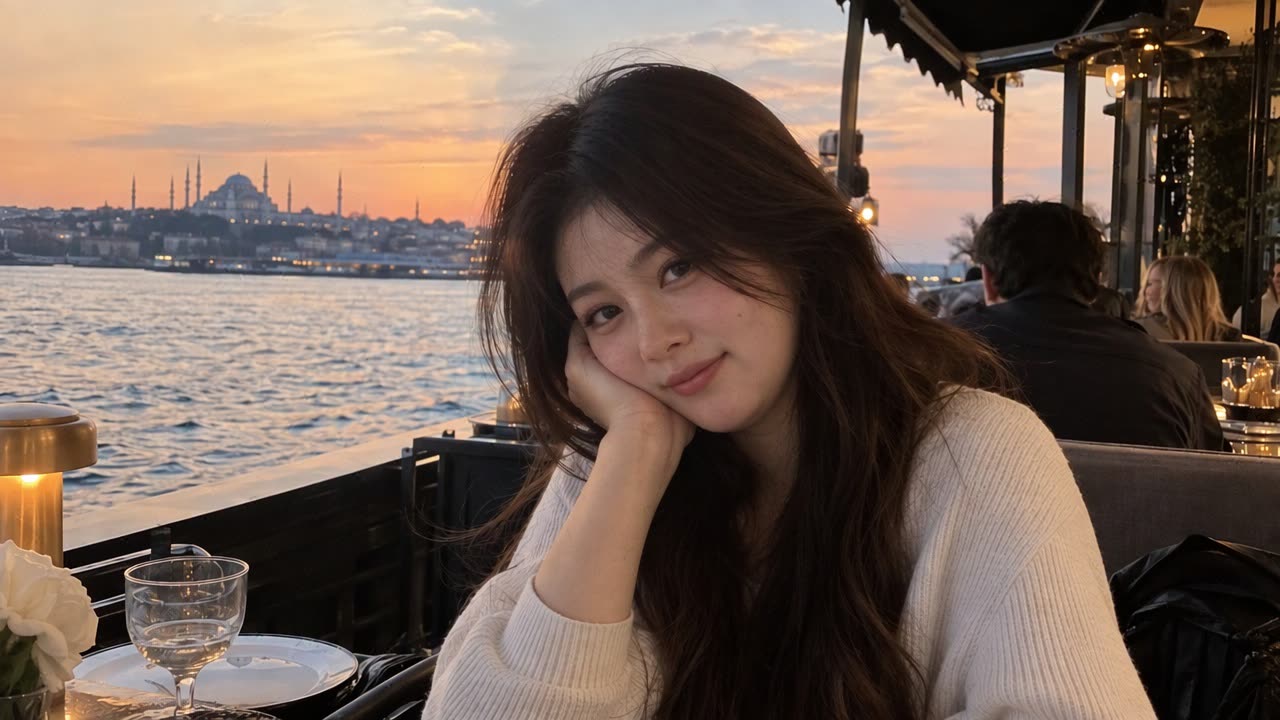
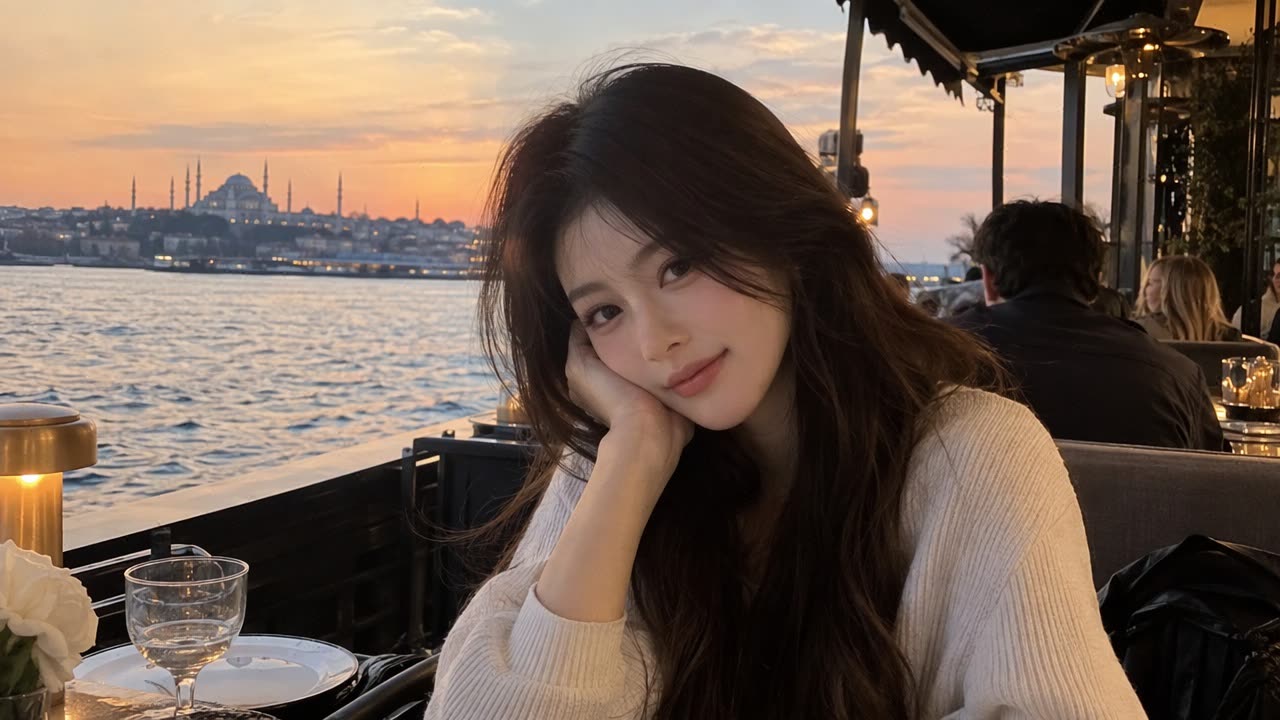
Original portrait of a woman at a seaside cafe
Before
AI photo editor result: the same portrait retouched with smoother skin and a brighter face
After · Retouch a portrait
“Smooth the skin and brighten the face a little, keep it natural”

AI Photo Editor Prompt Ideas

Pick an edit, drag the slider to compare, and copy the sample AI photo editor prompt to use on your own photo. Each idea works with a single sentence.
After AI photo editor: swap the background
Before AI photo editor: swap the background

Swap the background

Keep the person and move them somewhere new.Sample prompt“Replace the background with a beautiful beach at sunset, keep the person the same”
After AI photo editor: fix the lighting
Before AI photo editor: fix the lighting

Fix the lighting

Turn flat light into a warm, glowing scene.Sample prompt“Add warm golden-hour sunlight and make the sunset glow brighter”
After AI photo editor: clean up a portrait
Before AI photo editor: clean up a portrait

Clean up a portrait

Light touch-ups that still look like you.Sample prompt“Smooth the skin and brighten the face a little, keep it natural”
After AI photo editor: change the style
Before AI photo editor: change the style

Change the style

Turn a photo into a painting, sketch or poster.Sample prompt“Turn this photo into an oil painting with visible brush strokes”
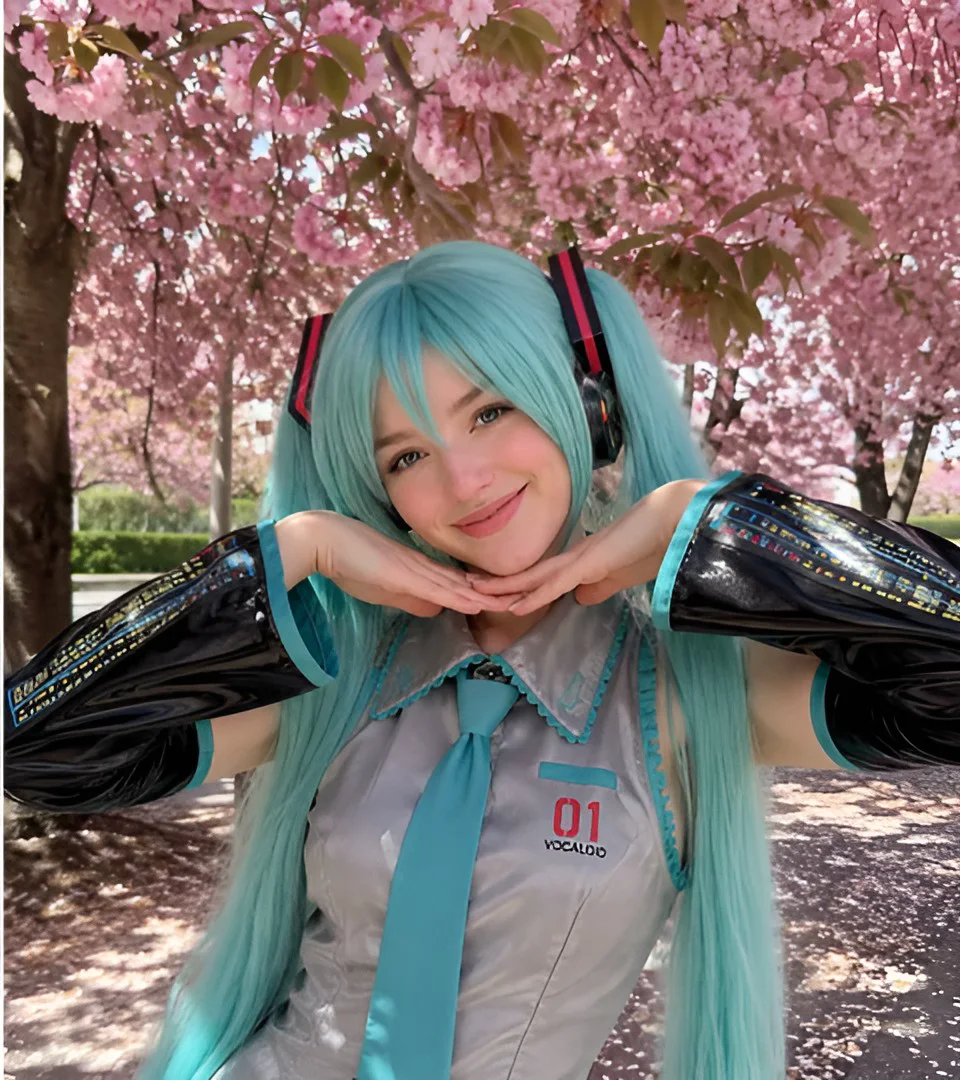
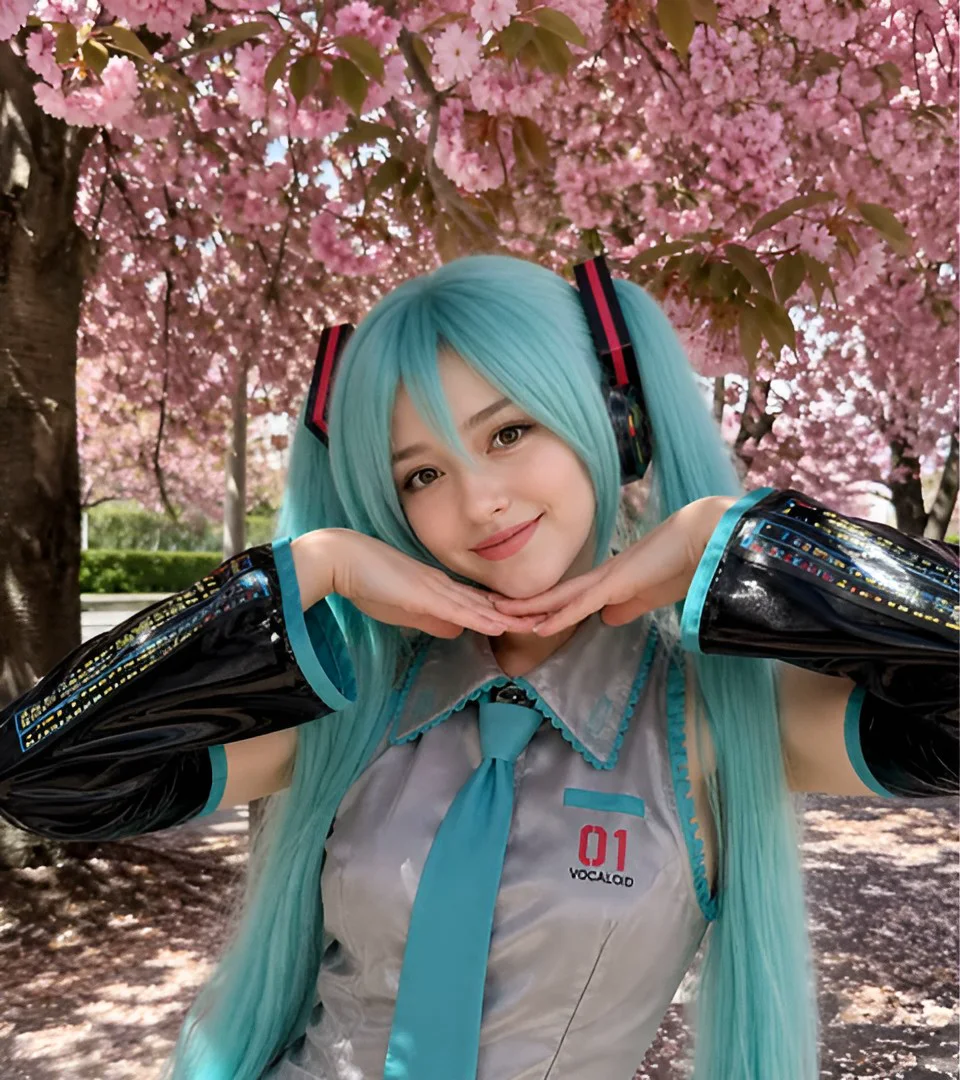
After AI photo editor: try a cosplay look
Before AI photo editor: try a cosplay look

Try a cosplay look

Put yourself into a character’s outfit and scene.Sample prompt“Dress me as a teal-haired anime singer under cherry blossoms, keep my face”
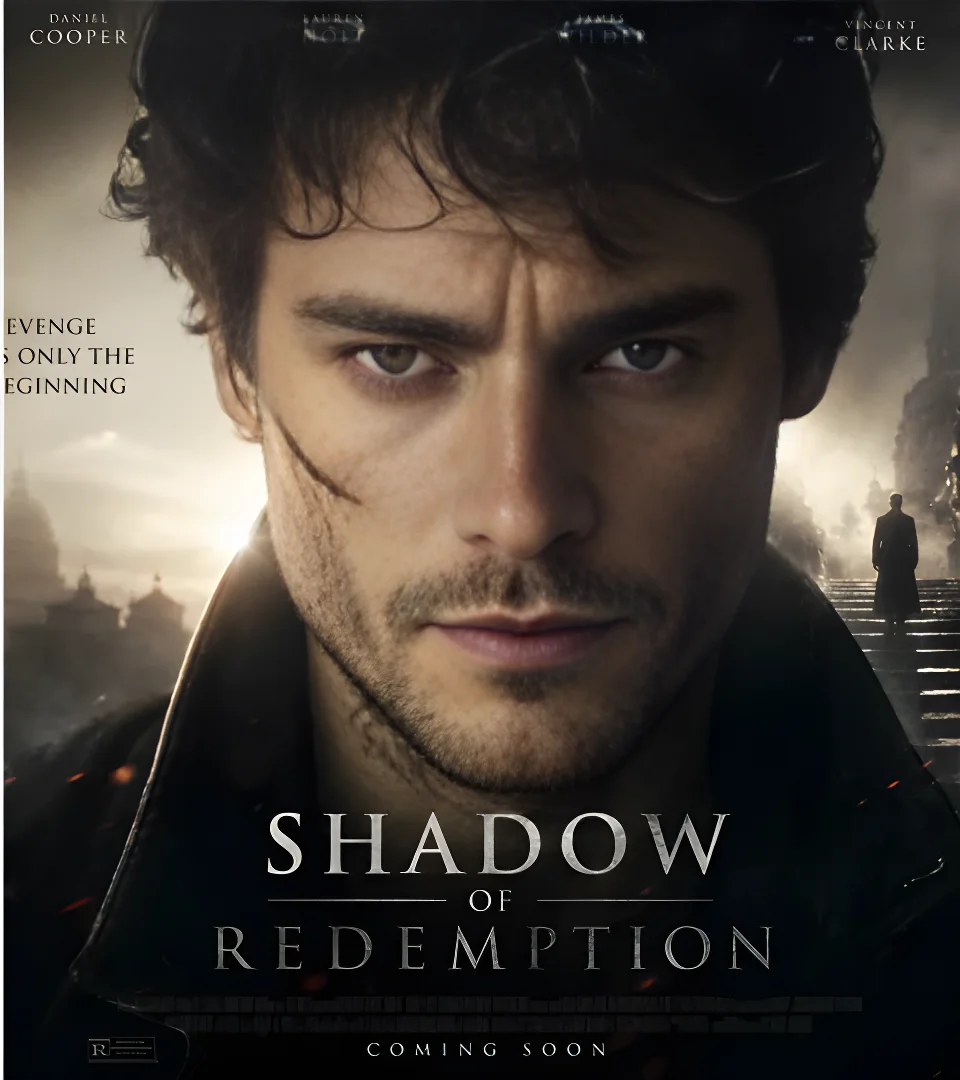
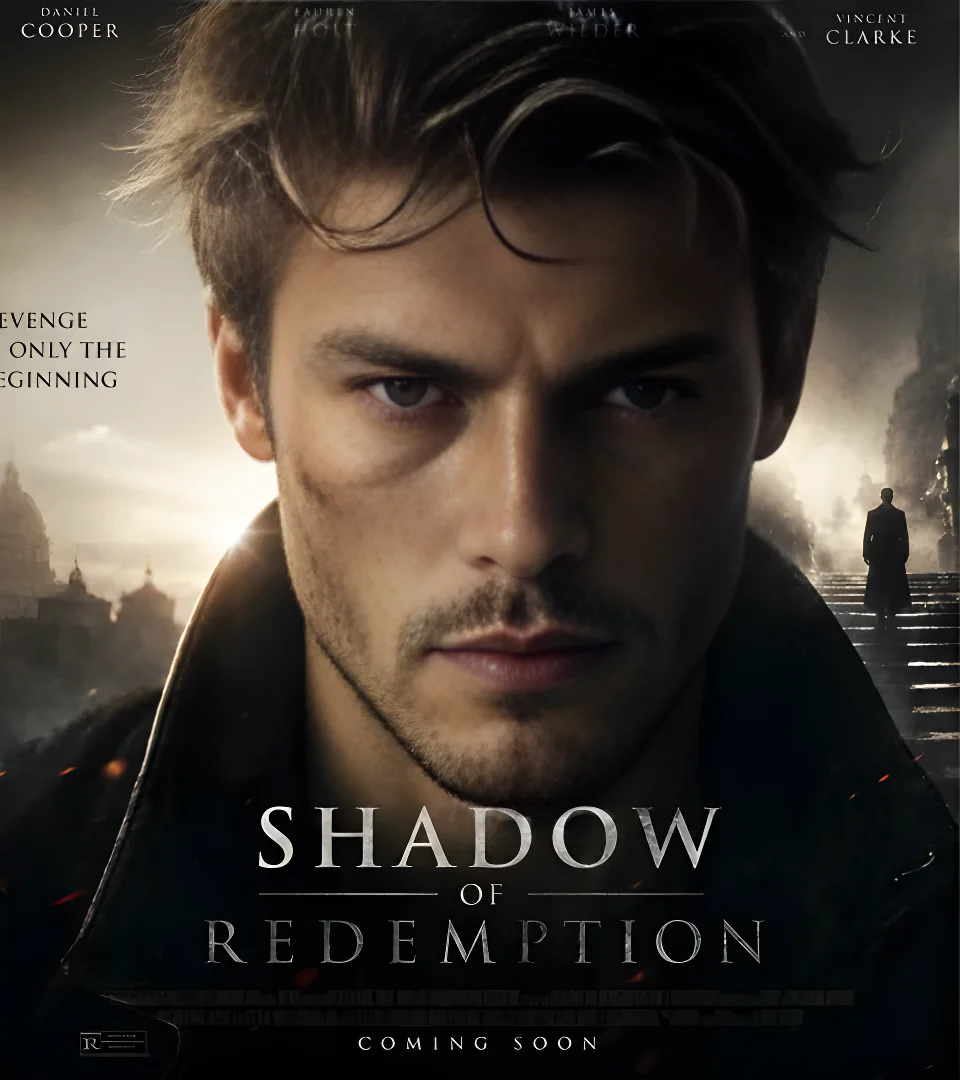
After AI photo editor: star in a movie poster
Before AI photo editor: star in a movie poster

Star in a movie poster

Turn a portrait into a dramatic film poster.Sample prompt“Make this a dark movie poster titled “Shadow of Redemption”, keep my face”

How to Edit a Photo with AI

Three steps with the AI photo editor with prompt, no design skills or software needed. Most edits take under a minute from upload to download.
1

Upload your photo

Add 1 to 5 photos in JPG, PNG or WEBP, up to 20MB each. A clear, well-lit photo gives the AI the most detail to work with.
2

Describe the change

Write one clear sentence about what to change and what to keep, for example “replace the background with a beach, keep the person the same”.
3

Download the result

Pick your model, ratio and resolution, generate, and download the best version. Not quite right? Change one detail in the prompt and edit again.

Write a Better AI Photo Editor Prompt

Vague promptClear prompt
Vague promptBetter backgroundClear promptReplace the background with a plain light gray wall
Vague promptFix the lightClear promptBrighten the face and add soft light from the left
Vague promptMake me look goodClear promptSmooth the skin slightly, keep my face and hair the same
Vague promptMake it artisticClear promptTurn this into a pencil sketch with light shading
Vague promptClean it upClear promptRemove the cables on the table in the lower left
Vague promptChange colorsClear promptChange the red jacket to navy blue, keep everything else

Pick the Best AI Photo Editor Model

Every model below is in one place, so you can find the best AI photo editor model for each job. Try the same photo and prompt on two models and keep the better one.
ModelMax resolutionBest for
GPT Image 24KPrecise edits that follow long instructionsGPT Image 2 model →
GPT Image 2.54KRestyling and adding text to photosGPT Image 2.5 model →
Nano Banana 24KKeeping faces and products consistentNano Banana 2 model →
Nano Banana Pro4KDetailed retouching and lighting changes
Seedream 5.04KPhoto-like backgrounds and scenesSeedream 5.0 model →

Why Wizstar Is the Best AI Photo Editor to Start With

Many models, one place

GPT Image, Nano Banana and Seedream without switching apps.

Up to 4K output

Sharp results for print, ads and product pages.

Commercial use

Use your edited photos in ads, stores and social posts.

Nothing to install

Works in your browser on desktop and mobile.

AI Photo Editor FAQ

Yes, it is free to start. New accounts get free credits, so you can try a best free AI photo editor experience before paying anything. Free results carry a watermark, which any paid plan removes.

Edit Your First Photo with the AI Photo Editor

Start with the best free AI photo editor on Wizstar: upload a photo, describe the change, and see the result in seconds.