The short answer
Use Krea 3 to prepare a still frame with clear product, scene, and style references, then pass the approved image to a separate image-to-video model as its starting frame. Krea 3 is an image model; its official model page describes reference-guided image generation, while video generation uses separate models and controls. For a product ad, the still is ready when the product details, composition, and intended crop have been reviewed—not simply when the image looks polished.
Which References Does a Product Video Frame Need?
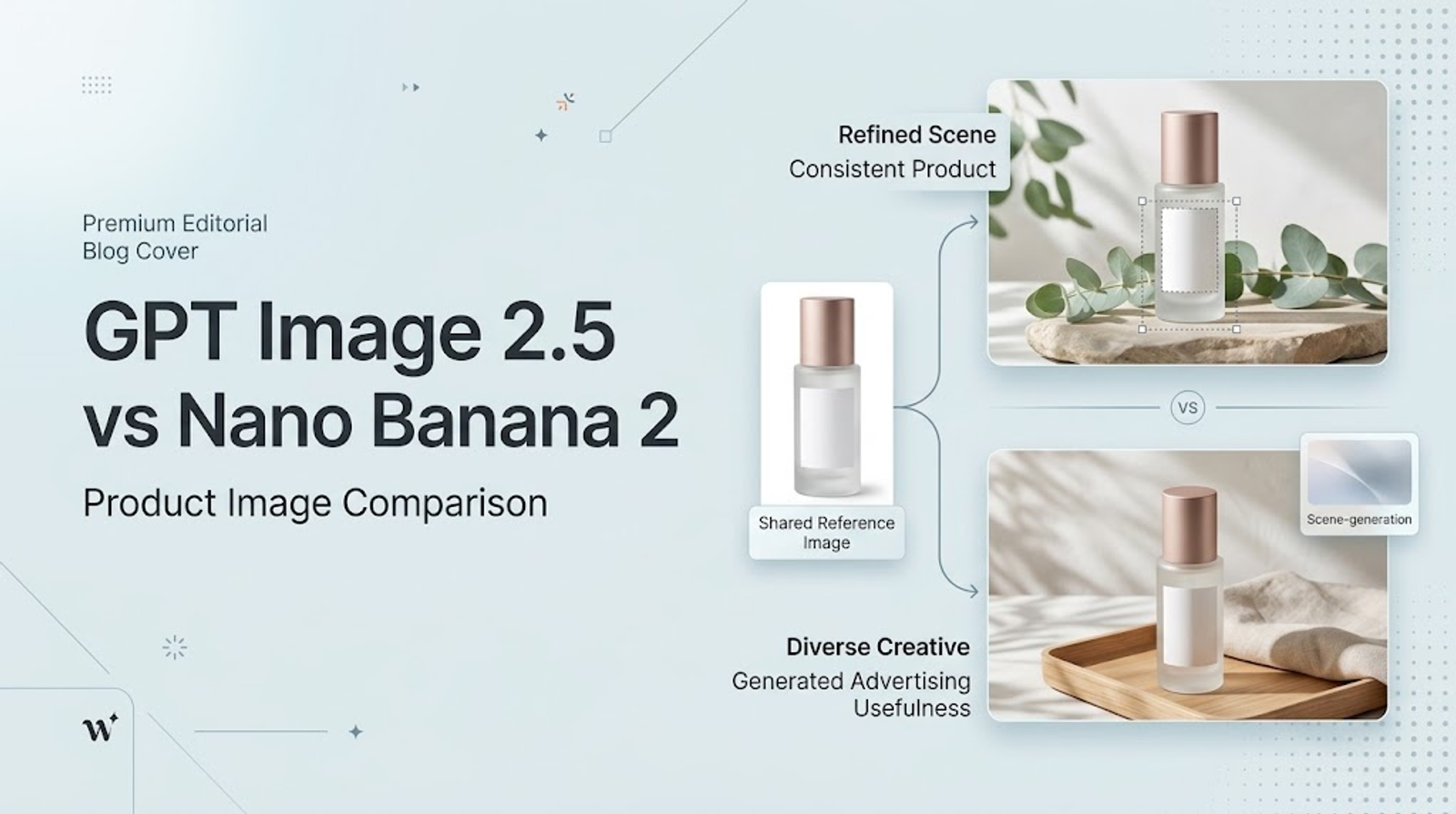
Begin by deciding what each reference should control. The product image establishes details that must remain accurate, such as shape, packaging, color, label, and how the product is held. The scene image sets the location and camera view. A style image can guide lighting or palette, but should not introduce a competing product design.
For a simple hero frame, one product image and one scene reference may be enough. Add another image only when it contributes a distinct direction. Conflicting references can create ambiguity—for example, if they show different package colors or label placement—so resolve those differences in the prompt before generating.
A short reference map makes the intent easier to review and hand off: “Image 1 = product; image 2 = location and camera; image 3 = lighting.” It gives teammates a clear record of which image controls which details.
Assign Roles to Product, Scene, and Style Images
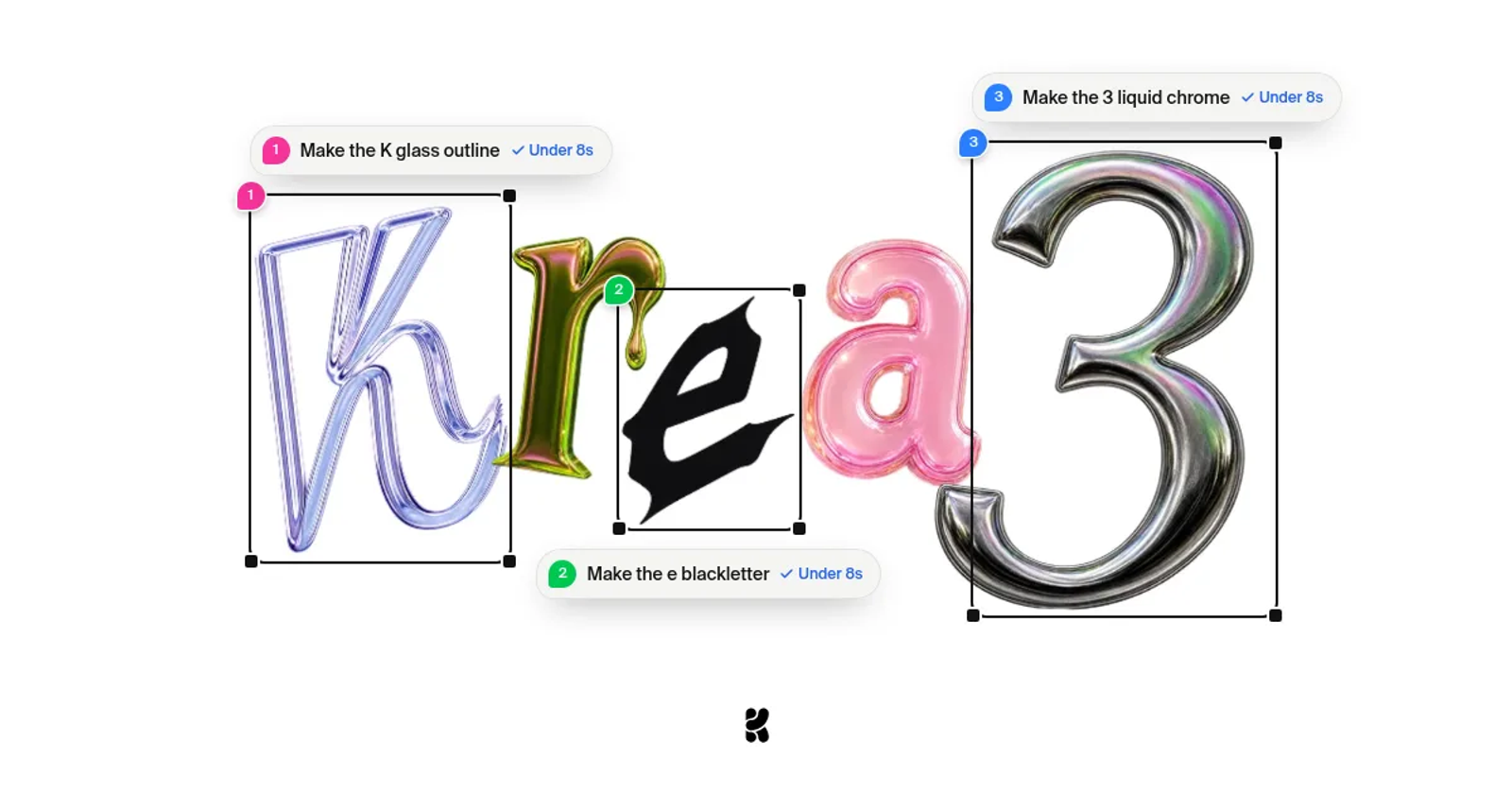
Krea’s guidance recommends naming each image’s role and stating what must stay unchanged. A commercial prompt might say: “Use image 1 for the package and label; image 2 for the countertop and camera height; image 3 only for the lighting. Keep the logo, cap, proportions, and package text unchanged.”
State which reference has authority when details conflict. Then describe the requested change narrowly, such as placing the product on a counter, and specify the details that should remain fixed. Krea’s October 20 comparison article says Krea 3 accepts up to eight reference images, but also notes that generation cost changes with the mode, resolution, and reference count. More references do not automatically mean more control; Each one adds another instruction for the model to reconcile.
Keep person and product permissions separate. A person reference should only be used when the team has permission to use that person’s image or likeness. A third-party logo in a product reference does not clear it for campaign use. The USPTO’s trademark overview explains how marks identify the source of goods or services; confirm required rights and approvals with the brand or rights holder before production or publication.
Build a Start Frame Without Losing Brand Detail
Choose the destination format before preparing the frame. A 9:16 vertical ad needs a different product scale and text-safe space from a 16:9 pre-roll. Leave room for captions and interface overlays, and keep key copies away from edges. For YouTube Shorts, Google’s current ad guidance describes safe zones for logos, text, and calls to action.
In the prompt, identify product details to preserve—such as label wording, color, shape, and orientation—then describe the intended scene and framing. If printed text is small or unclear in the source image, don’t assume generation will fix it. Compare the result with approved packaging artwork or a clean product image, and inspect the full-size frame for changes to claims, logos, or SKU details.
The practical approval question is whether the product still reads correctly at the intended crop. Save the selected frame with a version label and an approval note so the next person can tell which image was cleared for production.
Review Continuity Across Planned Shots
Review the starting frame beside the next planned frame, not by itself. Check product orientation, screen direction, scale, color temperature, background, and where the viewer’s eye lands. If the ad moves from a wide shot to a close-up, the product position and lighting should make that transition feel plausible.
A compact shot board can show the first frame, a detail insert, a use moment, and the end frame. For each, note what changes and what should remain consistent. This helps the team catch disconnected images before sending them into video generation.
A still cannot guarantee continuity once it moves. The selected video model may alter logos, hands, reflections, or package geometry. Review the generated clip for those changes. If the movement compromises a brand detail, simplify the action or use a tighter shot.
Hand the Approved Frame to Video Production
Include the approved image, aspect ratio, shot number, reference-role note, intended motion, and a short “do not change” instruction. For example: “Shot 01, 9:16; slow push-in; keep the bottle label facing camera, preserve the cap and blue glass, add no text.” Add the next shot’s thumbnail when the camera move needs to land on a specific composition.
Keep the image prompt separate from the video prompt. Krea 3 prepares the still; a separate video model interprets its motion and may offer its own first-frame, end-frame, or reference controls. Before generation, confirm the active model, duration, resolution, and estimated compute cost.
Conclusion
Krea 3 reference images work best as a concise visual brief: one image defines the product, another defines the scene, and any style reference has a specific role. Review the still beside the planned shots, approve it for the intended crop, then hand it to a separate video model with clear motion and continuity instructions. That gives the team a deliberate starting frame and a focused basis for reviewing the clip.
FAQ
- How many references can the current Krea 3 editor accept?
- Krea’s October 20 comparison article says up to eight references per edit, while its October 15 launch post says six. Because Krea’s published figures differ, check the current editor and selected mode before building a reusable template. Use the lower limit if the workflow needs to work across accounts or modes.
- Can a reference image contain a third-party logo?
- It can be included as a reference, but that does not establish permission to use the logo in a commercial campaign. Confirm the required rights and approvals before publishing, especially if the creative could imply an endorsement or business relationship.
- Does Krea 3 keep the reference order fixed?
- Krea’s examples refer to images by number, but the public guidance does not establish that upload order alone sets priority. Keep the sequence stable, name each image’s role in the prompt, and inspect the output for conflicts.
- Can the same reference set be shared across a team?
- Krea’s enterprise materials describe shared libraries for approved references and workflows. Availability depends on the workspace and tool, so keep the approved assets, prompt, and permissions together where the intended team can access them.
- Do Krea 3 reference uploads count toward compute units?
- Krea says generation cost varies with reference count, mode, and resolution. Its public pages do not clearly state whether uploading a file alone consumes units. Check the estimate before generation, especially after changing the reference set.