The short answer
For a product packshot that needs a new background or softer light, Krea 3 is a sensible first workflow to evaluate because Krea presents it specifically as an image-editing model; Nano Banana Pro is worth comparing when your team wants conversational follow-up edits. That is a way to structure a trial, not a claim that either produces more accurate product images.
For an ad team, the decision turns on three things: whether the brand details survive, whether the edit follows the references, and how much work it takes to approve the file. Carry a still into video only after it clears those checks.
Which Editor Fits a Product Packshot Revision?
Use one narrow task: take an authorized jar or bottle packshot and replace its plain background with an approved pale-stone surface while warming the ambient light. Keep the package front-facing. Do not ask either model to redesign the label, invent reflections, add props, or create a full campaign scene. A limited edit makes unwanted changes easier to see.
Krea describes Krea 3 as an image-editing model for changing a scene around an existing product while preserving details such as labels and logos. Google’s Gemini image-generation documentation for Nano Banana Pro describes image editing, image references, and conversational multi-turn revisions. Those descriptions help identify a workflow to try; They do not establish how either model will handle your particular SKU.
Krea’s Krea 3 launch article includes product edits and a model comparison. The examples are useful for understanding Krea’s intended edit scope, but they are vendor demonstrations, not an independent head-to-head result. The next step is your own matched check.
Give Both Editors the Same Brand Assets
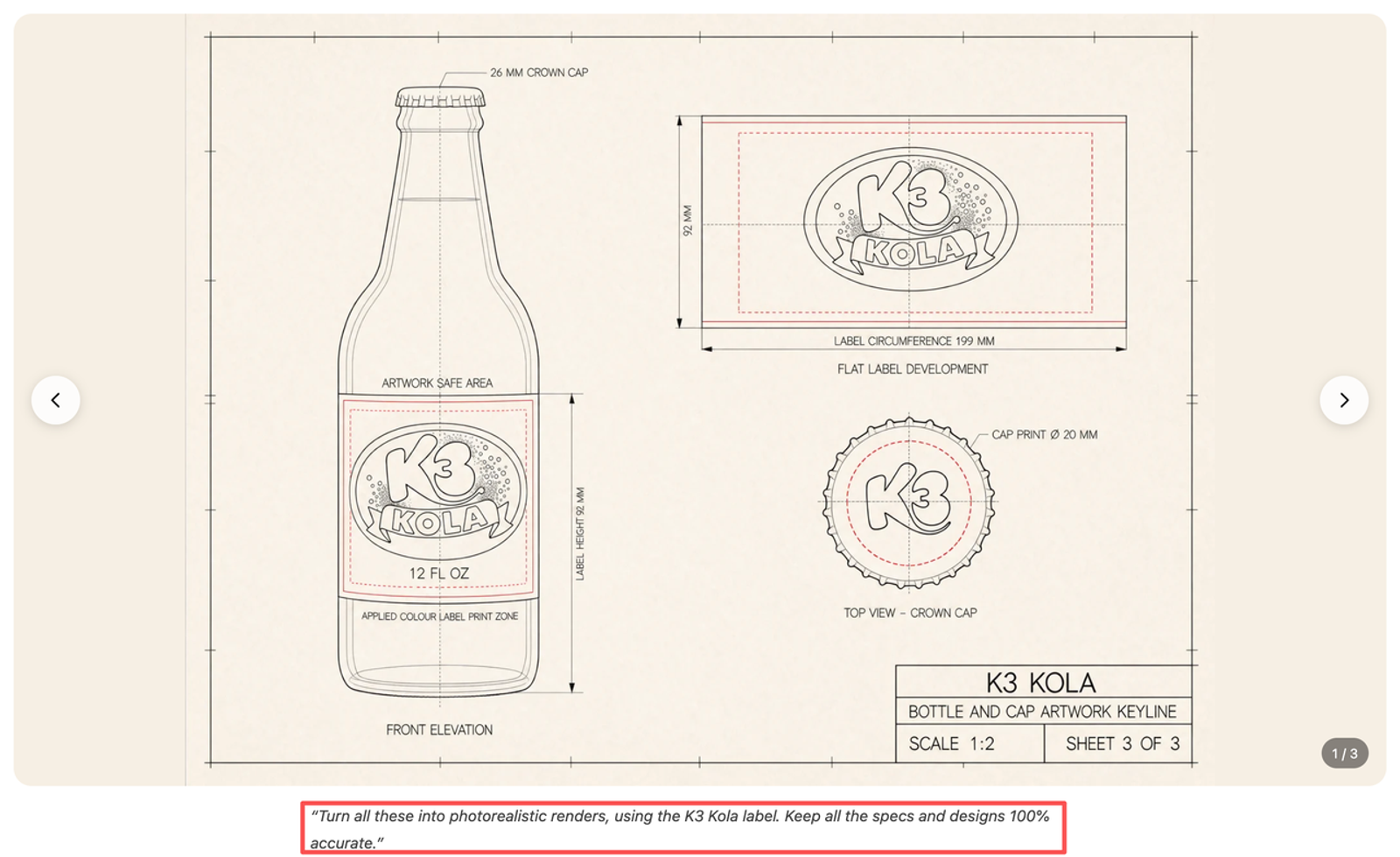
Prepare the same original packshot, one approved background or lighting reference, and a short brand note with the exact label text, logo, package color, cap shape, and surface details that must remain unchanged. Use identical crops and files. If one route cannot accept the same references or crop, record that constraint; it affects the comparison.
Use one prompt in both: “Use image 1 as the approved product packshot and image 2 as the background reference. Replace only the plain background with a pale limestone surface and soften the light to a warm, diffused studio source. Keep the jar, cap, label, logo, wording, colors, and proportions unchanged. Do not add props, claims, or text.” This states the requested edit and protected details; it cannot guarantee they will be preserved.
Save the source files, prompt, model and access route, settings, outputs, and revision history. This lets the reviewer trace whether a difference came from the model, the prompt, or a setting. I have the documentation, not a finished test; treat the comparison below as a practical evaluation plan.
Compare Product and Label Preservation
Review each result beside the original at full size. Check the logo letter by letter, then compare label wording, cap and container geometry, product color, texture, and visible ingredients or parts. Inspect the product edge against the replacement background too: a halo, fake shadow, softened seam, or altered reflection can make a technically legible label look composited.
Mark each check pass, repair, or reject. Pass means the approved SKU is represented accurately. Repair means a human can fix the issue without regenerating the entire image. Reject means a material brand detail changed or the edit created a misleading product appearance. Google’s documentation cautions that image edits can produce artifacts and recommends checking text and fine details. A polished image still needs a close review.
Compare Reference Control and Approval Effort
Ask whether the editor changed only the requested background and light. Did it follow the reference’s tone and surface without borrowing an unapproved logo, package, or prop? Did the product stay the same size and position? For this task, reference control means following the supplied visual brief while leaving the protected product alone; It is not simply the number of references a model accepts.
Run three drafts per editor, then allow one controlled revision for each failed criterion. Repeat the prompt with one clarification, such as “preserve the original printed label exactly.” Count generations, credits or image charges, reviewer minutes, and manual retouching until one file passes. The next edit is part of the cost. A low-cost first image can still take more time if every logo error triggers another generation; A usable background edit may need only a quick cleanup.
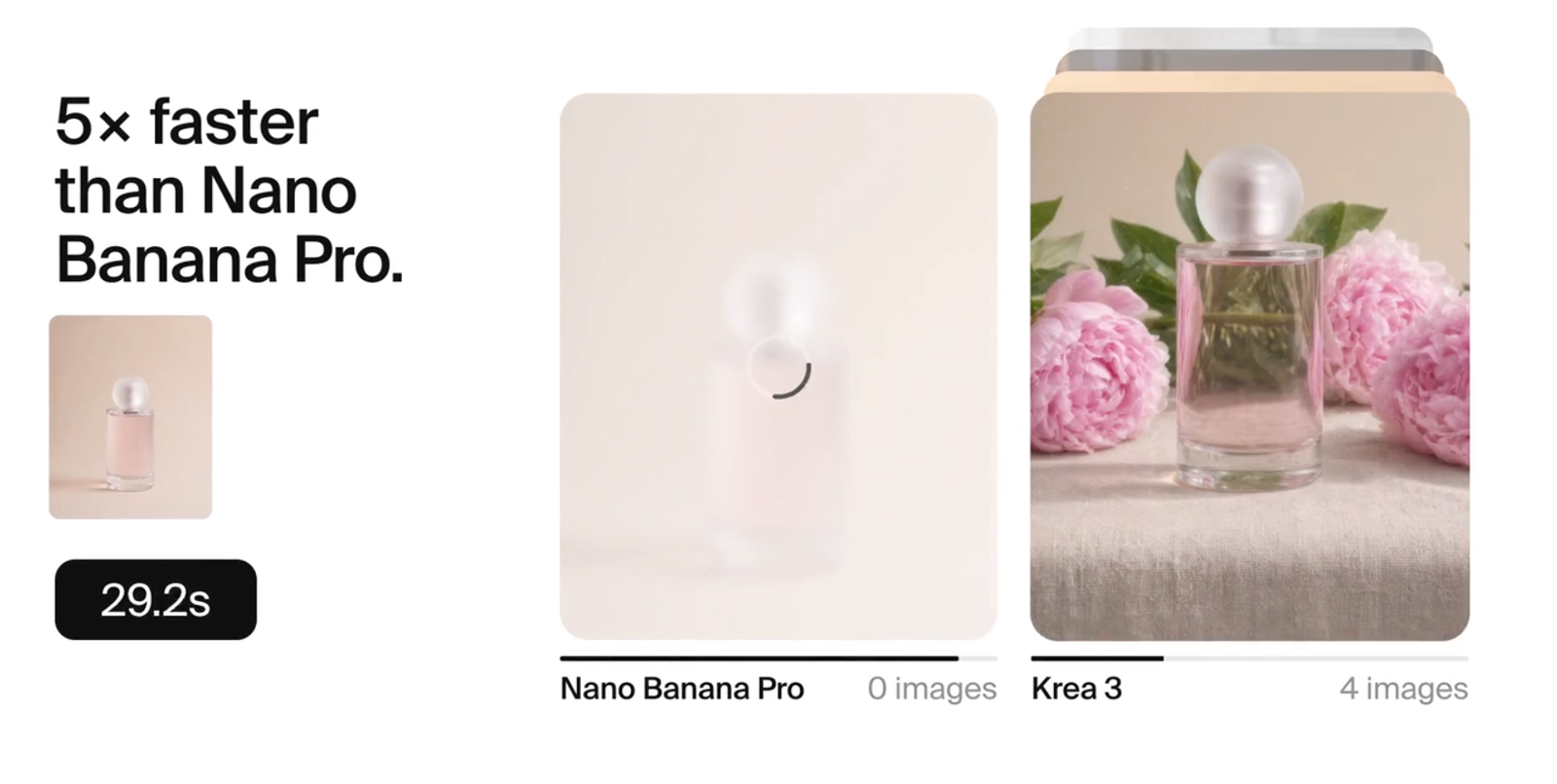
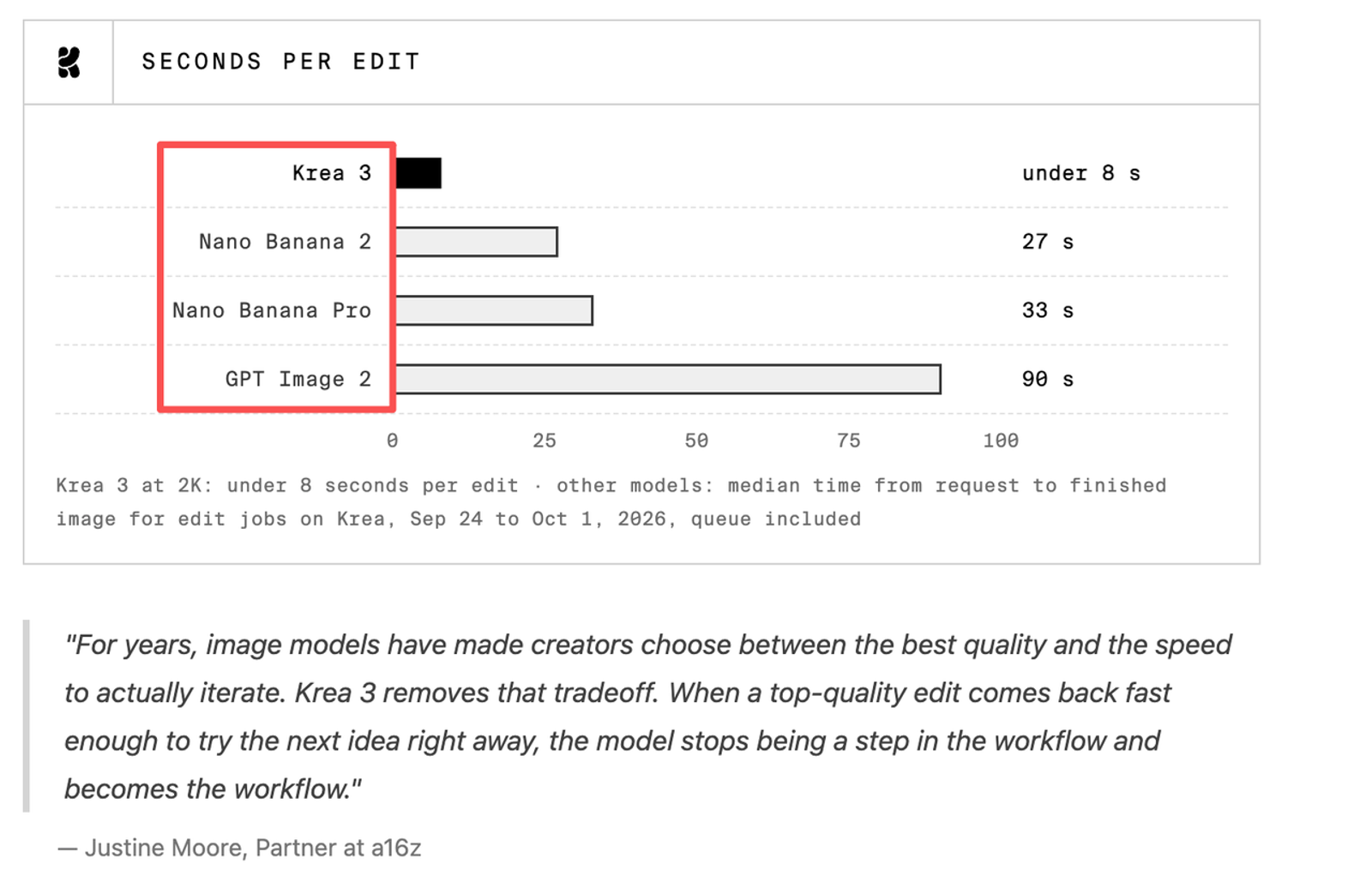
For a practical comparison, calculate approval effort per accepted image as generation spend plus review and repair time. Match the resolution, references, access route, and included usage before comparing prices. A provider’s price or speed graphic cannot tell you how many corrections your team will need.
How Should You Choose Video Ad Stills?
Start with Krea 3 if the brief is a small scene change around a fixed product photo. Include Nano Banana Pro if your team expects to iterate through conversational edits; Google documents that workflow, but it does not prove better results for every packshot. If exact label accuracy is essential, preserve the original product layer in a conventional editor and composite it over the generated background. That adds a step while giving the team control over brand-critical pixels.
Before video, check the still at the target crop, inspect small text at phone size, and confirm it contains no invented claim or feature. Wizstar’s current feature list includes AI image and product-image creation, plus AI Product Video. Check the current model menu and workflow before assuming either Krea 3 or Nano Banana Pro is available there.
Conclusion
For Krea 3 vs Nano Banana Pro, compare the same authorized packshot with the smallest useful revision: background and light only. Choose by label preservation, reference control, and the human effort needed to approve the final still, not a showcase image. If important product details drift, retain the original product layer and edit around it. Pretty is easy to spot. Useful takes another look.
This is a documentation-based comparison plan, not a hands-on test or legal advice. Recheck current model controls, commercial terms, and data handling before production.
FAQ
- Can both editors export an image for vertical video?
- Possibly, depending on the app or API route. Check the chosen route’s aspect-ratio and export controls; if they differ, normalize both outputs in the same editor and review the product in a 9:16 preview.
- Do both services permit commercial use of edited images?
- Check the terms for the exact plan and route. Krea’s Business terms grant commercial rights to Business outputs. Google’s service-specific terms apply to Google Cloud services, not automatically to every way of using Nano Banana Pro. You still need rights to the input image, logo, and reference assets.
- Can either editor work with a masked product area?
- Do not assume a text instruction creates a precise pixel mask. Confirm whether the exact interface offers a selection or mask control, then test it on the intended edit. If the product must remain untouched, lock its original layer and edit the background separately.
- Are private brand assets retained by either provider?
- The answer depends on the service and plan. Krea says Business inputs and outputs are not used to train its models; That does not mean immediate deletion or zero retention. Google Cloud’s terms describe data handling for Google Cloud generative-AI services, so confirm that those terms cover your access route. Use only assets approved for upload.
- Can both editors export a transparent-background image?
- Do not assume so unless the chosen interface explicitly supports transparency. Check the exported file’s alpha channel; a checkerboard pattern can be baked into the image. If needed, use a dedicated background-removal step and inspect the edge around the package.