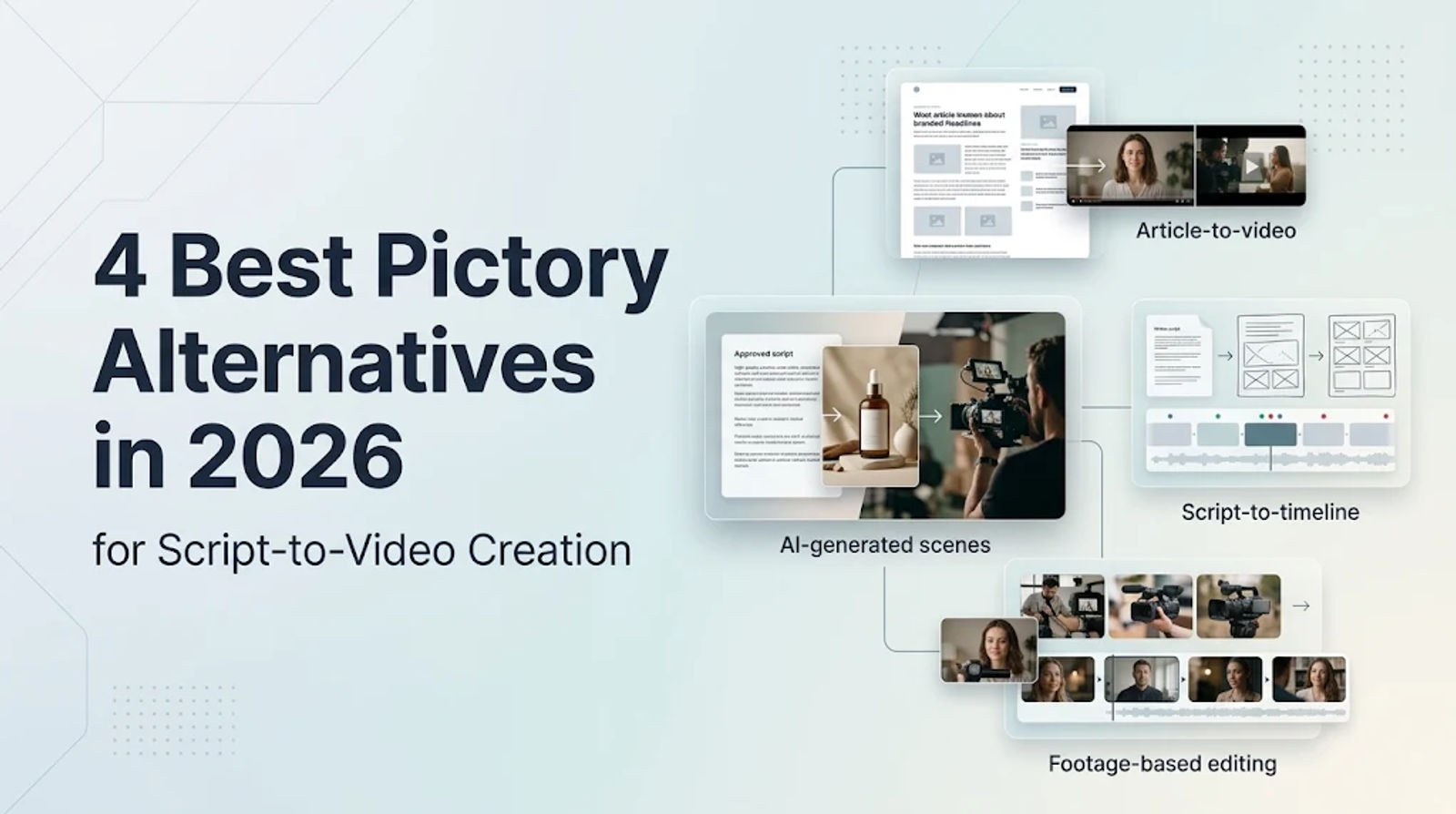
Lumen5 is my go-to Pictory alternative for turning articles into branded videos, while Invideo pairs AI script planning with direct multitrack timeline control. Kapwing works best when you are assembling existing footage, and Wizstar fits when you need to turn an approved script into a sequence of newly generated scenes.
The smartest way to choose is by looking at the revision work left after the first draft. Preserving a blog post’s argument, fine-tuning cut timing, and redirecting a generated shot are three very different jobs—switch to the tool that gives you direct control over the step you actually need to finish.
What should your Pictory alternative preserve?
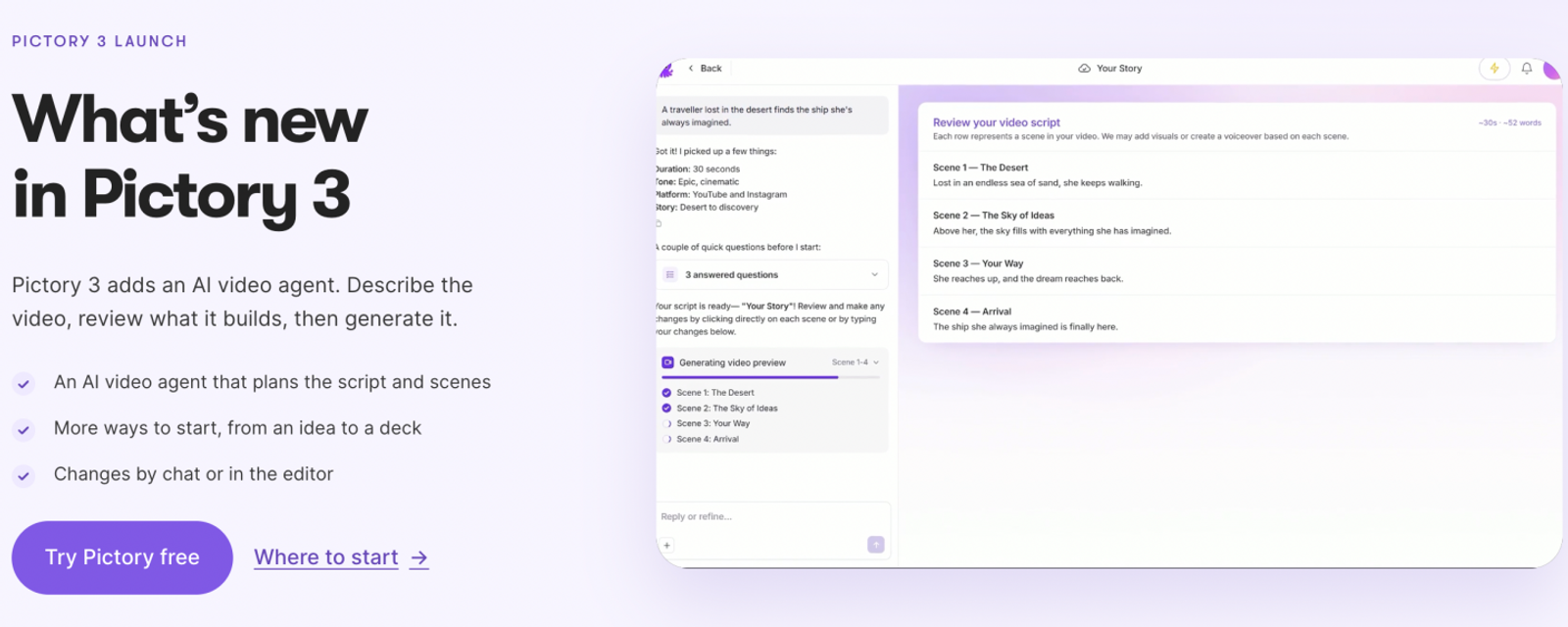
Start by tracing the path from your source material to the final edits you need to make. Pictory 3 takes ideas, scripts, web pages, documents, presentations, audio, and recordings, then uses its agent to build scripts, scenes, and previews—with chat-based or editor refinements plus media generation inside AI Studio. Any worthwhile alternative needs to improve a specific part of that workflow rather than just offering another "AI video" label.
The table below separates each tool by starting input and the type of revision control it prioritizes.
| Tool | Starting material | Revision focus | Reason to choose |
| Pictory 3 | Article, script, presentation, recording | Chat and editor refinement | The existing source-to-scene path fits |
| Lumen5 | Blog URL, PDF, text, outline | Script, paired scenes, branding | The article remains the foundation |
| Invideo | Script or idea | Agent commands and multitrack timeline | Exact timing and placement matter |
| Kapwing | Existing clips and other media | Arrangement, trimming, overlays, collaboration | Usable media is already available |
| Wizstar | Script, brief, reference | Scene planning and targeted revisions | The idea needs generated scenes |
Match the tool to the unfinished part of your production process instead of treating every editor as an interchangeable swap.
Lumen5: Keep the article’s argument through the visual edit
Lumen5 is my default choice for turning a written article into branded video scenes. Its blog-to-video workflow pulls content from a URL and builds a condensed script before pairing visuals, timing, and motion. PDF, raw text, and outline inputs follow the same writing-first flow, with brand styling applied along the way.
Putting the editorial cut before visual selection makes a real difference. An article can unpack a claim and its caveats across several paragraphs, whereas video narration has to compress them. I always protect the qualifying details that keep an argument accurate, even if a punchier line sounds smoother—on-brand templates cannot fix a distorted takeaway.
Lumen5’s main strength is maintaining continuity from source text to script to final scenes. The original article stays front and center as the reference for what the video says, while scene layouts handle the visual delivery. If converting articles into videos is a recurring task, that editorial continuity is a clear reason to switch—just check closely how faithfully the shortened script reflects your original piece.

Invideo: Take direct control after the agent plans
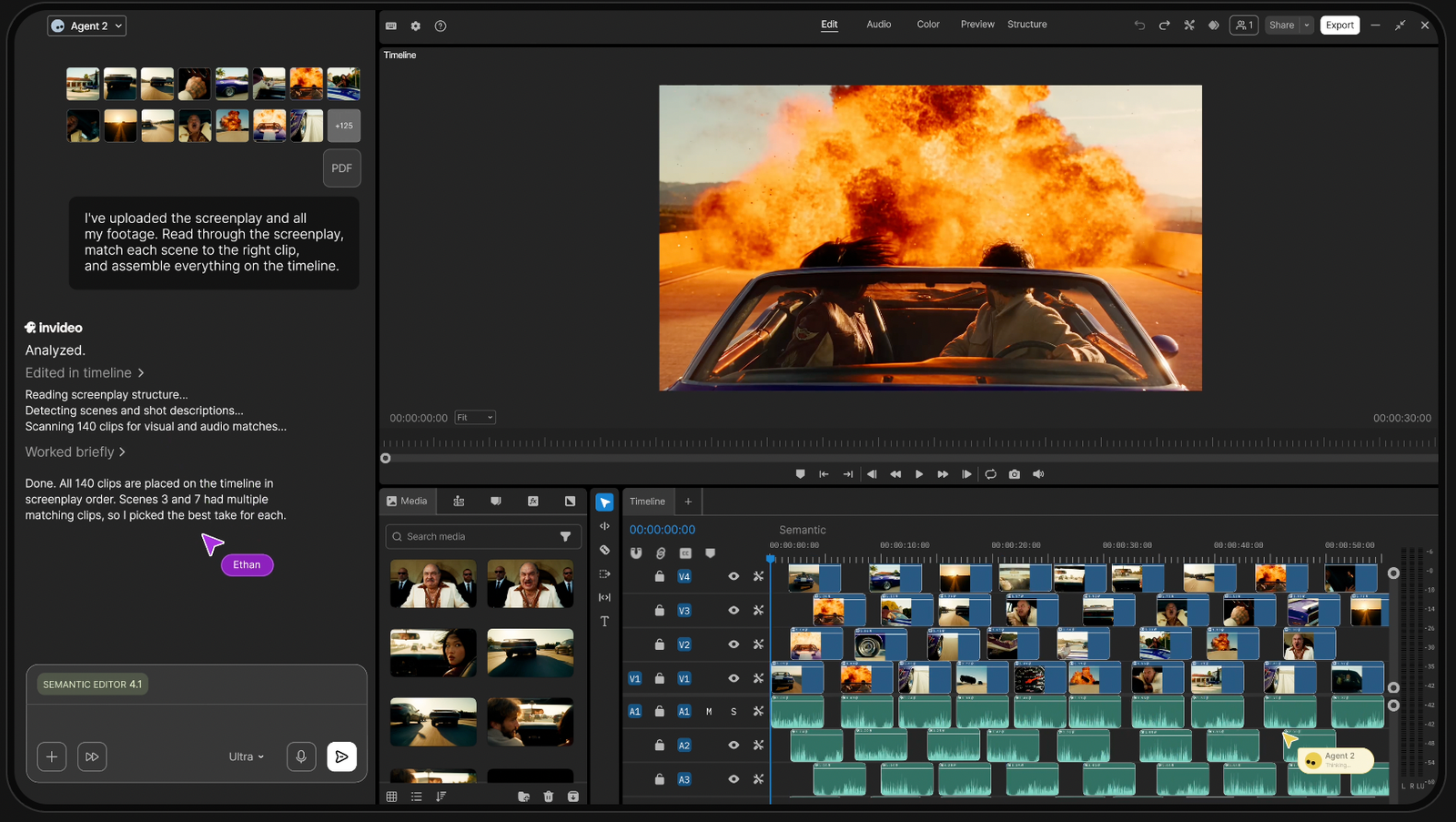
Invideo combines AI agent planning with a full multitrack timeline. Its agent workflow storyboards a script or rough idea, while text commands and manual timeline controls give you two separate ways to refine the draft. That setup is especially useful when a solid scene plan still needs precise tweaks to timing and placement.
Sometimes a voiceover line needs to finish before the next visual cuts in, or a text overlay needs to hold across a transition. Those fixes are about exact element placement rather than rewriting a scene’s core purpose. I prefer direct timeline control whenever the remaining work comes down to adjusting what is already on screen.
The real advantage here is having a second editing gear after the agent builds the initial sequence: you can fix structural ideas through commands and dial in frame-accurate timing on the timeline. Choose Invideo when hands-on timeline refinement is central to getting your video across the finish line.
Kapwing: Build around the footage you already have
Kapwing is the natural choice when usable footage already carries your message. Its editor focuses on arranging clips, trimming, adding overlays, and collaborating in real time. While prompt-based video generation is available, the main reason to pick Kapwing here is hands-on media assembly.
A product demo clip, a short interview soundbite, and a branded end card often contain everything the video needs. What remains is tightening the order, pacing, and on-screen callouts. I prefer keeping those real assets at the center of the edit rather than replacing them with generated scenes that dilute your original material.
Shared workspace editing also helps when teammates need to review or adjust the same cut together. Collaboration stays centered on the uploaded clips and their sequence—making Kapwing a stronger fit the more usable footage you bring to the table.
Wizstar: Carry an approved script into generated scenes
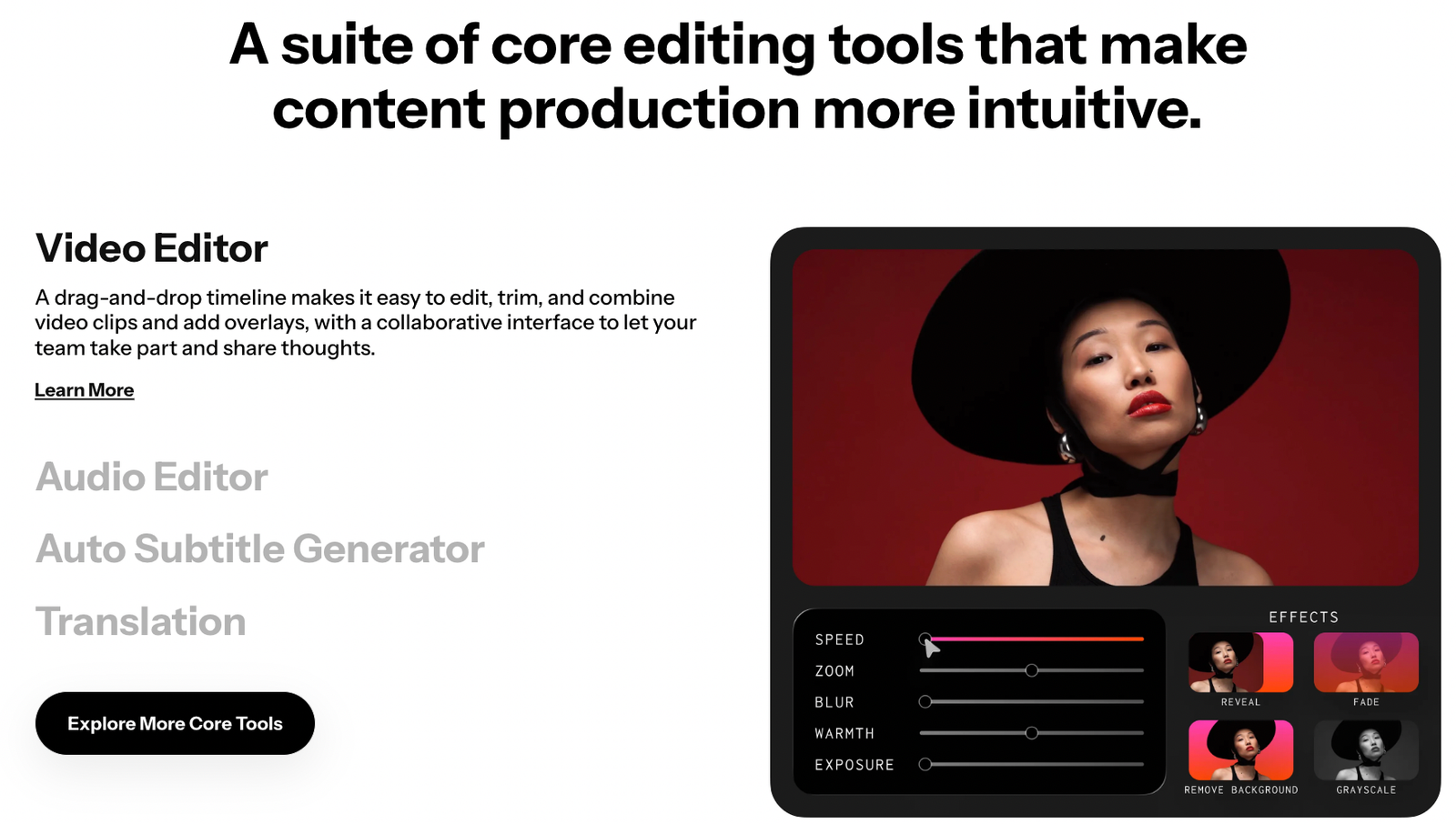
Wizstar’s Creative Agent takes a brief, script, or visual reference and coordinates scene planning alongside media generation. Targeted revisions let you update a specific shot, line, or visual detail without rebuilding the entire project. That makes it a strong fit when your core message is already approved, but the visual sequence still needs to be created from scratch.
An approved Pictory script gives you a ready-to-use starting point. Bring that copy into Wizstar as a script or brief, and attach a visual reference whenever it helps clarify the look or product details you want. I recommend defining each scene’s specific role upfront—from framing the problem to demonstrating the solution and delivering the closing takeaway.
Review the storyboard, script, and generated scenes at each checkpoint where the workflow surfaces them (some simpler runs skip intermediate steps). When making edits, call out the exact scene along with the shot, line, or detail you want adjusted via text or chat, then fine-tune subtitles and background music as needed.
This workflow is built for turning a script-led plan into newly generated scenes with targeted shot revisions. Direct blog-URL, presentation, or transcript conversion remains a separate input requirement, so choose Wizstar when bringing an approved message to life through custom generated visuals is the main bottleneck.
Compare the monthly bill with the work it funds
| Plan | Monthly charge in USD | Included allowance | Export or usage distinction |
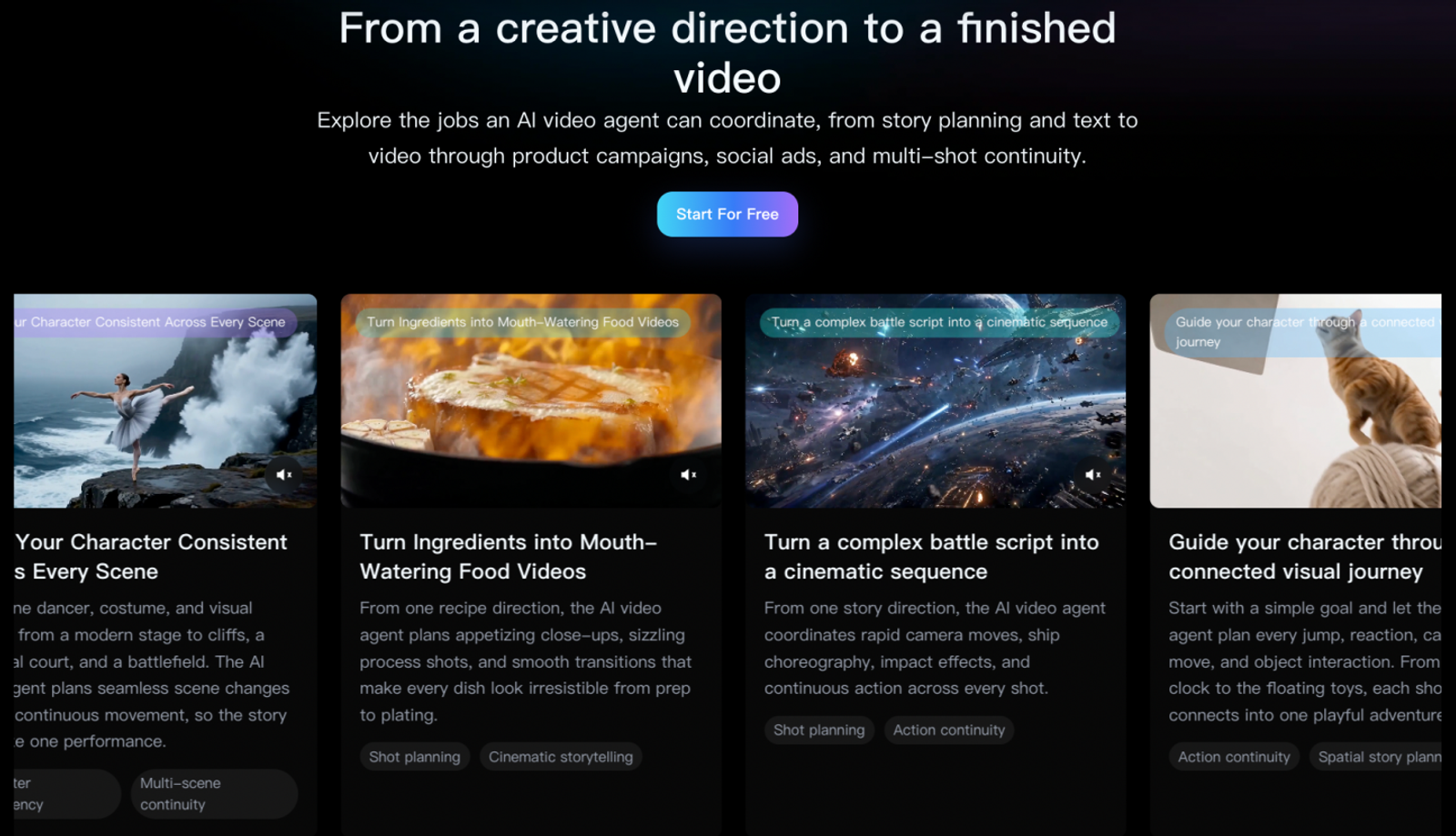
| Pictory Starter | Black Friday Offer: $14.50; “Was $29” | 2,000 credits; up to 30 minutes/month | Paid exports up to 1080p |
| Lumen5 Starter | $59/month when billed annually; $79/month on monthly billing | 60 AI voice minutes/month; 2 animation minutes/month | 1080p; unlimited videos; AI features metered separately |
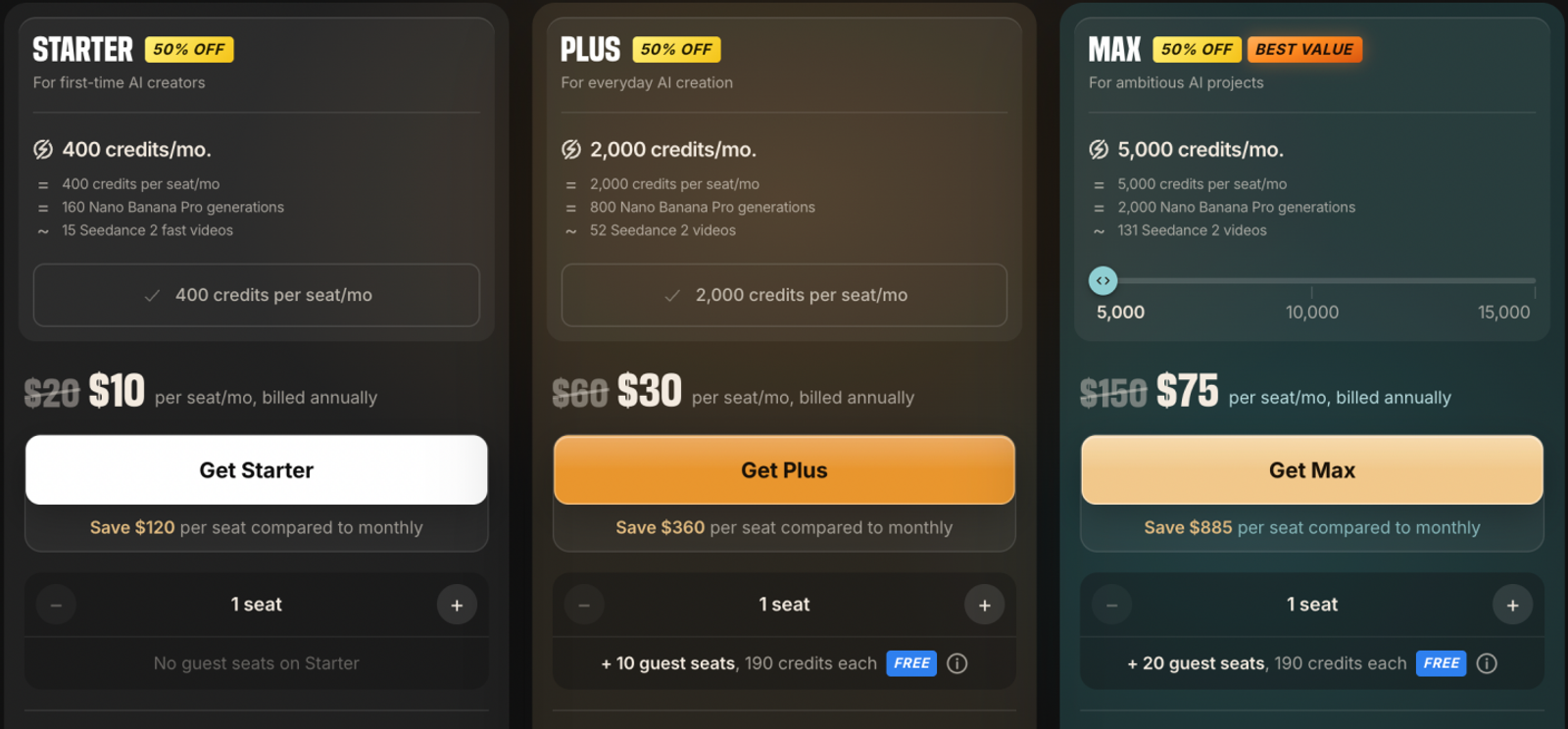
| Invideo Starter | $20/seat/month on monthly billing; $10/seat/month when billed annually | 400 credits per seat/month | Full timeline editing; multiplayer editing for up to five seats; Agent Two Lite and selected models; editing existing videos and downloads do not consume credits |
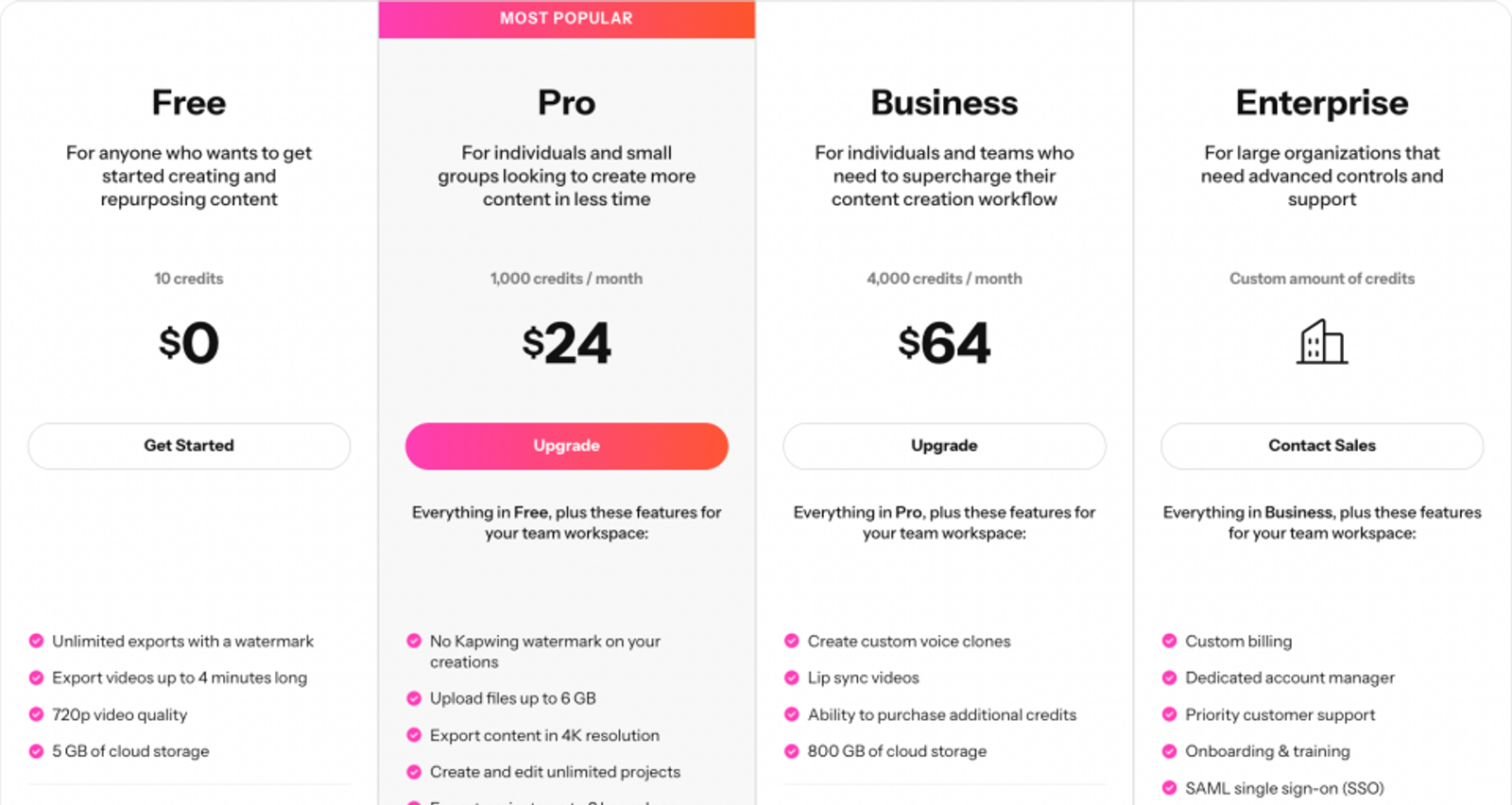
| Kapwing Pro | $24/month | 1,000 credits/month | 4K; exports up to 2 hours; no watermark |
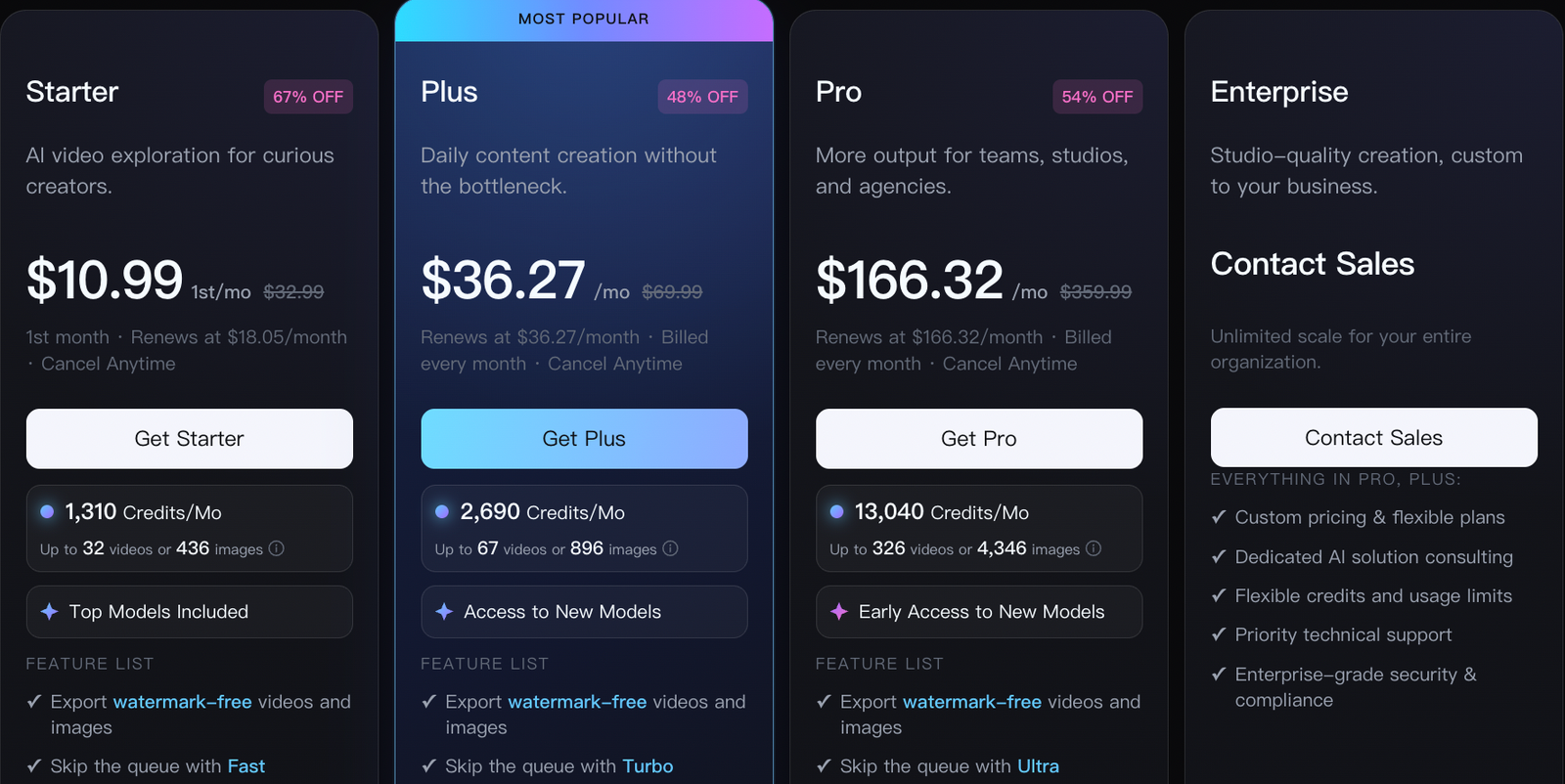
| Wizstar Starter | $10.99 first month; renews at $18.05/month | 1,310 credits/month | Credits shared across image and video |
Compare each monthly bill against your recurring workload, since every platform meters a different stage of production.
Separate promotional entry prices from recurring work
Pictory’s $14.50 price is a Black Friday offer marked “Was $29,” while Wizstar lists both its $10.99 first-month rate and its $18.05 monthly renewal price. When budgeting for ongoing script-led video production, plan around the standard renewal rate rather than a first-month discount.
Staying with Pictory makes sense if its current workflow already fits your needs and the promotional rate covers your immediate workload—just weigh its quoted “Up to 30 mins/mth” cap alongside the shared AI credit pool.
Pay for the capability and usage meter you actually need
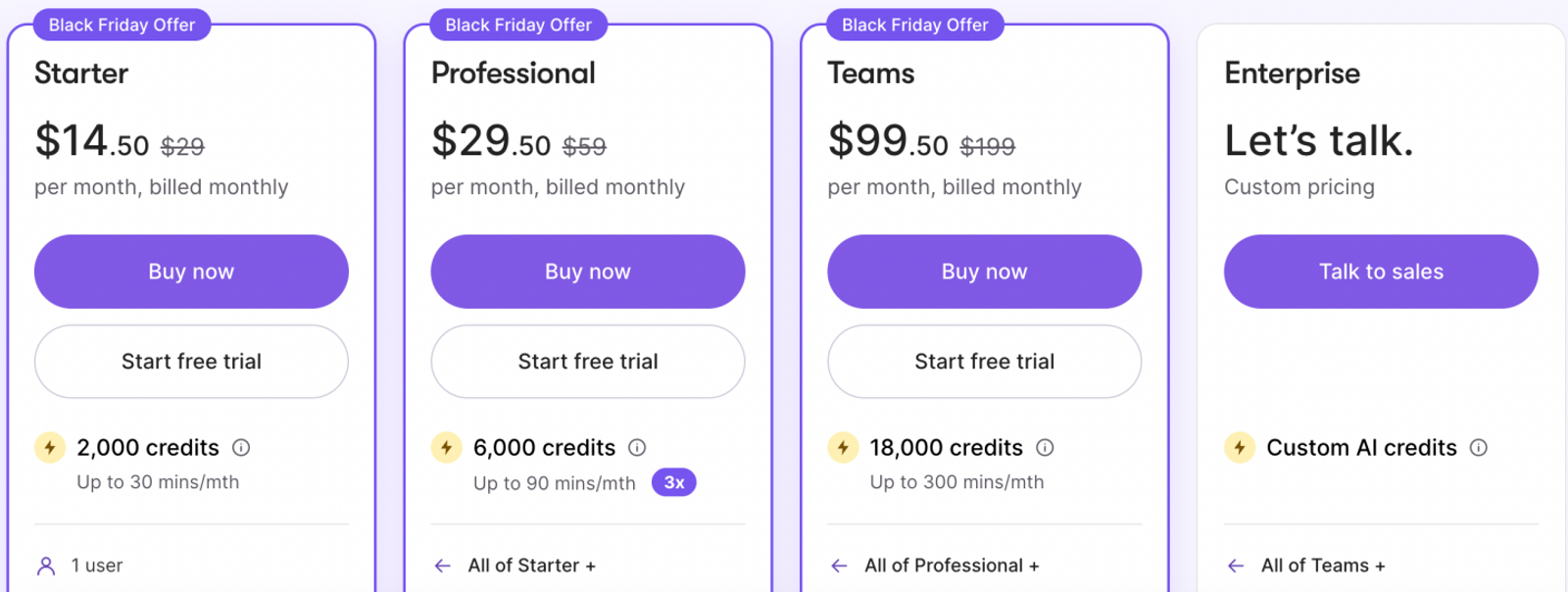
Lumen5’s Starter plan costs $79/month when billed monthly or $59/month when billed annually. It adds 1080p export and expanded brand features for recurring article-to-video production, while Basic costs $29/month or $19/month when billed annually and remains limited to 720p. On the monthly Starter plan, 60 AI voice minutes cover roughly twenty three-minute narrations, while animation uses a separate two-minute monthly allowance. Choose Starter when 1080p delivery is a regular requirement.
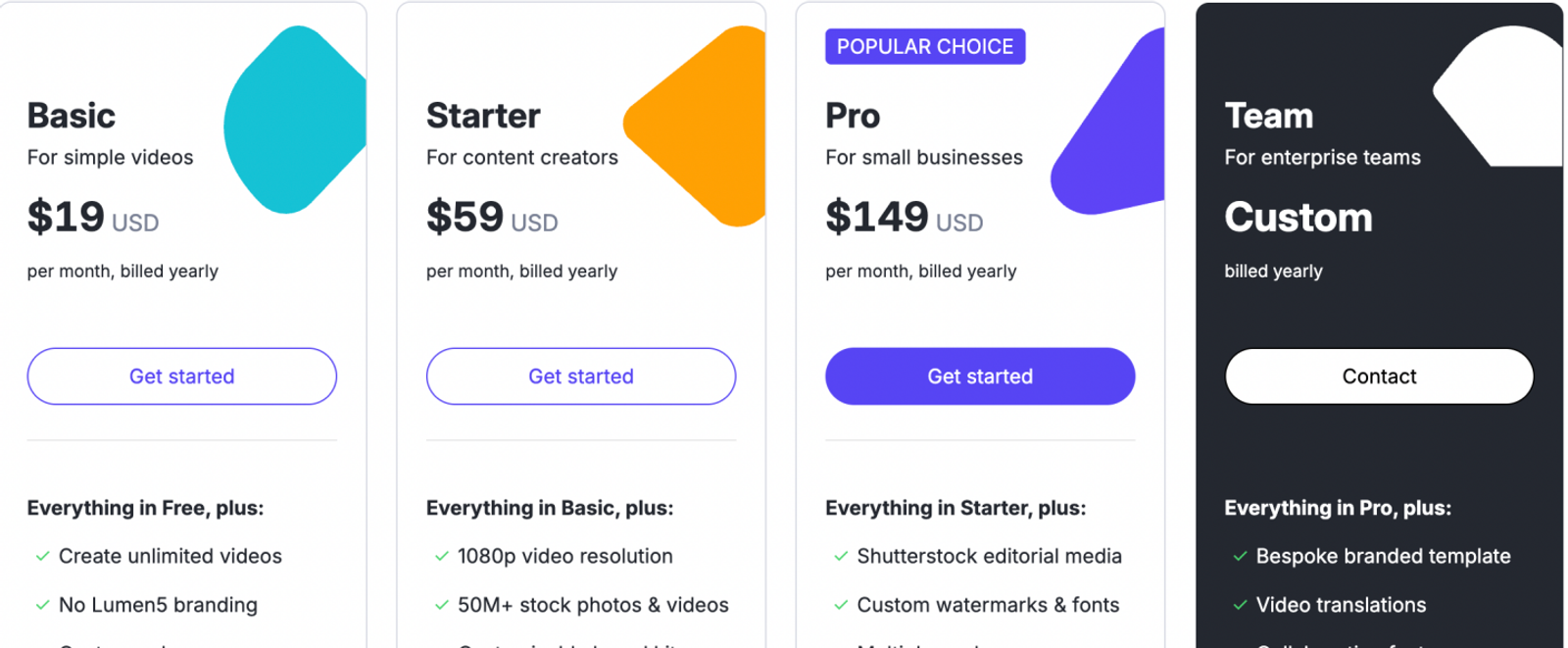
Kapwing Pro at $24/month earns its keep when editing existing footage, watermark-free exports, or 4K resolution are part of your regular delivery. Its 1,000 monthly credits are shared across eligible AI services, and its 4K resolution and two-hour export limits define maximum output specs rather than unlimited generative capacity
Invideo Starter separately includes 400 credits per seat per month, full timeline access, Agent Two Lite, and selected models. Manual timeline editing and downloads do not consume credits, whereas AI generation and eligible agent features do. You only need to step up to Plus if your workflow requires Pro or Ultra generation modes and the full model lineup.
For script-led generated scenes, I would start with Wizstar Starter and budget around its $18.05 monthly renewal. Its 1,310 monthly credits are shared across image and video creation, with storyline planning, script development, and video rendering deducted together once generation starts. Plan those credits across both scene planning and final generation rather than assuming the entire pool goes strictly to finished clips.
In short, let your workflow decide before your wallet: pay for the exact editing or generation capability your next project needs, then match the usage meter to your monthly output.
Make the switch earn its place
Before switching, define what will make your next video ready to publish: a faithful article summary, frame-accurate timeline timing, or a newly generated scene sequence. Match that specific requirement to the tool’s core controls, then pick a plan sized for your monthly delivery volume and export resolution—or stick with Pictory if your current workflow already covers both.
If your script is already approved but the visual sequence still needs to be built, test Wizstar’s Creative Agent on that exact task. Its scene-planning and targeted-revision workflow is built for turning written direction into generated shots—just bring your script, a clear visual reference, and a defined purpose for each scene.
FAQ
- Does Pictory have a free version?
- Pictory offers a 14-day free trial with 300 credits and no credit card required. According to its pricing page, the trial includes 720p exports, Pictory branding, and up to three script or URL projects. Use those three slots to test the exact source format you plan to convert before paying for a subscription.
- What happens to my Pictory videos if I cancel?
- Be sure to download every video you want to keep before canceling your Pictory account. Pictory’s cancellation FAQ states that hosted projects are permanently deleted upon account cancellation. While an exported file preserves your finished video, the editable project stays on Pictory’s servers—always back up finished exports in your own archive.
- Do I need to pay royalties for visuals or music?
- No additional royalties are required for Pictory’s licensed library clips, music, and voiceovers used inside your videos. However, if a project also incorporates your own uploaded files, keep clear records of the source and usage rights for each third-party asset before publishing the final cut.
- How do I sign up for Wizstar?
- Wizstar supports sign-up via Google, Facebook, or email, listing Gmail, iCloud, and Yahoo among its account help examples, with password recovery handled through an email verification code. Use an email address you can reliably access for recovery codes, and keep access to any linked third-party login service.
- Can I use Wizstar on more than one device?
- Yes, Wizstar allows you to sign in to a single account across multiple devices. Its security guidance advises against simultaneous sessions and recommends securing each device. That makes it easy to switch between your own computers—just remember to sign out on shared browsers, and treat multi-user team seats as a separate requirement.
- Can Wizstar notify me when my video is ready?
- Yes, Wizstar can send desktop alerts when video generation finishes or fails. Enable Browser Notifications in your profile settings and allow notifications in your browser as outlined in its notification guidance (supported on Chrome, Edge, Firefox, and Safari). Private browsing modes, OS focus settings, or managed-device policies can block alerts, so verify both your account toggle and system permissions.