The short answer
If you need a few seconds of motion from an approved product photo, try AKOOL on one SKU before budgeting a batch. A clip can look ready to send until someone spots the wrong bottle size on the label. At that point, the decision is whether to spend more credits on another take or finish the shot in an editor. This review gives you one brief to compare models, a way to decide what’s worth fixing, and a budget based on clips that pass review.
Quick Verdict for Product Photo Clips
I’d start with a short hero shot or listing loop. Both give you a reason to add motion while keeping the product in a pose the brand has already approved. Showing a dropper dispensing a measured amount of serum calls for a different source. If the photo shows only the closed bottle, shoot the action or use approved demonstration footage. For a simple opener, judge AKOOL against the edit your team could make from the original packshot.
How Does a Product Photo Become a Clip in AKOOL?
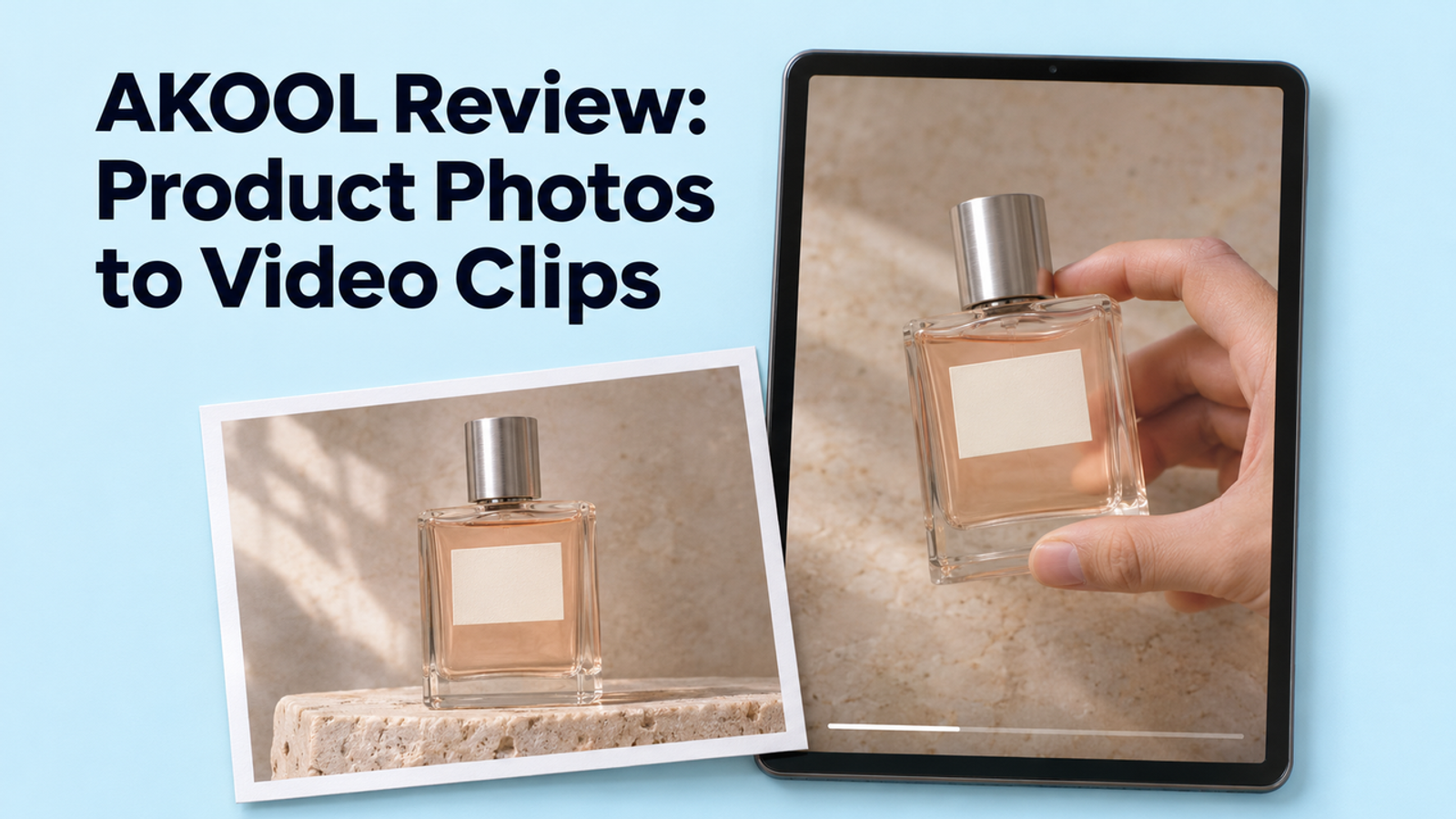
Upload the packshot, choose a compatible model, and describe the movement. In AKOOL’s AI video generator, the image guides the product’s appearance while the prompt describes what happens in the shot. Open the model selector in the image-to-video workflow to see which options your account can run.
Prepare an Approved Product Image
Consider a front-facing packshot of an amber skincare bottle with a black dropper cap and a white label. Use a photo where the volume marking is readable, and leave enough room above the cap for a headline. Save the exact source file with its SKU in the review folder. Two sizes can look identical in a thumbnail. The difference gets easier to spot when the export sits next to the product page.
Choose an angle that shows everything the shot needs. If all you have is the front, a full orbit asks the model to invent the sides and back. A small push-in adds movement while keeping the review focused on details you can verify. The Seedance 2.5 camera movement guide gives examples of how to describe the path and pace of a move in the brief.
Choose a Model and Motion Brief
The AKOOL Model Hub guide lists AKOOL’s own model alongside video model families such as Kling, Seedance, and Wan. AKOOL provides workspace and access. Duration, resolution, aspect ratio, and other generation controls vary with the selected model and version. Start with the AKOOL model and one third-party option if both are available in your workspace and support the same settings.
Start from the approved bottle photo. Keep the bottle upright and front-facing during a slow camera push-in. Preserve the black dropper cap, amber glass, white label, and visible lettering. Leave space above the cap for a headline.
Use the same image, prompt, duration, aspect ratio, and resolution for both candidates. A five-second vertical shot is a reasonable baseline if both support it. If one model requires a longer duration or a different crop, record the difference. It can affect how much editing the clip needs even if the product looks right.
What Should a Brand Check in the First Output?
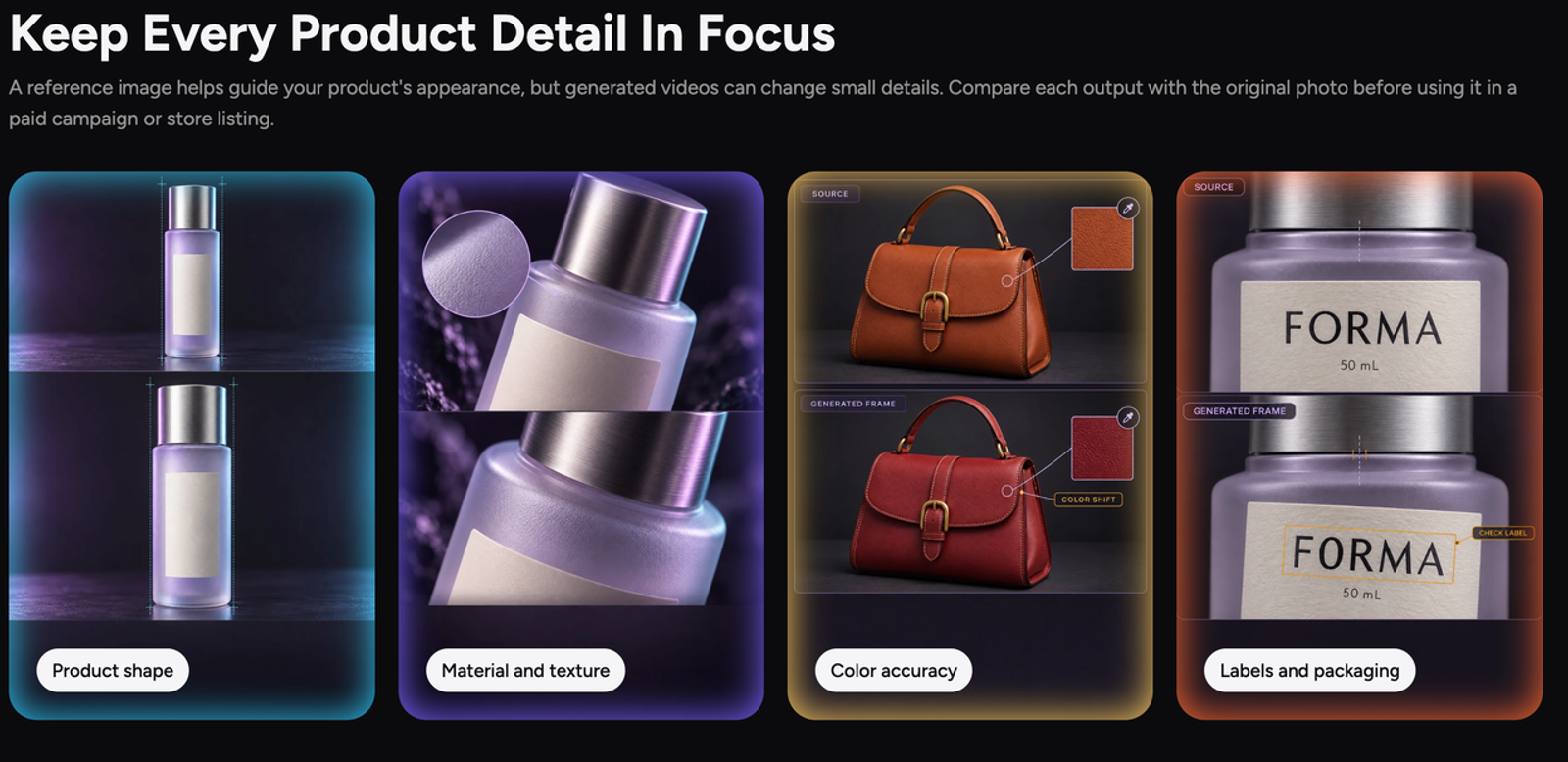
Check the product against the approved photo, then watch the shot at the size viewers will see it. A polished opening frame can hide a label that shifts during the push-in or a cap that ends up behind the headline.
Product Shape, Label, and Packaging Details
I’d read the small print at the tightest point in the shot. That’s where the volume marking may become legible enough for a shopper to notice an error. Scrub through the clip and compare the bottle’s shoulder, dropper cap, glass color, and label spacing with the approved packshot. A blemish on the counter is usually a straightforward cleanup. A changed cap or volume marking needs to be corrected before the clip can represent that SKU.
Motion, Cropping, and Placement Fit
Watch the push-in once without pausing. Does the camera move smoothly, or does the bottle appear to slide across the counter? Then load the ad layout and add the approved headline and price. In its product video guide, AKOOL recommends planning the crop ahead of generation and adding captions, branding, and calls to action during editing. Give the editor the actual placement so they can tell whether the footage has enough room.
| If you find this in review | Try this next |
| The headline covers the cap near the end of the push-in | Trim the tightest frames or reframe the clip if the footage has enough margin. |
| The label or volume marking keeps shifting | Animate the approved packshot in an editor to keep the original artwork intact. |
| The bottle or cap changes shape | Retry with a smaller camera move. Use the original photo or approved footage if the shape still changes. |
What Work Comes After Generation?
Framing or copy placement can often be fixed with the existing footage. A change to the product itself can send the shot back to generation or make the original photo the more practical source. If you’re comparing standalone tools, our PixVerse review for short product clips walks through a similar one-photo brief and the work required to turn a draft into an approved clip.
Compare Model and Credit Use
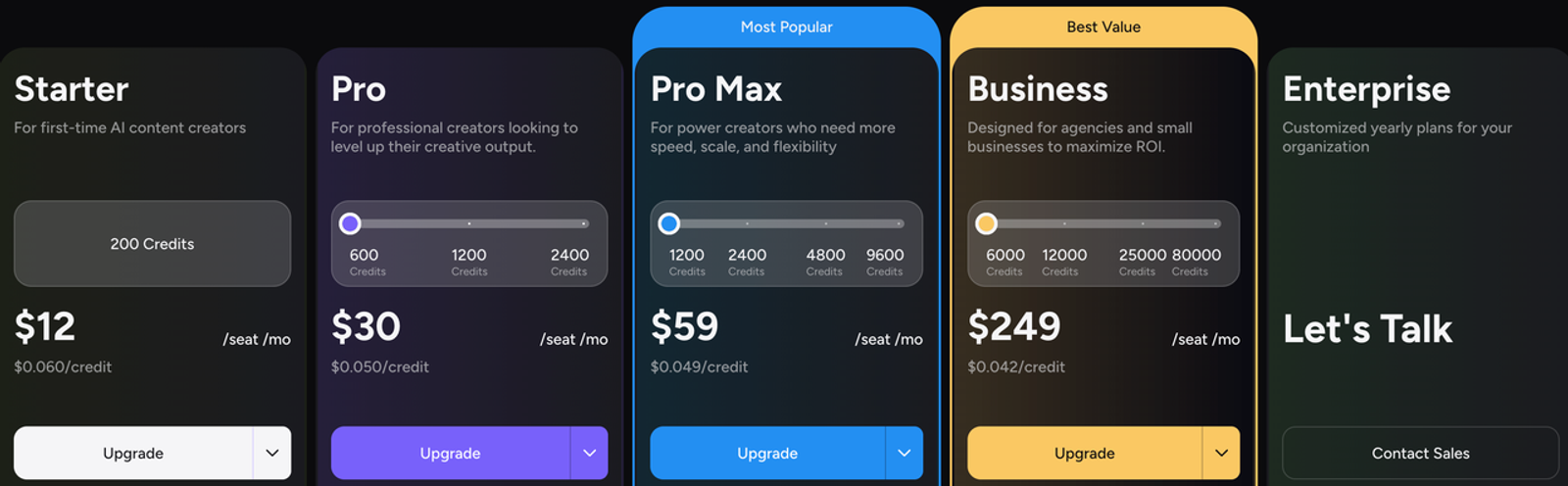
The AKOOL plan comparison shows which models and how many credits each plan includes. For your own comparison, track three things.
- Credits spent. Record the estimate before generating and the actual deduction afterward. Include any charged clips that fail review.
- Credits per approved clip. Divide total credits spent by the number of clips approved for the same placement. If none pass, record the spend and zero approved clips.
- Review and editing time. Track the minutes spent reviewing and fixing each clip. A take that needs its label rebuilt can cost more to finish even when it uses fewer credits.
In a hypothetical example, Model A spends 60 credits for two approved clips, or 30 credits per clip. Model B spends 40 credits for one approved clip, or 40 credits per clip. Model A uses fewer credits per usable clip. Check how much editing each route required before choosing one for the batch.
Revisions, Handoffs, and Final Edits
When you regenerate, change one instruction at a time. If the bottle drifts, adjust the camera move first and keep the source photo, framing, and lighting instructions in place. That gives the reviewer a clear change to look for in the next version.
Save the source file, prompt, model version, output settings, and timecode of any defect. A note like “the 30 mL marking changes at 00:03” gives the editor a place to start. Have the approver review the exported crop with the final copy in place so they see the same file the media buyer will receive.
When Does AKOOL Fit a Marketing Team?
AKOOL fits when you have approved packshots, a recurring need for short clips, and someone who can approve the product in motion. Start with one SKU and a representative placement. If each take needs a different repair, compare the workload with a simpler edit using your existing photography before budgeting the rest of the catalog.
Once a clip is approved, an AI UGC ad testing workflow can help you turn it into controlled variants. For example, keep the approved bottle shot and offer fixed while testing two opening hooks.
Product Clips Versus Avatar and Localization Work
A product clip starts with the SKU and a motion brief. Avatar video serves a presenter-led script, while video translation adapts speech in an existing clip. Those features may matter to a broader subscription decision. Budget photo-to-video on its own so you can see whether model choice and the time to an approved clip justify the plan for this job.
Conclusion
Put the strongest AKOOL take and a simple edit of the original packshot into the same ad layout. Check whether the product and offer are legible on a phone, then record the credits and editing time each route took to reach approval. Use those two finished examples to decide which approach your team can repeat across the catalog.
FAQ
- Can a photo with a real person be uploaded to AKOOL?
- Yes, if the selected workflow accepts the image and you have the necessary permissions. If someone is holding the product, confirm that the release covers uploading the photo for AI processing, animating the person’s likeness, and using the resulting clip in the intended campaign.
- Which source image file types can AKOOL use?
- AKOOL’s AI Video Generator lists PNG, JPG, JPEG, and WebP files up to 30 MB. Check the uploader for your selected workflow before preparing a batch.
- Are uploaded product images kept private?
- AKOOL says it shares inputs with third-party service providers to deliver the service. Its terms prohibit AKOOL and those providers from using customer content or usage data to train machine learning models. The AKOOL privacy policy lists a 365-day retention period for customer content and says users can clear that data. Check your agreement before uploading embargoed product images.
- Do commercial rights vary by the selected video model?
- Yes, applicable model terms can vary. The AKOOL Terms of Service require compliance with the terms of any third-party AI features you use. The plan license also matters. The Starter card on AKOOL’s product-video page says “Commercial licence,” while the detailed plan comparison labels Starter “Personal.” Confirm which terms apply to your account, selected model, and intended paid campaign before buying a plan for ad production. You’ll also need rights to the source photo and brand assets.
- Can AKOOL exports be downloaded without a watermark?
- Yes. AKOOL’s video generator lists watermarked exports on the free tier and watermark removal on paid plans. Check the downloaded file from the workspace you’ll use for delivery.