The short answer
Camtasia is a good fit for SaaS marketing and training teams that need to show the real interface and keep their walkthroughs editable. It gives you control over narration and on-screen emphasis after capture. A product release that changes the click path can still mean recording part of the demo again.
Quick Verdict for Product Demo Teams
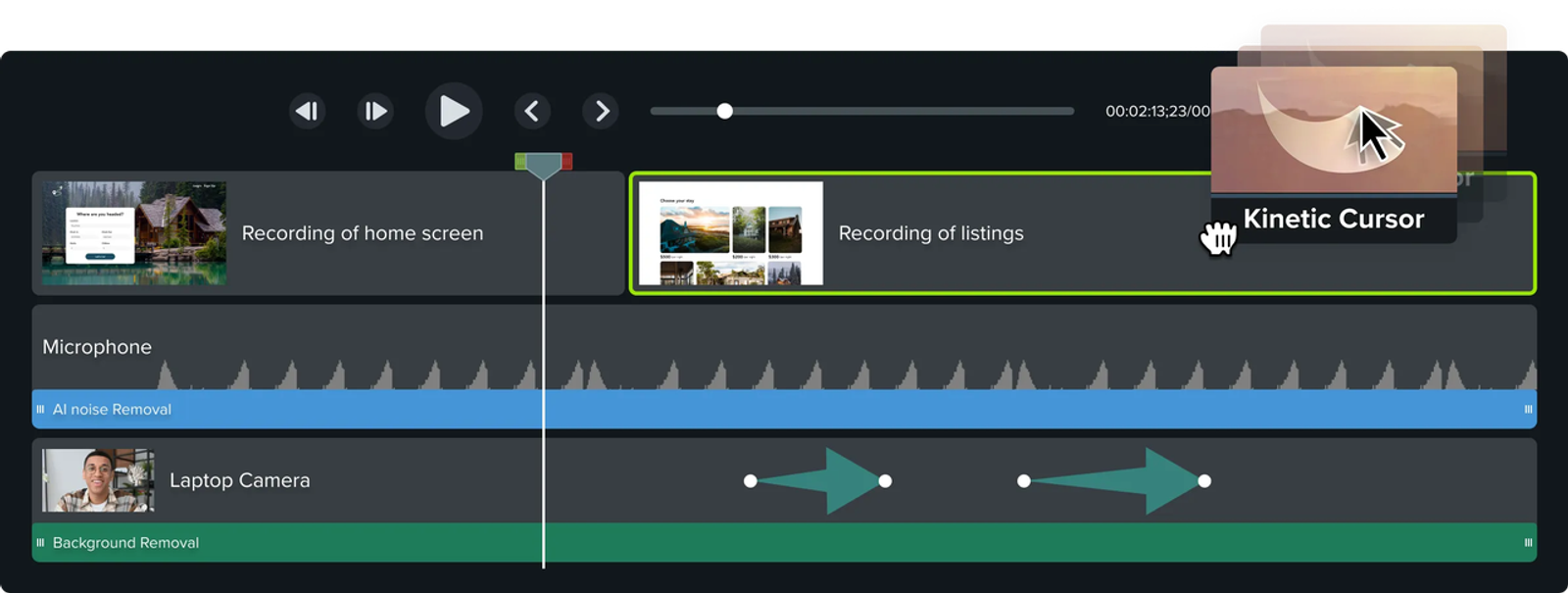
Essentials is the lowest individual plan with watermark-free exports from Camtasia Editor. Starter exports still carry a watermark. Create adds generated voiceovers, and Pro includes audio dubbing if you also need to publish in multiple languages. TechSmith lists these features in its Camtasia plan comparison.
I’d pay for the editor if the same demo needs to survive several releases or get reused across sales and training. For an occasional internal update where a teammate just needs to see what changed, a straight screen capture may be enough. If the video starts with a script or help article, the Lumen5 alternatives comparison covers tools that turn existing copy into editable scenes.
What Can Camtasia Record and Edit for a Demo?
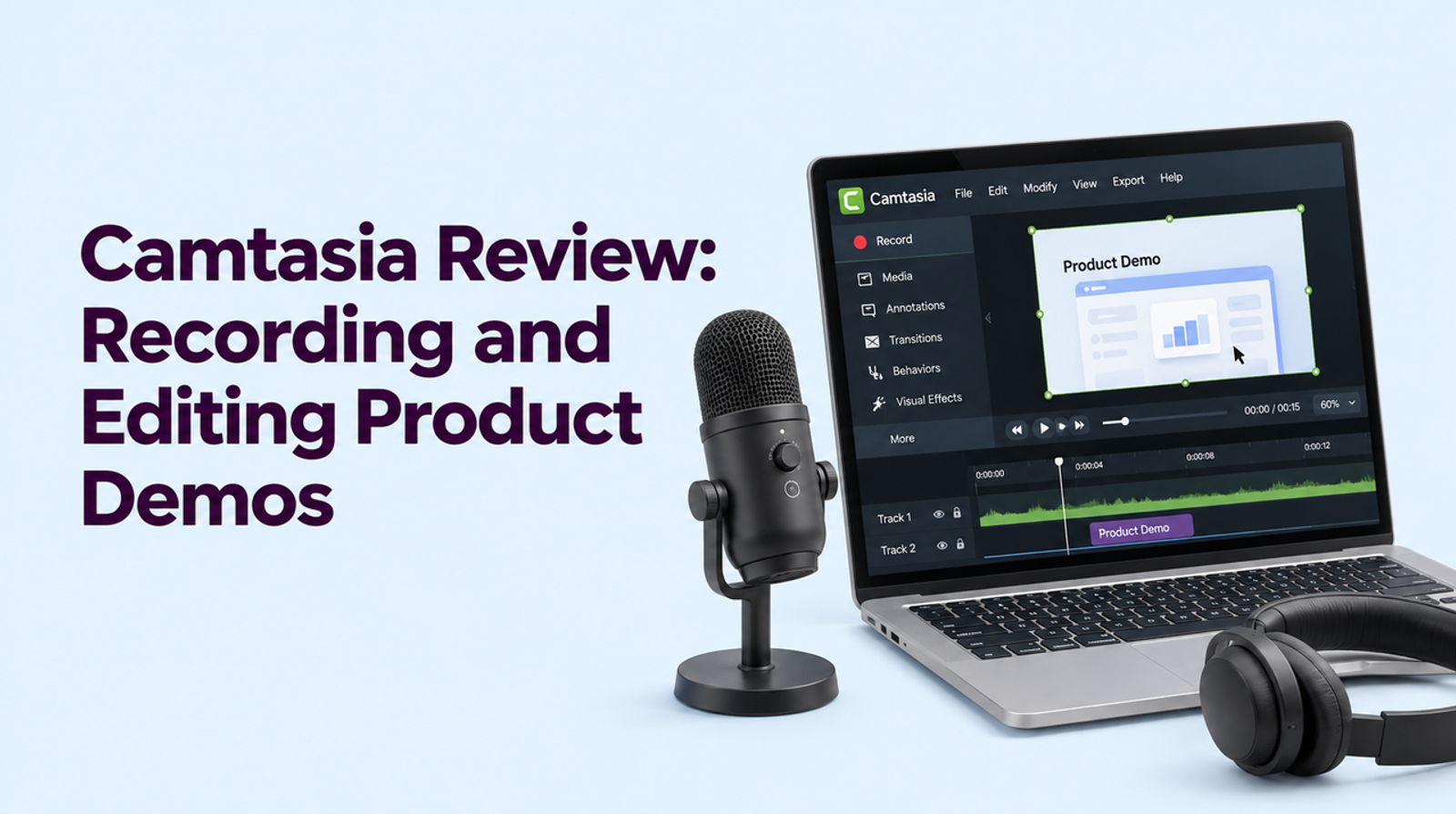
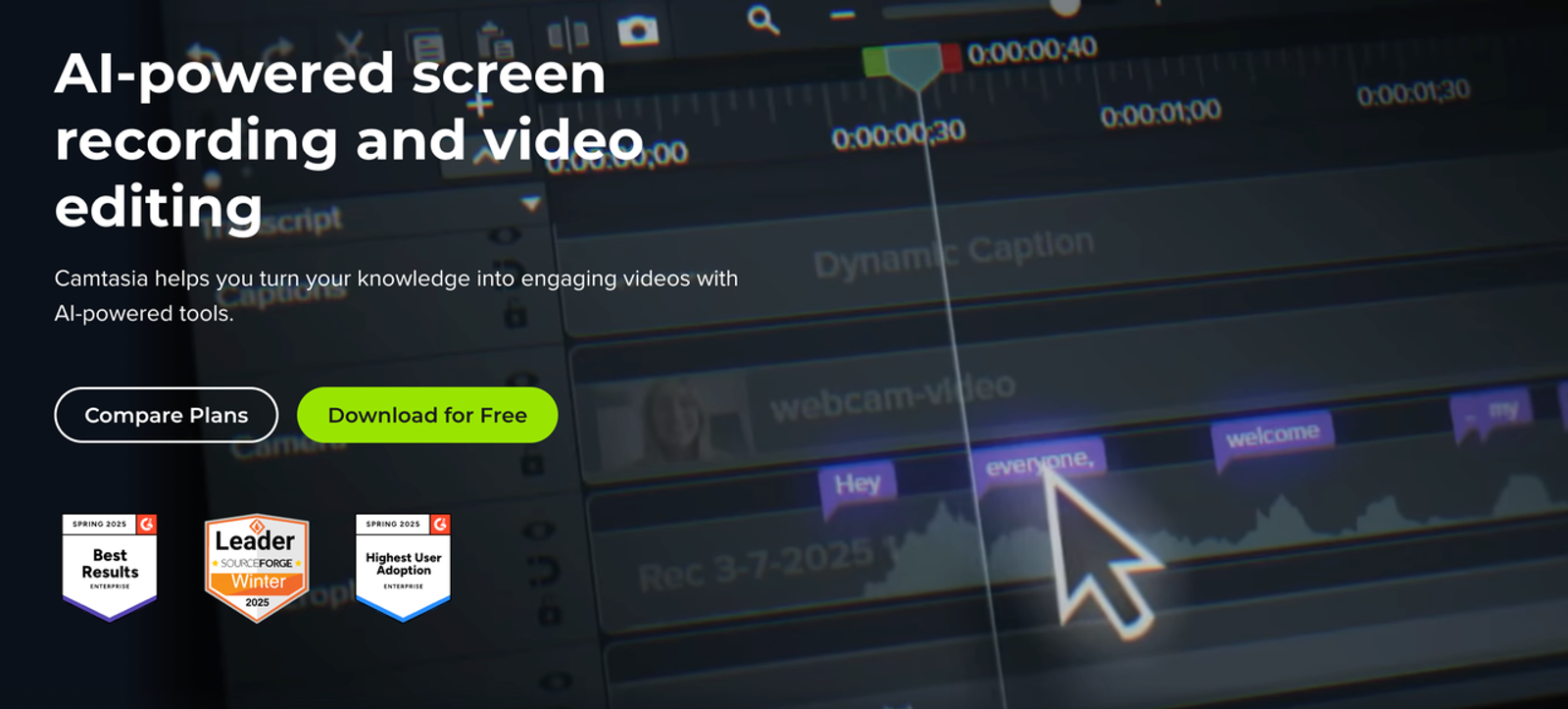
Camtasia can record the screen, webcam, microphone, and system audio on separate tracks. Those tracks go into the editor, where you can trim the footage and direct attention to a specific control with a zoom, annotation, or cursor effect.
Capture Screen Actions and Spoken Explanation
For a Camtasia screen recording of an approval rule, record the interface and narrate why the rule routes requests to a particular team. Include system audio if viewers need to recognize an alert. With the webcam on its own track, you can move the presenter overlay if it covers the confirmation. You can also rerecord a sentence and time it against the existing screen action. The recording and cursor options are described on the official Camtasia product page.
Make Interface Steps Legible in the Edit
In the Camtasia video editor, trim the page load and hold on the confirmation long enough to read it. Use a cursor highlight when the pointer is hard to find and a zoom when the control label is too small. For a toggle buried in Settings, show the menu path before zooming in. A close-up can make the switch readable while losing the context a viewer needs to find it later.
Where Does Camtasia Add Work to a Demo?
Camtasia adds work at two points: preparing the demo account and replacing footage after the product changes. Both can require help from someone who knows the current permissions and expected results.
Preparing a Clean Recording
Set up a demo workspace with sample data and the same permissions your audience will have. An approval option visible to an administrator can be missing for someone with a standard account. Close unrelated tabs, silence notifications, and set the browser size and zoom before the first take. Record those settings in the project notes if someone else may need to match the framing later. When a flow starts with a pending request, keep a spare sample request ready for a second take.
Revisions When the Product Interface Changes
The next edit is part of the cost. If a release moves the approval setting into a new menu, replace the shot that shows how to reach it. Keep the narration if it still matches the action, and recheck any cursor effects, callouts, and captions around the cut. A change to the confirmation screen may also affect the following clip if that clip starts by referring to the old message.
Record in short sections and save the starting state for each one. A note such as admin account, approval rule disabled, one pending request gives the next editor a way to recreate the shot. Keep the source recordings with the editable project, and name the clip for the step it shows so a teammate can find it when the interface changes. If the demo includes a generated clip, save its prompt and reference assets too, as outlined in the MiniMax H3 workflow for business videos.
How Should You Evaluate a Camtasia Demo Before Paying?
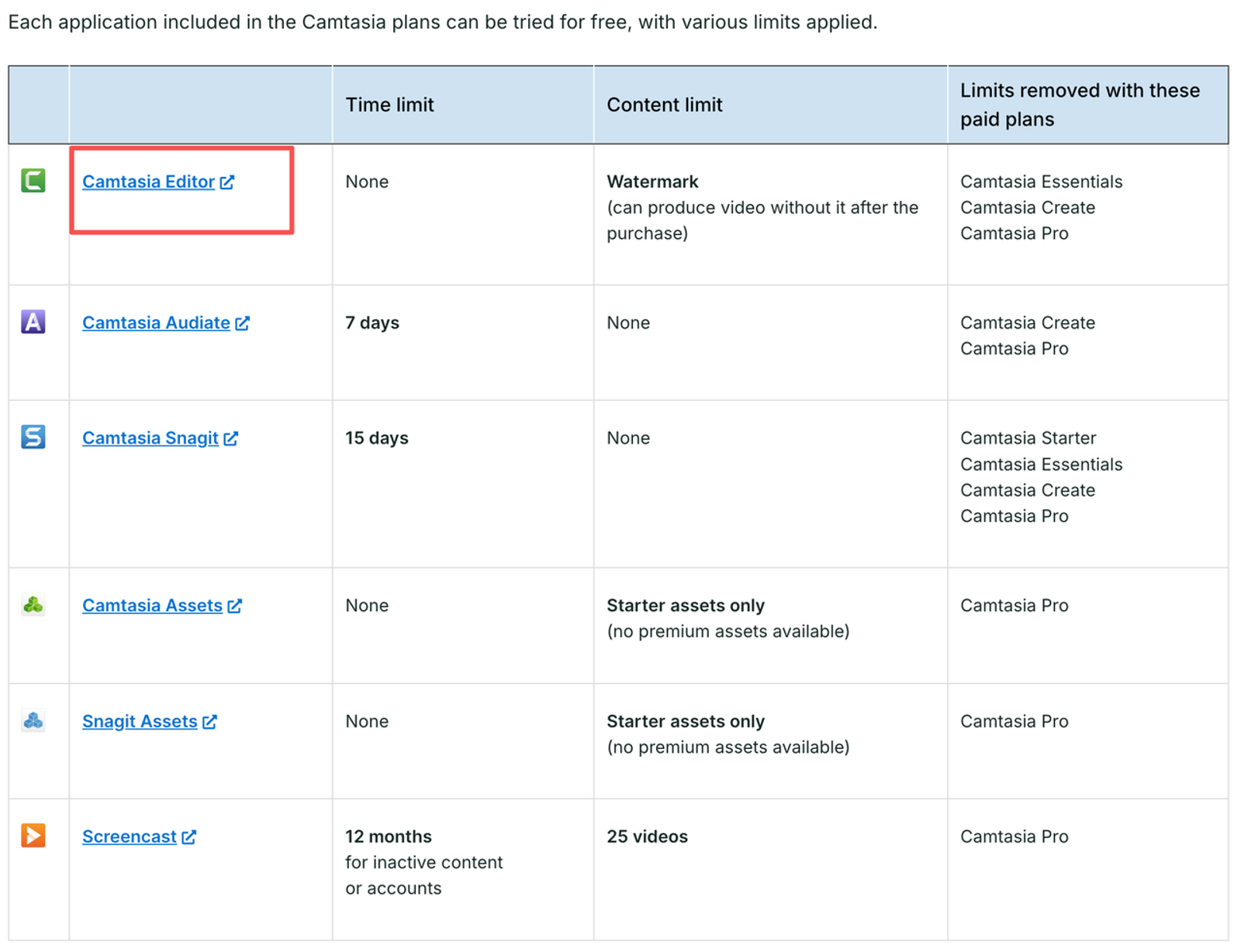
Make one short walkthrough, export it, and replace one step before deciding whether to pay. Use the free desktop editor for an internal review and budget for a new export if you decide to publish. TechSmith explains the time limit and export watermark in its Camtasia trial policy.
Record a Short Feature Walkthrough
Pick a feature you expect to document again after a release. Aim for a 60- to 90-second walkthrough. Open the approval settings, turn on a rule, and submit a sample request so the viewer can see where it goes. Record the screen and narration, add a zoom or callout to the setting, and export the first version. Keep it as a reference for the revision.
Duplicate the project and simulate a change to the settings step. If you have a redesigned menu in staging, record the new click path there. You can also use a narrower browser window that moves the settings control into an overflow menu, if your product supports that layout. Swap the clip and see whether the surrounding narration and annotations still line up. Time the retake, the timeline edit, and the review separately. Include any time spent resetting the demo account with the retake so you can see where a future update would take the most work.
Check On-Screen Legibility and Final Video Playback
Interface legibility. Open the export at the smallest viewing size you support. I want to see what survives a second look. Ask someone who hasn’t seen the script to watch once and tell you which control they’d use and what happens after the click. If they have to pause to read the label, give it more space or more time on screen.
Caption readability. Watch muted to see if captions stay visible long enough to read without covering controls. Turn the sound back on and check that the text is synchronized with the dialogue and includes any meaningful sounds, such as the alert a learner is supposed to recognize. See the W3C guidance on prerecorded captions.
Playback in the destination player. Play the video at normal speed in the help center, sales page, or training module where it will appear. Check that the voice is clear and the cut into the replacement clip plays smoothly. If the approval confirmation is visible in the editor but hard to read in the embed, adjust the framing and check the export again in that player.
When Should You Record the Interface or Generate a Scene?
Record the real interface when viewers need to verify a setting, follow a click path, or see the result. Use a generated scene to show the business situation around the feature. A shot of an operations team waiting on a handoff can introduce the problem. For that opening shot, use the Seedance 2.5 prompt guide to describe the action and camera framing. Then cut to the screen recording and stay there through the approval confirmation.
If you use Camtasia for SaaS demos that serve both sales and onboarding, keep that opening scene separate on the timeline so the walkthrough can also stand on its own in a training module.
FAQ
- Does Camtasia run on both Mac and Windows?
- Yes. TechSmith offers desktop versions for macOS and Windows. Check the operating system and hardware requirements for the version your team plans to install, especially if some editors use older machines.
- Can teammates open the same Camtasia project across operating systems?
- Yes. Use the export option for the destination operating system and have the recipient import the resulting ZIP as a project. Match Camtasia versions, since an older installation can fail to open a project saved in a newer version. Have the recipient check the media and effects before starting a revision. The menu steps are in TechSmith’s project sharing guide.
- Does a Camtasia trial add a watermark to exported demos?
- Yes. The free desktop Camtasia Editor has no time limit, and videos exported from it carry a watermark. Keep the editable project so you can export a fresh copy after activating a plan that supports watermark-free exports.
- Can Camtasia export subtitle files for localization?
- Yes. TechSmith lists SRT, JSON, and TXT caption exports in its plan comparison. For localization, ask your vendor which format it accepts. If it uses SRT, send the timed subtitle file with the matching reference video so the translator can check product terms and line timing against the interface.
- Where can interactive Camtasia quizzes be played?
- Quizzes play through TechSmith Smart Player on Screencast or a website hosting the video with the player. An ordinary MP4 plays as video only. Screencast and self-hosted quizzes display questions for practice without collecting responses. For reporting, use a SCORM package in a compatible learning management system and confirm that a test attempt records there. The options are covered in TechSmith’s quizzing update.If the broader course also needs an AI presenter, the comparison of Synthesia alternatives for avatar-led training covers tools to evaluate for SCORM delivery.