The short answer
LTX Studio is a good candidate for brand teams that need to turn one product brief into a sequence they can review and revise shot by shot. Its storyboard gives the team a way to agree on the order, framing, and product action before committing to motion. If the brief calls for one hero clip or the team already has approved footage and an established edit, the extra planning workspace may add work.
Quick Verdict for Multi-Shot Product Videos
This LTX Studio AI review follows the workspace from the approved brief through the editor handoff. The official LTX Studio overview describes starting from a script, concept, image, or video, then working in a storyboard and timeline. I’d use the storyboard to check that each shot has a purpose, then watch the assembled cut to see whether the product and action stay consistent. A board can pass its review while the video still needs revisions.
I’d use a 15-second vertical ad for a matte sage-green desk lamp, with one SKU, cleared reference photos, and one approved line of copy. Keep those inputs and the review criteria fixed when comparing Studio with your current process. If the brief only needs a hero shot, our PixVerse review for short product clips shows how to evaluate a single clip against an approved product reference.

How Can LTX Studio Plan a Product Story?
Turn an Approved Brief Into a Shot Sequence
Start the LTX Studio storyboard with four beats. Spend three seconds establishing the lamp beside a blue notebook, four on a close-up of a hand turning the brass knob, four on the lamp lighting the reading area, and four on a pack shot with the approved end card. Give each shot a stable ID and note the action, product feature, and expected end state. Shot 02 ends with the light on. Shot 03 should begin there.
Studio can suggest scenes from a script. Before rendering, compare the proposed panels with the approved brief and remove invented features, props, or claims. Ask the brand reviewer to describe the product action from the panels. If they can’t tell how the knob works, clarify the action before paying to animate the sequence.
Keep Product References Visible Across Shots
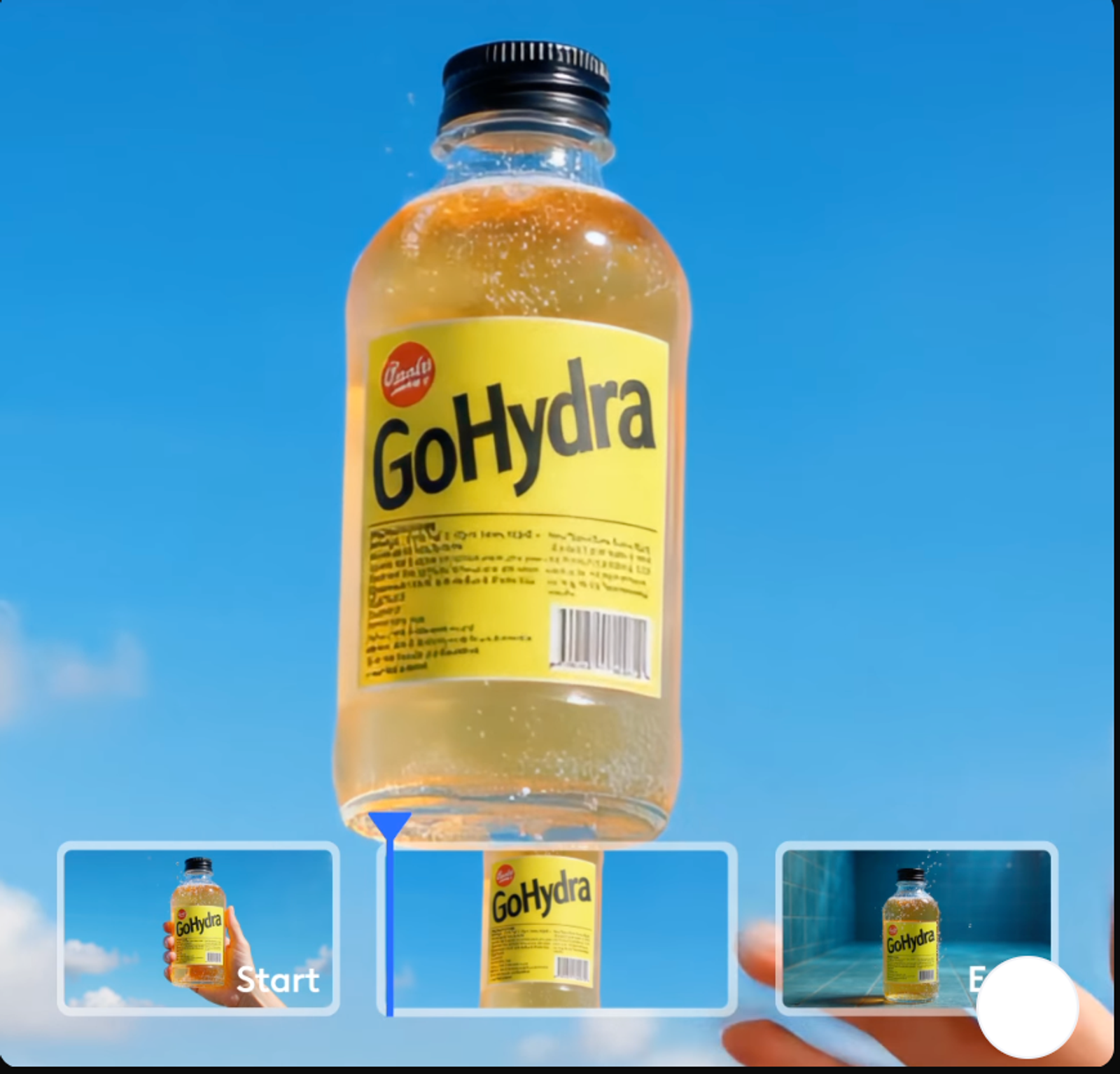
Use an approved front view, side view, and knob close-up as the visual standard. LTX Studio’s reusable Elements can represent objects, characters, and locations across a project. Save the lamp as an Object Element where your plan supports it, then reference the same item across relevant shots. If you need a reading-area mockup, adapt a tabletop product scene prompt and keep the approved photos beside the board for comparison. LTX describes how Elements and shot sequencing work in its Studio production tutorial.
Give the recurring props and person the same treatment. Write down which side the blue notebook sits on, what sleeve is visible, and which hand reaches for the knob. Those details matter most at the cut. A convincing shot on its own can still break the action if the notebook changes sides or the person appears to approach the lamp from the opposite direction.
What Changes When the Shots Need Revision?
Compare Product Details and Scene Continuity
For each shot in the LTX Studio product video, record the approved reference, the details that must match, the take selected, and how many attempts it took. Inspect the first and last frames and pause during the action. In the close-up, check whether the knob changes position or size as the hand reaches it. Across the next cut, compare the lamp’s power state and the hand’s direction with the preceding shot. On the final product frame, check the shade silhouette, finish, and end card at the size viewers will see.
I’d give the cuts a second look with the sound off. Dialogue or music can carry the sequence even when the visual action has a gap. Mark which issue belongs to the shot and which belongs to the join between shots. A mismatched knob calls for a correction to the image or take, while a pause may only need a trim. If the camera move needs a retake, describe its path using these Seedance 2.5 camera movement examples.

Reorder, Replace, and Review the Sequence
After the first assembly, move the pack shot ahead of the reading-area shot while keeping the end card at the close. Replace the knob close-up with a clearer take and preserve the order of the turn and the light coming on. The Studio tutorial describes rearranging and replacing shots without altering the source generations. Use an existing take if it meets the brief, or try a targeted Retake where the selected workflow offers it. Record which shots you touch and whether any neighboring cut needs adjustment.
Have the reviewer watch the revised sequence in order, then attach the decision to a version number. A note saying the knob changes shape at 00:05 gives the editor something specific to fix. Have the reviewer check the affected cut again after the replacement. A shot can improve on its own and still cause a jump in the sequence.
How Does a Team Finish the Video?
Check the Final Edit and Export Handoff
Use the LTX Studio video editor to assemble and trim the sequence. LTX lists MP4, XML, and a pitch deck among its Studio export options. For sign-off, review the rendered MP4 for frame size, duration, watermark, audio, and the readability of the end card on a phone. A concept review may only need the board in a pitch deck. Confirm which options your plan and project offer.
If a finishing editor needs the sequence, have them import the XML into their actual editing app and relink the source media. Check shot order, cut points, aspect ratio, and audio against the review render. Then note what they must rebuild, such as text, transitions, or a music mix. Keep the approved reference media and an MP4 of the reviewed version with the handoff so the editor can check whether the import changed the sequence.

Estimate the Work Behind an Approved Cut
The next edit is part of the cost. Keep a running log of credits for first takes, rejected attempts, and revisions, alongside staff time for briefing, review, and finishing. Record the model, duration, and resolution for each generated take. The Studio plan comparison lists Kling and Seedance options from Standard and Veo 3.1 options from Pro. Model availability can change, so check the options in your account. LTX says different actions consume different amounts of credits and the app updates your balance after each action.
Compare the LTX Studio ad workflow with your current process at the same stopping point. Count how many of the four planned shots survive into the cut, how many attempts the weakest shot needs, and which fixes move to another editor. Set an acceptable limit for retries and staff time before starting. If you’re shortlisting other tools, use this AI video ad workflow comparison to match the starting assets and the handoff your editor needs.
Conclusion
I’d shortlist LTX Studio when a team needs to agree on several shots, then revise one without losing track of the sequence. Use the same four-shot brief in Studio and your current workflow. Have the reviewer approve a specific version and the finishing editor open the deliverable. Use the log to decide whether the time saved in planning covers any extra work in finishing.
FAQ
- Is LTX Studio the same product as the LTX video model API?
- Studio is the browser workspace for storyboarding, generation, and editing. The API gives developers programmatic access to LTX models through a separate developer account with usage-based billing. Studio credits stay in Studio.
- Which plans include AI-generated storyboards?
- The plan comparison lists AI Storyboards on Standard, Pro, and Enterprise. Free lists Blank Storyboards, and Lite inherits that capability. If the evaluation depends on generating scenes from an approved script, check that your intended account has the AI feature before scheduling the pilot.
- Can collaborators use one shared project without sharing credits?
- Yes. LTX’s project collaboration guide says collaborators work from their own account’s plan and credits. Pro supports up to three collaborators per project including yourself. Enterprise team plans list unlimited collaborators and organization-level credit allocation. Editors can generate and delete assets. Owners can manage access and delete the entire project. Confirm what each person’s account can do before assigning revisions.
- Can an agency use an LTX Studio export for a client ad?
- Yes, if the content was created under a plan with commercial use rights and the agency has cleared the assets in the ad. LTX lists Standard, Pro, and Enterprise for commercial use. Free and Lite are for personal use. For client delivery, check the latest Studio terms and any terms covering the chosen model, stock assets, music, or talent. Record which rights cover the client’s intended placements.
- How are uploaded product references handled after a project is deleted?
- Lightricks describes retaining inputs and outputs for continued access, subject to internal retention rules, in its LTX Platform privacy policy. The policy describes account-level deletion requests but gives no deadline for purging references after a single project is deleted. Business account agreements and third-party model policies can govern separate processing. For a client with a deletion deadline, confirm in writing what happens to uploads and any saved Elements.