The short answer
The Adobe Firefly video generator is worth evaluating for short product inserts and campaign concepts. Start with a model your team has cleared for the campaign and can use in the target aspect ratio. Firefly is the workspace. Adobe’s own Firefly Video model and the partner models available in it have different controls, credit rates, and usage terms.
Quick Verdict for Brand Video Production
For this Adobe Firefly Video review, I’d start with a five-second shot of a boxed product. Use an approved front-facing photo and ask for a gentle push-in with a soft reflection moving across the box. Make a simple zoom in your editor from the same photo, with the same duration, crop, and room for the headline. Add a partner model to the comparison once it clears your usage review and can work with the same photo, duration, and framing.
The generated clip earns its place if the movement serves the brief, the packaging stays accurate, and the team can deliver it within the agreed revision budget. If a change in scale is all the shot needs, the editor version delivers it with the approved artwork intact.
What Can Firefly Generate From a Product Brief?
Fireflies can generate a short video from text or use an approved image to guide the shot. Text works for exploring a set or lighting idea. An approved packshot gives the model a specific product and composition to work from.
Start With Text or an Approved Image
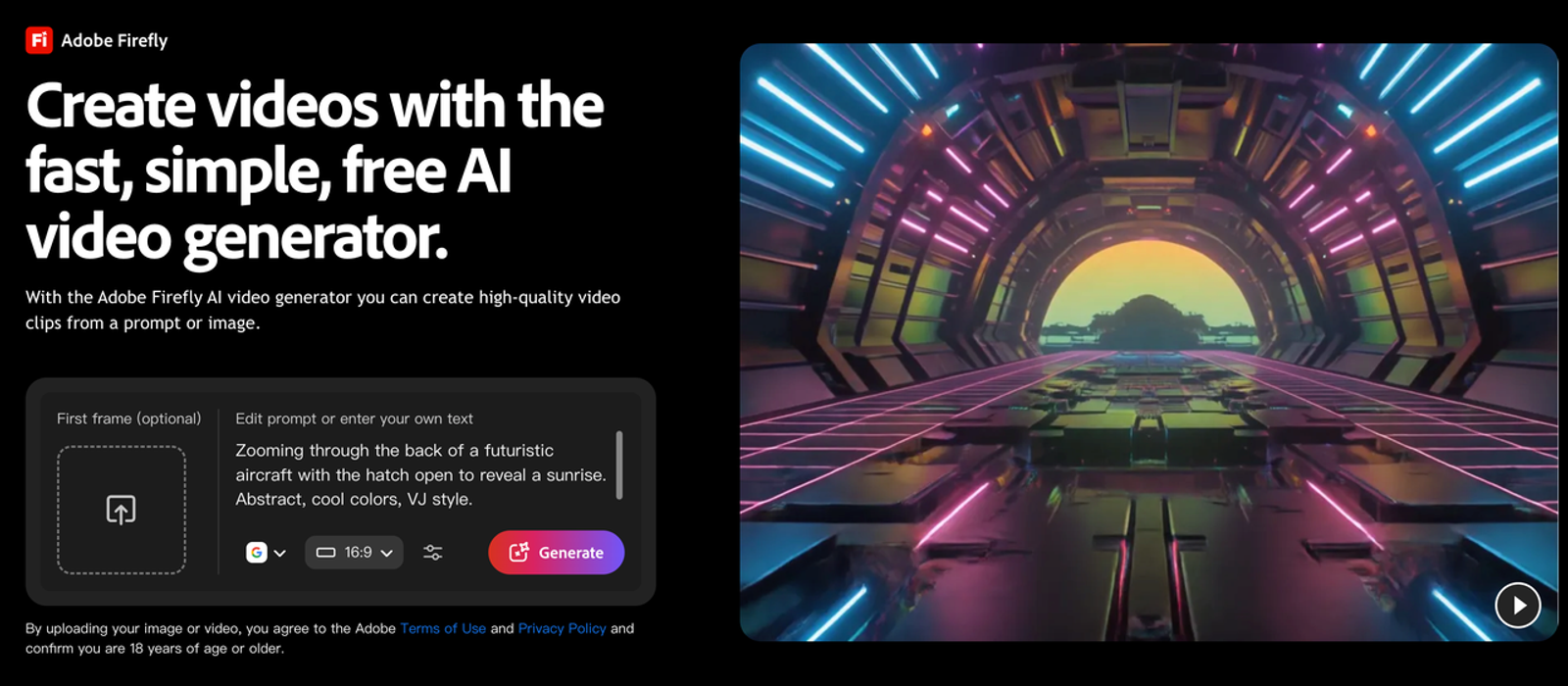
In Firefly’s image-to-video workflow, use the approved packshot as the opening frame. For a vertical ad, check that the front panel and headline space both fit the crop. The guide to video ad stills shows how to frame and review a product image for that placement before animating it.
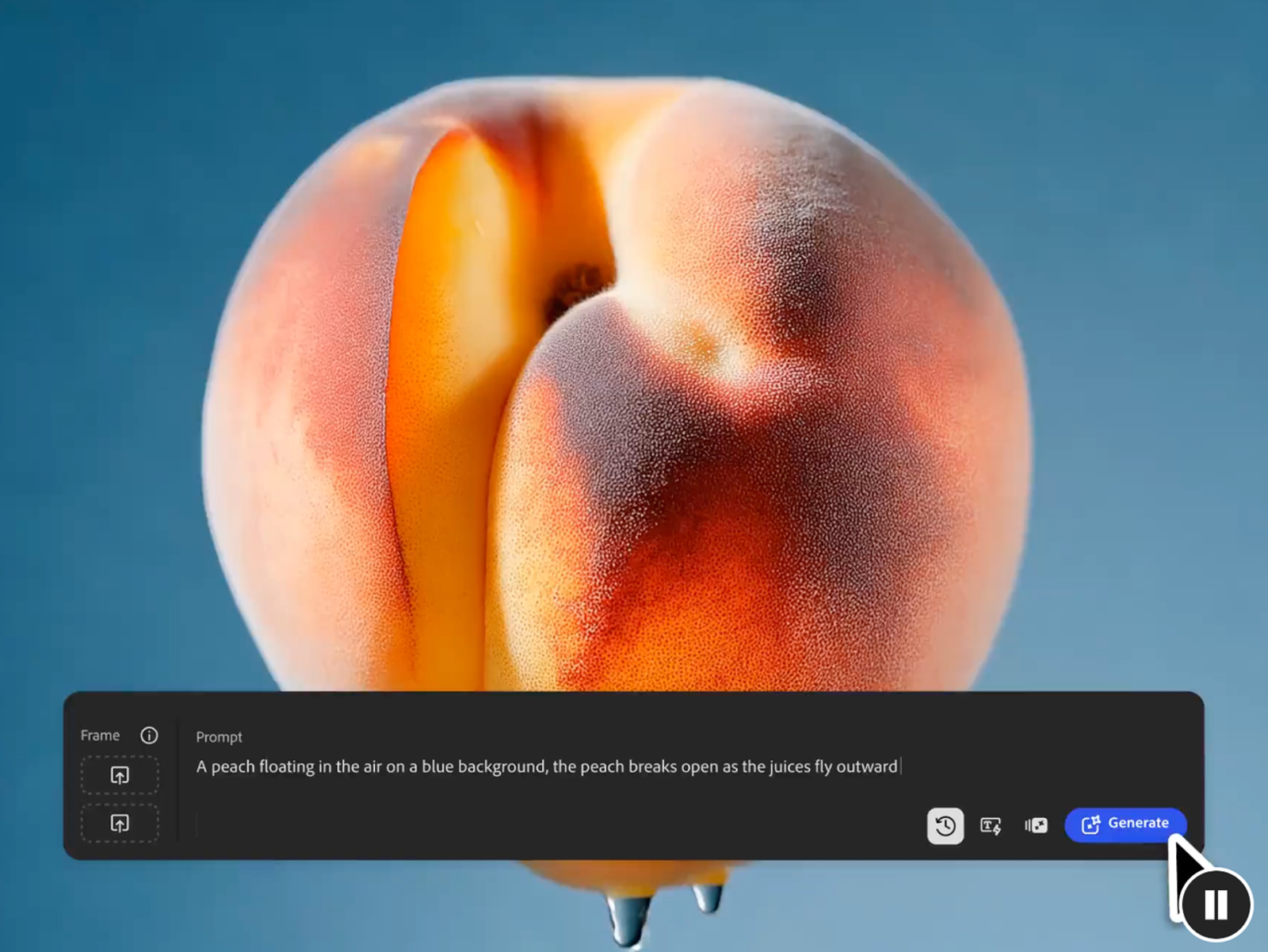
Adobe’s Firefly Video timeline controls default to five seconds at 24 fps and accept a first frame, a last frame, or both. Adding a keyframe disables some controls in this workflow, including motion reference and camera angle. Describe the movement in the prompt. For the box shot, try “Slowly push toward the stationary box. Keep the front panel visible and preserve the label and package shape. Let a soft reflection move across the surface.” Add the headline in the edit.
Choose the Video Model for the Task
Adobe documents Kling 2.5 Turbo in the Firefly video editor with a first-frame input and a fixed five seconds at 1080p and 24 fps. That makes it a candidate for the box shot if both models in your account support the intended framing. When comparing Adobe Firefly partner models with Adobe’s own model, hold the prompt, aspect ratio, resolution, and number of attempts constant where possible. If the models give you different audio options, compare the footage muted first and log the difference for the editor.
How Should a Team Review a Firefly Clip?
Compare the generated footage with the approved product image, then review the edited version in the target placement. I would check the label before the lighting. A box can look right at the start and change as the camera moves.
Check Product Details and Brand Claims
Pause at the moment the reflection crosses the logo. Compare it with the approved photo and scrub a few frames on either side for a logo that shifts or lettering that changes and then snaps back. Reject footage that changes a pack size, ingredient statement, or certification. If the edit adds a claim, trace it back to the approved copy before sign-off.
Check Motion, Audio, and Final Placement
Play the shot at normal speed. A slow push should feel like the camera moving closer to a stationary box. If the product seems to slide, revise the prompt to specify what stays still and how the camera travels. The Seedance camera movement guide illustrates that distinction with product push-in examples.
Use this checklist on the final cut so each reviewer signs off on the version the audience will see.
| Review item | What to verify before delivery |
| Product details | Check the approved packshot against the first, middle, and last usable frames. Include any moment where the label is partly obscured. |
| Brand copy and claims | Match the on-screen offer, pack size, and product claims to the approved copy and landing page. |
| People and music | Verify that permissions for any likeness, voice, and music cover the intended paid placement. Listen to the exported mix. |
| Motion and placement | Preview on a phone with the platform overlays. Check the tightest crop for a clipped box edge, covered label, or blocked headline. |
| Final export | Check the delivered file’s aspect ratio, duration, resolution, and audio against the placement specs. |

What Does the Adobe Workflow Add or Complicate?
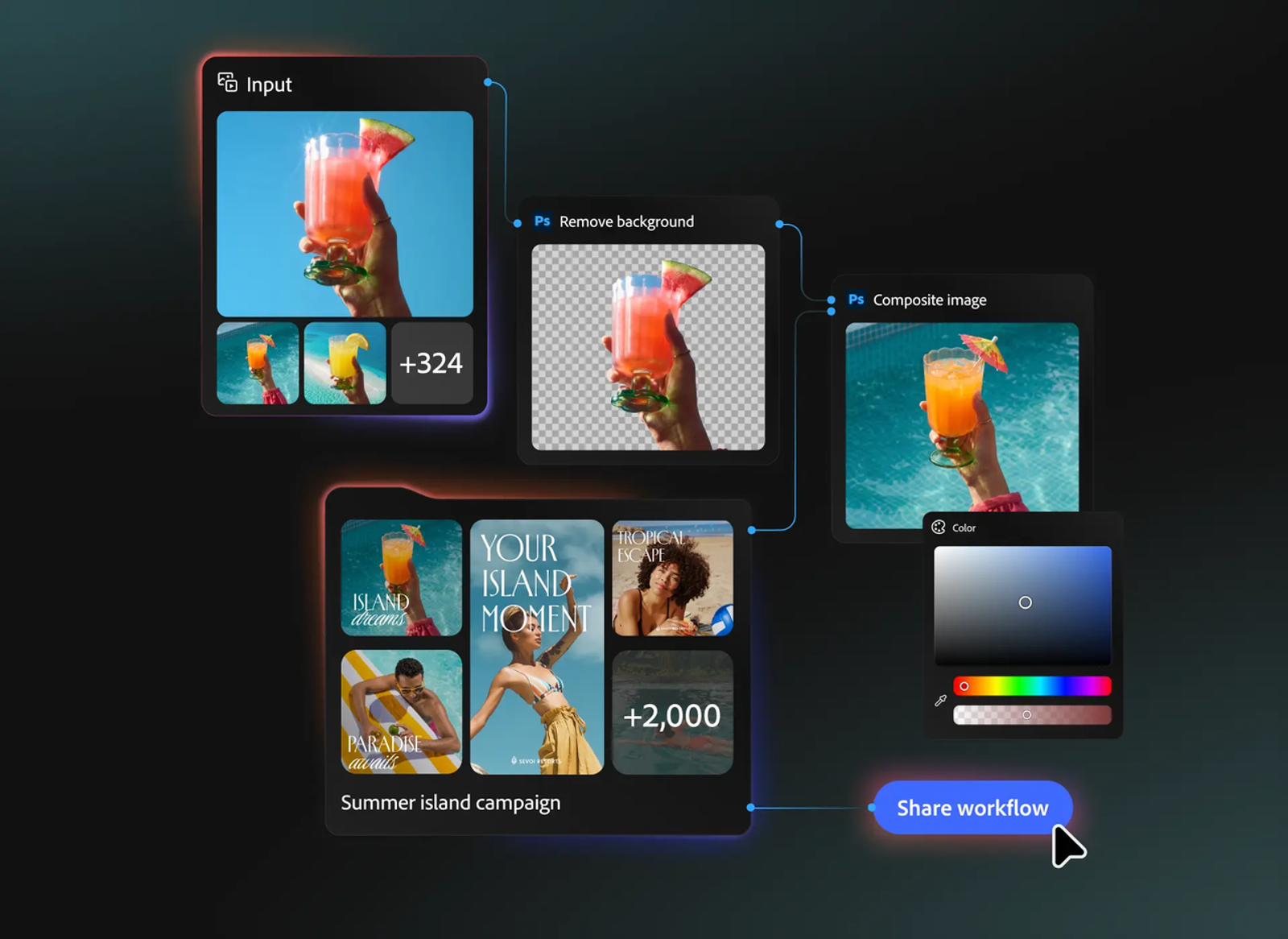
Firefly gives the team a way to generate candidate footage and hand it to an editor. The extra work is tracking which model made each version and checking the product again after the editor adds copy, sound, and the final crop.
Edit an Exported Clip for Campaign Delivery
Import the selected export into the editor your team uses. Send the source packshot, model name, prompt, and timestamped review notes alongside it. Keep titles, captions, and cleared audio editable in the project so the editor can update the right version if the offer changes. If the shot becomes part of a set of UGC ads, use a creative testing workflow to track what changes between variants while keeping the product demonstration consistent.
Budget for Revisions and Approval
The next edit is part of the cost. Under Adobe’s Firefly credit rates, metered Generate Video at 1080p and 24 fps costs 100 credits per second, or 500 for five seconds. Adobe lists Kling 2.5 Turbo’s 1080p credit rate at 15 credits per second, or 75 for five seconds. Check what your plan covers before submitting a batch.
Record credits spent across all attempts and track editor and reviewer time. If at least one clip passes, divide total credits by the number approved. If none pass, record the spend and why the candidates failed. A cheaper generation can still cost more to deliver if the editor has to rebuild the shot.
When Does Firefly Fit a Brand Team?
I’d use Firefly video for ads when the shot calls for a short insert with some latitude on lighting and background. If the brief requires a legible back panel, a precise product demonstration, or a view the source image doesn’t show, start with filmed footage or an approved render.
If you’re comparing Firefly with a separate generator, the PixVerse review for short product clips covers a similar one-photo task. Use your own approved packshot, motion brief, and placement for both tools so the review compares the same deliverable.
Conclusion
Save the approved packshot, model and settings, final export, and sign-off together. Include the credits and review time so the next campaign can budget from a shot the team actually approved.
FAQ
- Are partner models in Firefly covered by the same commercial terms?
- Commercial eligibility depends on the selected model and feature. Adobe describes its own Firefly Video model as designed for commercial use and says partner models may have different usage terms. Please refer to the latest official documentation for the exact model and feature. Clear the assets and review the destination’s ad policies before publishing. This is general information and does not constitute legal advice.
- Which export formats can Firefly video projects use?
- Adobe’s Timeline export settings document MP4 downloads at 720p, 1080p, or 4K. Export resolution and generation resolution are separate settings. Inspect the file against the placement spec before delivery.
- Can Adobe Express open a Firefly video project for editing?
- Adobe documents direct transfer of the editable Firefly timeline to Premiere on desktop. In Adobe Express, import the exported MP4 into a new project and add titles, captions, or other editable elements there.
- What happens to uploaded brand assets in Firefly?
- Adobe says it uses prompts and inputs for generation and excludes customer content from training Adobe and integrated partner models. Storage, access, and sharing depend on the workflow and account. Confirm your account’s data terms before uploading confidential campaign material.
- Can a team restrict who sees its Firefly projects?
- On eligible organization accounts, Adobe’s asset sharing settings can restrict public Firefly links. Verify permissions for the specific project or asset with the accounts that will review it. A public generation link can expose the prompt and reference materials, so share confidential review copies through a restricted folder.