The short answer
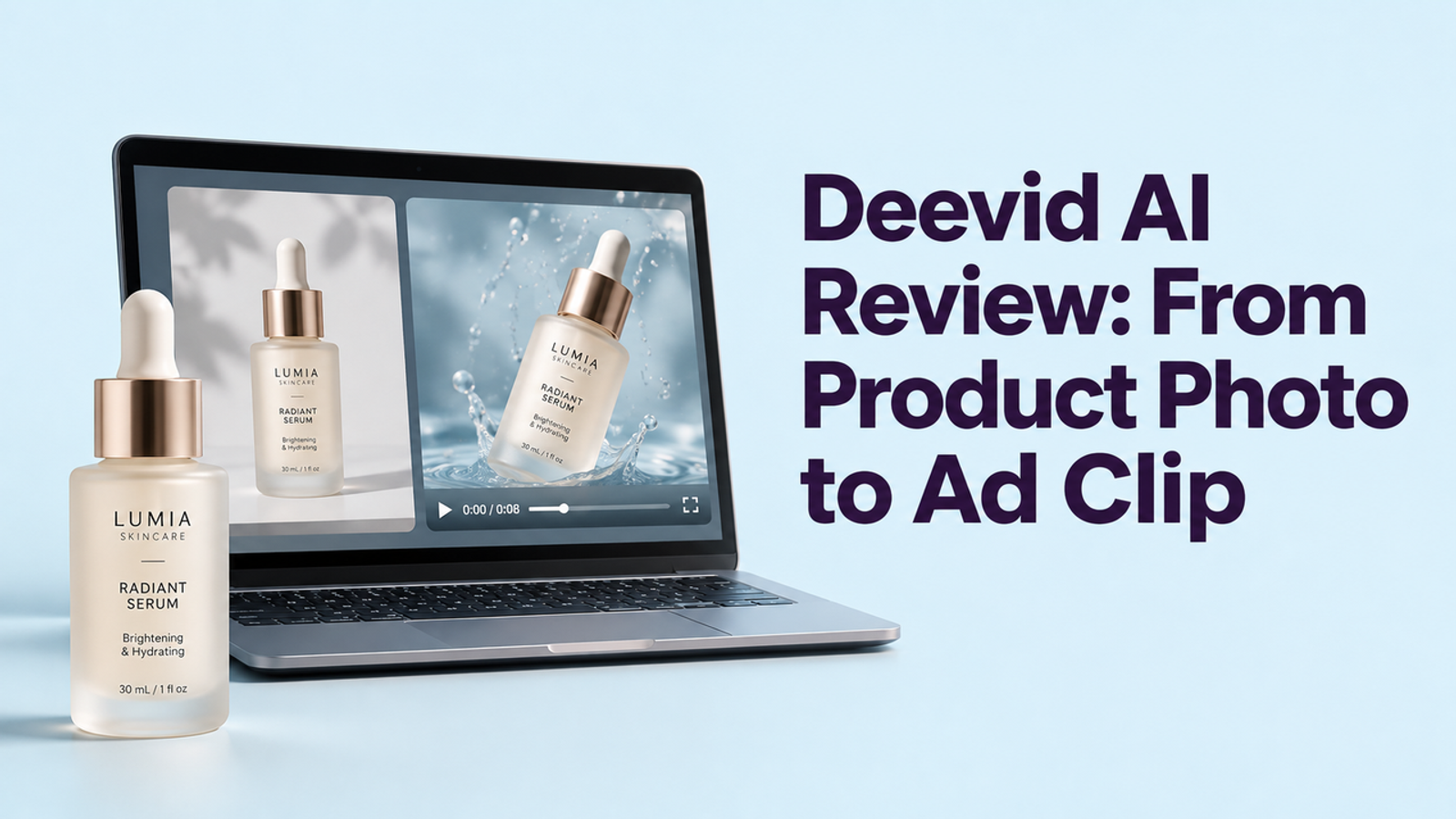
Deevid AI can turn an approved product photo into a short motion draft for an ad, and I’d start with a single shot that keeps the product facing the camera. The decision to use the clip comes after a frame-by-frame check of the product, a preview in the intended placement, and a look at what it cost to get a usable take.
Quick Verdict for Product Photo Ads
The clearest fit is an ecommerce team that already has a packshot, an offer, and someone who can finish the ad in an editor. The Deevid AI video generator offers two relevant starting points. Image to Video animates a still, while AI Ads offers workflows for broader ad creation. For a campaign that already has approved messaging, I’d use the first route to create the product shot and let the editor handle the offer, captions, and end card.
How Does Deevid Turn a Product Photo Into Video?
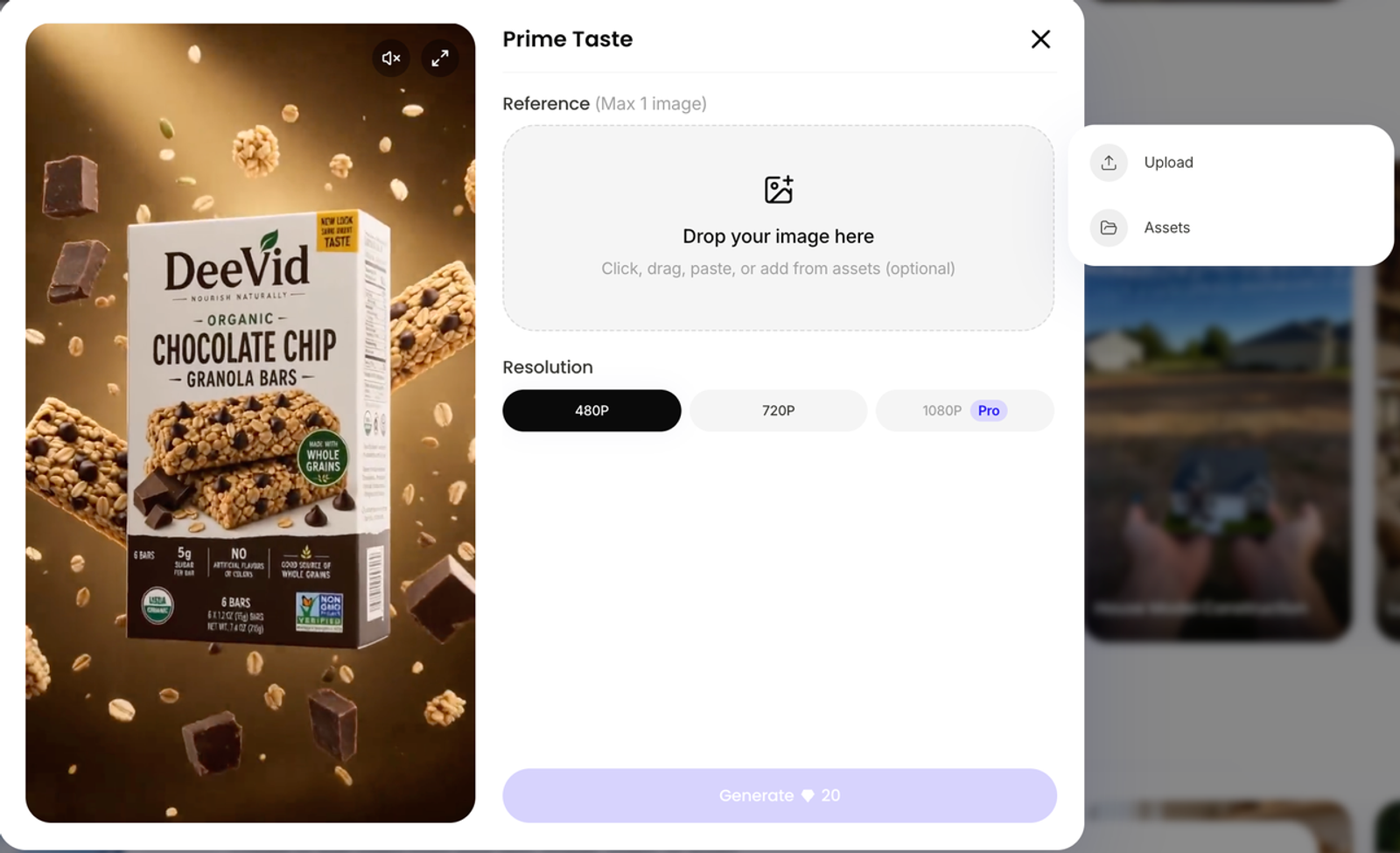
In the Deevid Image to Video tool, choose Start Image and upload the approved photo. Describe one movement, set the duration and resolution, choose one output for the first pass, and select Create.
Choose a Starting Image and Motion Brief
Pick the actual SKU and packaging revision you’re selling. A front-facing photo of a coffee bag with room around the edges gives you space for a small push-in and a vertical crop. A flattened sale graphic adds text and design elements the model also has to preserve. If the packshot needs a cleaner backdrop, compare Pebblely alternatives for product photography before approving the still for animation.
A first brief could read, “Slow camera push toward the front of the coffee bag. Keep the bag upright and preserve its shape, color, logo, and label. Keep the matte background still and leave space above the bag for an overlay.” Give the first shot one job. If you want to compare it with a soft light sweep, change the movement and keep the same bag, framing, and duration. Use the Seedance 2.5 camera prompt examples for wording ideas when specifying a push-in or pan.
For embargoed packaging, check the Deevid Privacy Policy before uploading. Deevid says it may use third-party AI providers to process requests and gives no fixed deletion deadline for unsaved inputs or outputs.
Review the Clip Before Adding Ad Copy
Preview the draft at normal speed, then pause at the opening, the strongest point of movement, and the end. If you spot a flicker, mark its timecode so the editor can tell whether trimming would preserve the shot. Once the product footage passes the checks below, download that take and bring it into your editor. Add the approved price, offer, and captions as editable layers so a copy change can use the same footage.
What Should a Brand Team Check in the Output?
Review the generated shot against the approved photo. Once the shot clears that check, review the finished edit with the copy and placement crop in place before it goes to the paid media team.
Product Shape, Labels, and Background
I’d check the label before the lighting. Put the source photo next to the video and compare the package outline, closure, logo, variant name, and any quantity or claim visible on the label. Look for changing letter shapes as the camera moves. Check the background and reflections for extra products, logos, or props that could imply the customer gets something beyond the listed SKU. For U.S. campaigns, imagery can convey a claim alongside the copy, as explained in the FTC’s truth-in-advertising guidance.
Motion, Framing, and Placement Crops
Preview each planned crop with the actual ad copy in place. A 9:16 cut may keep the bag centered while a caption covers the variant name or the placement’s interface crowds the call to action. Check the moment when the product fills the most space, then play the ending to see whether the offer stays on screen long enough to read. Reframe a tight crop from the same clip. If the bag bends or the label changes across frames, shorten the move or use the approved still. Send the finished export for each placement, with final copy and captions, to the paid media team for submission to ad review.
How Should You Budget for Usable Clips?
As of November 12, 2026, Deevid lists monthly USD prices of $14 for Lite with 200 credits, $35 for Pro with 600, and $159 for Premium with 3,000. Annual billing totals $120, $300, and $1,428, respectively. Lite lists 720p output, while Pro and Premium list 1080p. Deevid also lists 20 signup credits for new users. Treat the advertised video counts as upper bounds and use the included credits and output options to compare tiers on the official Deevid pricing page.
Compare Draft and Final Render Settings
Set a cap on Deevid video credits before the pilot and reserve enough for at least one render at delivery settings. Use a short draft to see whether the first second makes the bag easy to recognize. Record the model, duration, resolution, output count, and any credit estimate shown before submitting. If you change settings for the final take, check that render against the source photo again.

Count Revisions, Rejected Outputs, and Exports
The next edit is part of the cost. Log actual credit deductions for all attempts, including rejected takes and any export charge that appears. Track editing and review time separately. Divide total batch credits by the number of clips cleared for the edit. If three takes yield one usable clip, it carries the credits spent on all three. If the draft budget runs out without a pass, record the spend and switch to a push-in from the approved still or film the action the ad needs to show.
If you’re comparing Deevid with a service that charges per finished download, include the editing and review time needed to reach that same handoff. The Waymark alternatives comparison explains how credits and finished downloads differ as budgeting units.
When Does Deevid Fit a Product Ad Workflow?
For a pilot of Deevid product ads, I’d pick a cutaway, a simple packshot reveal, or an opening shot you can swap into an ad with approved copy. Each gives the tool one image to work from and the reviewer one movement to judge. If the brief hinges on an accurate demonstration of how a clasp works or how the product dispenses, consider filming that action. A push-in made in an editor from the original still is also an option when the priority is preserving every printed detail.
To compare Deevid with PixVerse for short product clips, give both tools the same approved photo, camera move, and target crop. Use the same label and shape checks to decide which takes earn a place in the edit.
Before moving a pilot into paid media, confirm the plan covers advertising. The Deevid Terms of Service put responsibility for rights clearance on the user, including checking for third-party material in generated shots.

FAQ
- Can Deevid videos be used in paid advertising?
- Deevid lists advertising as a commercial use and includes commercial use in its paid plans. If you made the clip with signup credits, check the terms for that generation before including it in a paid campaign. Clear the photo, footage, music, and brand assets in the final edit for the intended placement. Please refer to the latest official documentation before publishing.
- What happens to unused Deevid credits?
- Deevid’s pricing FAQ says unused subscription credits transfer on an upgrade and take on the new subscription’s validity period. After cancellation, the FAQ says remaining credits can be used until they expire. Purchased credit packs are valid for one year from purchase, available on Lite and above, and unusable once the plan expires. The pricing page gives no clear rule for month-to-month rollover of subscription credits. Check each balance before budgeting it into the next cycle.
- Do Deevid exports carry a watermark?
- Deevid says videos generated by free users carry a watermark and videos generated on a paid membership are watermark-free. The pricing FAQ describes videos generated after upgrading. If a specific free draft is the one you want to ship, check whether it can be downloaded clean or needs to be generated again.
- What does Deevid do with uploaded product photos?
- Deevid’s privacy policy says it processes uploaded photos to deliver the requested service and excludes them from its own model training. Unsaved inputs and outputs are deleted as soon as possible under the policy. The terms grant Deevid a license to use submitted content for specified purposes and say it will seek separate consent for public display.
- Can a failed Deevid render be refunded or retried?
- Deevid’s public terms and refund policy give no clear rule for whether an individual failed render deducts credits, restores them automatically, or can be retried free. Section 9 of the terms treats payments as generally final and says dissatisfaction with the output’s appearance does not qualify for a refund. Deevid may consider exceptions such as duplicate charges or a complete outage lasting more than 72 consecutive hours. For a failed job, save the error and credit balance, then ask support to confirm how the attempt was charged before submitting it again.