The short answer
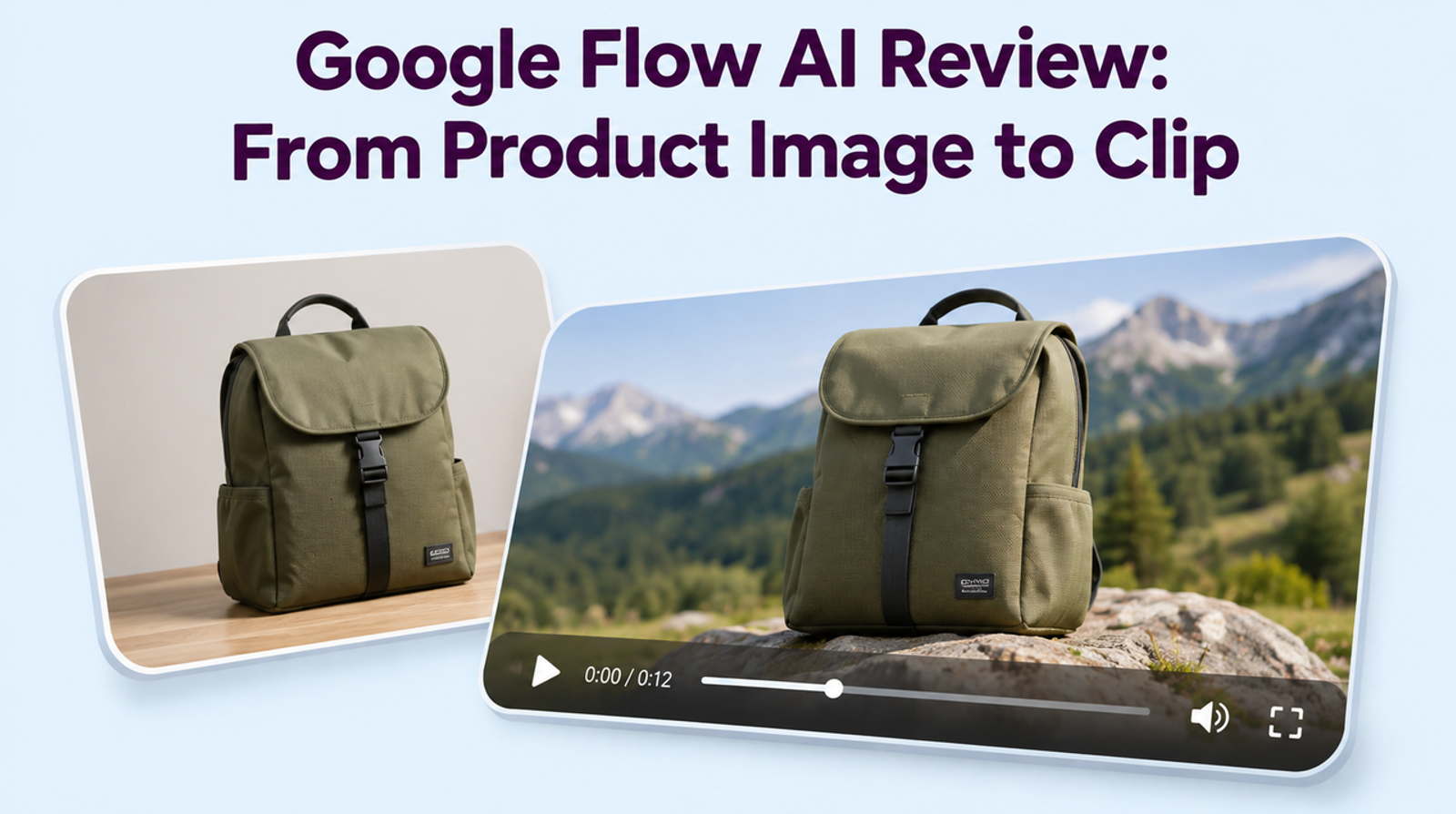
Google Flow can turn an approved product image into a short clip for an ad. It’s worth trying when the shot needs motion beyond a simple zoom and your team has time to check that the product still looks accurate in the final placement.
Quick Verdict for Short Product Clips
For this Google Flow review, I’d start with a front-facing photo of a pump bottle and a slow push-in for a vertical ad. Make a second version by scaling the same photo in your editor. Give both versions the same duration, crop, and space for offer copy. Set a limit on generation attempts and revision time before you start.
The Flow clip earns a place in the edit if it adds a visible detail the photo alone can’t supply, such as a highlight moving across the bottle, while keeping the packaging accurate within the review budget. Both versions need to keep the pump visible and leave room for the offer in the final placement. If a simple push-in on the photo meets the brief, the editor already has a shot with the exact approved artwork.
How Can a Product Image Become a Clip in Google Flow?
On the web, open a Flow project, choose Video, and add the product image as a start frame or a visual reference. A start frame sets the intended opening composition. A visual reference, called an ingredient in Flow, guides how the product should look when the shot calls for different framing.

Prepare an Approved Image and a Motion Brief
Pick a current packshot cleared for upload and campaign use, with the full pump, bottle edge, and label visible. If you need more space around the product, the Nano Banana guide to video ad stills explains how to frame for the intended crop and check the revised packshot. Before uploading, check the production account’s “Help improve Google Flow” setting, which can allow Google to use uploads and generated clips to improve its products and machine-learning technologies.
For a 9:16 in-feed ad, use a brief that works with either input mode. “Slowly push toward the stationary bottle. Keep the full pump and label visible throughout. Preserve the bottle’s proportions, color, finish, and label artwork. Leave clear space above the bottle for offer copy.” Use the placement preview to see how much of that space the interface will cover.
Generate, Select, and Revise a Candidate
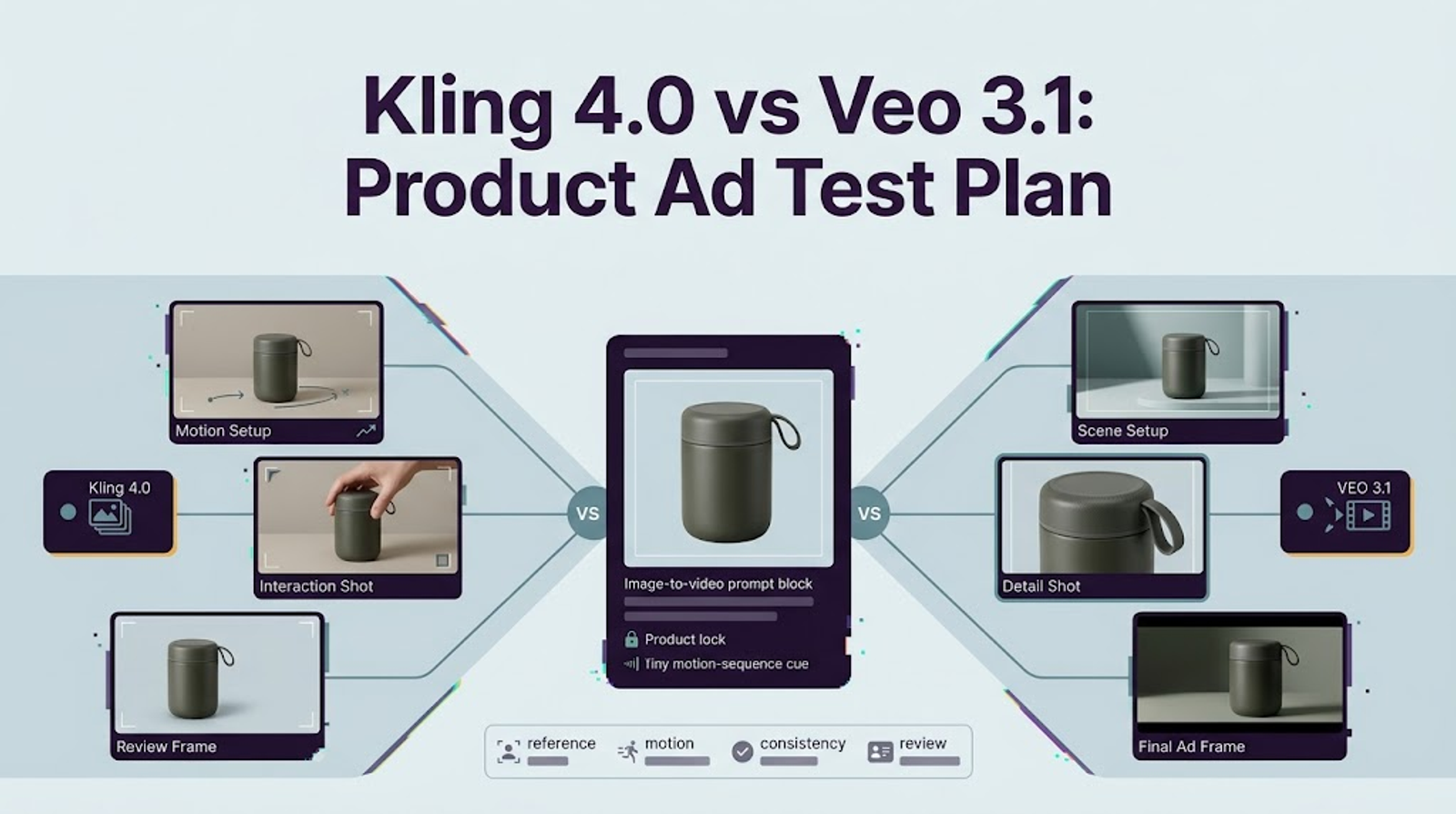
To compare Flow’s image-to-video modes, keep the same photo, prompt, model, duration, resolution, and output count. Use the image as the start frame in one run and as an ingredient in the other. Veo 3.1 Lite’s frame and reference options both support an eight-second clip at 720p in portrait orientation. Record any setting you have to change so the team can interpret the difference.
Review the first round before revising the prompt. If the frame gets too tight near the end, ask for a smaller push-in while holding the other settings fixed. The Seedance camera movement guide offers examples of how to describe a push-in and its direction. If the label drifts, mark the timestamp and reject that candidate. Stop when you hit the budget you set in the brief.
What Should a Marketing Team Check in the Result?
Check whether the clip depicts the correct product variant, follows the requested motion, and survives the crop and overlays of the intended placement. Review the downloaded clip in the edit at delivery size.
Product Identity and Prompt Fidelity
I would check the label before the lighting. Compare the source with the first frame, the point of greatest movement, and the last usable frame. Look at the logo, pump profile, bottle proportions, and color. Scrub through the intervals between those frames for changes a single still can miss, such as a pump nozzle that bends and snaps back.
Watch the clip at normal speed, too. A slow push-in should read as a camera moving closer to a stationary product. A bottle that rotates or a label that slides across the surface changes the shot the team briefed. Reject candidates that alter the product and flag framing issues the editor can fix with a crop or trim.
Text, Movement, and Cropping for the Placement
Check package text against the approved artwork and campaign copy against the brief. Reject footage that changes the product name, size, or label wording. Add prices, offers, and calls to action as editable layers in the timeline, where the team can revise and approve the exact copy.
Preview the final crop on a phone with the placement’s overlays in view. A label can remain readable in Flow’s preview and still sit under a caption or button in the ad. Check the tightest point of the push-in for a clipped pump or lost space for the offer, and listen to any audio you plan to keep.
What Does a Flow-Based Production Workflow Require?
It requires a generation budget, a reviewer who can approve how the product is depicted, and an editor who can deliver the finished file.
Credits, Revisions, and Human Review
Google Flow video credits depend on the model and settings. Under Google’s video credit schedule, an eight-second, 720p Veo 3.1 Lite clip in standard generation costs 5 credits for Google AI Ultra subscribers and 10 for other eligible users. That’s the rate per generated clip. Confirm the account’s rate and output count before submitting, since one request can produce several clips.
The next edit is part of the cost. Use the credit history to total what all attempts consumed, including discarded clips, and track editing and review minutes separately. If at least one clip passes review, divide total credits by the number approved. If none pass, report the spend and the reasons for rejection. Compare the review and editing time with the original-photo version before budgeting a second product.
Handoff to Editing and Campaign Approval
Send the editor the selected export, approved still, prompt and settings, and review notes with timestamps. Anyone who receives a Flow asset link can access the shared clip, and turning on “Include inputs” can also share the reference ingredients. For internal review, download the candidate and share it through the team’s restricted review folder. Have the brand reviewer sign off after copy, sound, and the placement crop are in.
If the clip becomes part of a set of UGC ads, use a creative testing workflow to track what changes between versions and keep the product demonstration consistent.
When Does Google Flow Fit This Task?
Flow is a reasonable candidate for a short product insert where the brief gives the team some latitude on lighting and background. The decision changes when the shot needs to show a specific side panel, a rear label, or the shape of the pump from another angle. A front photo leaves those details unspecified. For a reveal that must match the item on sale, start with an approved view of that surface, an accurate 3D asset, or footage of the product.
If you’re comparing generators for a single shot, the PixVerse review for product clips covers the same one-photo task. Use the same source image, motion brief, and placement checks to compare the candidates.
Conclusion
Before rolling out a Google Flow product video workflow across a catalog, record which shot passed, what the editor had to fix, and how many credits and review minutes it took. Keep the approved still and final cut with that record so the next product can be evaluated against the same standard.
FAQ
- Is Google Flow available in every country?
- Access is limited to supported countries and territories. Google requires users to verify that they’re at least 18, and some features require an eligible subscription. Confirm that the team member running the trial has access to the required mode before assigning the shot.
- Does Google Flow add a visible watermark to exports?
- A visible watermark depends on settings, region, and plan. Google offers a profile toggle and applies a visible mark automatically in India, South Korea, and Vietnam for users without the Google One AI Ultra 20x plan. Veo, Omni, and Nano Banana outputs in Flow also carry invisible SynthID. Check the exported file from the account that will produce the ad.
- How does Google Flow handle uploaded reference images?
- Flow processes uploaded images as inputs for generation and lets you select them again from the project. You can turn off “Help improve Google Flow” in the settings. Use a cleared, nonconfidential packshot for the trial and review the data handling that applies to your team’s account before uploading anything under embargo.
- Can a marketing team use Flow output commercially?
- Commercial use depends on Google’s current terms, the rights to the assets in the ad, and the target ad platform’s policies. In its guidance on commercial use, Google points to its Terms of Service and says it doesn’t claim ownership of original content generated through eligible services. Before publishing, confirm that the source photo and anything added in editing are cleared for the campaign. Please refer to the latest official documentation for the applicable terms and any ad disclosure requirements. This is general information and does not constitute legal advice.
- Can multiple teammates work in one Flow project?
- Google documents sharing individual assets. Its project guide leaves simultaneous editing by multiple people in the same project unconfirmed. If shared editing is required, verify project permissions using the accounts involved. For a single shot, a designated Flow operator can hand off the export and notes through the team’s existing approval process.