The Google Flow alternatives I'd shortlist are Runway for revising existing footage and LTX Studio for storyboard-led scene control. Luma suits connected image and video development, while Wizstar fits product briefs and reference-led ad production. Keep Flow when its current image, video, conversational editing, and scene assembly tools already cover your job.
Switching makes sense only when you can name the exact task Flow leaves unfinished: revising existing footage presents a very different workflow problem from planning a multi-scene ad. I would resolve that distinction before comparing model lists or monthly bills, because picking another generator for the wrong stage can leave you with the same unfinished work.
What Google Flow already covers
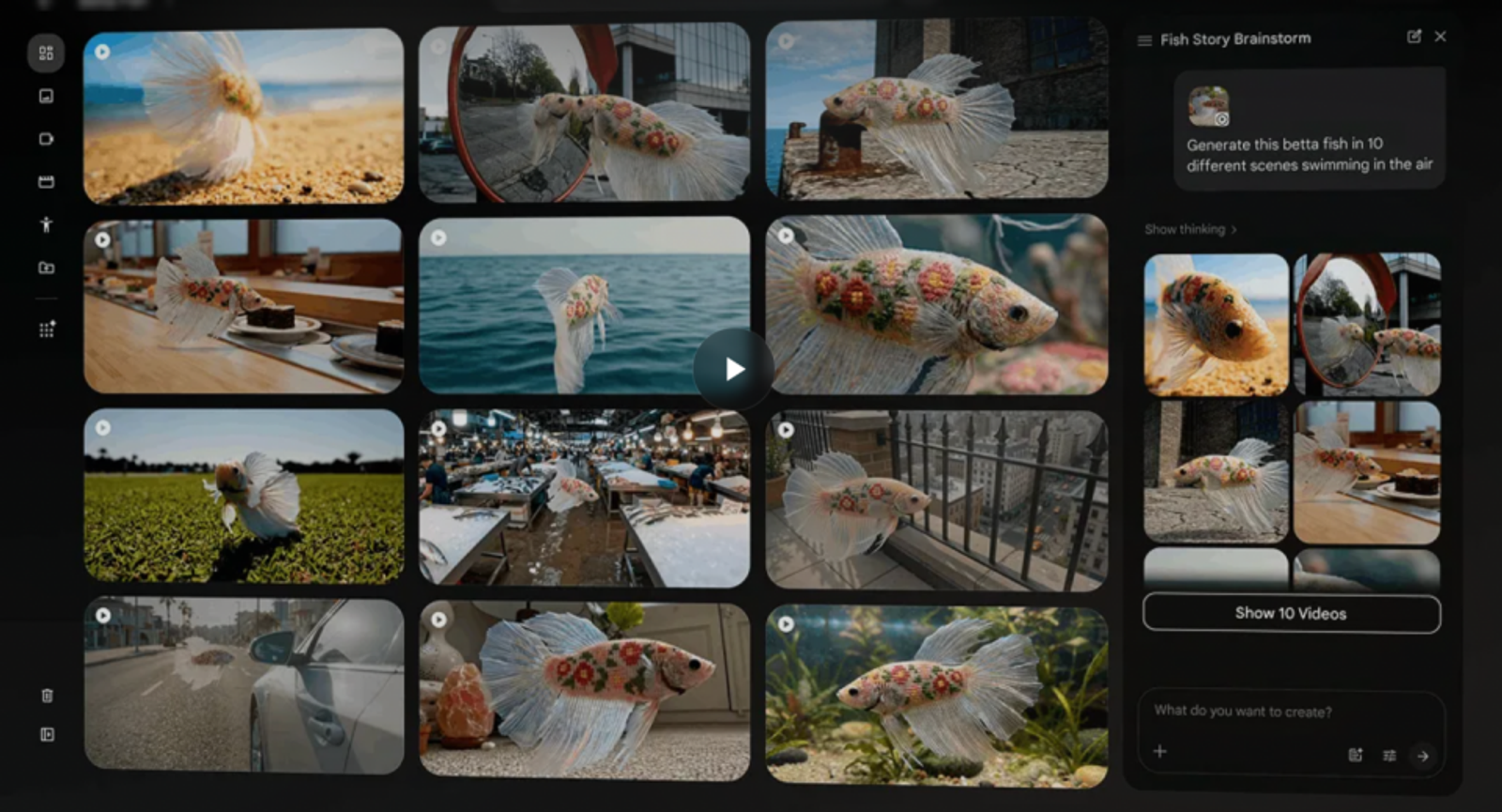
Google Flow already combines generation, editing, and scene assembly inside a single AI filmmaking environment. Its Agent supports conversation, brainstorming, image and video creation, selected-asset edits, variations, and project organization. Because conversational iteration is already built into Flow, clarify what you need it to change before treating editing chat as a reason to switch.
Flow's editing controls let you modify existing project assets, while Scenebuilder supports sequencing, trimming, previewing, and downloading scenes. These controls serve distinct stages of the same project. Separate generating a new shot, revising existing footage, and arranging scenes before deciding which stage actually needs another tool.
Model choice also determines which controls are available: Omni Flash 1.2 supports existing-video editing with up to three conversational turns of context. Keep that specific model name attached to the capability. Other Flow models offer different controls, so evaluating a feature requires looking beyond the platform name alone.
I'd stay in Flow for any project whose current controls already solve the revision. A switch requires a clear operational reason: changing a background in existing footage calls for targeted revision, whereas creating the next scene requires generation and assembly. Put the unfinished task ahead of another tool's model catalog.
The alternatives at a glance
Compare these tools by the asset you already have on hand and the specific change you still need to make.
| Product | Starting asset or job | Creative control | Replacement boundary |
| Google Flow | Project images, clips, scenes | Conversation, asset edits, Scenebuilder | Controls vary by model |
| Runway | Existing footage needing changes | Edited-frame direction with Aleph 2.0 | Up to 30 seconds at 1080p |
| Luma | Connected image and video development | Shared context, generation, modification | Workspace features differ from one model's output |
| LTX Studio | Multi-shot story needing a plan | Storyboards, Elements, keyframes, timeline | Commercial storyboards call for Standard |
| Wizstar | Product brief, photo, or reference | Scene planning and coordinated production | Partial replacement for product/ad creation |
Start with the unfinished task: footage changes, connected assets, scene planning, or coordinated product production.
I would narrow your shortlist around the workflow before comparing subscription prices. A timeline helps organize scene order, whereas an edited reference frame indicates a targeted change within existing footage. Reference-led generation uses visual guidance to create a brand-new shot. Similar inputs can serve very different production purposes.
Runway for revising existing footage
Runway belongs first on the shortlist for footage revision: Aleph 2.0 takes an edited frame as visual direction for clips up to 30 seconds long at 1080p. Providing that edited frame gives you a concrete way to show the exact visual change you want inside footage you already have.
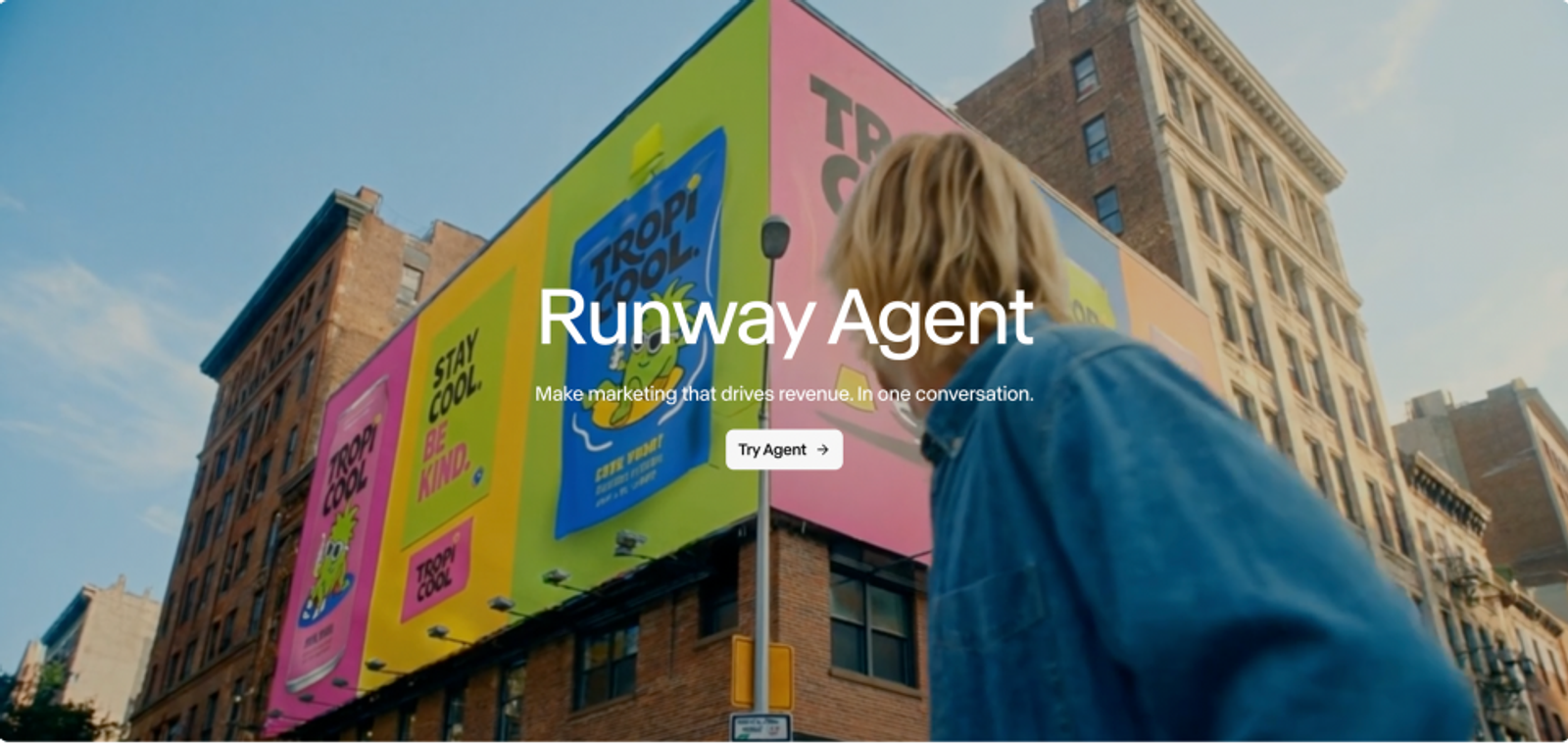
Runway Agent also accepts images and footage, using plain-language direction for adjustments such as pacing and color grade. You can direct edits after initial generation, though I would favor the edited-frame route whenever showing the change visually communicates more clearly than describing it across several sentences.
Always inspect what surrounds the requested edit: a newly added object can look accurate while neighboring details shift, so review the motion across the entire clip. Asking for one targeted change still leaves you responsible for verifying that the rest of the shot holds together.
Budget specifically around the action you need, since generating a new clip and modifying an existing one are priced separately. For footage revision, use the editing rate when estimating how much work your subscription can fund.
Luma for connected image and video work
Luma suits projects where images and clips evolve within a shared creative context. Its workspace connects planning, generation, and refinement, combining image and video work with clip stitching and captions. That continuity matters when a deliverable spans multiple assets and a single generated clip is only one piece of the project.
Supported operations include adjusting image style, objects, lighting, and composition, then animating those images or transforming video styles. Video capabilities also cover extending and reframing clips alongside voice, music, and captions. I'd favor this approach whenever a consistent visual direction needs to carry across several asset formats.
Consider a campaign still that locks in the lighting before you animate it into motion—a sequence built for connected image and video development. For a scene-by-scene narrative, however, the priority shifts: a structured storyboard and timeline carry more weight, pointing toward LTX Studio.
Keep Luma's workspace distinct from any single model's specifications: Ray generation settings govern an individual output, while the workspace supports the surrounding creative process. Judge that fit by what context you need to carry from one asset into the next.
LTX Studio for storyboards and scene control
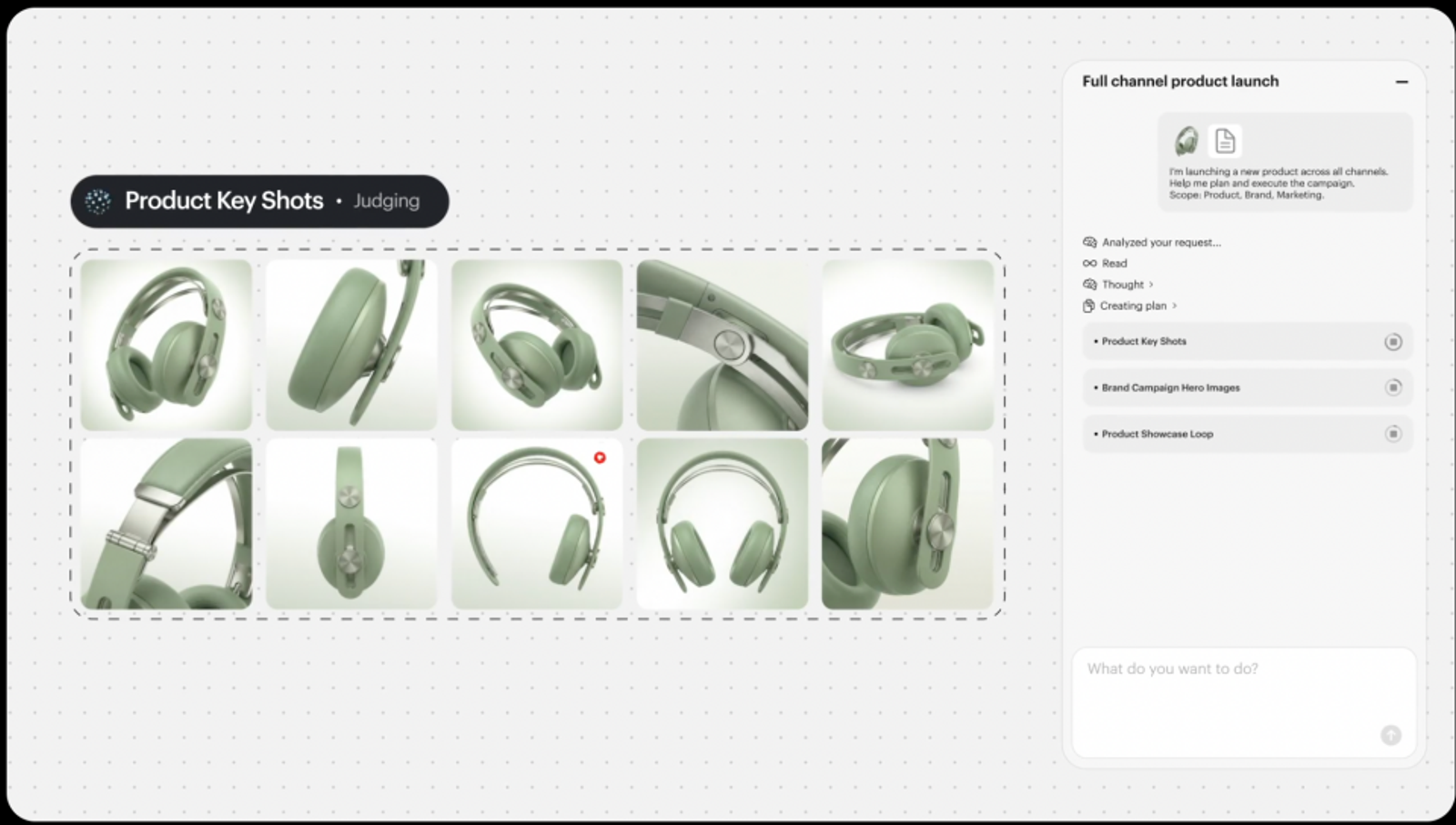
LTX Studio is the default option here for a multi-shot story that requires explicit scene planning. Its dynamic storyboard, timeline editor, and sound design tools support structured production beyond isolated renders. Camera controls, keyframes, and text or image references give the scene plan tighter visual direction.
Reusable Characters, Objects, and Locations become saved Elements, which matter most when a subject or setting recurs across multiple scenes. I would settle what repeats, what changes, and how scenes connect before rendering individual shots. A collection of clips still needs a coherent story structure.
Standard includes AI Storyboards, consistent Elements, and a commercial-use license, making it the relevant tier for commercial comparison. Lite carries a personal-use license only, so shared LTX-2.5 model access across tiers does not make the surrounding Studio plans equivalent.
I'd skip the storyboard overhead for a project that needs only a single standalone clip, but Standard brings the right commercial license and planning features together for multi-scene production. Compare that tier directly with the other subscriptions. Note that LTX Studio runs on desktop web.
Wizstar for reference-led product videos
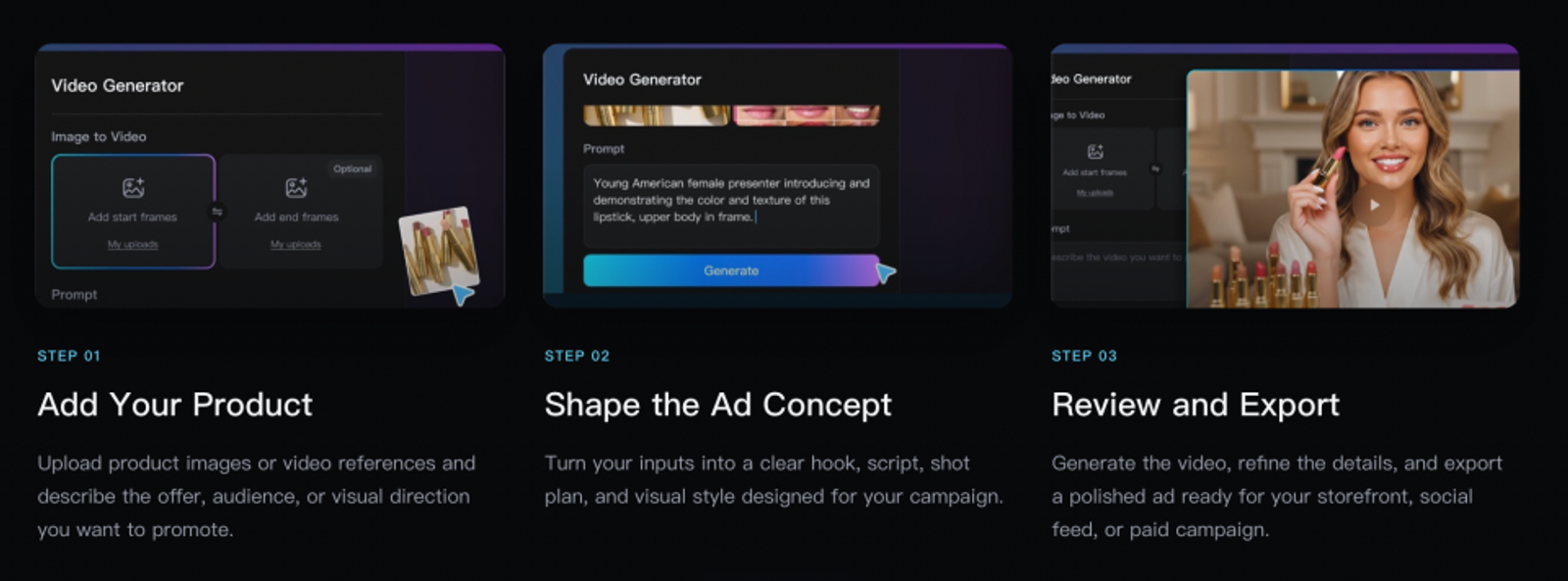
Wizstar fits a product brief that requires coordinated ad production, pairing an Agent that develops briefs, scene plans, and model choices with coordination across voice, pacing, and format. It also supports refining individual shots, characters, motion, lines, and visual details, extending the workflow from initial planning into revision.
The direct video generator provides text-to-video, image-to-video, and reference-based generation, where reference images guide characters, style, and composition. Product links, photos, and scripts can also feed workflows involving voiceover, captions, and editing, while image generation supplies additional starting assets for that pipeline.
I would shortlist Wizstar when a product concept needs to become a coherent ad sequence. Inspect the product's shape, label, and key physical details before final approval, because even a smooth camera move still needs to display the accurate product. Keep that verification close to every shot revision.
Wizstar acts as a partial Flow replacement tailored to reference-led product and ad creation. An existing finished clip needing targeted visual changes calls for a different shortlist. Reference guidance also differs from explicit first-and-last-frame conditioning, so clarify which type of direction your shot requires before choosing a creation route.
Compare plans without comparing credits
| Product and plan | Monthly recurring | Annual bill / monthly equivalent | Monthly-plan credits |
| Google AI Pro | $19.99 | $199.99 / $16.67 | 1,000 monthly; separate 50 daily |
| Runway Standard | $15 | $144 / $12 | 625 per month |
| Luma Plus | $30 | $300 / $25 | 10,000 per month |
| LTX Studio Standard | $35 | $336 / $28 | 28,000 per month |
| Wizstar Starter | $18.05 | $192 / $16 | 1,310 per month |
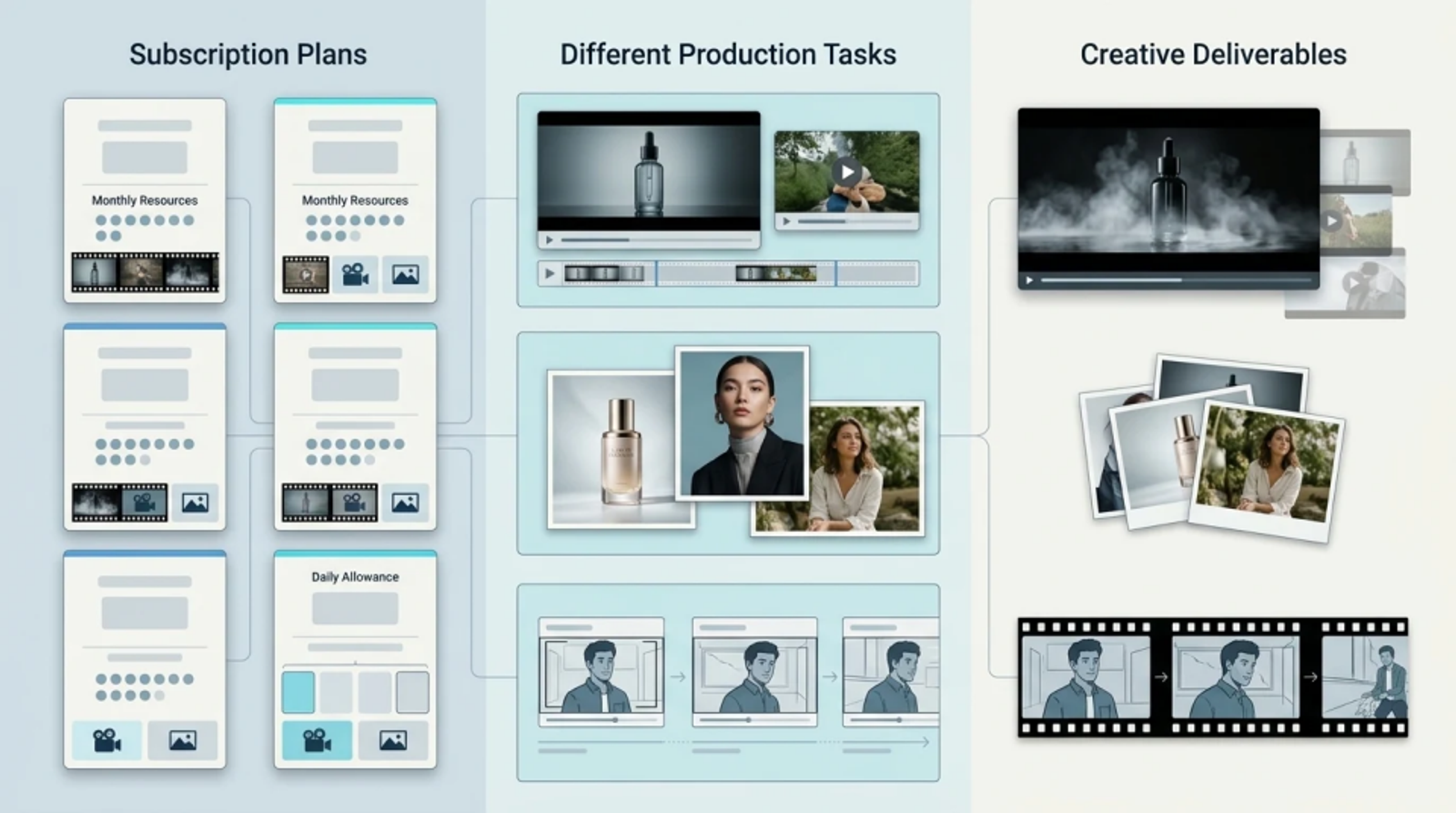
Compare the cash commitment first, then price your intended action using each provider's own credit rates.
Wizstar Starter's $10.99 first month is an introductory rate; I'd budget ongoing production against the $18.05 renewal price. Similarly, the annual column represents a different upfront payment commitment, even when its monthly equivalent looks lower.
These tiers cover the workflows outlined above, including commercial storyboards on LTX Standard and repeated generation from Google AI Pro's monthly pool.
In practice, Runway Standard's 625 credits cover ten complete five-second Gen-4.5 generations at 60 credits each, yielding 50 generated seconds with 25 credits left over. Aleph 2.0 edits cost 140 credits per five seconds, so use that editing rate when estimating a footage-revision budget.
Luma Plus's 10,000 credits cover 100 five-second Ray3.2 SDR 720p generations at 100 credits each, totaling 500 generated seconds. That math assumes an already-supplied image or keyframe and excludes image-creation costs; generating without a keyframe adds 30 credits. Different models and settings make these separate budgeting examples, and raw generated seconds say nothing about how many takes you will actually approve.
Spending Wizstar Starter's entire monthly pool on Nano Banana 2 images at 1080p yields 218 images at six credits each, leaving two credits remaining. Because that example allocates everything to direct image generation, Agent planning and video renders require their own budget within the monthly allowance.
Google's daily credits sit in a separate expiring pool, and unused daily and monthly allowances do not roll over. Always budget for revisions and rejected attempts rather than treating raw generated seconds as finished deliverables.
Keep Flow when it already handles your next operation. Move toward Runway for footage revision, Luma for connected media development, LTX Studio for scene planning, or Wizstar for reference-led product production. I would lock in that task decision before paying for another month of generation.
Conclusion
The core decision is what must survive each revision: product appearance, visual direction, or scene order. Define those non-negotiables before committing to a longer production cycle. If your next deliverable is a product ad, bring a product photo and a brief specifying the target audience, channel, and key message into Wizstar’s AI Video Agent. Review the proposed scenes, generate a first cut, and refine whichever shot needs attention—then use that result to decide whether the workflow fits your next campaign.
FAQ
- Can I check Wizstar’s credit cost before generating a video?
- Yes, Wizstar lets you estimate credit usage before you generate, helping you plan a video within your available balance. Use the pricing calculator to choose a model, duration, and quantity, then compare the estimate with the credits shown in your account. Adjust the settings before committing to a render so you can budget separately for additional versions and revisions.
- Can I use multiple reference images in one Wizstar video shot?
- Yes, Wizstar’s Seedance 2.5 workflow supports multiple visual references within a single shot of up to 30 seconds. Use the references to communicate the subjects and visual direction, and describe clearly what each image should contribute to the scene. Keep the references consistent with your intended look, then review the generated shot before using it in a longer sequence.
- Can I create vertical and widescreen videos with Wizstar?
- Yes, Wizstar’s AI Video Agent supports both 9:16 vertical and 16:9 widescreen creation. Its current creation controls include 720p output; set the aspect ratio for your intended channel before generating the shot. For example, use 9:16 for a portrait placement and 16:9 for a widescreen presentation, composing the product and key details for that frame.
- Can I export Wizstar videos without a watermark for commercial projects?
- Yes, Wizstar’s paid Starter, Plus, and Pro plans include watermark-free exports and commercial use under the applicable terms. Choose a plan with those permissions before preparing client deliverables, and use source images, music, and likenesses you have permission to include. Keep the original product references and an approved final version together when handing the video to a client.
- Can I turn off Google Flow’s product-improvement setting?
- Yes, you can turn off “Help improve Google Flow” from the More menu before adding material to a project. When enabled, this setting allows interactions, uploads, generated output, usage information, and feedback to help improve Google’s products and machine-learning technologies. Reviewed interactions may be retained for up to 18 months; check the client’s data-handling requirements before uploading any project assets.