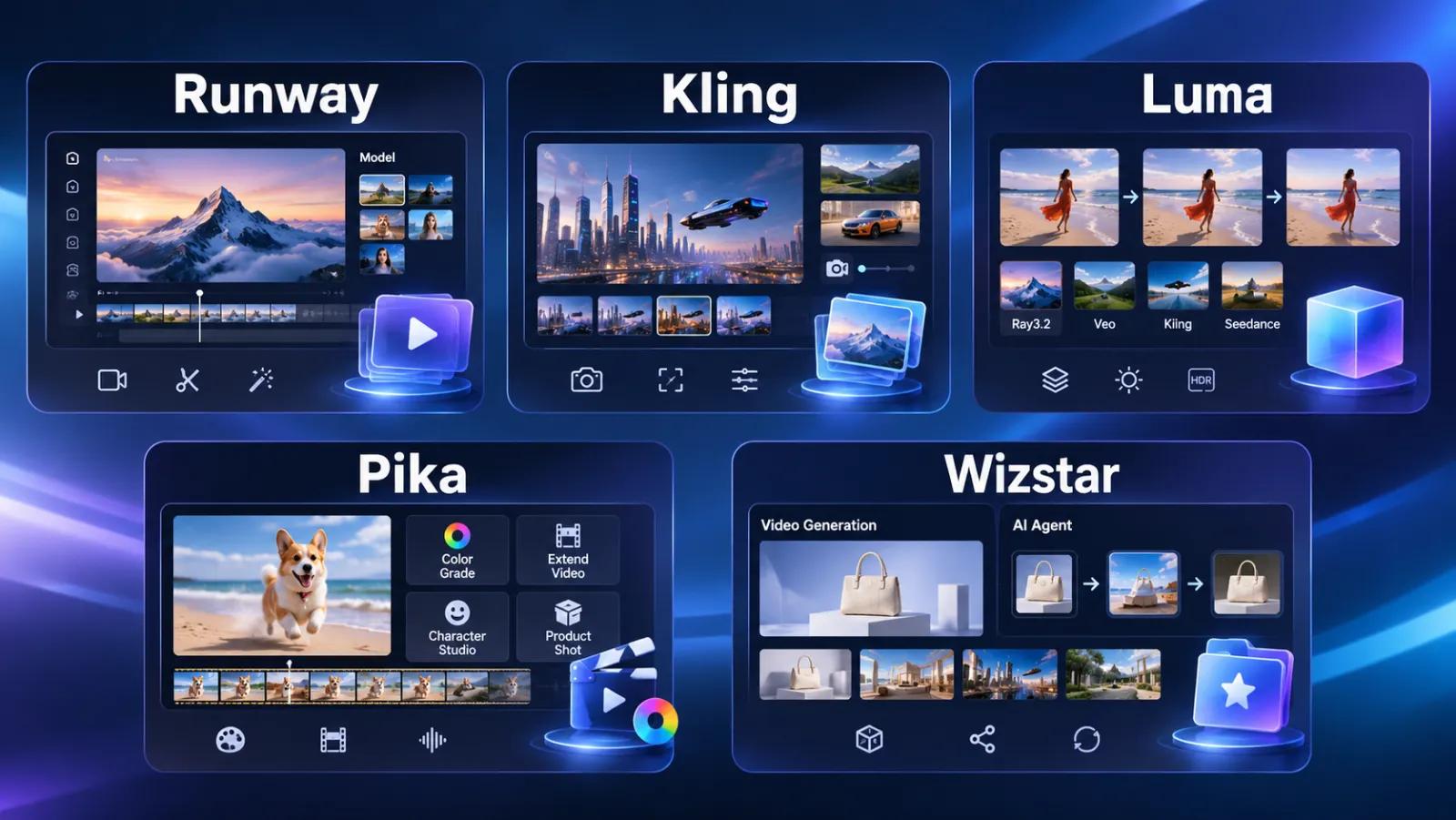
The strongest Runway alternatives solve very different production bottlenecks: Kling adds granular reference and camera control, Luma pairs multi-keyframe direction with multiple models, Pika offers dedicated creative apps, and Wizstar connects scene planning, model selection, and revisions through an AI Video Agent.
For most creators, the deciding factor is where a project usually stalls. Dialing in a complex camera move requires different controls than keeping characters consistent across a multi-scene ad. Pinpoint that bottleneck before comparing subscription tiers—a good replacement is whichever tool actually gets your footage across the finish line.
What a Runway replacement needs to handle
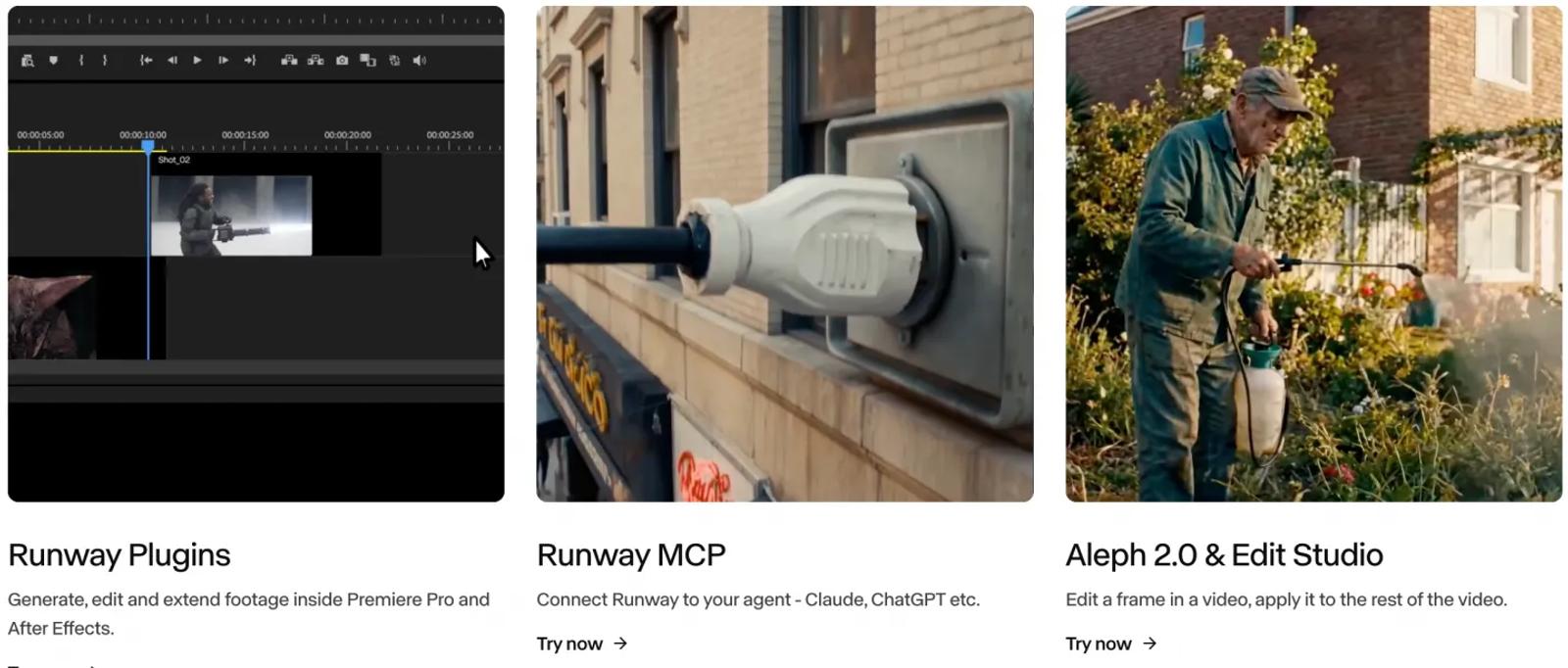
Stick with Runway if your workflow relies on generating footage and editing it inside the same workspace. Runway brings together image and video generation, Aleph 2.0 editing, creative apps, an Agent, and node-based workflows—plus model access that extends beyond its own Gen-4.5.
Multi-model access and prompt-driven creation are now baseline features across this shortlist. Where these platforms actually differ is how you direct a shot, organize sequences, and handle revisions. Switching makes sense when another tool’s controls fit your daily production tasks more naturally.
It also helps to separate generating new shots from editing existing footage. Animating a product photo can replace one Runway task, but it will not automatically replace an Aleph edit or a custom node graph. Evaluate the specific part of your workflow you plan to move.
Feature comparison: match the tool to the task
Start with the controls that determine whether a clip is usable. The table below breaks down each platform by its core workflow, before factoring in subscription pricing.
| Platform | Core creation tools | Distinctive controls | Strongest fit |
| Runway | Image/video generation, editing, apps, Agent | Aleph 2.0; node-based workflows | Generation and footage editing in one environment |
| Kling | Text/image-to-video; Omni Reference | Up to 15 reference assets; camera and keyframe controls | Shots guided by specific references and movement |
| Luma | Multi-model generation; video-to-video | Multiple keyframes; HDR and EXR options | Directed sequences and post-production handoffs |
| Pika | Video, image, and audio apps | Color Grade, Extend Video, Character Studio, Product Shot | Focused creative changes and content variations |
| Wizstar | Text/image/reference-to-video; AI Video Agent | Scene planning, model coordination, targeted revisions | Connected product campaigns and short narratives |
The real dividing line comes down to what you need to direct: the movement inside a single shot, the progression between shots, or the broader production workflow around them.
Kling: direct the shot through references and camera controls
Kling works best when you already have a clear vision for how a shot should look and move. Kling 4.0 takes text and image inputs, while Omni Reference lets you combine up to 15 assets—including images, videos, and subject references—to steer appearance, action, camera work, and setting.
That level of reference control pays off in product close-ups and character-driven scenes. Uploading multiple product angles locks in shape and details, while a motion reference dictates how the camera or subject moves. Instead of cramming every visual cue into one long text prompt, you give the model concrete visual anchors. Even with strong references, though, recognizable packaging and faces still need a close visual check.
Camera and keyframe controls add another layer of precision. Start and end frames lock in the transition, while up to 10 flexible keyframes guide intermediate poses, framing, and scene shifts. Generations up to 30 seconds give you enough runway for slower camera moves or continuous action.
If your priority is tightly directing a planned shot with complex visual references, Kling is the easiest pick here. Just plan to handle any existing-footage edits in a separate tool.

Luma: shape sequences and prepare footage for further editing
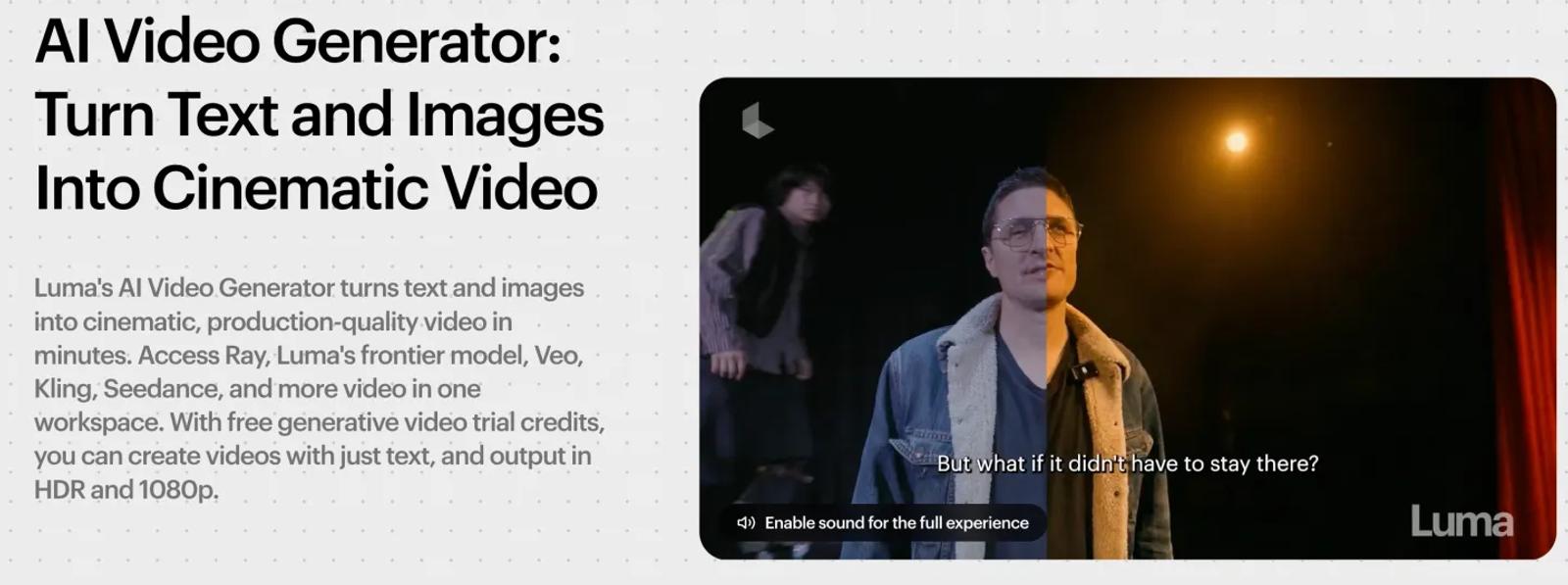
Luma fits creators who want to build sequences across keyframes and test multiple models inside one workspace. Luma combines text and image generation with models including Ray3.2, Veo, Kling, and Seedance, making model selection an active part of directing your project.
Multi-keyframe control lets you turn a series of still images into a deliberate progression. Setting an opening composition alongside a later pose defines how the scene unfolds—especially useful for animatics or product reveals where the transition matters just as much as the start and end frames.
Luma also supports video-to-video workflows, reframing, and export options including 1080p, HDR, and EXR. Those formats matter when your AI clips are heading straight into color grading or compositing. You can match the model and output mode to your delivery pipeline, choosing resolution and dynamic range based on what post-production requires.
Luma’s agent planning and iteration tools help push projects beyond isolated test clips. Shortlist it when your sequences call for creative exploration paired with a clean handoff to post-production.
Pika: make focused creative changes across video, images, and audio
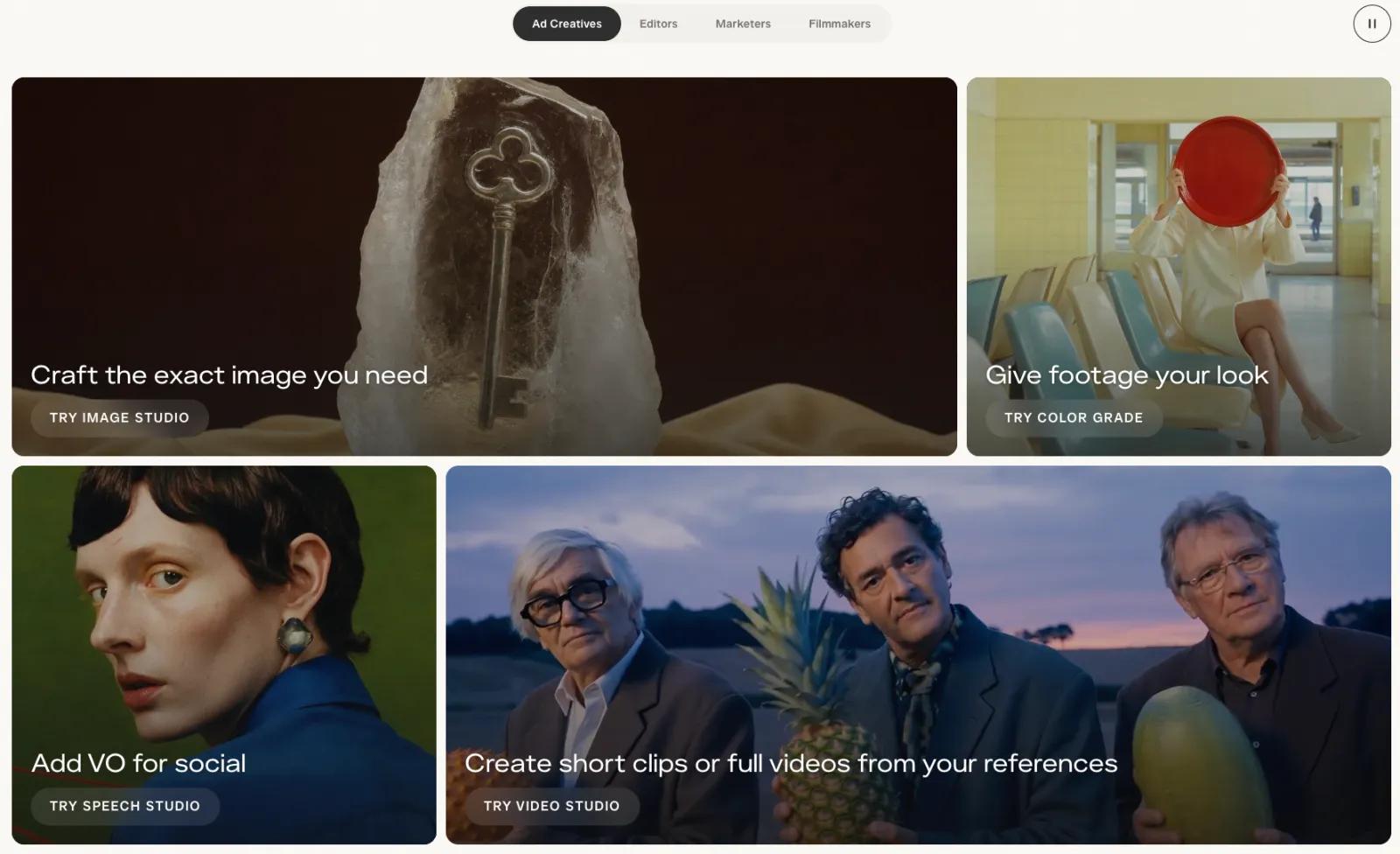
Pika is built around modular creative tasks rather than a single monolithic timeline. Its creative apps include Video Studio, Color Grade, Extend Video, Pika Soundtrack, Edit Image, Character Studio, Image Studio, and Product Shot, letting you jump straight into the exact operation an asset needs.
That modular setup works well for social content and ad variations. Applying a color treatment, extending a clip, and generating a product shot are distinct tasks. Having dedicated tools for each gives you a clean starting point and keeps minor tweaks from turning into a full rebuild.
Built-in image and audio tools round out the workflow. Image Studio and Edit Image handle static visual prep, while Pika Soundtrack covers audio. With access to Pika 2.5, Wan 3.0, Seedance 2.5, and Pika Audio, Pika operates more like a multi-model toolkit than a single-model generator.
Pika makes the most sense when you want fast, specialized tools to generate and adapt individual assets. If you are building a multi-scene story, map out how the shots connect before diving into separate apps so the narrative stays cohesive.
Wizstar: connect the brief, scene plan, and revisions
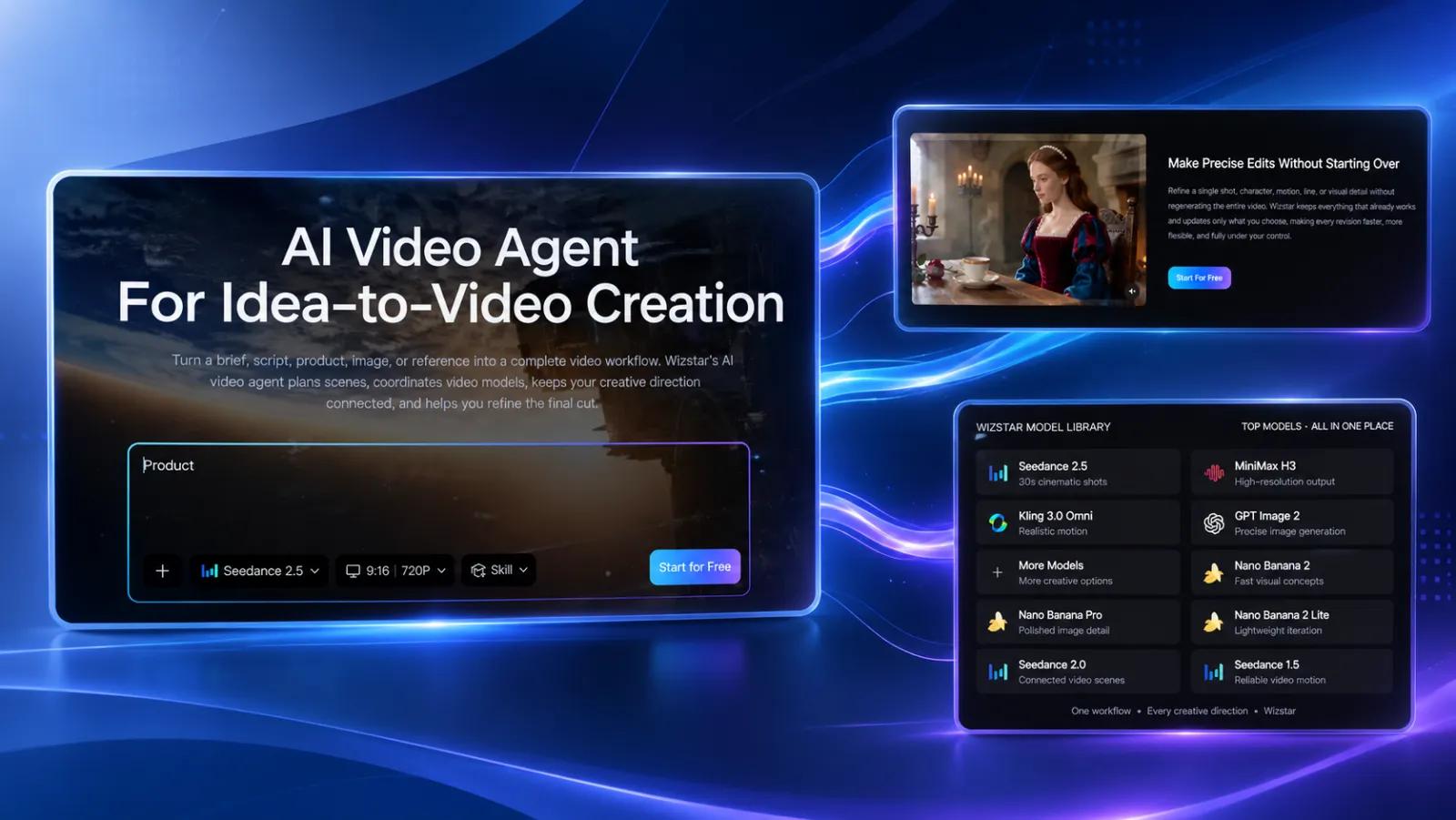
Wizstar is a practical alternative when you want help structuring a video from the ground up, not just rendering individual clips. Its AI Video Agent takes a brief, script, product, image, or reference and ties together scene planning, model selection, generation, and refinement.
For a product campaign, that means turning a single brief into a hook, product-focused shots, and a paced sequence. The Agent maps out visuals, voice, sound direction, and aspect ratio before generating footage—giving you a structured production plan to steer instead of juggling disconnected prompts.
Targeted revisions are where this workflow stands out. Rather than regenerating an entire clip from scratch, you can adjust a specific shot, character, motion, line, or visual detail while keeping what already works. Character and style consistency tools also help maintain continuity across scenes as camera angles and settings shift, which is especially helpful for branded characters, explainers, and short narratives.
Wizstar’s AI Video Generator also supports standalone text-to-video, image-to-video, and reference-to-video workflows, with models including Seedance 2.5, Kling 3.0 Omni, and MiniMax H3. Seedance 2.5 supports single shots up to 30 seconds, and Agent controls cover both vertical and widescreen formats.
Wizstar can handle campaign planning, shot generation, and cross-model revisions under one roof. Keep Runway in your stack if a project depends on specific Aleph edits or custom node graphs—moving campaign production to Wizstar does not mean replacing every specialist editing tool.
Price comparison: budget for generations, not credit totals
Compare entry paid plans for individual creators, then calculate output using the model and settings you intend to use. A larger credit allowance does not automatically mean more usable footage.
| Platform and plan | Subscription and billing | Included credits | Generation allowance or billing basis |
| Runway Standard | $15/month; $12/month with annual billing | 625/month | 10 five-second Gen-4.5 clips at 60 credits each |
| Kling Standard | $10/month regular price | 660/month | Shared generation budget; consumption varies by model, resolution, duration, audio, and mode |
| Luma Plus | $30/month, billed monthly | 10,000/month | 100 five-second Ray3.2 720p SDR clips at 100 credits each, with keyframes |
| Pika Starter | $10/month, billed monthly | 600/month | 30 five-second Pika 2.5 720p clips at 20 credits each |
| Wizstar Starter | $192/year; equivalent to $16/month | 1,920/year | 64 five-second MiniMax H3 720p clips at 30 credits each, in the standard generator |
Kling Standard and Pika Starter share the lowest regular monthly entry price among these plans. Choose between them around the work: Kling’s reference and camera controls suit directed shots, while Pika’s apps suit focused creative changes. Their 660 and 600 credits are separate platform currencies, so the totals alone cannot establish better value.
Model choice changes output substantially. Pika Starter covers 30 five-second Pika 2.5 clips at 720p, but only four five-second Seedance 2.5 clips at the same resolution and 122 credits each. Luma Plus covers 100 Ray3.2 clips in the table’s setting, or 25 at 1080p SDR and 400 credits each. These examples measure generation capacity across different models, rather than equivalent quality.
Workflow choice matters inside Wizstar too. A five-second Seedance 2.5 clip at 720p uses 110 credits in the standard generator or 185 through the Agent. Use the Agent for projects that benefit from scene planning and connected revisions. For an isolated shot with a finished brief, the standard generator is the more economical route at that setting.
Start with the smallest plan that covers your actual model mix and expected retakes. Runway’s value includes its integrated editing environment; Luma’s higher entry price supports a larger allowance in the stated generation example. Evaluate Wizstar’s subscription against annual production needs, since both its payment and included allowance use a yearly basis.
Make the switch around one production job
Start by moving whichever recurring task has the clearest bottleneck. Run the same brief and source assets through a complete test job—including one realistic revision and final export—to see whether the new tool actually cuts down the work between your first prompt and a usable cut.
For Wizstar, test a short product campaign with connected scenes and a revised closing shot. For Kling, test a tightly directed shot built on multiple visual references. Luma is worth testing when multi-keyframe transitions and post-production formats drive the project, while Pika shines when a single asset needs several targeted creative treatments.
Keep the tools that already work well for the rest of your pipeline. A good Runway alternative can take over a heavy production bottleneck without forcing you to rebuild your entire workflow overnight.
FAQ
- Is there a free version of Runway?
- Yes. Runway Free includes 125 one-time credits and 5GB of asset storage, giving you access to a selection of generative models to explore concepts. Those credits do not renew monthly, so use them to learn the interface and test a basic workflow before committing to a paid plan around your preferred models.
- Can I try Wizstar without a paid subscription?
- Yes. New Wizstar users receive 20 free credits to test eligible creation tools. Because credit costs vary by model, duration, resolution, and workflow, check the credit estimate before submitting a generation so you stay within your starting balance. The free tier is a one-time starter balance, not unlimited generation.
- Does a watermark-free export include commercial rights?
- Not automatically. Watermark removal and commercial rights are separate plan permissions. For example, Wizstar’s paid plans provide both watermark-free exports and commercial use under their terms. For client or commercial work, always verify that your subscription tier covers commercial activity and that you have rights to your source assets—an unwatermarked file alone does not grant commercial clearance.
- Can I reuse my existing product images in Wizstar?
- Yes. Wizstar supports image-to-video and reference-to-video workflows, and its AI Video Agent accepts product and character references alongside a script. Upload a product photo as your visual anchor, then describe the shot’s motion and framing. As with any AI video tool, inspect product labels, logos, and fine details in the generated clip before publishing it in a customer-facing campaign.
- How long can a single Wizstar shot be?
- Seedance 2.5 supports single-shot generations up to 30 seconds in Wizstar, and the Agent offers 9:16 and 16:9 aspect ratios with 720p controls. Because a multi-scene video typically combines several separate clips, be sure to distinguish single-shot length from your finished edit’s total runtime when budgeting project credits.