The most useful Higgsfield alternatives solve different production problems rather than trying to replicate every feature in one interface. Wizstar builds product ads around creative references, Runway revises existing footage, Luma connects image-to-video generation with retained project context, and OpenArt supports reusable characters and motion references. Instead of chasing the longest model list, I'd choose based on the specific part of a project that needs to change. A product ad inspired by a reference video requires a very different workflow from a finished shot that must preserve its original movement. The real deciding factors are your starting material, the controls you need to retain, and the budget you have available for revisions.
What are you replacing in Higgsfield?
Before picking a replacement, identify which Higgsfield controls your current shot actually depends on. For example, Cinema Studio 4.0 provides structured camera, lens, aperture, and camera-move settings for directing a shot with precision. Writing a text prompt to describe a camera movement works very differently from dialing in dedicated lens and camera parameters.
Similarly, Genjutsu separates Motion transfer from Objects swap and accepts clips from 4 to 30 seconds with up to 30 reference images. Keeping those production jobs distinct saves time: transferring motion onto a subject, replacing one element in existing footage, and borrowing a reference ad's structure for a new product are three separate workflows.
If your shot relies heavily on Higgsfield's specific lens settings or Genjutsu controls, staying put makes sense. Losing a camera parameter you actively use simply introduces another production bottleneck.
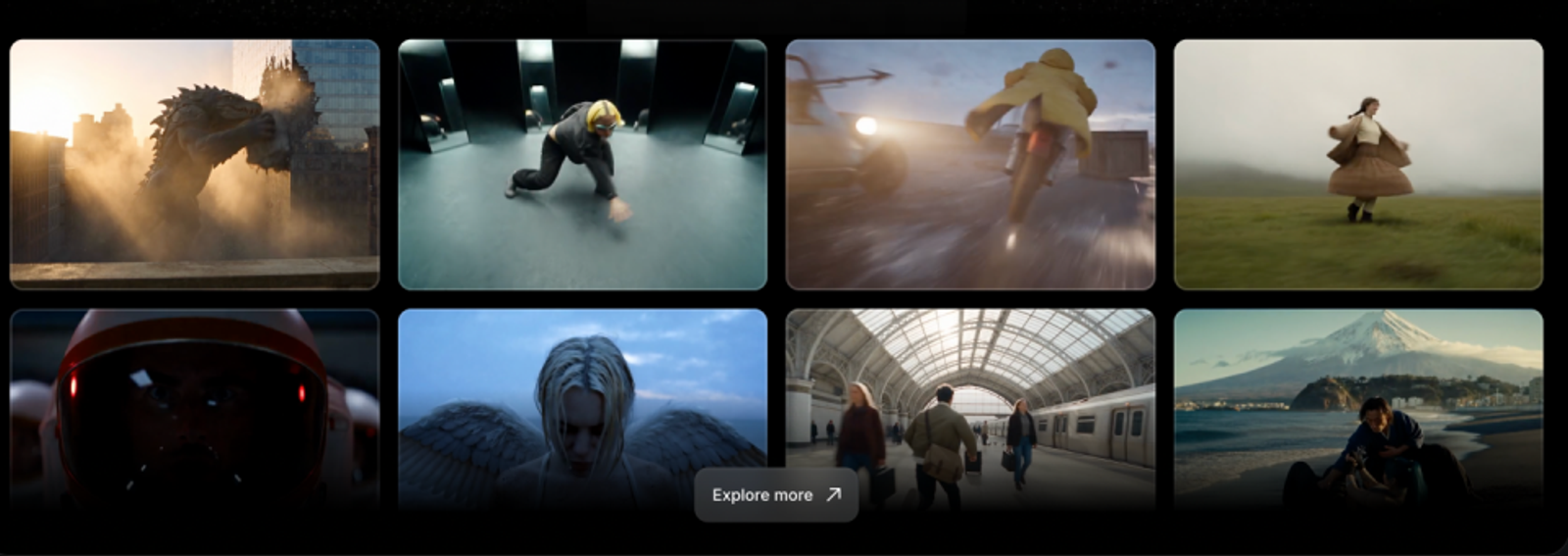
Four alternatives at a glance
These four platforms organize the replacement task around different starting inputs, editing controls, and project stages.
| Platform | Replacement job | Useful control or input | Where the workflow differs |
| Wizstar | Product-reference ad recreation | Product, reference ad, Agent planning | Builds a product ad around a reference |
| Runway | Existing-footage revisions | Aleph 2.0 element edits | Revises an existing take |
| Luma | Image-to-video projects | Image input, retained project context | Connects planning, refinement, and assembly |
| OpenArt | Reusable characters and assets | Saved characters, Motion Sync, frame controls | Builds shots around reusable assets |
Start with the assets you already have on hand and the exact element that needs to change.
Wizstar for product-led recreation and guided video
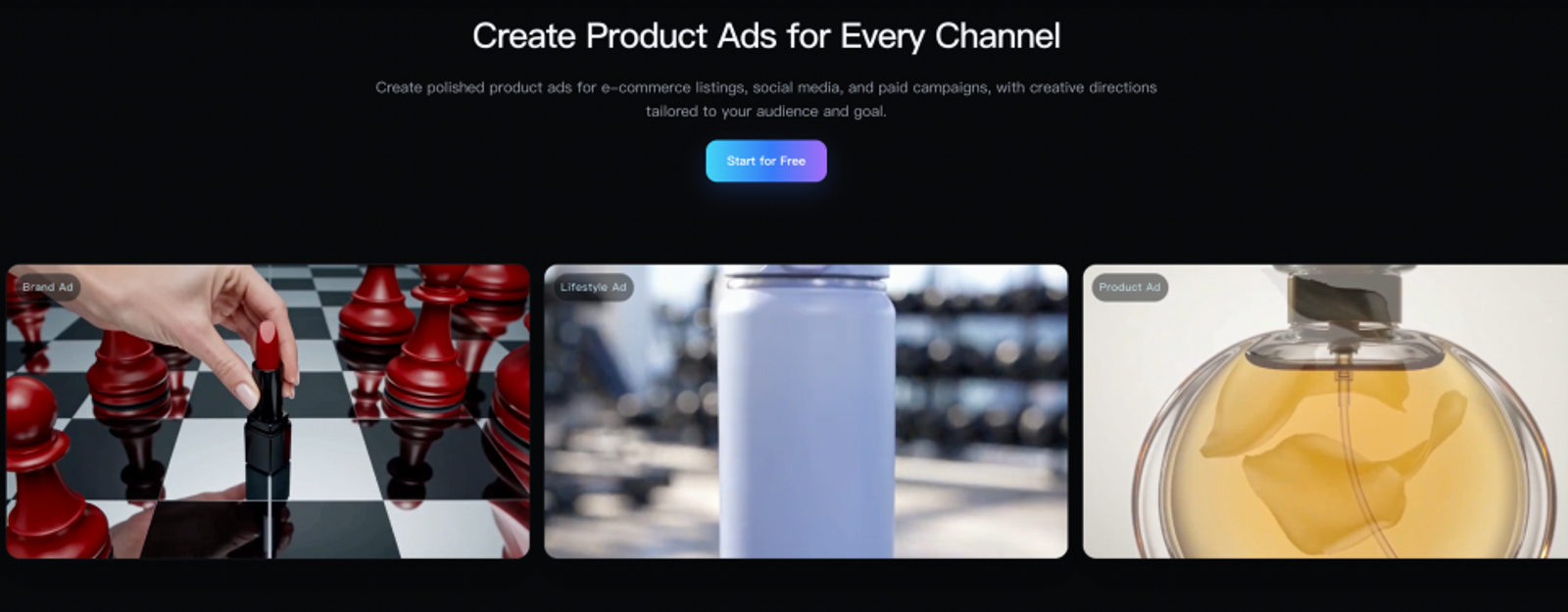
Wizstar's viral video recreation workflow puts a product and a reference ad at the center of production. Its inputs include Product with Trending Ads, or Upload Video with Voiceover, alongside options for target language, model, resolution, and aspect ratio.
When a campaign requires more than a single isolated clip, the AI Video Agent can plan scenes from a brief, script, product, image, or reference, coordinate models, and support local revisions. I'd reach for the Agent when a product concept still needs several connected scenes mapped out, while saving standalone generation for a single, clearly defined shot.
Reference-ad recreation differs from Genjutsu-style preservation of source motion frame by frame, just as prompted camera movement differs from Cinema Studio's structured camera controls. If an existing clip already works and only needs one object swapped out, recreating the entire ad expands the brief unnecessarily. In that case, keep the revision focused on the existing footage.
Runway for revisions to existing footage
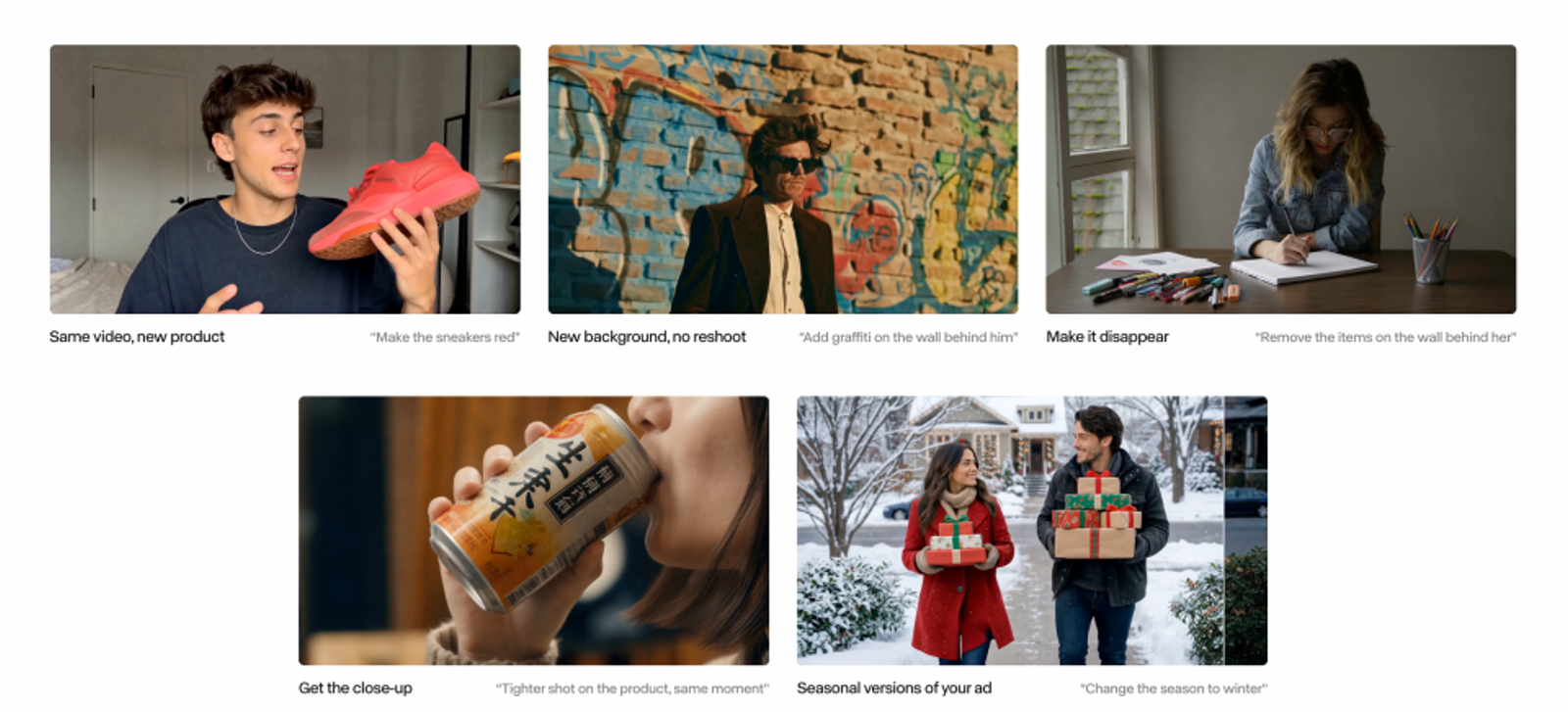
Runway's Aleph 2.0 is the default choice here when you need to change a specific element inside an existing take. It can propagate an edit from one frame across the rest of the video, isolate specific elements, and handle multiple shots in clips up to 30 seconds at 1080p.
Consider a product clip whose framing and motion already work, but whose product color needs to change. The brief is to preserve that take and revise only the color. I'd keep the edit narrow—rebuilding the entire scene from scratch reopens creative decisions the team has already locked in.
While Aleph overlaps with Genjutsu Objects swap in purpose, its frame-based editing workflow differs from Higgsfield's motion controls. Because the Standard monthly plan includes Aleph 2.0, you do not need to upgrade to a higher tier just to access that model.
OpenArt for characters, images, and motion references
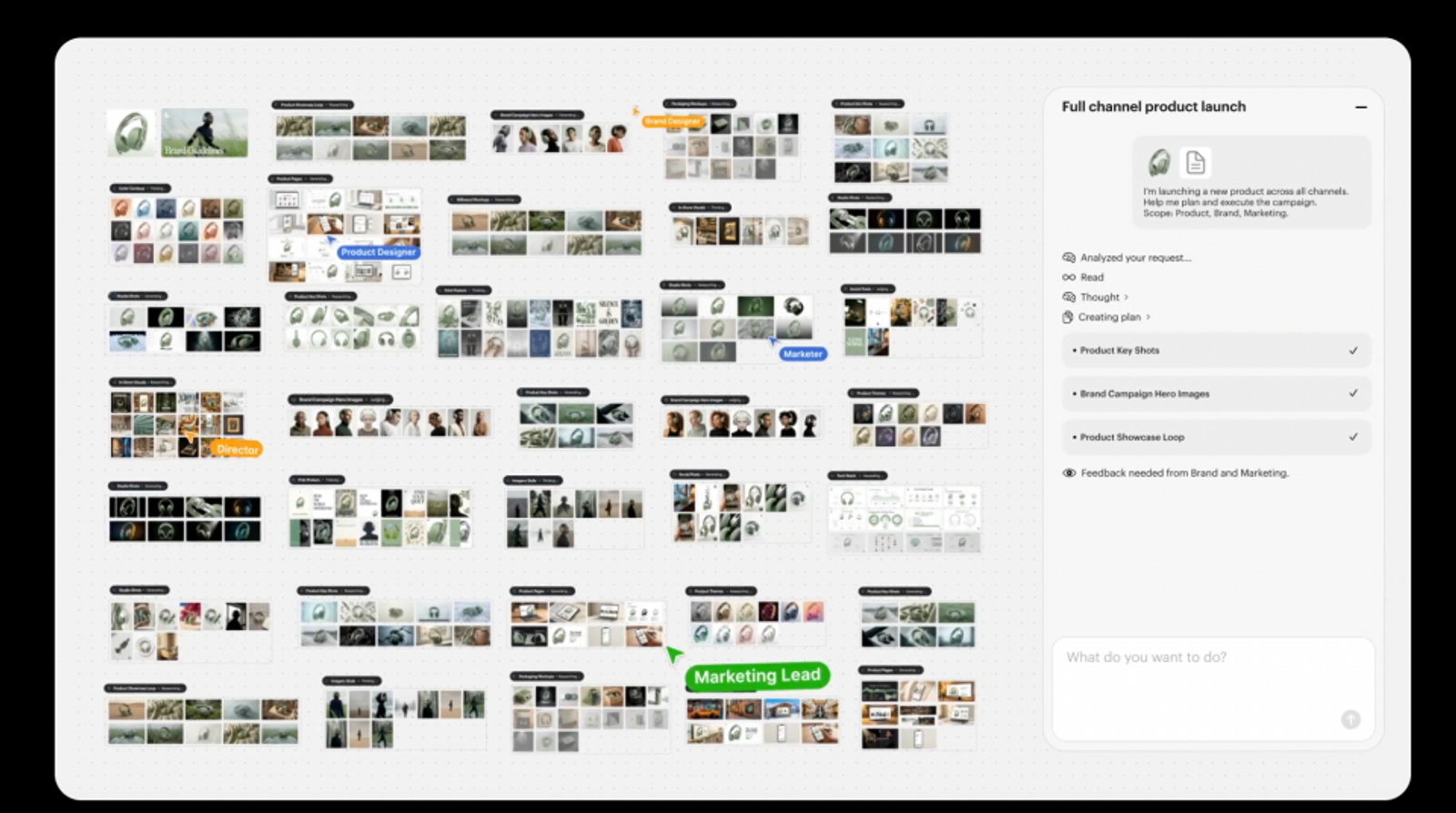
OpenArt structures AI image and video creation around persistent assets that can carry into later shots. Saved characters can be reused across both images and videos, while Director uses chat to plan a storyboard, individual shots, and the final sequence. Start & End Frames offer an additional way to anchor a shot's boundaries.
I'd lock in the character asset before generating the wider shot list, especially when that character anchors the whole sequence. Asset reuse supports that order of operations, though it still does not guarantee that every generated detail will stay identical across every take.
Motion Sync uses a video reference to transfer movement onto a character, providing a motion-reference alternative to Higgsfield Genjutsu. Here, the character adopts the reference movement—a distinct job from recreating a product ad around a reference or revising a single element inside existing footage.
What does a monthly production budget buy?
| Plan | Monthly recurring USD | Included credits | Specified generation example |
| Higgsfield Plus | $49 renewal | 1,000/month | Seedance 2.5, 720p, 5s: 28 clips |
| Wizstar Plus | $36.27 | 2,690/month | Standalone Seedance 2.5, 720p, 5s: 24 clips |
| Runway Standard | $15 | 625/month | Aleph 2.0, 5s: 4 edits |
| Luma Plus | $30 | 10,000/month | Seedance 2.5, 720p, Audio Yes, 5s: 25 clips |
| OpenArt Plus | $34 | 12,000/month | Character, image, and video allocation |
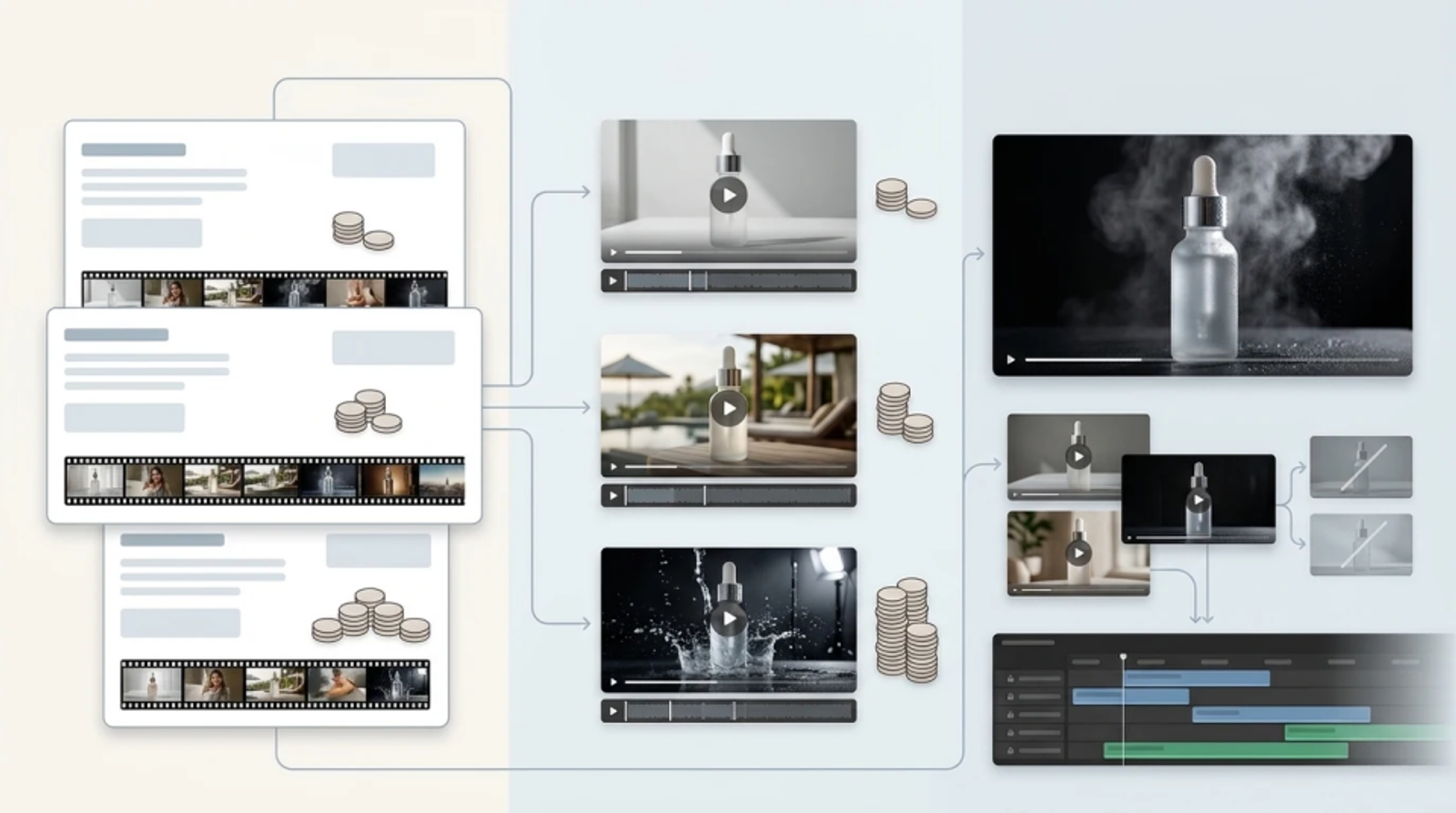
Looking closer at the credit math: Higgsfield's example costs 35 credits per five-second clip. Wizstar's standalone rate is 22 credits per second, or 110 credits per five-second clip, while its Agent rate for the same model at 720p is 37 credits per second—yielding 14 complete five-second clips from the monthly allowance compared with 24 standalone clips.
Runway's Aleph 2.0 example costs 140 credits per five seconds, and Luma's Seedance 2.5 example runs 78 credits per second, or 390 credits per five seconds. Note that Luma's example specifies Audio Yes. Even when platforms share a model name, resolution, and duration, their underlying settings and credit weights are not identical.
To get these numbers, divide total monthly credits by the per-clip cost and round down. These figures represent raw generations only, excluding retries, discarded takes, other production steps, taxes, and top-up purchases. In practice, four raw edits do not equal four finished ads.
Start by picking the plan that grants access to the model your workflow requires, then calculate expected usage at your actual export settings. I'd budget room for revisions before adding extra models to the stack. Keep expiration rules in mind as well: Wizstar subscription credits remain valid for 30 days, and OpenArt monthly credits reset at the billing anchor without rolling over, so your credit cadence needs to match your production schedule.
Conclusion: Move one task before moving the whole workflow
Before switching platforms, pick a single deliverable and define what must remain intact: the product's appearance, a specific motion pattern, or an approved visual direction. Judge any replacement by how much rework that deliverable requires, rather than comparing credit allowances in isolation.
If your priority is a product ad, bring your product assets and a suitable reference video into Wizstar’s Viral Video Recreation tool, then configure the target language and aspect ratio for your ad placement. When the concept still requires a sequence of connected scenes, start with the AI Video Agent to map out the plan before generating clips.
FAQ
- Can I try Wizstar’s AI video generator without a credit card?
- Yes, new users can try Wizstar’s AI video generator with free credits and no credit card required. Start with a prompt, an image, or a reference image inside the video generator, then select an eligible model and the settings needed for your clip. Use that initial generation to evaluate movement and composition before committing to a larger project.
- Do I need video editing experience to use Wizstar?
- No, Wizstar’s AI video generator allows beginners to create a clip without filming footage or using a conventional timeline editor. Describe the subject and action, or upload an image, then choose a model, set your style and aspect ratio, and generate the video. For a first run, keep the brief focused on one clear shot so you can quickly spot what needs refining.
- Can I use Wizstar to make commercial ads with my own product assets?
- Yes, Wizstar supports lawful commercial use provided you hold the necessary rights to your inputs and intended distribution. Use product photos, footage, music, and voices that you own or have explicit permission to use, ensuring those rights cover advertising and required processing under the service terms. Before publishing, review the finished video for product accuracy, third-party materials, and any AI-disclosure rules that apply to your campaign.
- Can I remove the Higgsfield watermark from a video made on the free plan?
- No, upgrading to a paid tier does not strip the watermark from an existing free-plan file; you must regenerate the clip on a paid plan. Save your original prompt, reference images, and other inputs so you can recreate the shot after upgrading, then export the new file for your project. Paid plans remove the visible watermark from new generations, whereas files made before the upgrade retain their existing watermark.
- Are videos I generate on Higgsfield’s free plan automatically public?
- No, Higgsfield free-plan generations remain private by default because automatic publishing is disabled. You can still publish a clip manually, while paid accounts allow you to toggle Auto-publish new generations on or off under Manage Account → Personal profile. If you upgrade and want to keep new work out of Explore, leave that setting off rather than assuming the free-plan default carries over automatically.