The short answer
Pika is a good fit for testing short social ad hooks when you have an approved product image, one simple camera move in mind, and an editor who can finish the ad. Start with a five-second shot. Keep it if viewers can quickly recognize the product, the details hold up at phone size, and the shot cuts cleanly into the rest of the video.
Quick Verdict for Short Social Ads
This Pika Labs review follows one brief throughout. The opening is a vertical shot of a reusable bottle with a matte white body, an orange loop cap, and a small printed wordmark. The camera slides sideways while the bottle stays on the counter. Keep the whole cap in view and leave room above the product for a headline.
Make two versions of the same draft ad, one opening with the moving shot and one with the approved still. Keep the headline, timing, and follow-on shot fixed. Ask someone unfamiliar with the brief what they noticed first in each version. If the camera move draws attention away from the bottle, simplify it before generating more variations.
How Can a Brand Start a Pika Clip?
Start with an approved still when the clip needs to show a specific product. Use a written brief when you’re exploring the set, lighting, or camera direction. Both routes below use Pika 2.5 so the team knows which model and settings to check.
Animate an Approved Product Still
Open Pika 2.5 and choose Omni. Attach the approved vertical packshot, set the clip to five seconds at 720p, and check the credit estimate before generating. Pick a photo that shows the cap and wordmark clearly, with room for the bottle’s edges to shift as the camera moves.
Keep the white bottle upright on the counter. Slide the camera slightly from left to right, then settle on a steady product view. Preserve the orange loop cap, bottle shape, and printed wordmark. Leave space above the bottle for a headline.
Before spending credits, check whether the still shows enough of the bottle for the move you want. If the photo only shows the front, keep the slide shallow to avoid revealing an unphotographed side. If you generate a new take at 1080p for delivery, check the credit estimate and review that take before approving it.
Draft a Scene From a Creative Brief
Use the prompt-only route to explore the opening before choosing a product shot. For the same bottle idea, describe a matte white reusable bottle with an orange loop cap on a pale counter. Specify a vertical composition, a short sideways slide, and clear space above the bottle. Describe the lighting and how large the product should appear in the frame.
Review the resulting concept for the set, light, and motion. If the team needs a new composition, the guide to preparing video ad stills with Nano Banana 2.1 shows how to draft from authorized references and review the crop before adding motion. Use a brand-approved still for the branded version and check the final shot against the product customers will receive.
What Should You Check Before Using the Clip?
Check the whole shot against the brief. Apply the same four criteria to every take so the editor can identify what to keep and what needs another pass.
| Review area | What earns a pass |
| Motion | The slide is continuous, the bottle stays planted, and the editor has a clean cut point. |
| Product details | The bottle shape, orange loop cap, and printed wordmark match the approved image throughout the usable segment. |
| Placement | The cap and bottle fit inside the final crop, and the headline clears the placement overlays. |
| Finishing work | Copy, captions if needed, audio, and the call to action fit within the planned editing time. |
Product Details and Visual Distortion
I would check the cap before the lighting. Pause at the opening, midway through the slide, and just before the cut. Apply the product-detail checks from Wizstar’s PixVerse review and compare the loop opening, cap color, bottle silhouette, and wordmark with the packshot. If a detail changes near the end, see whether you can cut before the defect and keep the opening intact. If it changes during the reveal, shorten the move and regenerate from the approved still.
Motion, Framing, and Hook Clarity
The IAB’s vertical video advertising guidance recommends planning for 9:16 from the start. For this bottle brief, watch the first second once at phone size with sound off. Check whether you can identify the bottle and its orange loop cap. Then preview the headline with the placement overlays visible. Run the same check with the original still in the same edit.
If the product becomes clear too late, try starting on the first clean product view. If that cut removes the movement you wanted, use the approved still for the opening and save the moving shot for later in the ad.
What Does Pika Leave for the Editor?
The editor still needs to select the usable seconds, add the message, and assemble the final placement. Review the hook in the ad timeline, where the headline and the cut into the next shot affect how it reads.
Select a Usable Take
Mark the first frame where the product reads clearly and the last frame before any visible defect. A five-second render may give you two usable seconds. If a take fails, change one thing for the next attempt. For example, shorten the camera slide while keeping the source image, duration, and space for copy fixed.
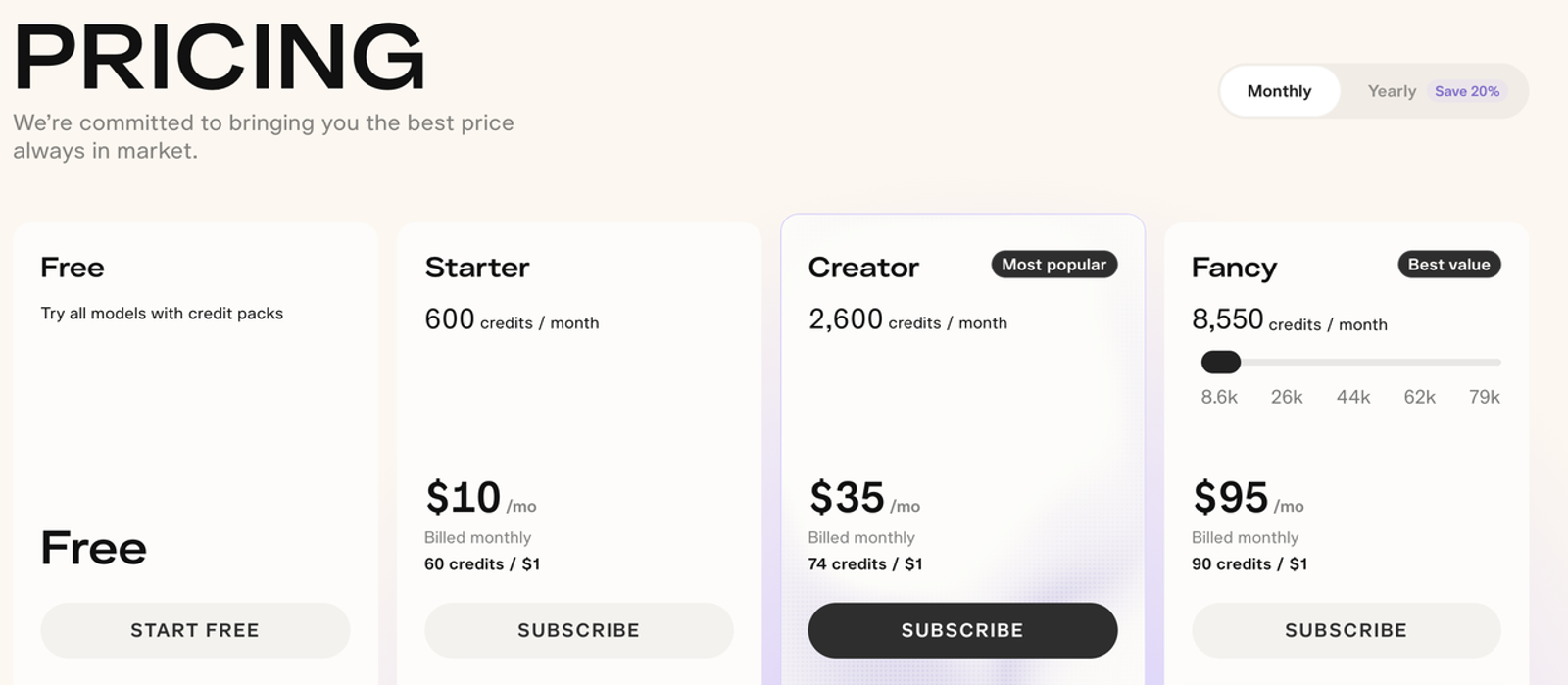
The next edit is part of the cost. On November 18, 2026, Pika’s pricing table listed a five-second, 720p Pika 2.5 generation at 20 credits. Check the estimate for your settings before generating. If three attempts are charged at that rate and one passes review, the usable hook costs 60 credits, plus review and editing time. If none pass, record the spend and what prevented approval, such as an altered cap or a crop that leaves too little room for copy.
Add Copy, Captions, and a Final Call to Action
Add the approved headline and offer as editable text layers. If the finished ad includes speech, add captions and check that they arrive with the right line. Pika 2.5 generates silent clips, so add the chosen music, sound effects, or voiceover during finishing. Leave enough time for viewers to read the call to action, then preview the ad with and without sound.
When Does Pika Fit an Ad Team?
Keep using Pika when the team can produce recognizable openings from approved images without pushing review and cleanup past the planned edit time. A useful Pika review accounts for rejected takes as well as accepted ones. If the still consistently gives you a clearer opening, use it and spend the remaining edit time on the demonstration or offer.
Creative Hooks Versus Complete Campaign Videos
Use the AI ad creative testing workflow to record what changes between openings while keeping the product proof, offer, and end card fixed. If the campaign depends on showing how the bottle lid locks, let the generated slide introduce the bottle, then cut to verified footage of the mechanism.
For U.S. campaigns, the FTC’s advertising substantiation policy calls for a reasonable basis for objective claims before the ad runs. If the headline says the bottle is leakproof, verify the wording against the brand’s supporting evidence before approving the copy.
Conclusion
Start with one approved still, one camera move, and the crop you need for delivery. Keep the generated opening if the product reads in the first second of this brief, the details survive the move, and the shot fits your editing budget. Finish the ad with verified product footage, approved copy, and a clear call to action.
FAQ
- Which Pika plans permit commercial use?
- Pika lists Starter, Creator, and Fancy as including a commercial license. Buying credits on the Free plan leaves it noncommercial. Generate the version you intend to run while you’re on a plan that includes commercial use, and check the terms for your chosen model and the assets you upload.
- Do free Pika clips include a watermark?
- No. Pika lists watermark-free downloads for its current Free plan. Commercial permission is a separate plan benefit.
- Can a brand upload its own music to a Pika project?
- Yes, in workflows that accept audio uploads. Pikaformance, for example, accepts a music clip to drive an image-based performance. For the silent Pika 2.5 bottle shot, add your licensed track in the final edit so you can select the exact excerpt and set its level.
- Which aspect ratios can a Pika clip use?
- The options depend on the model and input mode. Pika 2.5 takes its framing from the source image for an image-led shot and offers an aspect-ratio setting for a prompt-only shot. For the 9:16 bottle hook, start with a vertical still and verify the downloaded frame before adding copy. Check the selected mode’s controls if you also need square or widescreen versions.
- Can Pika animate an image containing a real person?
- Yes, in supported workflows, subject to consent and usage rights. Under Pika’s Acceptable Use Policy, you need the person’s express consent and the necessary rights for the image. The policy prohibits uploads depicting or appearing to depict anyone under 18. Confirm that consent covers the intended advertising use before uploading.