The short answer
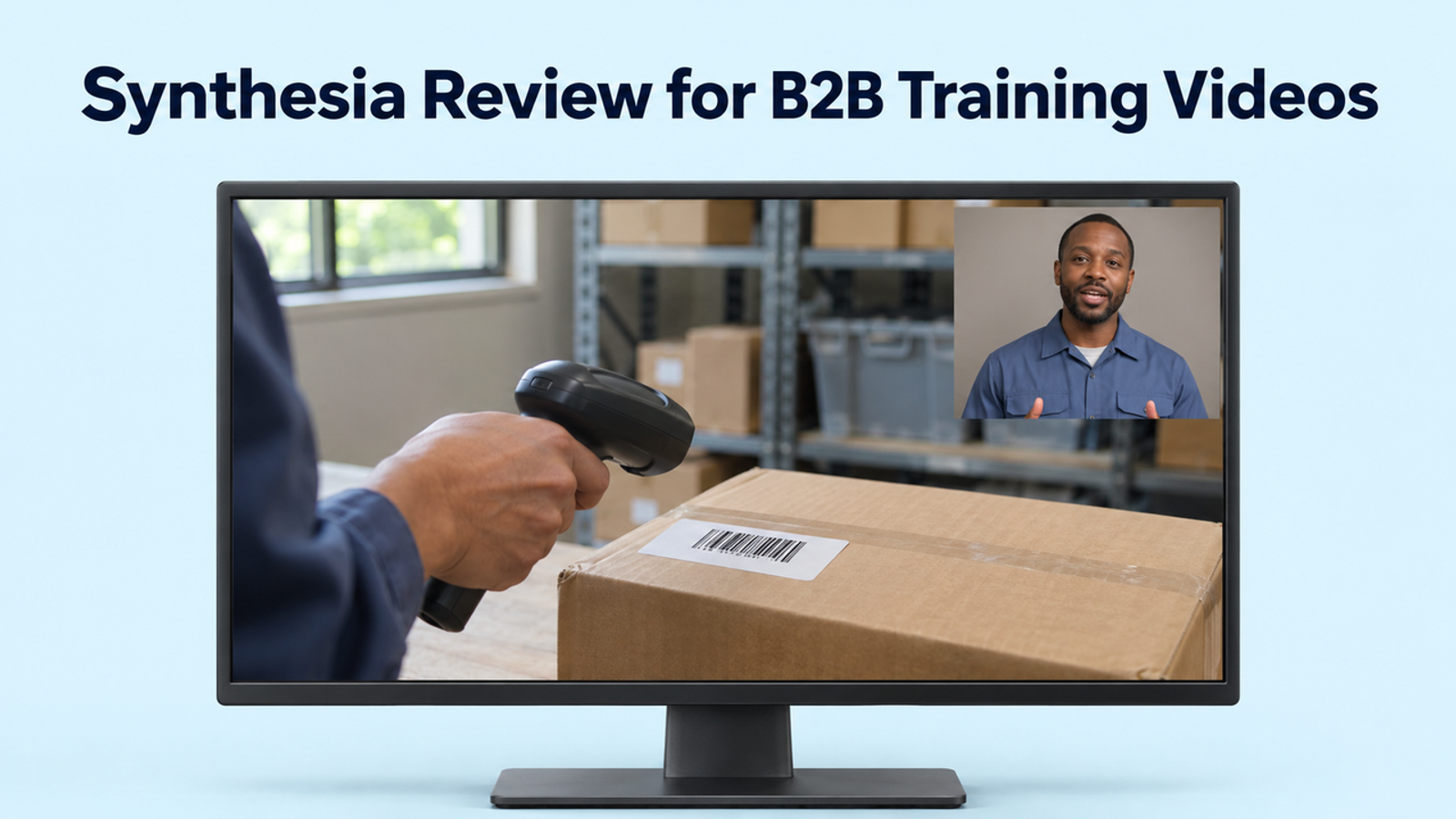
Synthesia is a practical fit for B2B training teams that regularly update scripted lessons and can pair avatar narration with verified product footage. Its scene-based editor lets you revise the explanation as the product changes. Before buying, take one existing lesson through a realistic update and measure the work needed to verify the screens, review each language, and publish the approved version.
Quick Verdict for B2B Training Teams
For the pilot, choose a lesson your team already expects to update. A good example is how to invite a teammate without granting administrator access. The presenter explains why the role matters, while a recording shows where the control lives, which role to select, and how to confirm the invitation was sent.
Build the lesson once, then simulate a release that moves the invitation control. Borrow the controlled revision method used in AI video creative testing and keep the lesson goal, presenter, and layout fixed while you update the affected instruction. Track how much footage needs recapturing and which language versions need fresh approval.
How Does a Lesson Become a Synthesia Video?
Turn the approved script into short scenes and pair each instruction with the visual learners need to follow it. The Synthesia video platform includes an editor for script-led avatar video and a screen recorder for capturing steps in the actual product.
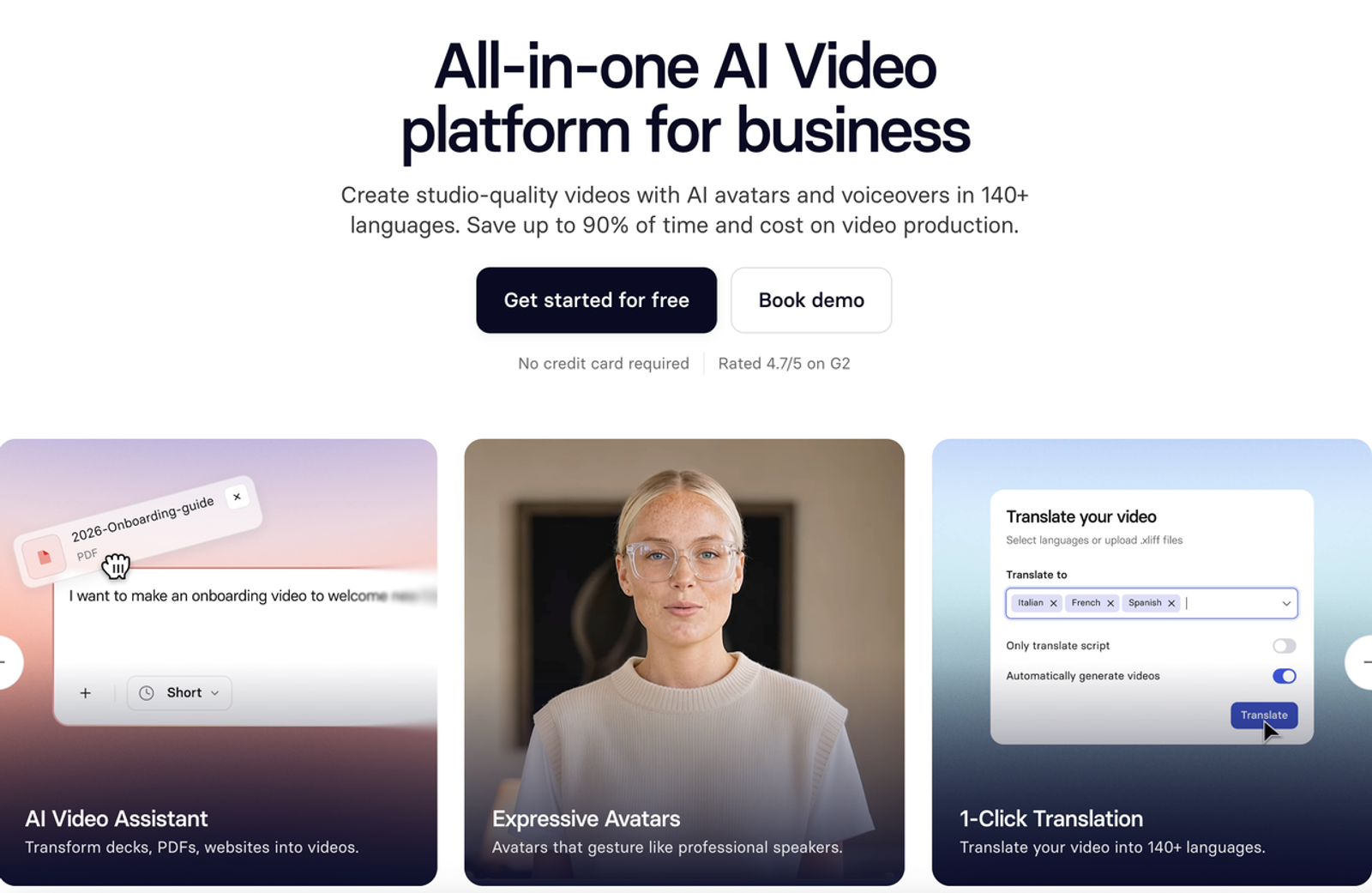
Build Scenes From an Approved Training Script
Structure the Synthesia business video around three teaching moments. The opening explains who can invite teammates and when to assign the standard member role. The walkthrough shows the invitation in a demo workspace. The recap asks learners to identify the selected role and recognize the pending status.
- Create the scenes. Select Add scene in the editor and choose a blank scene or a template. Give the explanation, walkthrough, and recap their own scenes.
- Add the narration. Paste the approved text into each scene’s script box, select a voice, and use the product team’s wording for visible controls and roles.
- Add the product footage. In the walkthrough scene, use Media → Upload media to add the verified recording or screenshots. Preview the narration alongside the capture before generating.
Update a Lesson After the Product Changes
Suppose a release moves the invitation control into a different settings menu. Verify the permission rule and role names, revise the affected sentence, replace the capture, and check any captions or overlays that name the old menu. Reuse the opening explanation if its rule still applies.
Generate the revision, select the approved version in Synthesia’s version history, and publish it through Reshare → Replace. The hosted share URL stays the same. Open it as a learner and confirm the revised scene plays.
For a standard hosted SCORM package listed in Synthesia’s sharing and export guide, open the existing LMS lesson after publishing the replacement. Verify that it plays the revised scene and still reports completion as expected. If your team uploaded a standalone MP4, replace the file in its destination and verify it there.

How Should You Assess the Presenter and Lesson?
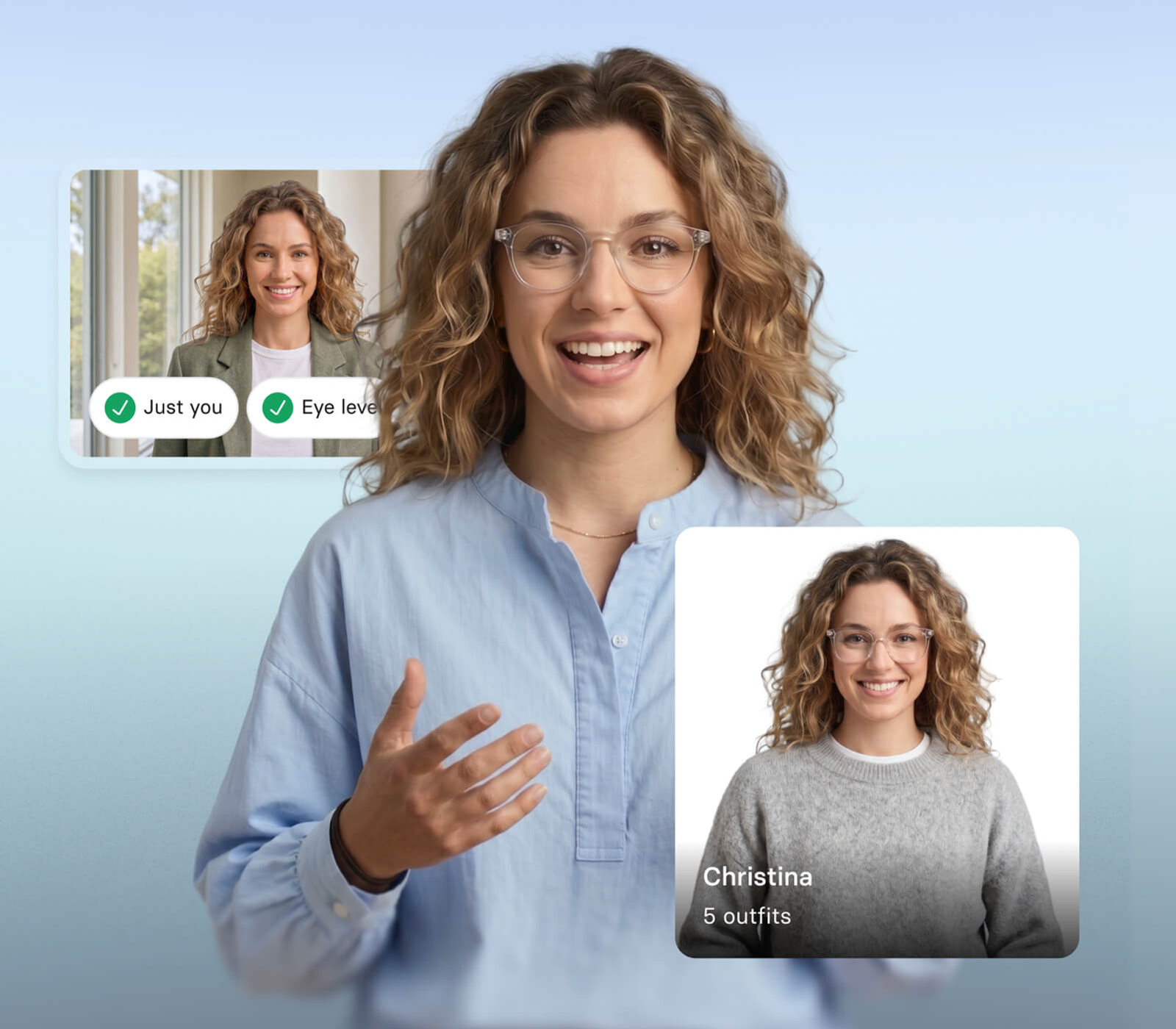
Assess whether someone new to the product can follow the instruction and recognize the expected result. For a Synthesia avatar review, have a colleague watch one complete instruction at normal speed, then ask them to carry out the same step in the demo workspace.
Narration and Avatar Clarity
Listen for correct pronunciation of product and role names, a pace that gives learners time to find the control, and emphasis on the role they should select. The MiniMax H3 review’s audio checks apply here too. Preview the chosen voice with the actual script and listen for whether the spoken words match the action on screen.
If I’m watching the mouth, I’ve stopped listening. Check lip sync and expression during a full instruction. If either distracts from the lesson, preview a different voice or presenter. When learners need to see the click, give the product screen enough room and let narration direct their attention.
Screen Content and Instructional Accuracy
Verify the footage against the current product using an account with the same permissions as the intended learner. Check that the invitation control is visible, the selected role matches the narration, and the expected status appears after the action. An administrator’s view may show controls that other users never see. Watch the finished lesson at its delivery size to check small menu labels and confirmation messages.
What Review Work Remains?
The team still needs to verify the script, the footage, and how they work together. Use this evaluation table for your Synthesia training video review, then repeat the checks on the first update.
| Review area | What to check in the invitation lesson | What to record |
| Script changes | The revised instruction names the current menu and uses approved role terminology. | Changed scene, script revision, and content owner. |
| Visual accuracy | The capture shows the correct control, selected role, and pending status. | Product version, capture date, and any replacement footage. |
| Presenter delivery | The voice gets role names right and gives learners time to find the control. | Pronunciation or timing fixes and any regeneration. |
| Language versions | Narration, captions, and screen labels lead to the same action in each locale. | Locale, affected scene, and reviewer approval. |
| Review cost | The lesson passes content, accessibility, and publication checks. | Staff time, credits used, and elapsed time from update request to release. |
Correct Timing, Claims, and Visuals
Watch the lesson at normal speed, then pause around the point where the learner chooses a role.
- Timing. If the instruction comes before the role menu appears, adjust the media timing or add a pause.
- Claims. Ask the product owner to verify who can send invitations and what access the member role grants.
- Visuals and captions. Check that the caption appears with the relevant instruction and leaves the control visible.
Decide When Real Screen Recording Is Needed
Use a real recording when learners need to follow a sequence of clicks or recognize a change in the interface. Capture the selected role, the invite action, and the resulting pending status in a demo workspace with sample data. Verified screenshots can work for a static comparison of roles.
If you revise a generated illustration for the introduction, use the GPT Image 2 vs GPT Image 2.5 comparison’s visual review method to check the edit against the approved source. Keep the walkthrough itself grounded in verified captures of the actual interface.
Is Synthesia Practical for a Training Library?
Yes, when the team can reuse layouts and assign an owner to each published lesson and language version. A Synthesia AI review for a training library should measure how long it takes to publish an approved update in every required language.
Lesson Reuse and Localized Updates
Keep reusable layouts for the introduction, walkthrough, and recap. Store the approved script and original captures in team storage. Maintain a register with each lesson’s owner, product version, languages, and publication locations. When the invitation menu moves, the register tells the team which versions to reopen.
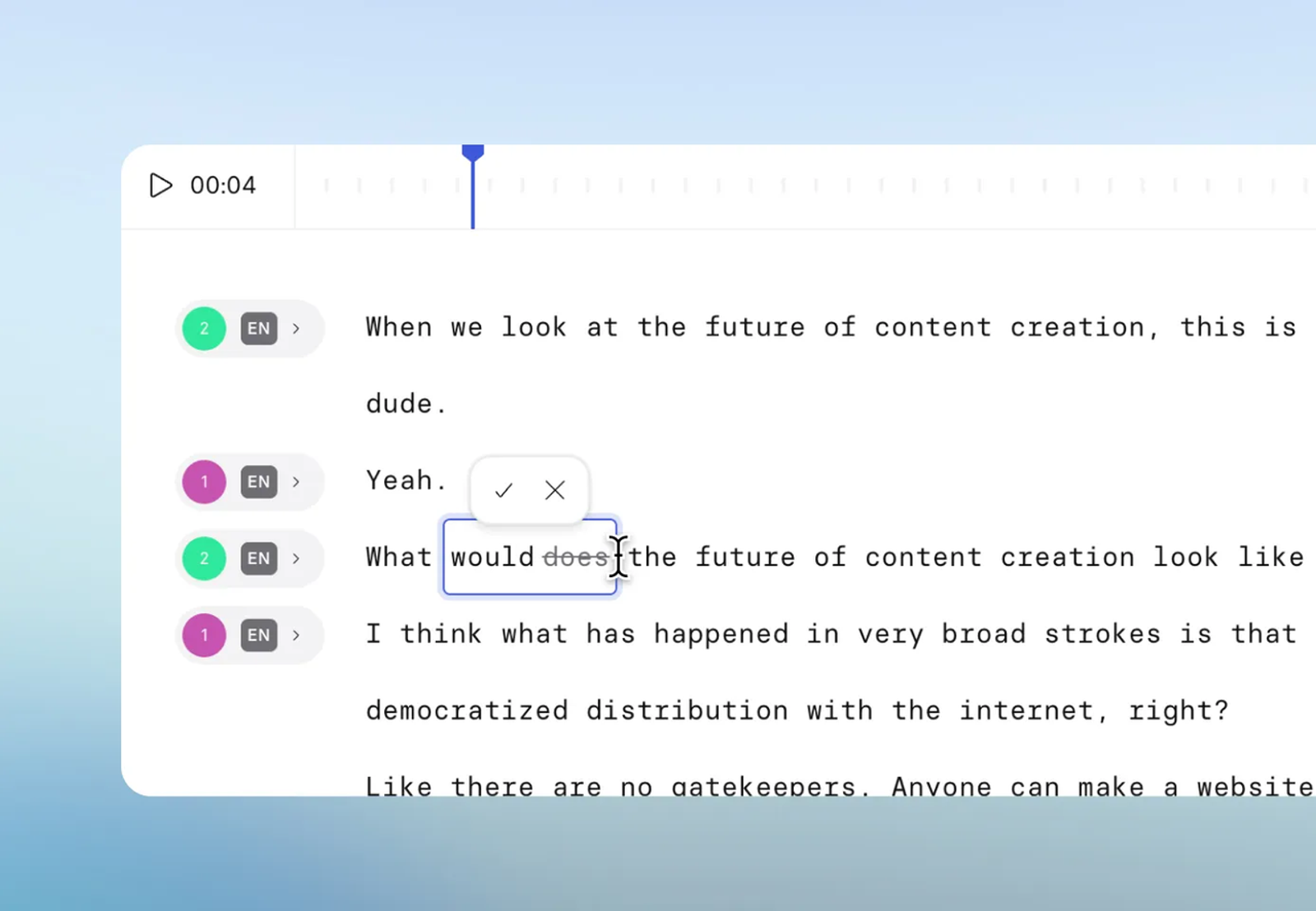
The translated line still has to fit the shot. Check whether the spoken role matches the localized interface and whether the narration finishes while the control is visible. If the interface is English-only, keep the actual menu label in the translated narration and captions so learners can find it. Give the rendered lesson to a reviewer who works in that locale.
Seats, Usage, and Production Cost
Synthesia’s plan and billing guide describes member seats and the credit package as separate choices on Business. Count who needs to create or edit lessons, confirm the access reviewers need, and check the generation and translation allowances for your plan.
The next edit is part of the cost. Track the initial build and the product update separately. For the update, add the applicable share of the subscription, any extra credit charges, and staff time for recapture, editing, language review, and publication. Divide that cost by the number of updated language versions actually published. Compare it with the cost of the same update in your current workflow.
Conclusion
Use one lesson and one product change to decide whether Synthesia fits your team. Expand the workflow if the updated lesson reaches learners with accurate screens, clear narration, and manageable review time in every required language. If recapture or approval accounts for most of the work, use avatar video for the explanation scenes you can reliably reuse.
FAQ
- Can an organization restrict access to internal training videos?
- Yes. Synthesia offers password protection on eligible plans and single sign-on for viewing on eligible Enterprise accounts. Verify access with both an authorized learner and an account outside the intended audience.
- Does Synthesia accept an authorized custom voice?
- Yes. In Synthesia’s voice cloning workflow, you can record or upload a voice sample. The speaker must personally record consent using the generated passcode. Confirm that the required language is supported on your plan.
- Can Synthesia output be delivered to an LMS?
- Yes. If your learning management system accepts video uploads, you can deliver a downloaded MP4 from an eligible paid plan. Synthesia also offers SCORM 1.2 and 2004 export on Business and Enterprise, with a configurable viewing-completion threshold. The standard package loads Synthesia’s hosted player. Verify playback and completion reporting with a learner account in your actual LMS.
- What happens to projects when a paid plan ends?
- For self-serve cancellations, Synthesia says account and video access ends with the billing period. Its security practices say it can assist with retrieving generated MP4s for up to 90 days after the governing agreement ends. Export needed videos before access ends and confirm any requirements for recovering editable projects or maintaining hosted playback.
- Are all presenter options available in every region?
- Synthesia publishes avatar limits by plan and language restrictions for some voice cloning options. A country-by-country presenter catalog is unconfirmed. Verify the exact avatar and voice in the workspace that will produce and maintain the lesson.