The short answer
InShot is a good fit for teams that already have approved product footage and need to assemble, caption, and export a short ad on a phone. It gives an editor enough control to time a product demonstration and its call to action. Choose it when the brief is settled and finishing is light. If the ad still needs detailed retouching, audio repair, or several versions with different deliverables, plan time for desktop finishing.
Quick Verdict for Mobile Ad Editing
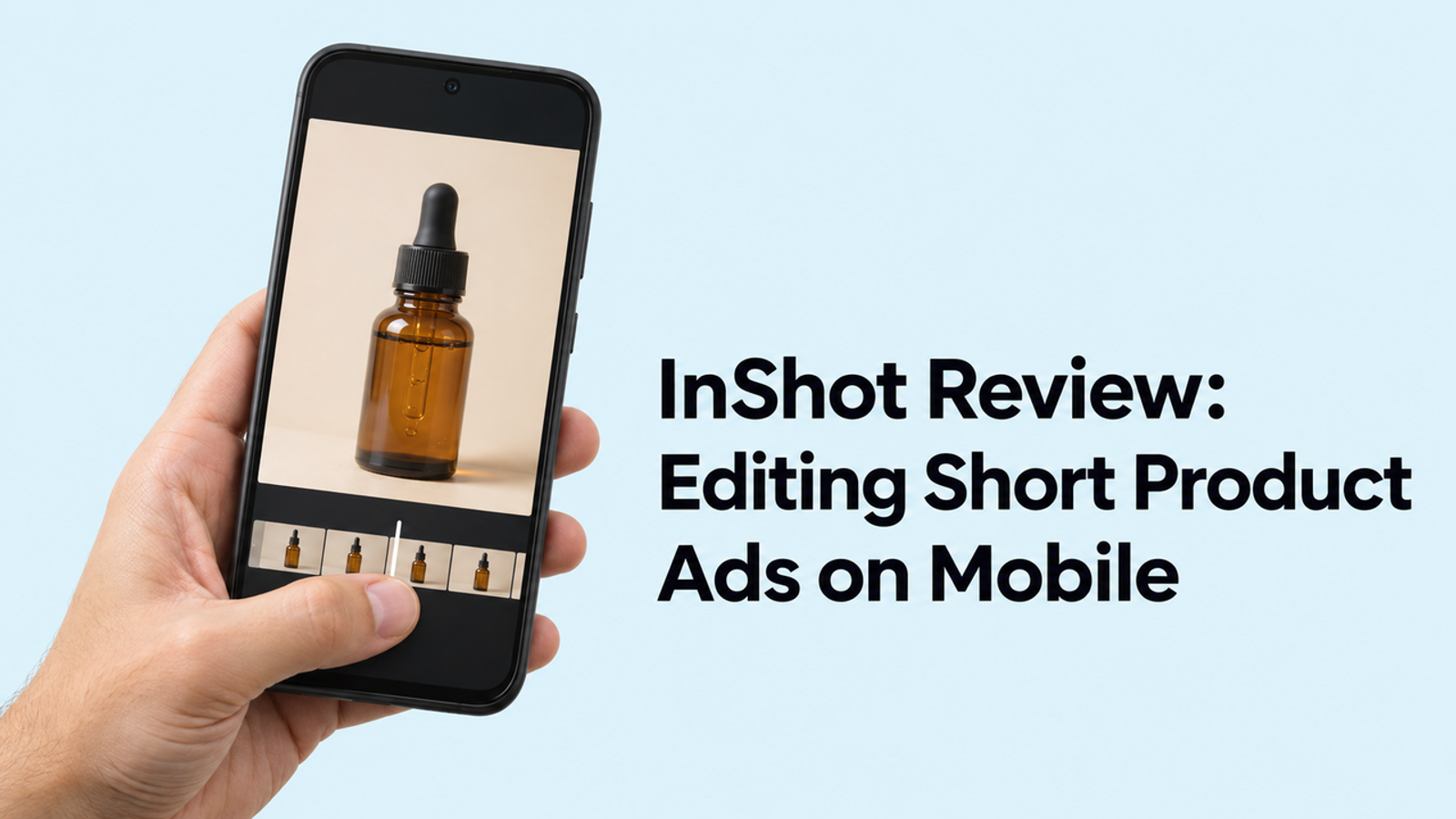
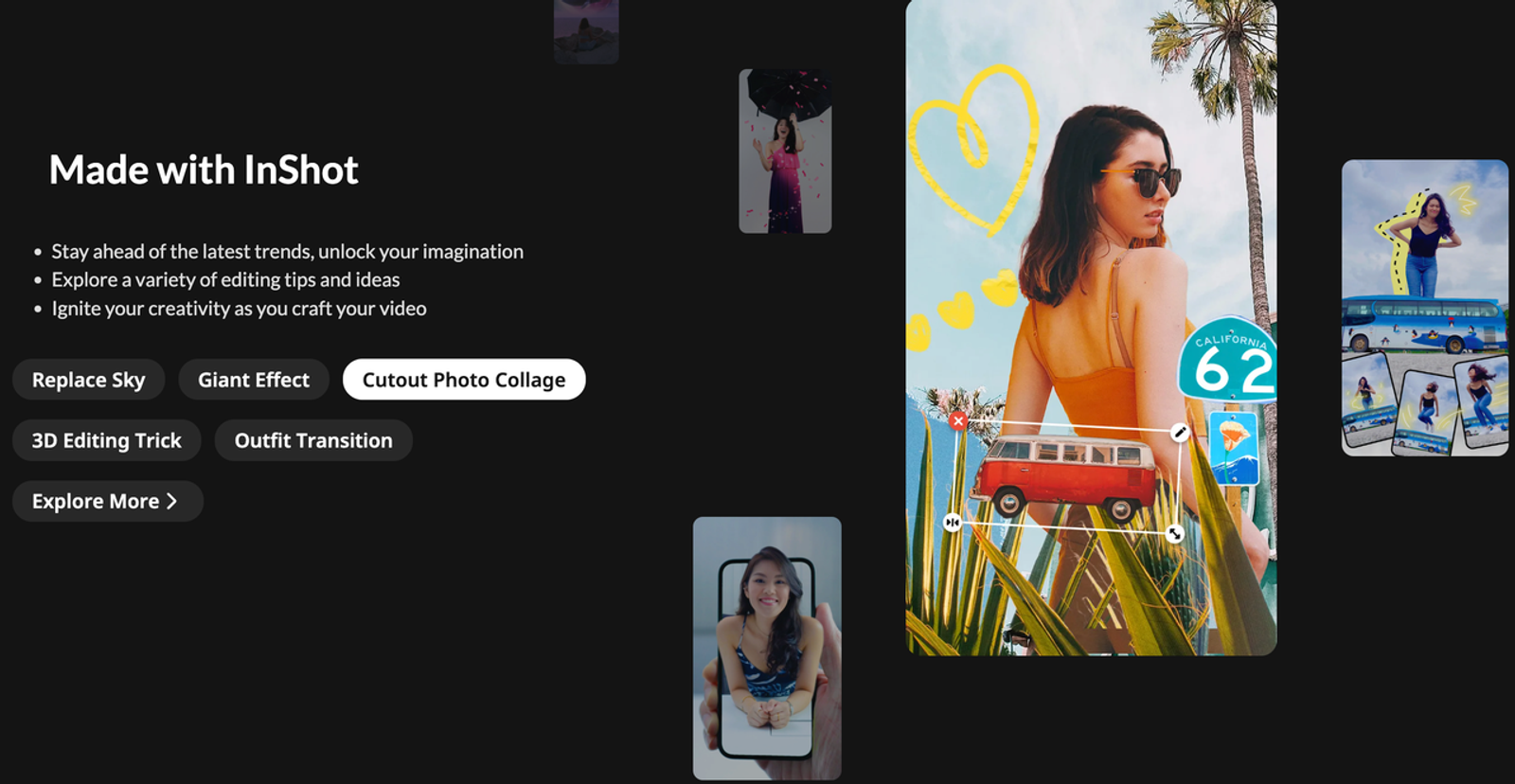
This InShot video editor review starts with footage the team has already cleared. The official InShot website presents a mobile editing toolkit with text, transitions, and Auto Captions. For a short ad, its useful role is putting approved shots, copy, and sound together. Speech-to-text helps caption the footage, and the product demonstration comes from the clips you bring into the app.
I’d judge the workflow with a 12-second vertical ad for a compact label printer. Start with three approved clips showing the box, a label feeding through the printer, and the unit beside the finished label. Give the editor one approved selling point, one call to action, and the destination placement. Apply the first-frame checklist for paid social ads to the box shot at phone size. Use the same source clips and brief if you compare the phone workflow with your current editor. Count the work through approval, including any corrections made after the first export.

What Can InShot Edit in a Short Product Ad?
Arrange Clips, Text, and Calls to Action
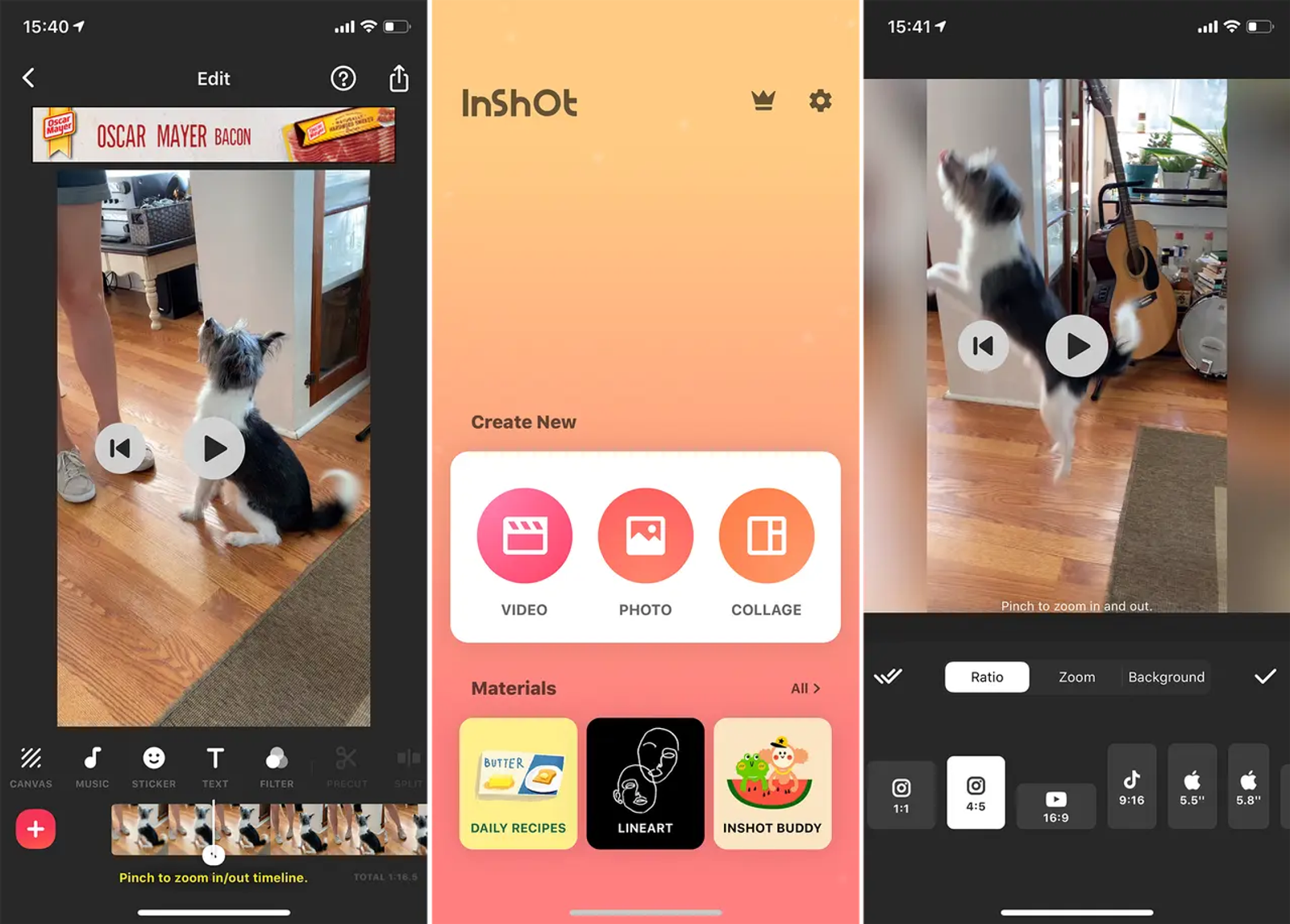
The InShot mobile video editor can trim and combine clips and place text over footage. Trim the opening box shot to the shortest stretch that keeps the product name readable. Leave enough time in the demonstration for the viewer to see the label actually come out. A cut that skips directly from the button press to the finished label can obscure what the product does.
Add the selling point where the footage supports it and hold the final call to action long enough to read at normal playback speed. A line like “Shop the label maker” belongs with a frame that identifies the right item. Check the in-video CTA against the ad’s clickable button and destination. When testing a different opening hook, keep the demonstration and end card fixed so the reviewer can tell what changed.
Adjust Captions and Vertical Framing
Set a 9:16 canvas for the vertical version and check each clip after cropping. A centered crop may keep the printer in frame while cutting off the slot where the label appears. If you can preserve the action by shifting the framing or leaving more space around the image, do that before styling the captions. The product action should remain visible while the captions are on screen.
Auto Captions can give you a first pass on spoken lines. Review spelling, timing, and breaks, particularly for model names and units such as “12 mm.” Watch on mute and check that the captions and product action still make sense together. For unreleased creative, check whether the team has cleared server processing before using automatic captions. InShot explains that selected content may be uploaded and shared with AI providers for certain features in its iOS privacy policy. If the brief already has a short approved transcript, you can place its text manually.
How Should a Team Check the Final Cut?
Read Product Labels and On-Screen Claims
I’d check the label at playback speed before judging the transitions. When reviewing InShot product ads, pause at the box shot and compare the visible SKU and pack details with the approved product page. Then watch without pausing. If a necessary detail can only be read when you stop the frame, give the shot more time or add legible approved text. Check that the printout in the demo and the printer on the end card belong to the same product and configuration.
Read the caption, overlay, and end card against the approved copy and offer. When reviewing several variants, use the transcript and overlay text to flag unsupported product claims. Have the product owner compare each export with the destination page and verify the SKU, tape width, and offer.
Watch what the sequence implies as well. A cut from a small strip of label tape to a full shipping label can suggest the printer handles both formats. For U.S. campaigns, the FTC’s advertising substantiation policy addresses objective claims conveyed directly or by implication.
Preview the Export in Its Actual Placement
Before I call it ad-ready, I want to see it on a phone in the intended placement. Open the exported file outside InShot to check duration, dimensions, sound, and readability. Then load that exact file into the intended placement’s ad preview if available. Include the planned caption and CTA button. A label may look clear in the phone gallery and sit underneath a button or caption block in the ad. Use the placement’s current safe-zone guide and review each crop separately.
Check once with sound to catch clipped words, uneven levels, or a cut that interrupts the product demonstration. Check again muted for the caption timing and end card. Have a named reviewer approve the versioned file and note the placement it was checked against. If you move captions or reframe the cut after sign-off, send the revised export back for review.
When Is a Phone-First Editor Enough?
Fast Edits to Existing Approved Footage
InShot social ad editing makes the most sense when one person can assemble a few approved clips and the reviewer mainly needs to check the product, text, and framing. Think of a new opening for an existing demo or a shorter cut for a single vertical placement. For a buying comparison, time a routine revision as well as the first edit. Ask for a shorter opening and a longer end card, then see whether the changes shift captions or cut into the demo. Include the review and re-export in your time estimate.
When a Finished Clip Needs Desktop Finishing
Plan desktop time if the footage needs precise pack retouching, selective color correction, or a more involved audio mix. A rendered file can serve as a timing reference or a base for further work. The distinction between a playable MP4 and an editable timeline matters here because the text is baked into the rendered picture. If the next editor needs to change a CTA or caption, deliver an additional clean render without those overlays, plus the approved copy and original footage. Review the desktop export again on the intended device and placement before release.

Conclusion
I’d choose InShot for a short product ad when the footage is ready and the main work is timing shots, captions, and the CTA. Run the label-printer exercise with your own SKU and make one ordinary revision before deciding. The reviewer should be able to identify the exact version, verify the packaging and claims, and read the text in the intended placement.
FAQ
- Is InShot available on both iOS and Android?
- Yes. InShot publishes versions for iPhone and iPad and for Android devices. Both store descriptions list Auto Captions and exports up to 4K at 60 fps. The iOS listing explicitly mentions bilingual subtitles, so check the Android build for that feature if it matters. InShot’s terms keep paid subscriptions on the operating system where you purchased them. Check the current price and options on the device you plan to use.
- Can an InShot project be opened by a teammate on another device?
- Plan on one editing device for each draft. InShot’s privacy policies describe local draft storage, and its public documentation does not describe a supported way for a teammate to reopen an editable project on another device. Keep the original media available on the editing device until sign-off. Share the exported video for review and keep the source files separately if the team needs to rebuild the cut.
- Which InShot exports include a watermark?
- A free export can include the InShot logo if it has not been removed. InShot’s iOS subscription terms include logo removal in the paid subscription. The developer has also described an ad-supported removal option on iOS. If the app offers that option on your device, check the saved file before promising a clean deliverable.
- May a business use InShot's built-in music in paid ads?
- Only if you have express authorization for the advertising use. InShot’s iOS terms and Android terms for built-in music distinguish permitted social distribution from advertising and describe its AI Music albums as personal-use only. For a paid campaign, use a track whose license covers the client and intended placements. Check the current InShot terms and the track’s license before delivery.
- What access does InShot request to a phone's media library?
- InShot requests photo and video access to select clips for editing and save the result, as described in its Android media permissions policy and iOS policy. The prompt depends on the phone and operating system. If the phone offers selected-media access, grant access to the approved clips you need and check that the app can save the export.