The short answer
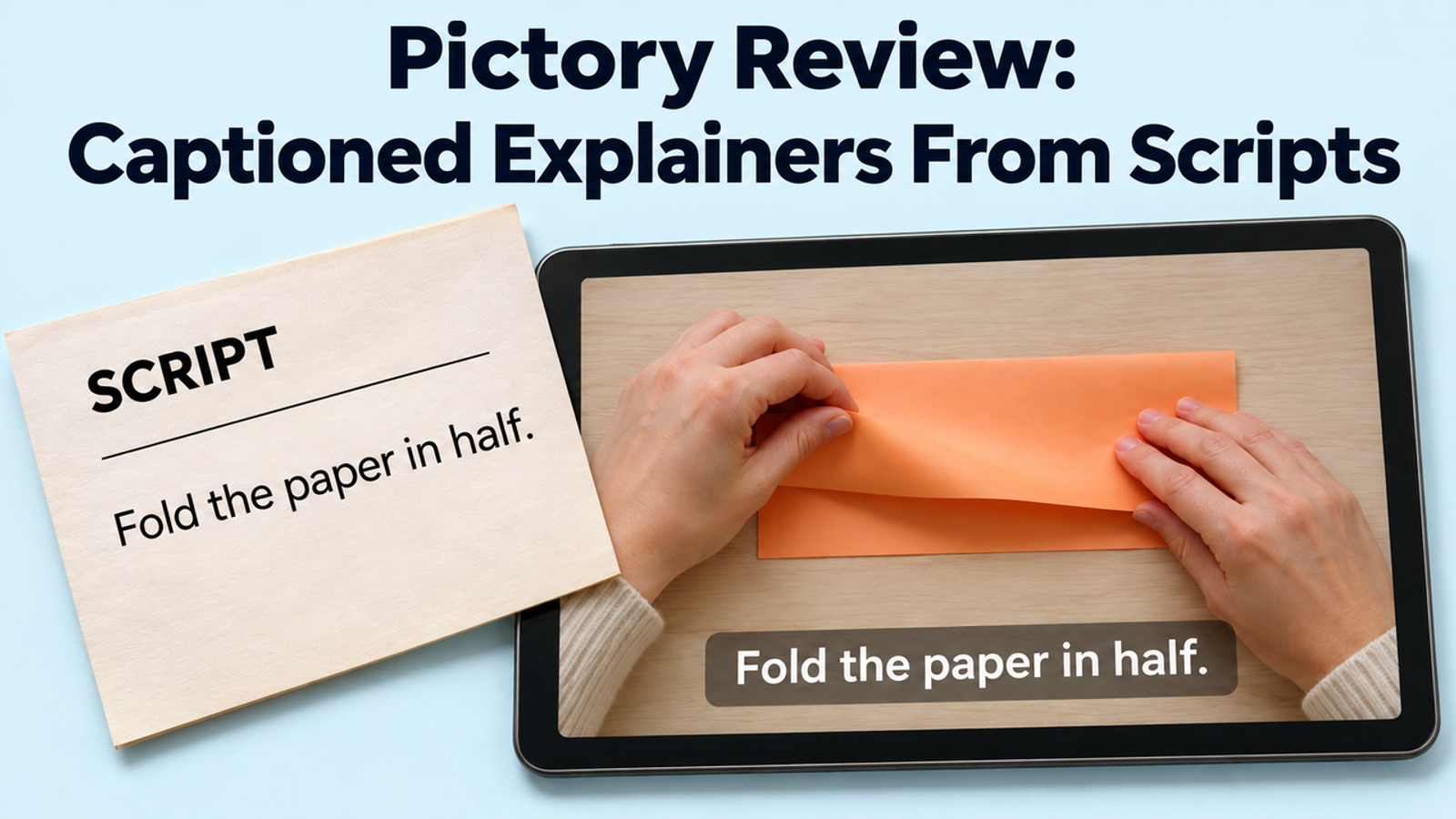
Pictory is a good fit for B2B marketing teams with an approved script and a recurring need for short, captioned explainers. Its documented workflow assembles a first cut with visuals, narration, and captions that you can edit scene by scene. I’d budget the most review time for scenes that explain a product rule or show exactly what a user needs to do.
Quick Verdict for Scripted Explainers
I’d shortlist Pictory for a series that explains one feature, process, or policy per video. With Pictory’s AI video generator, a finished script can become an editable storyboard with voiceover and captions. Before generating, identify which lines can use illustrative footage and which need an approved diagram or product capture. That gives you a clearer estimate of the work left after assembly.
This Pictory AI review follows an illustrative 45-second brief for a purchase approval tool. The script explains how requests over $5,000 go to a budget owner, how the owner can return a request with a note, and where the requester sees the decision. The team has an approved routing diagram and a screen recording made with sample data. If a series needs recurring characters or whiteboard scenes, our comparison of animated product explainer tools covers those workflows.

How Does a Script Become a Pictory Video?
Paste the approved script into Text to video, set the scene breaks, and choose the visual sources and narration before generating the storyboard. Set the intended aspect ratio early. A dashboard that reads clearly in a widescreen landing-page embed may need a tighter crop in a vertical cut.
Split the Message Into Scenes
Use one scene for routing, one for returning a request, and one for checking its status. In Pictory’s script scene settings, turn off Create scenes on sentences and leave Create scenes on line breaks enabled if you want to control the breaks yourself. That lets you keep two sentences over the same routing diagram. Insert a line break where you want the next scene to begin.
Match Visuals, Voice, and Captions
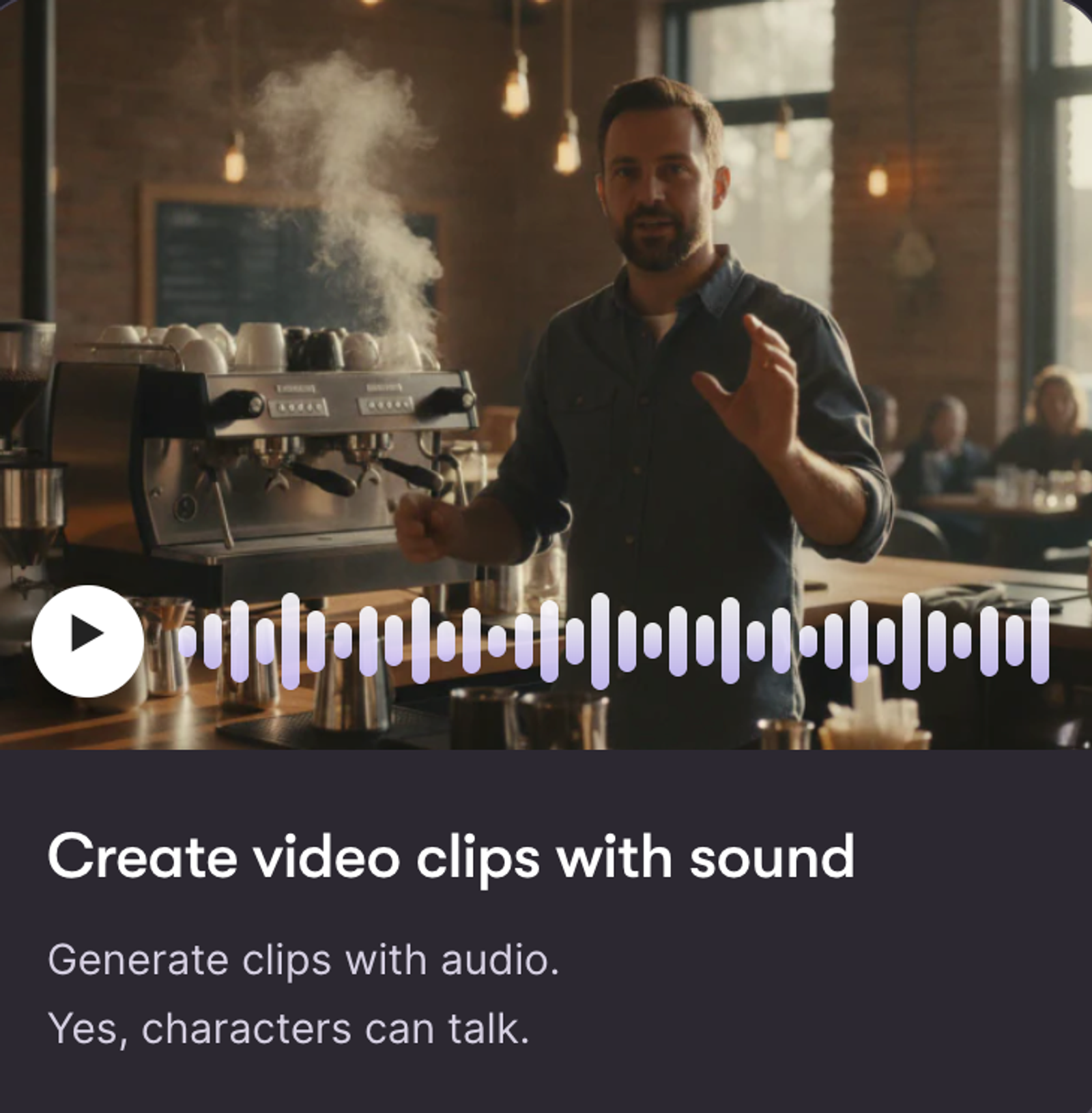
Let Pictory suggest a visual for a general opening about requests waiting for review. Use the approved diagram for the routing rule and the screen recording for the return action and request history. Choose an AI voice or use an approved recording where your plan supports it. Then play the narration over the storyboard and check whether viewers have enough time to read each control the voice mentions.
What Should a Reviewer Check in the First Draft?
Check whether each visual explains the line it accompanies, whether the product appears accurately, and whether the captions match the narration. Give the reviewer the approved script alongside the preview. Ask them to flag the scene, the issue, and the wording or asset that should be used to verify it.
Scene Relevance and Product Accuracy
A clip of someone signing paperwork may fit the subject of approvals, but it leaves the routing rule unexplained. Check whether the diagram shows the request reaching the budget owner and whether the product capture shows the correct return action. If the narration names a specific button while the draft shows a generic dashboard, flag that scene for replacement.
Caption Timing and Spoken Claims
Check that the narration and captions both say “over $5,000.” If the captions say “$5,000 or more,” the video now describes a different rule. Give the same attention to product names, button labels, and any wording that changes what the buyer expects the software to do. For a paid social cut, our guide to reviewing AI UGC ads before launch extends that check to product visuals and landing-page claims.
On the storyboard, use the Max Lines control described in Pictory’s dynamic caption guide. Start with one or two lines and check the result at the intended size. Auto displays the full scene text. The guide says dynamic captions sync to AI voiceover, while caption segments for recorded or uploaded audio are spaced evenly across the scene. If your narrator pauses before the threshold, check when the amount appears on screen.

How Much Editing Remains Before Delivery?
Expect a focused editing pass if the script is stable and the team already has approved product footage. Budget more time when you need fresh captures, revised narration, or separate crops that keep small interface controls readable. If the team needs to adjust timing across several scenes, our Lumen5 alternatives comparison covers Pictory’s scene editor and InVideo’s timeline workflow.
Replace Generic Visuals With Approved Assets
In the storyboard, select the flagged scene and use My uploads to apply the approved clip. For “return it with a note,” frame the capture so viewers can see the return button and the note field. If the recording runs longer than the narration, keep enough of the action to show where the note goes.
The next edit is part of the cost. If the product team renames that button, the editor may need to update the screen recording, narration, and caption together. Keep those references with the scene so a late change reaches every version.
Review the Final Cut at Its Target Size
Before I call it ad-ready, I want to know what happens on mobile. Watch the landing-page cut at its embedded size and check the vertical version on a phone if the campaign needs one. If the caption box covers the note field, move it or reframe the capture. Play the exported file to make sure the narration is audible over the music and the last caption stays visible long enough to read.
When Is Pictory a Good Fit for a Marketing Team?
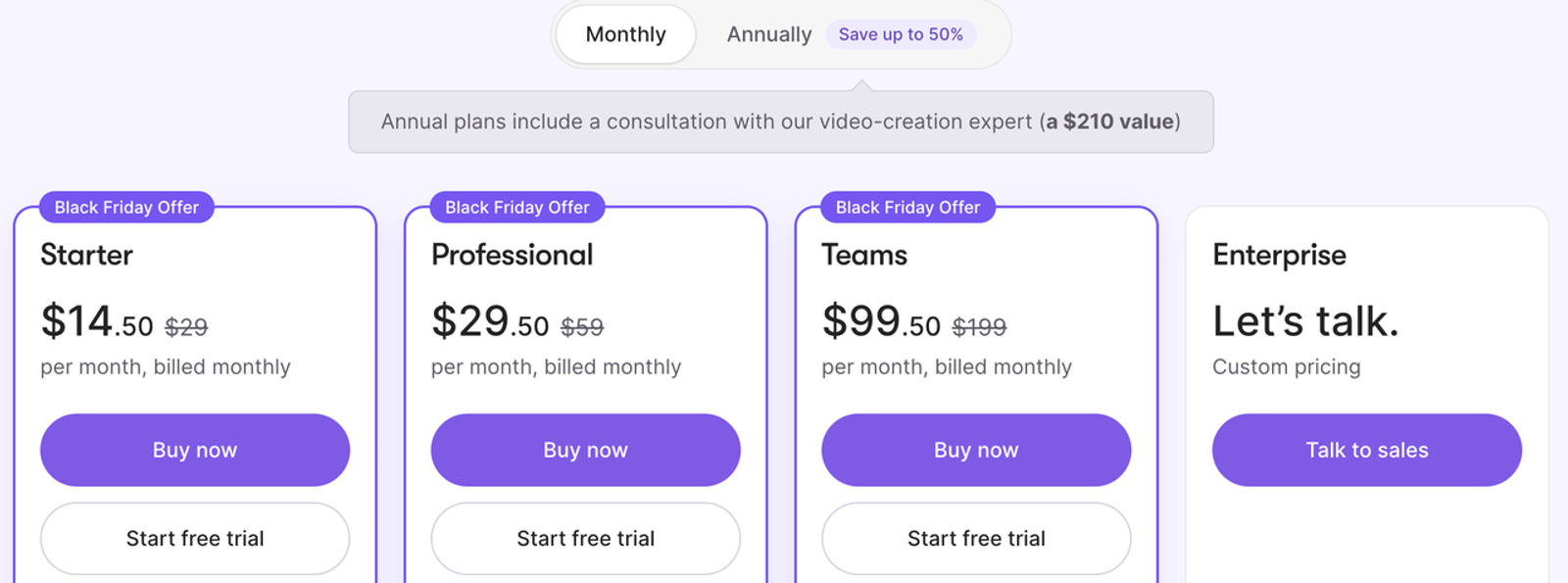
Pictory fits when your team regularly makes explainers from short scripts and has usable footage for the scenes that show the actual product. Pictory’s plan comparison lists one user on Starter and three or more users on Teams, with shared brand assets and collaboration on Teams. Count the people who need to edit. A colleague who only needs to watch the cut can use a preview link.
Before generating, check the estimated credits for your selected visuals and narration in Video Preferences. Compare that estimate with your planned publishing volume and allow for scenes that may need another pass. A recurring series with approved diagrams and recordings has a different budget from a series that needs new AI visuals for every episode.
Explainers Versus Product Proof Videos
A diagram and narration can explain who approves a request. If a buyer needs to verify what appears in the request history, use an actual product capture for that scene and write the narration around it. A short explainer can start with the script, while a demonstration that depends on a precise UI sequence should start with approved footage.

Conclusion
I’d choose Pictory for recurring explainers when the team can supply accurate visuals for the scenes that matter most. For the purchase approval video, sign off on the exported cut once the routing threshold reads correctly, the return action is visible, and the captions leave the relevant controls clear at the intended viewing size.
FAQ
- Can Pictory use a company’s brand font in captions?
- Yes, on a plan that includes custom brand fonts. Pictory lists this feature on Professional and Teams. Upload the font through the storyboard’s font menu or add it to a Brand Kit, then check how the on-screen captions wrap in the final crop.
- Which subtitle file formats can Pictory export?
- Pictory can export timed subtitles as SRT or VTT. The Export text menu also offers TXT for a plain transcript. Choose the format your destination accepts and deliver it with the matching video version. If the brief also calls for an on-screen presenter, our Synthesia alternatives guide covers AI Studios’ workflow for presenter videos with editable SRT files.
- Does the free trial add a watermark to downloads?
- Yes. Pictory adds its branding to videos downloaded during the trial. If you upgrade, reopen the project and download the video again under the paid plan to get a version without the trial watermark.
- Who licenses stock clips used in a Pictory video?
- Pictory or its licensors grant limited rights to use library clips within videos made through the service. Pictory sources stock visuals from providers including Storyblocks and Getty Images. Under Pictory’s Terms of Service, standalone use of those clips is prohibited. Before publishing, check Pictory’s current terms, the asset provider’s applicable restrictions, and the destination platform’s policies for your placement.
- Can a colleague review a project without editing it?
- Yes. From the storyboard, open Preview and select Copy preview link. Pictory’s preview sharing guide says recipients can watch the cut without editing or downloading it through that link. Collect timestamped feedback in your usual approval channel so the editor can apply it to the right version.