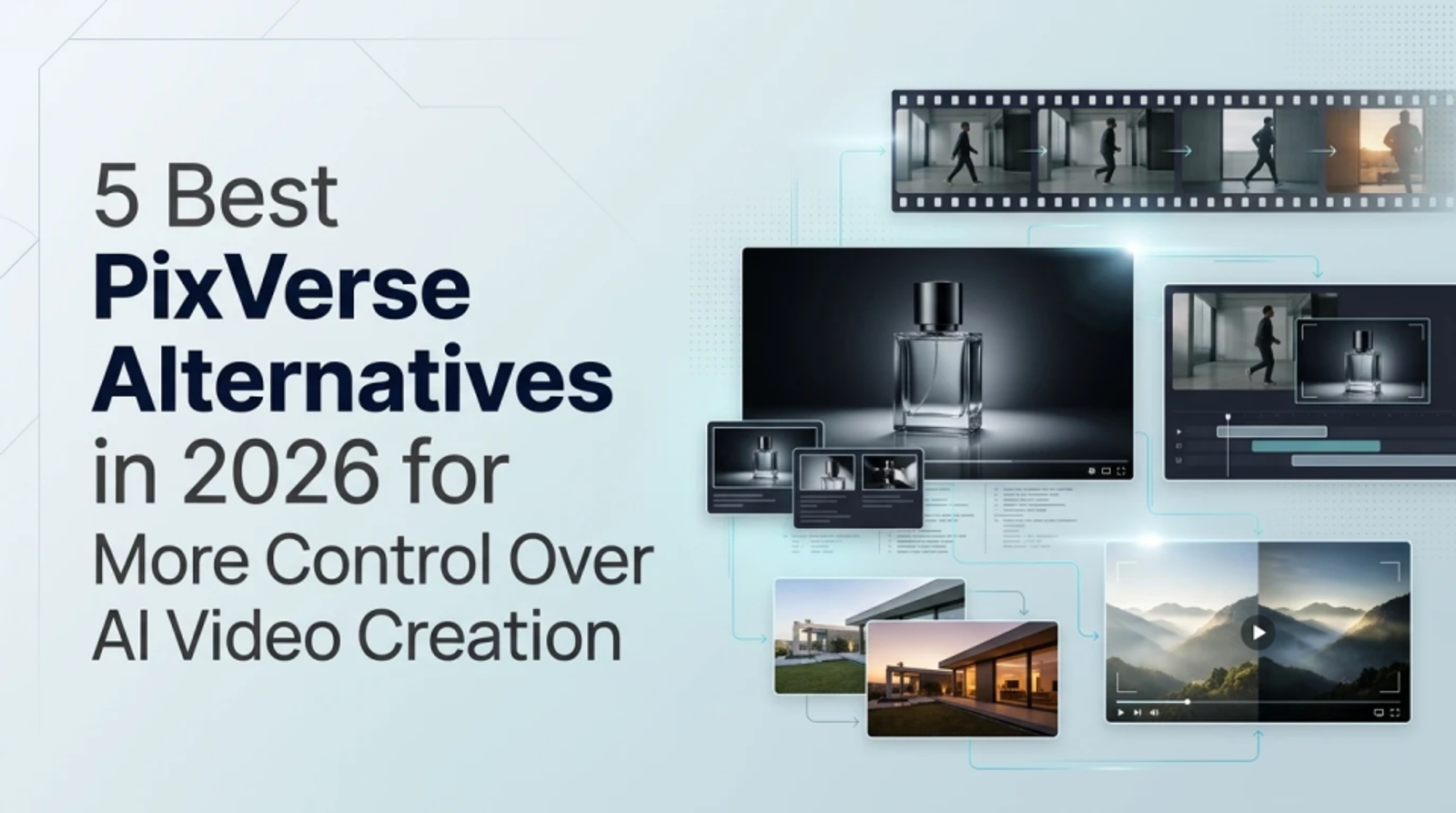
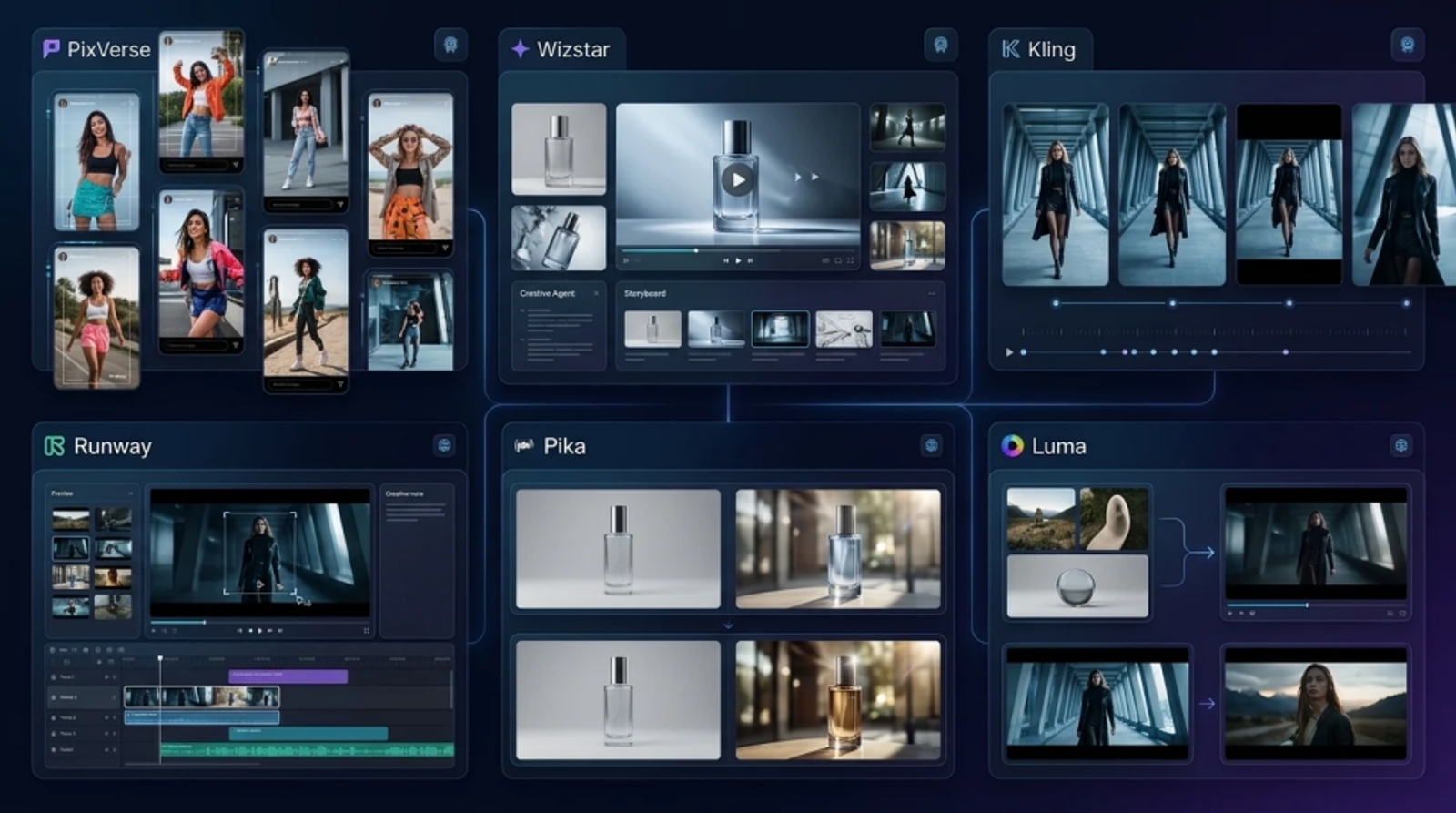
Among PixVerse alternatives, Wizstar suits product assets that need script and scene review before assembly. Kling fits reference and motion direction, while Pika handles targeted edits on an existing clip. I'd make the choice right at the point where your current video needs revision.
A different AI video generator earns its place by solving that exact bottleneck. Runway pairs Agent assistance with manual timeline editing, whereas Luma covers keyframe-guided generation and footage transformation. The real question is whether your starting asset can reach the next required production step—something a low subscription price alone cannot answer.
What should a PixVerse alternative replace?
A PixVerse alternative should take over a specific generation, direction, or revision task. PixVerse already provides text and image generation, templates, visual references, Agent workflows, and Canvas, so stick with it whenever those tools complete the job. Having another Agent alone is not a reason to switch.
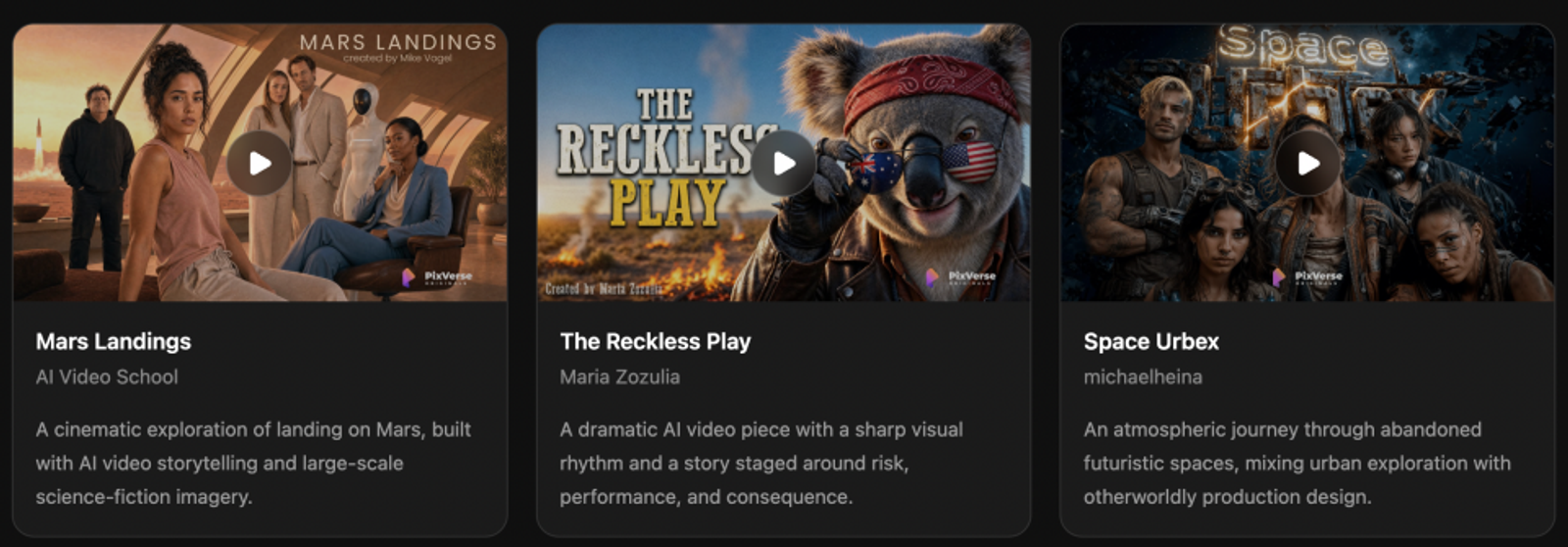
These five alternatives overlap with distinct stages of video production:
| Alternative | Starting asset / shared task | Control or finishing step | Workflow fit |
| Wizstar | Text, product images, or product link | Reference guidance; script and scene review | Product assets becoming an assembled video |
| Kling | Visual references and a planned shot | MotionControl; Kling 4.0 multi-keyframes | Direction depends on motion or composition |
| Runway | A brief needing a first cut | Agent notes and manual editing | Editorial work continues after generation |
| Pika | Images, text, or existing footage | Camera, relighting, resizing, and new takes | A clip needs a focused revision |
| Luma | Keyframe images or input footage | Image-to-video and footage transformation | Planned shots or performance changes |
Your starting asset and the exact change you need will narrow the shortlist far more effectively than a general platform ranking.
Suppose a product clip already has the right action but needs different lighting. Rebuilding its entire concept introduces new creative decisions before fixing the actual problem. I'd match the replacement tool directly to the revision, keeping the rest of the brief intact so the new platform solves the specific issue that prompted your search.
Wizstar: from product assets to a reviewed video
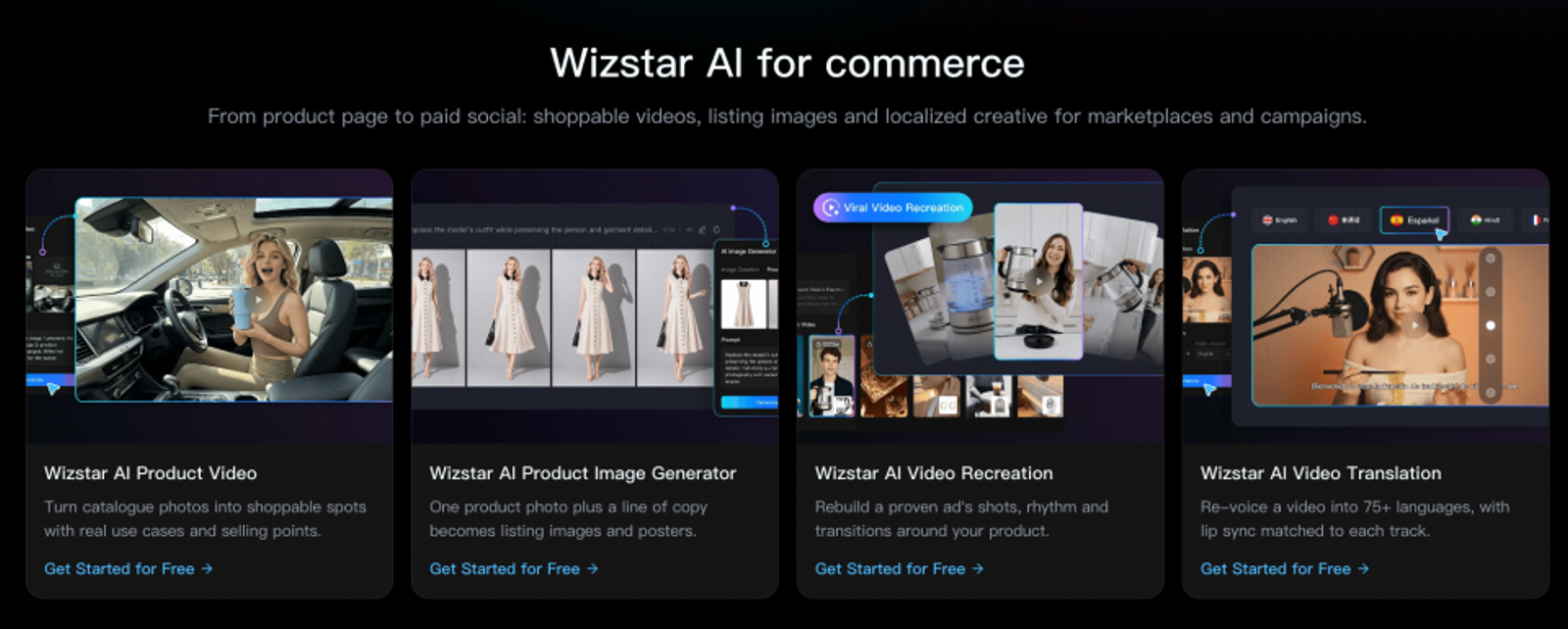
Wizstar connects product assets with video generation and a separate Agent workflow for assembling a complete ad. Its AI video generator accepts text, images, and reference images that guide characters, style, and composition.
The E-commerce Agent takes a product link or at least three product images, then walks through requirements, storyboard, script, scenes, captions and music, merging, and download. Because Simple or Fast modes may skip review stages, choose the path that preserves room for the decisions your brief requires.
For instance, three product photos might anchor an ad whose script needs a stronger opening line. I'd start with the E-commerce Agent for that task, since changing the opening wording affects the scenes that follow. Generating a single raw shot is a much narrower job, and for exact frame-by-frame motion transfer, reference-image guidance alone is not enough.
Kling: reference and motion direction
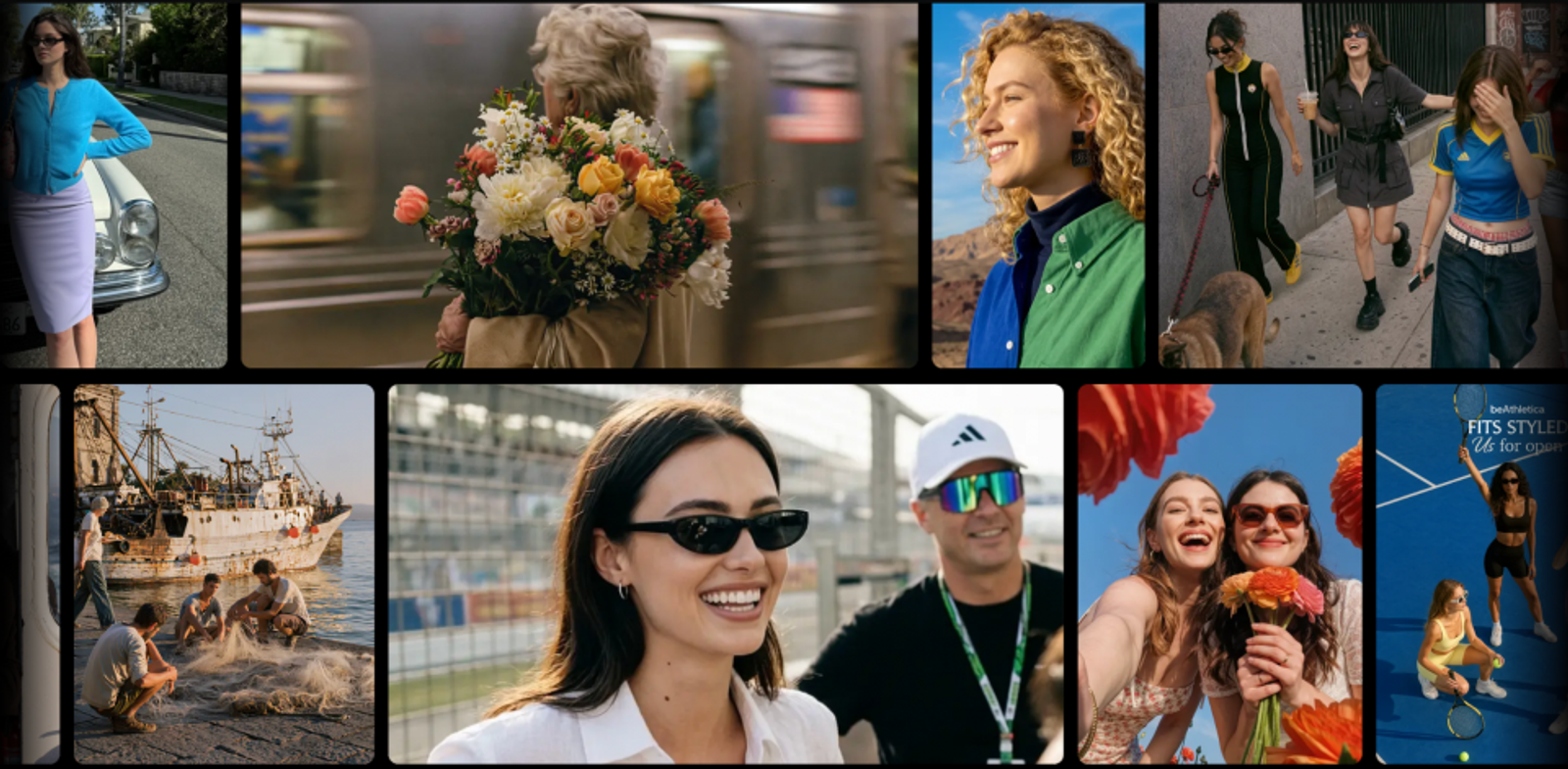
Kling's reference and motion tools are built for shots with a defined action or planned keyframes. The Kling platform includes visual reference tools and MotionControl, while Kling 4.0 separately adds Omni Reference, multi-keyframes, and native 30-second generation.
Motion and final composition drive this choice. Pairing a subject reference with a required endpoint gives the brief a clear visual target: specifying both what the shot does and where it lands. I'd prioritize motion direction here, carrying both the subject reference and the endpoint directly into the generation request.
Keep the required action and endpoint explicit in your brief, as both shape the resulting shot. Longer native duration is only an advantage when that extra length serves the sequence you are building.
Runway: Agent work with manual editing
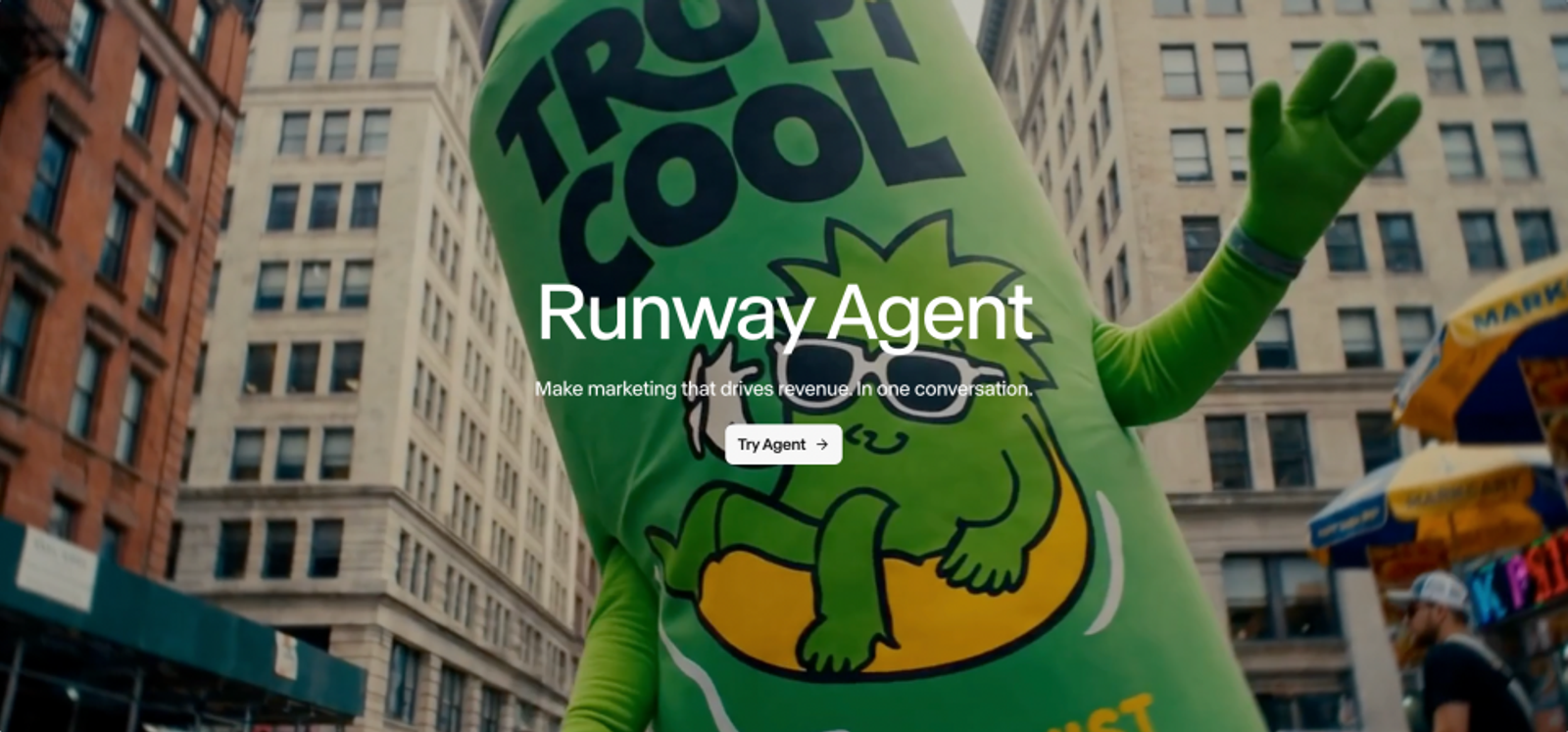
Runway connects Agent assistance with the editorial decisions that continue after a first cut. Its Agent plans and generates that initial assembly, then accepts targeted notes on a specific shot, spoken line, or audio element. Manual editing stays accessible throughout, turning the generated sequence into a working starting point for the next revision.
Changing a single line can reshape the editorial task. A short video might already have a strong opening shot, yet need a revised spoken line inside that specific part of the cut. I'd favor this workflow whenever you need to give creative notes and then take over the edit yourself. That handoff matters just as much as initial generation because a rough cut still has to carry the intended pacing, wording, and sound.
The main reason to pick Runway here is that seamless handoff between Agent automation and manual control. Frame your note around the exact shot, line, or sound that needs adjustment, then continue refining the cut—an approach built for sequences where wording and audio evolve alongside the visuals.
Pika: revise the clip you already have
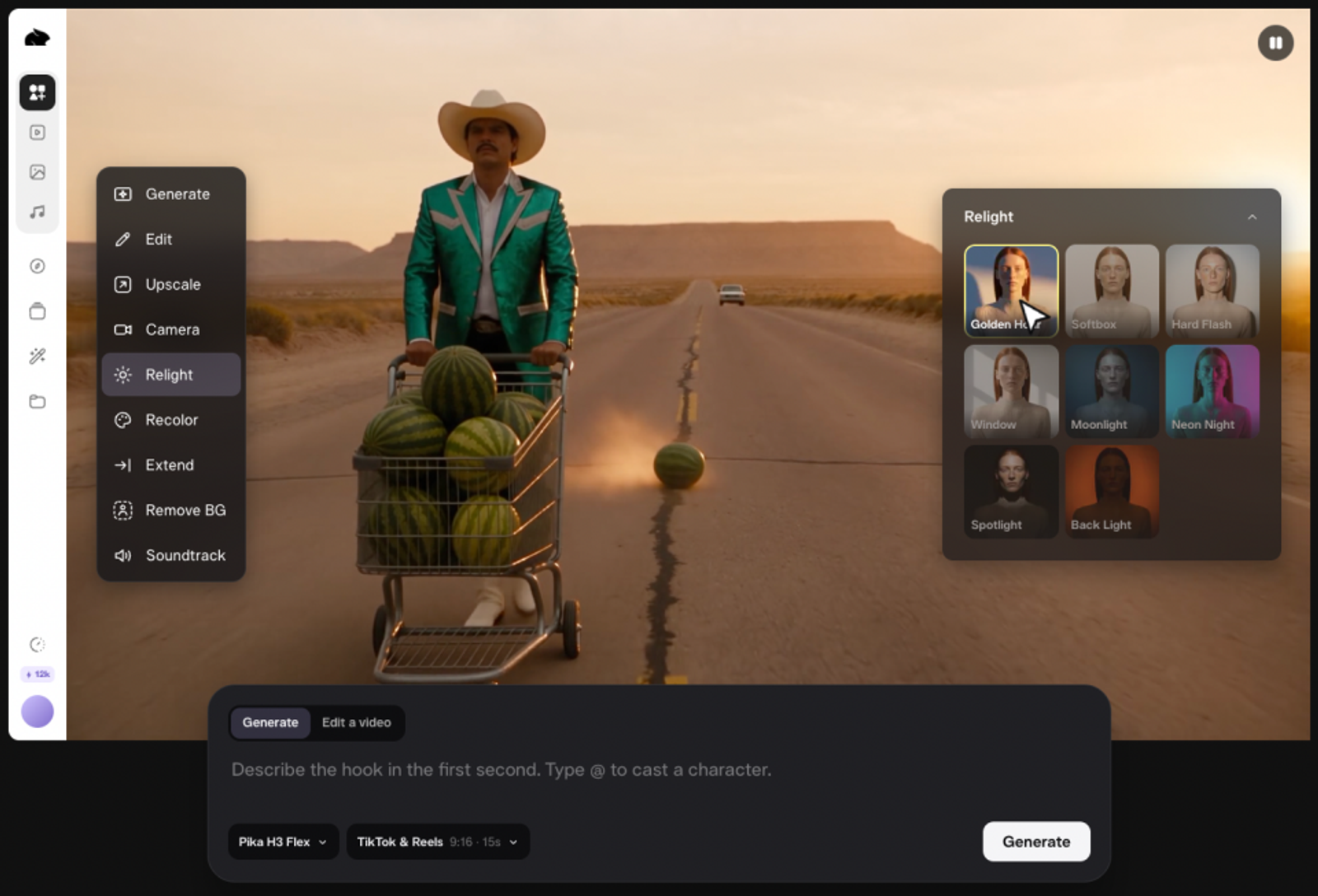
Pika's footage editing tools target a clip that needs a focused adjustment before joining the rest of a video. Video Studio Pro combines text and image generation with targeted edits covering camera changes, relighting, color, resizing, clip extension, sound, and finishing. Each edit outputs a new take while keeping your original clip intact.
Imagine a product clip with great subject action whose lighting clashes with the surrounding shots. I'd start directly with relighting rather than rewriting the concept around a brand-new generation. Similarly, a framing issue points straight toward camera or resizing controls, keeping the fix anchored to the footage you already have.
Because each new take leaves the original clip untouched, the revision stays easy to manage in your brief: the core action already works, and only the lighting or framing needs adjustment. Keep the neighboring sequence in view so any fix to one shot blends cleanly into the wider video.
Luma: keyframes and footage transformation
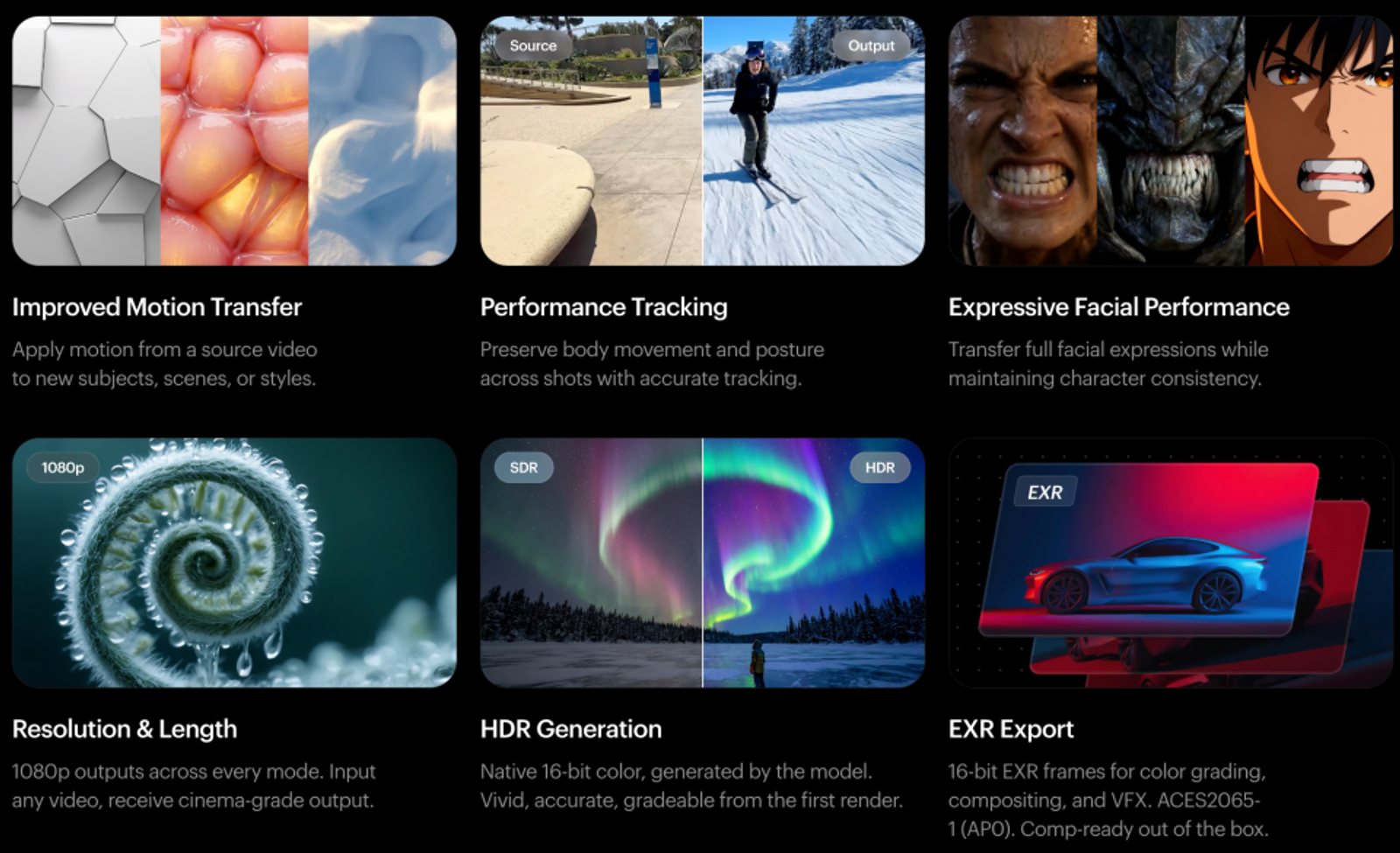
Luma handles two closely related jobs: generating a planned shot from keyframe images and transforming existing footage. Ray3.2 supports keyframe-guided image-to-video generation, using still images to lock in a shot's planned composition. Its footage transformations cover performance and motion transfer, product or character swaps, and relighting.
Your starting asset determines which Luma workflow applies. An image-led shot starts from a still composition you want to animate, whereas a footage transformation starts from motion or performance already captured in a clip. I'd lean toward Luma when that performance defines the requested change; script review belongs to an earlier stage of production.
Input format also affects your budget. Luma's SDR and HDR workflows carry different credit charges, so match your recipe to the required dynamic range. Keep the requested transformation specific—relighting a scene and swapping a character are separate tasks—and for a planned image-led shot, make keyframe composition part of your upfront setup.
What do the monthly plans actually cover?
Monthly subscriptions provide a platform-specific credit allowance, with actual consumption determined by your generation recipe. As of November 2026, these representative entry tiers carry the following recurring prices in USD, before taxes:
| Platform / plan | Recurring monthly USD | Included platform credits | Billing condition |
| PixVerse Standard | $10 | 1,200 every 30 days | 30-day allowance |
| Wizstar Starter | $18.05 | 1,310/month | First month $10.99 |
| Kling Standard | $8.80 | 660/month | First three months $6.50/month |
| Runway Standard | $15 | 625/month | Monthly billing |
| Pika Starter | $10 | 600/month | Monthly billing |
| Luma Plus | $30 | 10,000 credits | Monthly plan |
Use the recurring monthly column to plan an ongoing budget, keeping in mind that each platform's credits follow separate spending rules.
Wizstar's first-month price and Kling's first-three-month price are introductory rates. Annual billing also requires a different upfront commitment: Pika Starter is $96/year (equivalent to $8/month), and Runway Standard is $144/year (equivalent to $12/month). I'd build your budget around the renewal rate you will pay once any introductory discount ends.
Three five-second recipes show why export settings matter. Standalone Wizstar Seedance 2.5 at 720P costs 22 credits per second, or 110 credits per attempt, allowing 11 complete attempts on Starter. Pika 2.5 at 720p for five seconds costs 20 credits, allowing 30 complete attempts on Starter.
Luma Ray3.2 SDR image-to-video at 720p with a keyframe costs 100 credits per five seconds, giving Plus users 100 complete attempts under that recipe. Generating without keyframes adds 30 credits per clip, so keep that setting tied to your cost estimate.
Remember that these numbers represent theoretical generation attempts across different models and settings—not a count of finished, approved videos. I'd budget separately for scripting, audio, and editing when planning an Agent-built ad, since raw per-clip rates only cover generation. Base your budget on the renewal price and your exact generation recipe rather than treating credit totals across platforms as interchangeable currency.
When to keep PixVerse or change platforms
Always budget for the complete deliverable. Use your chosen model’s credit rate and monthly allowance to estimate generation attempts, then factor in scripting, audio, and editing wherever your project requires them. That gives you a far more reliable basis for choosing a plan than comparing headline subscription prices alone.
For a standalone shot, open Wizstar’s AI video generator and start from text, an image, or a visual reference. If your product video requires script and scene review before assembly, prepare a product link or at least three product images and follow the E-commerce Agent workflow. Confirm your inputs, review stages, and total production budget before committing to a recurring subscription.
FAQ
- Is PixVerse AI free or paid?
- PixVerse AI offers both free and paid tiers. Its Basic allowance includes 60 initial credits and 30 daily credits, with daily credits expiring rather than rolling over. Free access comes with watermarks and lower-resolution caps, while paid plans unlock larger allowances and watermark-free downloads. The practical difference comes down to the export quality and permissions your video requires, not simply whether generation is available.
- Can I use my PixVerse videos commercially?
- Yes, PixVerse permits commercial use under conditions covering paid plans and PixVerse-developed models. You must use lawful source materials and comply with the applicable terms. Because third-party model providers enforce their own rules, check which model generated your clip. Platform creative assets also carry separate restrictions, and commercial permission does not grant a blanket copyright guarantee for every generated output.
- Where can I read the PixVerse privacy policy, and how do I ask about my personal data?
- You can review the PixVerse privacy policy and send personal-data inquiries to support@pixverse.ai. Its terms include an aggregated, anonymized content-use license for service improvement, including model training and optimization, with opt-out options available where supported by the platform. Contact support to confirm which opt-out controls apply to your account and how they handle your specific data request.
- Can I try Wizstar’s AI video generator for free?
- Yes, Wizstar provides 20 signup credits with no credit card required. Its free access covers eligible tools, though certain advanced avatar and voice features require a paid subscription. Because credit consumption varies by model, duration, and output quality, the trial allowance does not guarantee a fixed clip count—match your test to the specific generation task you want to evaluate.
- Which account systems are supported for registration and login?
- Wizstar supports Google, Facebook, and email accounts for registration and login. Its account FAQ lists supported third-party email providers including Gmail, iCloud, and Yahoo. Password recovery relies on your registered email address and a verification code, so choose a signup method tied to an inbox you can reliably access later.
- Can I use one account on multiple devices simultaneously?
- Yes, Wizstar allows you to use one account across multiple devices simultaneously, though it recommends avoiding concurrent logins for account security. Its account guidance advises securing each active session whenever simultaneous access is necessary. While your account permission covers multiple devices, following those security precautions helps protect your sessions when working across screens.