The short answer
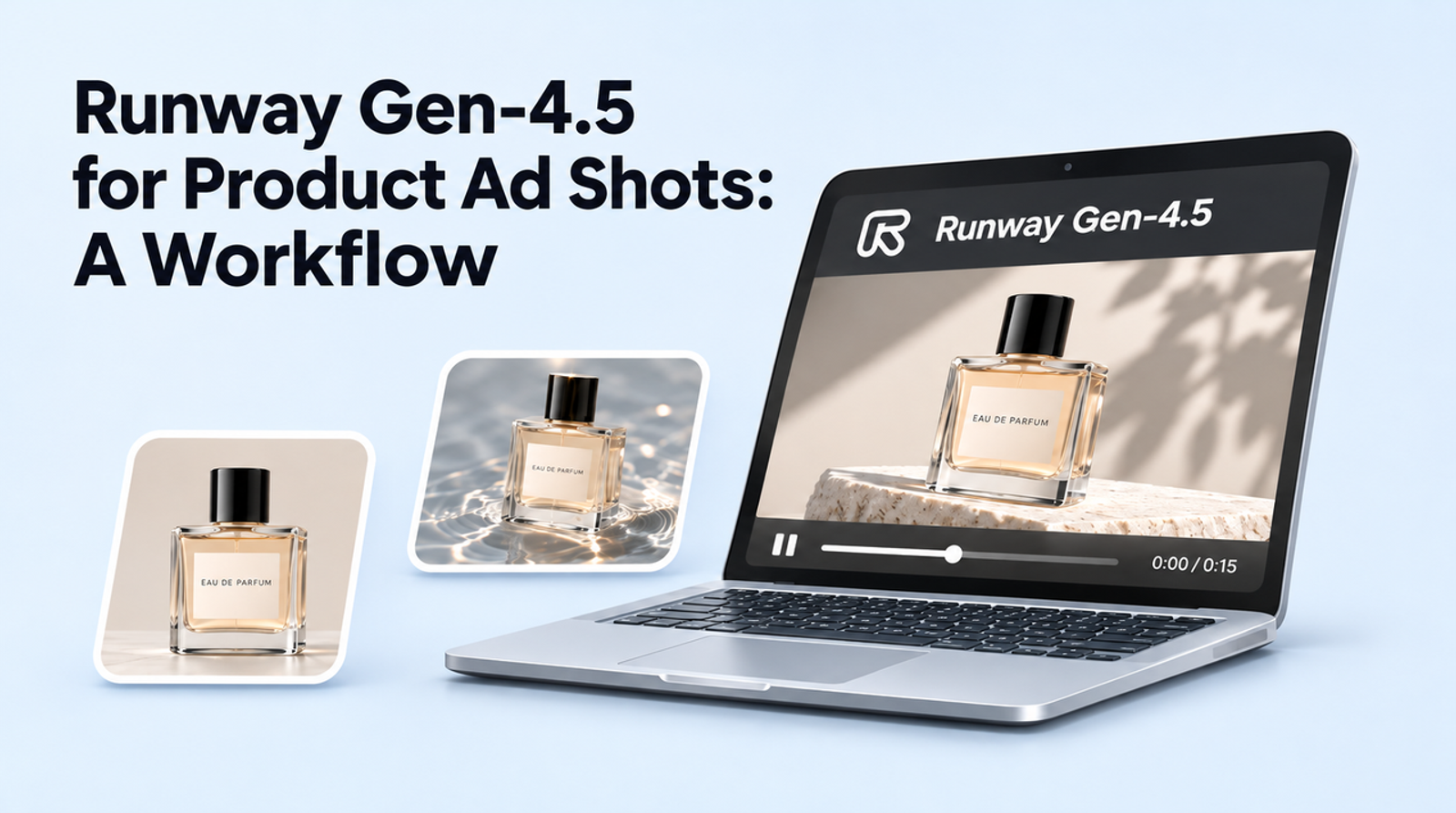
Runway Gen 4.5 works best for a product ad shot when you already have an approved image and need one controlled movement around it: a push-in, reveal, or gentle camera shift that an editor can place in a larger ad. Start with the real product, prompt the motion, render a short clip, and inspect whether the item stays recognizable. The result is a shot to review and assemble, not a finished campaign simply because it moves.
When Is Gen-4.5 the Right Tool for a Product Shot?
A Generated Clip Versus a Finished Ad
Think of a five-second hero shot: the product stays central while the camera moves closer. The approved image supplies the object and initial composition; Gen-4.5 supplies motion.
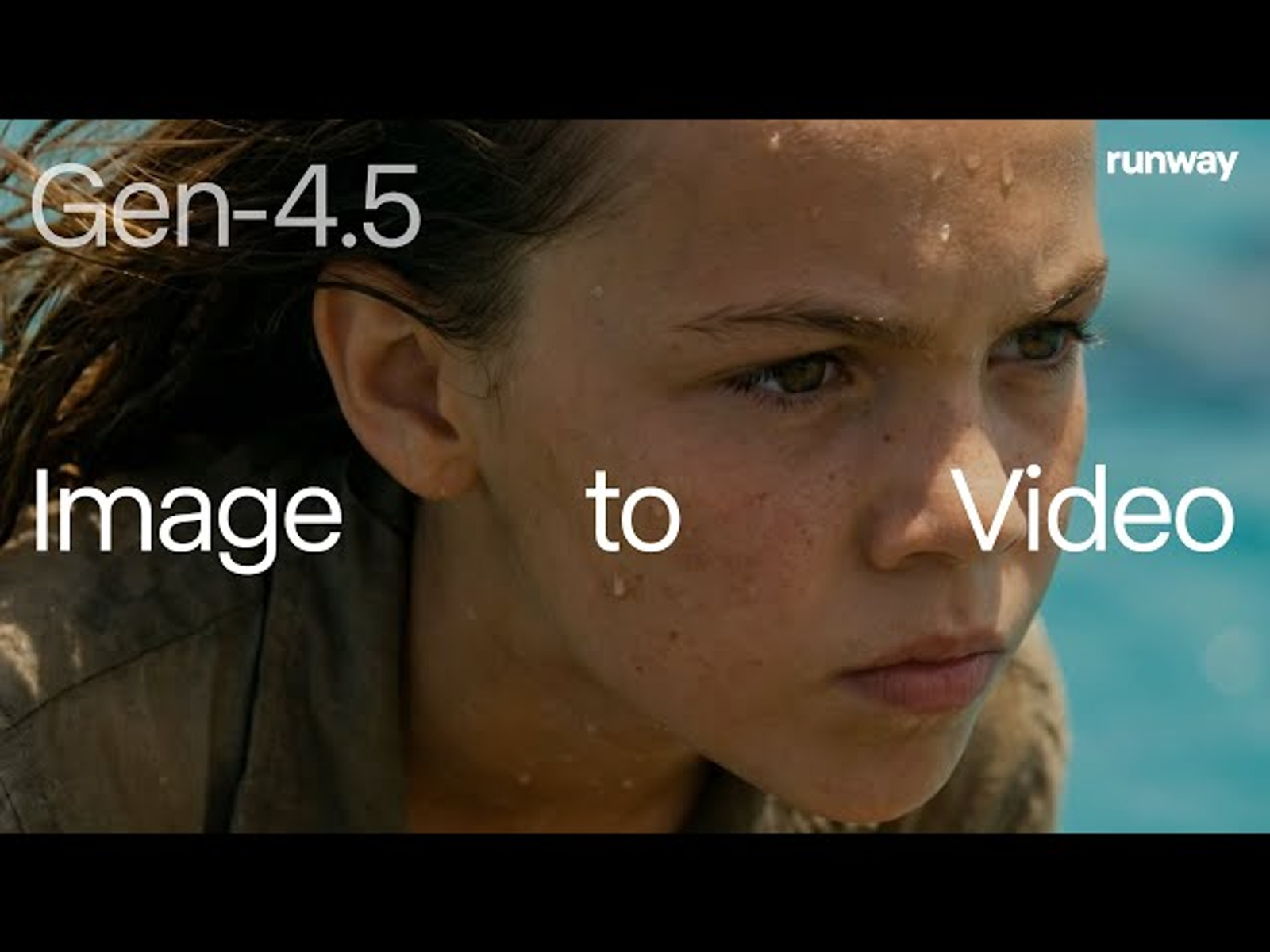
Runway's current Gen-4.5 creation guide documents text-to-video and image-to-video on the web. Image-to-video gives this shot a real product anchor; the editor can handle copy, sound, and its place in the ad.
A beautiful camera move can hide the label when it should be clearest. Pretty is easy to spot. Useful takes another look.
What Should You Prepare for Image-to-Video?
An Approved Product Image and One Motion Goal
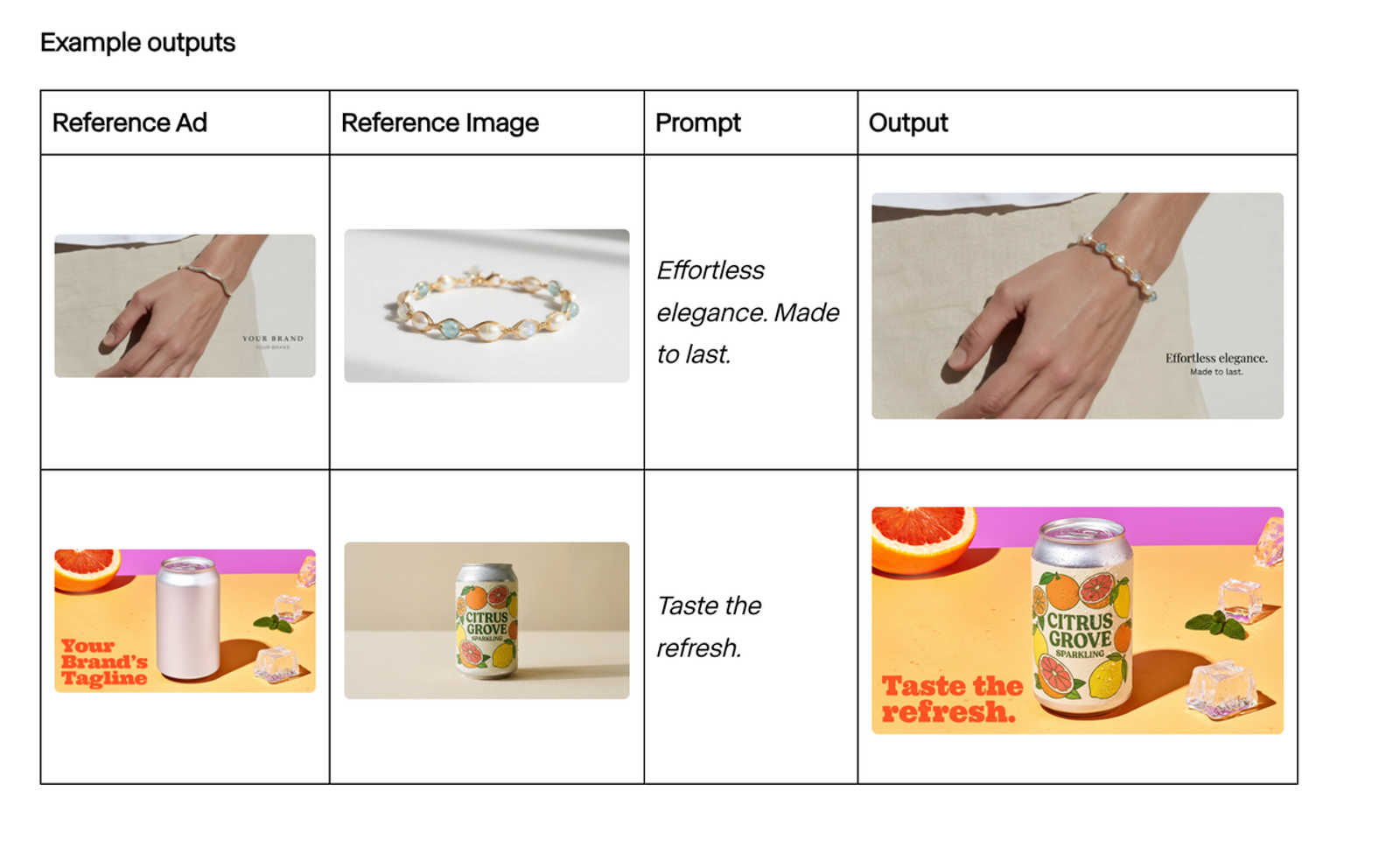
Start with a clean, authorized image of the exact SKU. Make the product large enough to inspect, with its logo, cap, controls, or other identifying features visible. An ambiguous source image will not become a reliable product shot through extra adjectives in the prompt.
If the backdrop needs a small correction, use a controlled photo cleanup workflow and compare the handle and logo with the original before uploading the edited image.
Choose one movement and one reason for it. A slow push-in can direct attention to a detail; a locked camera with small environmental motion can keep packaging readable. For a silver travel mug, I would avoid a full rotation without an approved rear view.
Set the target ratio before generation. The current guide lists 16:9, 9:16, 1:1, 4:3, 3:4, and 21:9 image-to-video choices, with 720p output and 24 or 25 fps. Changing ratio may crop the input, so leave room around the product in the source image.
How Do You Generate a Short Product Shot?
Choose the Current Gen-4.5 Entry Point
The official web guide describes two routes: search for Gen-4.5 in Apps View, or choose it in Tool Mode with Video selected. Upload the image, then confirm ratio, duration, and frame rate. The documented range is 2–10 seconds; leave enough time for a readable end frame.
Check the displayed credit cost before generating a batch; approval may take more than one render. The Kling 4.0 approved-clip cost example shows how to count rejected takes, export costs, and review time alongside generation charges.
Write Motion-Centered Instructions
Runway's image-to-video prompting guide recommends describing what happens and how the camera moves rather than redescribing every object already in the image. For the mug, I would write: “The mug remains stationary on the tabletop. The camera makes a slow, shallow push-in from the front, ending with the brand mark fully visible. Soft reflections move across the metal. One continuous shot; no turn of the mug and no new objects enter the frame.” It gives the model a motion path, a stable subject, and an endpoint the team can inspect.
If the prompt asks for a rotation, a splash, a hand entering, a label reveal, and a scene change in five seconds, the output has too many ways to fail. Start with the smallest move that serves the product, then add complexity only when the first clip has a reason to carry it. If you need to distinguish a slow push-in from a pan in the brief, the Seedance 2.5 camera movement examples give you wording for each.
Render, Inspect, and Revise the Clip
Watch the render at full speed first. Does the movement create a usable beat, or does it spend the whole clip arriving at the product? Then pause at the opening, middle, and final frames and compare them with the approved mug image. Look at the handle shape, lid seam, logo orientation, metal finish, and any small text. A credible reflection is a bonus; A warped brand mark is a failed product shot.
For a second attempt, change one cause at a time. If the camera moves too fast, revise the motion sentence. If the label breaks, reduce the move or use a cleaner source image. If the framing crops the handle, fix the source composition or ratio. The next edit is part of the cost. Make it a deliberate edit rather than a fresh prompt that loses the useful parts of the first render.
What Makes the Output Brand-Ready?
Product Geometry, Text, and Visual Continuity
The review decision is simple: can this shot carry the real mug into the final ad, and does it leave a readable moment for the message? If the camera shift makes a key feature disappear, save the motion as a concept and use a different take. Add exact prices, dimensions, and claims later as editable overlays.
Check any lettering on the mug at the size viewers will see in the ad. The PixVerse product-detail review applies that check to small text alongside shape and logo placement.
The FTC's advertising guidance says claims in ads should be truthful and evidence-based. That applies to the visual implication of a generated demonstration too. A mug appearing to survive a fall or keep a drink steaming for hours could communicate a performance claim the brand has not substantiated. For a simple hero shot, avoid staging actions that imply unverified product performance.
If the logo morphs or the handle changes shape midway through, a clean thumbnail cannot rescue the shot. Shorten the move or animate the approved still in an editor.
Editability and Assembly Into an Ad
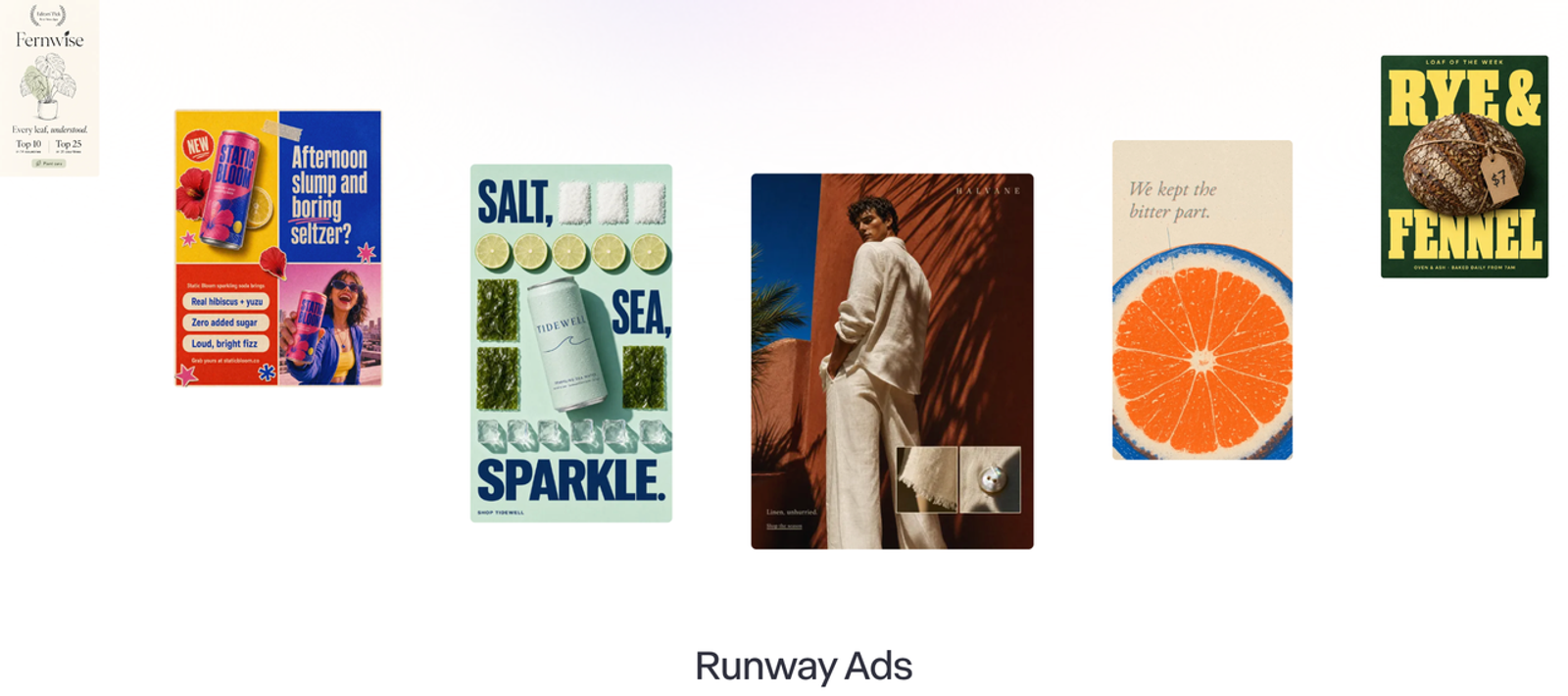
Before generating, leave room for a headline or product name in the frame. After export, let the editor add the copy, sound, end card, and any placement-specific crop. The Gen-4.5 guide describes downloading or upscaling a completed result; it also documents ProRes or PNG-sequence output choices on Max, legacy Unlimited, and Enterprise plans, with an extra credit cost. Those formats can matter when the shot will be graded or composited, but they are not necessary for every short ad.
Keep the approved source image, prompt, generated file, and final edited export together. The C2PA working group's explanation of Content Credentials describes a method for recording media provenance where supported. Whether or not the final platform preserves that metadata, the team still needs an internal trail that explains which product image and claim were approved for the ad.
Where Does Gen-4.5 Need a Different Workflow?
Complex Claims, Multiple Shots, and Localization
Several precise operations, spoken claims, hidden angles, and localized versions call for a broader edit plan. Use verified footage for actions the still cannot prove and keep translated copy editable. A Gen-4.5 shot can sit inside that plan without carrying the whole campaign.
If the brief requires a rear control panel, capture it. If someone must actually use the product, use authorized footage. No prompt can turn missing product documentation into an accurate demonstration.
Conclusion
A good Gen-4.5 render earns its place in an ad when the product survives the motion and the editor can use the shot. When the image cannot support the action, change the source or the production method. The camera move should serve the product, not compete with it.
FAQ
- Which Runway plan currently includes Gen-4.5?
- Runway's current Gen-4.5 guide lists Standard and higher for access. It also lists 12 credits per generated second, while higher plans offer different credit allowances and some export choices. Check the current plan page and the cost shown before generation, because access and credit amounts can change.
- Can Gen-4.5 outputs be used in paid product ads?
- Runway's commercial-use help page says users may use their creations commercially without a Runway-imposed noncommercial restriction. That does not clear rights in the uploaded photo, music, trademarks, talent, or claims. A brand should confirm those inputs and the applicable terms before delivering an ad; this is general production guidance, not legal advice.
- Is Gen-4.5 available through the Runway API?
- Yes. The current Runway API reference lists
gen4.5for its image-to-video endpoint. API use has its own authentication, request format, and billing path, so a team moving from the web interface should verify the model parameters and test its integration separately. - Does Runway retain the product image used as a reference?
- Runway says uploaded media is stored in the account's Assets and defaults to private; deleting or sharing it requires account actions. The public asset guidance does not specify one universal retention period for every uploaded image, backup, or enterprise arrangement. Check the current privacy terms and contract before uploading unreleased product photography, and delete the asset when the project no longer needs it.
- Are failed Gen-4.5 generation jobs charged credits?
- Runway's generation-error guidance says credits used for a failed generation are automatically returned shortly after the error. A completed render that simply misses the brief is a different case: plan for that iteration as normal usage. If the balance does not reconcile, check the credit history and Runway's current discrepancy guidance.